

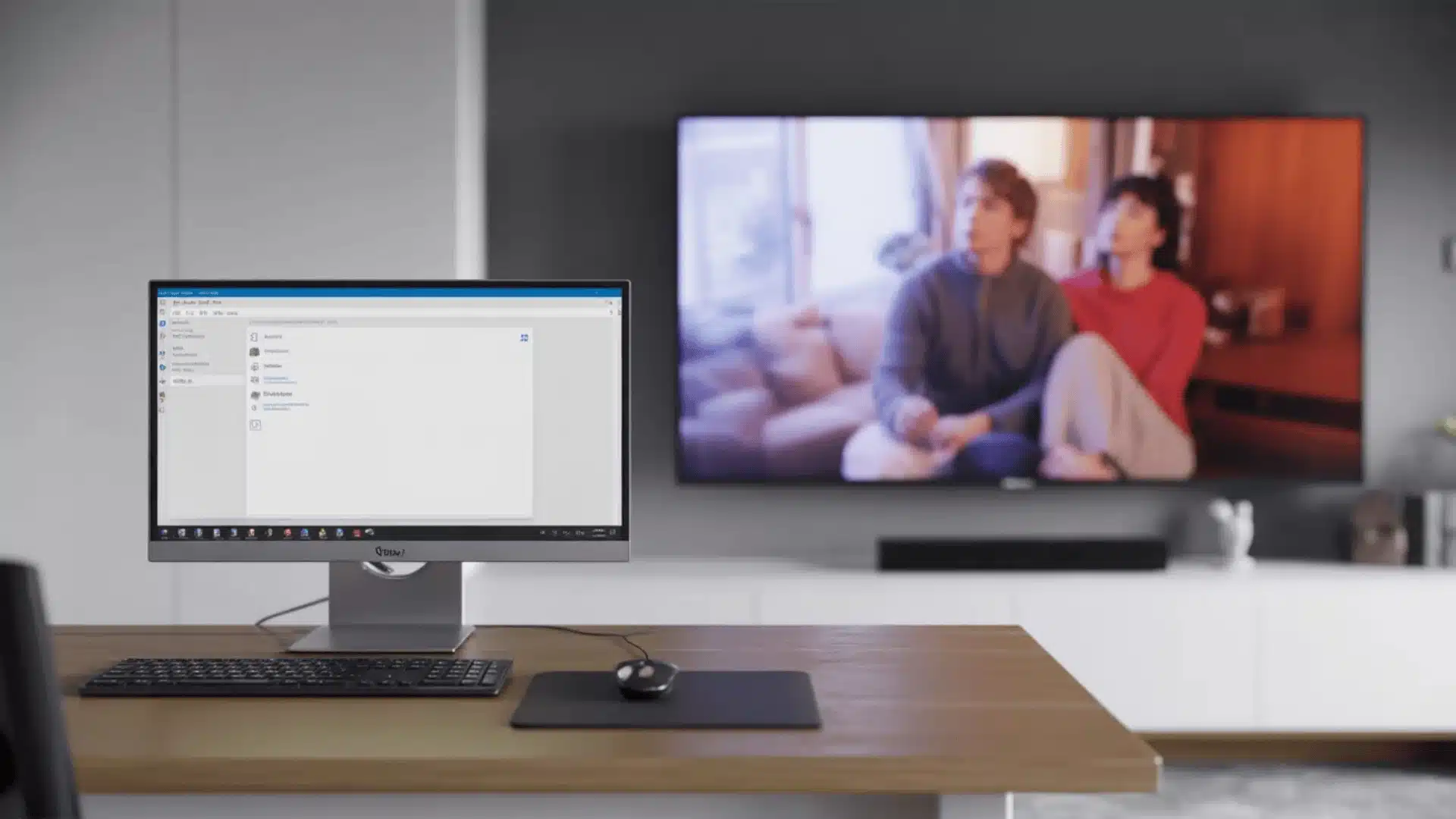

Choosing between a monitor and a TV can feel confusing, especially now that both offer high resolutions, fast refresh rates, and gaming features. At first glance, they may seem almost identical.
But they are built with different priorities in mind. One focuses on close-up precision and responsiveness, while the other is designed for large-scale viewing and entertainment.
Understanding the core differences is what makes the decision easier. This breakdown will help you understand which option truly fits your space, usage, and performance expectations.
What is a Monitor and a TV?
A monitor is a display device used for close-up viewing with a computer. It focuses on sharp visuals, fast response, and precise control.
It is mainly used for work, browsing, and PC gaming. Higher pixel density helps keep text and fine details clear at desk distance.
A TV is designed for viewing from a distance in a room setup. It focuses on larger screens, built-in apps, and enhanced visuals for entertainment.
It is commonly used for movies, streaming, and console gaming. Image processing improves visuals but can add a slight delay.
The Main Difference Between a Monitor and a TV
Before comparing specs and features, it’s important to understand the core purpose each device was built to serve.
- Different Viewing Distance: Monitors are designed for close-up desk use, while TVs are optimized for comfortable viewing from across a room.
- Close-Up Clarity: Monitors use higher pixel densities to keep text and fine details sharp at close range.
- Low Latency Design: Minimal internal processing lets monitors respond faster to your inputs.
- Large-Screen Focus: TVs prioritize bigger displays and tuning suited for shared entertainment spaces.
- Heavy Image Processing: TVs enhance motion and upscale content, but that added processing increases delay.
- Performance Impact: More processing in TVs means higher input lag, while streamlined monitors feel more responsive.
- Not Identical Internally: Even with the same panel type, internal tuning and signal handling create noticeable performance differences.
Once you understand this foundational difference, every other comparison between a monitor and a TV becomes much easier to evaluate.
TV vs. Monitor: Specs and Features Comparison
Before diving deeper into performance details, here’s a side-by-side snapshot of how monitors and TVs typically compare. This table highlights the differences that matter most for real-world use.
| Feature | Monitor | TV |
|---|---|---|
| Typical Screen Size | 22″–34″ (common), ultrawide options | 43″–85″+ common |
| Resolution Options | 1080p, 1440p, 4K (some ultrawide formats) | 1080p, 4K, 8K |
| Pixel Density (PPI) | Higher for close-up clarity | Lower due to larger size |
| Refresh Rate | 60Hz–360Hz (gaming models higher) | 60Hz–120Hz (some 144Hz) |
| Input Lag | Very low by design | Low in Game Mode, higher otherwise |
| Response Time | 1ms–5ms common (OLED fastest) | Generally slower except OLED |
| VRR / Adaptive Sync | Wide support (FreeSync, G-Sync, HDMI VRR) | Available on newer HDMI 2.1 models |
| HDR Performance | Varies; strong on OLED/Mini LED | Often stronger brightness and processing |
| Smart Features | Limited (some models include OS/apps) | Built-in apps, streaming, voice control |
| Best For | PC gaming, productivity, desk setups | Movies, console gaming, shared viewing |
This overview gives you a quick clarity check. The next sections will break down why these differences matter and how they affect gaming, work, and everyday use.
Input Lag and Response Time Explained
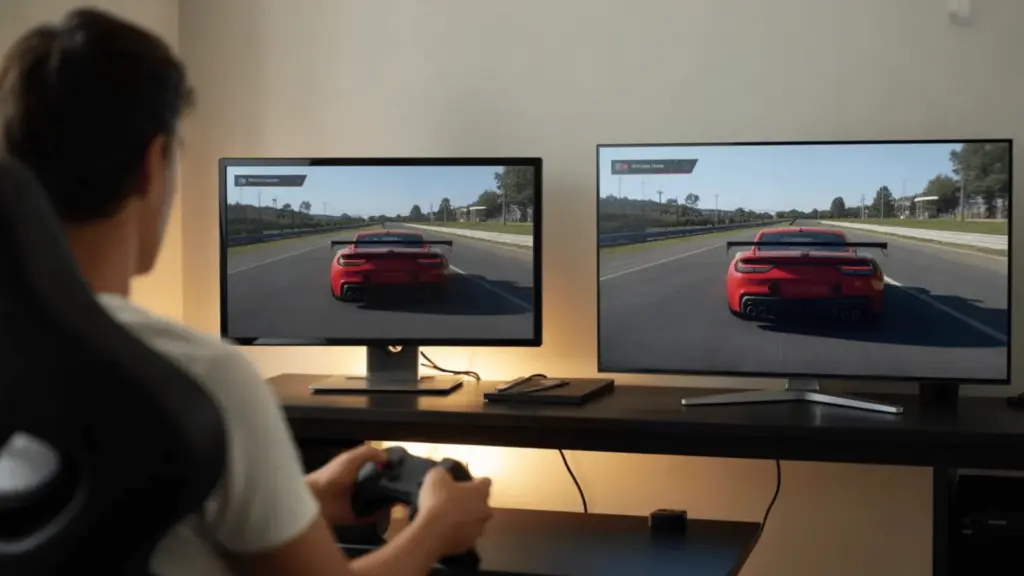
These two terms are often mixed up, but they measure completely different things. Understanding the difference helps you judge gaming performance accurately rather than relying on marketing numbers.
Input Lag (Signal Delay)
Input lag is the time between your action and its appearance on the screen. It measures how fast the display reacts to your input.
This delay is mainly caused by internal image processing. TVs process motion smoothing and scaling before showing the image, which adds extra time.
Game Mode reduces lag by disabling most of that processing. That’s why TVs feel much more responsive once it’s turned on.
Monitors are designed with minimal processing from the start. This gives them a lower baseline latency than most TVs.
It matters most in competitive shooters, fighting games, and rhythm-based games where fast reactions and precise timing are critical.
It matters less in movies and casual or story-driven games where timing and quick reactions are not as important.
Response Time (Pixel Transition Speed)
Response time measures how fast pixels change color. It affects how clean moving objects look on screen.
Slow response time causes ghosting or motion trails. This happens when pixels cannot switch between frames fast enough.
Panel type plays a major role. IPS is balanced, VA is slower with more ghosting risk, and OLED is the fastest.
TVs rarely publish true response time numbers. Instead, they promote motion features that don’t reflect real pixel speed.
Ghosting becomes visible in fast camera movement and dark scenes. It is most noticeable in competitive or high-speed games.
Refresh Rate and Motion
Refresh rate controls how many frames your screen shows per second. Motion handling affects how smooth and clear the movement looks.
Common Refresh Rates
- 60Hz: Standard smoothness. Works well for movies and casual gaming but feels less smooth in fast scenes.
- 120Hz: Noticeably smoother motion. Improves responsiveness and makes gameplay feel more fluid.
- 240Hz–360Hz: Designed for competitive gaming. Faster updates can help improve reaction timing in fast-paced games.
What Most People Actually Need
- 120Hz: Enough for most users who want smoother motion without needing high-end hardware.
- Above 144Hz: Gains become less noticeable for casual users, but competitive players may still benefit.
- Console Limit: Most consoles are capped at 120Hz, so higher refresh rates will not improve performance.
Motion Processing vs. True Refresh Rate
- True Refresh Rate: Shows the actual frames your device produces.
- Motion Interpolation: Adds artificial frames to simulate smoother motion.
Why Interpolation Can Be a Problem
- Soap Opera Effect: Makes visuals look unnaturally smooth and removes the cinematic feel.
- Input Lag Increase: Extra processing adds delay and reduces responsiveness.
Why Monitors Perform Better
- Lower Processing: Monitors reduce internal processing, allowing faster signal handling.
- Higher Refresh Rates: Enables better responsiveness and smoother performance.
Adaptive Sync and VRR Compatibility
Adaptive Sync and VRR (Variable Refresh Rate) are designed to fix a common issue in gaming: screen tearing. This happens when your GPU sends frames at a different pace than your display can refresh, causing visible horizontal splits in the image.
VRR solves this by synchronizing the display’s refresh rate with the GPU’s frame output. Instead of forcing frames to fit a fixed refresh cycle, the display adjusts in real time, which keeps motion smooth and eliminates tearing or stutter.
There are different versions of this technology. FreeSync works with AMD graphics cards, while G-Sync is designed for NVIDIA GPUs. HDMI 2.1 VRR is a standardized version commonly used in newer TVs and gaming consoles.
Compatibility depends on your platform. PCs may support FreeSync or G-Sync depending on the GPU, while consoles typically rely on HDMI 2.1 VRR. This makes matching your display to your system important for proper performance.
VRR matters most in games where frame rates fluctuate, such as open-world or visually demanding titles. In games locked at a stable 60 or 120 fps, the benefit is much less noticeable.
Monitors usually offer broader VRR support because they include multiple standards across HDMI and DisplayPort. This makes them more flexible for different gaming setups.
Choosing the right VRR support depends on your platform, but when matched correctly, it significantly improves motion smoothness and overall gameplay consistency.
HDR and Image Quality Differences
HDR can greatly improve image quality, but performance depends on the display’s hardware. The label alone doesn’t guarantee strong results.
True HDR requires high peak brightness, deep blacks, and proper local dimming. Without these, the improvement is minimal.
OLED delivers perfect blacks and fast pixel control, while Mini LED offers high brightness with controlled dimming zones. Standard LED displays usually lack the contrast precision needed for impactful HDR.
Many “HDR-ready” monitors accept HDR signals but don’t have enough brightness or dimming capability to make a visible difference. That’s why HDR can look underwhelming on some models.
TVs often deliver stronger HDR because they prioritize brightness and advanced tone-mapping. However, OLED TVs may auto-dim during static desktop use, which can be distracting as a monitor.
HDR makes the biggest difference in movies and cinematic games. For productivity work, it adds little practical value.
Using a TV as a Monitor: When It Works and When It Fails
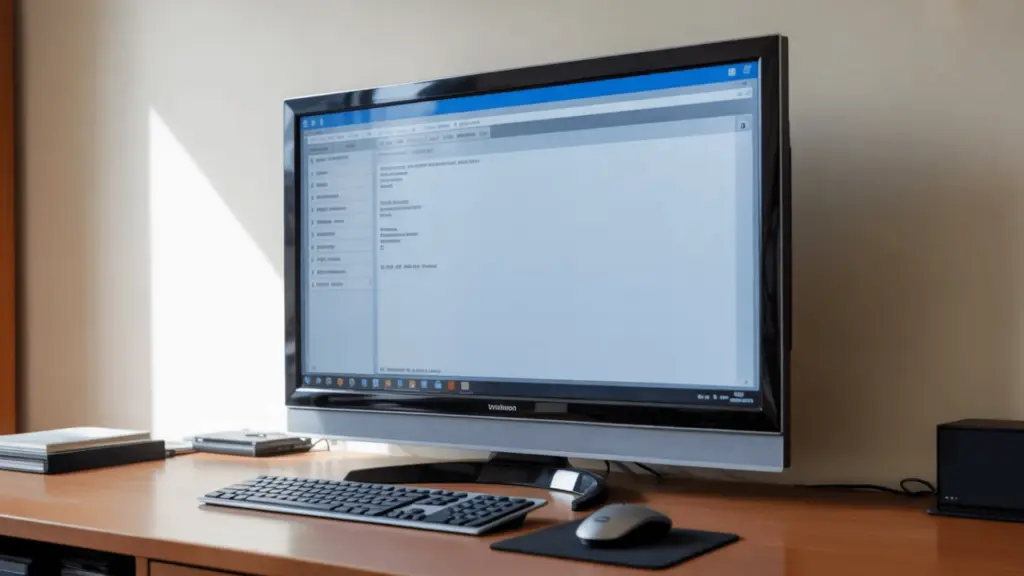
Using a TV as a monitor can work well, but only under the right conditions. Performance, clarity, and comfort depend on both the TV’s specs and your setup.
When It Works Well
A TV performs best as a monitor when it has 4K resolution. The higher pixel count improves sharpness and reduces visible pixel structure at desk distance.
It must include a proper Game Mode or PC Mode. This reduces image processing and lowers input lag, resulting in smoother mouse and keyboard response.
Support for HDMI 2.1 adds real value. It enables higher refresh rates and VRR, especially useful for modern GPUs and consoles.
Adequate desk depth is also important. Sitting farther back reduces eye strain and makes large screens more comfortable to use.
When It Fails
It struggles when pixel density is too low for close viewing. Large screens with lower PPI can make text look soft or slightly blurry.
High input lag without Game Mode can make interaction feel delayed. TVs are not optimized for instant desktop feedback by default.
Automatic Brightness Limiting (ABL) on OLED TVs can cause noticeable dimming during static desktop tasks. This can become distracting over long work sessions.
Poor chroma subsampling (4:2:0 instead of 4:4:4) reduces color detail in text. Without full 4:4:4 support, text edges can appear fuzzy or color-fringed.
Ergonomics and Practical Considerations
TVs are larger and heavier than monitors. They often lack height adjustment and are less convenient for desk mounting or webcam placement.
A TV can successfully replace a monitor, but only if resolution, input settings, and workspace ergonomics are properly aligned.
Use-Case Decision Framework
If you’re still unsure, the right choice becomes clearer when you match the display to how you actually use it. Here’s a breakdown by primary purpose.
Best Choice for Competitive PC Gaming
A monitor is the stronger option here. Speed and precision matter more than screen size.
Look for high refresh rates (144Hz+), very low input lag, and full adaptive sync support. Smaller screen sizes also help with faster eye tracking and competitive focus.
Best Choice for Console Gaming
This depends on your setup, but a TV often makes more sense for couch gaming. Comfort and immersion play a bigger role.
Choose a model with true 120Hz support and HDMI 2.1 for next-gen consoles. A larger screen enhances immersion, especially in sports and action titles.
Best Choice for Productivity and Work
A monitor is the clear winner for desk-based tasks. Clarity and comfort matter more than cinematic visuals.
High pixel density keeps text sharp, matte screens reduce glare, and ergonomic adjustments improve long-term comfort. These factors reduce strain during extended use.
Best Choice for Movies and Shared Viewing
A TV is better suited for entertainment and group viewing. Size and contrast create a more cinematic experience.
Look for strong HDR performance, larger screen sizes, and built-in smart features. Integrated audio and streaming apps add convenience for everyday use.
Final Decision Summary
Monitors focus on speed, precision, and sharp clarity at close range. That makes them a strong fit for desk setups and interactive tasks.
TVs focus on bigger screens and cinematic visuals. They are built for relaxed viewing from a distance.
If you mainly game on PC, work, edit, or browse, a monitor is the better choice. If you mostly watch movies, stream content, or play console games on the couch, a TV is a better fit.
Wrapping Up
Choosing between a monitor vs. TV comes down to how and where you use your screen. Each is built with a different focus, which shapes performance, clarity, and the overall experience.
You’ve seen how factors like input lag, refresh rate, viewing distance, and features impact real-world use. This helps you match the right display to your setup, rather than relying on specs alone.
If you need speed and precision, go with a monitor. If you want immersion and comfort, a TV makes more sense.
Now take what fits your needs and upgrade your setup with confidence.