

Trying to connect Bluetooth headphones to the PS5 can feel confusing at first. You go into settings, expect it to just work, and nothing shows up.
That’s because Sony limits which Bluetooth devices can connect directly. But that doesn’t mean you’re stuck using wired headphones.
There are a few simple workarounds that actually work well once you know them.
In this blog, I’ll walk you through the easiest ways to connect Bluetooth headphones to PS5, step by step, so you can get back to gaming without overthinking the setup.
Can You Use Bluetooth Headphones with PS5?
The short answer is yes, but not in the way most people expect. The PS5 only supports a limited number of officially compatible wireless headsets, so standard Bluetooth headphones usually won’t connect directly.
This restriction mainly comes down to two things. First, Bluetooth audio can introduce noticeable delays, which can affect gameplay. Second, it can interfere with the controller’s connection, which Sony tries to avoid.
So, if you want to connect Bluetooth headphones to PS5, you’ll need a workaround.
Easy Methods to Connect Bluetooth Headphones to PS5
There isn’t just one way to make this work. Since direct pairing is limited, these methods give you practical ways to connect Bluetooth headphones to the PS5 without much hassle. Some are quick fixes, while others are better for long-term use depending on how you play.
Method 1: Using a USB Bluetooth Adapter (Most Reliable)
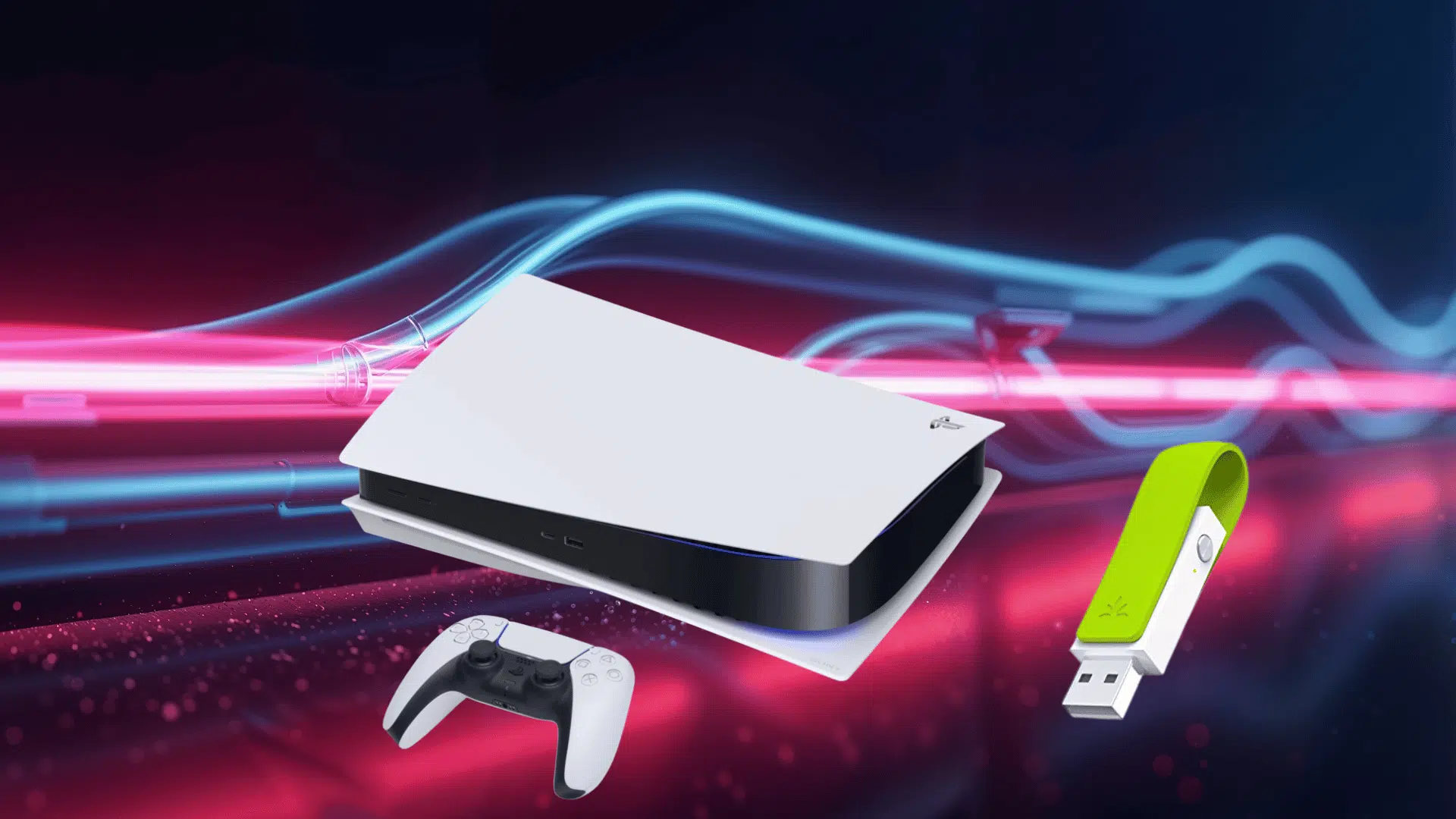
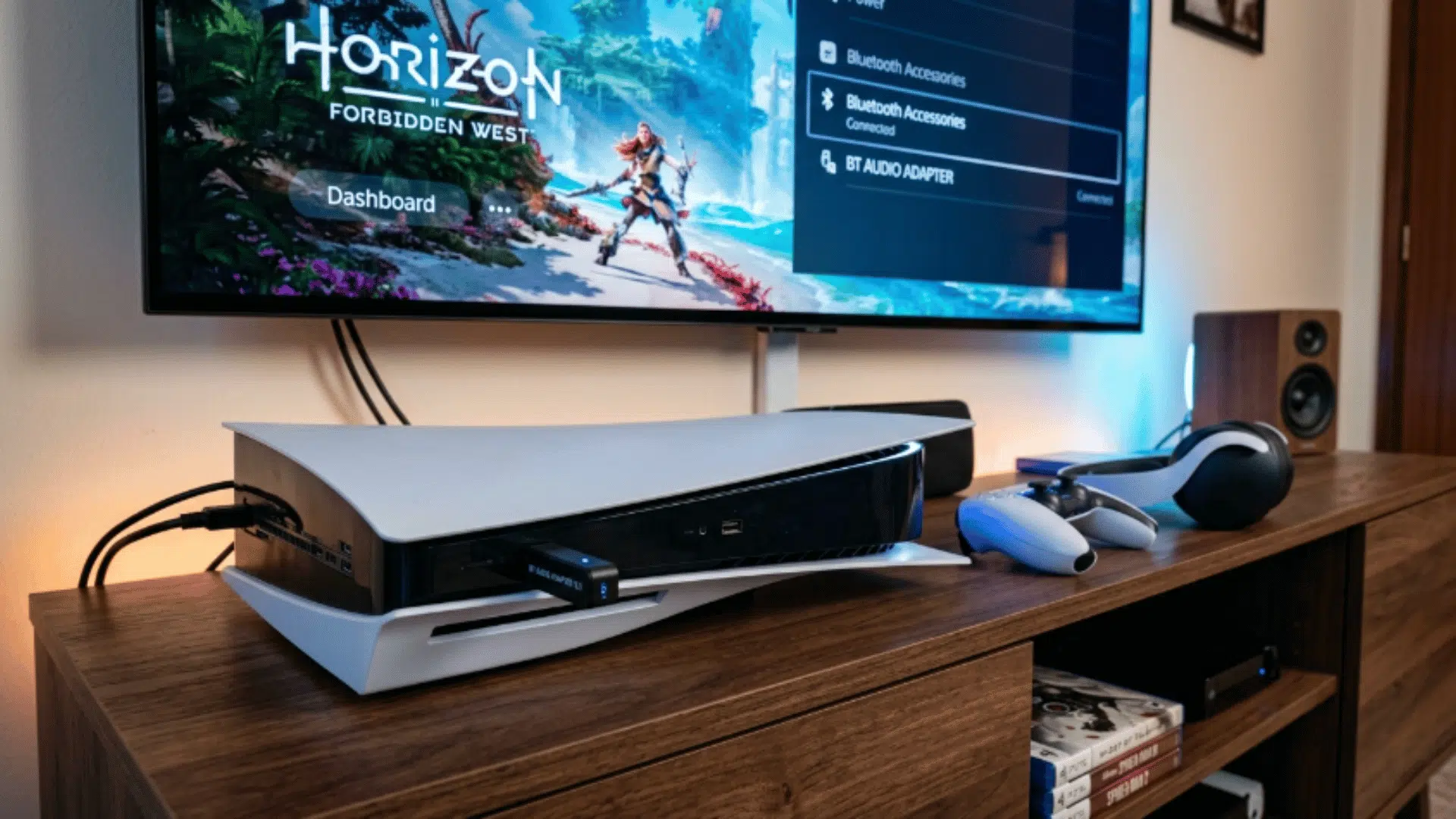
A USB Bluetooth adapter acts as a bridge between your console and your headphones, bypassing Sony’s restrictions. If you pick a good adapter, the connection is stable, and the audio delay is minimal.
- Plug in the adapter: connect it to your PS5 USB port and switch it to pairing mode
- Enable pairing on headphones: turn on Bluetooth pairing so both devices can detect each other
- Wait for the connection: let the adapter and headphones pair automatically
- Open settings: go to Settings on your PS5 and head to Sound
- Select output device: choose the USB adapter under Audio Output
- Test the audio: play something to make sure the sound is working properly
Method 2: Connecting via Smart TV Bluetooth
This method routes your audio through the TV instead of the PS5. It’s simple and doesn’t require additional hardware, making it appealing to casual users. However, it’s not always the best option if you care about precise timing in games.
- Connect PS5 to your TV: make sure everything is set up as usual
- Open TV settings: go to the settings menu and find Bluetooth or audio devices
- Enable pairing mode: turn on pairing on your headphones
- Select your headphones: choose them from the TV’s available device list
- Confirm connection: complete the pairing process on the TV
- Check audio output: play something to ensure sound is coming through your headphones
Method 3: Using PS Remote Play (Indirect Method)
This method uses your phone or PC as a middle layer. Instead of connecting headphones to the PS5, you connect them to your device and stream the game audio through Remote Play. It’s clever, but not ideal for every situation.
- Install the Remote Play app: download it on your phone or PC
- Sign in to your account: use your PlayStation login details
- Connect to PS5: link the app with your console
- Pair your headphones: connect them to your phone or PC
- Start Remote Play: launch your game through the app
- Check audio sync: make sure sound is playing properly
Method 4: Using Wired Mode via Controller
If you don’t want to deal with extra setup or possible delays, going wired is still the most dependable option. It may not be wireless, but it works instantly and gives you consistent audio quality.
- Plug in your headphones: connect the cable to the DualSense controller
- Open PS5 settings: go to Settings and select Sound
- Choose output device: set it to Controller Headset
- Adjust volume levels: tweak sound settings as needed
- Test the audio: check in-game or system sound to confirm it’s working
Top Bluetooth Adapter Brands for PS5
Choosing the right Bluetooth adapter for PS5 often comes down to brand reliability, audio quality, and low-latency support.
| Feature | Avantree | Creative | UGREEN |
|---|---|---|---|
| Best For | Gaming / Most | Premium users | Budget / US |
| Bluetooth Ver. | 5.0 | 5.0 | 5.0 |
| Codecs | aptX LL | aptX, HD, LL | SBC, aptX |
| Connectivity | USB-A / USB-C | USB-C | USB, AUX (TX/RX) |
| Mic Support | Limited | Supported | Limited |
| Compatibility | PS5, PC | PS5, Switch, PC | PS5, TV, PC |
| Setup Type | Plug & Play | Plug & Play | Plug & Play |
| Price Range | $30 -$50 | $40- $60 | $20- $35 |
| Use Case | Low-lag gaming | High-quality audio | Casual use |
Are Bluetooth Adapters Worth It for PS5?
A Bluetooth adapter can solve the connection problem, but it’s not always a perfect fix. It depends on how you use your PS5 and how much you care about audio quality and delay.
- Works well for most headphones, but performance varies by brand
- Low-latency adapters improve gaming experience, but only with compatible headphones
- Mic support is often limited or doesn’t work at all
- Setup is simple, especially with plug-and-play models
- Extra cost compared to just using a wired connection
- Not ideal for competitive gaming if even a slight delay bothers you
Final Verdict: What’s the Best Way?
At the end of the day, connecting Bluetooth headphones to the PS5 comes down to choosing the method that best fits your setup.
There’s no perfect one-size solution here. Adapters offer the best wireless experience, wired connections give you zero delay, and other methods sit somewhere in between.
The key is knowing the trade-offs before you decide. If convenience matters most, go wireless with the right adapter. If performance matters, keep it simple and plug in.
Either way, once you set it up properly, you won’t have to think about it again and can just focus on your game.