








Merged cells can make an Excel worksheet look organized, but they often become a problem once you start sorting, filtering, editing, or analyzing the data.
I usually check for merged areas before cleaning a large spreadsheet because removing them early makes the rest of the work easier. They can interfere with PivotTables, formulas, structured ranges, and other features that expect each row and column to contain separate cells.
Fortunately, learning how to unmerge cells in Excel is straightforward. You can use the ribbon, open Format Cells, remove multiple merged areas at once, and fill any gaps that remain afterward.
How to Unmerge Cells in Excel Using the Ribbon
The ribbon method is the quickest option when you only need to separate one or a few merged ranges.
Follow these steps:
- Select the merged cell or range.
- Open the Home tab.
- Find the Alignment group.
- Click the arrow beside Merge & Center.
- Choose Unmerge Cells.
Excel immediately restores the individual cells that previously made up the merged area.
You can also highlight several merged ranges before choosing Unmerge Cells if you want to process them together.
For Windows users who prefer the keyboard, select the merged area and press: Alt, H, M, U
Press each key in sequence. This opens the Home tab, accesses the merge menu, and applies the unmerge command without using the mouse.
How to Unmerge Cells Using Format Cells
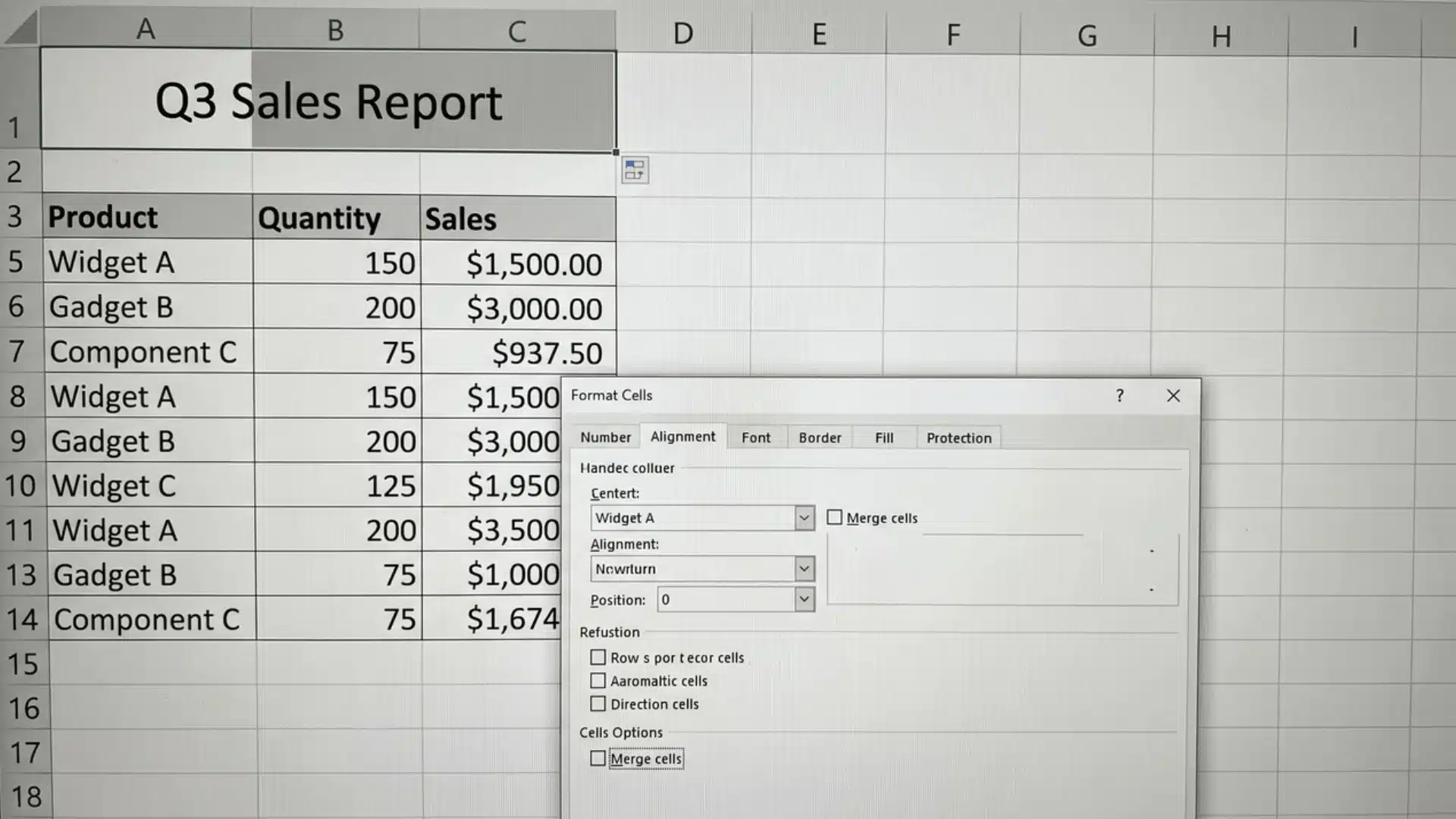
The Format Cells dialog gives you another way to remove a merge without using the ribbon.
To use it:
- Right-click the merged cell.
- Choose Format Cells.
- Open the Alignment tab.
- Uncheck Merge cells.
- Click OK.
The cells return to their original structure while retaining the existing formatting where possible.
This method is useful when you already have the Format Cells dialog open or prefer working through detailed alignment settings rather than ribbon controls.
What Happens to Data After You Unmerge Cells?
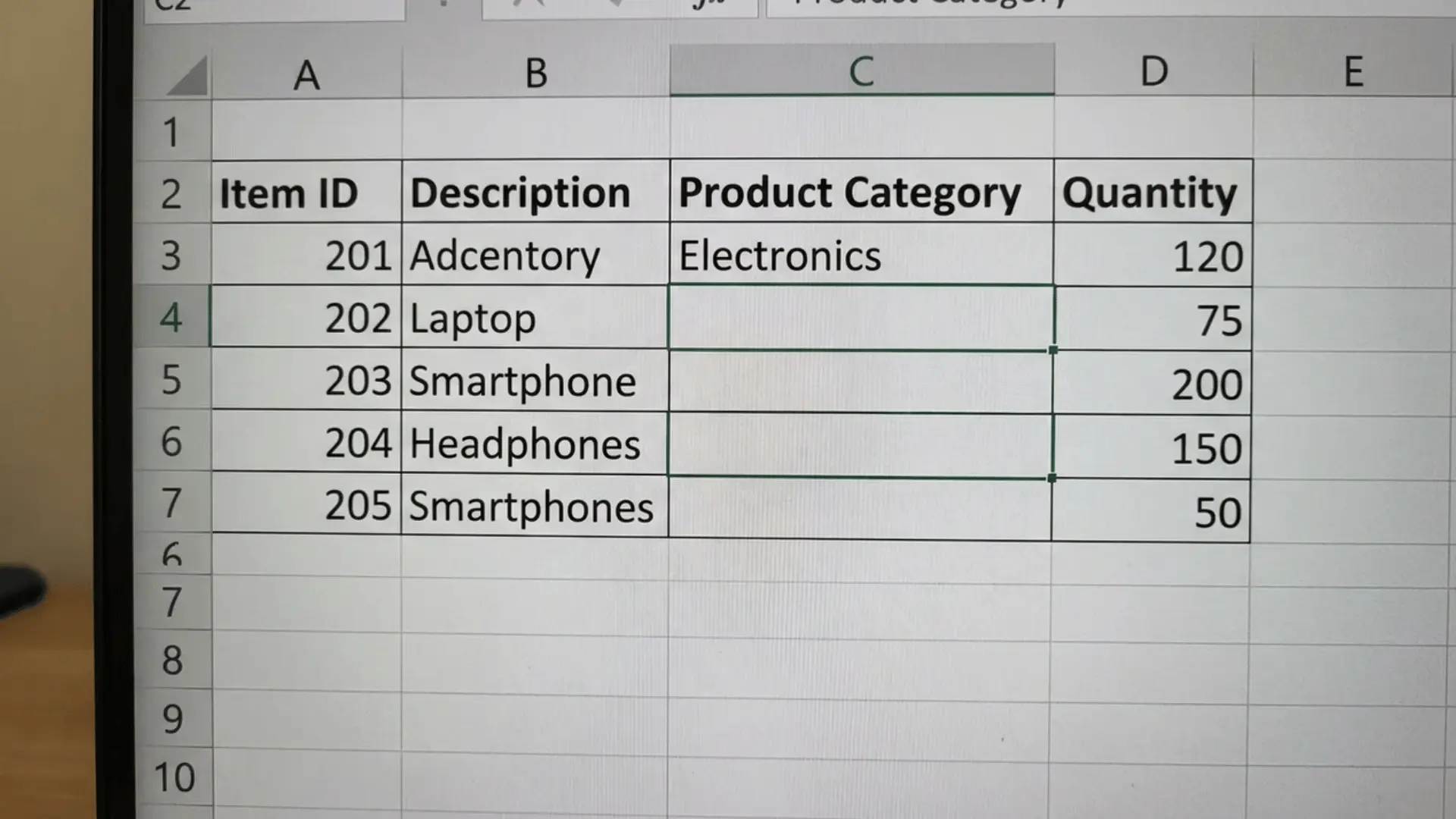
Unmerging changes the structure of the worksheet, but it does not distribute the visible content across every separated cell.
Excel stores the value of a merged region in its upper-left cell. The remaining cells in that range are already empty behind the scenes.
For example, if A2:A5 is merged and displays Marketing, unmerging it produces:
| Cell | Value |
|---|---|
| A2 | Marketing |
| A3 | Blank |
| A4 | Blank |
| A5 | Blank |
The visible label previously stretched across the merged area, but Excel did not store a separate copy in every cell.
This matters most when the worksheet will later be used for sorting, formulas, PivotTables, lookups, or other data operations that depend on complete rows.
How to Fill Blank Cells After Unmerging
If every record needs its own category or label, you can fill the empty cells automatically instead of copying values one by one.
- Select the affected column.
- Press Ctrl+G.
- Click Special.
- Select Blanks and click OK.
- Type = and press the Up Arrow key.
- Press Ctrl+Enter.
- Copy the completed range.
- Use Paste Special → Values to replace the formulas with fixed data.
Excel fills each selected blank with the value directly above it.
If several columns contain merged ranges, complete the process separately for each affected column so you do not accidentally fill unrelated empty cells.
How to Find and Unmerge All Merged Cells
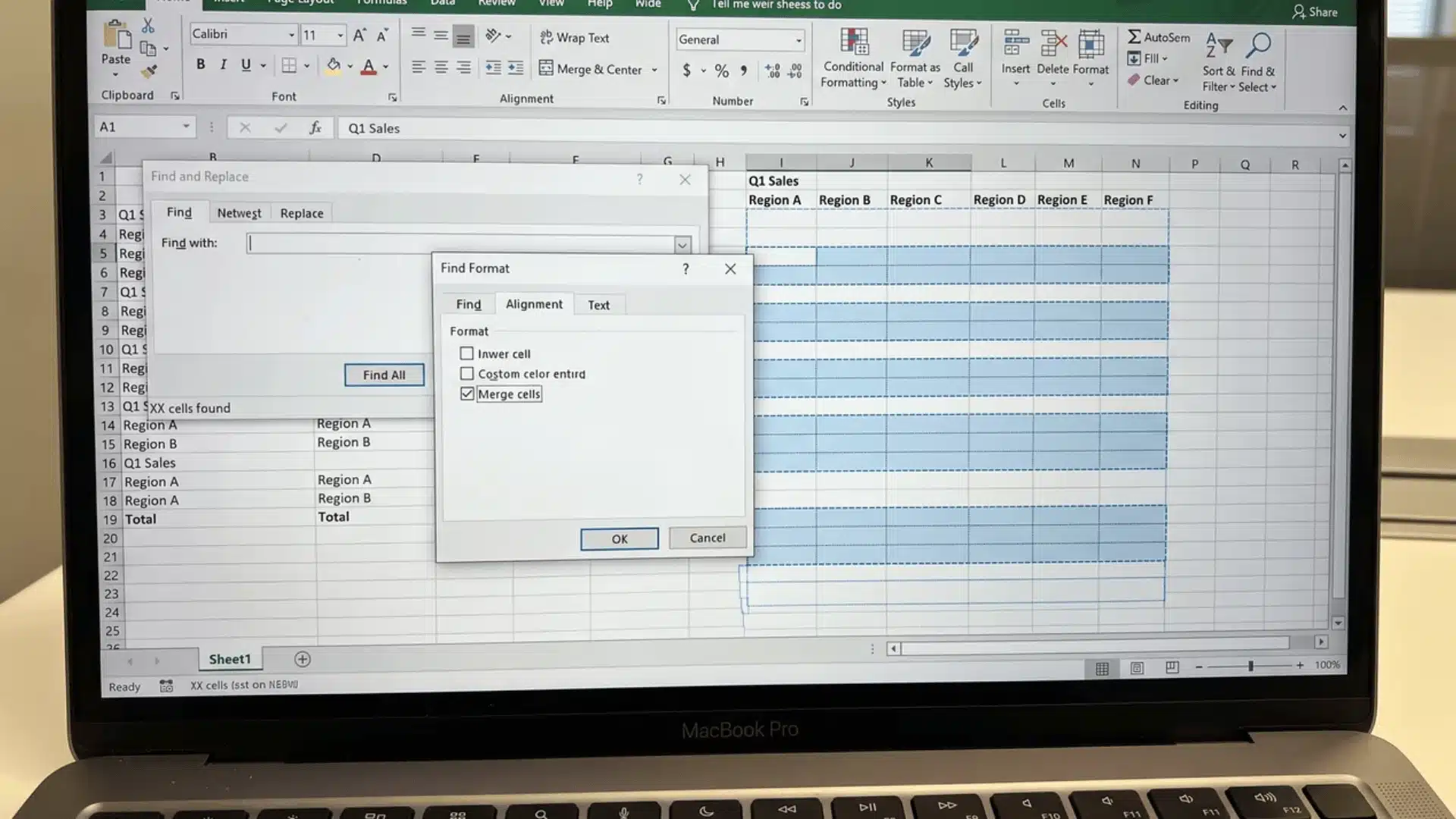
Finding merged cells manually becomes difficult in a large worksheet, especially when you are working with a file created by someone else.
Excel’s Find & Replace feature can identify merged formatting throughout the sheet.
Use these steps:
- Press Ctrl+F.
- Click Options.
- Select Format.
- Open the Alignment tab.
- Check Merge cells and click OK.
- Choose Find All.
- Press Ctrl+A inside the results list to select every match.
- Close the dialog.
- Use Home → Merge & Center → Unmerge Cells.
This approach lets you identify the affected areas before changing the worksheet.
If you do not need to review each merge individually, you can select the entire sheet with Ctrl+A and apply Unmerge Cells directly. That approach is faster for formatting-only worksheets where maintaining the original merged layout is not important.
Why the Unmerge Option Is Greyed Out
If Excel will not let you select Unmerge Cells, check the worksheet settings before assuming something is wrong with the program.
Common causes include:
- Worksheet protection: Open Review → Unprotect Sheet. A password may be required if protection was enabled with one.
- Restricted workbook editing: Some shared or limited-access workbook configurations can prevent formatting changes. Confirm that you have permission to edit the file.
- No actual merge exists: A heading may look merged because it uses Center Across Selection instead.
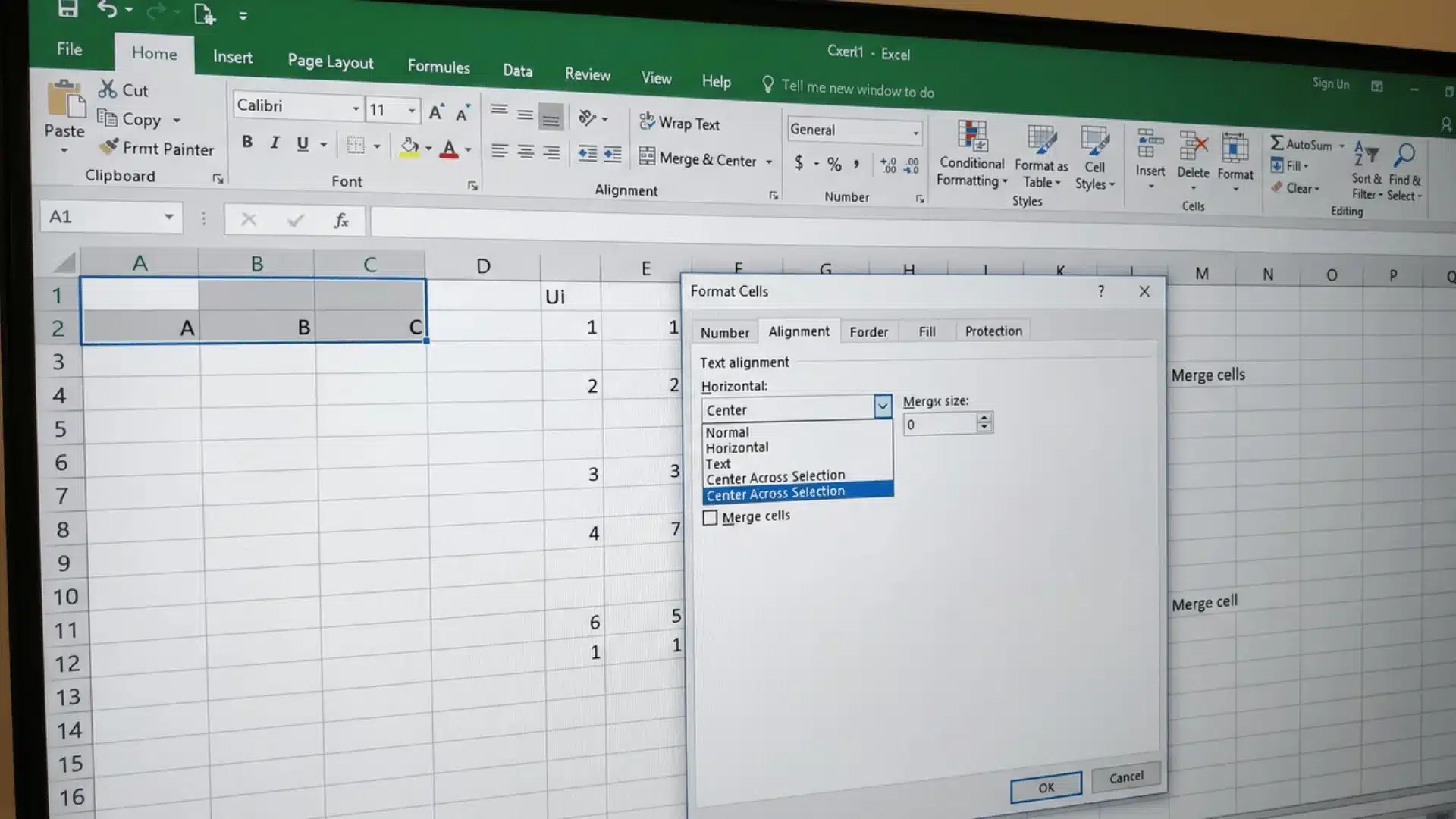
To check the last case, right-click the cell and choose Format Cells → Alignment.
If Horizontal shows Center Across Selection while Merge cells is unchecked, there is nothing to unmerge. The cells are already separate.
Center Across Selection as an Alternative to Merging
You do not always need merged cells to create a centered heading.
Center Across Selection displays text across several columns while leaving every underlying cell independent.
To apply it:
- Select the required cells.
- Press Ctrl+1 to open Format Cells.
- Choose the Alignment tab.
- Open the Horizontal menu.
- Select Center Across Selection.
- Click OK.
This option works well for titles and section headings because it keeps the worksheet structure intact.
It is especially useful in spreadsheets that need frequent sorting, filtering, copying, or analysis but still require clean visual formatting.
Conclusion
I’ve found that removing unnecessary merged cells makes Excel worksheets much easier to manage, particularly when the file contains structured data.
The ribbon works best for quick edits, while Format Cells provides another route when you are already adjusting alignment. For larger worksheets, Excel’s search tools can locate merged formatting so you can clean several areas efficiently.
Afterward, review the sheet for gaps that could affect calculations or analysis before continuing with your work.
For future worksheets, consider using Center Across Selection for headings whenever possible. It gives you a similar visual result while keeping the underlying spreadsheet structure easier to sort, filter, and maintain.
Frequently Asked Questions
Is there a keyboard shortcut to unmerge cells in Excel?
Yes. On Windows, select the merged range and press Alt, H, M, U in sequence. Excel uses these ribbon access keys to open the Home tab, access the Merge & Center menu, and select Unmerge Cells.
How do I unmerge cells in Excel without losing data?
Unmerge the range first, then fill any empty cells that need the original label. Use Go To Special → Blanks, reference the cell above with a formula, press Ctrl+Enter, and finally paste the results as values.
Why can’t I unmerge cells in Excel on my phone?
Excel’s mobile interface places formatting controls in a different location than the desktop ribbon. Select the merged cell, open the formatting controls, find the cell alignment or merge setting, and switch Merge Cells off.
Does unmerging cells affect formulas?
Formulas that reference the cell containing the stored value can continue working. Problems are more likely when newly exposed blanks sit inside ranges used for lookups, PivotTables, sorting, or other operations that expect complete records.