

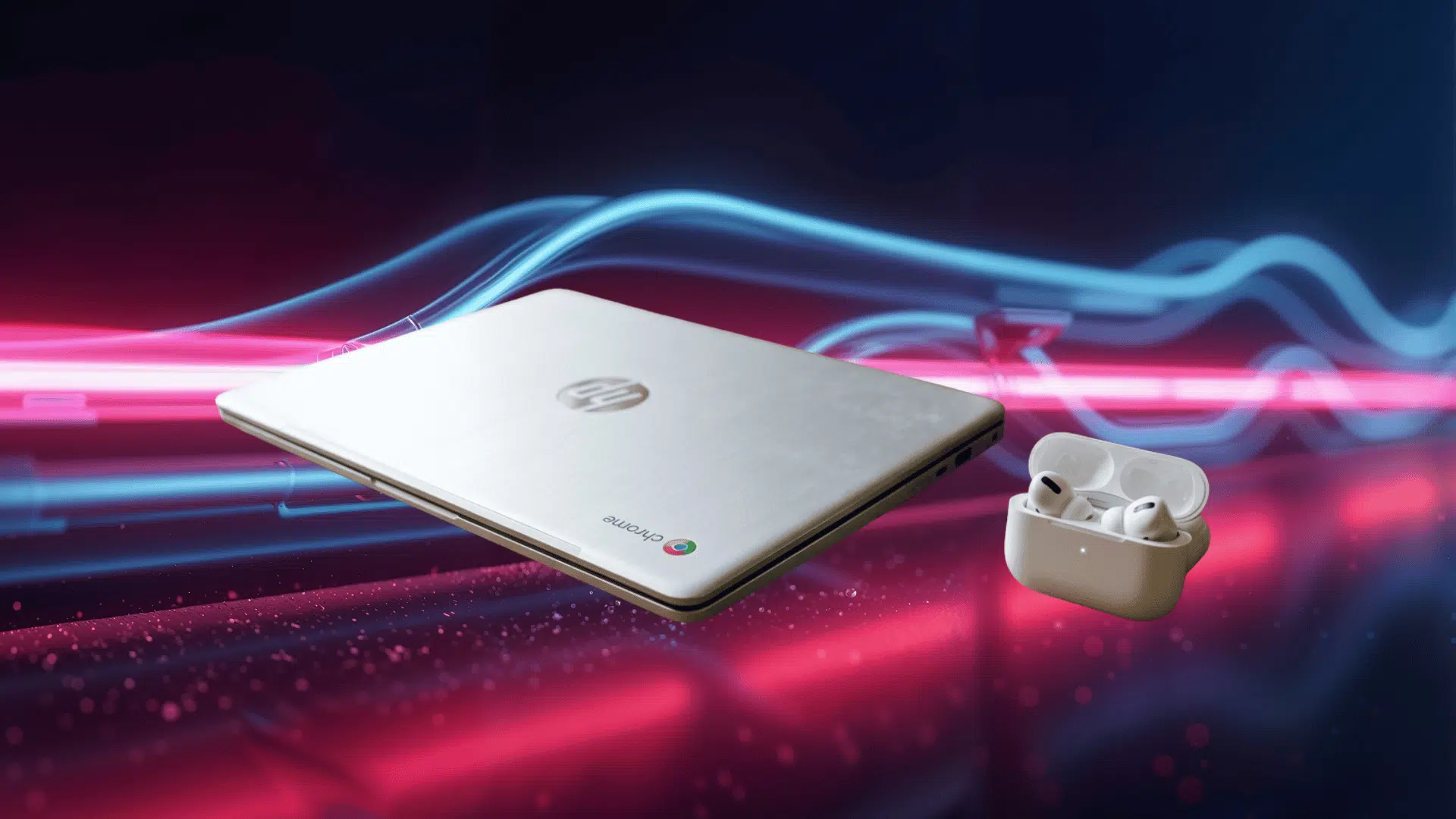

AirPods connect instantly with Apple devices, so it’s easy to assume they’ll work the same way with a Chromebook. That’s where things feel a bit different.
If you’ve been trying to figure out how to pair AirPods to a Chromebook and nothing seems to show up, you’re not alone.
The process isn’t automatic, but it’s still simple once you know where to look.
In this blog, I’ll walk you through how to pair AirPods to a Chromebook step by step, along with a few quick fixes if the connection doesn’t work right away.
Can You Connect AirPods to a Chromebook?
Yes, you can connect AirPods to a Chromebook without much trouble. Chromebooks support Bluetooth, so AirPods work like any regular wireless earbuds.
The only difference is that you won’t get the same seamless experience you see on Apple devices. There’s no instant pairing or automatic switching between devices.
That said, once connected, AirPods handle audio playback quite well for music, videos, and calls.
Just keep in mind that some features, like battery status or touch controls, may not work fully, and mic quality can vary depending on the Chromebook.
Steps to Pair AirPods to Chromebook
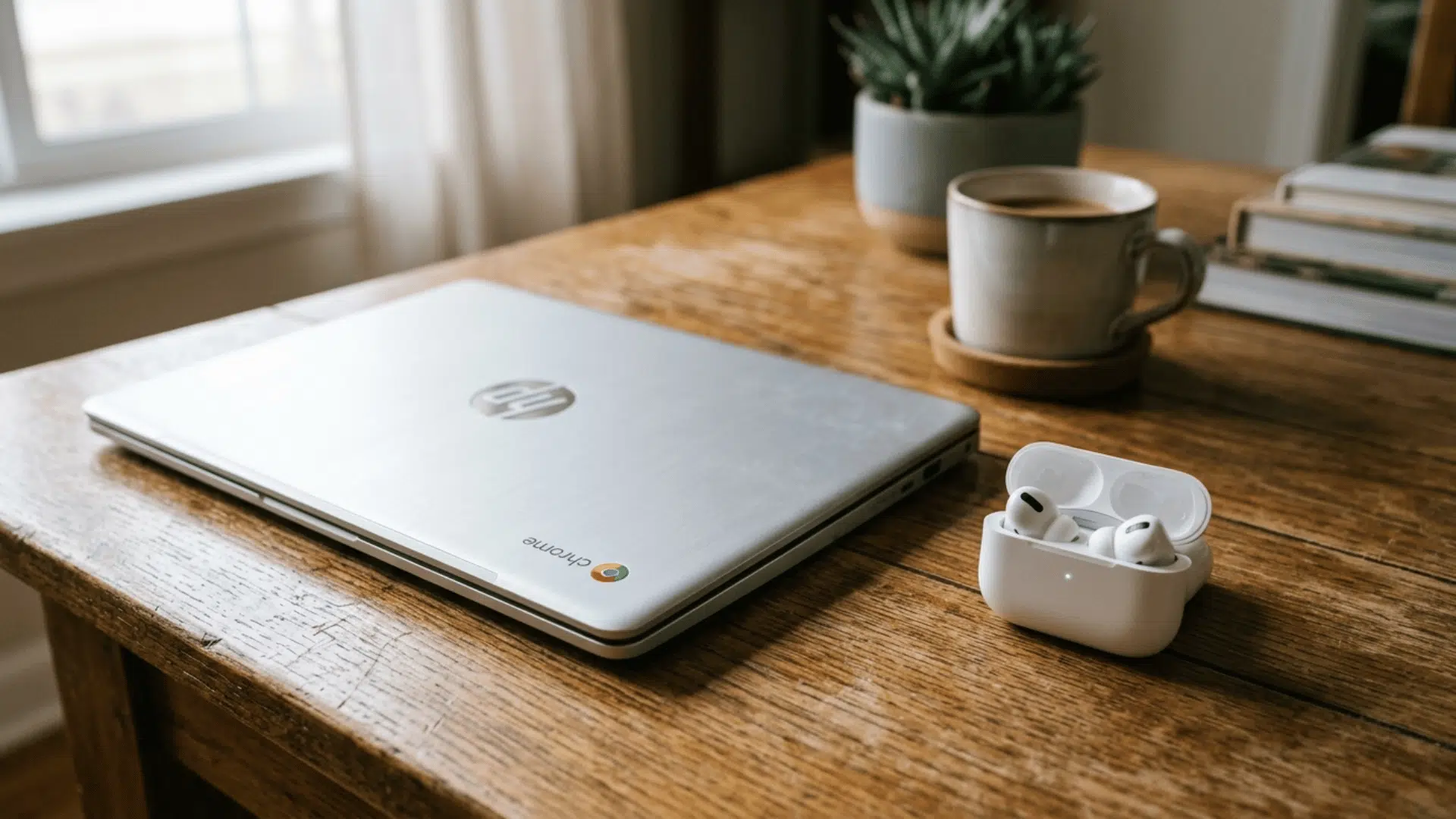
Getting your AirPods connected to a Chromebook is simple once you know where to look. The process isn’t automatic like on Apple devices, but it only takes a few steps to get things working.
Method 1: Pairing AirPods via Bluetooth Settings
This is the main way to connect your AirPods. You’ll need to manually enable pairing and select them from your Chromebook.
- Open Chromebook settings: click on the time section and go to Settings
- Turn on Bluetooth: find Bluetooth and switch it ON
- Open the AirPods case: keep the lid open with AirPods inside
- Enable pairing mode: press and hold the button on the case
- Wait for white light: this means AirPods are ready to pair
- Select AirPods: choose them from the available devices list
- Confirm connection: once selected, they should connect within seconds
Method 2: Reconnecting AirPods Automatically
After the first setup, reconnecting becomes much quicker. You won’t need to repeat the full pairing process every time.
- Turn on Bluetooth: make sure it’s enabled on your Chromebook
- Open the AirPods case: this helps trigger the connection
- Select saved device: click on AirPods from the paired list
- Check connection: audio should connect within a few seconds
Method 3: Fix If AirPods Won’t Connect
If your AirPods don’t appear or won’t connect, a few quick fixes usually solve the issue. Most problems are related to Bluetooth glitches or pairing conflicts.
- Restart Bluetooth: turn it OFF and then ON again
- Forget and reconnect: remove AirPods from the device list and pair again
- Reset AirPods: press and hold the case button until the light changes
- Restart Chromebook: clears temporary connection issues
- Reduce interference: stay close to the device and avoid crowded signals
Bluetooth Device Compatibility with Chromebook
Chromebooks support many Bluetooth devices, making it easy to build a simple wireless setup.
| Feature | AirPods | Sony WH-1000XM5 | JBL Tune 760NC |
|---|---|---|---|
| Price Range | $120-$250 | $230-$400 | $80-$130 |
| Audio Playback | Yes | Yes | Yes |
| Microphone Quality | Average | Good | Decent |
| Touch Controls | Partial | Full | Basic |
| Auto Pairing | No | No | No |
| Battery Status | Limited | Visible | Visible |
| Connection Stability | Good | Very Stable | Stable |
| Battery Life | 4-6 hrs | Up to 30 hrs | Up to 35 hrs |
| Best Use Case | Casual use | Work + media | Budget use |
How to Check If Your Chromebook Supports Bluetooth Properly

Before trying to connect anything, it’s worth checking that your Chromebook’s Bluetooth is working as expected.
Most modern Chromebooks come with built-in Bluetooth, but performance can vary depending on the model and software version.
Start by opening your settings and checking if Bluetooth is turned on and visible. If you don’t see it, your device may have it disabled, or there could be a system issue.
You can also test by connecting another Bluetooth device, like a mouse or speaker. If that works fine, your Chromebook supports Bluetooth properly, and any issues are likely specific to the AirPods connection.
Tips to Improve AirPods Performance on Chromebook
A few small tweaks can make a noticeable difference in how your AirPods perform on a Chromebook. These tips help improve connection stability and overall audio experience.
- Keep Bluetooth updated, and make sure your Chromebook is running the latest version
- Stay within range, keep your AirPods close to avoid signal drops
- Limit connected devices, disconnect unused Bluetooth devices to reduce interference
- Charge your AirPods. A low battery can affect the connection and sound quality
- Restart when needed. A quick restart can fix random connection issues
- Reconnect if needed, remove and pair again if problems keep happening
Final Verdict
Pairing AirPods with a Chromebook isn’t as instant as it is with Apple devices, but it still works smoothly once you follow the right steps.
The key is knowing how to pair AirPods to a Chromebook through Bluetooth settings and handling small issues if they come up.
You might miss a few Apple-only features, but for everyday use like music, videos, or calls, the experience is solid.
If you keep your device updated and manage connections properly, you’ll avoid most problems. In the end, it’s a simple setup that gets the job done without needing anything extra.