

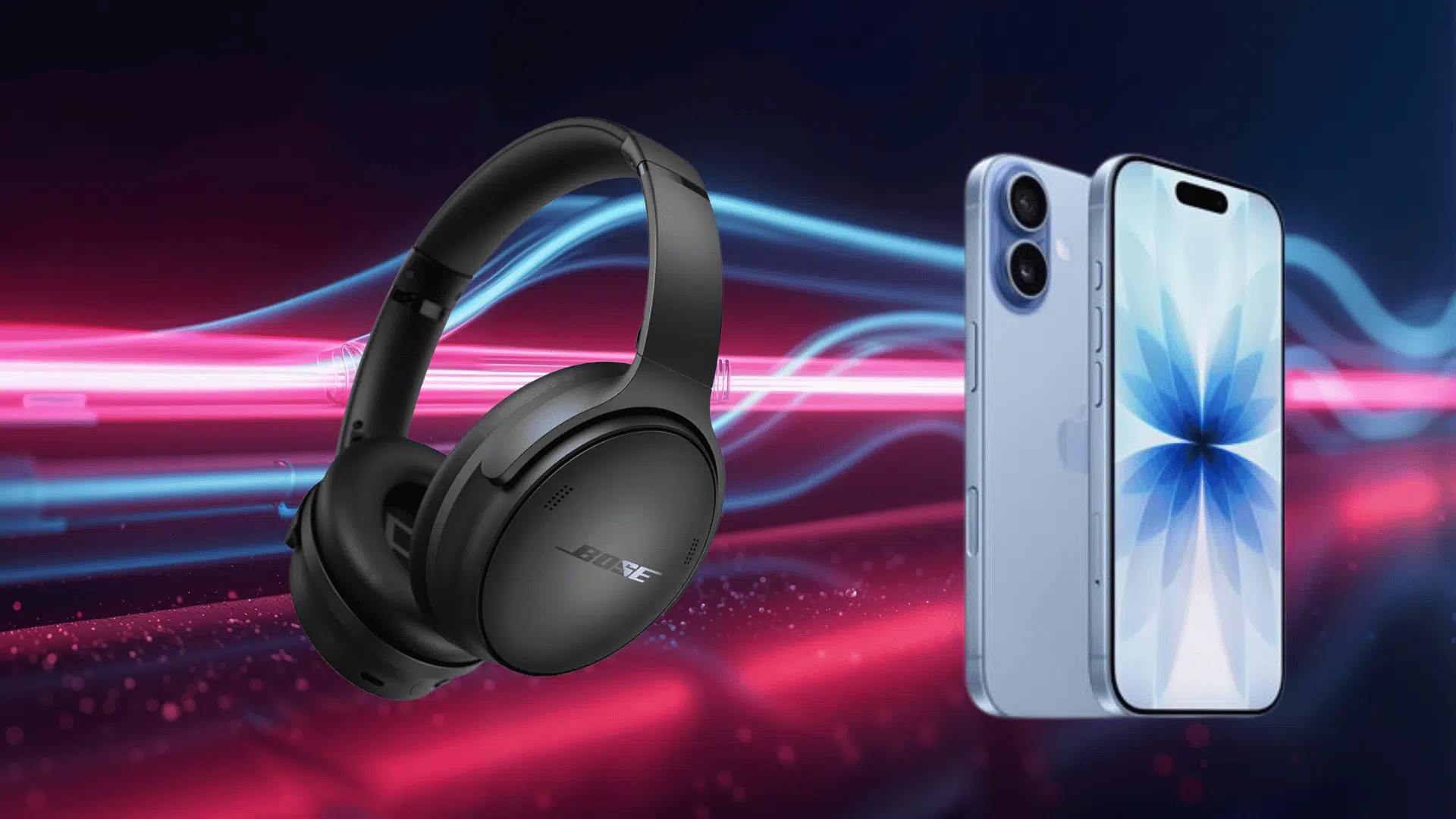
Bose headphones are known for easy pairing, so it’s frustrating when they don’t connect to your iPhone as expected.
You turn on Bluetooth, look for the device, and sometimes it just doesn’t show up. The good part is that most connection issues come down to a few simple things.
In this blog, I’ll show you how to connect Bose headphones to an iPhone step by step, along with quick fixes to get things working when they don’t connect right away.
Can You Connect Bose Headphones to an iPhone?
Yes, Bose headphones connect easily to an iPhone via Bluetooth and are fully compatible with iOS devices. Most models are designed to pair quickly and work smoothly for music, calls, and media.
That said, connection issues can still happen. Sometimes the headphones don’t show up, or they may already be connected to another device. Other times, it’s just a small Bluetooth glitch on the iPhone.
The good thing is, these problems are usually easy to fix once you understand how the connection works and what might be causing the issue.
Steps to Connect Bose Headphones to iPhone
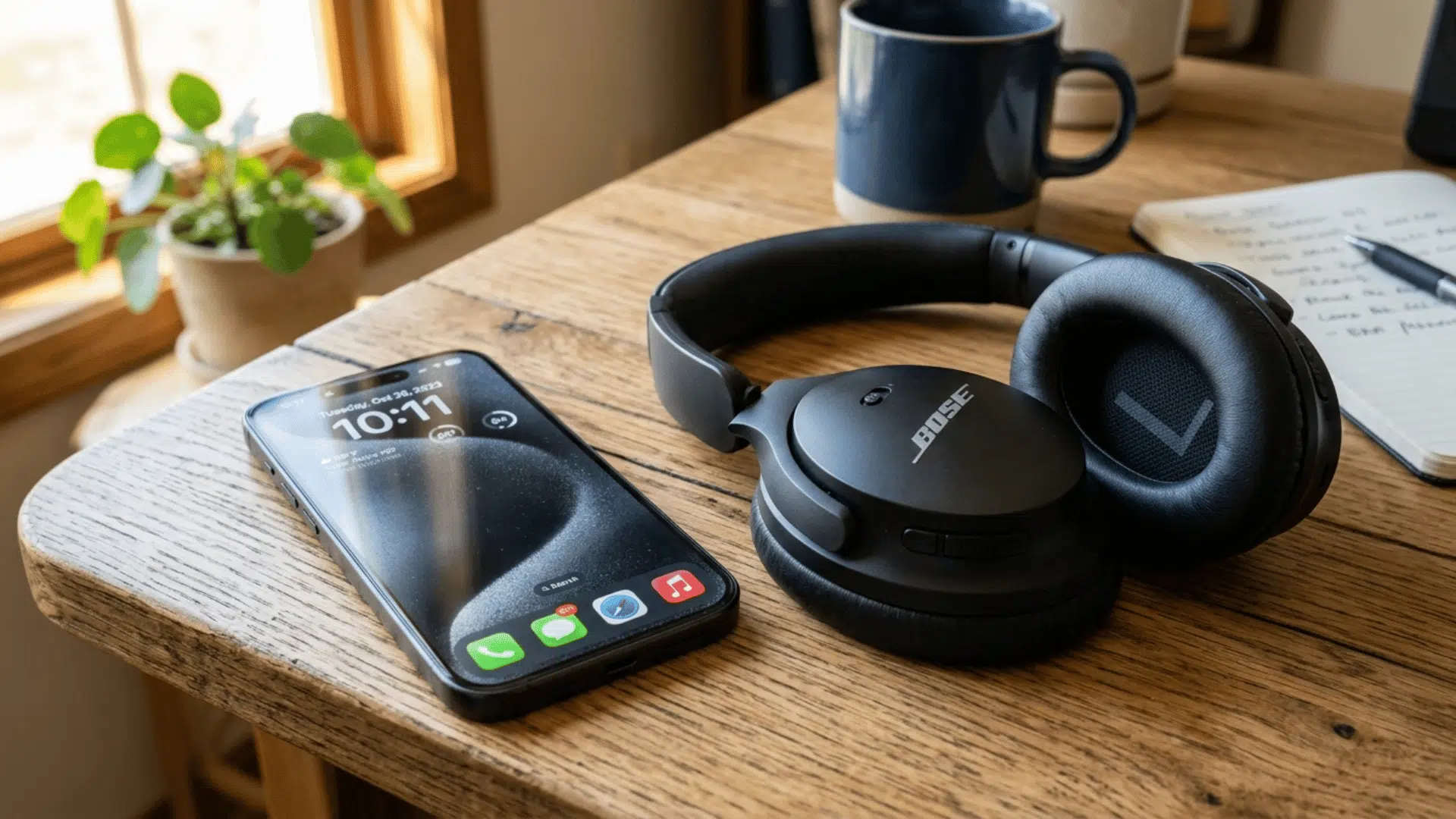
Connecting your Bose headphones to an iPhone is usually quick, but only if the headphones are in the right mode. Once you follow the correct steps, the connection should happen within seconds.
Method 1: Standard Bluetooth Pairing
This is the main way to connect your Bose headphones for the first time. You’ll need to manually enable pairing mode so your iPhone can detect them.
- Turn on your headphones: make sure they are powered on
- Enable pairing mode: press and hold the Bluetooth button until you see a blinking light
- Open iPhone settings: go to the Settings app
- Go to Bluetooth: tap on the Bluetooth option
- Turn Bluetooth ON: if it’s not already enabled
- Select your device: choose your Bose headphones from the list
- Confirm connection: wait a few seconds until it shows as connected
Method 2: Reconnect the Previously Paired Device
If you’ve already connected your headphones, reconnecting is much faster and doesn’t require re-pairing.
- Turn on your headphones: make sure they are active
- Open Bluetooth settings: go to Bluetooth on your iPhone
- Select saved device: tap your Bose headphones under “My Devices.”
- Wait for the connection: it should connect within a few seconds
Bose Headphones Compatibility with iPhone
Not all Bose headphones offer the same experience with an iPhone. While most connect easily, features like mic quality, app support, and multi-device pairing can vary depending on the model.
| Feature | Bose QuietComfort 45 | Bose 700 | Bose QuietComfort Ultra |
|---|---|---|---|
| Price Range | $250-$330 | $300-$380 | $400-$450 |
| Bluetooth Support | Yes | Yes | Yes |
| iPhone Compatibility | Full | Full | Full |
| App Support | Yes | Yes | Yes |
| Multi-Device Pairing | Yes | Yes | Yes |
| Mic Quality | Good | Excellent | Excellent |
| Battery Life | Up to 22 hrs | Up to 20 hrs | Up to 24 hrs |
| Noise Cancellation | Strong | Strong | Advanced |
| Best Use Case | Daily use | Calls + work | Premium experience |
Bose Headphones Connection Issues & Fixes
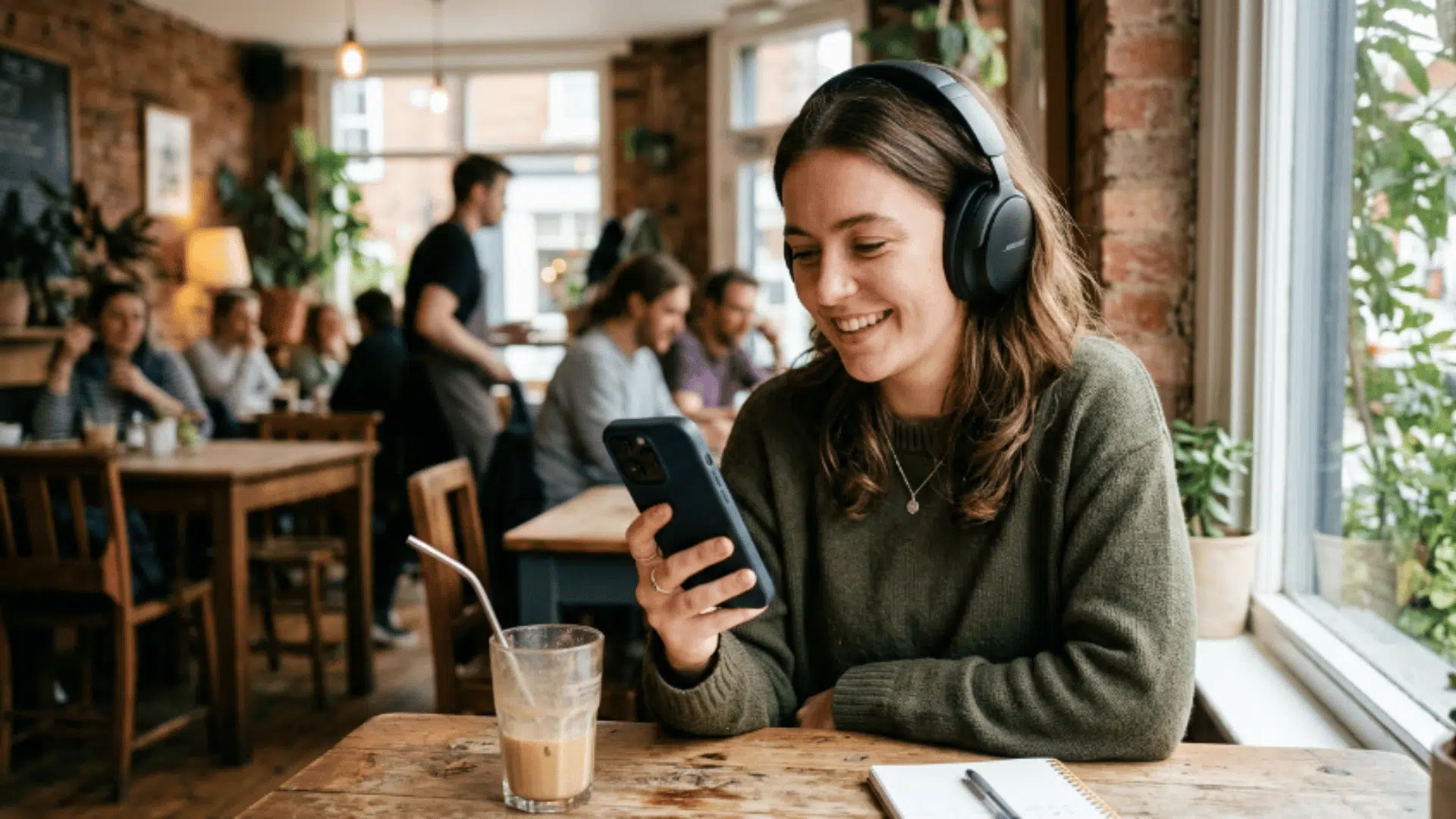
If Bose headphones won’t connect to an iPhone, the problem is usually simple. Most issues come from small settings or temporary glitches.
The good part is that each one has a quick fix once the cause is clear.
- Already Connected Elsewhere: Disconnect from other devices or turn off their Bluetooth
- Not In Pairing Mode: Press and hold the Bluetooth button until the light blinks
- Bluetooth Glitches: Turn Bluetooth off and on again on the iPhone
- Low Battery: Charge the headphones before trying again
- Saved Connection Issues: Forget the device on the iPhone and reconnect
- Interference Nearby: Move away from crowded wireless environments like routers or multiple devices
Bose App vs. Bluetooth: Which Should You Use?
Both options work, but they offer slightly different experiences. If you just want a quick connection, Bluetooth is enough. If you want more control and fewer issues, the Bose app can help.
| Feature | Bluetooth (Default) | Bose Music App |
|---|---|---|
| Setup Speed | Quick | Slightly longer |
| Ease of Use | Simple | Guided setup |
| Device Management | Basic | Manage multiple devices |
| Connection Stability | Good | More reliable |
| Extra Features | None | Firmware updates, controls |
| Required to Use | Yes | No |
| Best For | Quick connection | Better control & fixes |
Common Mistakes to Avoid
Many connection issues stem from small oversights that are easy to miss. Avoiding these can save you time and frustration.
- Not enabling pairing mode, your iPhone won’t detect the headphones without it
- Trying to connect while linked to another device, Bose headphones may already be connected elsewhere
- Ignoring low battery levels can affect connection and stability
- Skipping the “Forget Device” step, old pairing data can cause repeated issues
- Bluetooth turned off or glitching, always double-check and refresh it
- Standing too far away can weaken the connection
- Not updating the iPhone or headphones outdated software can cause compatibility problems
Final Verdict
Getting your headphones connected shouldn’t take more than a few minutes, and once it’s set up, it usually stays that way.
If you were stuck figuring out how to connect Bose headphones to an iPhone, the key is using the right pairing steps and fixing small issues when they show up.
Most problems come from simple things like pairing mode or device conflicts, not anything serious. Stick to the basics, reset when needed, and your connection should stay stable.
Once everything is working, you can just enjoy your audio without having to troubleshoot again.