

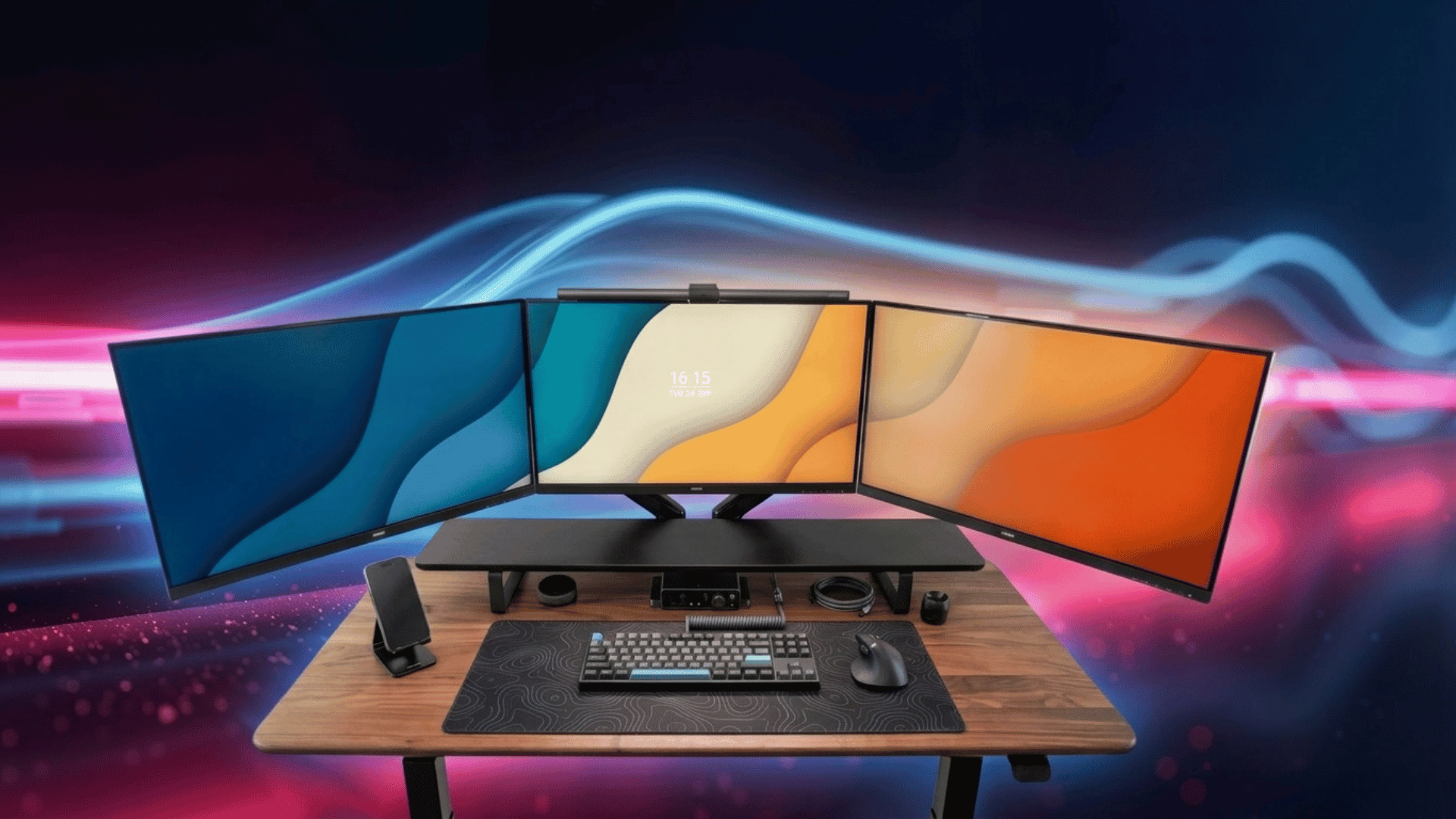
Working on multiple tasks across a single screen can slow you down, especially when things start to feel crowded. That’s why more people are moving toward a triple monitor setup to get extra space and stay organized.
Still, setting it up isn’t always straightforward. Hardware limits, ports, and layout choices can make things confusing at first.
If you’ve been thinking about a triple monitor setup but aren’t sure where to start, this blog will walk you through the basics, what you need, and how to get everything running smoothly.
Understanding How a Triple Monitor Setup Works
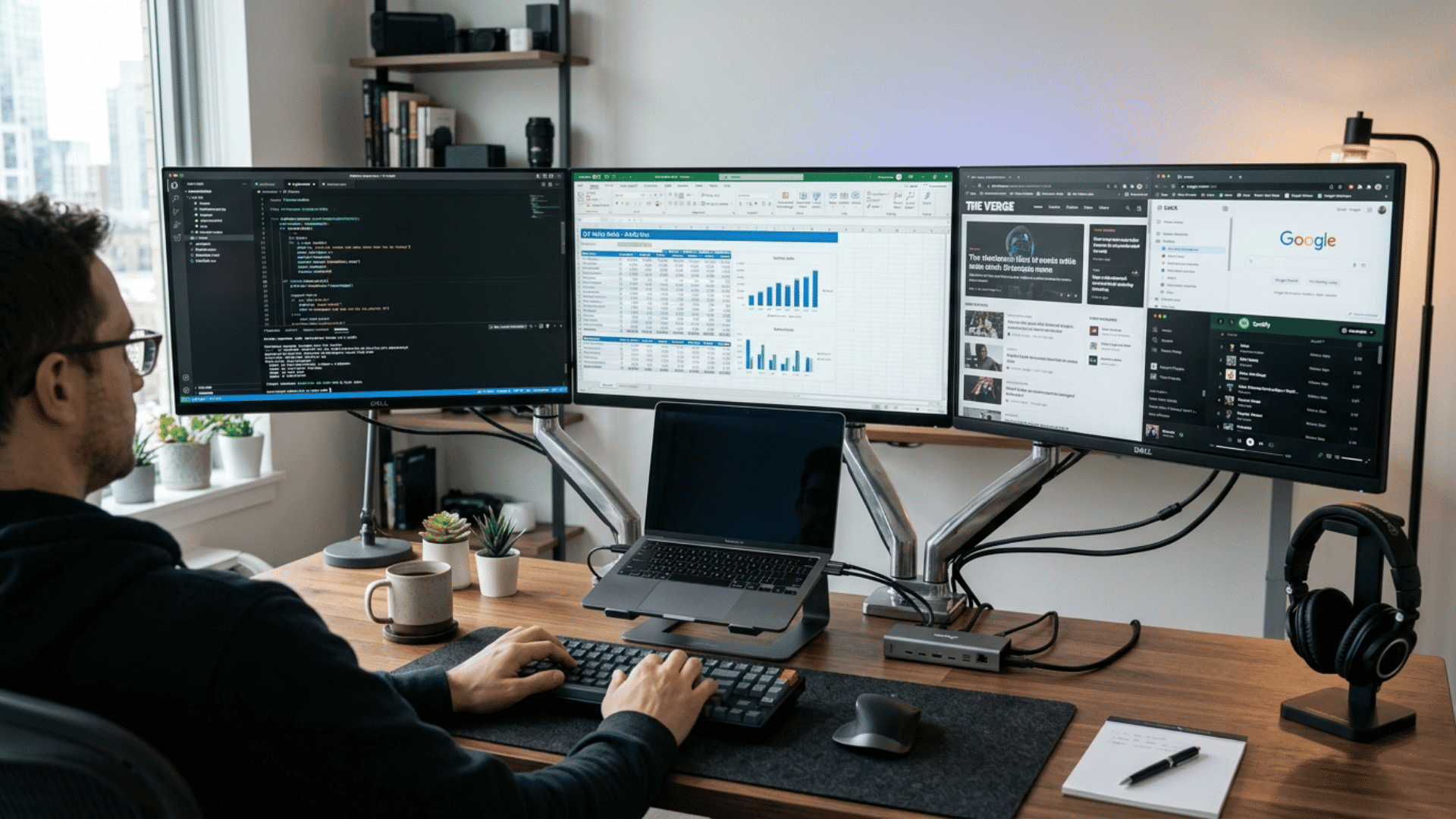
A triple-monitor setup connects three displays to a single computer, extending your desktop across all screens.
Instead of switching between tabs, you can keep different apps open on each monitor, which makes multitasking easier. This setup depends on your system’s graphics support and the available ports, such as HDMI, DisplayPort, or USB-C.
In most cases, all three screens function as one extended workspace, giving you more room to work, compare content, or manage tasks.
Can Your PC or Laptop Support Triple Monitors?
Before setting up a triple-monitor setup, check whether your system can handle three displays.
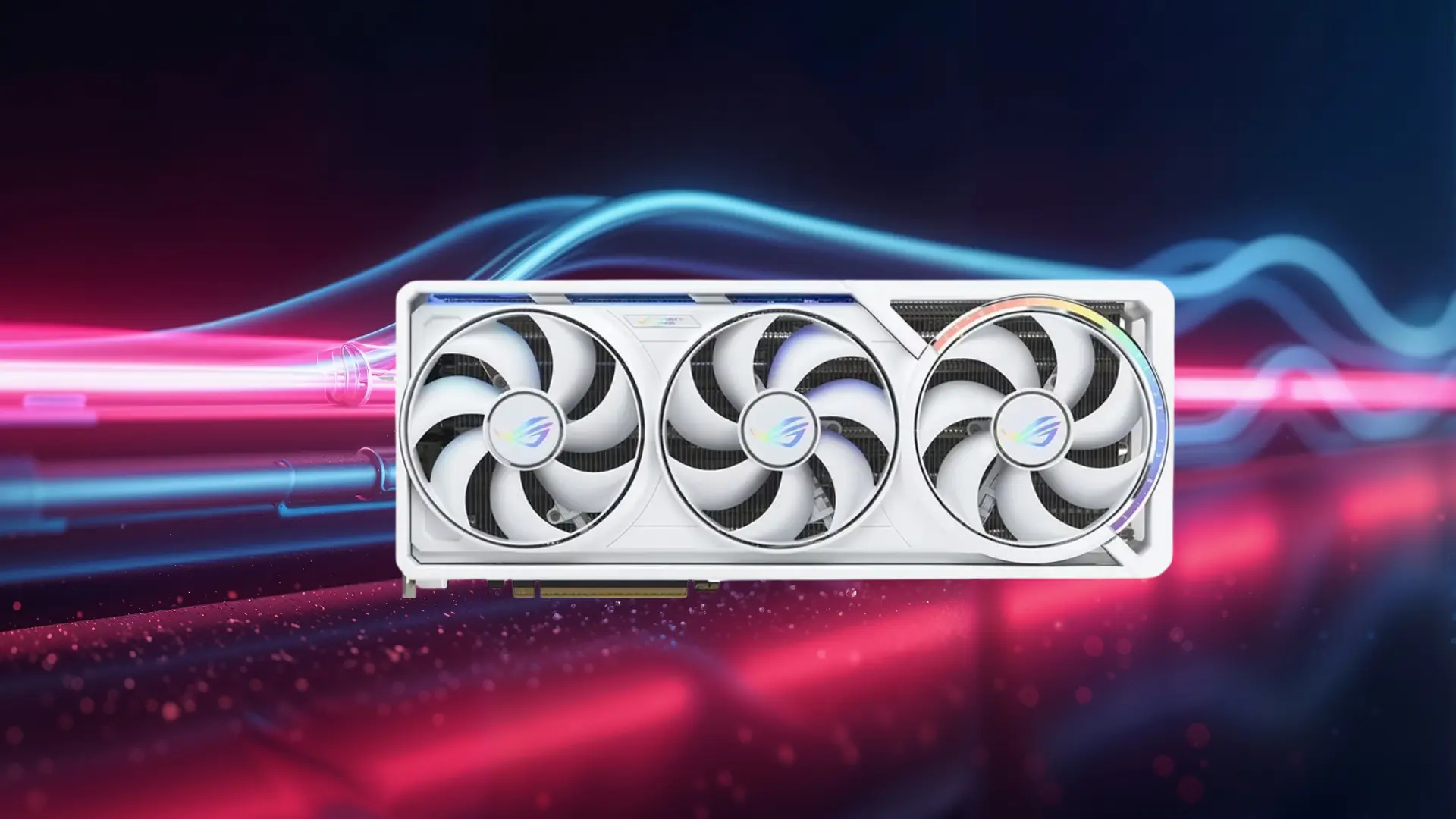
Not all laptops or PCs are built for this, and support depends on your hardware, especially the graphics card and available ports.
- Graphics card support: Your GPU must support three displays at the same time
- Available ports: Look for HDMI, DisplayPort, or USB-C outputs
- Laptop limitations: Many laptops support only one or two external monitors
- Docking stations: Can help add more display outputs if your laptop is limited
- Display technology: Features like DisplayPort MST or USB adapters can expand support
Best Triple Monitor Solutions Compared
Not all triple monitor setups are the same, and the right choice often depends on how and where you plan to use them. Some options focus on portability, while others are built for a stable desk setup.
| Feature | FOPO 15.6 Triple Monitor | HUANUO Triple Monitor Mount | KEFEYA S3 Extender |
|---|---|---|---|
| Type | Portable screen extender | Desk mount (no screens included) | Portable screen extender |
| Best For | Laptop users on the go | Fixed desk setup | Travel + flexible work |
| Screen Size | 15.6-inch displays | Supports 17–32 inch monitors | Around 14-inch displays |
| Setup | Plug-and-play via USB-C/HDMI | Clamp mount + monitor install | Plug-and-play |
| Portability | High | None | High |
| Stability | Moderate | Very high | Moderate |
| Workspace Use | Mobile productivity | Office workstation | Hybrid use |
| Price Range | $200-$500 | $80-$200 | $250-$400 |
Things You Need Before Setting Up Triple Monitors
Before you start setting up a triple-monitor setup, make sure your system and accessories are ready.
- Laptop/PC ports: Check for HDMI, DisplayPort, or USB-C ports to connect all monitors
- GPU support: Make sure your graphics card can handle three displays at once
- Cables: Use the right HDMI, DisplayPort, or USB-C cables for proper connectivity
- Docking station or hub: Helpful if your system doesn’t have enough ports
- Monitor compatibility: Ensure all monitors support the required resolution and have matching input ports
How to Set Up a Triple Monitor Setup (Step-by-Step)
Setting up a triple monitor setup may seem complex at first, but once you understand your system’s ports and capabilities, it becomes much easier.
Method 1: Using Multiple Video Ports
If your PC or laptop has three video output ports such as HDMI, DisplayPort, or USB-C, this is the most direct approach. You simply connect each monitor using the correct cables.
Once all monitors are connected, your system should detect them automatically, and you can adjust the display settings to extend your workspace across all three screens.
Method 2: Using a Docking Station
A docking station is a reliable option if your device doesn’t have enough ports. You connect the dock to your laptop or PC, usually through USB-C, and then plug all three monitors into the dock.
This not only allows multiple displays but also keeps your setup cleaner and more organized by reducing the number of direct connections to your device.
Method 3: Using DisplayPort Daisy Chaining
If your monitors and graphics card support DisplayPort MST, you can connect one monitor to your system and then link the remaining monitors in sequence.
This reduces the number of cables going into your laptop or PC, but it requires compatible monitors and proper settings to enable extended displays across all screens.
Method 4: Using USB Display Adapters
USB display adapters let you add extra monitors via USB ports, which is helpful if your system doesn’t support three displays natively.
Connect the adapter to your device, then plug the monitor into it.
While this method works well for basic tasks, performance may not be as smooth under heavy workloads, such as gaming or video editing.
Is a Triple Monitor Setup Good for Gaming?
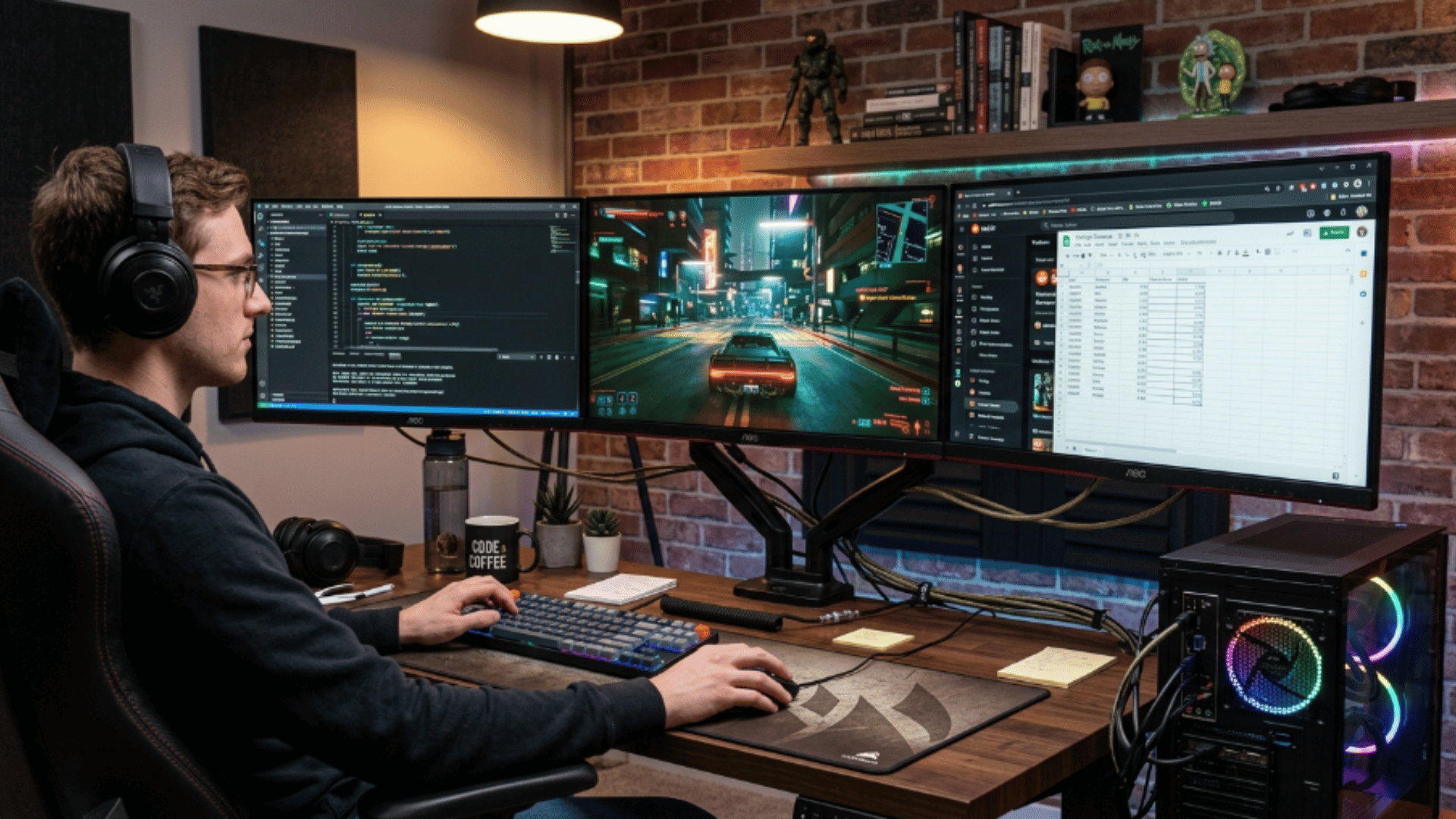
A triple-monitor setup can change how games feel, especially in titles that support a wider field of view.
Instead of being limited to a single screen, you get a more immersive view that spans all monitors. This works best in racing, simulation, and open-world games, but it also comes with some trade-offs you should consider.
- Wider field of view: Expands your vision in games, making environments feel more immersive
- Better immersion: Surrounds you with visuals, especially in racing and sim games
- Hardware demand: Requires a powerful GPU to run games smoothly across three screens
- Game support: Not all games are optimized for triple monitor setups
- Bezel distraction: Screen borders can break the viewing experience
- Desk space: Needs a large setup area for proper alignment
Who Should Use a Triple Monitor Setup?
A triple monitor setup works best for users who deal with multiple tasks at the same time and need more screen space to stay organized. It reduces the need to switch tabs and keeps everything visible in one place.
| User Type | Use |
|---|---|
| Traders | Track charts, market data, and execute trades across screens |
| Developers | Keep code, output, and documentation open together |
| Designers/Editors | Manage timeline, tools, and preview on separate screens |
| Power Users | Run multiple apps, emails, and tasks without switching |
Final Verdict
A triple monitor setup can make a real difference if your work involves handling multiple tasks at once. It gives you space to stay organized and reduces the need to constantly switch between windows.
That said, it’s not just about adding more screens; your system must support it, and the setup needs to be done the right way. If you plan it well, a triple monitor setup can improve how smoothly you work and manage tasks.
But for basic use, it may be more than you actually need. Start with your requirements, then decide if going beyond two screens makes sense.
Frequently Asked Questions
Are Triple Monitors Overkill?
It depends on your needs. For tasks like trading, coding, or editing, they can improve workflow, but for basic browsing or office work, they may feel unnecessary and take up extra space.
How to Set 3 Monitors in One PC?
Connect all three monitors using HDMI, DisplayPort, or USB-C, or use a docking station if ports are limited. Then go to display settings and make sure all screens are detected.
How to Configure Triple Monitors?
Open display settings, arrange the monitors based on your physical setup, set one as the main display, and choose “Extend” to spread your workspace across all screens.
How Do i Get My 3 Screens to Show Different Things?
In display settings, select “Extend display” instead of duplicate mode. This allows each monitor to act independently so you can open different apps on each screen.