

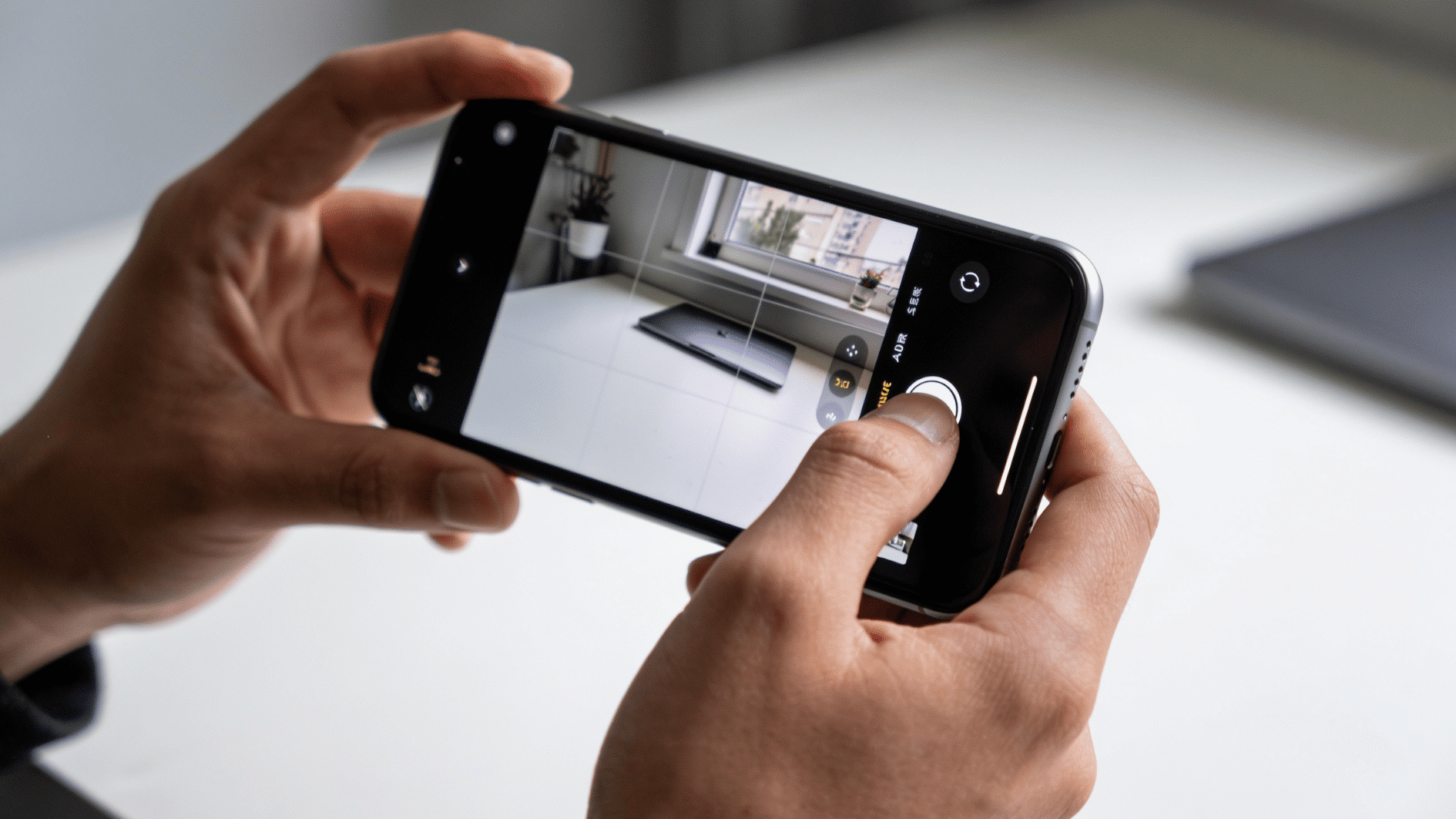


That little shutter click can feel way too loud in the wrong moment, a quiet meeting, a sleeping baby, a crowded library.
Figuring out how to turn off camera sound on iPhone takes about three seconds once you know where to look. There are a few different ways to do it, and the right one depends on your model.
Some methods are obvious, some are hiding in plain sight. This guide covers all of them, simple, fast, and with no tech jargon.
Can iPhone Storage Affect the Performance of Your Device?
Yes, it can, because the device needs free space to install updates, save temporary files, and keep apps running smoothly. When your iPhone runs low on storage, everyday tasks may become less efficient.
A full storage can also make it difficult to download new apps, capture photos, or record videos. In some cases, apps may take longer to open or respond because there isn’t enough available space for normal operations.
Keeping some storage free helps your iPhone perform at its best. It also reduces interruptions from storage warnings and ensures that important updates can be installed without issues.
How to Silence Your iPhone Camera with Various Methods
The iPhone camera shutter sound is on by default, and it’s not always welcome. If you’re in a quiet room or just don’t want the attention, silencing it is easier than you’d think. Here are all the ways to do it:
1. With the Ring/Silent Switch
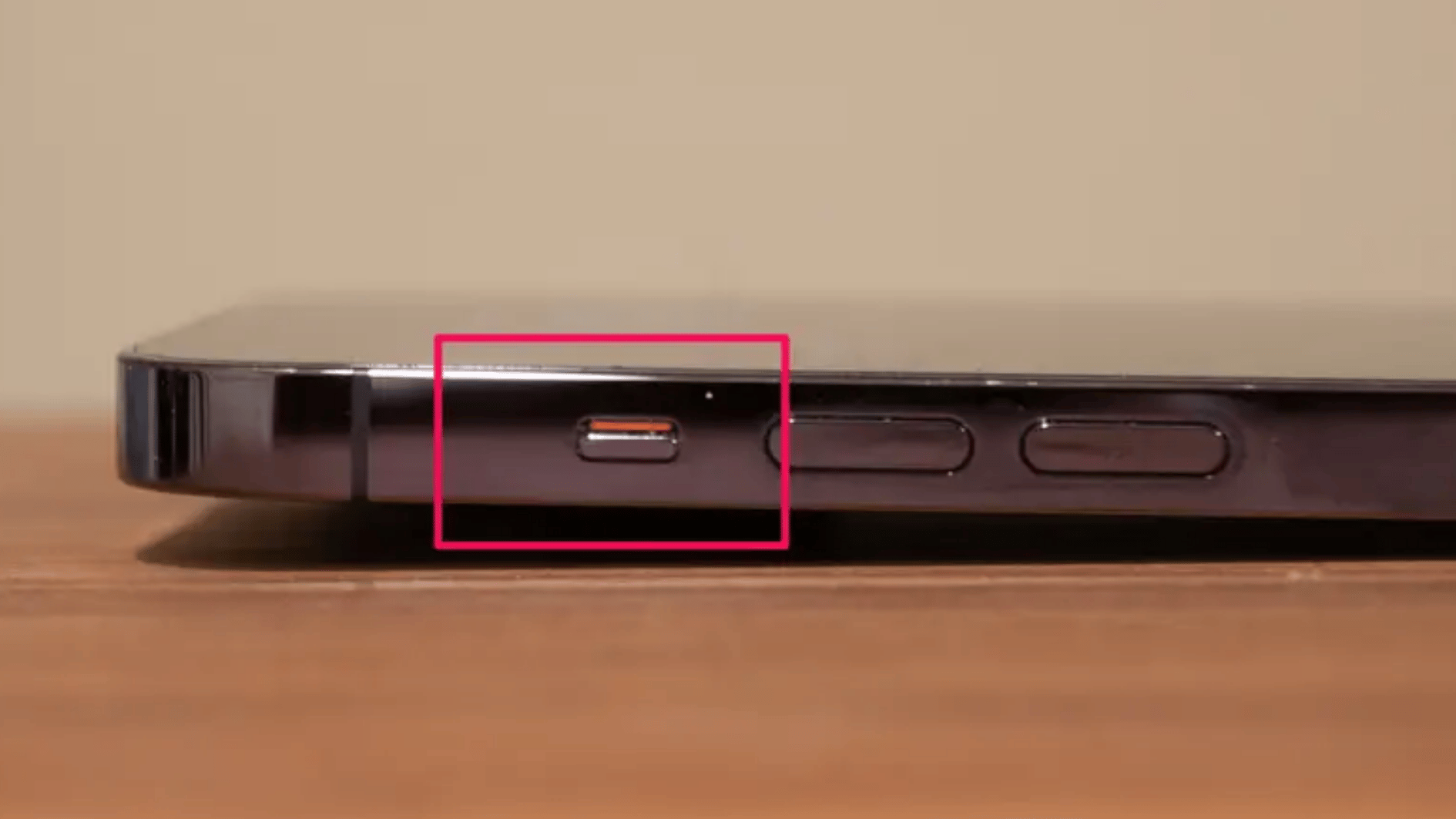
The Ring/Silent switch is the simplest and quickest way to mute your iPhone camera, no settings, no menus, just one flick. Apple confirms the shutter sound can be muted this way on supported models.
- Step 1: Locate the Ring/Silent switch on the left side of your iPhone. It sits just above the volume buttons
- Step 2: Flip it downward until you see the small orange strip appear. That orange line confirms Silent Mode is now on
- Step 3: Open the Camera app and frame your shot as usual
- Step 4: Take a test photo; the shutter click should be completely gone
Tip: If you don’t see a Ring/Silent switch on your iPhone, your model likely uses the Action Button instead , scroll down to that section for how to turn off camera sound on iPhone using that method.
2. Using the Action Button
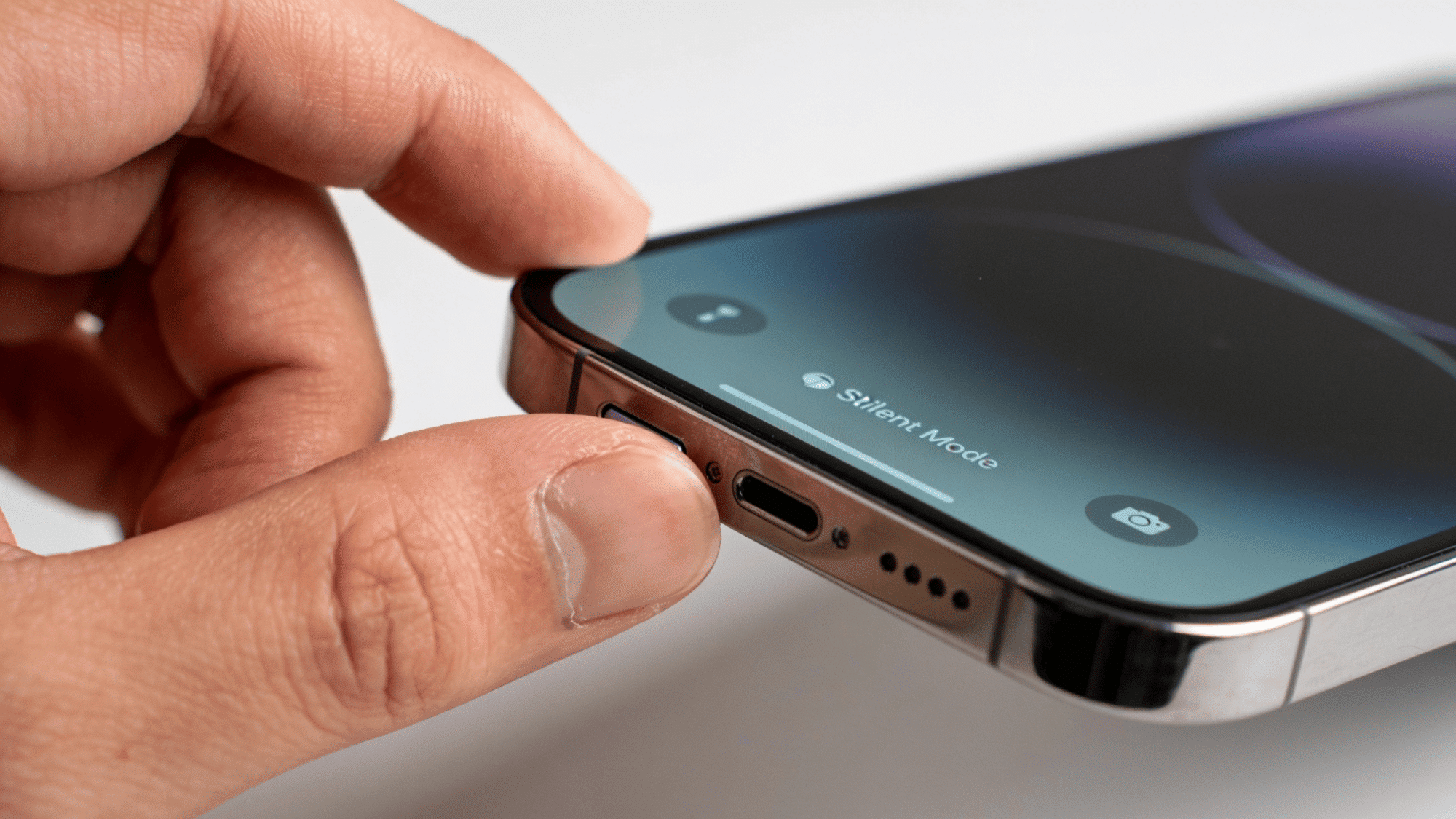
Not all iPhones have a Ring/Silent switch; newer models replace it with the Action Button. When set to Silent Mode, it works just as well for muting the camera shutter.
- Step 1: Open the Settings app on your iPhone’s home screen
- Step 2: Tap “Action Button” from the menu, which usually appears near the top
- Step 3: Swipe through the options until you reach Silent Mode
- Step 4: Select Silent Mode so the Action Button is assigned to it
- Step 5: Press and hold the Action Button until you feel a haptic response. This turns Silent Mode on
- Step 6: Open the Camera app and take a test shot to confirm the shutter sound is gone
Tip: The Action Button mutes your entire phone, not just the camera, so calls, alerts, and media will be silenced too.
3. With the Volume Button
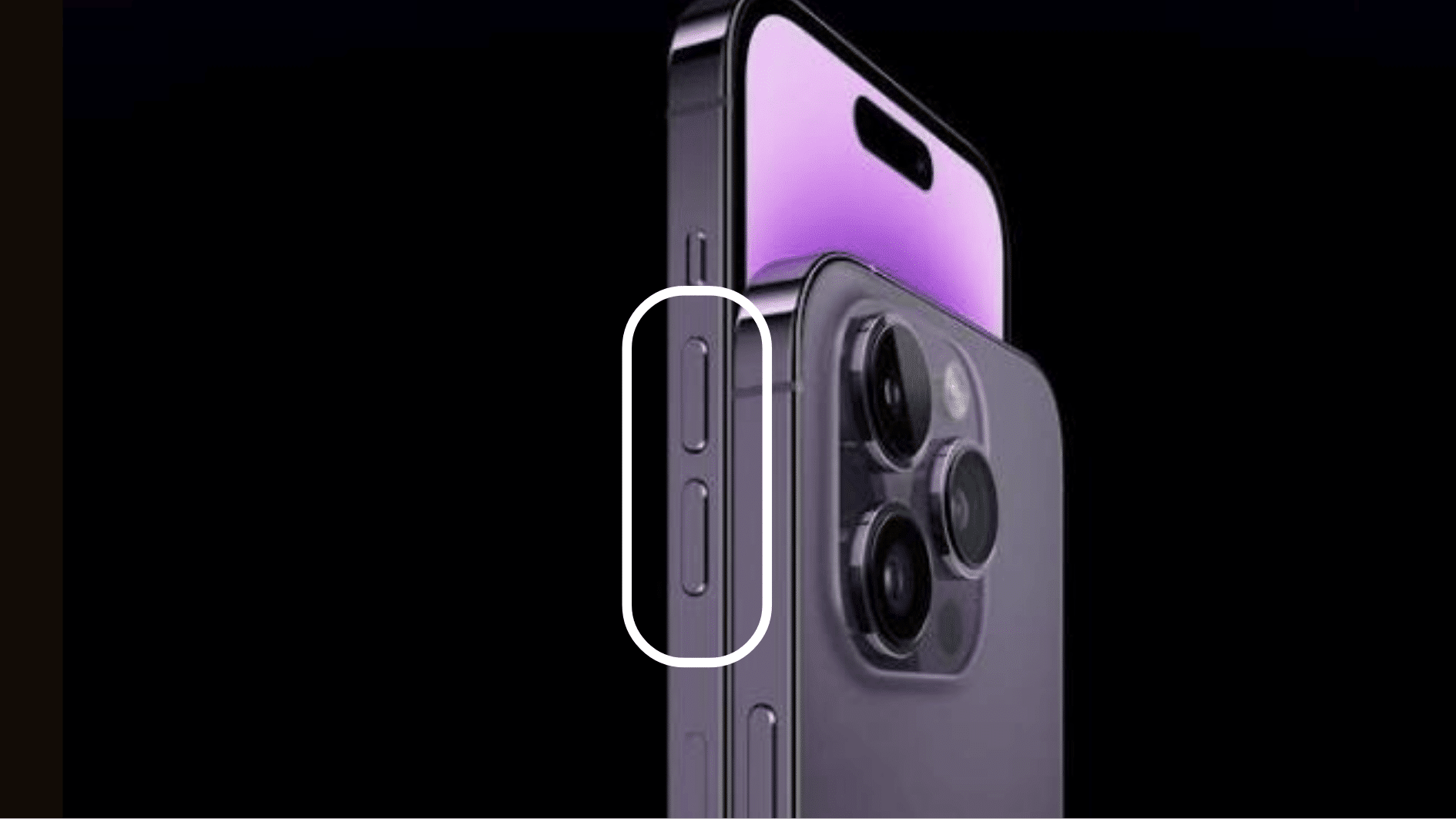
If you’re figuring out how to turn off camera sound on iPhone, lowering the volume is one of the fastest fixes. It won’t always fully mute the shutter, but it can make it significantly quieter with just a few button presses.
- Step 1: Close the Camera app completely before making any changes
- Step 2: Press the Volume Down button repeatedly until the volume bar on the screen reaches zero or near zero
- Step 3: Check the silent indicator, a small bell icon may appear on screen, confirming low volume
- Step 4: Open the Camera app again, fresh
- Step 5: Take a test photo to check if the shutter sound has reduced
- Step 6: Repeat if needed; some iPhones may still produce a faint click even at low volume
Tip: This also lowers media volume for music and videos, so remember to turn it back up when you’re done shooting.
4. Using the Control Center
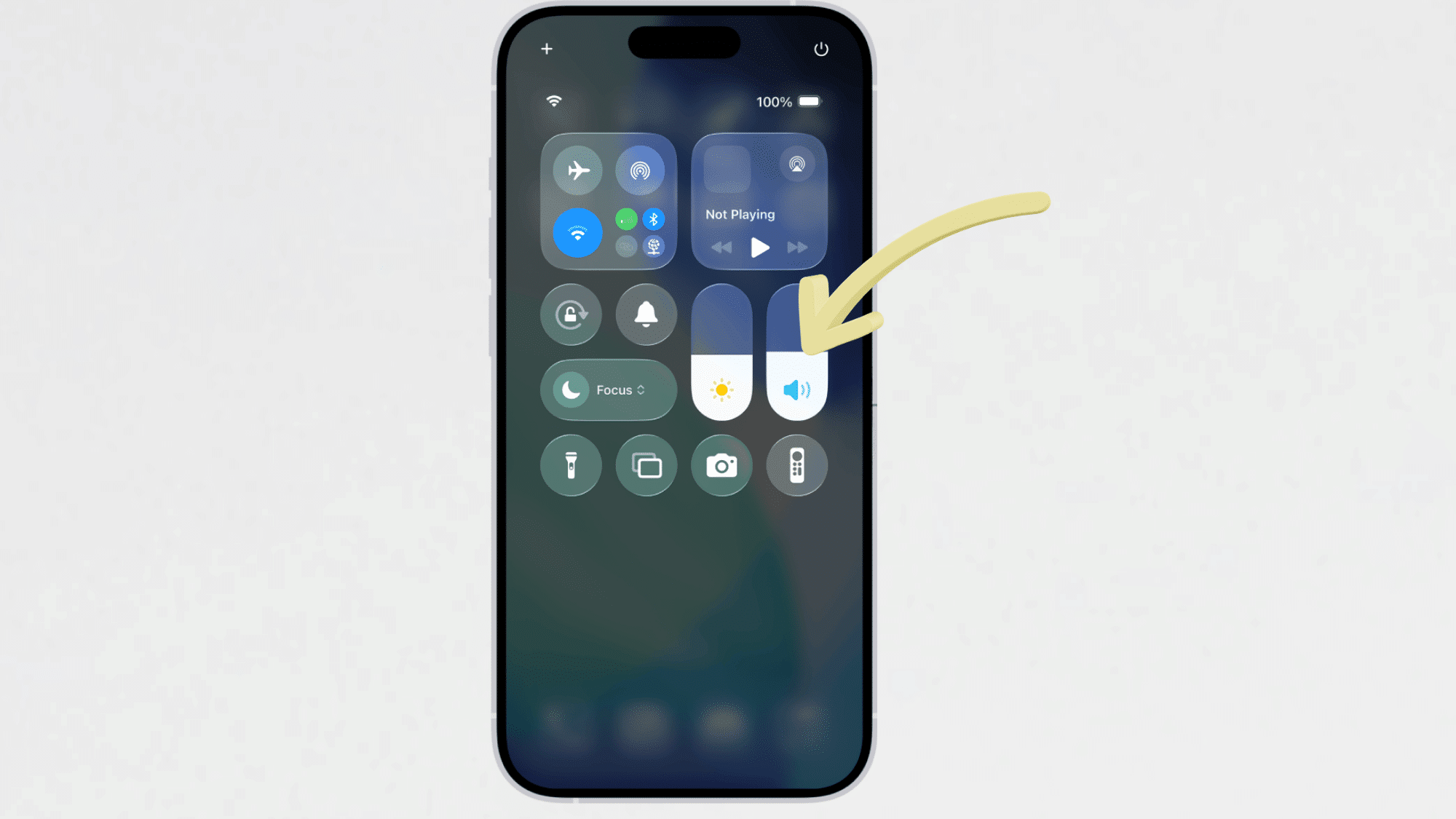
Control Center gives you more precise control over shutter volume without pressing any physical buttons, making it ideal for quiet situations where even a button press might draw attention.
- Step 1: Open the Camera app and get your shot ready
- Step 2: Swipe down from the top-right corner of the screen to open Control Center. On older iPhones with a Home button, swipe up from the bottom edge instead
- Step 3: Locate the volume slider, which looks like a speaker icon with a vertical bar
- Step 4: Drag the volume slider all the way down to minimize the shutter sound as much as possible
- Step 5: Swipe back up or tap outside to close Control Center
- Step 6: Return to the Camera app; it should still be open in the background
- Step 7: Take a test photo to confirm the sound is lower or gone
Tip: This is one of the most reliable ways to turn off shutter sound on iPhone without switching your entire phone to silent.
When Should You Keep the Camera Sound On?
Knowing how to turn off camera sound on iPhone is useful, but silence isn’t always the right call. In public spaces like parks, gyms, or cafes, the shutter sound signals to people nearby that you’re taking a photo.
This builds trust and avoids making others uncomfortable. It also helps you confirm the shot actually registered, especially when shooting quickly.
If you’re photographing kids or pets, that little click can serve as a handy audio cue. And in professional settings, keeping the sound on shows respect for those around you. Sometimes, that click matters more than you think.
Common Camera Sound Problems and Fixes
iPhone camera sounds are more than background noise; they’re often the first sign that something’s off with your settings, storage, or hardware.
Some are completely harmless, others need a quick fix before they cost you a great shot. Here’s everything you need to know, laid out clearly.
| Sound / Problem | Likely Cause | Fix |
|---|---|---|
| Shutter clicks even on silent | Shutter sound is legally required in some regions (e.g., Japan) | Can’t disable by region lock; use a third-party camera app |
| No shutter sound at all | Ring/silent switch flipped or volume at zero | Toggle the silent switch off or raise the volume |
| Clicking during video recording | OIS (optical image stabilization) is working hard | Normal in low light; avoid handling the mic near the body |
| Rattling when you shake the phone The | OIS lens module is moving freely | Completely normal, it’s floating by design |
| Beeping / no photo taken | Storage is full, or the camera app has crashed | Free up space or force-quit and reopen the app |
| Loud tap sound on tap-to-focus | Haptic feedback on camera tap | Disable under Settings → Sounds & Haptics |
| Static or crackling in the video or audio | Microphone blocked or dirty | Clear the mic grille gently with a dry brush |
| Echo or muffled audio in videos | Wrong mic being used or case blocking | Remove case; check if issue persists |
| Clicking sound during Night Mode | Long exposure processing | Normal, phone is taking multiple frames |
| No sound during video playback | Video shot in silent mode | Audio captured fine; check playback volume |
Final Thoughts
That shutter click doesn’t have to be a permanent fixture. Now that you know how to turn off camera sound on iPhone, you’ve got more than one way to handle it.
A quick switch flip, a volume tap, or a setting buried in the menu. Each method takes seconds. Some silence the whole phone, others just dial things down. So pick what fits the moment.
And if the sound keeps coming back despite everything, it’s likely a regional lock, not a glitch. Either way, you’re not stuck with it. Go shoot in peace.
Frequently Asked Questions
Does Turning on Silent Mode Affect Anything Other than The Camera Sound?
Yes, it mutes all alerts, calls, and media on your iPhone, not just the shutter.
Will Live Photos Work the Same Way if I Use Them Just to Reduce the Shutter Sound?
Yes, your photos save normally; the only difference is that each shot also captures a short video clip.
Can I Mute the Camera Sound on iPhone without Switching the Whole Phone to Silent?
Control Center’s volume slider is your best bet; it reduces shutter sound without fully enabling Silent Mode.