







Ever had that moment when a call feels fine, but the other side keeps asking, “Can’t hear properly?” That usually points straight to how to fix a phone microphone issue, and honestly, it’s more common than it feels.
Most of the time, it is nothing serious at all, just a small setting acting up, a bit of dust, or a quick system glitch playing tricks.
The good part is that it usually doesn’t take anything complicated to sort out. A few simple checks can often bring things back to normal without much effort.
Now the tricky part is figuring out what’s actually going wrong, and that’s where things start to make sense below.
Can a Phone Microphone Be Fixed Without Repair?
Yes, in many cases, the issue can be resolved without needing repair when learning how to fix the phone microphone. It usually comes down to simple software or app-related issues that basic checks can fix.
A quick reset or adjustment of microphone permissions is often enough to restore normal functionality. Clearing obstructions around the mic area can also help improve sound quality.
Even if the issue feels serious, it is often temporary and can be resolved with simple troubleshooting steps
Common Issues Behind Phone Microphone Problems
Phone microphone problems usually don’t happen without a reason. Most of the time, a small setting, blockage, or system glitch is behind it.
Knowing the exact cause helps you fix things faster without trying random solutions. Have a look:
| Issue | What it means | Quick sign you’ll notice |
|---|---|---|
| Dust or blockage | Mic opening is partially covered by dirt or a case | Audio sounds unclear or reduced |
| App permission off | Microphone access not granted to apps | Works in some apps, fails in others |
| Bluetooth active | The phone is sending audio to another connected device | No sound was picked up during calls |
| Software glitch | Temporary system or app error | The mic stops working suddenly |
| Outdated software | The system version is not updated | Irregular or unstable mic performance |
| Faulty app | A specific app is interfering with mic input | The issue appears only in one app |
| Wrong input source | Phone selects incorrect audio input | Very low or no recording sound |
| Water or moisture | Liquid exposure affecting mic performance | Distorted or missing audio |
| Hardware damage | Physical issue in the microphone component | Mic fails across all apps |
| Noise control feature | The system reduces or filters the voice input | Voice sounds uneven or cut |
| Case obstruction | The phone cover partially blocks the mic opening | Voice becomes faint |
| Cache issue | App data conflict affecting audio input | Mic starts working after clearing data |
| System misconfiguration | Settings changed or reset incorrectly | Mic works after reboot/reset |
| Third-party app conflict | Installed app interfering with system mic | Mic stops after installing a new app |
| Mic disabled in settings | System-level mic access turned off | No audio input detected anywhere |
These issues cover the most common reasons behind mic problems and help you quickly narrow down what’s actually going wrong
Once you identify what matches your situation, the next steps become much easier and more direct, rather than trying random fixes.
How to Fix Phone Microphone Issues on iPhone and Android
These are simple fixes you can try when your phone mic stops working. Most problems can be solved with a few quick checks without going into advanced settings.
Steps to Fix Your iPhone Microphone Issues
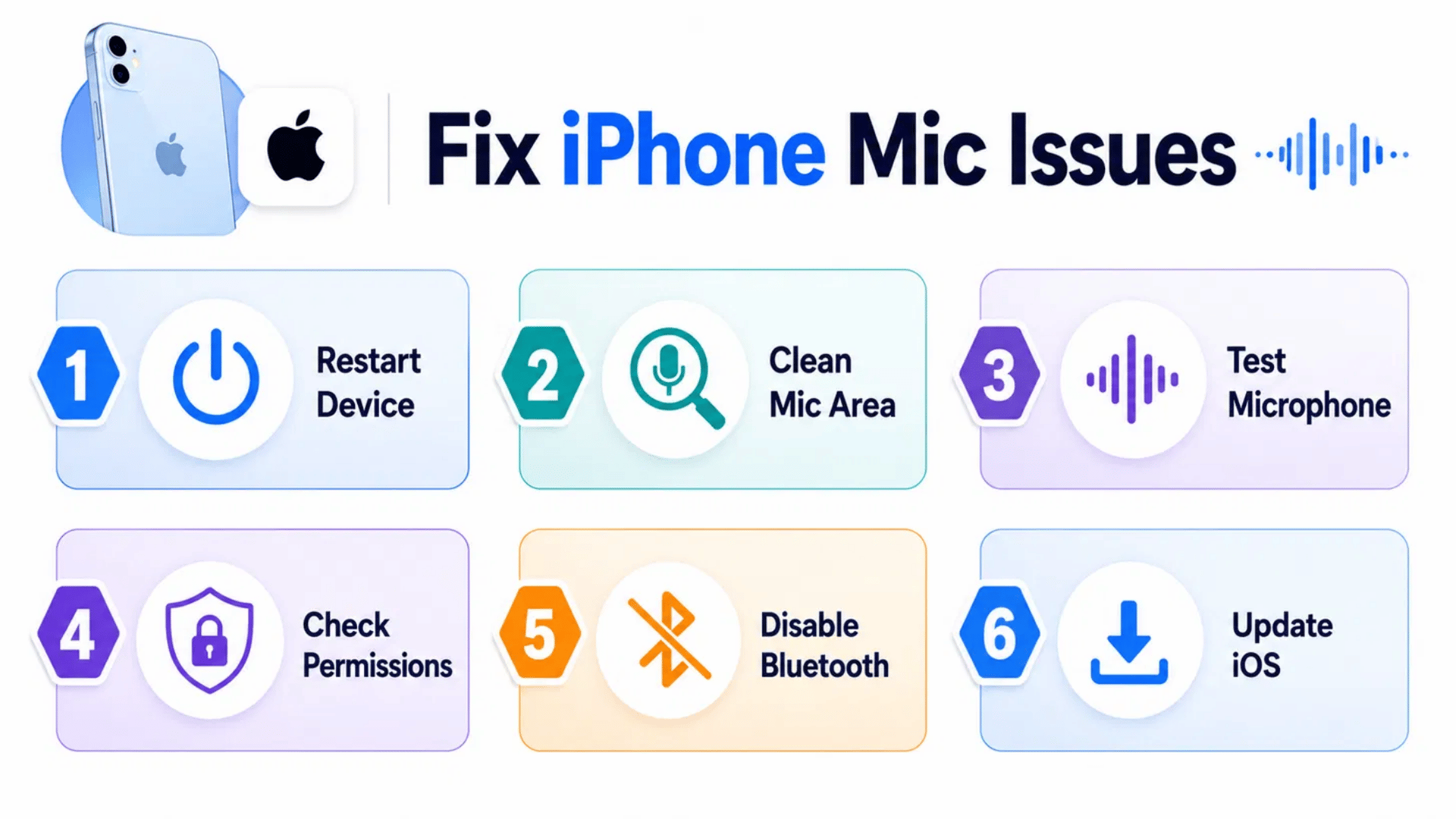
iPhone microphone not working can be frustrating when calls or voice notes sound unclear. Start with basic checks like settings and the mic area.
These steps help determine if the issue is due to settings, a blockage, or a minor system glitch. Most problems get fixed once the cause is found.
- Restart your iPhone: This clears temporary glitches that may be preventing the microphone from working properly.
- Check and clean the microphone area: Make sure dust, dirt, or a case is not blocking the mic opening.
- Test using Voice Memos or a call: Confirms if the microphone is capturing sound correctly.
- Check microphone permissions: Go to Settings → Privacy → Microphone, then allow access for the required apps.
- Disconnect Bluetooth devices: Ensure your phone is not sending audio input to headphones or speakers.
- Update iOS software:This fixes bugs that may affect microphone performance.
Steps You Can Follow to Fix Your Microphone Issues on Android
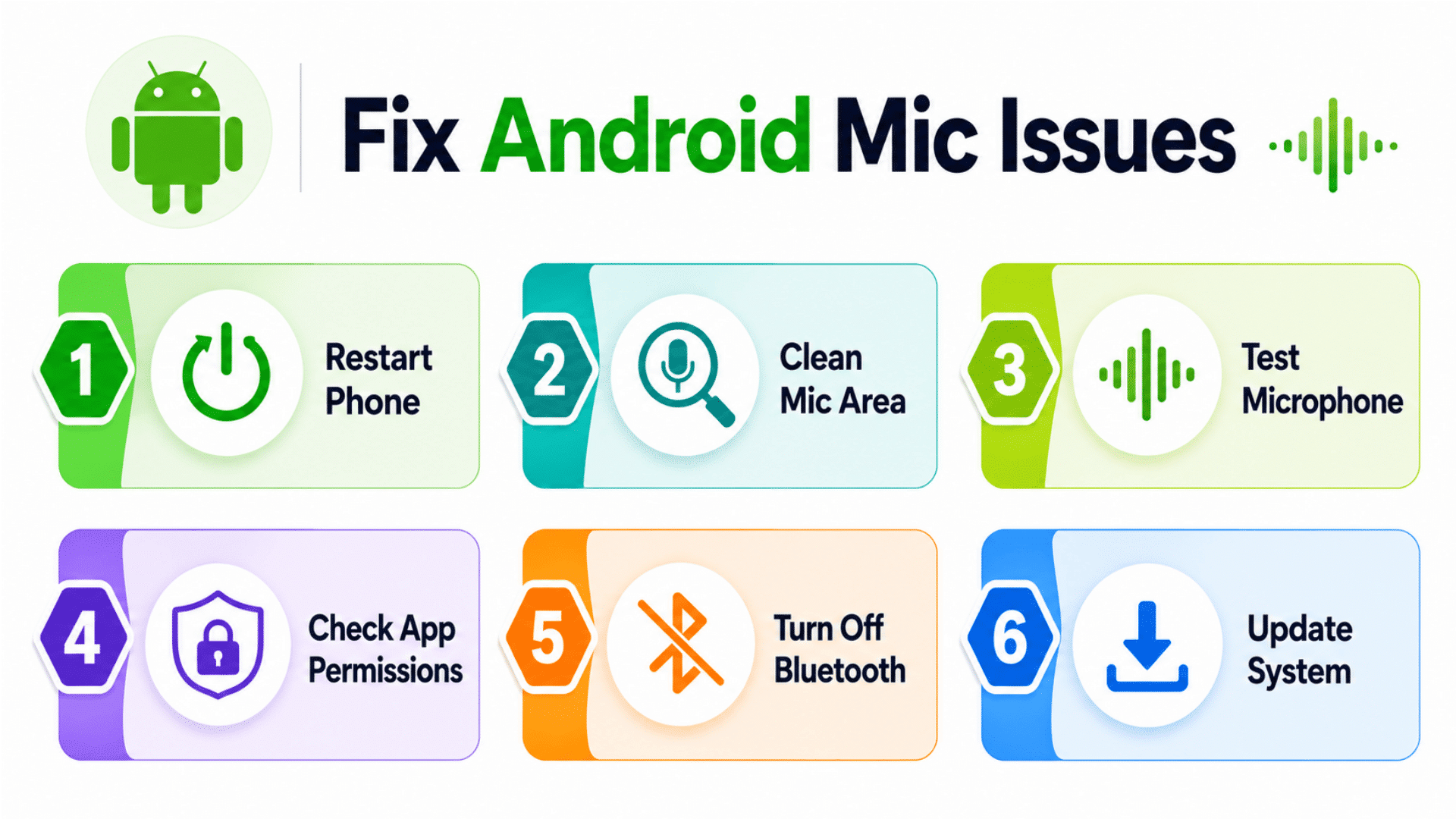
Android mic issues can affect calls or recordings, causing the sound to stop suddenly. Start with simple fixes and test after each one.
These steps help determine if the issue is due to settings, a blockage, Bluetooth, or a minor system glitch. Most problems get fixed once the cause is clear.
- Restart your phone: This clears temporary glitches that may be preventing the microphone from working properly.
- Check microphone area: Make sure dust, dirt, or a case is not blocking the mic opening.
- Test with Voice Recorder or Assistant: Helps confirm if the microphone is capturing sound correctly.
- Check app permissions: Go to Settings → Apps → Permissions → Microphone and allow access for required apps.
- Turn off Bluetooth: Ensures your phone is not sending audio input to headphones or speakers.
Disclaimer: These steps cover common software and setting issues. If the mic still doesn’t work, it may be a hardware problem and should be checked at a service center.
What to Do If None of the Fixes Work?
If basic steps don’t help, the issue may be deeper than simple settings when looking at ‘how to fix phone microphone’ problems. At this stage, repeating the same checks usually won’t make much difference.
You can start by backing up your data and doing a full reset. This often clears hidden system glitches that may be affecting sound input without any clear warning.
On Android, switching to safe mode is also useful, as it helps you check if a third-party app is interfering with normal microphone functionality.
If the problem remains the same, the most practical step is to visit a service center. A technician can properly inspect the hardware and, if required, complete the necessary repair.
Tips to Avoid Phone Microphone Problems in the Future
These simple habits can help you keep your phone microphone working properly and reduce common sound or connectivity issues during everyday use.
Regular care and small checks can go a long way in maintaining clear audio quality.
- Keep mic area clean: Gently wipe the microphone opening from time to time to prevent dust buildup and blockage.
- Use a phone case carefully: Choose a case that does not cover the mic holes to avoid muffled or low sound.
- Check app permissions: Allow microphone access only for trusted apps to prevent access or recording issues.
- Avoid moisture exposure: Keep your phone away from water and humid environments to protect internal mic parts.
- Update software regularly: Install system updates as they become available to fix bugs and improve microphone performance.
- Restart phone occasionally: Restart your device periodically to clear temporary glitches.
- Avoid heavy background apps: Close unused apps running in the background to reduce microphone conflicts.
- Don’t block the mic while holding the phone: Be mindful of hand placement during calls or recordings to avoid sound blockage.
- Clean speaker grills gently: Use a soft brush or air blower occasionally to keep the audio path clear.
- Avoid cheap accessories: Use certified chargers and accessories to prevent interference with microphone performance.
Following these habits helps keep your microphone working smoothly and avoids the most common issues. A little regular care is usually enough to prevent sound problems.
It’s a Wrap
When your phone mic starts messing up, it can feel like everything is fine on your end, but the world has gone silent on the other side.
That’s usually your sign that ‘how to fix phone microphone issue’ is in play, and thankfully, it’s rarely something serious.
Most of the time, it’s just a small setting, a bit of dust, or a quick glitch that got in the way. Once that’s sorted, things usually fall back into place without much effort.
So instead of stressing or guessing, next time all you need are these few simple checks, which can save the day and get your mic working smoothly again.
Frequently Asked Questions
Why is My Phone Microphone Low or Unclear?
This usually happens due to blockage, dirt, or incorrect audio settings.
Why Does My Mic Work on Speaker But Not Normal Calls?
This is often caused by call-specific settings or routing issues.
Can Software Updates Fix Microphone Issues?
Yes, updates often fix bugs that affect microphone performance and stability.
How Do I Know if My Microphone is Damaged?
If it fails in all apps even after resets, it may be a hardware issue.