

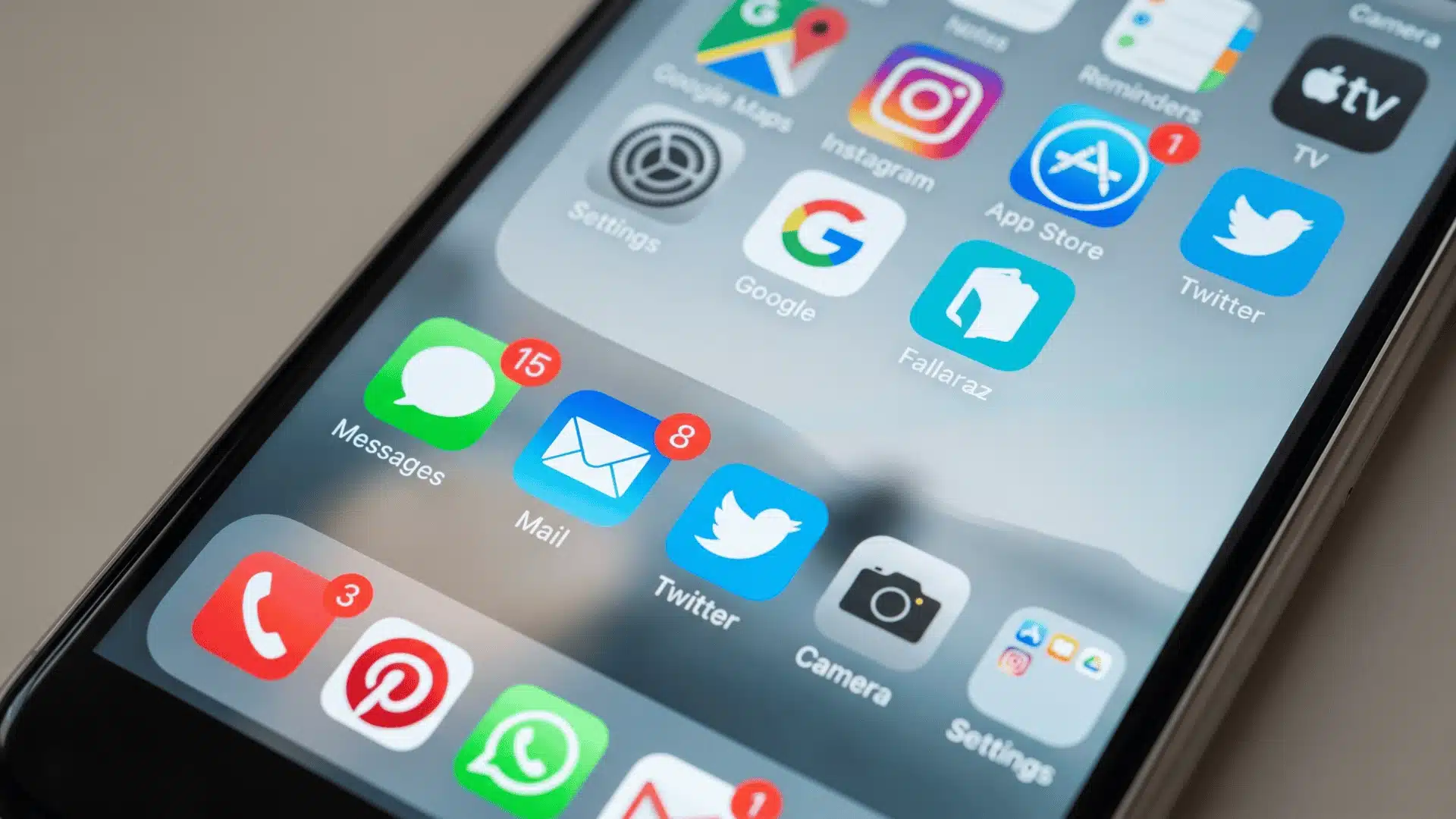






That red circle on your app icon is easy to ignore until you stop and wonder what it actually means. I have seen plenty of people tap it away without knowing what the number is tracking.
The confusing part is that iPhone badges are not always just “new notifications.” Some apps count unread messages, while others show pending tasks, updates, or activity, which is why the number may not match what you expect.
Those numbers can also get stuck sometimes, and it does not always mean your iPhone has a problem.
Once you know how app badges work, those red circles feel less random and become much easier to manage.
What are Badges on iPhone?
A badge is the small red circle that sits on the corner of an app icon. Inside it, you’ll see a white number, or sometimes just an exclamation mark.
That number isn’t a running total of every alert you’ve ever gotten. It’s a count of what’s still pending inside the app right now. This is the part people get wrong.
A badge doesn’t log history; it reflects the current state. Get five texts, then read four of them, and the badge won’t say five. It’ll say one, because only one thing is still waiting on you.
Open the app and clear what’s there, and the badge disappears completely. It only reappears once something new actually needs your attention.
That’s why the badge can sit at zero for days, then jump straight to three. It’s tracking what’s unresolved, not counting up over time.
What Information Do Notification Badges Show?
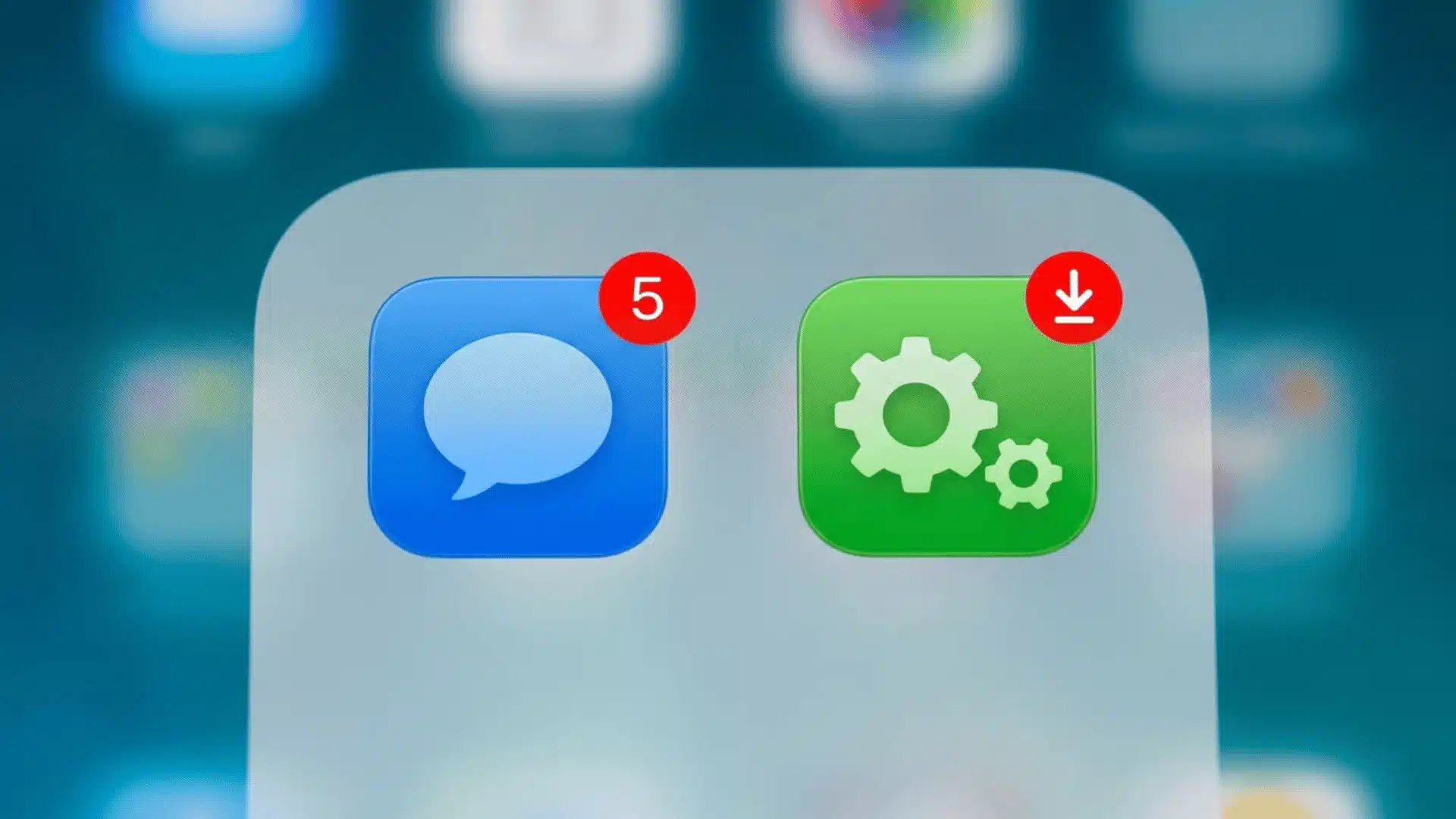
What a badge counts depends entirely on the app showing it. There’s no single rule that applies everywhere. Mail and Messages keep it simple. Their badge counts unread messages or conversations you haven’t opened.
Settings and the App Store work differently. Their badge tracks updates waiting to be installed, not anything unread. Each app decides what counts as “pending” for its own purpose.
For messaging apps, pending means unread. For the App Store, it means an update sitting there uninstalled. That’s why your Settings icon can look alarming for no real reason.
You haven’t missed anything; a system update is ready for you. Some apps blur the line further. A banking app might badge a pending transaction instead of a message.
That’s still something waiting on you, just not in your inbox. Once you know an app’s own logic, the number stops feeling random.
Badges vs. Banners: What’s the Difference?
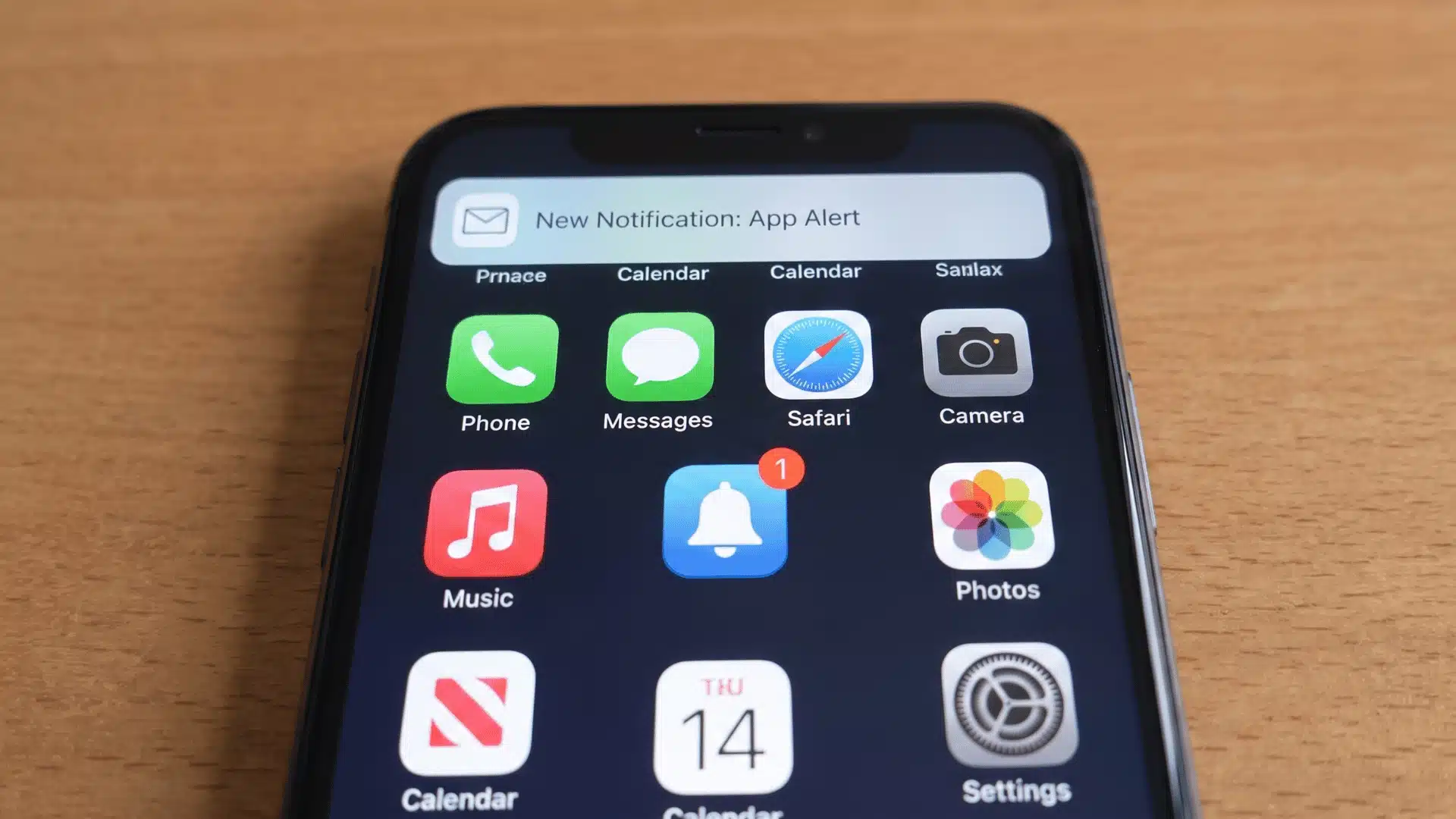
The simplest way to put it: badges stick around, banners don’t. Where each one gets controlled, and whether one can exist without the other, changes how you should read them.
| Badge | Banner | |
|---|---|---|
| What it is | Red circle on the app icon | On-screen alert that slides in |
| How long it lasts | Stays until you deal with it | Fades after a few seconds |
| Can appear alone | Yes, with no banner ever shown | Yes, with no badge left behind |
| Controlled where | Settings, separately per app | Settings, separately per app |
Lock your phone overnight, and you’ll see this play out. Badges pile up while you sleep, but you never saw a single banner. Turning banners off won’t touch them.
Why Badge Numbers Get Stuck or Look Wrong
Sometimes a badge won’t clear, even after you’ve read everything inside. Here’s what’s actually going on when the number looks wrong or frozen.
- Not a phone glitch: Stuck badges almost always trace back to syncing issues, not an actual problem with your device or hardware itself.
- Background App Refresh: If this setting is off, the app can’t keep up with firmware updates and background sync behaviour.
- Cross-device lag: Reading an email on your laptop first means your iPhone’s badge won’t reflect that change immediately.
- Old data, not wrong data: The badge reflects whatever it last synced, which could easily be several minutes behind.
Restarting your phone might clear a stuck badge once, but it won’t fix the cause. Check Background App Refresh if it keeps happening.
How to Turn Badges On or Off
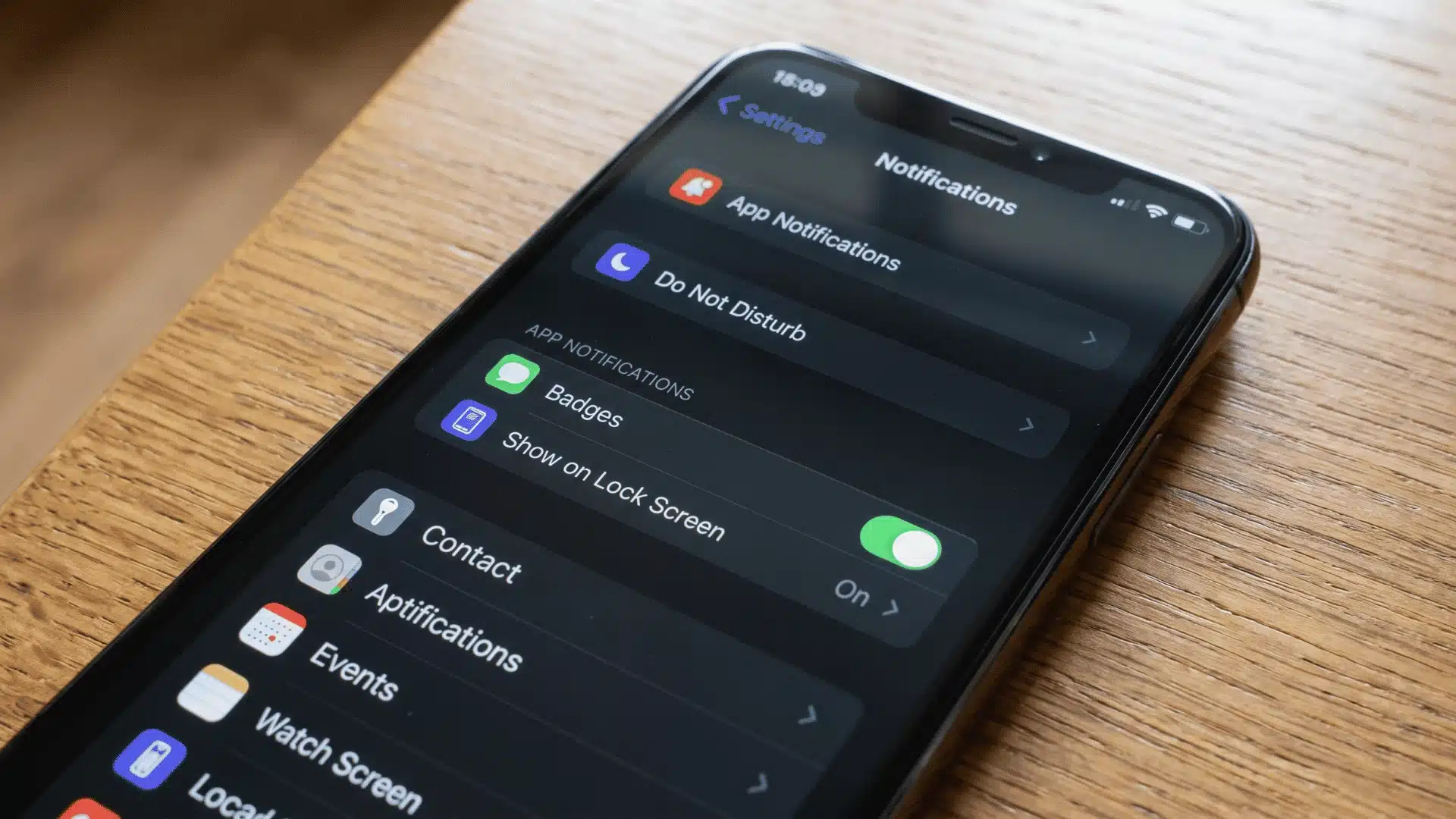
Badges are controlled per app, through Settings > Notifications. There’s no single switch that turns them all off at once.
Here’s how to change it for any app:
- Open Settings and tap Notifications
- Select the app you want to adjust
- Toggle Badges on or off
That’s it; the change applies only to that app, so Mail and Messages can stay set differently. This setup is deliberate rather than a limitation, since it lets you keep badges on for apps like Messages while switching them off for ones you check constantly anyway.
Want badges gone everywhere?
Please go through this same process for each app individually. There’s no shortcut for bulk changes, since Apple keeps the control granular, one app at a time, on purpose.
Wrapping Up
Once you know what badges on iPhone actually track, those small red circles become much easier to understand. They do not record every alert you have received. They show what is still waiting for your attention based on each app’s own settings.
That is why two apps can display badges differently, and why a stuck number is often a syncing issue instead of a phone problem.
Now that you know how badges work and how to control them for each app, you can decide what deserves space on your Home Screen.
Open Settings and adjust badge notifications based on how you actually use your iPhone.
Frequently Asked Questions
Should badges be on or off on iPhone?
It depends on personal preference. Badges help you spot pending items at a glance without opening apps, which some people find useful. Others find the red numbers distracting or anxiety-inducing. There’s no technical downside to turning them off; doing so doesn’t affect whether you actually receive notifications, only whether the icon displays a count.
What happens if I turn off app icon badges?
The app will no longer show a red number on its icon, but you’ll still receive notifications, banners, and sounds as usual if those are enabled separately. Turning off badges only removes the visual counter on the icon itself; it doesn’t change how the app notifies you otherwise.
What is the difference between a badge and a pop-up notification?
A badge is a persistent number on an app icon showing pending items until you open the app. A pop-up notification (banner or alert) is a temporary message that appears briefly on screen when something new happens, then disappears. You can have one without the other, depending on your settings.
Why does my badge number not match my unread messages?
Some apps count differently than expected. Mail and Messages typically count unread items, but apps like the App Store or Settings use badges for pending updates instead. If a number still seems off after checking, it may be a delayed sync rather than an incorrect count.