

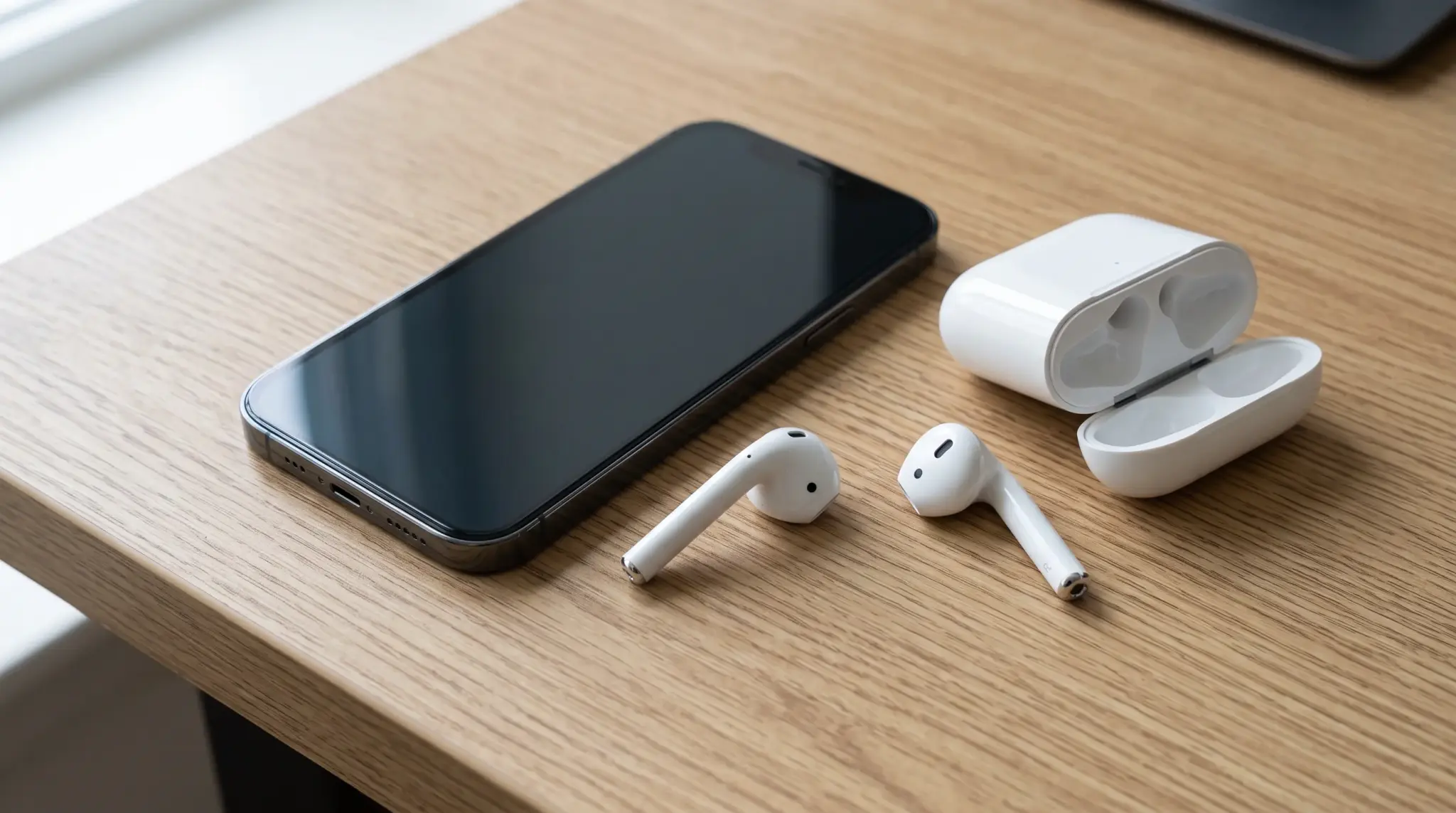






Music playing one second, dead silent the next. If your AirPods keep disconnecting mid-song or mid-call, you have probably already tried turning Bluetooth off and on a dozen times.
Here is the thing: a full disconnect and a random pause look almost identical from the outside, but they come from completely different problems inside your earbuds.
One points to Bluetooth and battery trouble, the other to a confused sensor.
Figure out which one you are actually dealing with first, and the fix gets a lot easier to find. Start by watching what your phone shows the next time the sound cuts out.
Is It Disconnecting or Pausing? Here’s the Difference
Disconnecting and pausing are different problems with different causes. Knowing which one is happening helps you choose the right fix.
A full disconnect means the Bluetooth connection drops. Your AirPods may show as “Not Connected,” audio may switch to your device’s speaker, or the connection sound may play again.
Pausing means the Bluetooth connection stays active, but playback stops or the sound cuts out briefly. Music may resume when you tap play or adjust the earbuds.
In my experience testing this across a few different AirPods generations, the fastest way to tell them apart is to check the audio output menu the second the sound stops.
If the AirPods vanish from that list entirely, that’s a real disconnect. If they’re still listed as the active output but nothing is playing, that’s a pause.
Disconnections often point to Bluetooth conflicts, device switching, or connection errors.
Pausing is more commonly linked to Automatic Ear Detection, dirty sensors, or a loose fit. Check what your device shows when the sound stops before troubleshooting.
Why Do AirPods Keep Disconnecting?
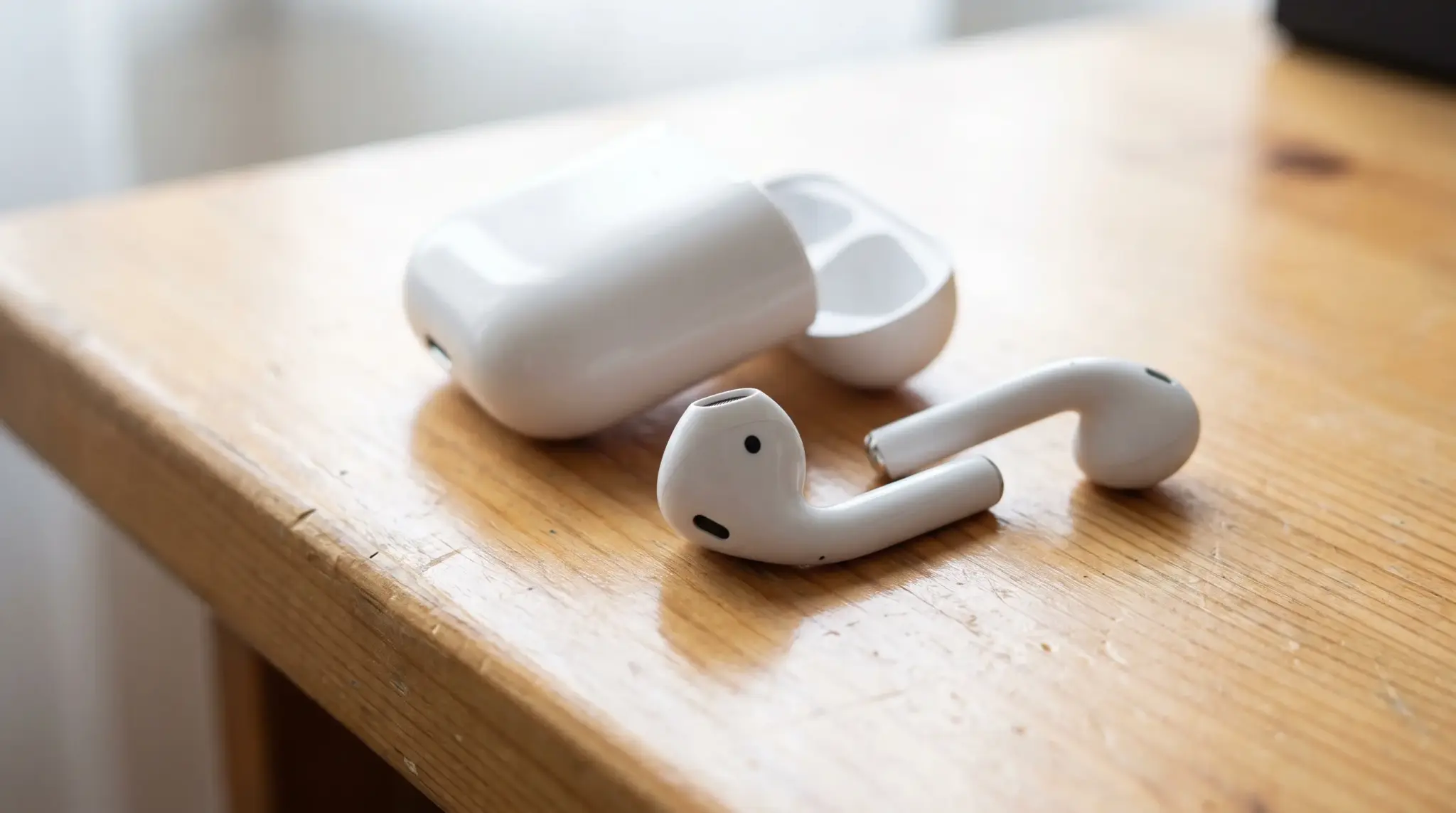
AirPods keep disconnecting mainly because of low battery, Bluetooth interference, automatic switching between your Apple devices, or a signal blocked by distance and walls.
Stale pairing data left over from repeated connections can cause the exact same symptom.
Each of these breaks the Bluetooth link itself, which is different from a pause caused by a confused ear detection sensor.
The causes and fixes below go through each one in order, starting with the most common.
Unlike sensor-related pauses, a disconnect changes the connection itself, so checking the Bluetooth status immediately after the cutout helps separate the two problems.
Notice where the problem happens and which earbud fails, since a repeated pattern often identifies interference, uneven charging, device switching, or worn hardware.
Common Causes of Full Disconnections
These are the main causes to check:
1. Low Battery
Each AirPods has its own battery, so one side can lose power and disconnect before the other.
Dirt on the case contacts causes uneven charging, and battery capacity varies noticeably across generations, so older pairs tend to drop without warning.
2. Automatic Device Switching
Nearby Apple devices signed into the same Apple Account can pull the connection away the moment you open an app or start audio on them. It feels like a disconnect, but it is really a handoff.
3. Wireless Interference
Routers, public networks, and other Bluetooth devices in a crowded space can weaken the signal enough to cause cutouts. If it only happens in one room or location, interference is the likely cause, not the AirPods.
4. Excessive Distance or a Blocked Signal
Walls, floors, furniture, and body position all weaken Bluetooth, and effective range varies widely by device and power class. Keeping your phone in a packed bag or an opposite pocket is a common, easy-to-miss trigger.
5. Pairing or Software Errors
Stored Bluetooth data can go stale after repeated connections or device changes, causing slow connections or failed reconnects. A restart, fresh pairing, or a pending firmware update often clears it up.
How to Fix Full Disconnections?
Start with simple connection and charging checks before resetting anything. Test the earbuds after each fix to identify what solves the problem.
- Reduce wireless interference: Keep your device close to your AirPods and remove walls, bags, or large objects between them. Test in another room to confirm interference.
- Charge both AirPods and case: Fully charge the earbuds and case, then check if both sides show similar battery levels. Older pairs may show gaps because battery capacity varies noticeably across AirPods generations.
- Check charging contacts: Clean the case contacts gently with a dry, soft cloth and make sure each AirPod sits properly.
- Control device switching: Check nearby iPhones, iPads, or Macs. Turn off Bluetooth on unused devices or manually select the device you want.
- Restart and reconnect: Restart your phone, tablet, or computer. Then forget the AirPods in Bluetooth settings and pair them again.
- Update the connected device: Install system updates and test again. Updates can fix Bluetooth errors, compatibility issues, and AirPods connection bugs.
- Reset the AirPods: Reset them only after charging, restarting, and reconnecting fail. Pair again and test before changing other settings.
- Test each earbud separately: Use one AirPod at a time on another device. If the same side keeps failing, it may be a battery or hardware issue.
Why Do AirPods Keep Pausing Instead of Disconnecting?
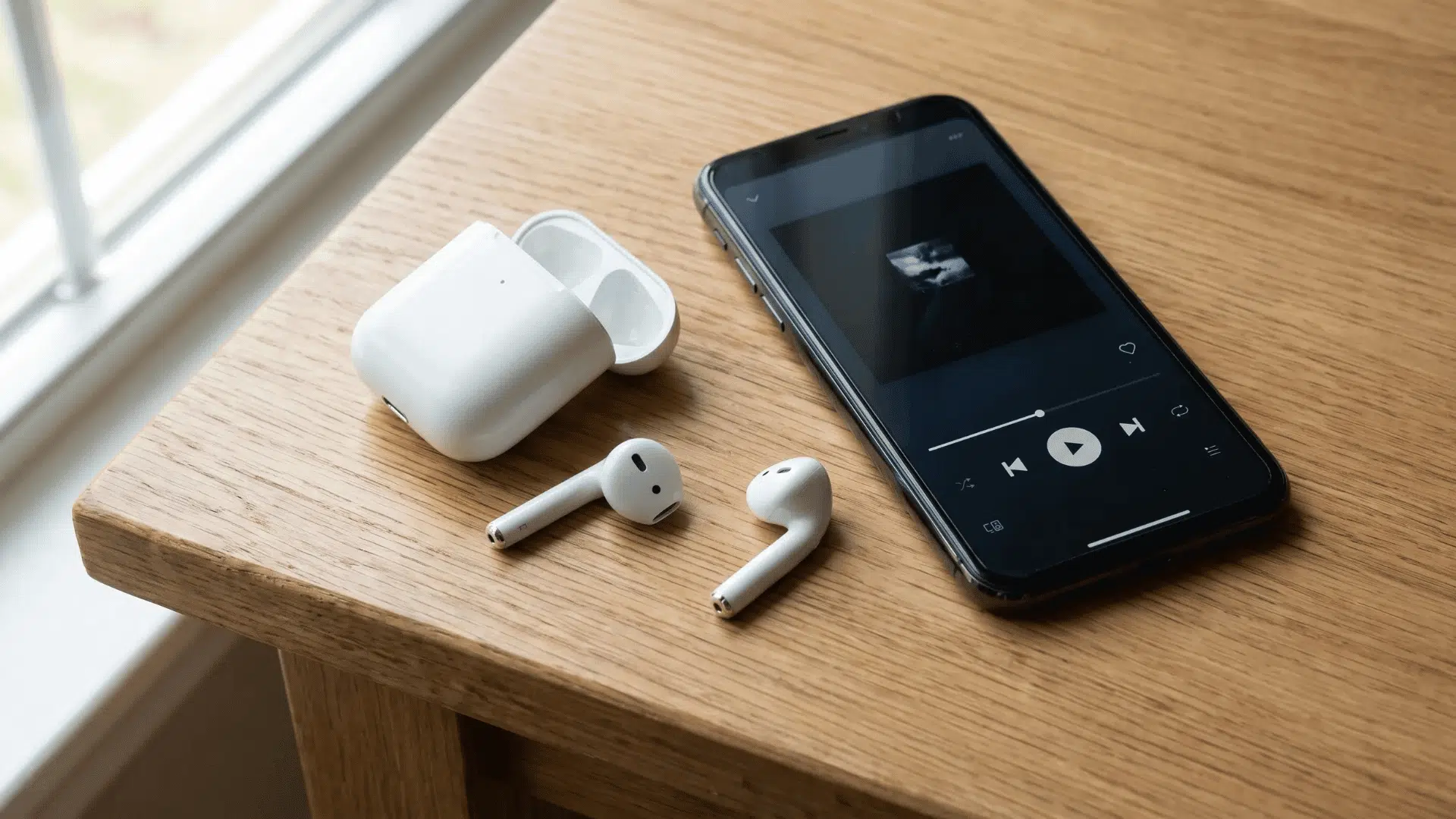
Pausing does not always mean your AirPods lost their Bluetooth connection. Automatic Ear Detection may have received an incorrect sensor reading.
AirPods use built-in sensors to detect when each earbud sits inside your ear. Removing one earbud normally pauses playback automatically.
When you place it back, the audio should resume. However, dirt, moisture, movement, or poor positioning can interrupt this process.
The sensor may briefly think an AirPods was removed, even when it remains inside your ear. Playback stops, but the Bluetooth connection stays active.
You can confirm this by checking the audio output on your device. If AirPods remain selected, the problem is likely pausing rather than disconnecting.
Try playing audio while sitting still. Then walk, talk, or adjust each earbud. Pausing during movement often points to fit or sensor trouble.
Common Causes of Unexpected Pausing
The following issues are the main causes to check:
1. Dirty Ear Detection Sensors
Earwax, dust, makeup, and skin oils can collect around the sensors and block the readings used to detect your ear.
Check whether one earbud looks dirtier than the other, since a side that repeatedly triggers may need careful cleaning.
2. Sweat and Moisture
Sweat, rain, and humidity can cover the sensors and interfere with ear detection, usually during movement or shortly after a workout.
Placing damp AirPods in their case can trap the moisture and also affect the charging contacts.
3. Loose or Changing Fit
An AirPods can shift when you walk, run, chew, or speak, changing the sensor’s contact with your ear.
AirPods Pro users should try another ear tip size, since a poor seal lets the earbud move during normal activity.
4. Accidental Stem or Touch Controls
Pressing the stem or touching the control area can pause playback on supported models, and a hood, hat, pillow, or hand can trigger it too. Notice whether playback stops right after something touches an AirPods.
5. Software or Sensor Errors
A temporary software error can make Automatic Ear Detection respond incorrectly, often after pairing, reconnecting, or an update.
Restarting the connected device usually clears it, though trouble that persists on one earbud may point to a damaged sensor.
How to Fix Unexpected Pausing?
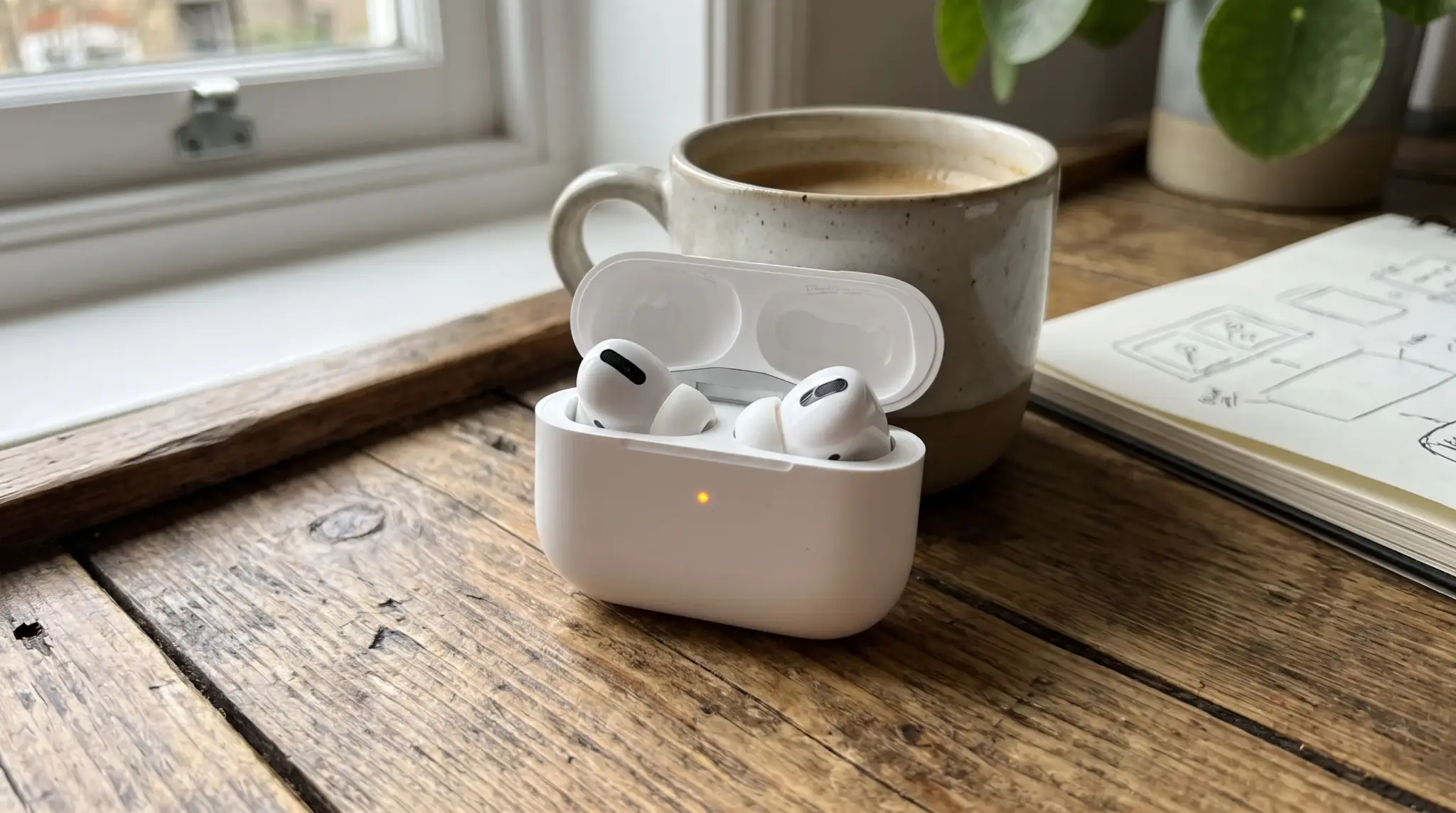
Start with the sensor and fit because they are the most likely causes. Test playback after each change so you know which action worked.
- Clean the sensors: Wipe each AirPod with a clean, dry, lint-free cloth, paying close attention to the dark sensor areas without pressing debris into nearby openings.
- Dry the earbuds: Remove the earbuds after exercise or moisture exposure. Wipe them carefully and leave them in a dry area until no moisture remains.
- Check the fit: Reposition each AirPod and check whether movement causes playback to stop. For AirPods Pro, test the available ear tip sizes.
- Avoid accidental controls: Play audio without touching the earbuds, then adjust them carefully and watch for an immediate pause.
- Turn off automatic ear detection temporarily: Disable Automatic Ear Detection and play audio for several minutes, including the movements that normally cause the unwanted pauses.
- Reconnect the earbuds: Forget the AirPods in your Bluetooth settings, restart the connected device, and pair them again. This replaces the existing connection information.
If the same earbud keeps triggering pauses after cleaning and refitting, test it alone. Repeated trouble on one side may point to a faulty sensor.
How to Tell If the Problem is Hardware-Related?
You can separate a hardware fault from a software or environmental problem in under a minute.
| Quick Test | What to Do | What the Result Means |
|---|---|---|
| Test each AirPod alone | Use one earbud at a time | Failure on the same side suggests hardware trouble |
| Try another device | Connect to another phone, tablet, or computer | Continued cutouts mean the source device is not responsible |
| Test after a reset | Reset and reconnect both earbuds | One-sided failure after resetting points to hardware trouble |
| Change your location | Test away from routers and wireless devices | Better performance suggests interference, not hardware |
| Check both batteries | Compare each earbud’s charge level | A fast battery drop may indicate battery wear |
If the same AirPods fail across devices and locations after a reset, the problem is likely hardware-related, and it’s worth having it looked at rather than resetting again and again.
Conclusion
A dropped connection and a random pause are not the same problem, and now you know how to tell them apart.
If your AirPods keep disconnecting, start with battery and Bluetooth: charge both earbuds fully, forget the pairing, and reconnect before touching anything else.
If it is pausing instead, clean the sensors and check your fit first. Test one earbud at a time, and try another device if the trouble follows the same side everywhere you go.
That pattern usually points straight to hardware.
Work through these steps in order, and you will know exactly what is causing the problem and how to fix it before your next listening session.
Frequently Asked Questions
Why Do My AirPods Keep Disconnecting From My iPhone Specifically?
iPhones use automatic device switching, which can cause AirPods to briefly disconnect while iOS decides which paired device should hold the connection. This happens more often if you also own a Mac or iPad signed into the same Apple ID. Turning off automatic switching or setting a preferred device in your Bluetooth settings usually reduces it.
Why Does Only One AirPod Keep Disconnecting?
A single AirPod disconnecting usually points to that unit’s battery draining faster than its pair, or a weaker Bluetooth antenna on that side. Check each AirPod’s battery percentage separately in Settings, since Apple tracks them individually. A gap of ten percent or more between the two often explains why one side keeps cutting out first.
Can Dirty AirPods Cause Disconnecting Or Pausing?
Yes. Debris on the infrared sensors can trigger false ear detection readings, which causes pausing rather than a true disconnect. Dirt on the charging contacts can also affect pairing stability and lead to uneven charging over time. Cleaning both areas weekly with a dry, soft cloth often resolves intermittent issues without needing a full reset.
Does A Factory Reset Fix Disconnecting For Good?
A reset clears corrupted pairing data and often resolves persistent disconnects, but it will not fix hardware level interference, worn charging contacts, or battery degradation. If disconnects return within a day or two of resetting, the cause is more likely environmental or tied to aging hardware rather than a simple software glitch.