

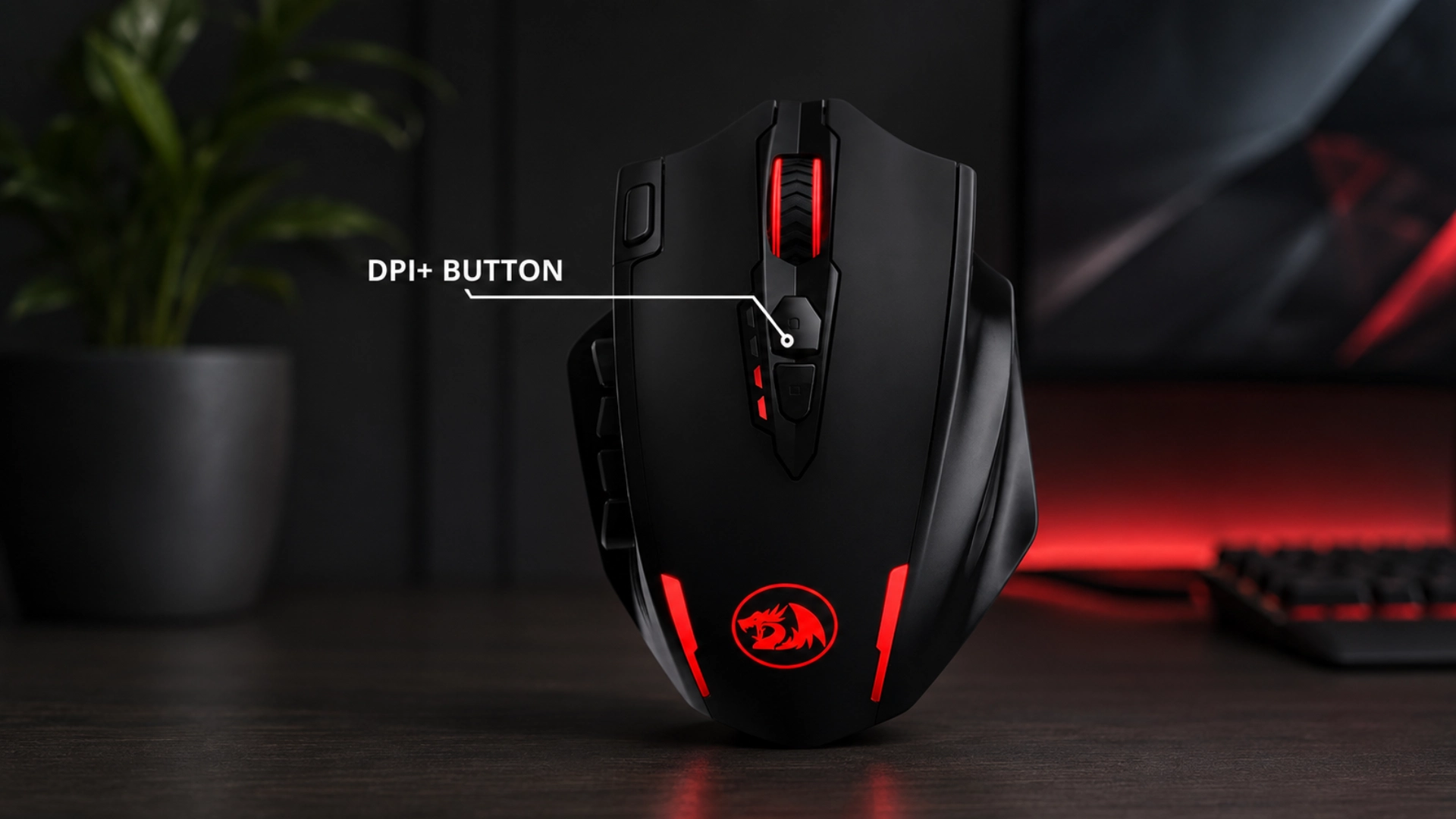






A mouse can feel unusually fast or frustratingly slow, yet that reveals little about its sensitivity. Without software, packaging, or a dedicated DPI button, finding the setting may seem impossible.
I prefer using a browser-based analyzer because it gives you an estimate within minutes. Learning how to check mouse DPI or how to check the DPI of a mouse only requires a ruler, a steady hand, and a short cursor test.
The tool compares the distance your mouse travels with the movement recorded on screen, then calculates an approximate DPI value.
Results may shift between tests because of pointer speed, acceleration, browser scaling, or uneven movement. Still, a few careful attempts can give you a reliable number for gaming, work, or troubleshooting.
How to Check Mouse DPI Using an Online Tool
You only need an online DPI analyzer, a ruler or tape measure, and enough desk space to move your mouse in a straight line.
- Open a reliable online mouse DPI analyzer in your browser.
- Select inches or centimeters to match the ruler you are using.
- Enter a test distance, such as 3 or 5 inches.
- Place the ruler beside your mouse on a flat surface.
- Position the mouse at the starting point of the ruler.
- Click and drag inside the tool’s testing area.
- Move the mouse exactly the distance entered earlier.
- Keep the movement slow, steady, and as straight as possible.
- Review the estimated DPI shown by the analyzer.
- Repeat the test two or three times.
- Add the results together and calculate the average.
Online analyzers compare recorded cursor movement with the physical distance entered, so careful measuring produces the most dependable result.
Best Online Tools to Check Mouse DPI
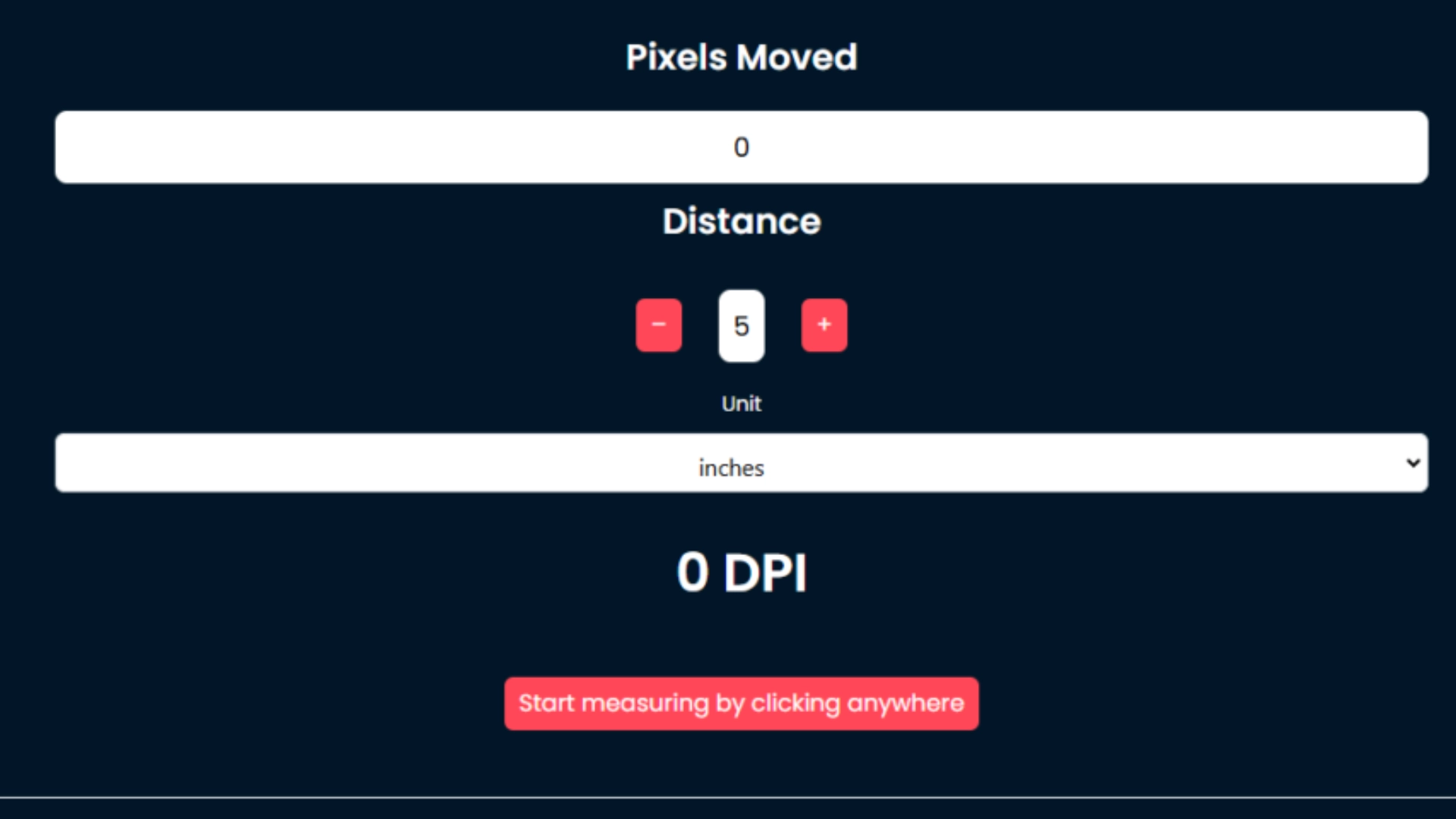
Source: mousedipanalyzer.com
Not every online DPI analyzer offers the same features or testing method. These five options cover quick checks, calibration, and sensor accuracy.
1. Mouse DPI Analyzer
Mouse DPI Analyzer keeps the process simple, making it a practical choice when you only need a quick sensitivity estimate.
- Uses physical distance to calculate your approximate mouse DPI.
- Supports measurements in both inches and centimeters.
- Works well for quick checks without extra settings or software.
2. MouseTester.io
MouseTester.io offers broader testing features, helping you review DPI behavior, movement consistency, and sensitivity before adjusting your mouse settings accurately.
- Measures DPI while also checking mouse movement performance.
- Helps identify inconsistent tracking or sensitivity changes.
- Suits gamers who want more detail than a basic DPI result.
3. DPIAnalyzer.org
DPIAnalyzer.org uses a clear layout and guided measurements, making the testing process easier for beginners and casual gamers alike overall.
- Provides straightforward instructions throughout the DPI test.
- Includes sensitivity information alongside the estimated DPI.
- Works well for users testing mouse DPI for the first time.
4. XBitLabs Mouse DPI Test
XBitLabs Mouse DPI Test includes an on-screen reference, helping users test sensitivity when a physical ruler is not available nearby.
- Provides an on-screen scale for estimating physical movement.
- Reduces the need for a separate ruler or tape measure.
- Offers a convenient option for quick laptop or office testing.
5. DCPROSENS DPI Analyzer
DCPROSENS DPI Analyzer compares measured DPI with the stated value, helping gamers identify sensor deviation and improve overall sensitivity consistency.
- Compares your tested DPI against the manufacturer’s declared setting.
- Shows whether the mouse sensor reports noticeable DPI deviation.
- Helps competitive gamers maintain consistent sensitivity and eDPI settings.
For a quick result, Mouse DPI Analyzer is usually enough. MouseTester.io and DCPROSENS are stronger choices for detailed gaming checks.
What You Need Before Testing Mouse DPI
A few basic tools and correct settings help you test mouse DPI accurately and repeat the process with consistent results.
- Computer: Use a desktop or laptop that supports your mouse properly.
- Web browser: Open a compatible browser that can record cursor movement accurately.
- Measuring tool: Keep a ruler or measuring tape beside the mouse.
- Flat surface: Use a smooth mousepad or desk without bumps or uneven areas.
- Movement space: Leave enough room to move the mouse in a straight line.
- Mouse acceleration: Disable pointer acceleration when possible to prevent altered movement results.
- Longer test distance: Use 3 to 5 inches to reduce the impact of small measuring errors.
- Repeated tests: Run the test three to five times and average the closest results.
Careful preparation limits tracking errors and gives you a more dependable estimate of your mouse DPI.
How to Use a Mouse DPI Analyzer Accurately
Follow these steps to adjust pointer settings, use an online analyzer, and understand how to check DPI of mouse settings with better accuracy and consistency.
1. Prepare to Check Your Mouse DPI
Close unnecessary programs and place your mouse on a flat, smooth surface. Keep a ruler or measuring tape beside it. Make sure you have enough desk space for one straight movement.
A clean setup reduces tracking errors and helps you repeat the test under the same conditions each time. If your peripherals ever act up mid-test, some hardware troubleshooting tips for other devices follow a similar logic of isolating one variable at a time.
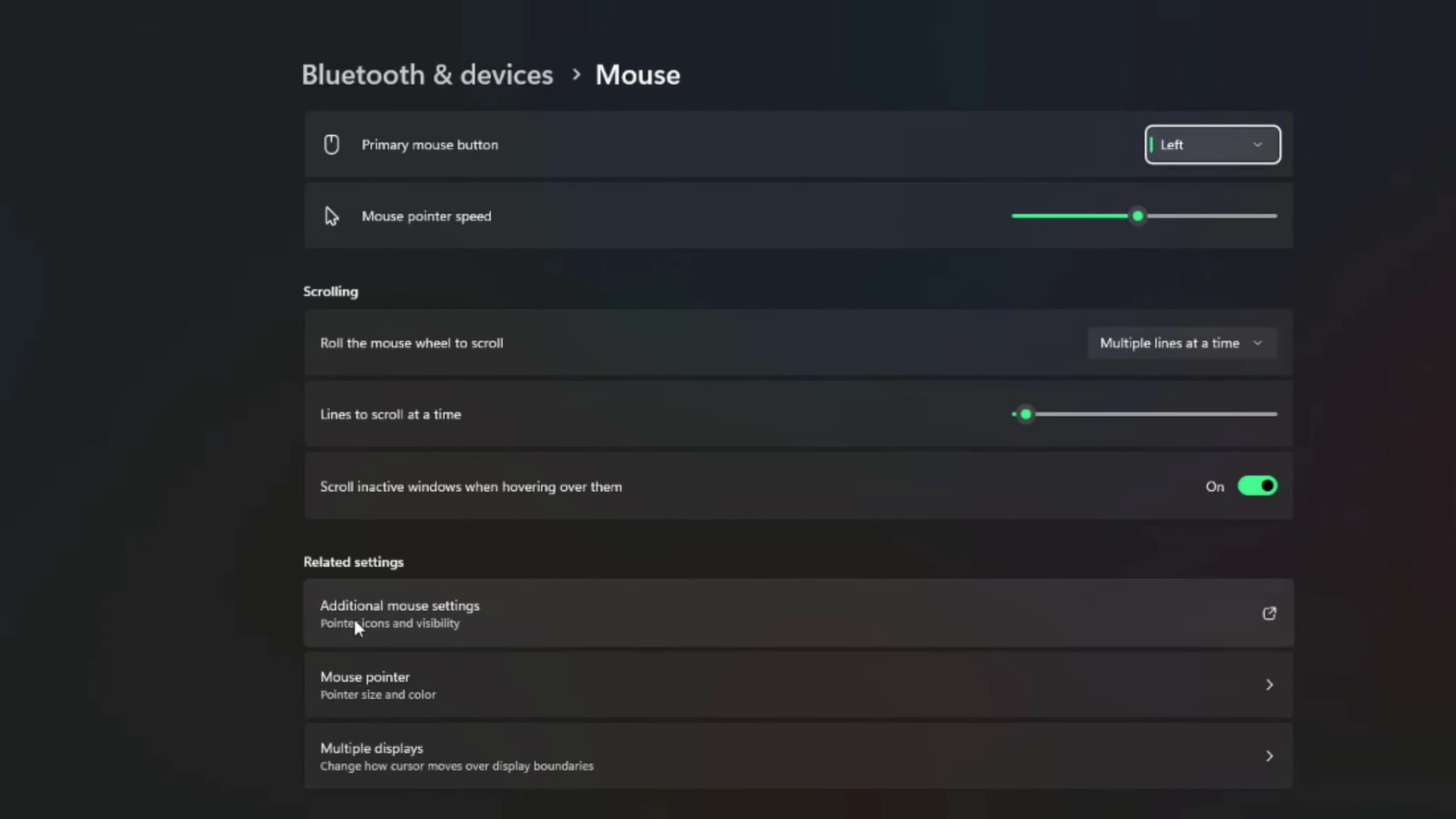
2. Open Your Mouse Settings
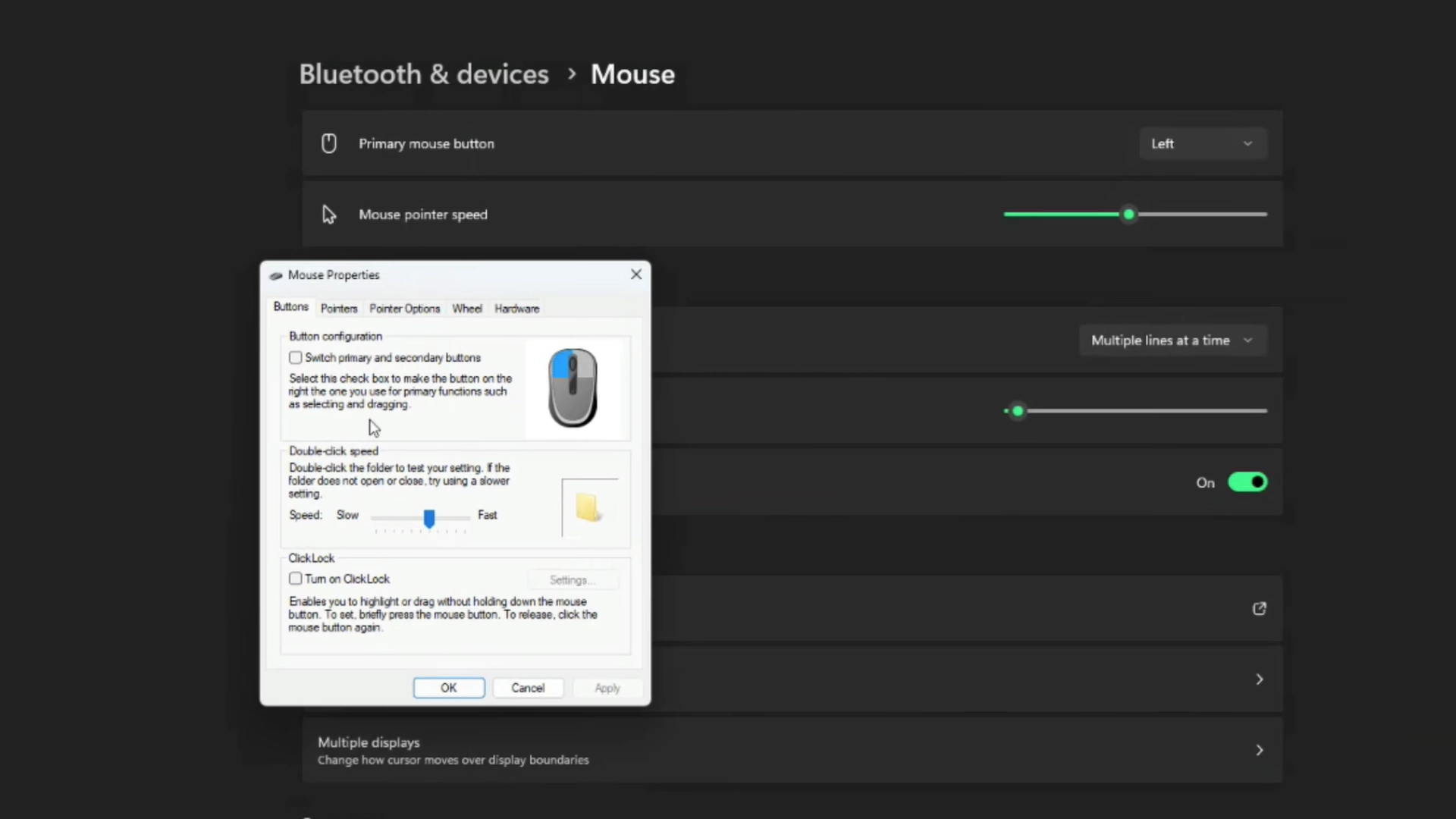
Open the mouse settings through Windows Settings or the Control Panel. Find the pointer speed slider and note its current position before changing anything.
Keeping track of the original setting makes it easier to restore later, much like restoring device settings on other gadgets before making changes you might need to undo. Avoid adjusting several options together, since each change can affect the final DPI estimate.
3. Adjust the Pointer Options

Open the Pointer Options tab and place the pointer speed slider at the default middle position. Turn off Enhance Pointer Precision, which adds mouse acceleration in Windows.
This setting can change cursor movement based on speed, making online DPI measurements less consistent and harder to compare across repeated tests.
4. Open an Online DPI Analyzer

Open a reliable online DPI analyzer in your browser. Select inches or centimeters based on the ruler you plan to use. Enter a testing distance that fits your desk space.
A movement of 3 to 5 inches usually produces a steadier reading than a short test with limited movement.
5. Measure Your Mouse DPI
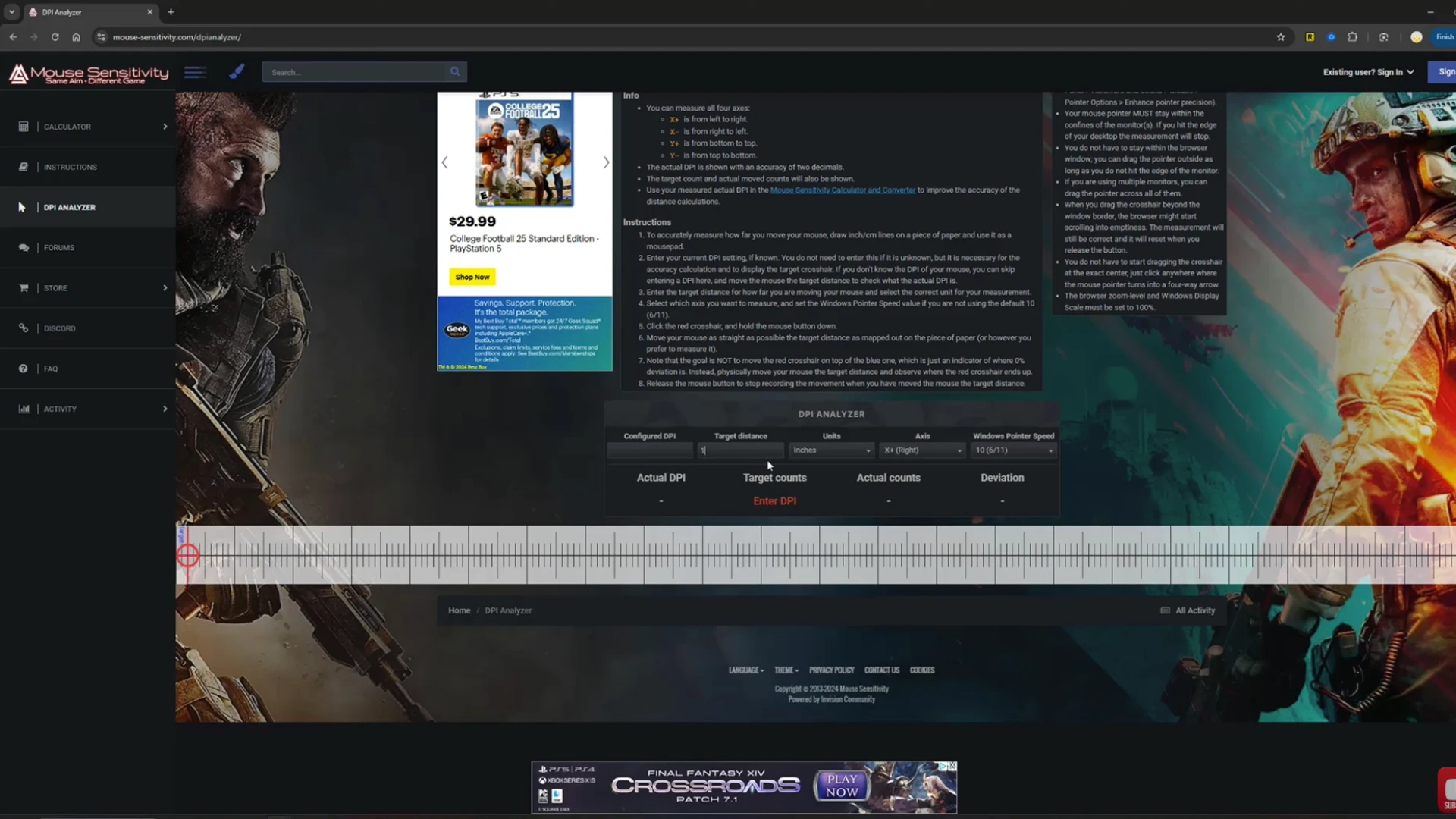
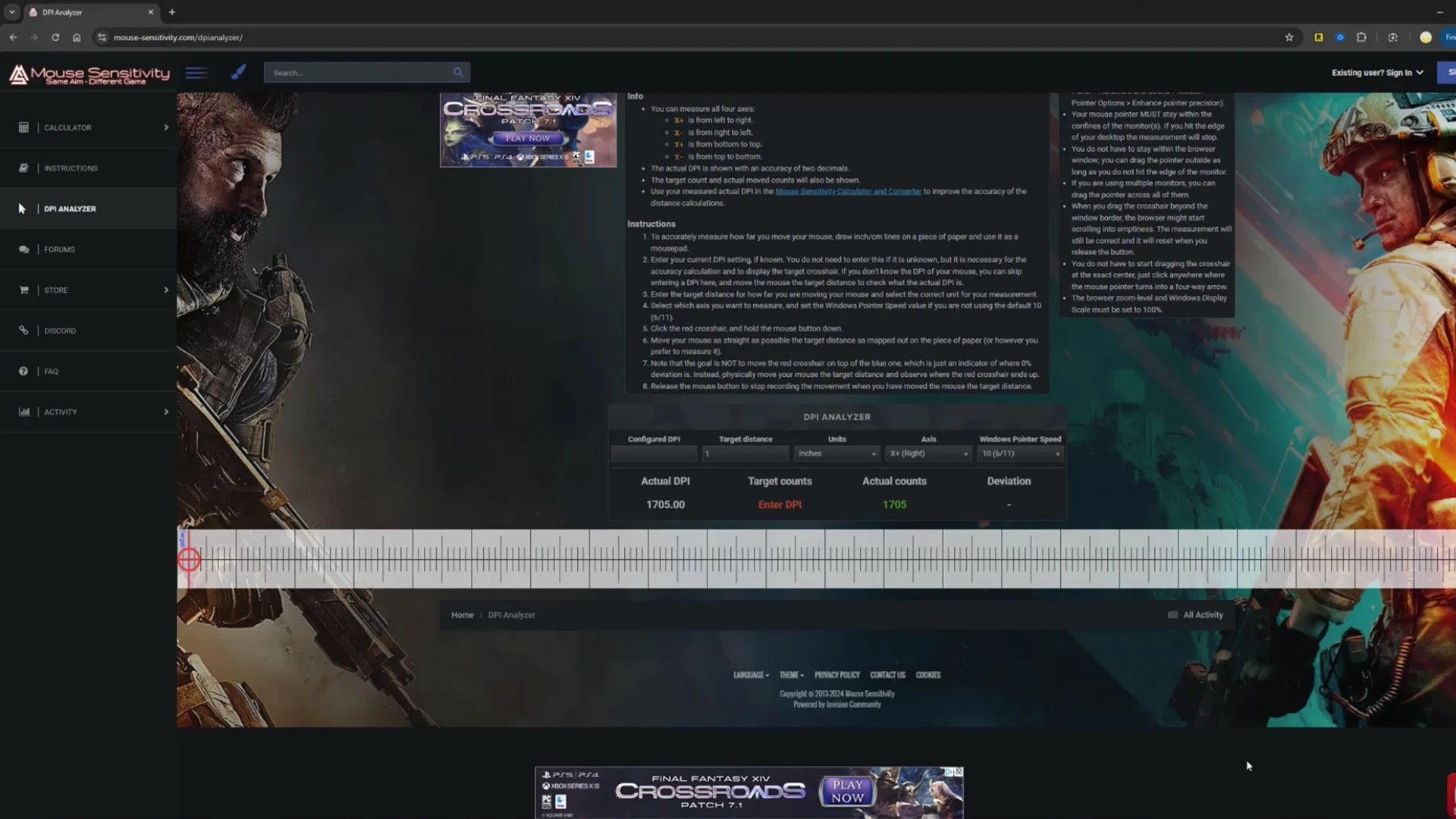
Place the ruler beside your mouse and align both at the starting point. Click and hold inside the analyzer’s testing area.
Move the mouse exactly the distance you entered while keeping the path straight. Repeat the process three to five times, then average the closest results for a dependable estimate.
6. Check Logitech Gaming Software
Logitech users can open Logitech G HUB or Logitech Gaming Software to view the available DPI stages. Check which stage is currently active and compare it with your online result.
You can also remove unwanted stages or disable the DPI switch button to prevent accidental sensitivity changes during regular use.
Repeating the measurement and reviewing mouse software settings will help you confirm the most reliable DPI value for your regular use.
Why Online Mouse DPI Results May Be Different
Online DPI analyzers estimate sensitivity from the cursor movement your browser receives. They cannot read the mouse sensor directly, so several settings can change the final number.
Windows pointer speed and Enhance Pointer Precision may increase or reduce cursor travel. Mouse acceleration can also produce different results depending on how quickly you move the mouse.
Browser tracking limits, display scaling, and screen resolution may introduce further variation. Physical testing mistakes matter too. A misplaced ruler, short testing distance, angled movement, or uneven hand motion can shift the reading noticeably.
Because of these factors, some tools measure effective cursor sensitivity rather than the mouse’s raw hardware DPI. Repeat the test several times, use a longer distance, and keep your movement slow and straight.
How to Improve Mouse DPI Test Accuracy
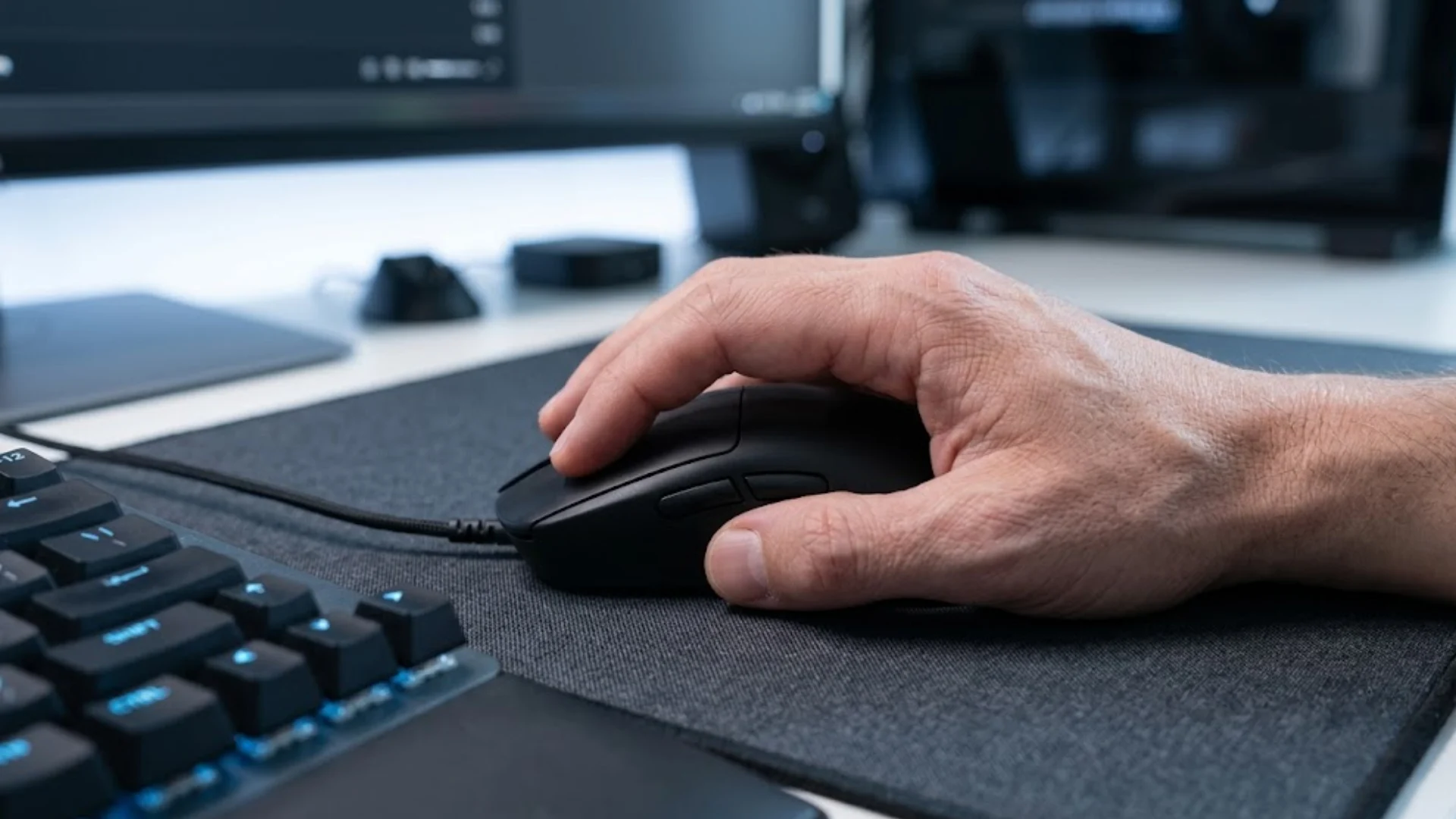
Small setup changes can improve testing accuracy and help you get more consistent DPI results across repeated measurements.
- Use a hard ruler: Avoid estimating distance with your hand, mousepad markings, or an on-screen reference.
- Choose a flat surface: Test on a clean desk or consistent mousepad without bumps, dust, or uneven areas.
- Increase the distance: Move the mouse 3 to 5 inches to reduce the effect of small measuring mistakes.
- Follow the ruler: Keep the mouse straight and aligned instead of allowing it to drift sideways.
- Close sensitivity software: Exit programs that apply custom DPI profiles, acceleration, or game-specific mouse settings.
- Keep the same browser: Changing browsers may affect how cursor movement is recorded.
- Average repeated tests: Run at least three tests and use the closest readings.
These simple adjustments take less than a minute and give you a more accurate, consistent, and dependable mouse DPI estimate.
Online DPI Analyzer vs. Manufacturer Software
Online analyzers and manufacturer software both reveal mouse sensitivity, but they differ significantly in accuracy, compatibility, setup, and available controls.
| Factor | Online DPI Analyzer | Manufacturer Software |
|---|---|---|
| Setup required | Opens directly in a browser | Requires downloading and installing software |
| Mouse compatibility | Works with most wired and wireless mice | Works only with supported mouse models |
| DPI result | Provides an estimated active DPI | Shows the exact configured DPI setting |
| Accuracy level | Depends on measurement and system settings | Reads values saved in the mouse profile |
| Extra controls | Usually limited to basic sensitivity testing | Controls buttons, profiles, lighting, and polling rate |
| Best choice for | Basic, older, or unidentified mice | Gaming mice with official software support |
| Main limitation | Results may vary between repeated tests | Unavailable for unsupported or generic mice |
Use manufacturer software for exact configured settings, while online analyzers remain useful when your mouse lacks dedicated software support entirely.
Common Mouse DPI Testing Mistakes
Most inaccurate DPI readings come from simple testing mistakes that affect measurement, movement, settings, surface quality, and result interpretation.
- Measuring cursor distance: Track how far the physical mouse moves, not how far the pointer travels across your screen.
- Moving beyond the entered distance: Stop exactly at the selected measurement to avoid producing an inflated DPI result.
- Using a short testing distance: Test across 3 to 5 inches because longer movement reduces the impact of small errors.
- Changing sensitivity settings: Keep Windows pointer speed, acceleration, and mouse profiles unchanged between every attempt.
- Testing on a poor surface: Avoid uneven, glossy, or reflective surfaces that may interfere with accurate sensor tracking.
Correcting only a few of these mistakes can make repeated DPI tests more consistent, comparable, and useful for everyday adjustments.
Final Thoughts
An online DPI analyzer gives you a practical answer when official mouse software is missing, outdated, or unsupported.
I like this method because it only needs a ruler, a steady movement, and a few repeated tests. Once you understand how to check mouse DPI correctly, sensitivity stops feeling like a random setting.
Keep your units consistent, move in a straight line, and average several close results instead of trusting one reading.
Rounding to a common DPI step, such as 400, 800, or 1600, can make the final number more realistic.
Test your mouse, compare the result with its listed specifications, and share your DPI reading or any testing problems in the comments below.
Frequently Asked Questions
Can I Check My Mouse DPI Online?
Yes, you can estimate your mouse DPI with a browser-based analyzer. You enter a measured distance, move the mouse that exact length beside a ruler, and review the calculated result. No software installation is required. Repeating the test several times helps you get a more dependable average.
Are Online Mouse DPI Analyzers Accurate?
Online DPI analyzers are accurate enough for gaming, office work, and general sensitivity adjustments when used carefully. However, they provide an estimate rather than reading the sensor directly. Windows pointer settings, mouse acceleration, display scaling, surface quality, and uneven movement can all affect the final measurement.
Can a Website Detect My Mouse DPI Automatically?
No, a website cannot detect your mouse’s hardware DPI automatically. Browsers can record cursor movement, but they cannot directly access the sensor’s internal settings. You must enter a physical distance, measure it with a ruler, and move the mouse accurately so the analyzer can calculate an estimated value.
How Can I Check Mouse DPI Without Software?
Use an online DPI analyzer with a ruler to estimate the active setting. You can also press the mouse’s DPI button and watch for LED changes, although this may not show an exact number. Checking the product manual, specifications page, or model information may reveal the available DPI levels.