

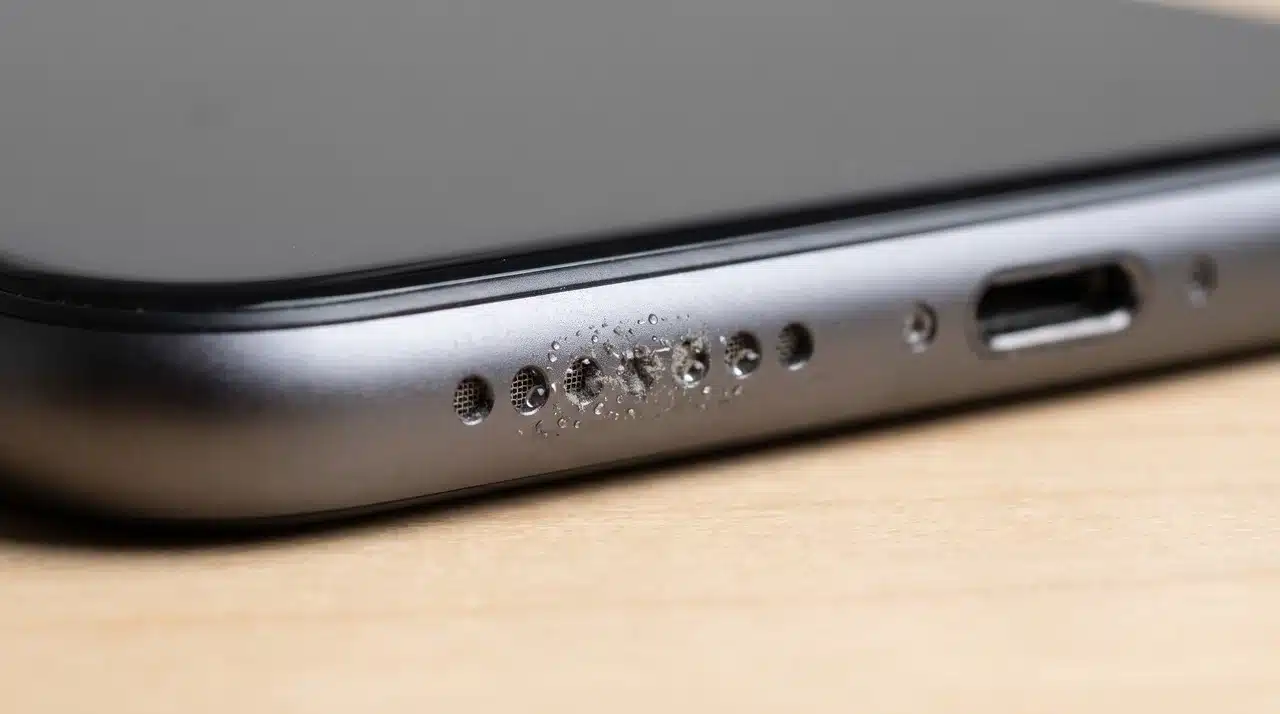






Your phone is showing full volume, but the sound is barely there. You turn it up again, check the settings, and still hear almost nothing.
Before you assume your speaker is broken, there are a few common problems that could be causing it.
Dust buildup, trapped moisture, Bluetooth connections, and small software glitches can all make your phone speaker sound weak or stop working completely.
The good news is that many of these issues can be fixed at home without spending money on repairs.
Keep reading to find out why your phone speaker is not working, what quick fixes you can try first, and how to tell if the problem is something simple or a sign of actual hardware damage.
Why Your Phone Speaker May Not Be Working?
A phone speaker may stop working because of settings, software glitches, blocked speaker grilles, moisture, or internal hardware damage.
- Muted or low volume settings: Your phone may be muted, set too low, or using an audio setting that blocks normal speaker output.
- Connected Bluetooth device: Sound may be playing through earbuds, headphones, a speaker, or a car system instead of the phone speaker.
- App or software issue: Some apps may glitch, freeze, or fail to send sound through the speaker properly.
- Dust or lint blockage: Dirt inside the speaker grille can make audio sound low, dull, or muffled.
- Moisture or water exposure: Water can block the grille or affect the speaker, causing muffled, crackling, or distorted sound.
- Hardware failure or damage: If there is no sound at all after checking settings or the damage is severe, the speaker may need professional repair.
- Speaker works only with headphones: Sound plays through headphones but not the built-in speaker, which may indicate a speaker or software issue. If calls also sound unclear to the person on the other end, it is worth checking our guide on phone microphone problems too, since the two issues often show up together.
Once you know the likely cause, it becomes easier to choose the right fix instead of trying random solutions.
How to Fix Phone Speaker Issues at Home?
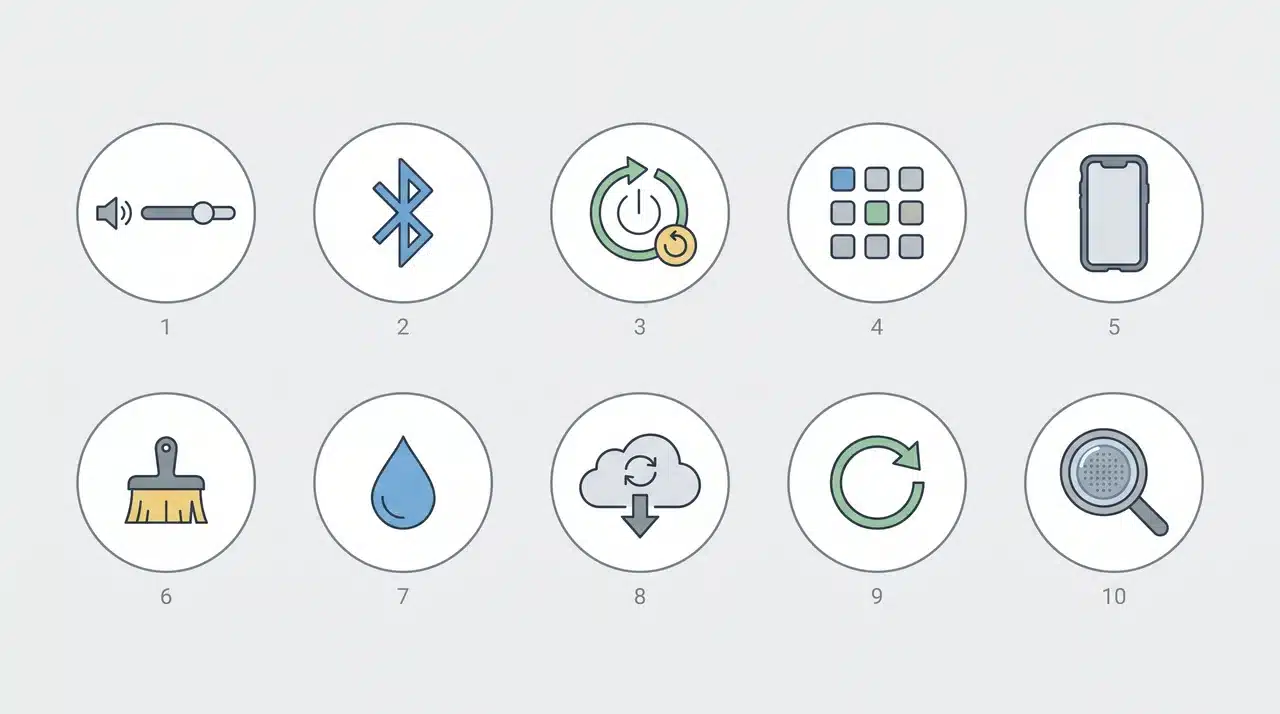
Before assuming your phone speaker is damaged, try these fixes in order. Start with simple settings checks and move toward cleaning or repair steps only if the easier solutions do not work.
1. Check Your Volume and Sound Settings
Start by checking your phone’s sound settings before trying any physical fixes. A common mistake is changing call volume while trying to fix music, video, or app sounds.
Make sure your media volume is turned up, Silent Mode is off, and Do Not Disturb is not affecting sound. Also check app-specific settings.
Android users should review sound profiles and volume limits, while iPhone users should check Silent Mode and Focus settings.
2. Turn Off Bluetooth and Check Audio Output
Bluetooth can easily cause confusion when your phone speaker stops working. Your phone may still be connected to wireless earbuds, a car system, or another speaker.
Turn Bluetooth off and play audio again. If sound returns through the phone speaker, the issue was not hardware damage. Your phone was simply sending audio to another connected device.
This mix-up is especially common if you’ve dealt with a Bluetooth device disconnecting and reconnecting on its own, since your phone can default back to the wrong output without you noticing.
3. Restart Your Phone
Restarting your phone can fix temporary audio problems caused by apps, background processes, or system errors.
It refreshes audio services and clears minor software issues that may be affecting sound output.
On iPhone, restart your device using the correct button combination for your model. On Android, hold the power button and select Restart to refresh the system.
4. Test the Speaker With Different Apps
Testing different apps helps you find out if the speaker is actually the problem. Sometimes only one app has sound issues while the phone works normally elsewhere.
Try playing YouTube videos, music, phone calls, alarms, and voice recordings.
If sound works in other apps, the issue is likely related to that specific app rather than your phone speaker.
5. Remove the Phone Case and Test Again
A thick or poorly fitted phone case can block speaker openings and make audio seem quieter. This is especially common when the case covers part of the speaker grille.
Remove the case and play audio again to compare the sound. If the volume improves, your speaker may be working normally, and the case was affecting the audio output.
6. Clean Dust and Lint From the Speaker Grill
Dust and lint buildup are common causes of low speaker volume. Small particles can collect inside the speaker mesh and block sound from coming through clearly.
I have opened up more phones than I can count for this exact complaint, and dust wedged in the grille turns out to be the actual cause far more often than people expect.
Remove your phone case and hold the device at an angle. Use a soft toothbrush or brush to gently clean the grille, then wipe it with a dry microfiber cloth.
Avoid using pins, needles, sharp tools, or excess water. These can damage the speaker mesh or push debris further inside.
7. Remove Water From Your Phone Speaker
Water trapped near the speaker can make audio sound muffled because droplets interfere with normal sound movement. Start by removing the case and wiping away visible moisture.
Hold the speaker facing downward and play a water-eject sound at a high volume.
Let the phone dry naturally and avoid charging it until you are sure moisture is gone.
Do not use a hair dryer, apply heat, or insert objects into the speaker holes. If sound stays distorted after drying, water may have affected internal components.
8. Update Your Phone Software
Software problems can sometimes affect audio output, especially after updates, app crashes, or system errors. Checking for new software can help fix these temporary issues.
Open Settings → Software Update, install any available updates, and test your speaker again. If the issue was caused by a software bug, the update may restore normal sound.
9. Reset Sound Settings
Incorrect settings can sometimes affect your phone’s audio output. Resetting sound-related options can help if you cannot find the cause of the problem.
On Android, reset app preferences, check sound profiles, and review notification settings. On iPhone, use Reset All Settings if needed. This keeps your files but restores system preferences.
If a settings reset doesn’t help, a full factory reset is the next step.
Back up your phone first, since a factory reset erases everything and reinstalls the system from scratch, unlike a simple settings reset.
10. Check for Hardware Damage
If none of the fixes work, your speaker may have physical damage. This is more likely after drops, water exposure, or repeated crackling sounds.
Audio that cuts in and out or stays distorted usually points to an internal problem. At this stage, a repair check can confirm if the speaker needs replacement.
11. Boot Your Phone in Safe Mode
Safe Mode temporarily turns off every third-party app, which is the fastest way to tell if a recently installed app is the real reason your phone speaker went quiet instead of a hardware fault.
On Android, press and hold the power button until the power menu appears, then press and hold Restart until the option to reboot into Safe Mode shows up.
iPhone does not have a built-in Safe Mode, so instead try removing the most recently installed app and testing the speaker again.
If sound comes back in Safe Mode, one of your apps is the cause. Uninstall it, or hold off using it until an update fixes the bug.
How to Fix a Muffled Phone Speaker After Water Damage?
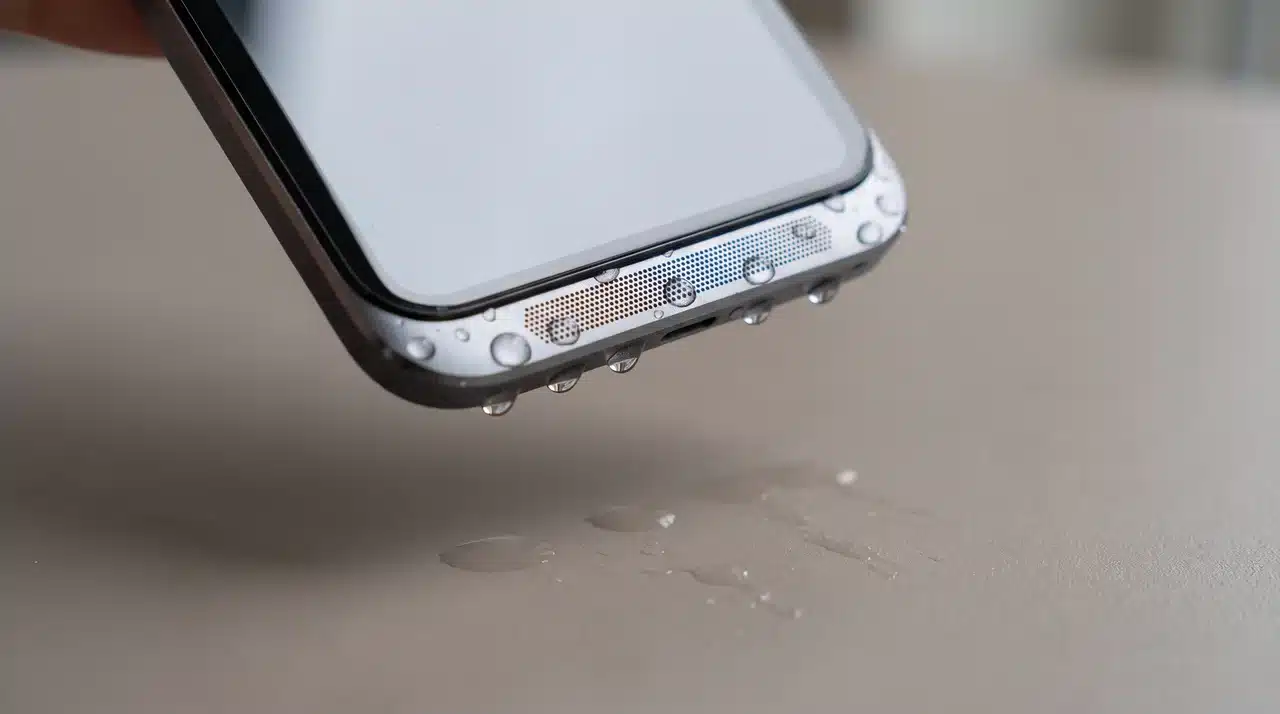
Water exposure is one of the most common reasons a phone speaker suddenly sounds muffled. Even a small amount of moisture near the speaker grille can block sound and make audio seem weak or distorted.
Try these steps to remove water from the speaker:
- Remove the phone case: Take off the case to prevent trapped moisture and allow better airflow around the speaker.
- Wipe away visible moisture: Use a dry cloth to remove any water from the outside of your phone.
- Hold the speaker facing downward: Let gravity help move water away from the speaker opening.
- Play a water-eject sound: Use a water-eject tone at a higher volume to help push trapped droplets out of the speaker grille.
- Allow drying time: Leave your phone in a dry place and test the speaker again after it has had time to air dry.
Avoid charging your phone while moisture may still be inside, as this can cause further damage.
If the speaker remains muffled after drying and cleaning, the problem may be more than water trapped near the grille. Moisture could have reached internal components and may require professional repair.
When Should You Replace Your Phone Speaker?
Not every speaker problem needs a replacement. Simple issues like dust, settings, or software glitches can often be fixed without opening your phone or replacing any parts.
A speaker replacement may be needed if no sound returns after troubleshooting, the audio stays distorted, or the speaker keeps cutting in and out during normal use.
Physical damage is another common reason for replacement.
Drops, impacts, or water exposure can damage internal speaker components and permanently affect sound quality.
A repair technician can check whether the speaker module needs replacement or if another internal part is causing the issue. This helps prevent unnecessary repairs.
Things You Should Not Do When Fixing a Phone Speaker
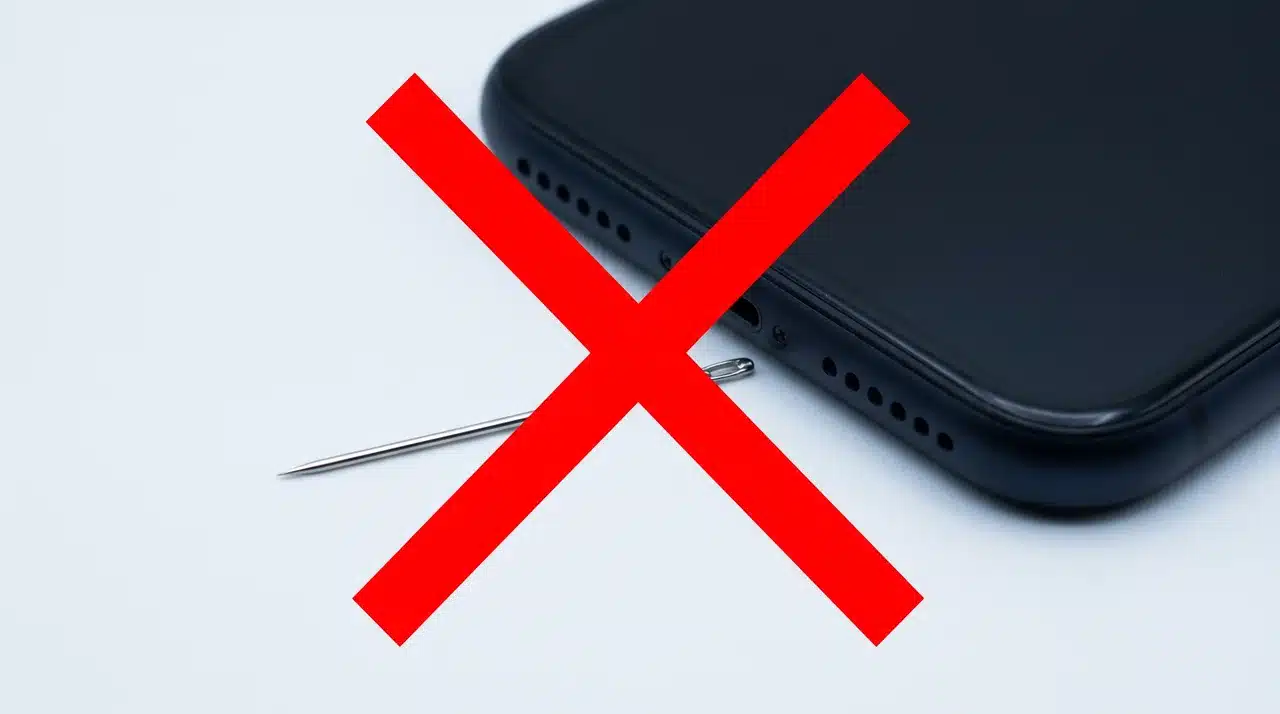
While fixing a phone speaker, avoid methods that can cause more damage than the original problem. Some quick fixes found online can harm the speaker mesh or internal components.
| Avoid | Why |
|---|---|
| Using pins or needles | Sharp objects can damage the speaker mesh and push dust further inside. |
| Pouring liquid into the speaker | Adding more moisture can worsen water damage and affect internal parts. |
| Using a hair dryer | Excess heat can damage sensitive components inside the phone. |
| Pressing too hard while cleaning | Force can push debris deeper into the speaker grille or damage the mesh. |
Stick to gentle cleaning methods and simple troubleshooting steps to avoid creating a bigger speaker problem.
How to Fix Phone Speaker on iPhone?
If your iPhone speaker is not working, start with a few simple checks before assuming the speaker is damaged. iPhones have separate controls for media, calls, and alerts, so the issue may be linked to a specific setting.
Check these areas first:
- Check Silent Mode: Make sure your iPhone is not muted, especially if you cannot hear calls, alerts, or notifications.
- Adjust volume settings: Increase both ringer and media volume to confirm the correct audio level is being changed.
- Clean the speaker openings: Dust and debris around the speaker grille can reduce sound quality and make audio seem quieter.
- Disconnect Bluetooth devices: Your iPhone may still be connected to earbuds, a car system, or another device that is playing the audio instead.
- Restart your iPhone: A quick restart can fix temporary software issues that affect sound output.
- Update iOS: Installing the latest iOS version can resolve software bugs that may interfere with speaker performance.
If the speaker still does not work after checking these settings and fixes, the problem may be caused by physical damage or an internal speaker issue.
How to Fix Phone Speaker on Android?
If your Android phone speaker is not working, start with a few basic checks before assuming there is a hardware problem.
Android devices from different brands may have slightly different menus, but most speaker issues come from similar causes. Try these fixes:
- Increase media volume: Make sure the media volume is turned up while playing a video or song, as it is separate from call volume.
- Turn off Bluetooth: Disconnect wireless earbuds, car audio systems, or other devices that may be receiving the sound.
- Check sound profiles: Review settings like Silent Mode, Vibrate Mode, Do Not Disturb, and volume limits that may affect audio output.
- Restart your phone: A quick restart can clear temporary software issues that may be affecting the speaker.
- Update software: Install available system updates to fix possible audio bugs or software problems.
- Review app permissions: Check if a specific app has permission issues that prevent sound from playing correctly.
If your Android speaker still does not work after these checks, the issue may be related to dust, water damage, or a faulty internal component.
How Much Does It Cost to Fix a Phone Speaker?
The phone speaker repair cost depends on your phone model, the type of damage, and where you get the repair done.
Simple issues like dust buildup or software problems may not cost anything to fix, while hardware repairs can be more expensive.
| Repair Type | Typical Cost |
|---|---|
| Cleaning | Free to $20 |
| Diagnostic check | Free to $50 |
| Speaker replacement | $50 to $150+ |
Cleaning and software fixes are usually the cheapest options because they do not require replacing parts.
Speaker replacement costs more because the phone needs to be opened and the damaged internal component replaced.
Note: These phone speaker repair costs are average estimates and can change over time. Actual prices may vary based on your phone model, damage level, parts availability, repair shop, location, and warranty status. Always check the latest quote before approving a repair.
Conclusion
Learning how to fix phone speaker problems starts with patience, not panic.
Many weak, muffled, or silent speakers come from small issues like Bluetooth output, low media volume, dust, moisture, app glitches, or outdated software.
The safest approach is to start with simple checks, then gently clean, and stop if the sound still cuts out or stays distorted.
I would avoid sharp tools, heat, or random online tricks, because they can turn a minor problem into a real repair. Give your phone time to dry, test sound across apps, and know when to ask a technician for help.
Try the steps above today, then bookmark this guide for the next audio issue.
Frequently Asked Questions
Why is My Phone Speaker Quiet Even at Full Volume?
A phone speaker can sound quiet because of blocked speaker openings, reduced audio settings, sound restrictions, or changes in how your device processes audio.
Why Does My Phone Speaker Work Sometimes and Stop Other Times?
Intermittent speaker problems can happen due to loose internal connections, software glitches, moisture, or damaged speaker components affecting sound output.
Can Factory Reset Fix Phone Speaker Problems?
A factory reset may fix software-related audio problems, but it will not repair physical damage caused by drops, water, or faulty speaker components.
Why is My Phone Speaker Making a Buzzing Sound?
Buzzing sounds usually point to speaker damage, loose components, or audio distortion. If the sound continues across apps, the speaker may need inspection.