

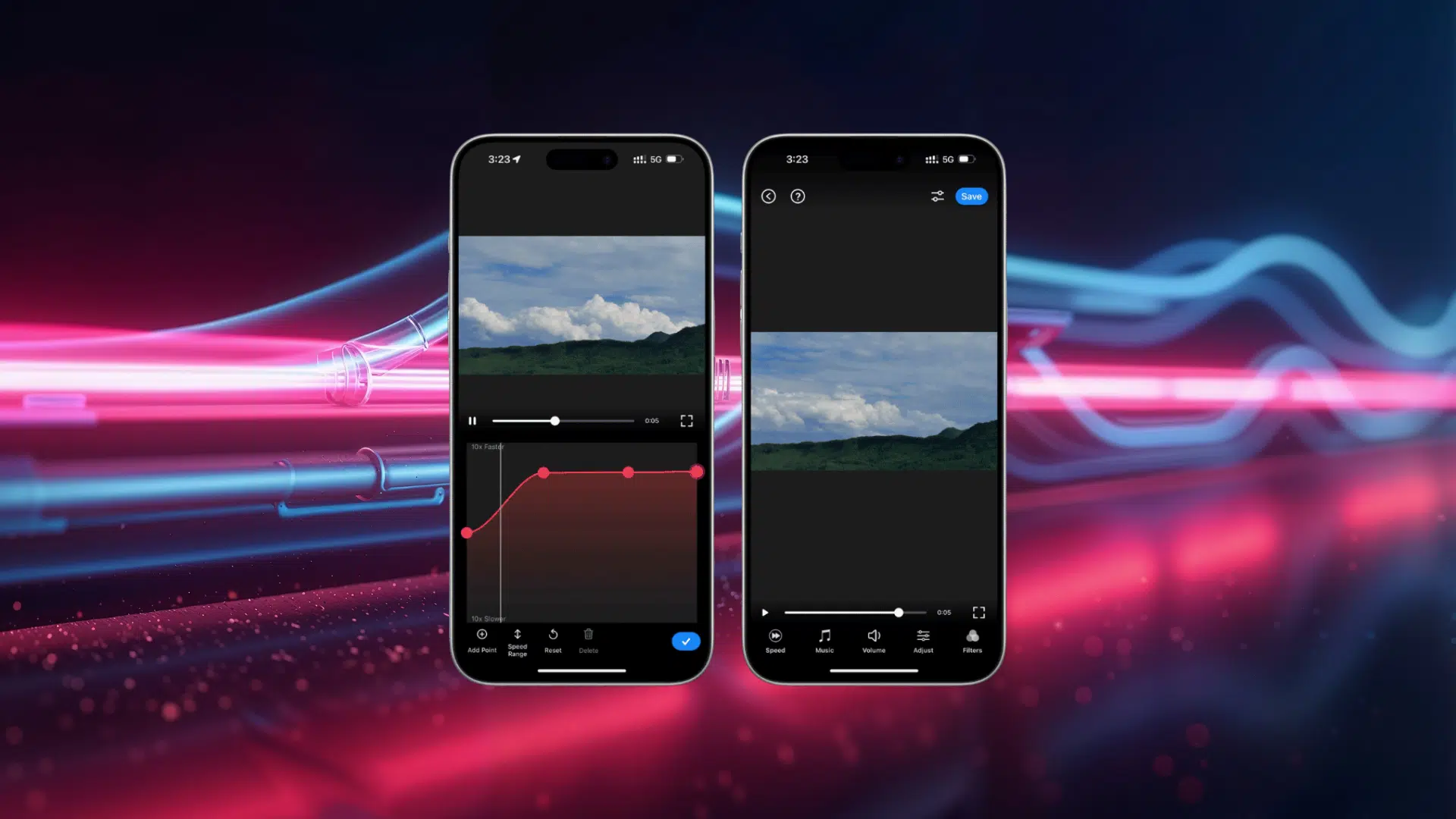






Have you ever recorded a quick moment on your iPhone and wished you could watch it in slow motion? A fast action clip can look completely different when you slow it down and focus on each detail.
iPhone makes video editing simple with built-in tools like the Photos app and iMovie. Before recording, becoming familiar with your iPhone camera settings can also make it easier to control how you capture photos and videos.
You don’t need advanced editing skills to change video speed, trim clips, or make small adjustments before sharing.
In this blog, you’ll learnhow to slow down a video on iPhone, how to edit videos on iPhone using simple tools, and how to crop a video on iPhone step by step.
Can You Slow Down a Video on iPhone?
Yes, you can slow down a video on an iPhone, but the method depends on how the video was recorded. If you used the Slo-mo camera mode, your iPhone saves the clip with a slow-motion section that you can adjust directly in the Photos app.
For regular videos recorded with the standard camera, the Photos app does not include a speed control option. You can use iMovie instead, which gives you more control over playback speed and other video edits.
With years of experience helping people understand digital tools, tech educators often recommend starting with built-in apps before trying advanced editing software. Apple’s Photos app and iMovie are designed for everyday users, making it easier to adjust videos without complicated steps.
Slowing down a video can be useful for sports moments, pet videos, travel clips, tutorials, or any recording where you want to focus on smaller details.
How to Slow Down a Video on iPhone Using Photos and iMovie
Your iPhone offers simple built-in options to slow down videos, depending on how the clip was recorded. Slo-mo videos can be adjusted directly in the Photos app, while regular videos need iMovie for speed changes.
Follow these steps to slow down different types of videos and save the final version without affecting your original recording.
1. Slow Down a Slo-Mo Video Using the Photos App
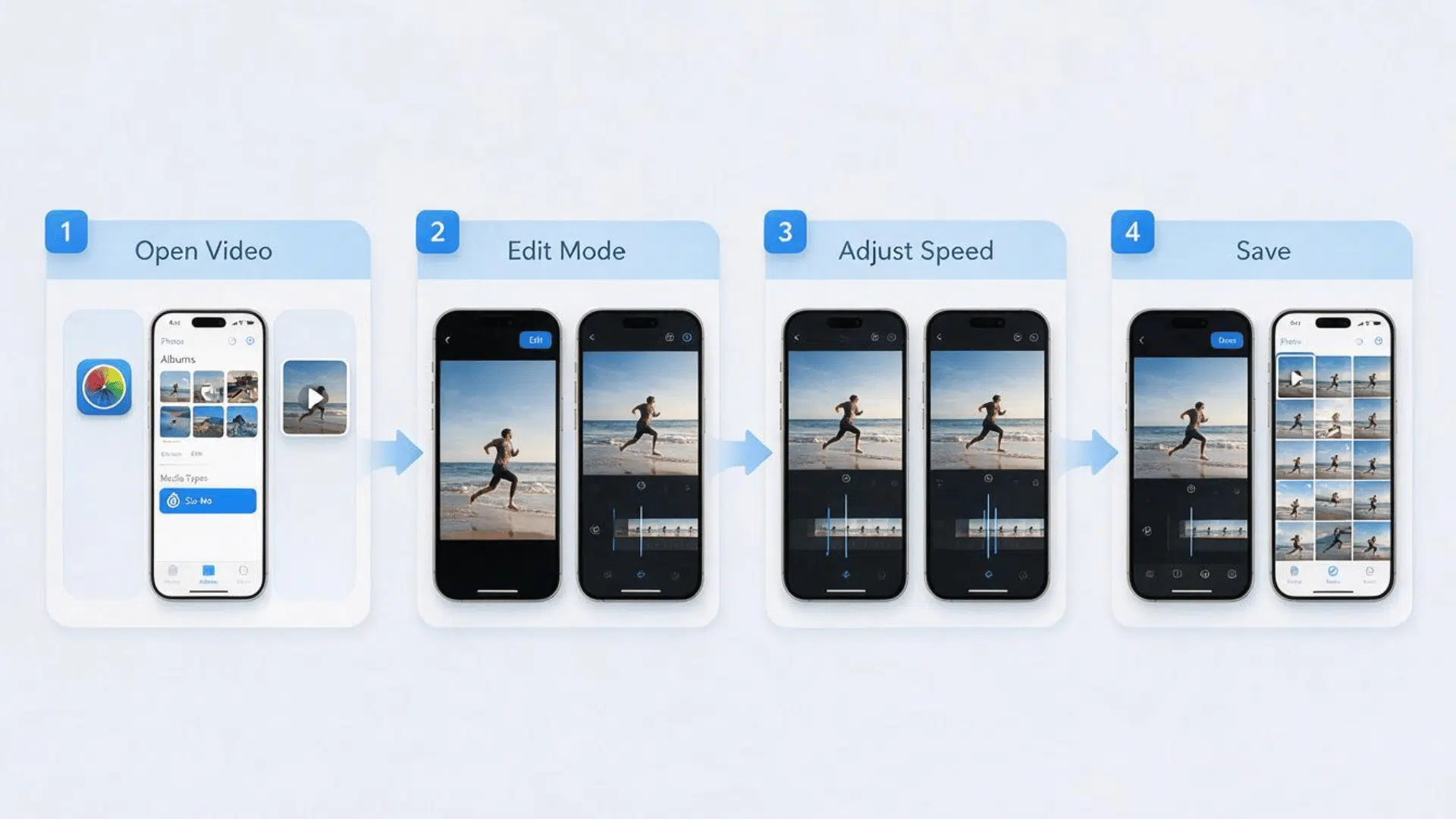
If your video was recorded using the iPhone Slo-mo camera mode, you can adjust the slow-motion section directly from the Photos app.
Step 1: Open Your Slo-Mo Video
- Open the Photos app on your iPhone.
- Tap Albums and select Slo-mo under Media Types.
- Choose the video you want to edit.
Step 2: Open The Editing Controls
- Tap Edit in the top-right corner of the screen.
- A timeline with vertical lines will appear below the video preview.
- These lines show where the slow-motion effect begins and ends.
Step 3: Adjust The Slow-Motion Section
- Drag the slow-motion markers left or right to change the part of the video that plays slowly.
- Extend the marked area to make more of the video slow motion.
- Reduce the marked area if you only want a specific moment to slow down.
Step 4: Save Your Changes
- Tap Done after adjusting the speed.
- The edited version will appear in your Photos app.
- You can return to the edit option later and restore the original version if needed.
2. Slow Down a Regular Video Using iMovie
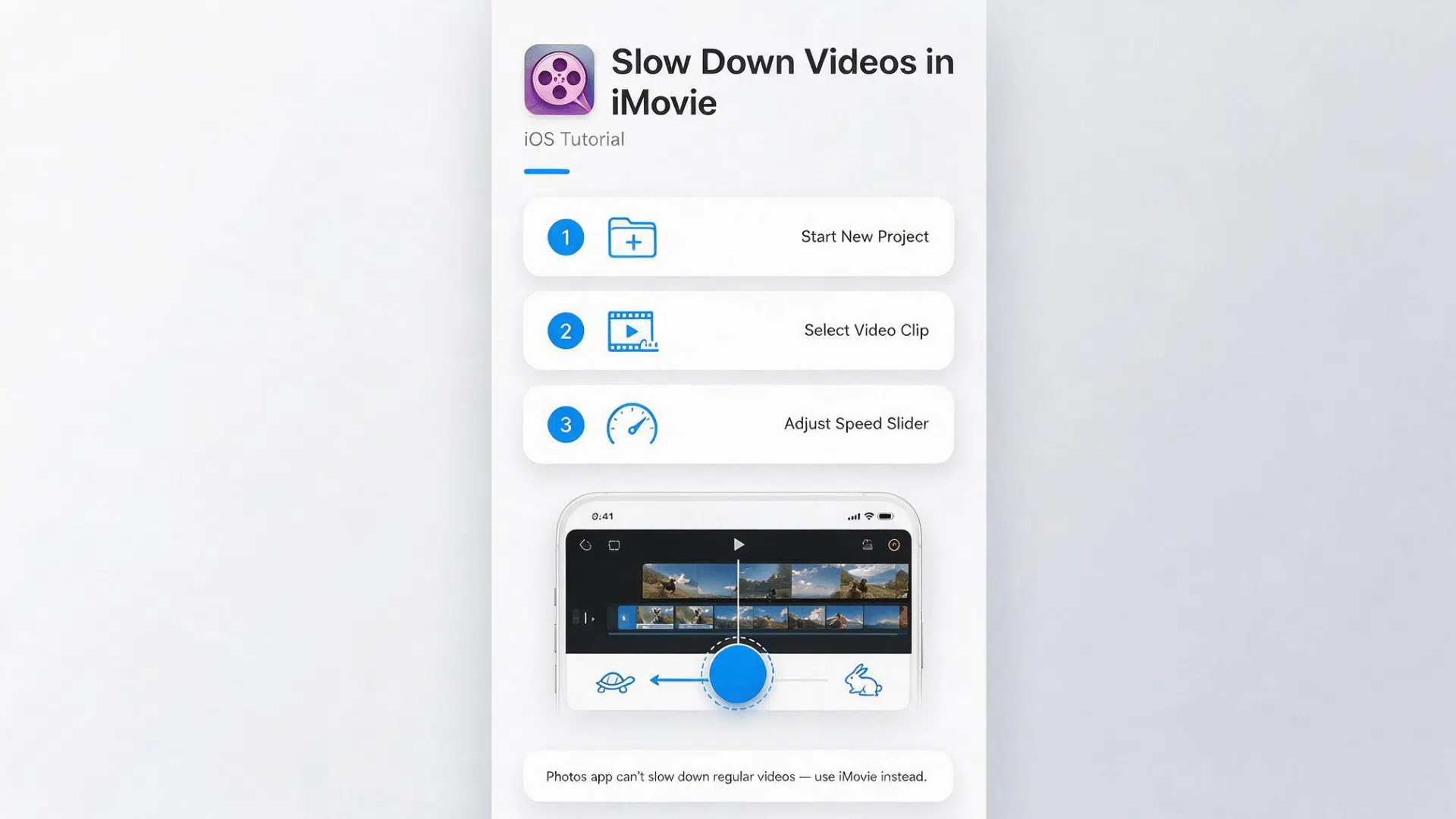
Regular videos recorded with the standard camera cannot be slowed down using the Photos app. iMovie allows you to change the playback speed with a few simple edits.
Step 1: Start A New iMovie Project
- Open the iMovie app on your iPhone.
- Tap Start New Project and select Movie.
- Choose the video you want to slow down from your Photos library.
- Tap Create Movie to open the editing screen.
Step 2: Select Your Video Clip
- Tap the video clip in the timeline to select it.
- Editing tools will appear at the bottom of the screen.
- Make sure the clip is highlighted before changing the speed.
Step 3: Open The Speed Control Tool
- Tap the Speed icon that looks like a speedometer.
- A slider will appear below the video timeline.
- Move the slider toward the left to reduce the playback speed.
3. Adjust Video Speed Settings in iMovie
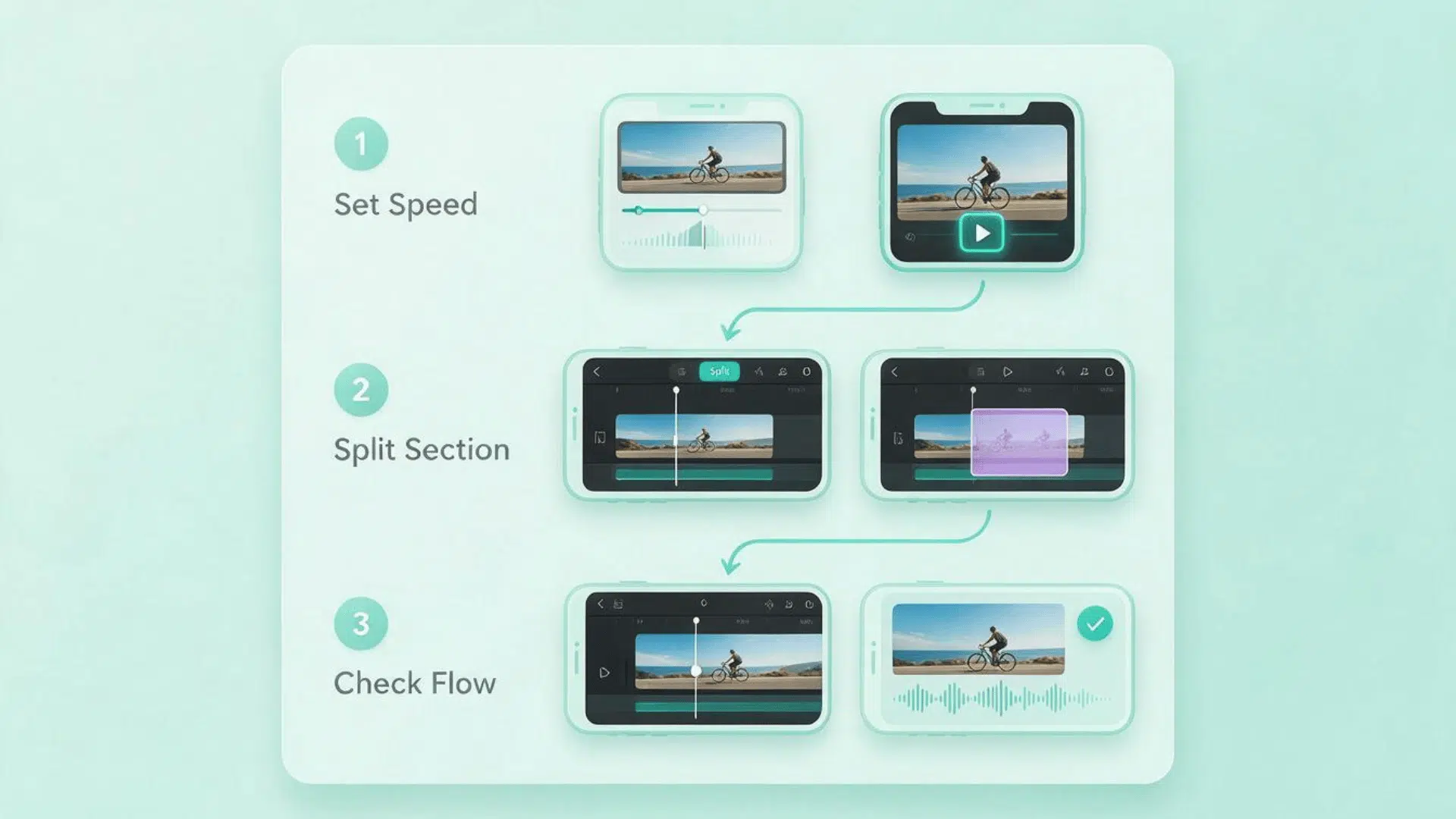
iMovie gives you control over how much you want to slow down your video. You can choose a slight speed change or create a stronger slow-motion effect.
Step 1: Move The Speed Slider
- Drag the speed slider left to slow down the video.
- Test different speed levels until the movement looks natural.
- Tap the play button to preview the changes.
Step 2: Slow Down Only A Specific Section
- Move the timeline marker to the part you want to edit.
- Tap Split to separate that section from the rest of the video.
- Apply the slow-motion effect only to the selected part.
Step 3: Check The Video Flow
- Watch the edited clip from beginning to end.
- Make sure the slowed section does not look too fast or uneven.
- Adjust the speed again if needed.
4. Preview and Save Your Slowed Video
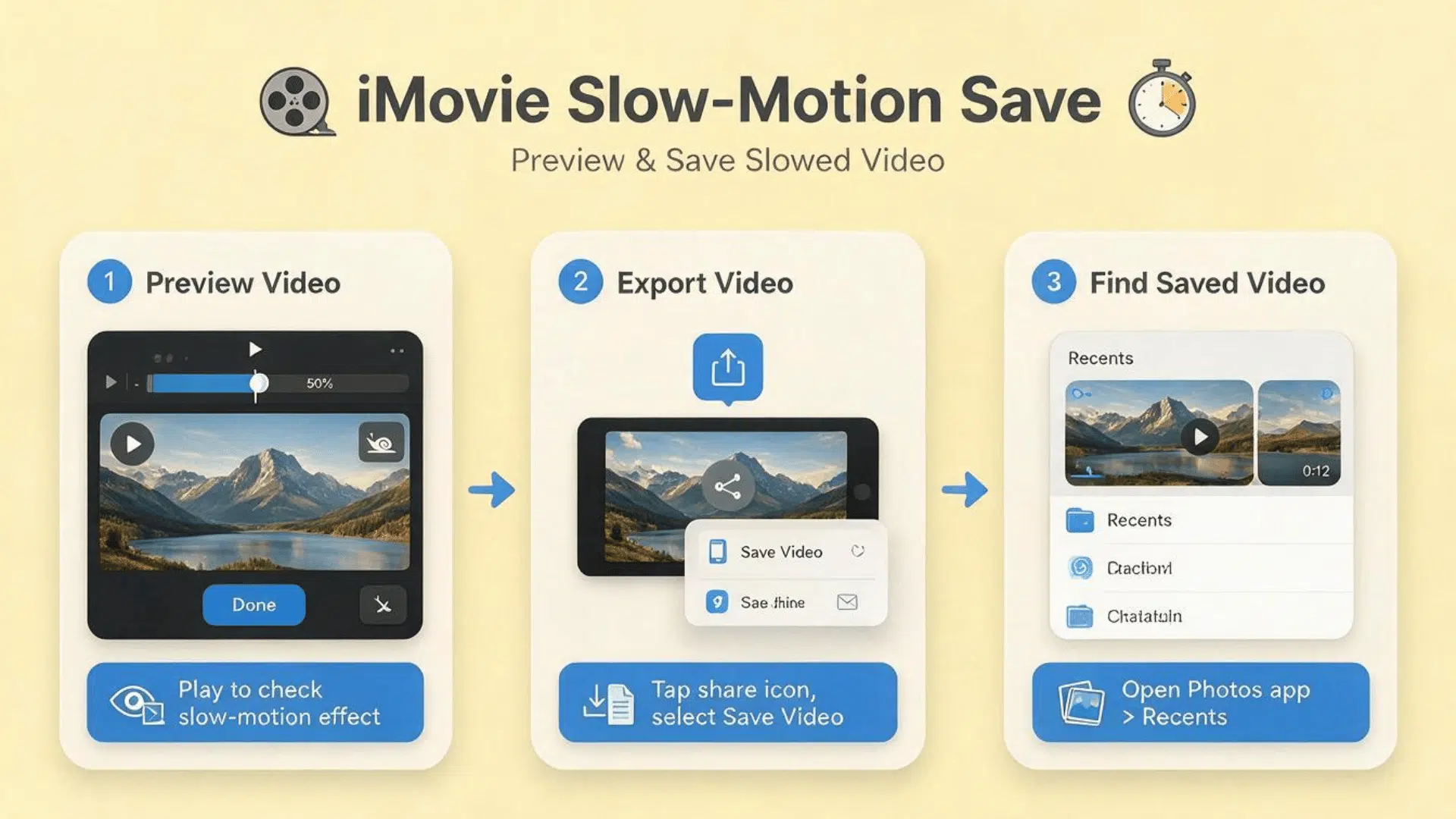
After editing the video speed, review the final clip before saving it to your iPhone.
Step 1: Preview The Edited Video
- Tap the play button in iMovie to watch the complete video.
- Check if the slow-motion effect starts and ends at the right points.
- Make any final speed adjustments before exporting.
Step 2: Export The Video
- Tap the Share button at the bottom of the screen.
- Select Save Video from the available options.
- Choose your preferred video quality.
Step 3: Find The Saved Video
- Open the Photos app after exporting.
- Your edited video will appear as a new file.
- The original video will remain unchanged, allowing you to keep both versions.
Photos App vs. iMovie for Slowing Down Videos on iPhone
The Photos app and iMovie both help you slow down videos on your iPhone, but they work best for different situations.
As a tech educator with years of experience helping users understand digital tools, I recommend choosing the app based on the type of video you are editing. The simpler option is often enough for quick changes, while iMovie is better when you need more control over your final clip.
Feature | Photos App | iMovie |
|---|---|---|
Best For | Adjusting Slo-mo videos | Slowing down regular videos |
Works With | Slo-mo recordings | Regular and Slo-mo videos |
Speed Control | Adjusts the slow-motion section | Changes the speed of any selected clip |
Editing Options | Basic edits like trimming and cropping | Speed changes, trimming, splitting, and more edits |
Ease Of Use | Quick and beginner-friendly | Takes a few more steps but offers more control |
Best Choice | Fast changes to iPhone Slo-mo clips | Detailed video editing before sharing |
Choose the Photos app for simple Slo-mo adjustments and iMovie when you want to slow down regular videos or make more edits.
How to Check Which Method You Actually Need?
Choosing between the Photos app and iMovie depends on the type of video you want to slow down. A quick check of your clip can help you pick the right option before editing.
If your video was recorded using Slo-mo mode, you can adjust the slow-motion section directly in the Photos app. Open the video and check if it has the Slo-mo label or slow-motion controls available in the edit screen.
Use this simple check:
Slo-mo video – Photos app
Regular video – iMovie
If your video was recorded normally using the standard Camera mode, you will need iMovie to change the playback speed. iMovie is the better option when you want to slow down regular clips or make additional edits. Knowing the type of recording first saves time and helps you use the right editing tool from the start.
How to Edit Videos on iPhone Before Sharing?
Your iPhone has built-in editing tools that make it easy to improve videos before sharing them. You can make quick changes like trimming clips, adjusting the frame, and improving the overall look using the Photos app.
- Trim unwanted sections: Open the video in the Photos app, tap Edit, and drag the timeline edges to remove extra parts.
- Adjust the video frame: Use the crop tool to resize the video, change the orientation, or fit it better for different platforms.
- Change video appearance: Adjust brightness, contrast, shadows, and other settings to improve the overall look of your clip.
- Apply filters: Choose from available filters to change the style of your video without using another app.
- Remove edits anytime: Tap Revert if you want to return to the original version of the video.
These features make it easier to edit videos on iPhone when you need quick changes before sharing clips. You can also combine these edits with speed adjustments to create smoother videos.
Troubleshooting Issues in iMovie on iPhone
iMovie usually works smoothly for basic video editing, but some issues can appear while importing clips, editing, or saving projects. These fixes can help you solve common problems and continue editing your videos.
1. iMovie Is Not Showing Editing Options
If iMovie is not showing tools after adding a clip, the video may not be selected properly.
- Tap the video clip in the timeline and make sure it is highlighted.
- iMovie only displays editing tools after you select the clip you want to change.
- If the options are still missing, close and reopen the project.
- Updating iMovie to the latest version may also help fix missing tool issues.
2. Video Cannot Be Imported Into iMovie
Some videos may not open in iMovie because of file compatibility or access settings.
- Check if the video format is supported before importing it into iMovie.
- Try using a clip recorded directly with your iPhone camera.
- Give iMovie permission to access your Photos library through iPhone settings.
- Convert videos from other devices if they do not import correctly.
3. iMovie Is Running Slowly or Freezing
Large projects and limited storage can affect how smoothly iMovie runs on your iPhone.
- Check your iPhone storage and remove files you no longer need.
- Close unused apps running in the background before editing.
- Restart your iPhone to refresh system performance.
- Try working with shorter clips if large projects continue to slow down.
4. Changes Are Not Saving Properly
Sometimes edits may not appear if iMovie has not finished processing the project.
- Wait for edits to finish before closing the app.
- Check that the project appears correctly in your iMovie library.
- Keep iMovie and iOS updated for better compatibility.
- Reopen the project if changes do not appear after saving.
5. Exported Video Quality Looks Different
The final video quality can change depending on export settings and the original recording.
- Choose a higher resolution option when saving the video from iMovie.
- Check the quality of the original clip before editing.
- Avoid sharing through apps that compress videos heavily.
- Save the final version to Photos before sending or posting it.
Final Thoughts
Learning how to slow down a video on iPhone is easier than it may seem, especially with built-in tools like Photos and iMovie. You can adjust Slo-mo clips quickly or use iMovie when you need more control over regular videos.
Along with changing speed, knowing how to edit videos on iPhone helps you trim clips, improve framing, and prepare videos before sharing.
Small adjustments, like learning how to crop a video on iPhone, can also make your final clip look cleaner.
With the right tool and a few simple steps, you can create smoother, better-looking videos directly from your iPhone.
Frequently Asked Questions
Does Slowing Down a Video Change the Original Recording?
No, your original video stays available, and edited versions are saved separately or can be restored depending on the editing tool used.
Can I Slow Down a Video Recorded from Another Device?
Yes, you can import compatible video files to your iPhone and edit them using apps like iMovie.
What Video Formats Work with iMovie on iPhone?
iMovie supports common formats like MP4, MOV, and other Apple-compatible video files.
Can I Slow Down only One Part of a Video?
Yes, you can select a specific section of a clip and apply speed changes only to that part during editing.