







Do you finish a walk and look at your Apple Watch numbers, only to think, “that can’t be right”? It happens more than people realize, despite having one of the best watch series.
Sometimes the watch just needs a little help learning how someone moves.
It’s not broken; it’s just untrained, kind of like a new pair of shoes that need breaking in. That’s exactly why learning how to calibrate Apple Watch can make such a big difference.
It can be done without any fancy tools or a tech background. Just a few simple steps that I have followed to teach the watch to track steps, pace, and distance the way they actually happen.
Ready to get those numbers back on track?
Is it Important to Calibrate Apple Watch?
Yes, Apple Watch calibration is important if your distance, pace, calories, or activity results seem off. It helps the watch learn how you move while walking and running.
Calibration gives the watch more accurate data on your stride, speed, and arm movement. This can improve tracking when GPS is weak or when you exercise indoors.
It can also help your Move and Exercise Rings more closely match your effort. The watch keeps learning as you record more outdoor walks and runs.
Things to Do Before You Calibrate Apple Watch
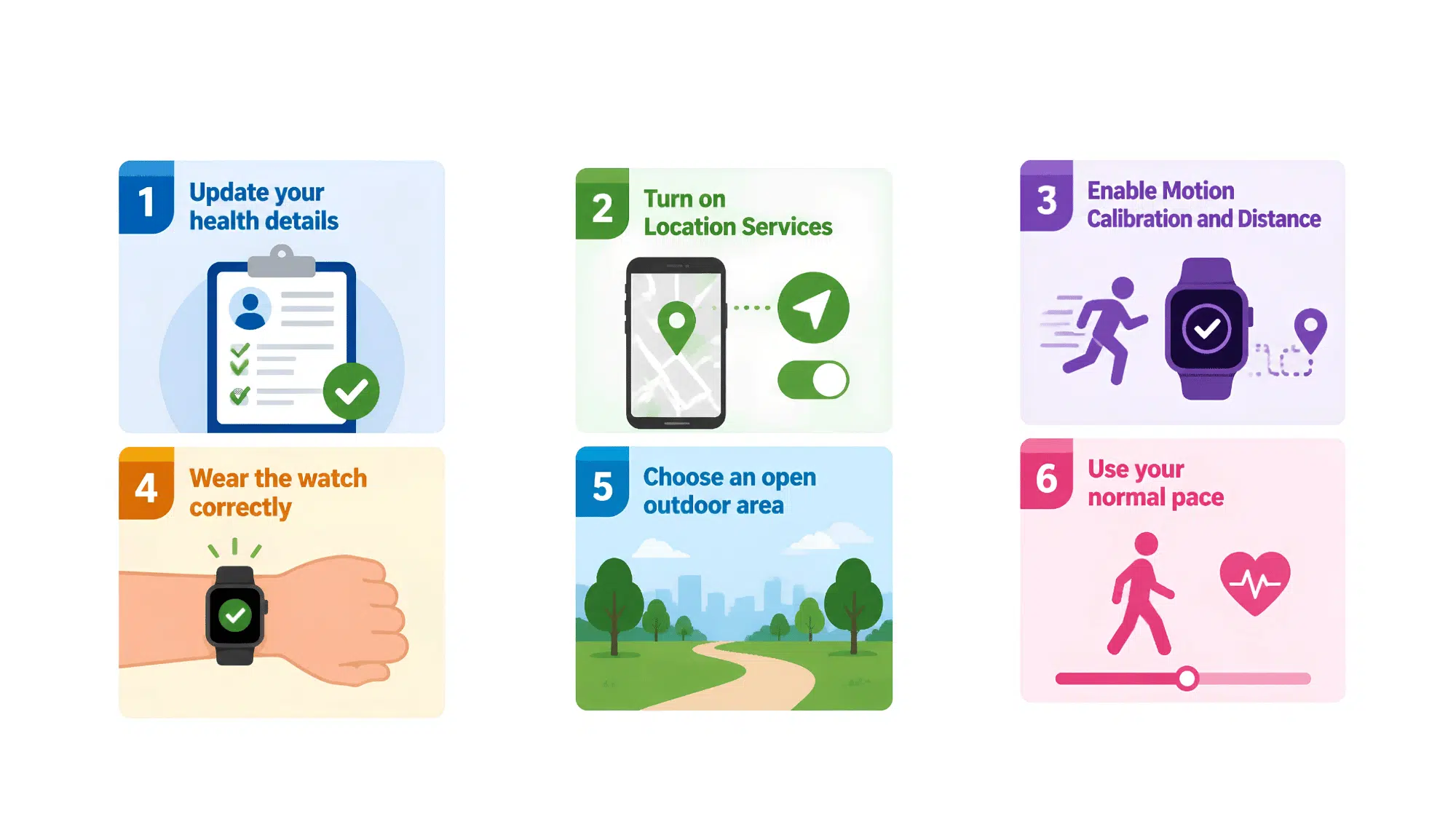
A few checks helped my Apple Watch collect better movement and location data during calibration. These checks give the watch cleaner data to work with:
| Before You Start | Quick Check | Benefit |
|---|---|---|
| Health details | Update age, height, and weight | More accurate workout data |
| Location Services | Turn on GPS access | Better route tracking |
| Motion Calibration | Enable Motion Calibration & Distance | Improves steps and distance |
| Watch fit | Wear it snug above the wrist bone | Better sensor readings |
| Outdoor route | Choose an open, flat area | Reduces GPS interference |
| Normal pace | Walk or run as you usually do | Creates accurate calibration data |
How to Calibrate Apple Watch
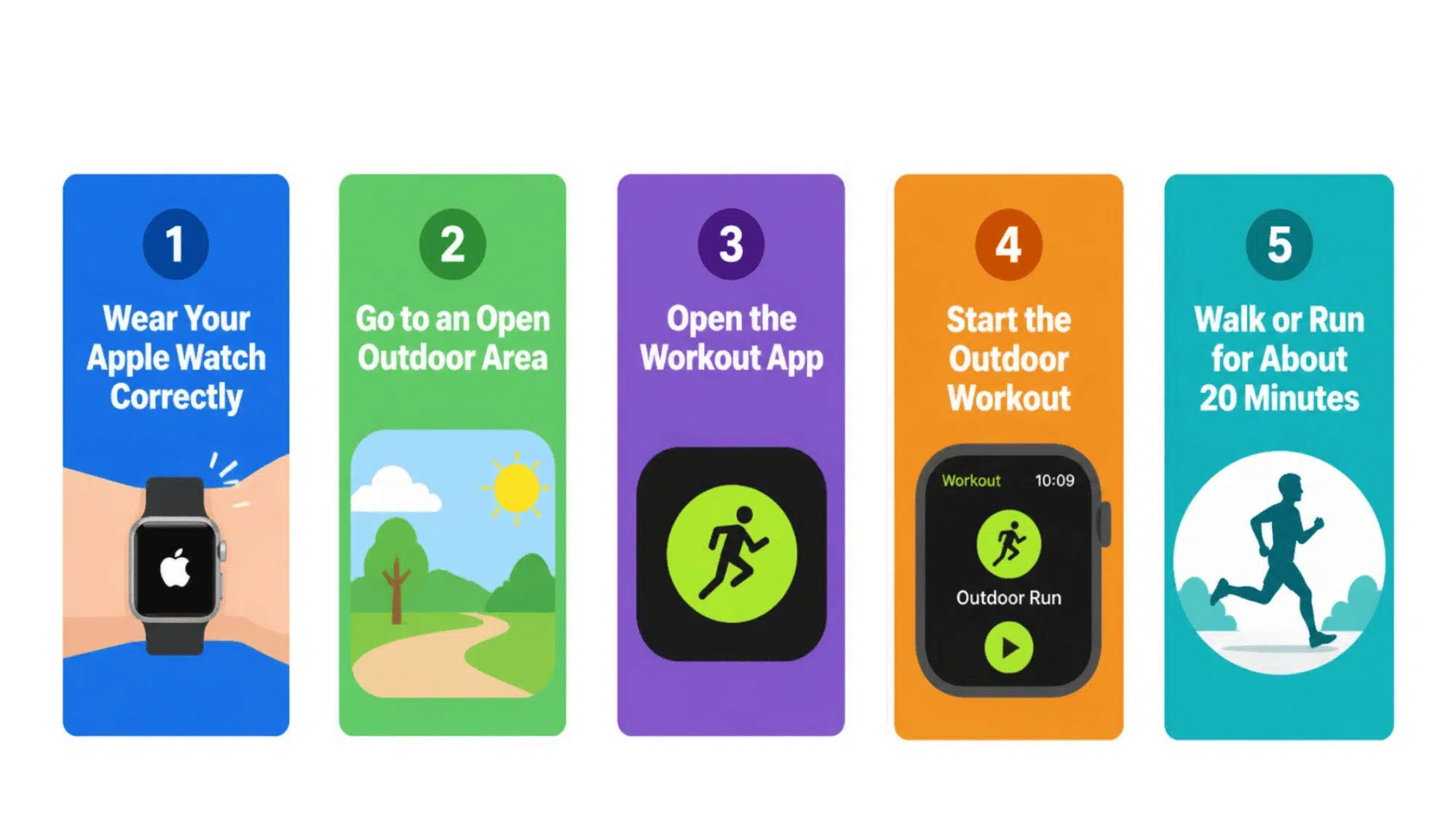
Calibrating your Apple Watch takes only a little time, but it can make a noticeable difference during walks, runs, and other workouts. Starting with a few simple checks helps the watch collect more accurate movement and distance data.
Step 1: Wear Your Apple Watch Correctly
Place the watch just above your wrist bone before starting the workout. A secure fit helps the sensors collect steady heart rate and movement data.
Instructions to follow:
- Check the position: Keep the back of the watch flat against your skin.
- Adjust the band: Make sure it feels snug without causing pressure or discomfort.
- Check sensor contact: Keep your wrist clean and dry so the sensors can work properly.
Pro Tip: Avoid wearing the watch over sleeves or loose clothing because it can affect movement and sensor readings.
Step 2: Go to an Open Outdoor Area
Choose a flat outdoor place with a clear view of the sky. Strong GPS reception helps the watch measure your route and movement more accurately.
Instructions to follow:
- Avoid blocked areas: Stay away from tunnels, tall buildings, and thick tree cover.
- Pick a steady route: Use a path where you can walk or run without stopping often.
- Choose a familiar area: A regular walking or running route can help you compare results later.
Pro Tip: A park track, open sidewalk, or quiet road usually works better than a crowded city street.
Step 3: Open the Workout App
Press the Digital Crown and tap the Workout app on your Apple Watch. This is where you choose the activity used for calibration.
Instructions to follow:
- Select the right option: Tap Outdoor Walk or Outdoor Run based on what you plan to do.
- Check the workout screen: Make sure the workout type is correct before you start moving.
- Check the workout details: Confirm the selected activity before starting to avoid recording the wrong data.
Pro Tip: Do not choose Indoor Walk or Indoor Run because outdoor GPS data is needed for calibration.
Step 4: Start the Outdoor Workout
Tap the Start button after choosing Outdoor Walk or Outdoor Run. Begin moving at your normal pace so the watch can record your usual stride and speed.
Instructions to follow:
- Keep a steady pace: Walk or run naturally without changing speeds too often.
- Continue the workout: Allow the watch to collect enough movement data during the session.
- Stay consistent: Maintain a steady pace so the watch can record reliable movement patterns.
Pro Tip: Avoid holding your iPhone or keeping your arm still during the workout, as natural arm movement helps improve tracking.
Step 5: Walk or Run for About 20 Minutes
Keep walking or running after starting the workout so your Apple Watch can collect movement and pace data. Use your normal speed instead of changing your pace for the test.
Instructions to follow:
- Follow your routine: Move at the same pace you usually use during workouts.
- Complete the full session: Stay active for around 20 minutes to give the watch enough information.
- Repeat at other speeds as needed: complete more sessions if you regularly switch between walking, jogging, and running.
Pro Tip: You can split the 20-minute calibration time across multiple outdoor workouts if needed.
Step 6: End and Save the Workout
Finish the outdoor walk or run after completing the calibration time. Saving the workout allows your Apple Watch to use the recorded movement data for future tracking.
Instructions to follow:
- Stop the workout: Swipe right on the workout screen and tap End when you are done.
- Save the activity: Confirm the workout details so the data stays stored in the Fitness app.
- Confirm the workout is saved: Make sure the activity appears in the Fitness app so the watch can use the data it collected.
Pro Tip: Keep doing regular outdoor workouts after calibration, as the watch continues to improve its tracking over time.
How to Reset Apple Watch Calibration Data
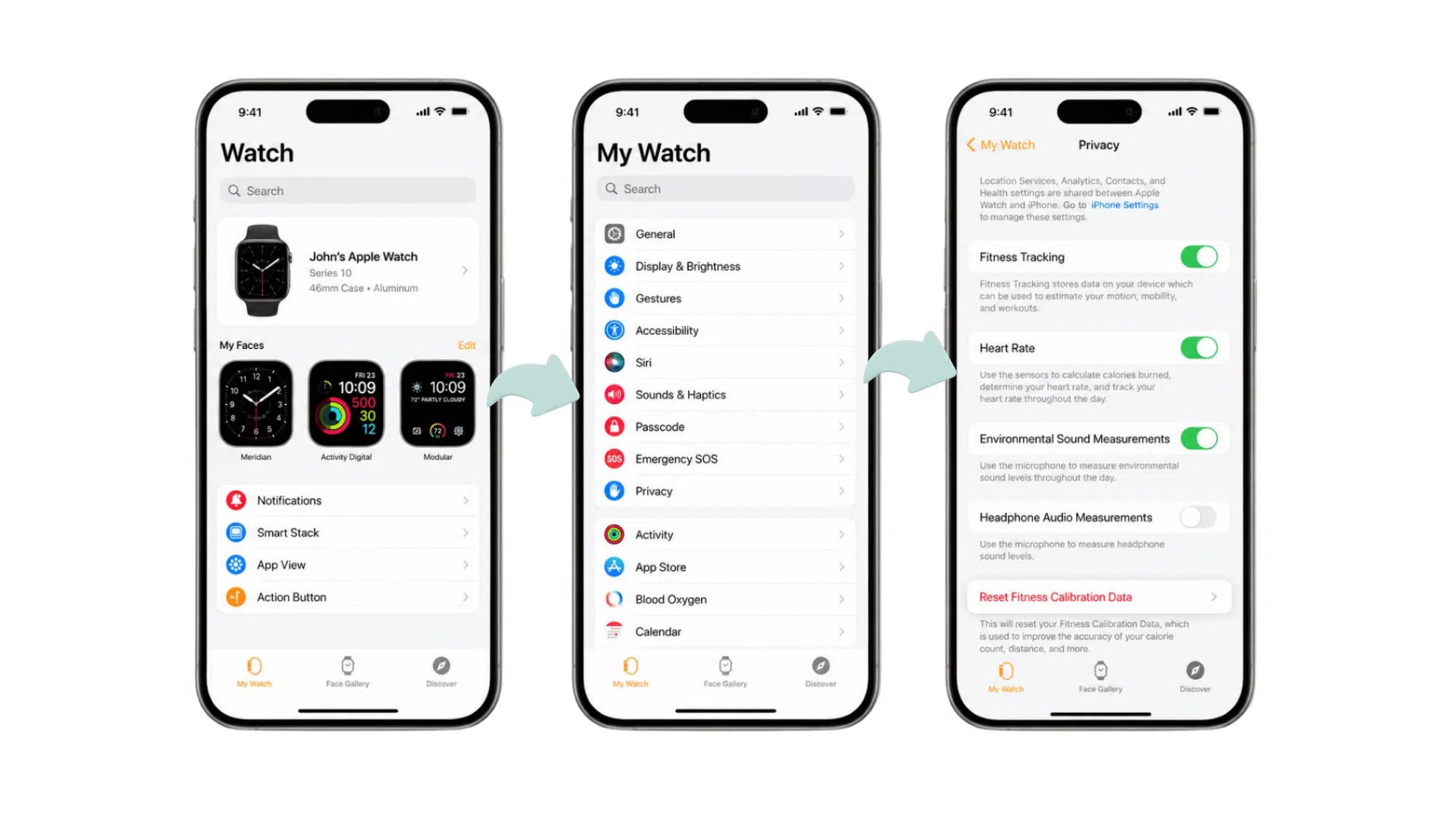
Resetting Apple Watch data removes the saved movement information used for distance and pace tracking. This can help when workout readings continue to look incorrect after regular use.
- Open the Watch app: Launch the Watch app on your paired iPhone to access Apple Watch settings.
- Go to My Watch: Tap the My Watch tab at the bottom of the screen.
- Open Privacy settings: Select Privacy to find fitness and health-related options.
- Reset calibration data: Tap Reset Fitness Calibration Data and confirm the reset.
- Complete a new workout: Record an outdoor walk or run afterward so the watch can collect new movement data.
After the reset, your Apple Watch will start learning from new outdoor workouts. Regular walks and runs can help improve future distance and pace readings.
Why is Your Apple Watch Still Tracking Incorrectly After Calibration?
Even after calibration, your Apple Watch may still show readings that don’t match your workout. Small issues or habits can affect tracking accuracy.
| Problem | Possible Cause | Quick Fix |
|---|---|---|
| Distance seems wrong | Weak GPS signal | Walk or run in an open outdoor area. |
| Pace looks inaccurate | Calibration wasn’t completed | Repeat a 20-minute Outdoor Walk or Run. |
| Calories seem too high or low | Health details are outdated | Update your age, height, and weight in the Health app. |
| Heart rate drops during workouts | Watch is too loose | Tighten the band so it fits snugly. |
| Indoor workout distance is inaccurate | Limited calibration data | Complete more outdoor walking or running workouts. |
| Exercise Ring fills slowly | Wrong workout selected | Choose the activity that matches your exercise. |
| Workout route is incomplete | Location Services are off | Enable Location Services and Motion Calibration & Distance. |
| Step count seems low | Limited arm movement | Let your watch arm swing naturally while walking. |
| Tracking changed after losing weight or improving fitness | Stride length has changed | Recalibrate with a new outdoor workout. |
| Workout pauses unexpectedly | Wrist Detection or poor fit | Check Wrist Detection and adjust the watch fit. |
| Readings changed after resetting the watch | Calibration data was erased | Complete a new outdoor calibration session. |
| Distance varies on the same route | Tall buildings or heavy tree cover | Choose a route with a clear view of the sky. |
| Workout data updates slowly | Outdated watchOS or iPhone software | Install the latest software updates. |
| GPS takes time to lock | Workout started before GPS was ready | Wait a few moments before you begin moving outdoors. |
| Tracking remains inconsistent | Multiple settings need attention | Review Health details, GPS, watch fit, and calibration, then try another outdoor workout. |
Final Takeaway
Calibration isn’t a one-time fix, it’s more like an ongoing conversation between a watch and the body wearing it.
A few outdoor walks or runs, a snug fit, and updated health details go a long way toward smoother, more accurate readings. Numbers might not be perfect overnight, but they’ll keep getting sharper with regular use.
So next time those stats look a little off, there’s no need to panic. Just lace up, step outside, and let the watch catch up to reality.
Frequently Asked Questions
Does Calibration Work the Same for Apple Watch Ultra Models?
Yes, the process is the same across all Apple Watch models, though Ultra models may show slightly better GPS accuracy due to their antenna design.
Can You Calibrate My Apple Watch Without an iPhone Nearby?
Calibration works best with your iPhone nearby the first few times, but once trained, the watch can track workouts independently using its own GPS.
How Often Should Apple Watch Calibration Be Redone?
There’s no strict schedule, but redoing it every few months or after a major routine change helps keep tracking data sharp.