

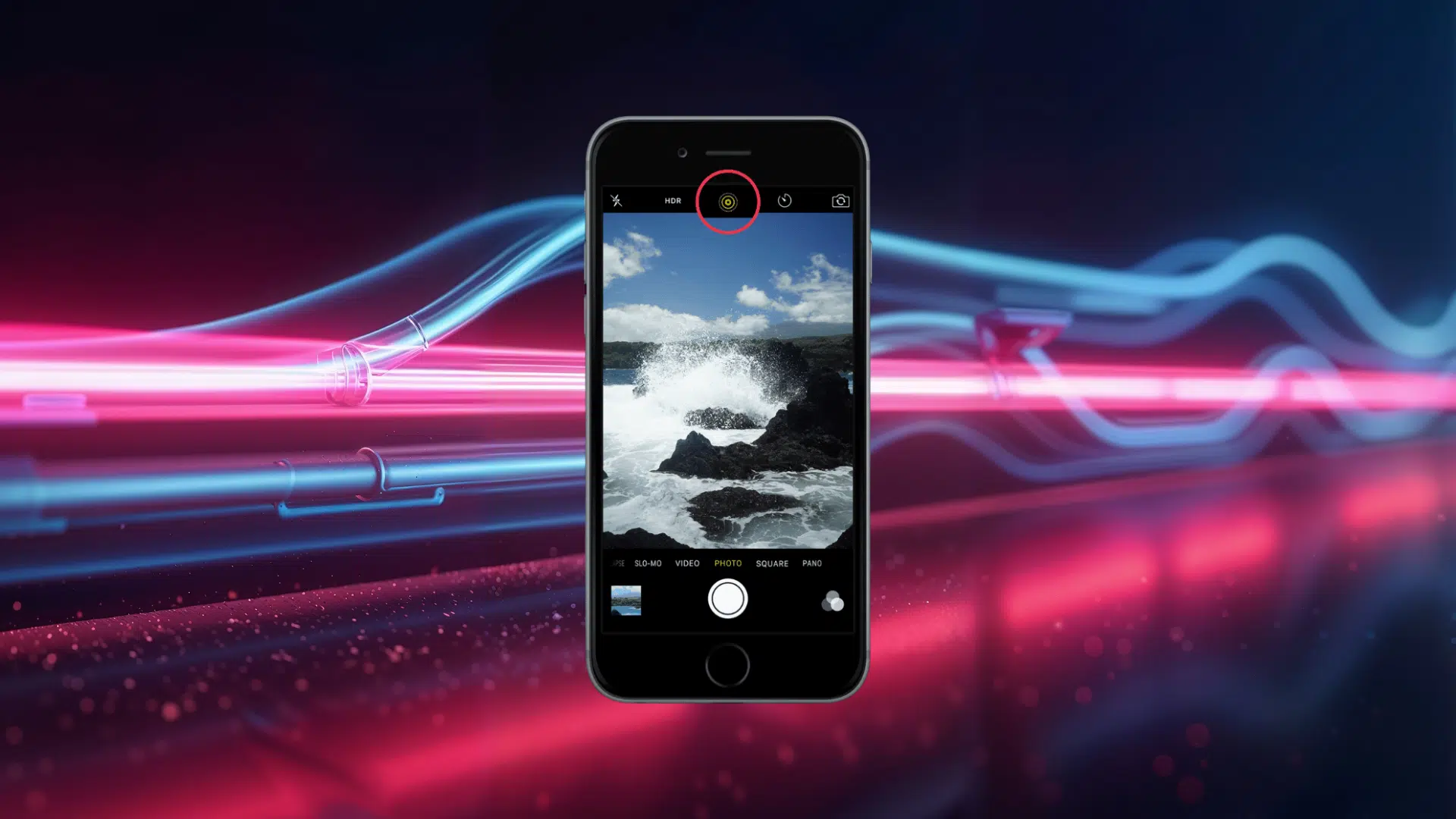






Have you ever taken a photo on your iPhone and noticed it moved when you opened it later?
Many iPhone users turn this feature off to save storage, avoid unwanted movement, or keep their camera focused on regular still photos. If you prefer simple pictures, learning how to turn off Live Photos on iPhone can make taking photos easier.
This blog will show you how to turn off Live Photos while taking a photo and how to keep the setting disabled for future shots.
What Are Live Photos on iPhone and How Do They Work?
Live Photos add a small moment of movement to your iPhone pictures instead of saving only a single frame. When this feature is turned on, your iPhone records what happens just before and after you press the shutter button.
A Live Photo captures about 1.5 seconds of motion on both sides of the shot, along with sound. This lets you see the moments around the photo when you open it later.
A regular photo saves only one still image, while a Live Photo stores extra movement and audio. If you prefer simple pictures without added motion, you may want to turn off Live Photo in iPhone settings.
Knowing how Live Photos work can help you decide when to keep the feature on and when to switch it off. Learning a few common iPhone camera settings can also make it easier to control how your photos are captured.
How to Turn Off Live Photos While Taking a Photo
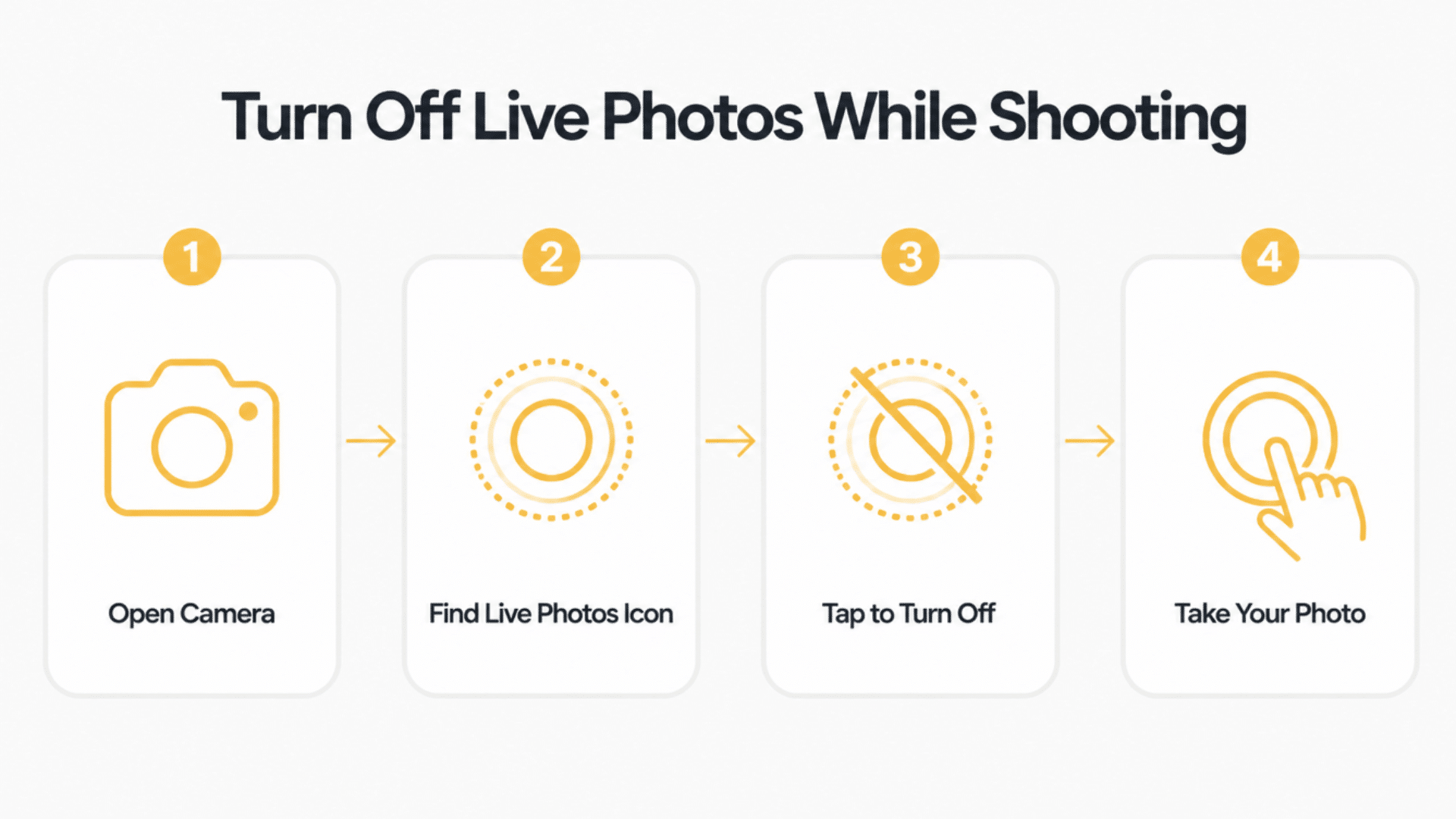
If you only want to stop Live Photos for a specific photo session, you can turn it off directly from the Camera app. This lets you take regular still photos without changing your iPhone’s default settings.
- Step 1: Open the Camera app: Open the Camera app on your iPhone from the Home Screen, App Library, or Lock Screen. Make sure you are in Photo mode so you can access the Live Photos option.
- Step 2: Find the Live Photos icon: Look at the top of the Camera screen for the Live Photos icon, which looks like a circle with smaller rings around it. This icon shows if Live Photos is currently active.
- Step 3: Turn off Live Photos: Tap the Live Photos icon once to disable it. When the icon shows a line through it, Live Photos is turned off, and your iPhone will capture a normal still image.
- Step 4: Take your photo: Press the shutter button as usual. Your iPhone will save the picture without recording extra movement or sound from the moments before and after the shot.
This method is useful when you only want a regular photo for a specific moment. To keep Live Photos off every time you open the Camera app, you will need to change the default setting.
How to Turn Off Live Photos Permanently on iPhone
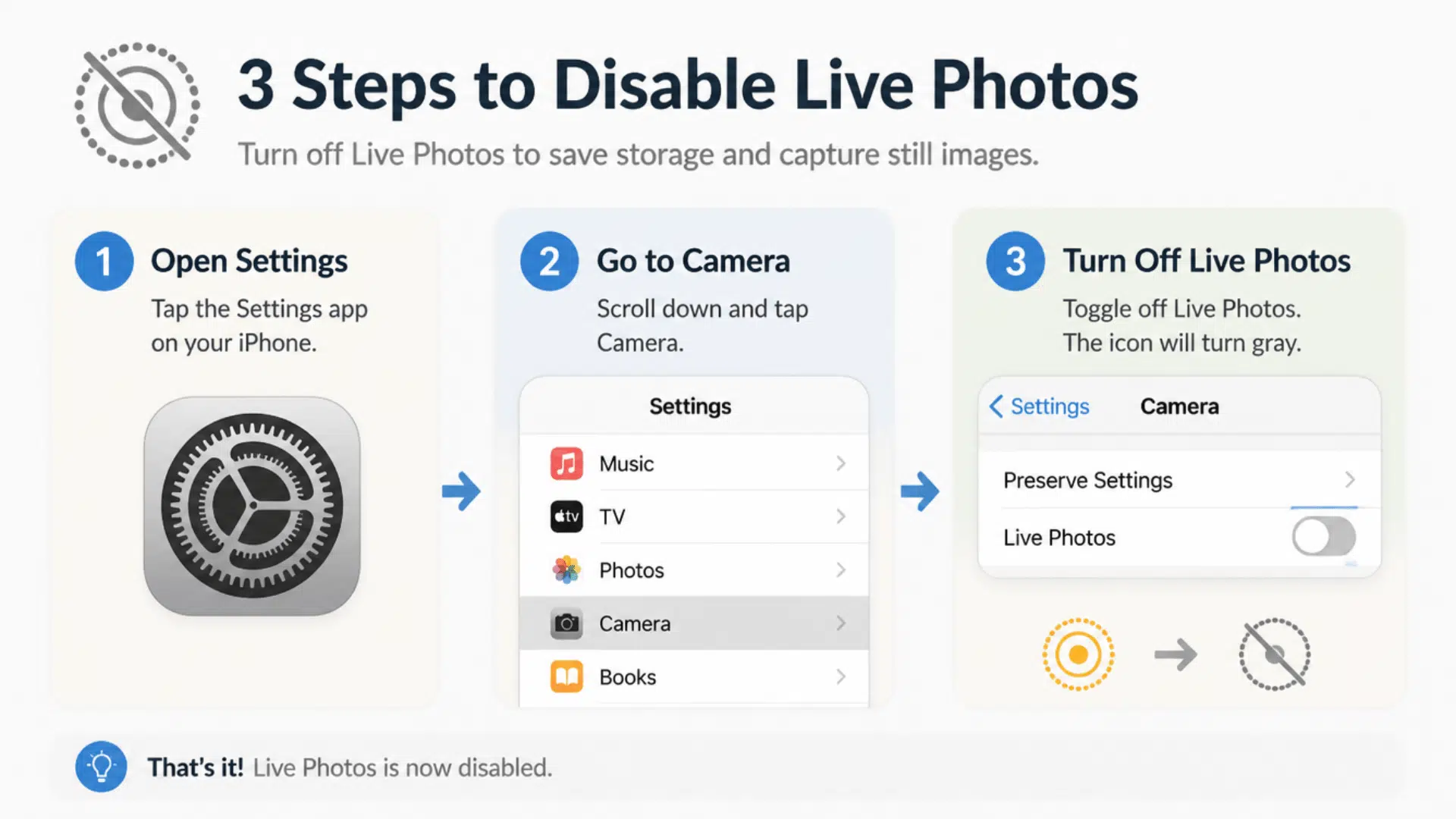
If you want your iPhone to remember your choice and stop turning Live Photos back on, you need to adjust a setting in the Camera menu. This keeps your preferred photo style saved, so you do not have to switch it off every time you open the Camera app.
Step 1: Open Camera Settings
- Open the Settings app on your iPhone.
- Scroll down and tap Camera to access your camera preferences.
- These settings control how your iPhone handles photos, videos, and other camera features.
Step 2: Find the Preserve Settings Option
- Inside the Camera settings, tap Preserve Settings.
- This option allows your iPhone to remember certain camera choices instead of resetting them each time you close the app.
- Turning this option on is important when you want to learn how to turn off Live Photos on iPhone permanently, as it saves your Live Photos preference.
Step 3: Disable Live Photo Saving
- In thePreserve Settings menu, find the Live Photo option and turn it on.
- Next, open the Camera app and switch Live Photos off by tapping the Live Photos icon.
- Your iPhone will now remember that choice and keep Live Photos disabled when you open the Camera app again.
- This helps youturn off Live Photos settings automatically instead of changing them every time you take a picture.
Using this method, you can control when your iPhone captures motion and keep your camera ready for regular still photos by default.
It is the easiest way for users searching for how to turn off Live Photos to make the change last.
How to Know If Live Photos Is Turned Off
Before taking a photo, you can quickly check your Camera app to confirm if Live Photos is disabled. These simple checks help you avoid capturing unwanted motion when you only want a still image.
- Check the Live Photos icon: Open the Camera app and look at the top of the screen. When Live Photos is turned off, the icon will have a line through it, showing that motion capture is disabled.
- Confirm before taking a photo: Before pressing the shutter button, quickly check the icon to make sure it is off. This helps you avoid capturing extra movement when you only want a still image.
- Look for a still photo result: After taking a picture, the photo will not show the Live Photo label or movement when you open it in the Photos app.
- Quick tip to avoid accidental Live Photos: Make it a habit to check the icon whenever you open the Camera app, especially after software updates or switching between camera modes.
Why Turn Off Live Photos on iPhone?
Turning off Live Photos can help you save storage space and keep your photo library easier to manage. Instead of saving extra movement and sound, your iPhone will capture only the exact moment you press the shutter.
It can also make sharing photos easier on platforms that work better with regular images. Plus, disabling Live Photos helps prevent unwanted movement, background sounds, or accidental moments from being saved with your pictures.
For users who mostly take simple photos, keeping Live Photos off can make the camera experience faster and more predictable. You can always turn the feature back on whenever you want to capture moving moments.
How to Turn Off Live Photos for Existing Photos
If you already captured a Live Photo, you do not need to delete it or take the picture again. Your iPhone lets you remove the motion effect and keep the image as a regular still photo.
- Open the Photos app: Find and open the Live Photo you want to change. You can identify it by the Live Photo icon displayed on the image.
- Edit the Live Photo setting: Tap Edit in the top-right corner, then select the Live Photo icon. Tap the Live option at the top of the screen to disable the motion effect.
- Save the image as a still photo: Tap Done to apply the change. The photo will now remain a static image without movement or sound.
- Free up storage space when needed: Converting Live Photos into still images can help reduce storage use if your iPhone has many photos with extra motion and audio saved.
This option helps you keep your favorite pictures while removing the extra content captured by Live Photos.
Final Thoughts
Knowing how to turn off Live Photos on iPhone gives you more control over how your pictures are saved. If you prefer simple still images, switching off this feature can help you avoid extra motion and sound in your photos.
You can choose to turn off Live Photos for one moment or keep it disabled by changing your camera settings. The process is quick, and you can adjust it at any time to suit your needs.
Learning how to turn off Live Photos helps you create a photo library that matches the way you like to capture memories.
Frequently Asked Questions
Can Live Photos Affect iPhone Battery Life?
Live Photos may use slightly more processing because they capture motion and sound along with the image, but the effect on battery life is usually small.
Can I Edit Live Photos After Taking Them?
Yes, you can use the Photos app to trim the motion, change the key photo, add effects, or make other edits without removing the original image.
Do Live Photos Work when I Send Them to Another iPhone?
Yes, Live Photos can be shared with other Apple devices that support the feature. On unsupported devices, they may appear as regular photos.
Can I Use Live Photos as My iPhone Wallpaper?
Yes, supported iPhone models allow you to set a Live Photo as a Lock Screen wallpaper that plays when you press and hold the screen.
Are Live Photos Available on Every iPhone Model?
No, Live Photos are available only on certain iPhone models starting from the iPhone 6s and later versions that support the feature.