







Your laptop fan spins up, a game stutters, or a second monitor just won’t connect right. Nine times out of ten, an outdated driver is the real culprit, not your hardware.
You don’t need to reinstall Windows or call tech support for this. Learning how to update drivers is a basic skill every PC owner should have, and it takes less time than you’d think.
I’ll show you exactly when to use which method, how to confirm the update actually worked, and what to do if something breaks afterward.
Does Updating Drivers on Windows Make It Work Faster?
Yes, updating drivers helps your PC stay faster, more stable, and compatible with new software and hardware. Drivers act as the link between Windows and your devices, so when they fall behind, everyday tasks can start to feel unreliable.
A graphics driver that’s out of date may cause games to stutter. An older Wi-Fi driver can lead to random disconnects, while outdated printer or audio drivers may stop working properly after a Windows update.
Keeping drivers current isn’t just about fixing problems when they appear. It’s also one of the simplest ways to improve performance, reduce bugs, strengthen security, and help your hardware continue working the way it should.
Do These Quick Checks Before Updating Drivers
Updating drivers usually takes only a few minutes, but skipping a few simple checks can turn a routine update into hours of troubleshooting.
| Quick Check | Why It Matters | Priority |
|---|---|---|
| Save your work | Some updates require a restart | Must |
| Plug in your laptop | Prevents shutdown during installation | Must |
| Create a restore point | Makes it easy to undo a bad update | Must |
| Know which device needs updating | Avoids installing the wrong driver | Recommended |
| Check your internet connection | Required for automatic downloads | Recommended |
| Close unnecessary apps | Reduces the chance of installation conflicts | Recommended |
| Note your current driver version | Makes it easier to compare or roll back later | Optional |
| Download drivers only from official sources | Helps avoid malware and incompatible files | Must |
How to Update Drivers Using Various Methods
Every method works differently under the hood, and using the wrong one can leave you chasing a problem that isn’t even there. Here’s exactly how to run each one correctly, from the safest option to the most advanced:
1. How to Update Drivers on Windows
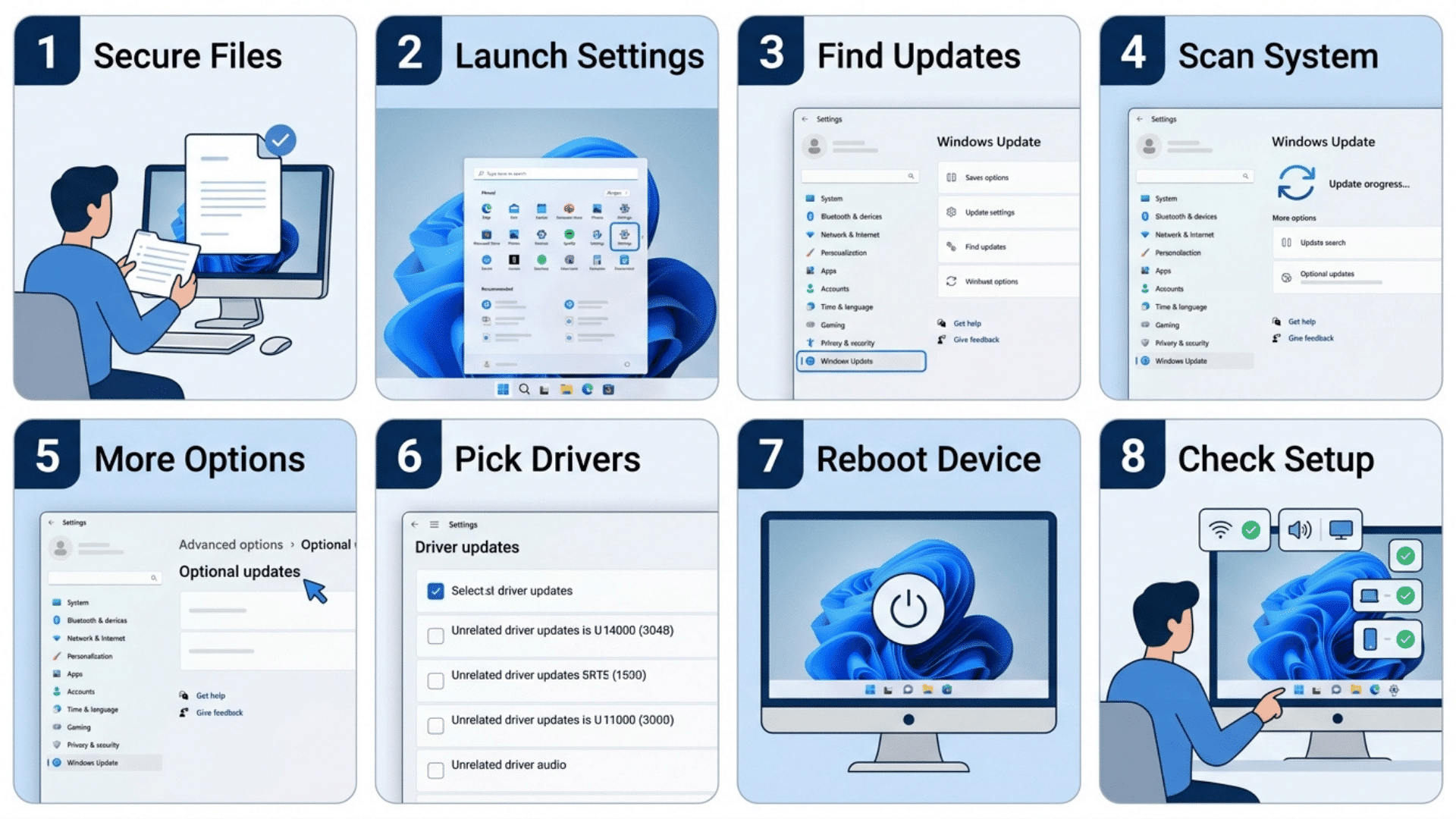
For most users, Windows Update is the safest starting point since it verifies compatibility before installing anything. If only one device needs attention,
Device Manager lets you target it directly. When you need a specific version, official manufacturer downloads from Dell, HP, NVIDIA, or Intel give you the most control.
Here’s the basic process:
- Save open work.
- Open Settings.
- Select Windows Update.
- Check for updates.
- Review Advanced options and Optional updates.
- Install only relevant driver updates.
- Restart the computer if requested.
- Test the affected hardware.
Once you’ve confirmed the device works properly, you’re done. If a problem shows up instead, don’t panic. The next section covers how to roll back a driver and recover without much hassle.
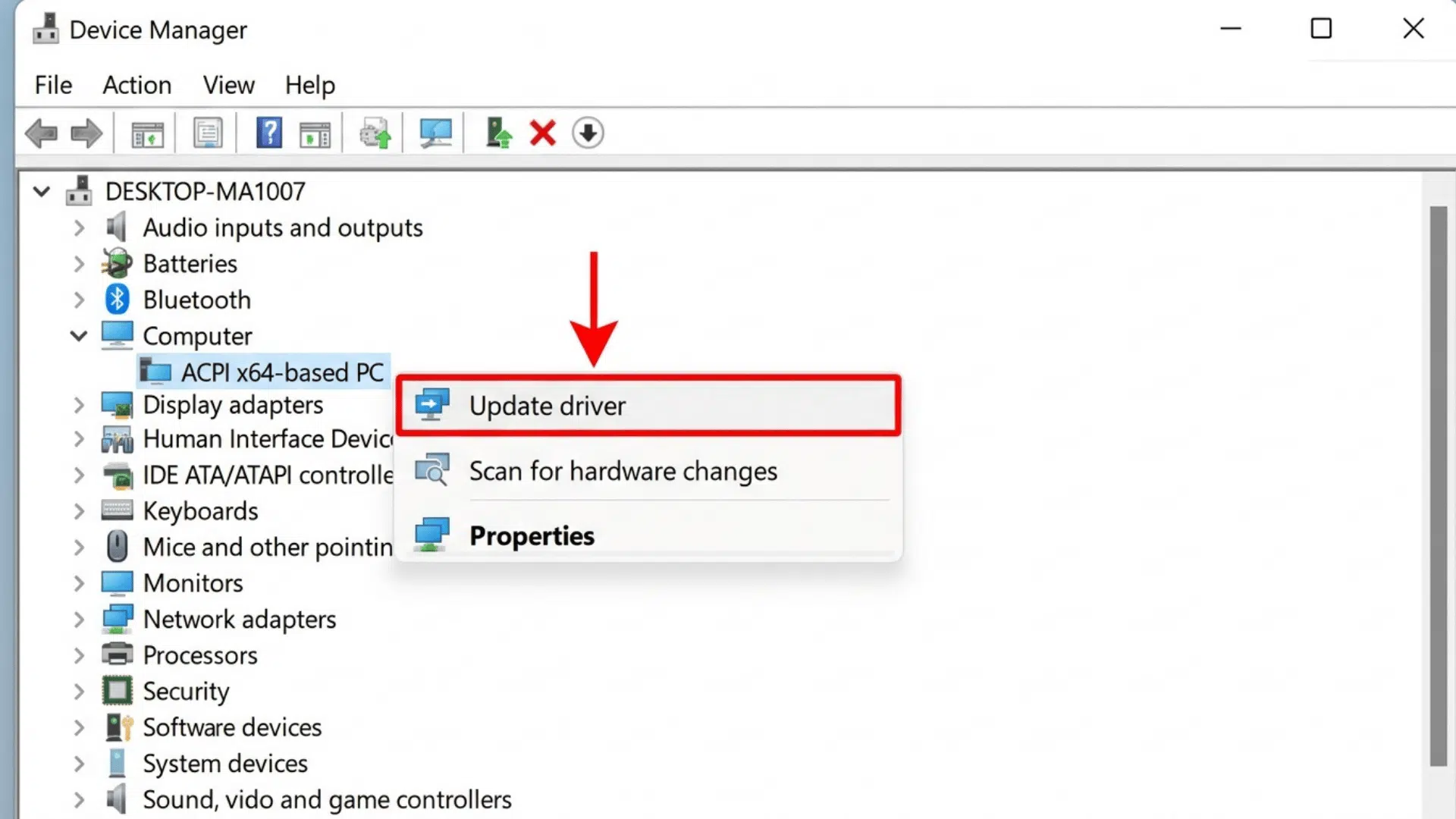
2. Update a Driver Through Device Manager
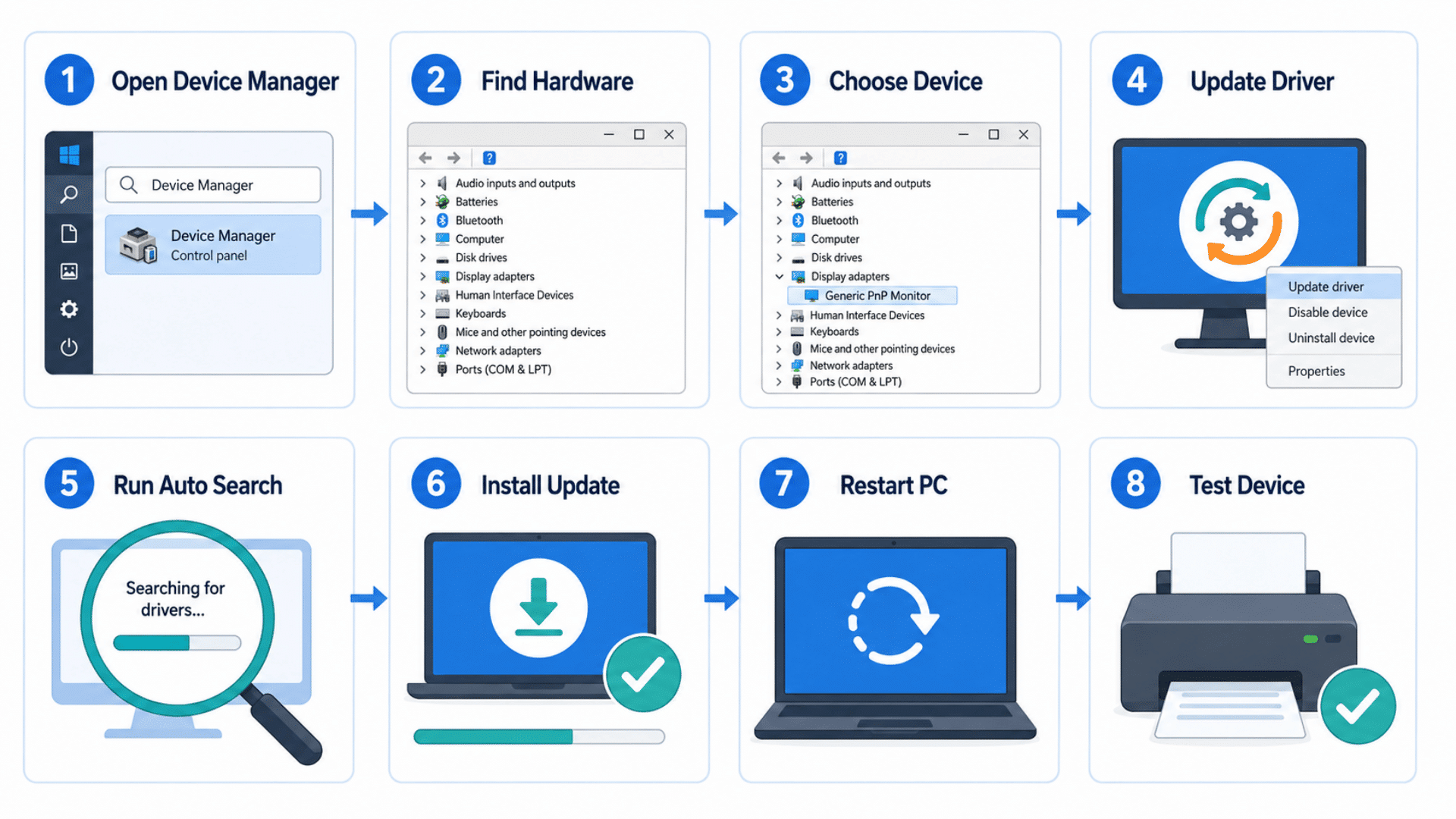
Device Manager is the fastest way to update one specific device without touching anything else on your system. Use it when you already know exactly which piece of hardware is causing trouble.
Here’s the process:
- Right-click Start and open Device Manager.
- Expand the relevant hardware category.
- Right-click the device.
- Select Update driver.
- Select Search automatically for drivers.
- Follow the installation prompts.
- Restart the computer if required.
- Run the device.
If Windows tells you the best driver is already installed, don’t take that as the final word. That message only reflects what’s available through the source Windows searched, usually your local system.
3. Download and Install a Driver Manually
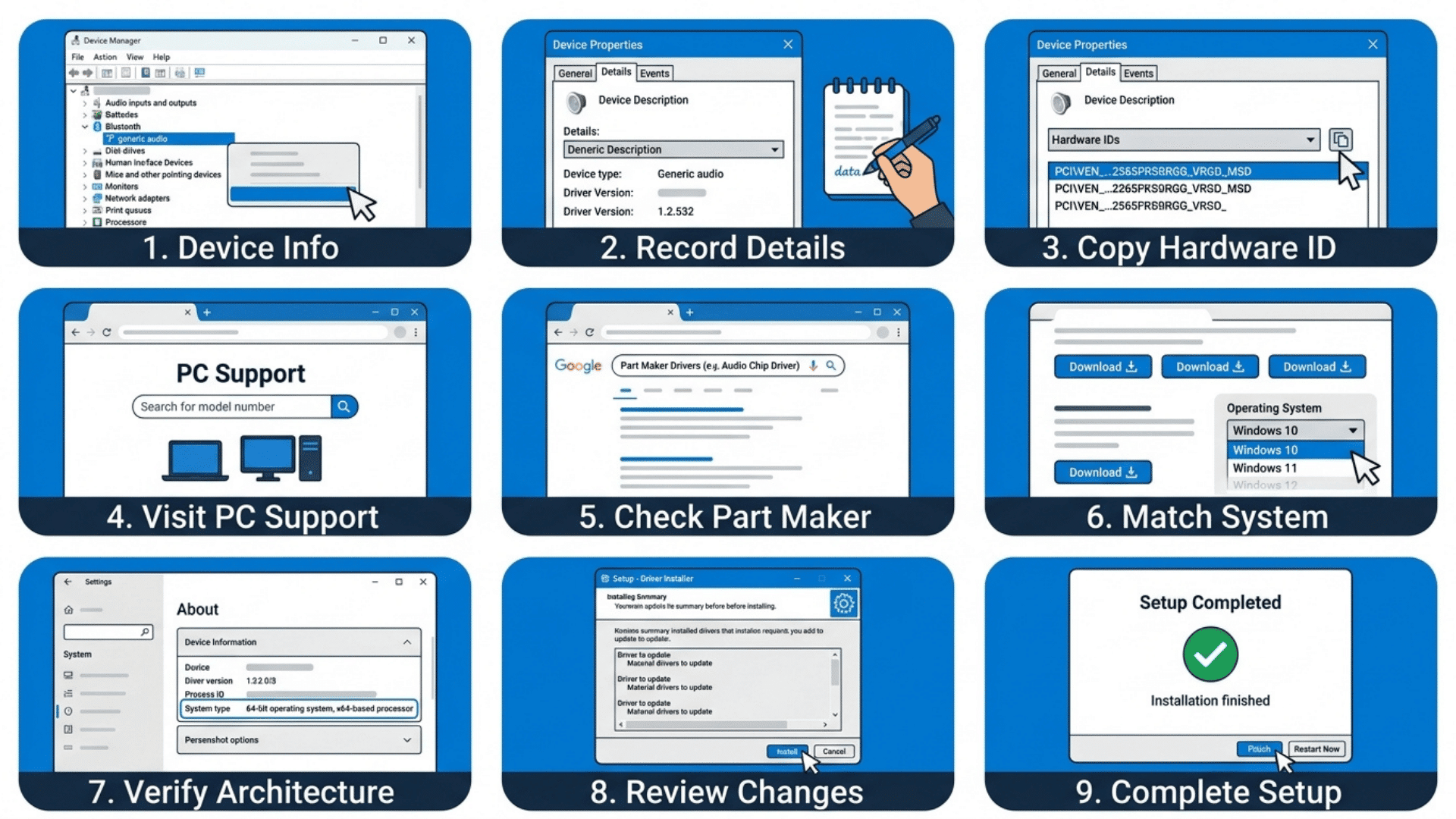
Manual installation gives you the most control, but it also demands the most precision. This method works best when Windows Update and Device Manager can’t offer the specific version you need.
- Open Device Manager and select Properties on the device.
- Note the current provider, version, and date.
- Check Details, then Hardware IDs for the exact identifier.
- Pick the PC manufacturer’s site for model-specific parts.
- Use the component manufacturer for newer releases.
- Confirm your exact device model and Windows version.
- Check for 64-bit or ARM64 compatibility.
- Read release notes before downloading anything.
- Run the installer, or extract and install via Browse my computer for drivers.
Once installed, restart your PC and confirm the device works properly. If it doesn’t, you can roll back the change, which is covered next.
What Real Windows Users Recommend Before Updating Drivers
Driver updates don’t always go the way official guides suggest. Looking at what everyday Windows users have experienced can help you avoid common mistakes and decide which update method makes the most sense for your situation.
While every PC is different, the advice below appears repeatedly across Reddit and Microsoft Community discussions:
“You should avoid using that method to update your drivers, it is not advised to use a 3rd party utility or 3rd party company to update or install drivers… Drivers are always free and the only safe place to get drivers from is from the support page for your PC on the manufacturers website to ensure the drivers are fully compatible with your system hardware.”– Microsoft user review
“Download the files from the manufacturer support website.”- Reddit
“Don’t use an all-in-one driver updating program on a custom pc.”- Reddit
“You Should only install drivers from your MB manufacturer. That being said I have never turned off driver updates on windows and I have never had any problems. The only drivers I update manually are the Nvidia drivers.”- Reddit
How Do You Know If a Driver Needs Updating?
Your hardware rarely announces the problem clearly. Most of the time, a driver issue hides behind a symptom that looks like something else entirely.
It just lets the symptoms pile up until you start looking in the wrong places. Knowing the signs early saves you from replacing hardware that was never actually broken.
- Hardware suddenly stops working: The device is not detected or becomes completely unresponsive.
- Games crash or stutter: An outdated GPU driver is usually the first place to check.
- Blue screen errors: Driver conflicts are one of the most common causes of unexpected crashes.
- Wi-Fi keeps dropping: Network adapter drivers go stale after Windows updates.
- Audio problems: No sound or distorted output often follows a system change.
- Warning icon in Device Manager: A yellow triangle means Windows has flagged a driver issue directly.
- New hardware installed: New devices need current drivers to function correctly.
- Manufacturer update available: Official tools flag updates before problems appear.
None of these symptoms point to a single cause on their own. But when you see one of them appear after a Windows update, a new hardware install, or a software change, an outdated driver is the most likely explanation.
If you spot any of these, checking your drivers is the right first step before assuming the hardware itself has failed.
Should You Use Driver Updater Software?
Not all driver update methods carry the same risk. Some are safe and reliable. Others can introduce more problems than they fix. Here is a straight answer on each option.
| Option | Good Choice? | Why |
|---|---|---|
| Windows Update | Yes | Microsoft-tested drivers built into your system |
| Device Manager | Yes | Built directly into Windows, no downloads needed |
| Manufacturer Website | Yes | Latest official drivers straight from the source |
| Third-party Driver Updaters | Sometimes | Use only well-known, trusted software |
| Unknown Driver Sites | No | High risk of security issues and compatibility problems |
The top three options are where most users should start and stop. Windows Update and Device Manager handle the majority of everyday hardware without any extra tools.
For critical components like a GPU or network adapter, going directly to the manufacturer website gives you the most current and reliable version.
Third-party driver updaters are not always dangerous, but they are unnecessary for most people. If you do use one, stick to software from a known brand and avoid anything that asks you to pay before scanning.
Safety Note: Unknown driver sites are a hard no. Files from unverified sources can carry malware, install incompatible drivers, or break a system that was working fine before.
Common Driver Update Problems and Simple Ways to Fix Them
Most driver update issues have a simple fix once you know what’s causing them. Instead of guessing, match your problem with the solution below and work through it one step at a time.
- Driver Won’t Install: Download the driver that matches your exact device model and Windows version.
- No Driver Updates Found: Check your PC or hardware manufacturer’s website for a newer driver.
- Device Still Doesn’t Work: Restart your PC to complete the driver installation.
- The New Driver Caused Problems: Roll back to the previous driver through Device Manager.
- Windows Replaced Your Driver: Reinstall the manufacturer’s driver and temporarily pause automatic driver updates.
- Yellow Warning Icon in Device Manager: Reinstall or update the affected device’s driver.
- Driver Installation Gets Stuck: Restart your PC and run the installer again.
- Hardware Is Not Detected: Disconnect and reconnect the device, then check for the correct driver.
- Update Error Code Appears: Note the error code and follow Microsoft’s recommended fix for that specific error.
- Graphics Driver Keeps Crashing: Perform a clean installation using the latest driver from the GPU manufacturer.
- Wi-Fi or Bluetooth Stops Working: Update the network adapter driver or roll back if the issue started after an update.
- Printer Stops Responding: Remove the printer driver and install the latest version from the printer manufacturer’s website.
- No Sound After Updating: Reinstall the audio driver and confirm the correct playback device is selected.
- USB Device Isn’t Recognized: Unplug the device, restart your PC, and reinstall the USB controller driver if needed.
- Computer Becomes Unstable: Restore the previous driver or use System Restore to undo the recent changes.
Final Thoughts
Your PC runs best when you update drivers with a plan, not just when a prompt tells you to.
The safest path is usually the simplest one. Stick to official sources, confirm your results, and always keep a way back if something doesn’t go as expected.
I’ve learned that patience matters more than speed here. A rushed update can cause more problems than the one you started with, while a careful one clears up the issue and leaves your system running smoother than before.
This approach will save you from unnecessary headaches more than once, and you’ll know how to update drivers on Windows without second-guessing.
Frequently Asked Questions
Can a Driver Update Delete Personal Files?
Normal driver installation doesn’t delete personal files. Still, it’s sensible to keep a current backup before making any major system changes, just in case.
Why Does a Driver Show a Very Old Date?
A driver’s displayed date may be intentionally assigned by the manufacturer. It doesn’t always mean the driver is incompatible or functionally outdated in practice.
Can Drivers Be Updated Without Internet Access?
Yes. Download the correct package to another connected device, transfer it via a USB drive, and then install it directly on the offline computer.
Are BIOS and Firmware Updates the Same as Driver Updates?
No. Drivers run within the operating system, while BIOS and firmware update code is stored on the hardware itself, requiring model-specific care.
Why is the Roll Back Driver Button Unavailable?
Windows may not have retained a previous driver package, or the current driver may have been installed without an older version available for restoration.