

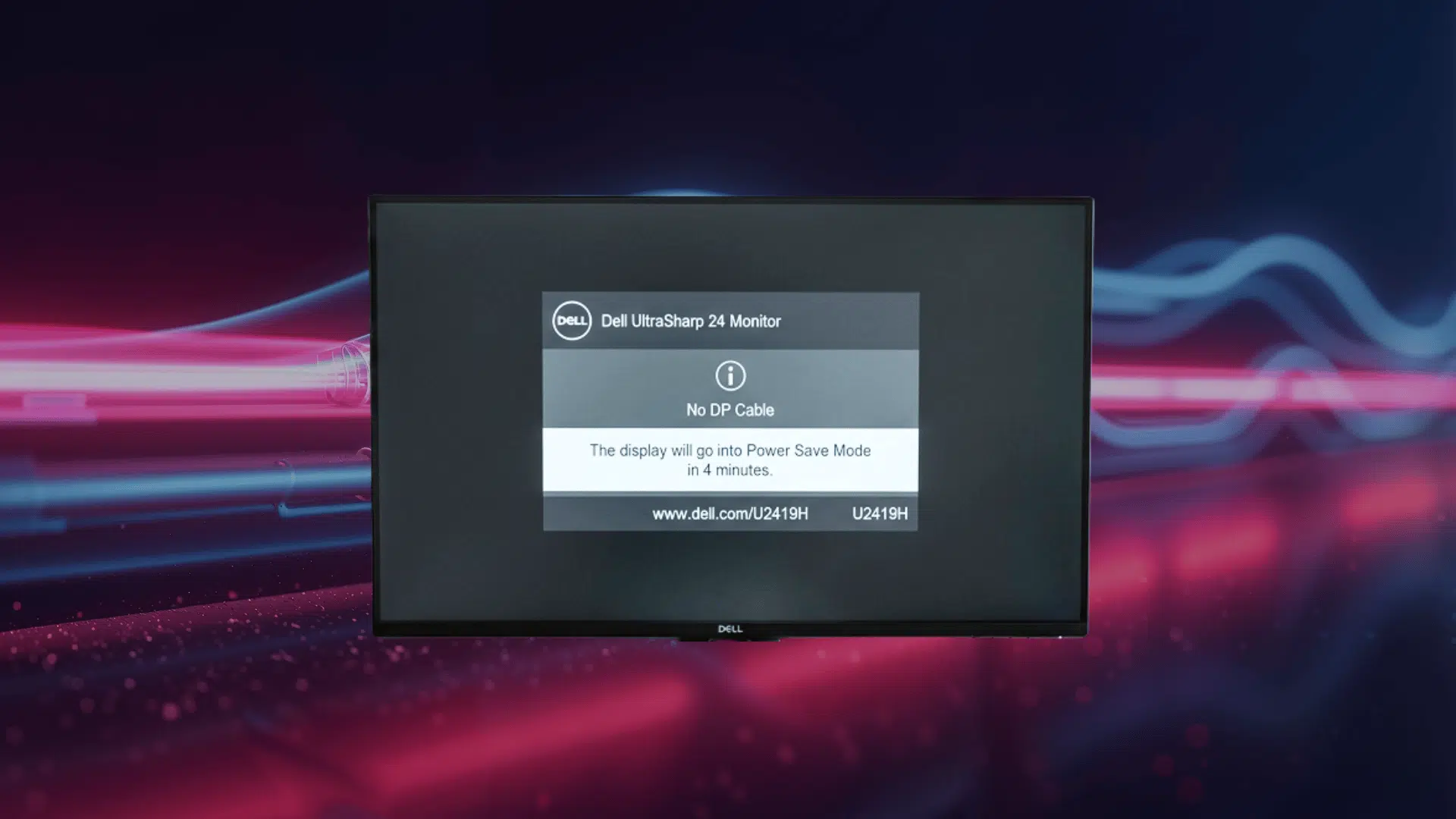






I turned the monitor on, and nothing. Just a black screen and that annoying No DP Signal from your device message staring back.
Frustrating, right? Especially when everything seems plugged in just fine.
This happens more often than people think, and it’s rarely as serious as it looks. There’s usually a simple fix hiding behind that scary error.
No need to panic or call in a tech expert just yet. Let’s figure out what’s actually going on and get that screen back to life.
Is DP the Same as HDMI?
No, DP and HDMI are not the same.
DP stands for DisplayPort, while HDMI stands for High-Definition Multimedia Interface.
Both connections can send digital video and audio from a computer to a monitor, but they use different cables, ports, and technical standards.
DisplayPort is used with computers, graphics cards, and monitors, supporting high refresh rates, multi-monitor setups, and daisy-chaining.
HDMI is more common on TVs, gaming consoles, streaming devices, and home entertainment systems.
What Does No DP Signal From Your Device Mean?
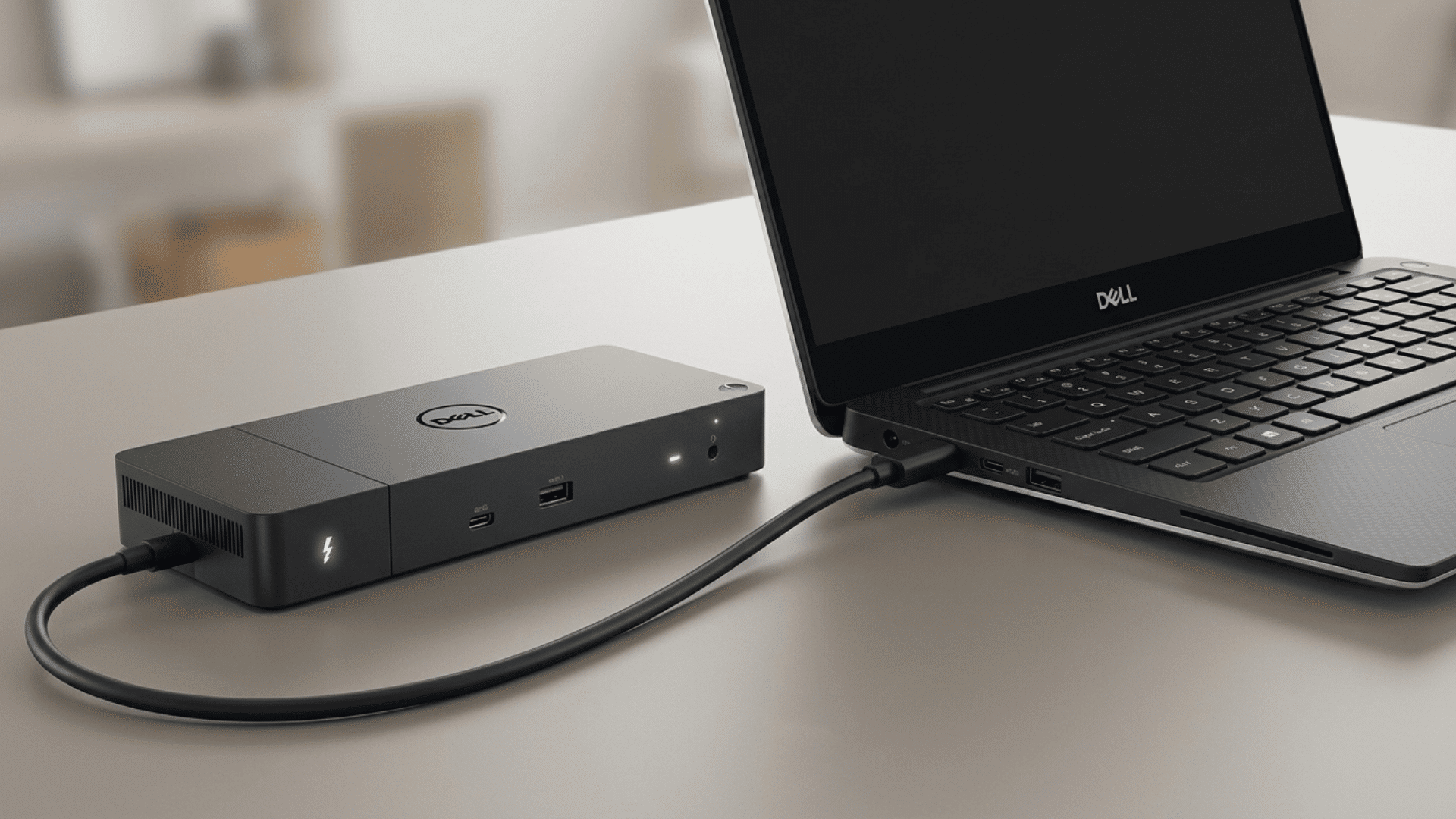
No DP signal from your device means the monitor is on but not receiving video over the DisplayPort connection. The computer may still be running, but the monitor cannot read the signal needed to show content on the screen.
Common reasons for this message include:
- Loose DisplayPort cable: The cable may not be fully connected to the monitor or computer.
- Incorrect input source: The monitor may be set to HDMI, USB-C, or another input instead of DisplayPort.
- Damaged cable or port: A worn cable or faulty port can stop the video signal.
- Computer sleep mode: The computer may be asleep and not sending video to the monitor.
- Graphics driver issue: A missing, outdated, or corrupted driver may prevent the computer from detecting the monitor.
- Dock or adapter problem: A docking station, converter, or adapter may interrupt the connection.
- Unsupported screen setting: The selected resolution or refresh rate may not work with the monitor.
This message does not always mean the monitor is broken. In many cases, checking the cable, input source, power connection, and computer settings can help identify the cause.
How to Fix No DP Signal From Your Device
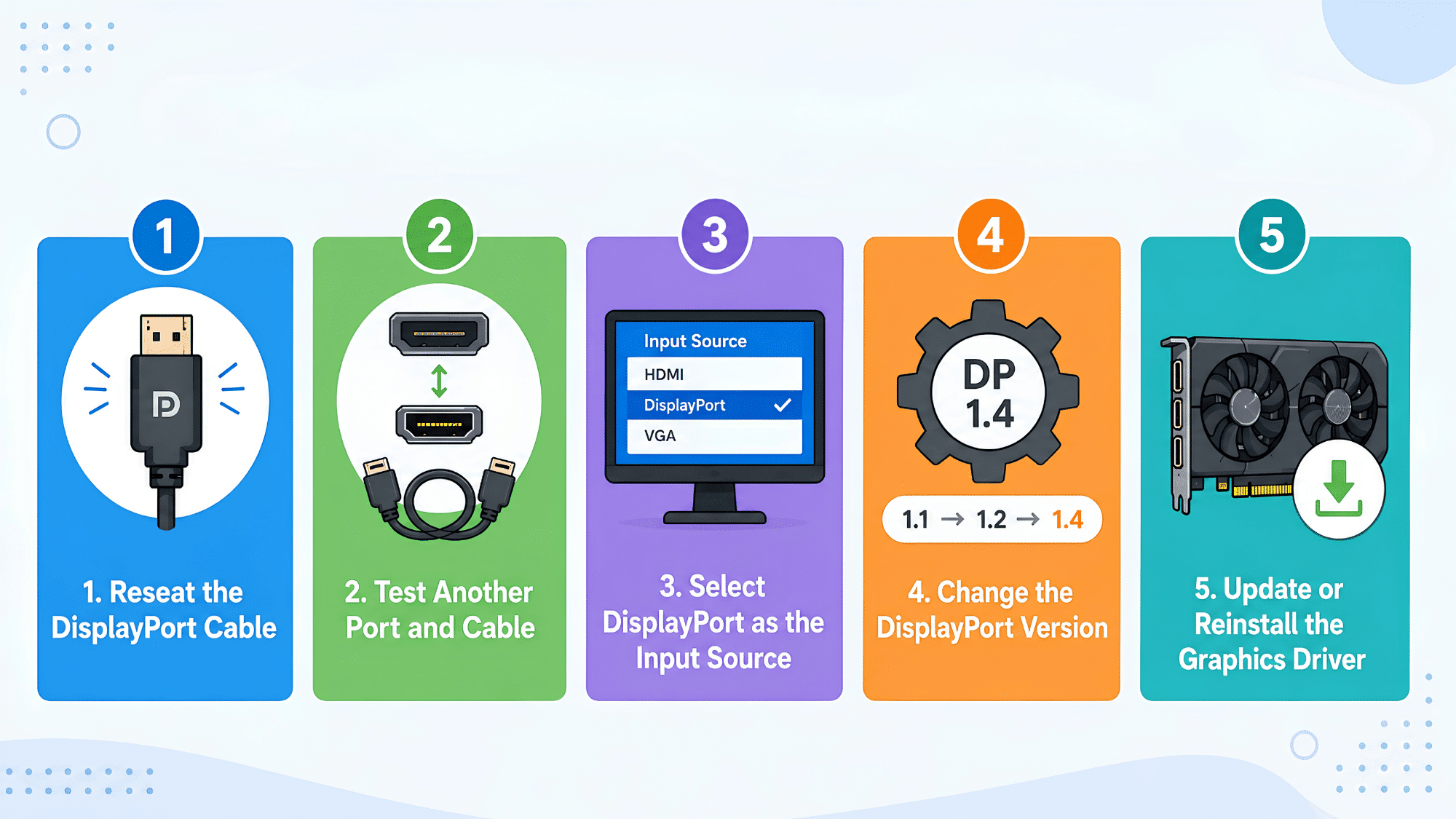
Most No DP Signal problems can be resolved with a few simple troubleshooting steps. Start with the easiest fixes first, then move on to more advanced checks only if the problem continues.
1. Reseat the DisplayPort Cable
A loose or poorly connected cable can stop the video signal even when both devices are turned on. Start by checking the cable and both connection points before moving to other fixes.
- Turn off the devices: Shut down the connected equipment before removing the cable.
- Disconnect the cable: Unplug the DisplayPort cable from both ends.
- Inspect the connectors: Check for dust, bent pins, looseness, or visible damage.
- Reconnect both ends: Push each connector firmly into the correct port.
- Check the fit: Make sure the cable does not move loosely inside either port.
2. Test Another Port and Cable
A damaged cable or faulty port can prevent the monitor from receiving a stable signal. Testing each connection separately can help you find which part is causing the issue.
- Try another port: Connect the cable to a different DisplayPort on the monitor or graphics card.
- Check the GPU connection: Desktop users should plug the cable into the dedicated graphics card instead of the motherboard.
- Swap the cable: Replace the current cable with another high-quality DisplayPort cable.
- Test one change at a time: Check the screen after changing the port, then replace the cable.
- Check the results: Stop using any port or cable that repeatedly fails to carry the signal.
3. Select DisplayPort as the Input Source
The monitor may remain blank when it is set to HDMI, USB-C, or another input. Selecting DisplayPort manually keeps it on the correct connection.
- Open the monitor menu: Press the monitor button or joystick to access the On-Screen Display menu.
- Find the input settings: Look for Input Source, Input, or Source in the menu.
- Choose DisplayPort: Select DP or DisplayPort from the available options.
- Turn off Auto Select: Disable automatic input switching while testing the connection.
- Confirm the selected port: Choose the correct DP input if the monitor has multiple.
4. Change the DisplayPort Version
The monitor and graphics hardware may have trouble communicating when their DisplayPort settings do not match. Switching the version can help create a fresh connection.
- Open the display settings: Enter the monitor menu using its physical controls.
- Find the DP version: Look for DisplayPort 1.2, 1.4, or 2.1 in the display settings.
- Note the current option: Record the selected version before making any changes.
- Choose another version: Switch to a different supported DisplayPort setting.
- Restart the equipment: Turn the connected equipment off and back on after saving the change.
5. Update or Reinstall the Graphics Driver
A damaged or outdated graphics driver can stop Windows from detecting the DisplayPort connection. Use HDMI temporarily if you need a working screen to complete these steps.
- Open Device Manager: Right-click the Start button and select Device Manager.
- Find the graphics card: Expand Display adapters and locate the listed Intel, NVIDIA, or AMD hardware.
- Update the driver: Right-click the graphics card and select Update driver.
- Reinstall the driver: Select Uninstall device if the latest version is already installed.
- Restart the computer: This allows Windows to reinstall the graphics driverafter startup.
Experts and Community Troubleshooting Reviews
Different setups can trigger a No DP Signal error for different reasons. Looking at recommendations from experts and experiences shared by other users can help you focus on the fixes that are most likely to work for your device.
What do expert/community say:
“Unplug and Reconnect the DisplayPort CableIf your DisplayPort monitor doesn’t detect a signal from your computer, unplug the cable and plug it back in. Before reconnecting, ensure that the DisplayPort on your PC is clean and free of dirt and dust. Also, check for any foreign material blocking contact between the cable, your computer, and the DisplayPort monitor. Use a can of compressed air to clear any debris from the DisplayPort on both the monitor and your computer. If you are using a DisplayPort adapter, make sure the cable is securely connected to the adapter and the adapter to your computer.” – TechASHU, JustAnswer
Key Takeaway:
- Reconnect the DisplayPort cable: Unplug the cable from both devices, then insert each end firmly into the correct port.
- Clean the connection points: Check both DisplayPort sockets for dust, dirt, or other debris that could block contact, and carefully clear any debris with compressed air.
- Secure any adapter: Make sure the cable is firmly attached to the adapter and that the adapter is fully connected to the computer.
“Only the HDMI port and DisplayPort #1 or USB Type-C port are active without installation of the DisplayLink video driver. DisplayPort #2 depends on the DisplayLink driver and does not function when the DisplayLink driver is not installed on the connected computer. Cause: The dock is working as designed because the DisplayLink driver is not installed on the docked computer. Resolution: The Dell Universal Dock requires installation of the DisplayLink driver to operate in three or four monitor configurations. The driver can be downloaded from the Dell Support Website.” – Dell Official
Key Takeaway:
- Test a direct connection: Connect the monitor straight to the laptop without using the dock.
- Reconnect the dock power adapter: Unplug the dock from the power, wait briefly, and plug it back in securely.
- Update the dock firmware: Install the latest firmware available for the Dell dock model.
- Check display support: Confirm that the dock can support the number of monitors, resolutions, and refresh rates in use.
“Please share a screenshot of the display adapters in Device Manager. Open “Device Manager” (Windows + X and select Device Manager); Expand “Display adapters” and take the screenshot. Use the shortcut “Windows + Shift + S” to use the screenshot tool. Also, share a screenshot of your system information. Press “Windows + R”, type msinfo32 and press Enter. Maximize the window and use the screenshot tool.” David M., Windows Learn
Key Takeaway:
- Open Display Adapters: Press Windows + X, select Device Manager, expand Display adapters, and take a screenshot using Windows + Shift + S.
- Open System Information: Press Windows + R, type msinfo32, and press Enter.
- Capture the Full Window: Maximize the System Information window and take a clear screenshot for review.
What does the community say:
“Based on your post it sounds to be the same thing I once experienced with my new Dell Ultrasharp (not the same model though as yours). I don’t want to get your hopes up, but you might find this to be a more simple fix than you had thought. At this point if you haven’t already been tempted, you shouldn’t have made tweaks to your systems settings (BIOS ,etc) What you might want to try are these steps that Dell Premium Support provided me. The monitor wants to do a handshake with the video card but it needs to still be receiving a signal. Keep in mind that this worked for my monitor (U2417H) which uses a mini DP. These steps may be product specific and may not fix the problem for your model.” – Reddit
Key Takeaway:
- Lower the refresh rate: Temporarily reduce the refresh rate and check if the screen returns.
- Turn off gaming display features: Disable adaptive sync, G-SYNC, FreeSync, or similar options while testing.
- Connect to the graphics card: Plug the monitor into the dedicated GPU instead of the motherboard video output.
- Remove extra accessories: Test the connection without splitters, converters, extensions, or adapters.
“The GPU’s ports HDMI/Displayport are extremely finicky, displayport more so. Because the pins are so close together and so small any shifting of the cable can cause pins to not be in contact anymore with the pads on the plug or worst, a pin coming into contact with a pad it’s not supposed to. Also dust can build up in the plug that will cause poor contact, and this dust can’t be just blown out with air you would need to clean the pads.” – Chrisina Crawford, Quora
Key Takeaway:
- Check for cable movement: A slight shift in the HDMI or DisplayPort cable can stop the small connector pins from making proper contact.
- Inspect the port for dust: Dirt inside the graphics card port can weaken the connection and cause an intermittent or missing signal.
- Clean the contacts carefully: Power off and unplug the computer before cleaning. Use electronics-safe contact cleaner and avoid scraping the pins or inserting metal tools.
Check Which Component is Causing the No DP Signal
If the problem still isn’t resolved, the next step is to identify which part of your setup is causing the issue. Testing one component at a time can help you avoid unnecessary repairs or replacements.
Use the checks below to narrow down the source of the No DP Signal error:
| Test | What to Do | What the Result Means |
|---|---|---|
| DisplayPort cable | Replace it with a known working cable. | If the screen returns, the original cable may be damaged. |
| Monitor | Connect it to another computer. | If it works, the monitor is likely not the cause. |
| Computer or GPU | Connect another monitor to the same output. | If the second monitor stays blank, the PC or GPU may be responsible. |
| DisplayPort socket | Move the cable to another DP socket. | If one port works, the other socket may be damaged. |
| Docking station | Connect the monitor directly to the laptop or desktop. | If the signal returns, the dock may need an update or replacement. |
| Adapter | Remove the adapter and use a direct cable. | If the screen works, the adapter may not support the setup. |
| Graphics driver | Start Windows in Safe Mode. | If the screen works,the driver or display settings may be causing the error. |
| Monitor input | Manually select DisplayPort from the monitor menu. | If the screen returns,the wrong input source was selected. |
| USB-C connection | Confirm DisplayPort Alt Mode support. | If no video support, the USB-C port cannot send a DisplayPort signal. |
When to Contact Dell Support?
If you’ve worked through the troubleshooting steps and the No DP Signal error still appears, the problem may require professional assistance.
- The monitor fails its built-in test: A failed self-test may point to a screen or internal hardware problem.
- Several cables and ports do not work. Repeated failures across connections indicate damaged ports.
- The issue happens on more than one computer: This can suggest that the monitor is causing the problem.
- The computer does not detect the graphics card: Dell Support can help check BIOS, hardware, and warranty options.
- The dock keeps losing the signal: Firmware updates may not fix a dock with a hardware fault.
- The port feels loose or looks damaged: Stop using it and request service before the damage gets worse.
- The device is under warranty: Dell may offer repair, replacement, or further testing based on the service plan.
Final Takeaway
Well, you made it to the end, and your screen probably thanks you for it. No DP Signal from your device felt like a big deal at first, didn’t it? Turns out, it rarely is.
Small fixes, big relief. That’s really the story here. Next time it happens, don’t overthink it. Trust what you’ve learned, work through the steps calmly, and give it a minute before assuming the worst.
Tech gets moody sometimes; that’s just how it goes. Once that screen flickers back on, you’ll barely remember why you were worried in the first place.
Frequently Asked Questions
Does No DP Signal Mean the Monitor is Broken?
No. The message does not automatically mean the monitor has failed.
Why Does the DP Signal Disappear After Sleep Mode?
Sleep mode can prevent the monitor and computer from reconnecting correctly.
Why Does the Monitor Work During Startup But Go Blank in Windows?
This often points to a Windows display setting or graphics driver issue.
Can a Power Strip Affect the Monitor Signal?
A weak or faulty power strip may cause the monitor to lose power or restart.
Why Does the Screen Flicker Before Showing No Signal?
Flickering occurs when the connection is unstable, caused by loose cables, high refresh rates, damaged ports, or weak adapters.