






There is nothing more frustrating than a laptop that just refuses to cooperate, especially when there is work to do, shows to watch, or deadlines to meet.
ASUS laptops are great, but even the best devices have their off days, something often covered in a VivoBook 15 overview. The screen flickers, the battery drains too fast, or the whole thing just slows down out of nowhere.
Before panicking or rushing to a repair shop, take a breath. Most of these problems are more common than expected and easier to fix than they seem.
What Causes Issues in ASUS Laptops Over Time?
Even though ASUS laptops are generally reliable, they can still develop issues over time due to regular usage and performance demands, as seen when comparing models like VivoBook 16 vs 15.
Many ASUS models are built for speed and multitasking, which can put extra pressure on internal components. This can lead to problems like overheating, battery drain, or performance slowdowns if not managed properly.
External factors such as dust buildup, improper handling, and outdated software also contribute to these issues. It’s important to understand that these problems are not unique to ASUS and occur across all laptop brands.
With proper care and maintenance, most of these issues can be minimized or avoided entirely.
Most Common ASUS Laptop Issues and Fixes
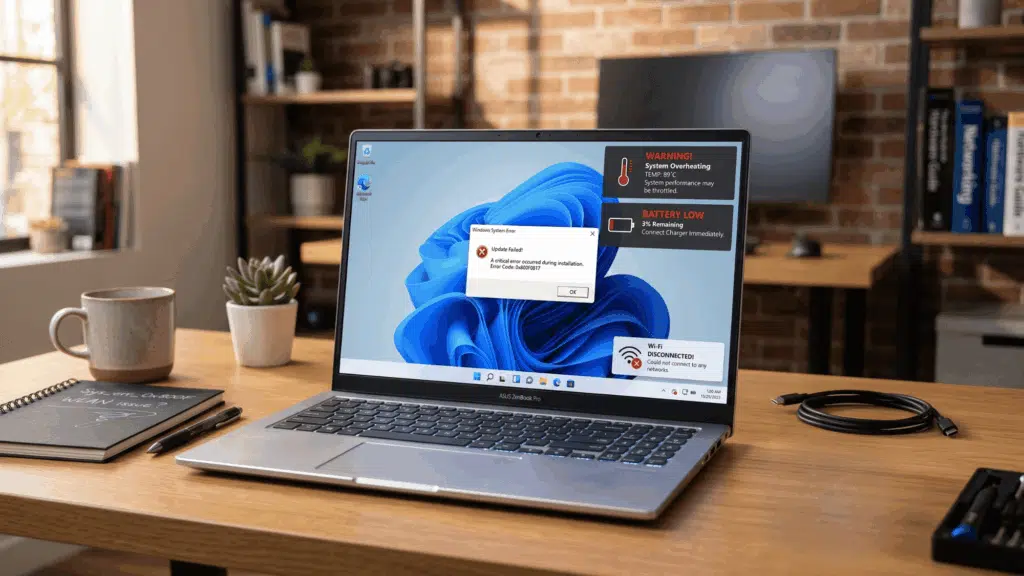
Before diving into detailed fixes, it’s important to understand the most common issues ASUS laptop users face in everyday use.
1. ASUS Laptop Overheating Issues
Overheating issues are common in ASUS laptops, especially during heavy usage, and can affect both performance and long-term durability if not addressed.
Why ASUS Laptops Overheat
- Dust blocking vents and fans
- Running heavy tasks (gaming, editing)
- Poor airflow or soft surfaces
How to Fix Overheating
- Clean vents and fans regularly
- Use a cooling pad
- Avoid using the laptop on beds or cushions
- Switch to balanced performance mode
Regular cleaning alone can significantly reduce overheating.
2. Battery Drain & Charging Problems
Battery drain and charging problems can limit your laptop’s usability, often leading to shorter usage time and inconsistent power performance.
Common Battery Issues
- Fast battery drain
- Laptop not charging properly
- Battery degrading quickly
Fixes & Prevention
- Reduce background apps
- Update BIOS and drivers
- Avoid keeping the laptop plugged in 24/7
- Use power-saving or balanced mode
Battery health improves when you avoid extreme usage patterns.
3. Slow Performance & Lag Issues
Slow performance and lag issues can make your ASUS laptop feel unresponsive, often caused by system overload, outdated software, or limited hardware resources.
Why Your ASUS Laptop Feels Slow
- Too many startup programs
- Low RAM or storage
- Outdated software
How to Improve Performance
- Disable unnecessary startup apps
- Upgrade to SSD (if not already)
- Add more RAM
- Run disk cleanup and updates
Even small upgrades can make your laptop feel like new again.
4. Display Problems (Flickering, Black Screen, Brightness Issues)
Display problems can affect your overall viewing experience, often appearing as flickering screens, black displays, or brightness control issues.
Common Display Issues
- Screen flickering
- Black screen on startup
- Brightness not adjusting
How to Fix
- Update graphics drivers
- Restart display drivers
- Check brightness settings
- Connect to an external monitor for testing
Most display issues are software-related and easily fixable.
5. Wi-Fi & Connectivity Issues
Wi-Fi and connectivity issues can disrupt your workflow, often causing problems like unstable internet connections or difficulty pairing devices.
Common Problems
- Wi-Fi not connecting
- Frequent disconnections
- Bluetooth not working
How to Fix
- Restart the router and the laptop
- Reset network settings
- Update network drivers
- Turn off airplane mode
Connectivity issues are usually temporary and fixable within minutes.
6. Boot & Power Issues (Laptop Not Turning On)
Boot and power issues can prevent your ASUS laptop from starting properly, often pointing to underlying hardware or system-level problems.
Common Symptoms
- The laptop won’t start
- Stuck on the logo screen
- Random shutdowns
How to Fix
- Perform a power reset (hold the power button 15–20 seconds)
- Check the charger and battery
- Boot into safe mode
- Update BIOS if needed
If the issue persists, it may require hardware inspection.
7. Keyboard & Touchpad Problems
Keyboard and touchpad issues can be frustrating, especially when they interfere with basic tasks like typing and navigation.
Common Issues
- Keys not responding
- Touchpad not working
- Input lag
How to Fix
- Restart the laptop
- Update keyboard/touchpad drivers
- Check settings (touchpad toggle, Fn keys)
These issues are often caused by software glitches, not hardware failure.
8. Software & Driver Errors
Software and driver errors are common issues that can affect your ASUS laptop’s performance, often causing crashes, glitches, or unexpected system behavior.
Common Issues
- System crashes
- Apps not responding
- Driver conflicts
How to Fix
- Update Windows and drivers
- Roll back recent updates if needed
- Use ASUS support tools for diagnostics
Keeping your system updated prevents most of these issues.
When Should You Get Professional Repair?
You should consider professional repair when the issue goes beyond basic troubleshooting and starts affecting core hardware.
Problems like a laptop not turning on, severe overheating, or a swollen battery require expert attention. If your device keeps crashing even after software fixes, it may indicate deeper internal issues.
Physical damage such as a broken screen or faulty keyboard also needs professional repair. Ignoring these problems can lead to more costly damage over time.
Getting timely help ensures your laptop remains safe and functional in the long run.
Tips to Prevent ASUS Laptop Problems
Prevention is always better than fixing problems later.
- Clean your laptop regularly
- Avoid overheating environments
- Keep drivers and OS updated
- Don’t overload system resources
- Use proper charging habits
The Bottom Line
Every laptop hits a rough patch now and then, and ASUS is no exception. But a slow system, a draining battery, or an overheating device does not have to mean the end of the road.
Most of the common problems covered here have straightforward solutions that can be handled without any technical expertise.
The trick is staying proactive, keeping the device well-maintained, and knowing when a simple fix is all that stands between a frustrating experience and a perfectly running laptop.
Armed with the right knowledge, there is no ASUS problem too big to tackle.
Frequently Asked Questions
Why Does My ASUS Laptop Fan Run Loudly All the Time?
This usually happens due to high CPU usage, background apps, or dust buildup in the cooling system.
How Can I Improve the Overall Lifespan of My ASUS Laptop?
Regular maintenance, proper cooling, software updates, and careful handling can significantly extend its life.
Is It Safe to Keep My ASUS Laptop Plugged in All the Time?
It’s generally safe, but keeping it at 100% constantly can reduce long-term battery health.