


When setting up a display, most people focus on the monitor itself, but the way it connects often plays an equally important role.
Monitor connection and cable types directly impact how well your screen performs, from clarity to smoothness. A small mismatch can quietly limit what your setup is capable of.
Here, I’ll break down how these connections work, why signal types matter, and how different options compare in real use. You’ll also see where older standards fall short and how modern ones handle today’s demands.
Let’s start by understanding the basics of these connections.
What are Monitor Connection and Cable Types?
Monitor connection types and cable types are closely related, but they are not the same.
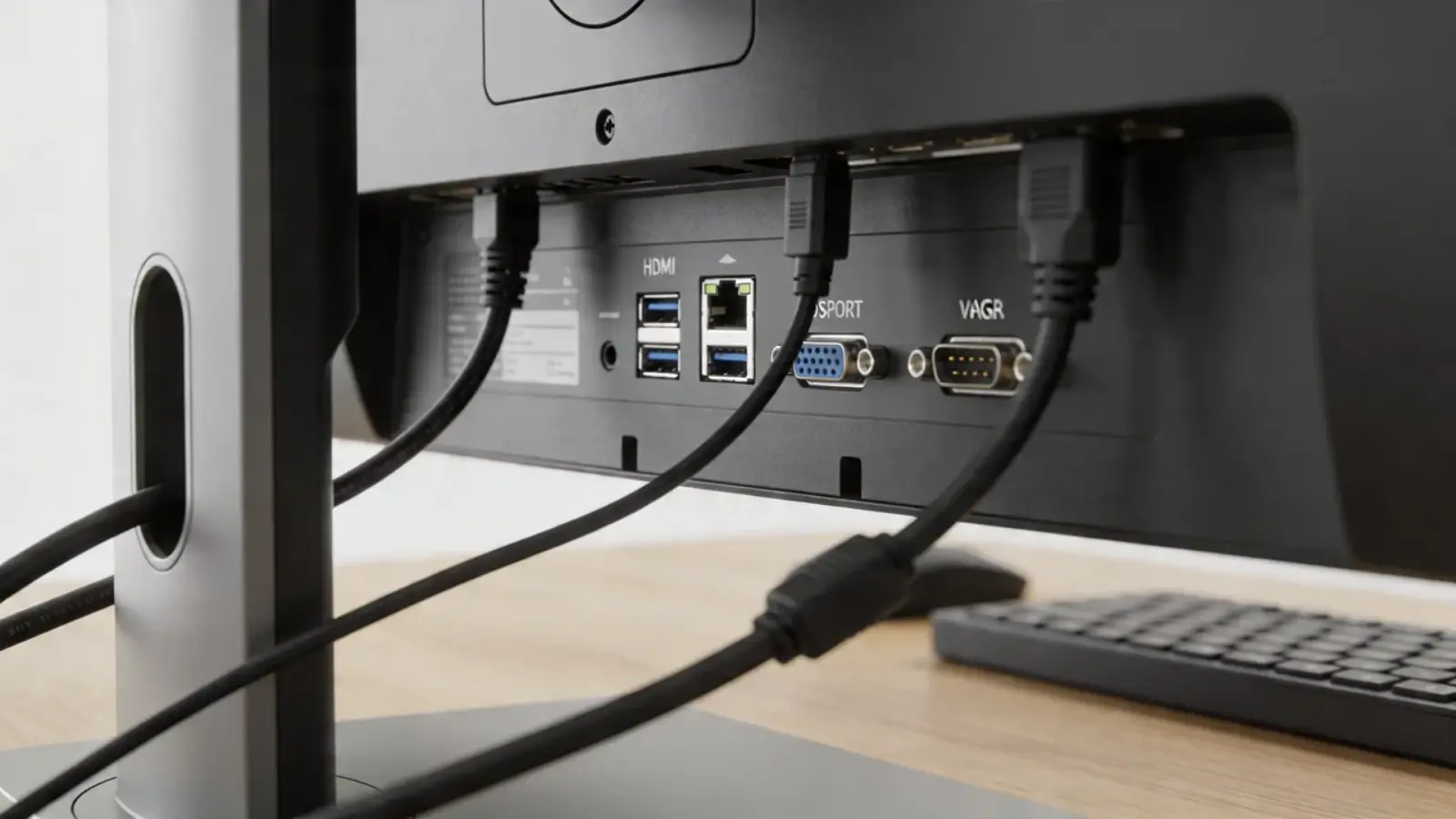
A connection type (port) is the physical socket on your monitor or computer, such as HDMI or DisplayPort. A cable is what connects those ports and carries the signal between the devices.
The confusion comes from the naming. Both ports and cables usually share the same name. For example, an HDMI port uses an HDMI cable, so they often get treated as the same thing.
The process itself is simple. Your device sends a video signal, the cable carries it, and the monitor displays it. If any part of this chain has limitations, your display quality will drop.
People often assume that if the connector looks the same, the performance will be the same too. But that’s where things can trip you up. Different cable versions can handle different resolutions and refresh rates, and that directly affects how your display actually looks.
Analog vs. Digital Signals in Monitor Connections
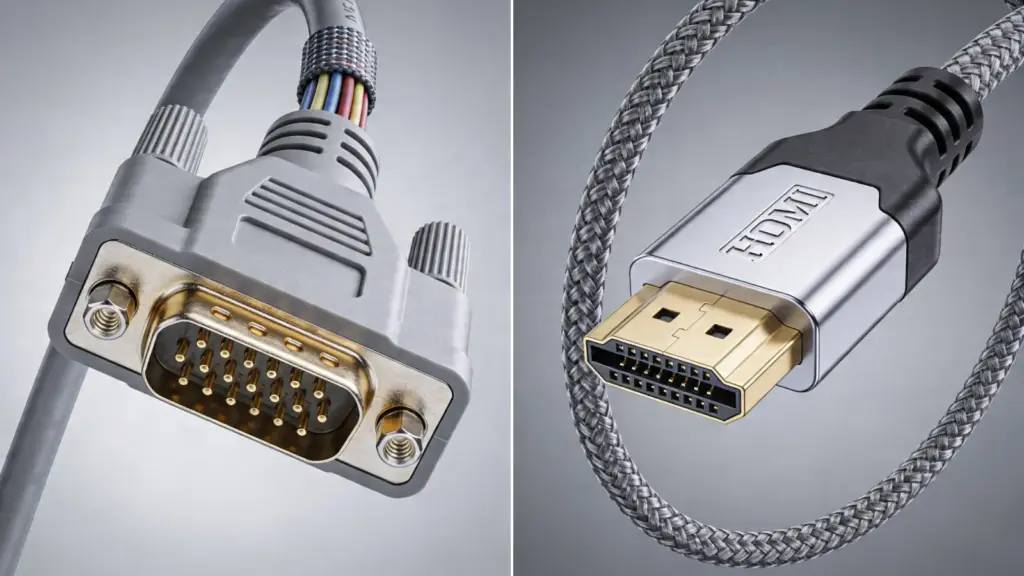
At the core of every monitor connection is the type of signal it uses: analog or digital. This directly affects image quality and performance.
| Aspect | Analog Signal (VGA) | Digital Signal (HDMI, DP, USB-C) |
|---|---|---|
| How it works | Continuous electrical waves | Binary data (0s and 1s) |
| Image quality | Degrades over distance | Stays consistent and sharp |
| Interference | Prone to noise and distortion | Resistant to interference |
| Resolution support | Limited (up to ~1080p) | Supports high resolutions (4K, 8K+) |
| Refresh rate | Limited | High refresh rates supported |
| Common issue | Blurry image, signal loss | Compatibility or version limits |
Digital connections replaced analog because they maintain signal accuracy and support modern display needs.
However, issues can still happen. Analog setups suffer from signal loss, while digital setups may fail due to incompatible ports or unsupported standards, especially when using adapters.
Modern Monitor Connection Types
Modern monitors mainly use three connection types: HDMI, DisplayPort, and USB-C. Each works differently and is built for specific use cases.
HDMI
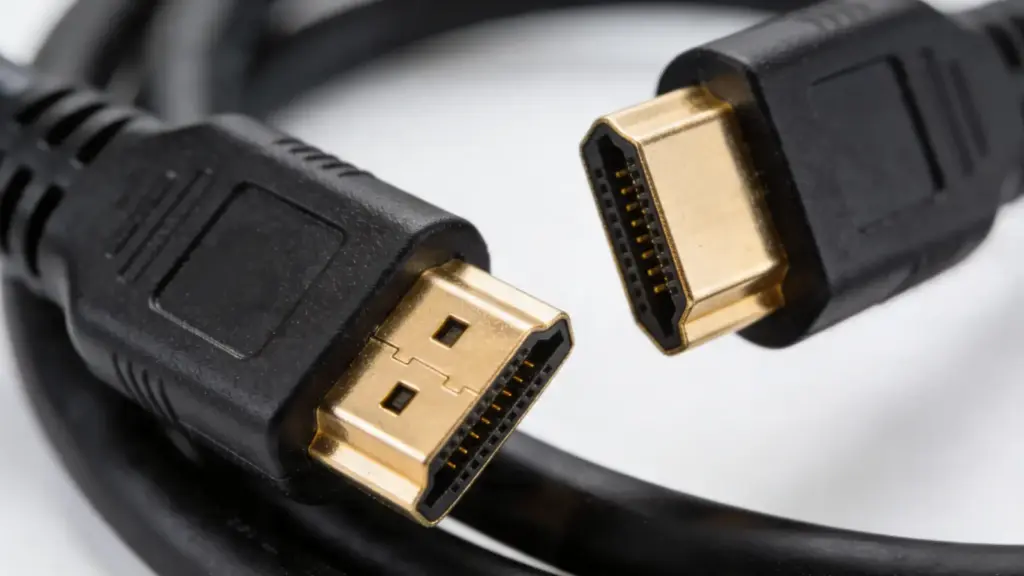
HDMI carries both video and audio through a single cable, which makes it simple and widely used. You’ll find it on TVs, gaming consoles, and most monitors.
Performance depends on the version.
HDMI 2.0 handles 4K at 60Hz, which covers most everyday and gaming needs. HDMI 2.1 goes further; it supports 4K at 120Hz and up to 8K at 60Hz, and adds features like Variable Refresh Rate (VRR) for smoother gaming.
If your monitor or console supports HDMI 2.1, using an older cable will cap what you actually get.
DisplayPort
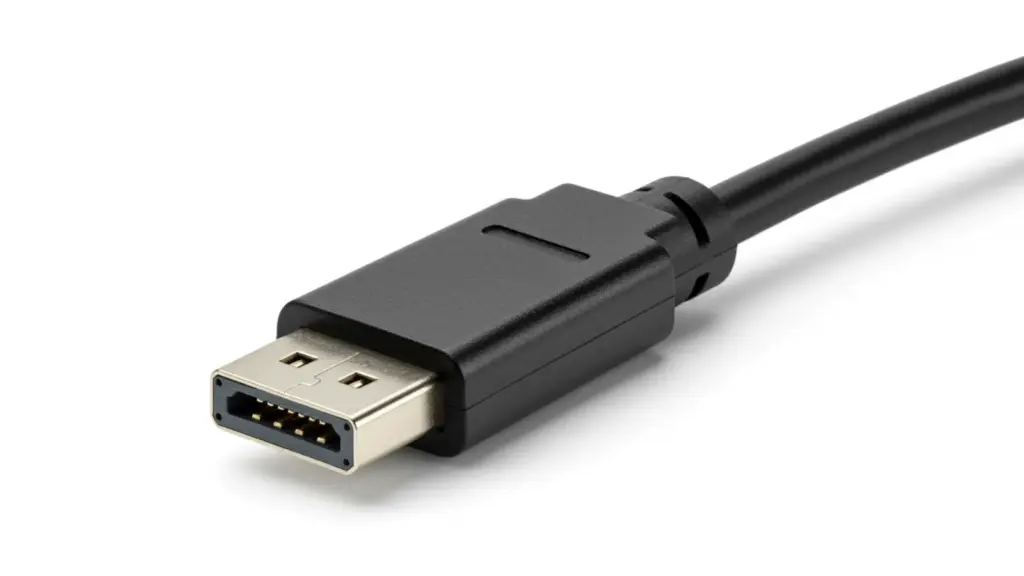
DisplayPort is designed for higher performance. It offers more bandwidth, which allows higher resolutions and refresh rates. This makes it the preferred choice for gaming and professional work.
DisplayPort 1.4 supports 4K at 144Hz or 1440p at 240Hz; enough for most high-refresh setups.
DisplayPort 2.1 pushes that further, supporting up to 16K with HDR and refresh rates up to 240Hz at 4K.
It also supports daisy chaining, where multiple monitors connect through one port, as long as both your monitor and graphics card support it.
USB-C / Thunderbolt
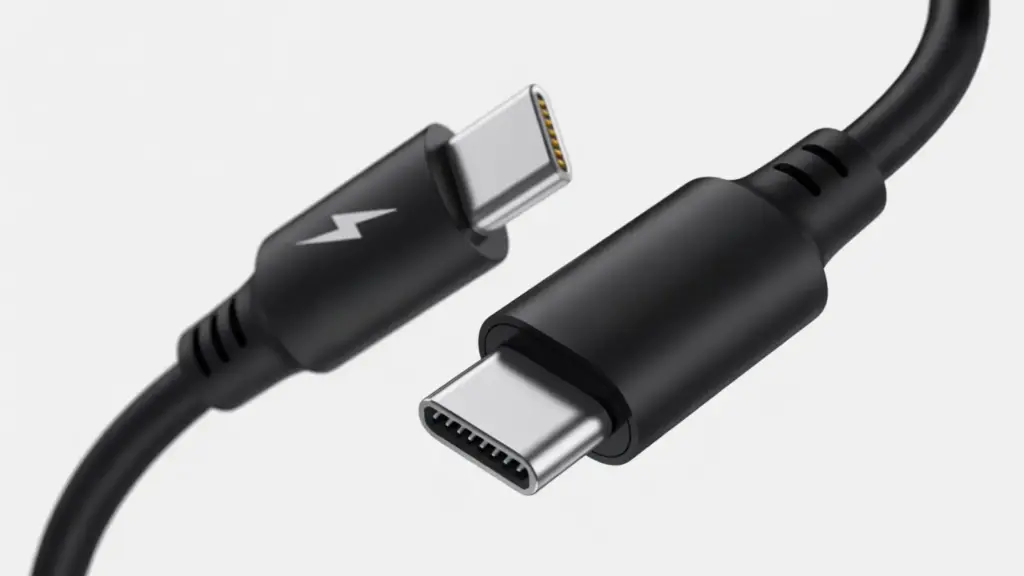
USB-C can carry video, data, and power through one cable. This is ideal for laptops and clean desk setups. It often uses DisplayPort technology internally.
The main limitation is that not all USB-C ports support video output, so compatibility must be checked before use.
Old Monitor Connections and Their Limitations
Older monitor connections like DVI and VGA were widely used before modern standards took over. They still appear in some setups, but both have clear limitations.
DVI
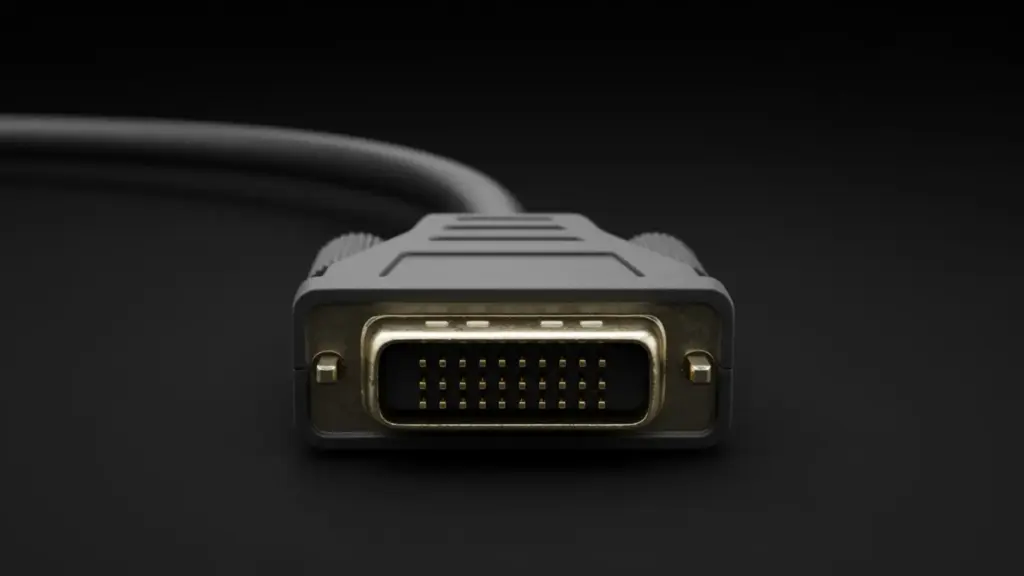
DVI was a step between analog and digital connections. Some versions carry digital signals, while others support both digital and analog. It delivers better image quality than VGA, but it only handles video, not audio.
It also lacks support for modern features like high refresh rates and very high resolutions. As display technology improved, DVI became less practical.
VGA
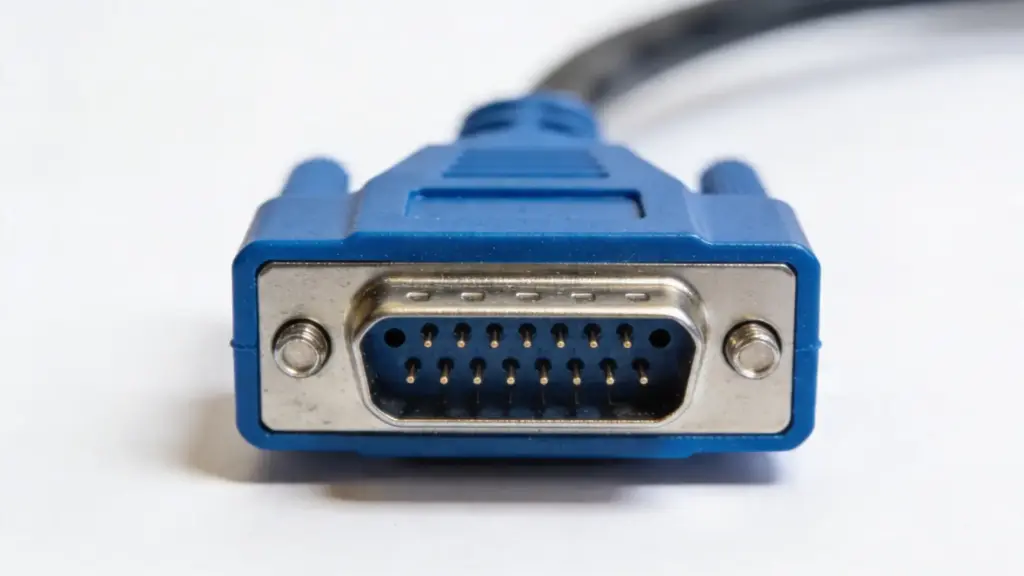
VGA is an analog connection and one of the oldest display standards still in use. It sends signals as continuous waves, which makes it prone to interference and signal loss.
This results in blurry images and weaker color accuracy, especially at higher resolutions or longer cable lengths.
VGA is now considered outdated because it cannot meet modern display demands. Most new devices no longer include VGA ports, and it is mainly used only for older hardware compatibility.
How Connection Types Affect Resolution and Refresh Rate
Monitor performance depends a lot on the connection type, mainly because of bandwidth, which is how much data a cable can carry each second.
Higher resolutions and refresh rates need more data to move through the connection. If the connection cannot handle that load, performance gets capped.
For example, older HDMI versions can run 1080p just fine, but they may struggle to push higher refresh rates at 4K. DisplayPort, with more bandwidth available, handles high resolution and high refresh rates more smoothly.
The idea is straightforward. More bandwidth means more pixel data can move faster, which gives you clearer images and smoother motion.
It’s easy to think the monitor alone decides how good the output will be. In reality, the port and cable need to support those specs too, or you won’t get the full performance your monitor is capable of.
Compatibility and Adapter Limitations
Not all monitor connections work together, even if you use an adapter. Compatibility depends on the type of signal and the ports on both devices.
Each device has a specific output and input format. If both sides use the same standard, the connection works smoothly. Problems start when you try to connect different types, especially analog and digital.
There are two types of adapters:
Passive adapters simply change the connector shape and only work when the signal is already compatible.
Active adapters convert signals, such as from VGA (analog) to HDMI (digital), but they are more complex and sometimes limit quality.
The main issue is signal mismatch.
For example, connecting VGA to HDMI without an active converter will not work. Even when it does, you may lose resolution or features.
To avoid issues, both the port and cable must support the same standard and capability.
Quick Comparison of Monitor Connection Types
| Connection Type | Signal Type | Max Capability | Best Use Case |
|---|---|---|---|
| HDMI | Digital | Up to 8K (version dependent) | TVs, consoles, general use |
| DisplayPort | Digital | Up to 8K+ with high refresh rates | Gaming, professional setups |
| USB-C / Thunderbolt | Digital | Up to 8K + power delivery | Laptops, single-cable setups |
| DVI | Digital / Analog (varies) | Up to 1440p | Older systems |
| VGA | Analog | Up to 1080p (limited quality) | Legacy hardware |
Modern setups rely on HDMI, DisplayPort, or USB-C, while DVI and VGA are mainly kept for compatibility with older devices
How to Choose the Right Monitor Connection
Choosing the right connection depends on how you use your setup. Here’s a quick breakdown to help you pick the right one:
| Use Case | Recommended Connection | Why It Works |
|---|---|---|
| Gaming | DisplayPort 1.4 / HDMI 2.1 | High performance: Supports high refresh rates like 1440p at 240Hz or 4K at 144Hz. HDMI 2.1 also adds VRR for smoother gameplay. |
| General Use | HDMI 2.0 | Simple and reliable: Handles 4K at 60Hz and works with most monitors and TVs without extra setup. |
| Laptop / Single-Cable Setup | USB-C (with DisplayPort Alt Mode) | Clean setup: One cable handles video, data, and power. Just make sure your USB-C port supports video output. |
| Professional / Creative Work | DisplayPort 2.1 | Maximum bandwidth: Supports very high resolutions like 16K and high refresh rates, plus multi-monitor setups. |
| Older Hardware | DVI (preferred) / VGA | Compatibility focus: DVI gives better digital quality, while VGA is limited and can lose clarity at higher resolutions. |
In most cases, the best choice is to match the highest version supported by both your monitor and your device. That’s where you get the full performance without running into limits.
Conclusion
Getting the best out of your setup is not just about buying a good monitor. Monitor connection and cable types shape how much performance you actually see on screen.
From signal quality to bandwidth limits, every part of the connection chain plays a role. Once you understand how these pieces fit together, it becomes much easier to avoid common issues and choose the right setup for your needs.
A small change in cable or port can make a noticeable difference. Take a moment to check your current setup and upgrade where needed for better performance.
Frequently Asked Questions
What are the most common monitor connection types?
HDMI, DisplayPort, and USB-C are the most common monitor connection types today. DVI and VGA are still used, but mainly for older systems and legacy devices.
What is the difference between monitor ports and cables?
A monitor port is the physical socket on your device, while a cable connects two ports and carries the signal between them. Both must match for proper performance.
Which connection type is best for high refresh rate?
DisplayPort is usually the best option for high refresh rates because it supports higher bandwidth, making it ideal for gaming and smooth visuals.
Does the cable affect display quality?
Yes, the cable and its version can limit resolution and refresh rate. Even with a good monitor, the wrong cable can reduce overall display performance.