

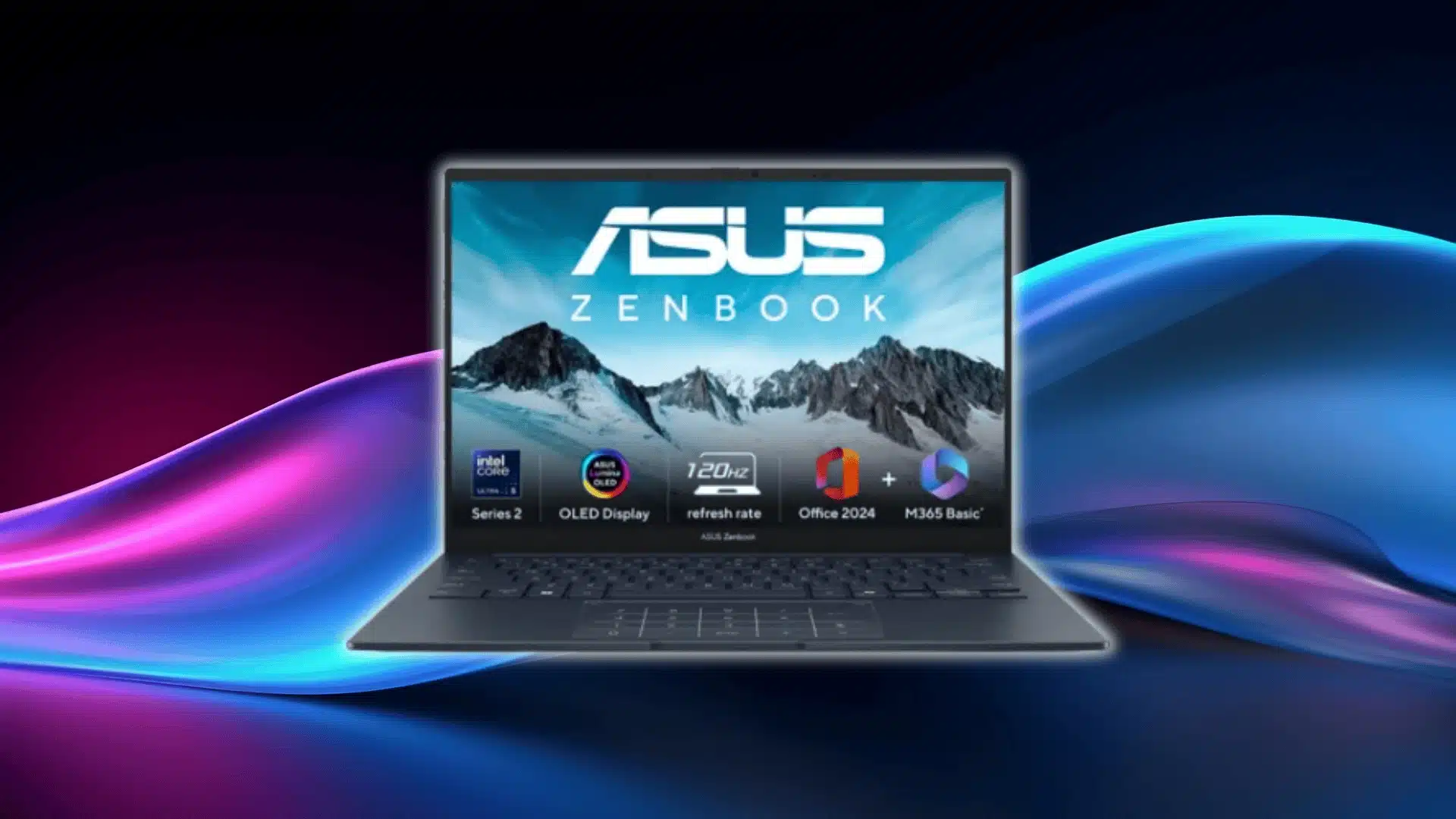


If you’ve been eyeing a lightweight laptop that can actually keep up with real work, the Asus Zenbook 14 is one of those machines that keeps popping up in conversations for a reason.
It’s gotten attention for its display, its battery life, and the way it balances power without turning into a loud, hot mess. But there’s more to the story than the usual spec sheet rundown.
Today, I’ll give you a clear look at how it feels to use day to day, how the newest versions stack up, and where it stands against the big-name competitors people always bring up.
Let’s start by breaking down the the basics.
Asus Zenbook 14 (2025/2026) Key Specs
The newer Zenbook 14 models are built on a whole different level, with better screens, smarter chips, and way more battery life. Here’s the quick breakdown of what the latest versions look like:
| Category | Zenbook 14 OLED (Intel-powered UX3405) | Zenbook 14 OLED (AMD-powered UM3406) |
|---|---|---|
| Display | 14″ 3K (2880×1800) OLED, 120 Hz, 600 nits HDR peak | 14″ 3K (2880×1800) OLED, 120 Hz, 600 nits HDR peak |
| Processor Options | Intel Core Ultra (various 5/7/9 series) | AMD Ryzen AI (5/7 series) |
| Graphics | Intel Arc or integrated Intel graphics | AMD Radeon graphics |
| Neural Processor | Intel AI Boost NPU (up to ~13 TOPS) | AMD XDNA™ NPU (up to ~50 TOPS) |
| Memory | Up to 32 GB LPDDR5X on board | Up to 32 GB LPDDR5X on board |
| Storage | Up to 1 TB PCIe 4.0 SSD | Up to 1 TB PCIe 4.0 SSD |
| Battery | Long battery life (18+ hrs claimed) | Long battery life (17+ hrs claimed) |
| Ports | USB 4.0 Gen3 Type-C, USB 3.2 Gen2 Type-C, USB-A, HDMI 2.1, audio jack | Same full I/O array with USB-C, USB-A, HDMI 2.1, audio jack |
| Operating System | Windows 11 Home / Pro | Windows 11 Home / Pro |
| Additional Features | 100% DCI-P3 gamut, VESA DisplayHDR True Black, ultra-thin chassis | Copilot+ support, AI acceleration, OLED motion-smooth refresh |
All Asus Zenbook 14 Models Explained
The Zenbook 14 name gets tossed around a lot, and it covers a bunch of different setups. They all look similar from the outside, but the chips inside shift the whole experience.
Here’s how the main versions break apart so you know which one fits the way you work:
1. Intel Core Ultra (UX3405)
Performance profile: This one leans into balanced power. It handles day-to-day work fine, and it’s quick with office apps, streaming, and lighter creative tasks. It’s not built for heavy editing sessions, but it stays responsive when you’ve got a bunch of tabs open.
Thunderbolt support: If you care about fast external drives, docking stations, or running high-speed peripherals, this version is the one that gives you Thunderbolt. That alone makes it the more flexible choice for people who want to plug into a bigger setup.
Thermals: It runs warm when you push it, and the fans can spin up with long workloads. Nothing wild, but you’ll feel it if you’re leaning on the chip for extended stretches.
2. AMD Ryzen AI (UM5302 / 2025 A14)
Battery king: This is the one people buy when they want a laptop that just refuses to die. The AMD versions consistently pull the longest battery life across the lineup, and they stay efficient even with heavy browsing.
Cooler operation: They also tend to run cooler. The fans aren’t as eager to kick in, and the whole machine stays calmer under load. Great for travel, coffee shops, anywhere you don’t want a loud laptop.
3. Snapdragon X / Copilot+ Version
AI features: This model is all about the on-device AI push. It’s packed with NPU hardware for things like real-time editing, translations, and the new Copilot+ features baked into Windows.
Battery vs. performance tradeoff: You get ridiculous battery life, but the raw performance isn’t as steady as the Intel or AMD models. For office and school work it’s fine. For heavier apps, the slowdown shows up.
4. Zenbook 14 vs. S14 vs. A14
Weight: The S14 is the thinnest and lightest. The A14 is close behind. The regular 14 sits in the middle but still stays very portable.
Design differences: The S14 goes for the sleek, premium look. The A14 uses that ceramic-aluminum mix that feels tough without adding weight. The standard Zenbook 14 keeps a clean, simple design that’s more neutral.
Target users: The 14 is for everyday work. The S14 is for people who want the fancy, ultra-thin feel. The A14 is the travel pick with better durability and crazy battery life.
Complete Asus Zenbook 14 Review Breakdown
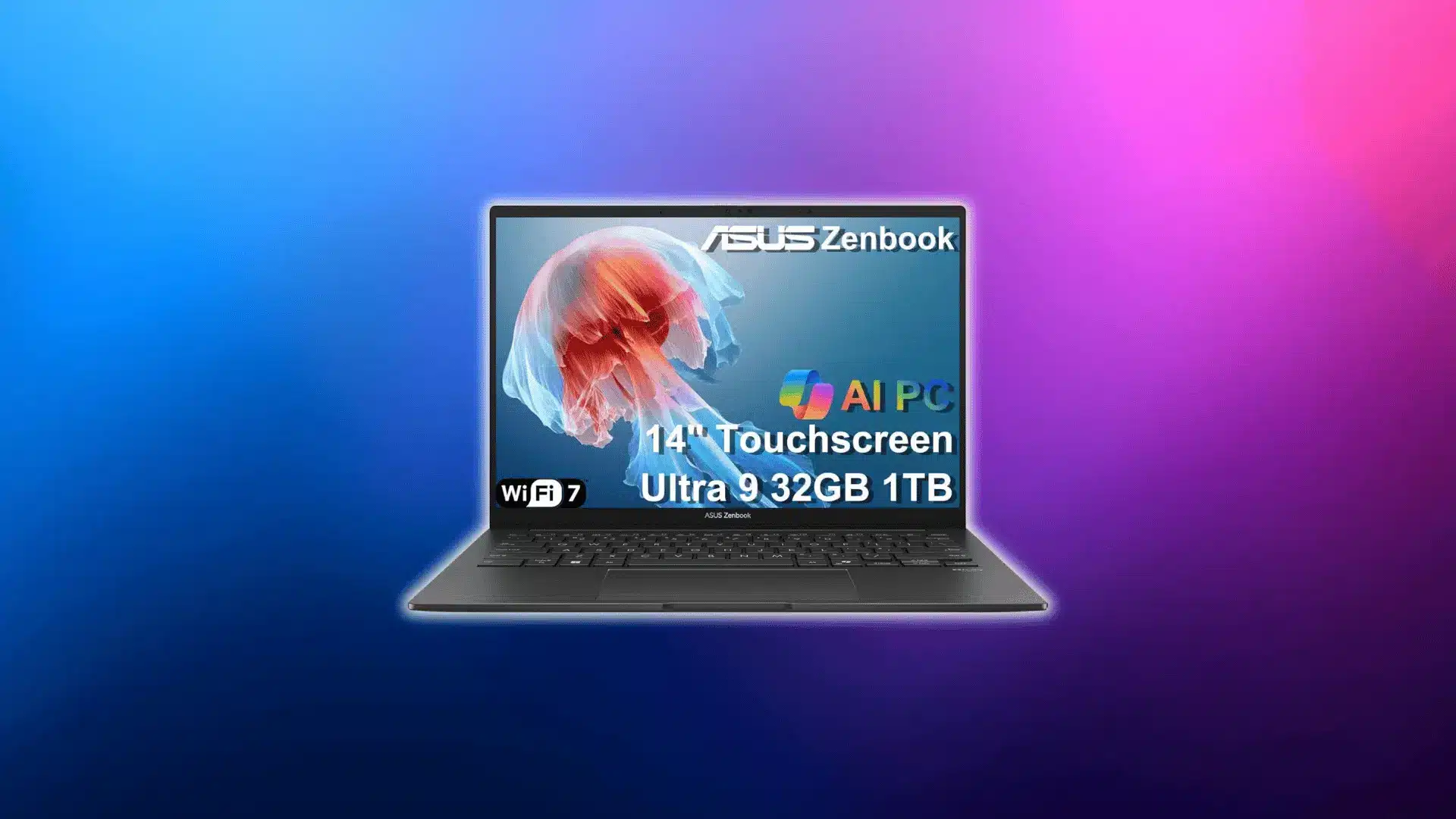
If you’re trying to get a real feel for what this laptop is like day to day, this is the part that matters.
Here’s how the Zenbook 14 holds up in real use, from the build to the screen to the battery and everything in between:
1. Design & Build Quality
The first thing you notice with the Zenbook 14 is how put-together it feels. It’s slim, it’s light, and it has that solid metal shell that makes you feel like you can toss it in a bag without worrying.
ASUS keeps the lines clean, nothing loud, just a simple design that feels intentional.
The durability holds up well for something this thin. You can feel a little flex if you go looking for it, mainly around the keyboard deck or the hinge area, but it’s not the kind of flex that ruins your confidence. It’s just part of being this lightweight.
The lid can pick up fingerprints depending on the finish, so expect to wipe it down here and there. And the port layout is one of those small things you only think about after a week of real use.
They like to bunch a few ports on the same side, which can get annoying if you’ve got a charger and accessories plugged in at once.
2. Display Quality & OLED Performance
The screen is one of the first things that hits you, and it shapes the whole experience the moment you power the laptop on.
Brightness
ASUS pushes a bright OLED here, but real-world brightness depends on what you’re doing. Indoors, it looks incredible. The colors jump, and the black levels hit that deep, clean look OLED is known for. Take it outside under direct sun, and it’s still usable, but reflections and glare can make you work harder than you want to.
Color Accuracy
If you do any color-sensitive work, this screen can keep up. It hits pro-level color coverage and accuracy, so editing photos or videos looks natural and clean. You don’t get that washed-out feel some laptops have.
PWM Flicker: What You Need to Know
OLED screens sometimes use PWM to control brightness, and that can bother people who are sensitive to flicker. The frequency is usually high enough that most folks won’t see it, but if you get headaches or eye strain from certain screens, it’s worth noting.
Common symptoms look like quick fatigue, subtle pressure behind the eyes, or that “hard to look at” feeling.
Keeping brightness above the lower levels usually helps, because PWM tends to hit harder at the dimmest settings. This is something reviewers skip, but it matters if your eyes are picky.
120Hz vs. 60Hz variants
Some models run at 120Hz, and you can feel the difference right away. Scrolling is smoother, animations look cleaner, and it just feels more modern. The 60Hz versions still look good because of the OLED panel, but the higher refresh rate adds a nice layer of polish.
3. Performance in Real-World Use
Performance depends on which chip you pick, but the general feel stays the same. For office work, school, day-to-day apps, and those heavy browser sessions, it stays quick and smooth. Multitasking doesn’t make it stumble unless you’re pushing it with big creative apps.
The Intel Ultra versions handle AI-tagged tasks inside Windows pretty well. The AMD Ryzen AI models lean into efficiency, so they stay cooler and still keep up with all the normal workloads.
If you’re on the Snapdragon version, things shift a little. For basic use it’s fine, but some apps still run through an emulation layer, and that can get unpredictable. Great battery, but not the best choice for heavier software.
4. Graphics & Light Gaming
The integrated graphics are good enough for lighter games and older titles. You’re not buying this thing to run big-budget games on high settings, but casual gaming is fine. Expect smooth performance in simpler games and mixed results in anything demanding.
For light editing, the GPU can handle scrubbing through short clips and basic adjustments. Once you move into heavier timelines or high-res exports, you’ll feel the limits.
5. Battery Life: Real Numbers
Battery life is one of the strong points. Local video playback gets you into that long-haul range. Web browsing sits a little lower but still impressive. A full day of mixed use is realistic on the Intel and AMD versions, and the Snapdragon model stretches even further if you’re not pushing apps that rely on emulation.
If you want it, I can build a clean comparison table between Intel, AMD, and Snapdragon battery behavior.
6. Thermals, Fan Noise & Heat
These machines stay comfortable with normal tasks. When you push them for long periods, the Intel versions heat up sooner, and you’ll hear the fans spin to keep it in check. They get the job done, but sometimes the pitch can be sharper than you expect.
The AMD versions run cooler and keep the fan noise down most of the time. Snapdragon stays quiet almost all the time, but again, that comes with the performance tradeoff.
Thermal throttling shows up mostly when you’re doing sustained heavy work. Short bursts are fine. Long workloads make the CPU pull back slightly.
7. Keyboard, Trackpad & Audio
The keyboard has a comfortable feel, with enough travel that it doesn’t feel mushy. Some users mention a bit of flex, but it doesn’t mess with the typing experience.
The trackpad is smooth, responsive, and big enough to actually enjoy using. No weird skips, no lag.
The speakers get louder than you’d expect from a thin laptop. Not studio-level, but definitely clear enough for movies, calls, or YouTube.
8. Ports, Connectivity & Features
Intel versions usually come with Thunderbolt, which is great if you plug into docks or fast drives.
The USB-C setup can get confusing because not every port does everything, so you need to learn which one handles charging or display output.
WiFi stays fast and stable on all versions. Some models get touchscreen and pen support, which is helpful if you like marking things up instead of typing.
The webcam and mic come in solid. Not amazing, not bad; just good enough for calls without needing an external setup.
Common Problems Reported by Users
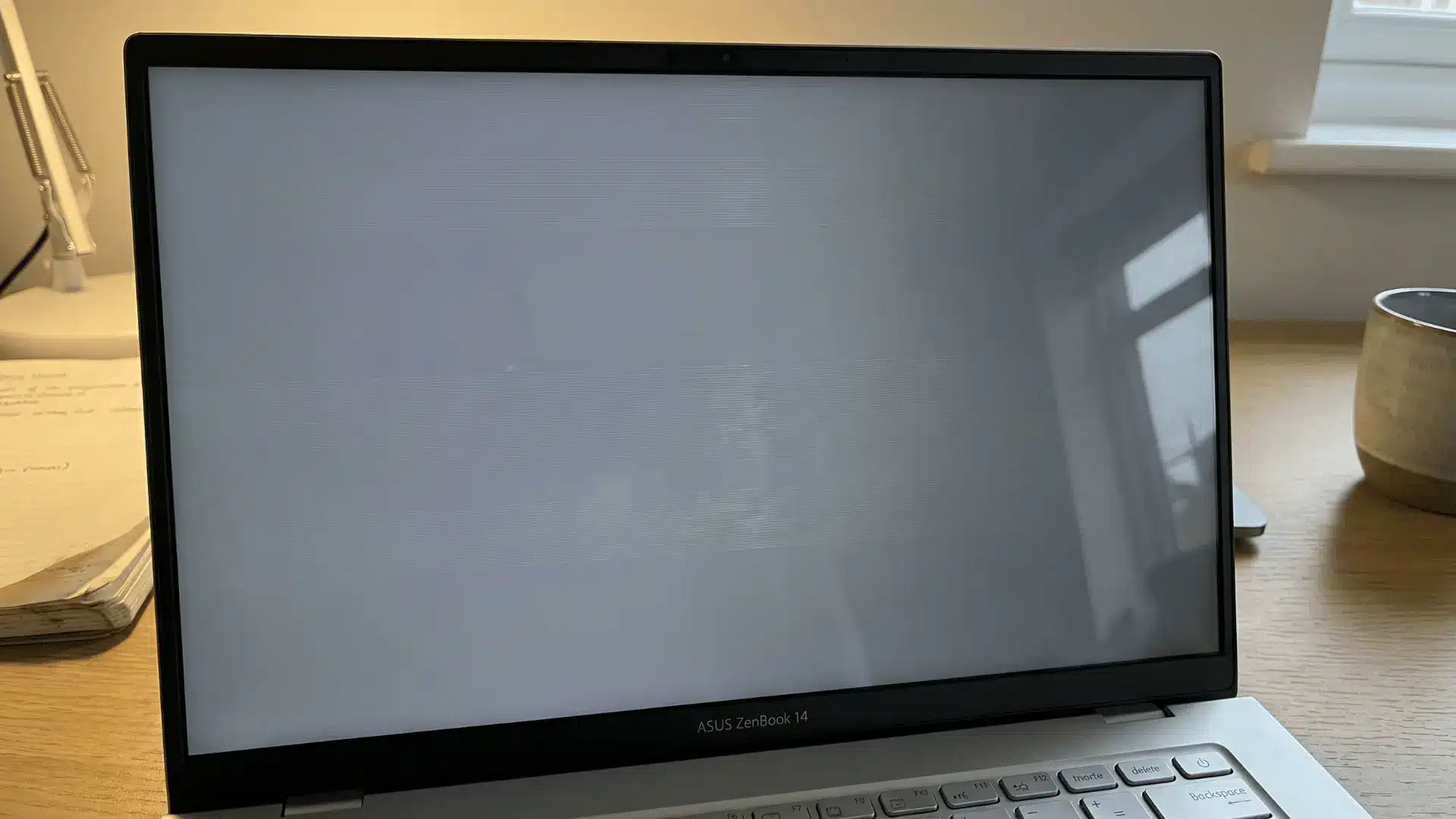
Even with all the upgrades, a few recurring complaints keep popping up from people who’ve lived with the Zenbook 14 long enough to spot the cracks.
PWM flicker: Some users notice eye strain at lower brightness levels because of PWM on the OLED models. Most folks don’t feel it, but the people who are sensitive to flicker pick up on it fast.
“Turned on ASUS Zenbook 14 OLED today and there were these faint white lines going across the screen… by the end of the day they became this bright white light on the edge with some flickering.” — Reddit user reporting display anomalies on Zenbook OLED, including flicker effects.
Flexing: You’ll hear about light flex around the keyboard deck or hinge. It’s not a deal-breaker, but it’s enough that people mention it in reviews.
“Bought my new ASUS UM3406HA-OLED… come to find out there is a larger gap on the left side hinge… no noise, no misalignment, but it’s clearly there.” — Reddit user noticing hinge/gap issues on a Zenbook model.
Smudges: The metal lid and palm rest can pick up fingerprints easily, especially on the darker finishes. Expect to wipe it down more than you’d like.
“The OLED panel… its surface is very reflective, leading to outdoor use being difficult at times… this blue variant attracts quite a lot of fingerprint marks.” — NotebookCheck review noting smudge-prone finish on Zenbook 14 OLED.
Snapdragon performance critiques: The Snapdragon version gets incredible battery life, but some users run into hiccups with certain apps because of ARM compatibility. Basic stuff runs great. Heavier software or older programs can get weird.
Possible OLED burn-in concerns: Most people never see burn-in, but the fear is there. A few long-term owners mention faint retention if they keep static interfaces up for hours every day. Not common, but enough that it stays in the conversation.
“I want to get the Zenbook 14 but the thought of potential burn in is putting me off — is this a thing on laptops and is it avoidable?” — Reddit discussion about OLED burn-in worries on Zenbook screens.
Long-Term Reliability (Based on 6–12 Month Reviews)
When people stick with the Zenbook 14 for months instead of just playing with it for a weekend, the real story shows up: how the battery ages, how the hinge holds up, and whether the OLED screen stays clean or starts acting weird.
Battery health: The battery keeps its strength surprisingly well. Most long-term users say the all-day runtime barely changes even after months of heavy use.
“I’ve been daily-driving my Zenbook 14 for around 8 months and the battery life hasn’t really dipped. Still making it through a full workday.” — u/techno_harper
Hinge durability: The hinge doesn’t seem to fall apart over time. No major looseness, no wobble issues, just the same steady feel you get on day one.
“Had mine for half a year now and the hinge still feels solid. No creaks, no drift, nothing weird.” — u/JayOnKeys
OLED retention: Burn-in is rare, but temporary image retention can show up for people who leave the same app open for hours. It usually fades and doesn’t turn into anything permanent.
“Been using the OLED model almost daily for a year. I get light ghosting sometimes after long sessions but it always fades away.” — u/pixel_memo
User-reported issues: The biggest long-term notes are minor — heat under heavy loads, occasional fan noise, or small Windows quirks. Nothing that points to a major design flaw.
“After a year of use, my only complaint is it warms up when I’m editing for a long time. Otherwise everything still runs smooth.” — u/quiet_laptop_guy
ASUS Zenbook 14 Pricing & Best Configurations
When you look at the official ASUS USA store for the newer Zenbook 14 OLED models, you get a real picture of how the lineup is priced and where value sits.
$899–$1,649 Pricing Landscape
On the ASUS USA eStore, the Zenbook 14 OLED (UX3405) officially starts at around $899.99 USD for the baseline SKU, with additional configurations available.
That’s the price ASUS sets before any promotions or retailer discounts, and it reflects the premium positioning of this OLED-equipped, AI-ready ultraportable.
Which Version is Best for Value
For most people, the middle ground configuration, usually with a Core Ultra-series CPU, 16 GB RAM, and 1 TB SSD, makes the most sense.
You get that gorgeous 3K OLED display, long battery life, AI-enhanced performance, and plenty of storage without jumping up to the most expensive SKU ASUS offers. That’s the sweet spot where daily use, creative tasks, and mobility all click together.
Who Should Buy Which Configuration?
- Students and everyday users: The base or mid-tier Zenbook 14 OLED with Core Ultra and 16 GB RAM handles browsing, office tasks, media, and multitasking without breaking a sweat.
- Power users and creators: If you edit photos, work with large files, or push AI tasks, stepping up to higher RAM and storage options on the ASUS store gives you that extra cushion.
- Frequent travellers & all-day battery needs: ASUS rates the Zenbook 14 OLED for well over a full day of unplugged use with its 75 Wh battery, so either configuration works; just pick the one that best fits your workflow and storage demands.
Asus Zenbook 14 vs. Alternatives
Here’s a quick look at other popular ultrabook options people compare with the Zenbook 14, and what each brings to the table:
- MacBook Air (Apple): Strong battery life and macOS polish, with tight hardware-software integration; often bumps up price for higher RAM/SSD configurations according to user comparisons.
- Dell XPS 13: Classic thin-and-light Windows choice, premium build and quality display; newer 2026 XPS models are evolving with Intel’s latest chips and long battery life.
- Lenovo Slim 7 / Yoga models: Great balance of performance and value, often with flexible 2-in-1 designs on the Yoga series; Slim 7 delivers solid everyday performance with premium specs.
- HP Spectre x360: Premium 2-in-1 with strong build quality, OLED display options, and versatile convertible design; solid all-around competitor in the thin laptop space.
These are the usual rivals people consider when comparing ultraportables around the Zenbook 14’s size and class.
Wrapping Up
When you step back and look at everything, the Zenbook 14 lands in a spot that’s hard to ignore.
It blends strong everyday performance with a light build and a screen that feels way nicer than most laptops in its class.
What really stands out though, is how consistent it feels. No wild surprises. No hidden trade-offs. Just a machine that handles real life without getting in your way.
If you’ve been hunting for a thin laptop that stays reliable across long workdays, the Asus Zenbook 14 deserves a serious look.
Check the latest configurations, pick the setup that matches your workflow, and make your next upgrade count.
Frequently Asked Questions
Does the ASUS Zenbook 14 have a touchscreen?
Yes, many Zenbook 14 OLED configurations include a touchscreen panel, which can be handy for productivity and casual tablet-like use.
Can you upgrade the RAM or SSD after purchase?
On most Zenbook 14 models, the RAM is soldered onto the board and cannot be upgraded, though SSD storage may be replaceable depending on the specific internal design.
What real-world battery life should I expect?
While ASUS claims long battery life, actual endurance varies widely. Some units hover around 9 hours under normal mixed use, not 18+ in all scenarios, depending on resolution, brightness, and workload.
Does the Zenbook 14 run all apps natively on ARM models?
On Snapdragon-powered versions, some x86 Windows apps may run through emulation, leading to inconsistent performance and compatibility issues with certain heavier or older applications.