







Got a Samsung TV and an iPhone that just won’t talk to each other? It happens more than you’d think.
One minute the photos are stuck on that tiny screen, and the next, someone’s asking how to cast iPhone to Samsung TV without any hassle.
It’s usually way simpler than it feels in the moment. I was able to do it without any tangled cables, a tech degree required, just a few taps and a shared Wi-Fi connection.
No matter if it’s movie night, a slideshow of vacation pics, or just showing off a video, getting that screen mirrored shouldn’t be a headache. So before frustration sets in, here’s everything needed to get casting working smoothly.
Can You Cast an iPhone to a Samsung TV?
Yes, you can cast an iPhone to a Samsung TV if your TV supports AirPlay. Many newer Samsung Smart TVs allow you to share content wirelessly from your iPhone.
Before starting, make sure your iPhone and Samsung TV are connected to the same Wi-Fi network. According to Apple’s AirPlay support, compatible devices can stream and mirror content from an iPhone to supported TVs.
Once connected, you can display photos, videos, apps, and your iPhone screen on a larger display without needing extra cables or complicated setups.
How to Cast iPhone to a Samsung TV
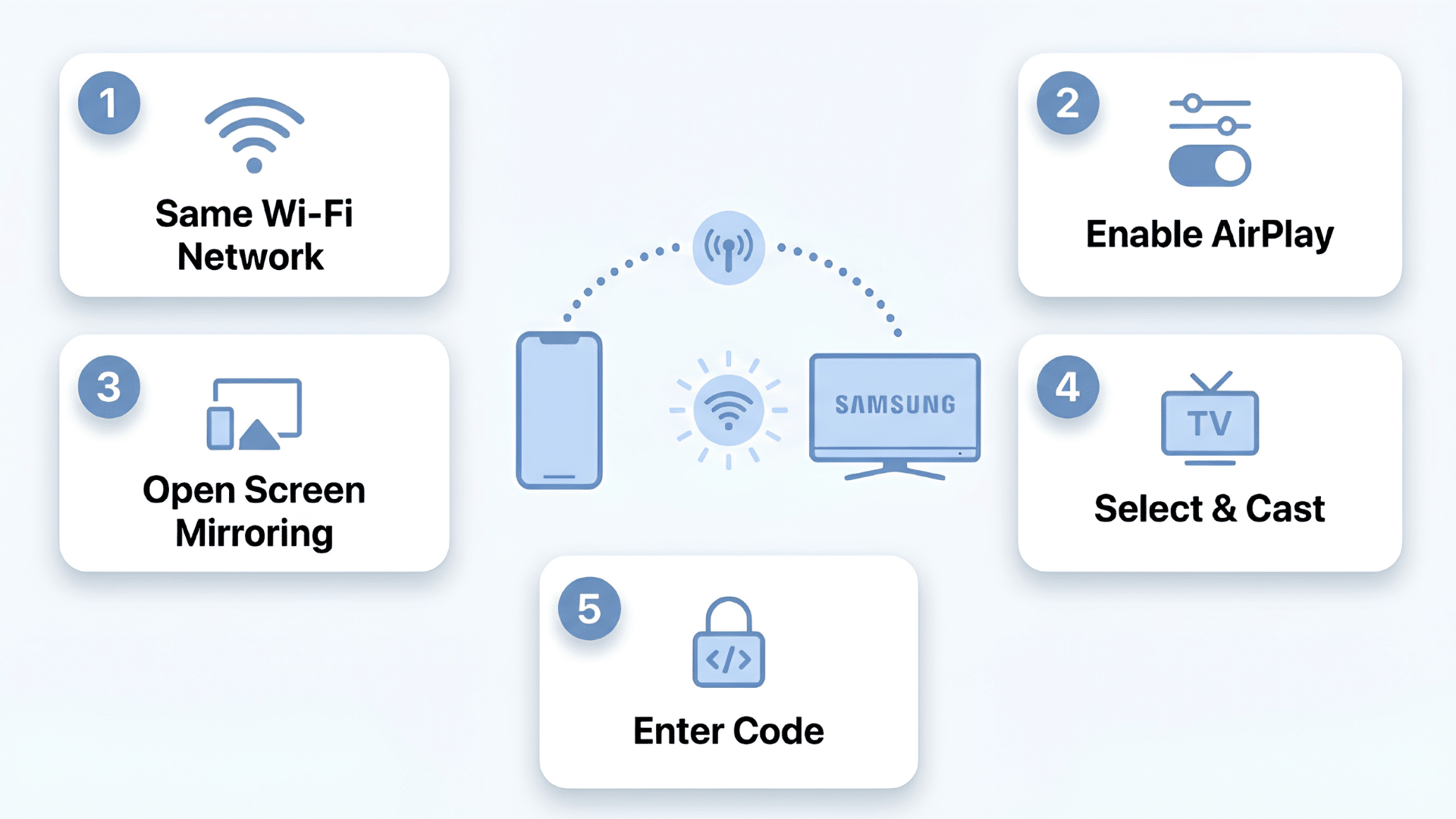
AirPlay is one of the easiest ways to connect your iPhone to a Samsung TV without extra cables. It makes screen mirroring iPhone to Samsung TV easier for sharing videos, photos, and other content.
In the steps below, I will show you how to set up the connection and start casting your iPhone screen in just a few minutes.
Step 1: Connect Your iPhone and Samsung TV to the Same Wi-Fi Network
A stable Wi-Fi connection helps your iPhone and Samsung TV communicate properly. Before starting the casting process, make sure both devices are connected to the same network.
- Open the Settings app on your iPhone and select the Wi-Fi option.
- Check the name of the network your iPhone is currently using.
- Open the network settings on your Samsung TV to confirm it matches.
- Move your TV and router closer together if the wireless signal feels weak.
- Avoid switching between different Wi-Fi networks during the setup process.
My tip: Restart your Wi-Fi router if both devices are connected to the same network but still fail to detect each other.
Step 2: Turn On AirPlay Settings On Your Samsung TV
Samsung TVs with AirPlay support usually need this feature enabled before your iPhone can find the device. The setting is available through your TV’s connection options.
- Press the Home button on your Samsung remote to open the main menu.
- Go to Settings and look for the Apple AirPlay Settings option.
- Select AirPlay and switch the feature to the “On” position.
- Check the required code settings if you want extra control over connections.
- Confirm that your TV software is updated for better compatibility.
My tip: Keep the AirPlay code request option enabled if you regularly connect your iPhone in shared spaces.
Step 3: Open Screen Mirroring On Your iPhone
Your iPhone has a built-in screen mirroring option that lets you send your display to a compatible Samsung TV. You can access this feature from the Control Center.
- Swipe down from the top-right corner of your iPhone screen.
- Tap the Screen Mirroring icon from the available controls.
- Wait for your Samsung TV name to appear in the device list.
- Tap your TV name to begin the wireless connection.
- Allow a few moments for your iPhone display to appear on the TV.
My tip: Remove unnecessary devices from your network list if too many options appear during the connection process.
Step 4: Select Your Samsung TV and Start Casting
After opening screen mirroring, your iPhone will search for nearby compatible devices. Selecting your Samsung TV starts the pairing process.
- Confirm that the TV name shown matches your Samsung model.
- Tap the correct device from the available options.
- Wait until the connection request appears on your television screen.
- Approve the connection if your TV asks for permission.
- Check that your iPhone display is visible on the Samsung TV.
My tip: Keep your iPhone unlocked during the first connection to prevent delays while pairing the devices.
Step 5: Enter the AirPlay Code (If Asked)
Some Samsung TVs require a verification code before allowing a new iPhone connection. This extra step helps prevent unwanted screen sharing.
- Check your Samsung TV screen for the AirPlay code that appears when you start the connection.
- Enter the code shown on your TV into your iPhone to confirm the pairing request.
- Wait a few seconds while your iPhone connects with the Samsung TV.
- Allow your TV to remember the device if the option is available for easier future connections.
- Start streaming your videos, photos, or apps once the connection is complete.
My tip: If you connect the same iPhone often, choose settings that reduce repeated code requests for quicker access.
Alternative Ways to Connect iPhone to Samsung TV
If AirPlay isn’t available or isn’t working, you still have several reliable ways to connect your iPhone to a Samsung TV. The best option depends on your TV model, available ports, and if you prefer a wired or wireless connection.
| Method | Requires | Best Use |
|---|---|---|
| AirPlay | Compatible Samsung TV | Wireless screen sharing |
| HDMI Adapter | Adapter + HDMI cable | Direct wired connection |
| Apple TV | Apple TV device | Older Samsung TVs |
| Streaming Device | Compatible casting device | Adding smart features |
| Supported Apps | App with casting option | Streaming specific content |
| USB-C to HDMI Cable | USB-C iPhone + HDMI cable | Newer iPhone models |
| Third-Party Casting Apps | Casting app installation | TVs without AirPlay support |
| Chromecast | Chromecast device + compatible apps | Streaming supported content |
Choose the method that matches your iPhone model, Samsung TV features, and available accessories. Each option offers a different way to share content on a larger screen.
Is Screen Mirroring iPhone to Samsung TV Safe?
Yes, screen mirroring iPhone to Samsung TV is generally safe when you use trusted devices and a secure home Wi-Fi network.
AirPlay creates a direct link between your iPhone and supported TV models, allowing you to share content without giving access to your personal data or iPhone settings.
For better privacy, connect only to TVs you recognize and turn off AirPlay when you no longer need to use the feature.
Why is Your iPhone Not Connecting to Your Samsung TV?
If your iPhone is not connecting to your Samsung TV, the issue is often linked to settings, network problems, or device compatibility. Here are some common causes and quick fixes:
| Problem | Possible Cause | Quick Fix |
|---|---|---|
| TV not showing on iPhone | Temporary connection issue | Restart AirPlay and check device settings |
| AirPlay not working | AirPlay is turned off on TV | Enable AirPlay in Samsung TV settings |
| Connection keeps dropping | Weak Wi-Fi signal | Move devices closer to the router |
| Screen shows but no sound | Audio output issue | Check TV volume and iPhone sound settings |
| Older Samsung TV not connecting | No built-in AirPlay support | Use an HDMI adapter or streaming device |
| AirPlay code keeps appearing | TV requires verification for new connections | Adjust AirPlay code settings on your Samsung TV |
| iPhone finds TV but cannot connect | Temporary software glitch | Restart both devices and try again |
| Samsung TV software is outdated | Old TV firmware may affect compatibility | Update your TV software from settings |
My tip: Check the simplest fixes first, like Wi-Fi connection and AirPlay settings, before trying extra devices or changing advanced settings.
How to Stop Screen Mirroring iPhone to Samsung TV?
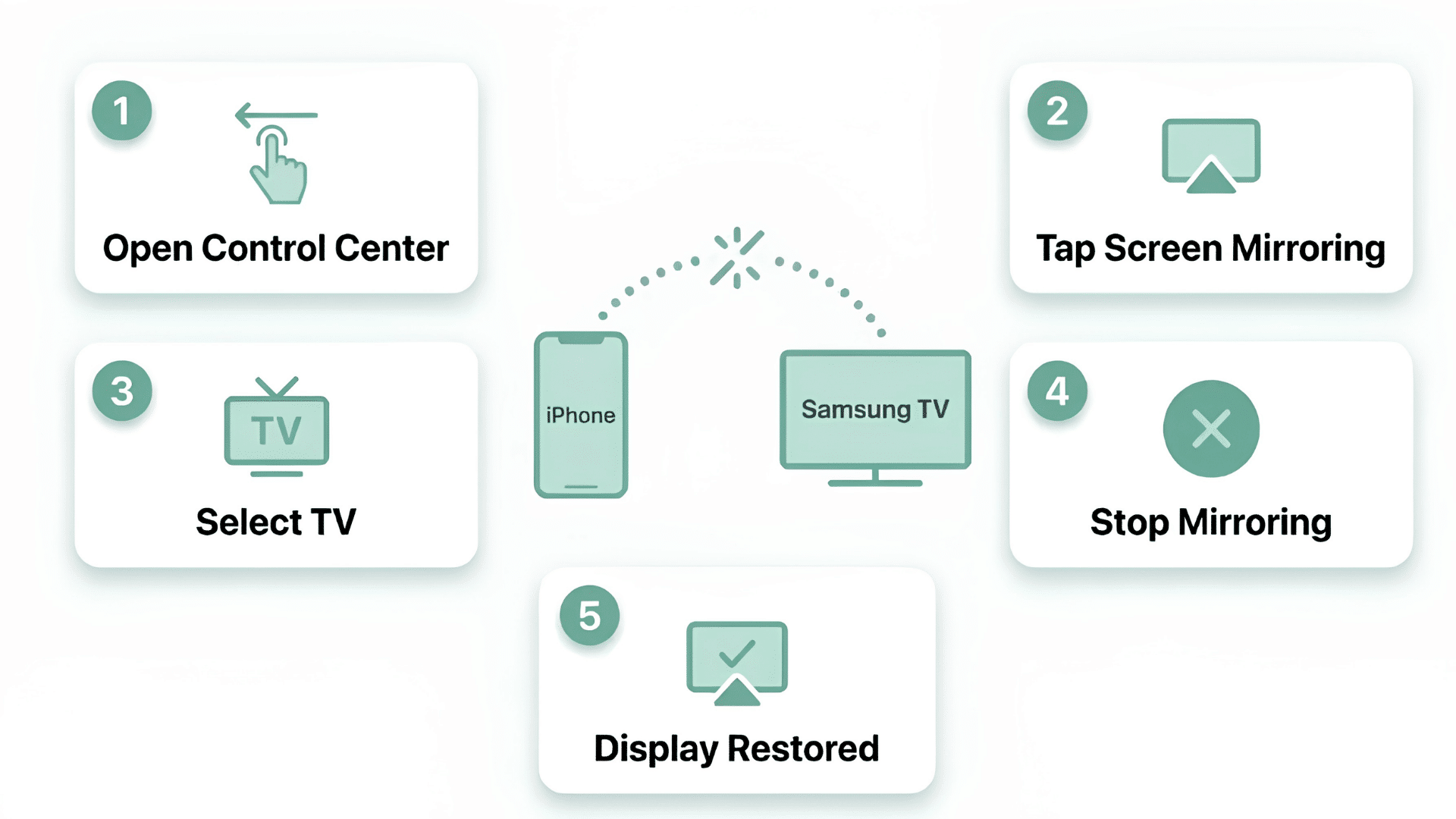
Stopping screen mirroring is just as simple as starting it. You can disconnect your iPhone from the Samsung TV whenever you finish sharing content.
To stop the connection, open your iPhone’s Control Center, select Screen Mirroring, and tap Stop Mirroring to return your display to normal.
- Open the Control Center on your iPhone by swiping down from the top-right corner of the screen.
- Tap the Screen Mirroring option from the available controls.
- Select your connected Samsung TV from the device list.
- Tap Stop Mirroring to disconnect your iPhone from the TV.
- Wait a few seconds for your iPhone screen to return to normal display mode.
Once you stop mirroring, your iPhone will disconnect from the Samsung TV, and the TV will return to its regular display. You can reconnect anytime by following the same screen mirroring steps again.
Wrapping It Up
The question: how to cast iPhone to Samsung TV sounds fancy, but once the Wi-Fi’s connected and AirPlay’s switched on, the rest falls into place pretty quickly.
And if AirPlay doesn’t cooperate right away, there’s always a backup option. Tech hiccups happen, but they rarely stick around for long.
So next time movie night rolls around, or those vacation photos need a bigger stage, casting won’t feel like a chore anymore. Just connect, tap, and enjoy the show.
Frequently Asked Questions
Does Casting iPhone to Samsung TV Use Mobile Data?
No, casting through AirPlay uses your local Wi-Fi connection instead of your iPhone’s cellular data.
Can I Control My Samsung TV from My iPhone after Casting?
No, casting only shares content; you still need your Samsung remote or TV controls for most functions.
Can I Use My iPhone while Casting to Samsung TV?
Yes, you can continue using your iPhone for other tasks while supported content plays on your Samsung TV.