






A graphics card can look fine while its fans sit still, and that can be confusing if you expect them to run whenever the PC is on. The key is to look at what the card is doing, not just whether the blades are moving.
Temperature, workload, fan settings, and power connections all tell you more. This guide walks through the checks that separate normal fan-stop behavior from a cooling problem, so you can troubleshoot the card without unnecessary part changes.
Is It Normal for GPU Fans Not to Spin?
GPU fans not spinning is often completely normal. A GPU, or graphics processing unit, is the chip inside your graphics card that renders everything you see in games and creative apps, and most modern cards use a feature called Zero RPM mode to keep fans off during light use.
The fans typically switch on once the card warms up, usually somewhere between 50°C and 60°C depending on the model.
If your card gets hot during gaming and the fans still refuse to spin, that’s the checking settings, drivers, power connections, or hardware starts to matter. Knowing this distinction upfront saves you from chasing a problem that wasn’t there in the first place.
Before you troubleshoot anything, it helps to see how fan behavior maps to normal GPU operation. The table below breaks down the situations where inactive fans are expected and the one scenario that actually deserves a closer look.
GPU Condition | Fan Behavior | Status |
|---|---|---|
Light computer use | Fans remain off | Normal |
Gaming or heavy tasks | Fans start spinning | Normal |
High temperature with no fan activity | Fans may have an issue | Check further |
Many GPUs activate their fans somewhere around 50°C to 60°C, but the exact point depends on the graphics card model and manufacturer settings.
Once you know what’s normal, spotting a real problem becomes much easier.
Why Are My GPU Fans Not Spinning?
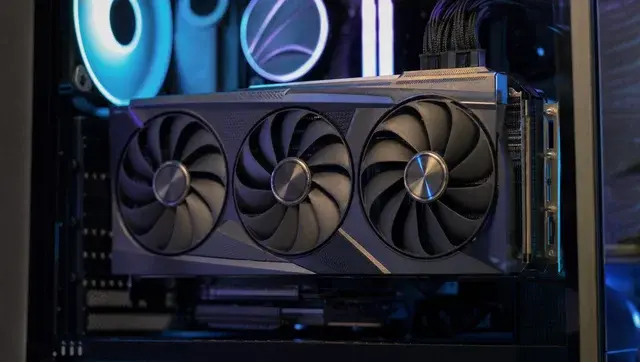
Quiet fans usually trace back to one of a handful of causes, ranging from a built-in power-saving feature to a loose cable. Here is what typically causes GPU fans not spinning, starting with the most common explanation.
1. Zero RPM Mode
Zero RPM mode keeps your fans stopped completely once the GPU cools below its activation threshold, cutting noise during everyday tasks. NVIDIA calls this “Zero Fan Speed” on its RTX 30 and 40 series cards, AMD uses the same “Zero RPM” name on its RX 6000 and 7000 series, and board partners layer their own branding on top: ASUS uses 0dB Technology, and MSI calls it Zero Frozr. Different names, same idea. If temperatures stay low during basic tasks, inactive fans mean the feature is working as designed.
2. Fan Curve Settings
A fan curve is a temperature-based setting that tells your GPU how fast to spin its fans at each temperature.
Custom curves from overclocking tools or graphics software can sometimes stop fans from starting when they should. Resetting the curve to its default profile usually restores normal fan activation.
3. Driver Or Software Issues
Outdated or conflicting GPU drivers can interfere with fan control just as easily as they affect performance. Running more than one fan control program at once often causes similar problems.
Updating your graphics driver and removing duplicate control software resolves most cases quickly.
4. Loose Cable Or Power Connection
A GPU fan cable can work itself loose after cleaning, moving your PC, or handling the card during an upgrade.
Loose PCIe power connectors can also prevent the GPU from working correctly and may cause fan or display issues. Reseating both can fix many connection-related problems.
5. Less Common Causes
BIOS settings and outdated GPU firmware can occasionally affect fan response, though this is rarely the actual cause.
Check for a firmware update from your manufacturer only after ruling out the more common culprits above, and avoid flashing anything unless the manufacturer specifically recommends it.
How Do I Check If My GPU Fans Are Working?
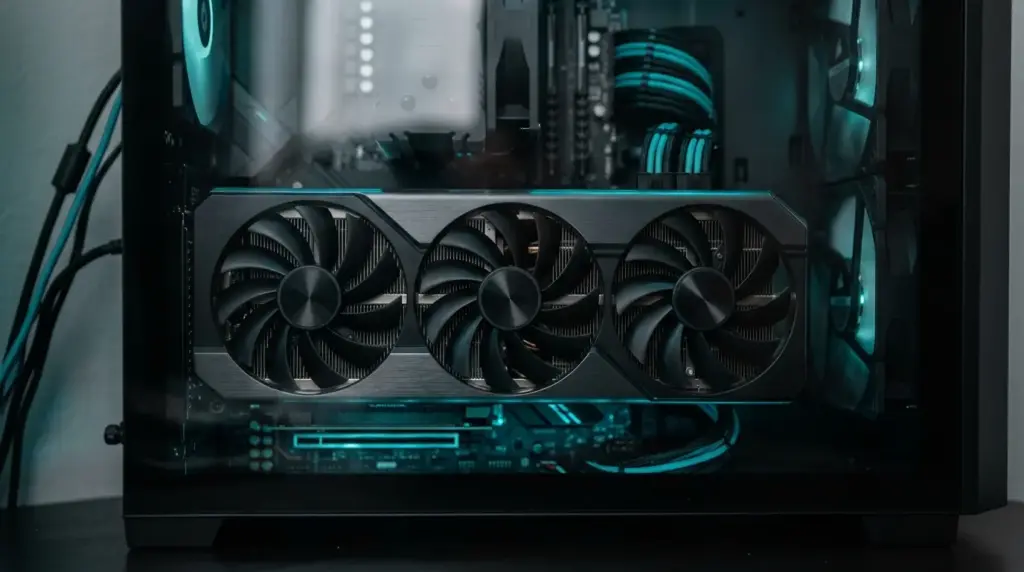
A few quick checks will tell you if your GPU is actually fine or genuinely stuck. Work through these in order before changing any settings or hardware.
Start by checking your GPU temperature and fan speed using monitoring tools like GPU-Z or MSI Afterburner. If temperatures stay low while fans sit idle, nothing is wrong.
Next, run a demanding game or benchmark and watch both readings together. Give it two to three minutes under load before judging anything, since a card needs time to actually build up heat.
During demanding gaming or benchmarks, most GPUs should increase fan speed as temperatures rise, so fans that never move while temperatures keep climbing point to a real issue rather than normal Zero RPM behavior.
Before you touch any software, do the simple physical check: power the PC off completely, unplug it, and gently spin one fan blade with your finger. It should turn freely with a bit of resistance, the way a healthy fan always does. If a blade feels gritty, stiff, or barely moves at all, that points to a worn or seized bearing rather than a setting, and no driver update or fan curve fix will resolve it.
You can also force the fans to respond using MSI Afterburner by setting a temporary manual speed. If the fans move under manual control, the cause is likely a curve or driver setting. If they still do not respond, the problem is more likely mechanical.
How to Fix GPU Fans Not Spinning
Once you have a sense of the cause, work through these fixes in order. They move from the quickest checks to the more involved ones, so start at the top before assuming anything is seriously wrong.
Restart Your System: Clears temporary glitches affecting fan control.
Reset Fan Settings: Restore the default curve and remove duplicate control apps.
Update GPU Drivers: Install the latest driver, or try this driver update walkthrough.
Check Cables and Connections: Reseat the GPU and confirm every power cable is secure.
Clean The Fans: Power down first, then clear dust so blades move freely.
Oil the Fan Bearings: If a fan spins slowly or feels stiff after cleaning, a drop of light machine oil on the bearing (behind the center sticker on most fan hubs) can free it back up. Skip this on sealed or liquid-bearing fans, and if it still drags after oiling, that fan is done and needs replacing.
Set a Minimum Fan Speed: Instead of letting Zero RPM cycle the fans fully on and off, set a small fixed minimum in your fan curve software. Constantly starting and stopping strains the motor more than running slow and steady, so this small change can extend the fan’s life.
If your GPU still runs hot with the fans doing nothing after all of this, that points toward a hardware problem worth investigating further.
GPU Fans Not Spinning and No Display
No display alongside silent fans usually points to a power or seating problem rather than the fans themselves.
Start by checking that both PCIe power cables are fully clicked into the card, then confirm your monitor cable is plugged into the graphics card, not the motherboard’s video output.
Reseating the GPU in its slot resolves many of these cases. If you have a second PCIe slot or another cable on hand, testing with those can quickly rule out a bad connection versus an actual GPU failure.
Signs That Your GPU Fans Have a Hardware Problem
Not every quiet or unusual fan comes down to a setting or a stray cable. The table below lists the signs that point toward a genuine hardware problem, one that troubleshooting software alone will not fix.
Sign | Possible Cause |
|---|---|
Fans never spin during heavy use | Fan motor or control issue |
Grinding sounds from fans | Damaged fan parts |
Fan blades do not move freely | Physical blockage or wear |
Display issues with fan problems | Possible GPU fault, especially if the GPU is not detected or the system cannot output video |
Catching these early keeps a fan problem from turning into a heat-related failure.
When Should You Repair or Replace a GPU With Fan Issues?
Not every fan issue calls for a new graphics card. Software glitches, wrong settings, and dust buildup are usually fixable at home in under an hour.
A repair or replacement becomes worth considering when the fan motor has failed, the blades are physically damaged, or the card keeps overheating even after every fix above. Weigh the age of your GPU and the cost of a replacement fan against buying new hardware.
If everything else about the card still performs well, replacing just the fan is often the more practical choice.
Final Thoughts
GPU fans not spinning is often caused by normal fan-stop settings rather than a failed graphics card. Check temperatures first, then move through settings, drivers, connections, and hardware checks if the fans still do not respond.
A few quiet minutes with a monitoring tool will tell you more than guessing ever will, and if your card is still behaving strangely after trying all of this, drop a comment below and I will help you figure out the next step.
Frequently Asked Questions
Should GPU fans spin when I turn on my PC?
Not always. Some cards briefly spin fans during startup, then stop as the system settles at idle. Others stay off from the first second. Either pattern is normal as long as the fans respond once you start gaming.
Can I Fix a Sluggish GPU Fan by Oiling It Myself?
Yes, in many cases. A drop of light machine oil on the bearing, applied after popping off the center sticker on the fan hub, often frees up a fan that spins slowly or feels stiff. It will not help a fan with a burned-out motor or a snapped blade, and sealed bearings should not be opened at all.
Why does my display work fine even though the fans are not moving?
If your monitor shows an image and everything runs normally, the GPU is receiving power fine. Inactive fans usually mean Zero RPM mode is active, a behavior AMD documents in its GPUOpen fan control reference. Check temperature during a game.
How can I test my GPU fans manually?
Monitoring tools such as TechPowerUp’s GPU-Z show temperature and fan speed, while MSI Afterburner lets you set a temporary manual speed to test response. If the fans move under manual control, the issue is likely a setting, not hardware.
Why is only one GPU fan spinning?
Many cards let each fan respond to temperature independently. One fan may simply stay off at lower heat while another spins. If a fan never moves under load, that points to a motor or cable problem, not a failed GPU.
Why are my GPU fans not spinning while gaming?
Check temperature first. Lighter games may not heat the card enough to trigger the fans, but demanding games usually will. If temperatures keep climbing while fan speed stays at zero, check your fan curve, drivers, and power connections.