







Few things are more annoying than tapping AirDrop and seeing nothing happen. I know how quickly a simple file transfer can turn into a frustrating guessing game.
When you’re dealing with an AirDrop not working issue, it can be hard to know where to start. Everything may look right, but your files still refuse to transfer.
I know how confusing that can feel because it’s easy to assume something is seriously wrong. You may also be wondering why is airdrop not working when both devices look ready to share.
Below, I’ll walk you through the fastest fixes for iPhone, iPad, and Mac, so you can get back to sharing files without wasting more time.
Why is AirDrop Not Working on Your Device?
AirDrop usually stops working when your Apple device cannot create a stable connection with another nearby device. In most cases, the problem is caused by incorrect settings, wireless interruptions, or a temporary software glitch rather than a hardware issue.
AirDrop depends on Bluetooth to find out nearby devices and Wi-Fi to securely transfer files.
If either service is unavailable, your devices are too far apart, or AirDrop visibility is restricted, transfers may fail, or nearby devices may not appear at all.
Quick Checks You Need to Make Before Fixing AirDrop
Many AirDrop issues can be resolved without changing advanced settings. Use the checklist below to rule out the most common causes before trying the detailed fixes:
| Check | Do This | Why It Matters |
|---|---|---|
| Wi-Fi | Turn it on for both devices. | AirDrop transfers files over Wi-Fi. |
| Bluetooth | Enable Bluetooth on both devices. | Allows nearby devices to detect each other. |
| Device Lock | Keep both devices unlocked. | Locked devices may not appear or receive requests. |
| Distance | Keep devices within 30 ft (9 m). | A closer range improves connection reliability. |
| AirDrop Visibility | Choose Contacts Only or Everyone for 10 Minutes. | Devices set to Receiving Off cannot receive AirDrop requests. |
| Personal Hotspot | Turn it off before sharing. | Personal Hotspot can interrupt AirDrop connections. |
| VPN | Disconnect any active VPN. | Some VPNs can interfere with local device. |
How to Fix AirDrop Not Working on iPhone, iPad, and Mac
If the quick fixes didn’t solve the problem, the issue may be tied to settings unique to your device. Follow the steps below for your iPhone, iPad, or Mac before moving on to more advanced troubleshooting:
iPhone and iPad AirDrop Troubleshooting
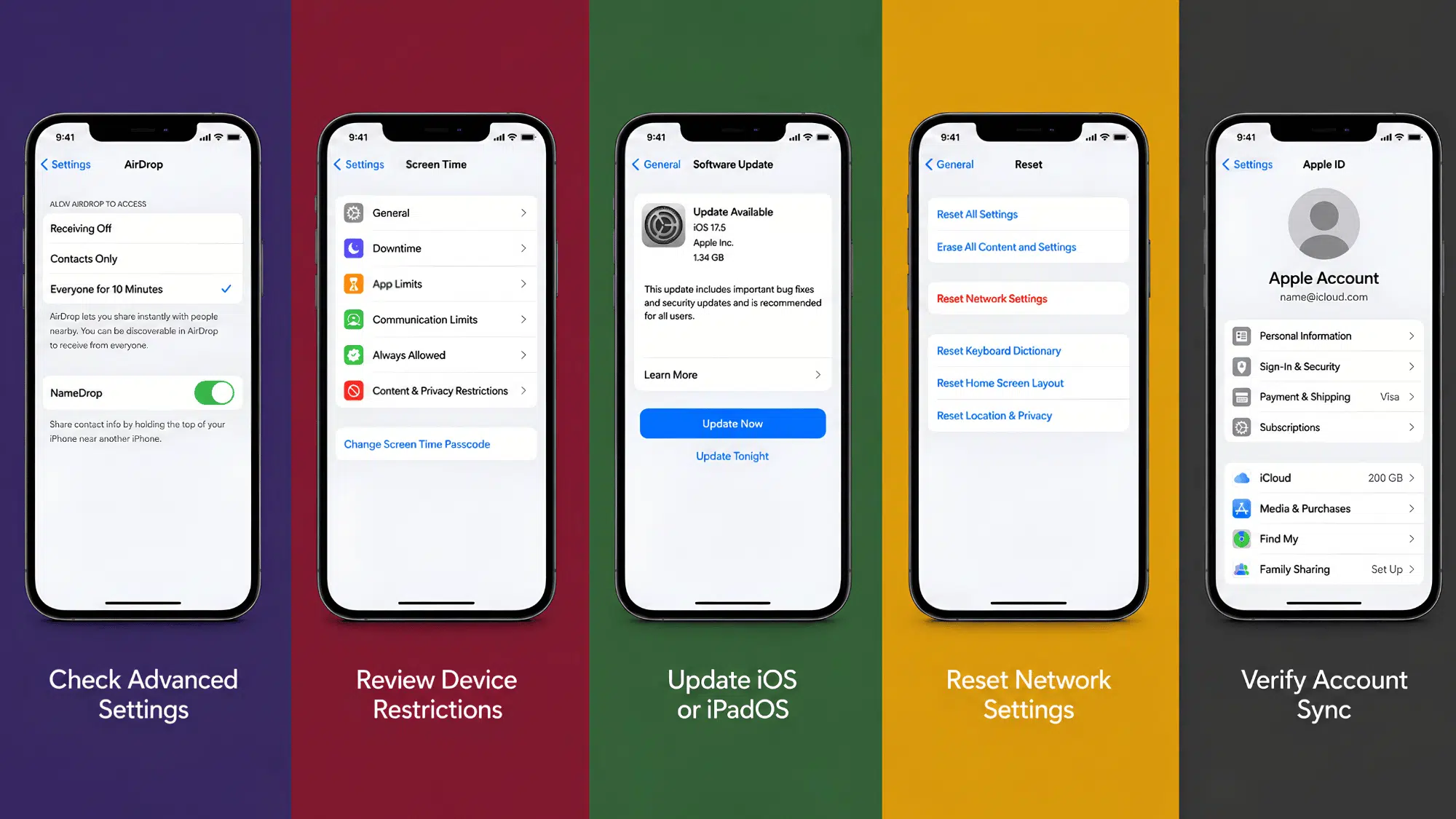
If AirDrop still isn’t working after the basic fixes, these iPhone and iPad settings can help resolve device-specific issues that may be preventing successful file transfers.
- Review Screen Time Restrictions: Go to Settings → Screen Time → Content & Privacy Restrictions to make sure AirDrop hasn’t been disabled.
- Reset Network Settings: If AirDrop still fails after the basic fixes, resetting network settings can refresh Wi-Fi and Bluetooth connections.
- Verify Your Apple Account: If you’re sharing between your own Apple devices, confirm they’re signed in with the correct Apple Account.
- Install Pending iOS or iPadOS Updates: Check for any follow-up updates Apple may have released after a recent software update.
Mac AirDrop Troubleshooting
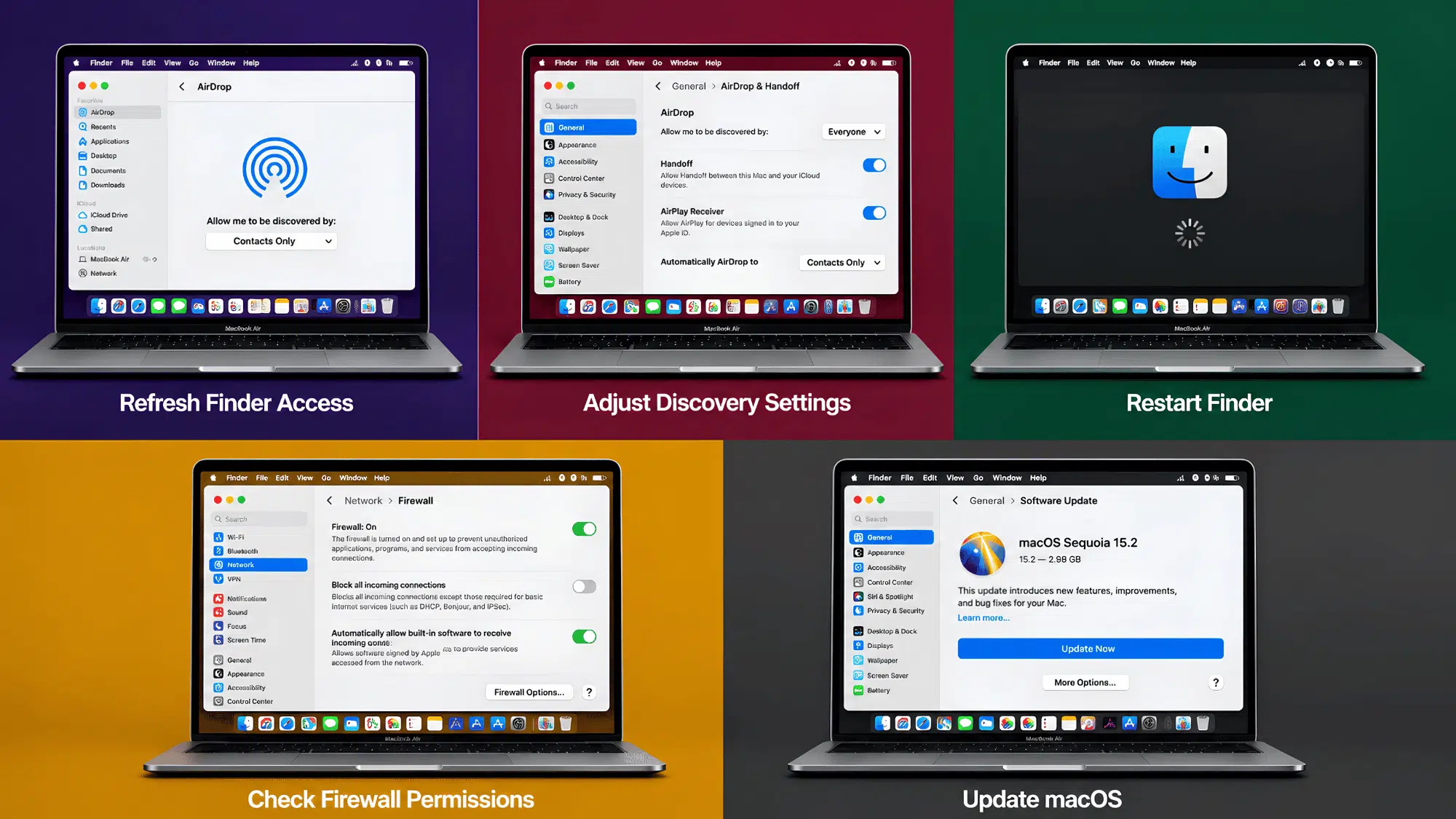
If AirDrop still isn’t working on your Mac, review these Mac-specific settings. They can help resolve Finder, discovery, and system-related issues affecting file transfers.
- Check Finder Discovery Settings: Open AirDrop in Finder and confirm your Mac is discoverable by the correct audience.
- Review Firewall Settings: If your firewall blocks incoming connections, AirDrop may not work properly.
- Restart Finder: Relaunch Finder if AirDrop appears frozen or stops detecting nearby devices.
- Install Pending macOS Updates: Update your Mac if Apple has released a fix for a known AirDrop issue.
Can You Fix AirDrop Without Visiting an Apple Store?
Yes, in most cases, you can fix AirDrop without visiting an Apple Store or resetting your device. Many issues come down to one setting that changed or a temporary connection problem.
I usually recommend starting with the simplest checks before changing anything major. It saves time, and the Apple Support guide also recommends checking these basic settings first.
Once the basic fixes are out of the way, it’s much easier to identify what’s actually stopping AirDrop from working and apply the right solution.
What Do Different AirDrop Problems Usually Mean?
Not every AirDrop problem points to the same cause. The message or behavior you see can often tell you what’s preventing the file transfer from working.
| If You Notice… | Most Likely Cause | What It Means |
|---|---|---|
| Device doesn’t appear | AirDrop receiving settings | The receiving device isn’t visible to nearby devices. |
| Stuck on “Waiting” | Connection can’t be established | The devices have detected each other but can’t complete the transfer. |
| Transfer starts but fails | Wireless interruption or file issue | The connection drops before the file finishes sending. |
| AirDrop option is missing | Screen Time restriction or settings | AirDrop has been disabled or hidden on the device. |
| Mac isn’t visible | Finder or discovery settings | The Mac isn’t available for nearby AirDrop requests. |
| Only some people appear | Contacts Only mismatch | The devices can’t verify each other’s contact information. |
| AirDrop worked before but suddenly stopped | Temporary system or software issue | A recent restart, update, or background process may be affecting AirDrop. |
| Receiving device says “Declined” or doesn’t respond | Receiving settings or user approval | The transfer wasn’t accepted or the device wasn’t ready to receive it. |
| AirDrop is slow to find nearby devices | Weak Bluetooth or Wi-Fi communication | It takes longer than usual for devices to detect each other before a transfer starts. |
Once you know what the symptoms point to, choosing the right fix becomes much easier. Start with the solutions below and work through them one at a time.
Why Does AirDrop Stop Working After an Update?
Major iOS, iPadOS, or macOS updates refresh system services that AirDrop relies on. During this process, Bluetooth, Wi-Fi, or background connections may not work normally for a short time.
Another common reason is a software mismatch. If one Apple device updates before another, AirDrop may have trouble recognizing or connecting until both devices run compatible software versions.
Updates can also change certain settings behind the scenes. AirDrop visibility, network preferences, or permissions may reset, preventing nearby devices from finding each other.
Apple also provides official AirDrop troubleshooting steps if problems continue after an update or basic fixes. Understanding these common causes makes the device-specific troubleshooting steps below much easier to follow.
When Should You Contact Apple Support for AirDrop Problems?
Most AirDrop issues can be solved with settings changes, but some problems may point to a larger device or software issue. These signs can help you know when it is time to get extra support.
- AirDrop does not work with any nearby Apple device.
- Wi-Fi or Bluetooth also stops working on the device.
- AirDrop is missing even after checking restrictions and settings.
- Network resets and software updates do not solve the issue.
- The device has physical damage or hardware problems.
If AirDrop still fails after trying the common fixes, the issue may need deeper support. These signs can help you decide when it is time to contact Apple.
Final Thoughts
You’ve made it through the fixes, and honestly, that’s the hard part done. Airdrop not working can feel like such a headache in the moment, but you now know exactly where to look and what to check first.
No more guessing or random tapping and hoping something changes. Next time it happens, don’t panic. Walk through these steps calmly, one at a time, and you’ll likely have it sorted in minutes.
Tech hiccups like this rarely last. Keep this guide handy, trust the process, and get back to sharing your files without the frustration.
Frequently Asked Questions
Why Does AirDrop Say Waiting for a Long Time?
AirDrop may stay on waiting when devices cannot complete the connection, the receiving device is locked, or settings prevent the transfer.
Why Is My iPhone Not Showing Up On AirDrop?
Your iPhone may not appear if AirDrop receiving settings, device visibility, or connection settings are preventing detection.
Does AirDrop Work With Non-Apple Devices?
No, AirDrop only works between supported Apple devices like iPhone, iPad, and Mac.