



Choosing the right emulator can make PC gaming feel more flexible, whether you want Android apps on a bigger screen or classic console games running smoothly on a modern gaming handheld.
I usually prefer tools that are simple to set up, stable during longer sessions, and easy to configure without digging through endless menus.
The best emulators for pc are not always the most popular ones, and good emulators for Windows should match the system, game type, and performance you need.
Compatibility, controller support, graphics settings, and update frequency can all change the experience more than flashy features.
Here I’ll walk you through the best emulators, what each one is good at, and which options make the most sense for different users.
What Makes an Emulator Good for PC?
A good emulator should balance compatibility, performance, ease of use, and system support. The best emulators for pc should run supported games or apps smoothly without forcing users through complicated setup steps.
Strong controller support, graphics options, save states, keyboard mapping, and regular updates also matter, especially for gaming.
Hardware efficiency is important too, since some emulators perform well on powerful PCs but struggle on lower-spec systems. A RetroArch core running an SNES or Genesis game will run on almost any laptop from the last decade, but something like RPCS3 needs a modern multi-core processor just to keep PlayStation 3 games playable.
Reliable emulators for Windows should also offer clear settings, active development, and broad compatibility with the platforms they support.
For retro gaming, accuracy and console-specific performance matter most. For Android gaming, stable frame rates, app support, and control customization often matter more. The ideal emulator is the one that matches your system, hardware, and gaming needs.
Trade-Offs to Know Before Choosing
Choosing an emulator means balancing speed, compatibility, setup, hardware demands, and system coverage, because the right option depends on how you actually plan to play.
| Emulator Type | Main Strength | Main Trade-Off | Best For |
|---|---|---|---|
| Simple Android emulators | Quick setup and broad app access | Fewer customization and tuning options | Casual Android apps and games |
| Performance-focused Android emulators | Stable frame rates, macros, and gaming controls | May prioritize gaming over broader app compatibility | Competitive mobile gaming |
| Android emulators on lower-spec PCs | Can run well when lightweight | Demanding games may still overwhelm weaker CPUs or GPUs | Users with modest Windows hardware |
| RetroArch and other all-in-one tools | Runs multiple console systems from one interface | Individual cores may offer less accuracy than standalone alternatives | Large retro game libraries |
| Standalone retro emulators | Focused accuracy, compatibility, and performance for one system | Requires separate software for different consoles | Players focused on one or two systems |
If your PC is on the weaker side, let that drive the decision before anything else. A lightweight option will get you further than a feature-heavy all-in-one tool built for stronger machines.
Best Emulators for PC and Windows
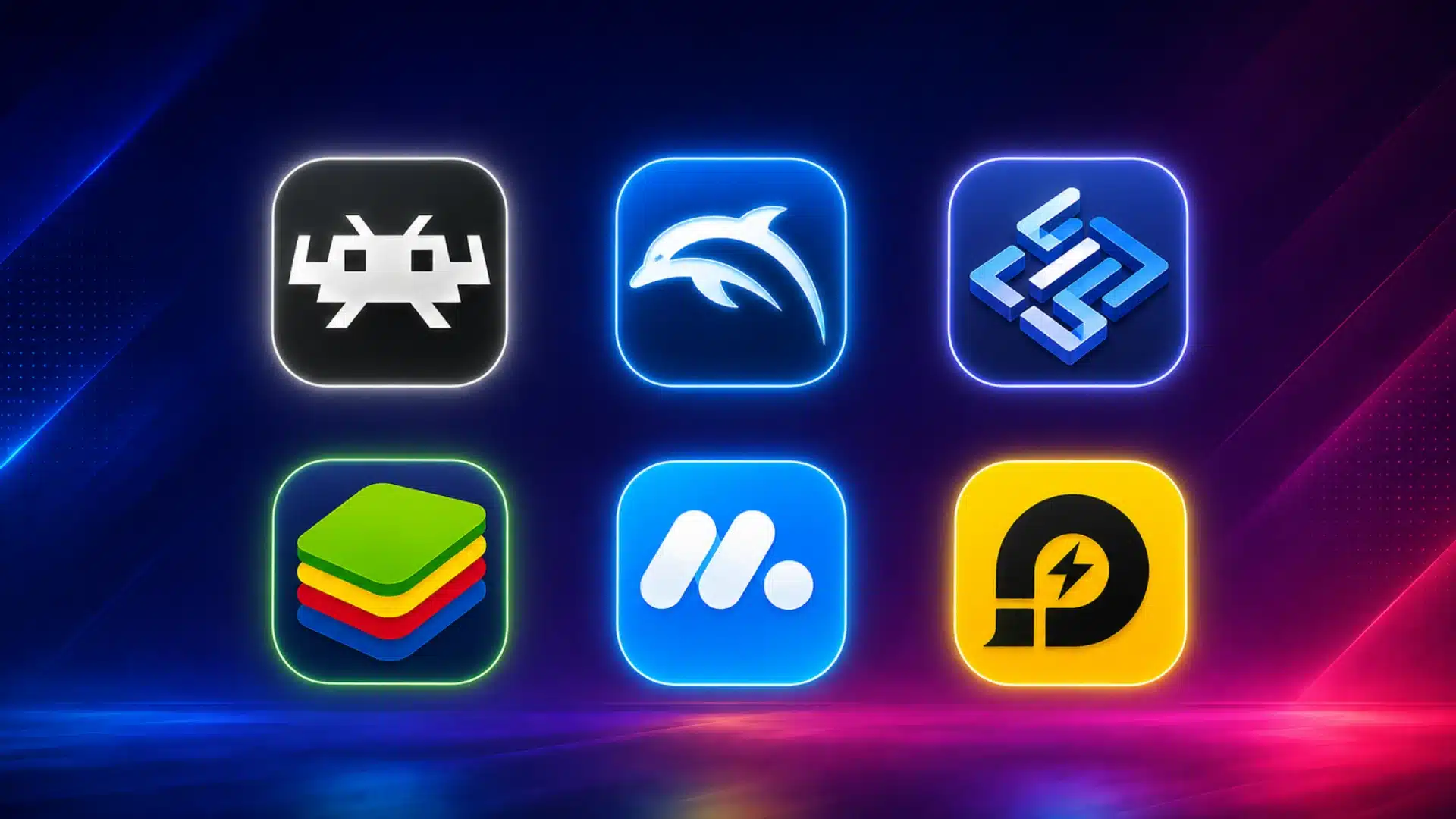
The best emulator depends on what you want to run, how powerful your PC is, and whether you value simplicity, accuracy, or broader overall compatibility.
1. RetroArch
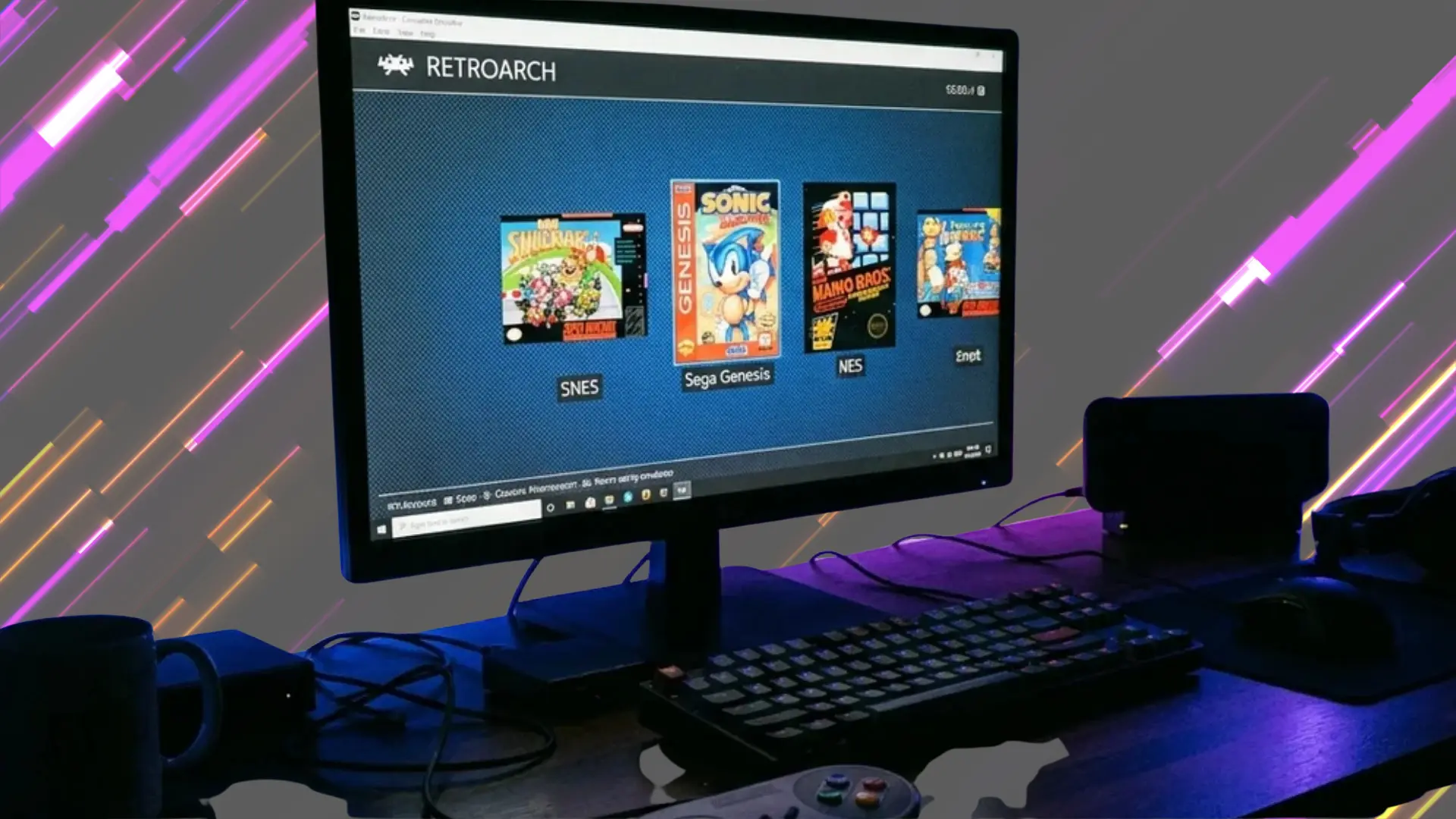
RetroArch is the strongest all-in-one option for players who want one interface for many classic systems. Its core system supports numerous consoles while offering shaders, controller profiles, save states, and flexible performance settings.
- Best at: Running games from several retro consoles within one interface
- Best for: NES, SNES, Sega, PlayStation, arcade, and other older systems
- Keep in mind: Its menus and core setup can feel complicated for new users
2. Dolphin Emulator
Dolphin is the standout choice for GameCube and Wii games on PC, combining strong compatibility with useful visual upgrades. It supports higher resolutions, modern controllers, widescreen options, and performance tweaks for capable Windows systems.
- Best at: GameCube and Nintendo Wii emulation
- Best for: Players who want higher resolutions and modern controller support
- Keep in mind: Some games require individual graphics or performance adjustments
3. PCSX2
PCSX2 remains one of the most capable PlayStation 2 emulators for Windows, with broad game compatibility and excellent upscaling options. It also supports save states, controller mapping, texture filtering, and per-game graphics adjustments.
- Best at: PlayStation 2 emulation on modern PCs
- Best for: Improving older PS2 games with higher resolutions and graphics settings
- Keep in mind: Performance varies depending on the game and your processor
4. DuckStation
DuckStation is built for original PlayStation games and focuses on accuracy, speed, and straightforward setup. It adds resolution scaling, texture filtering, widescreen support, save states, and controller customization without making basic configuration unnecessarily difficult.
- Best at: PlayStation 1 emulation
- Best for: Players who want simple setup with useful graphics improvements
- Keep in mind: It focuses specifically on PS1 rather than multiple console generations
5. RPCS3
RPCS3 is the leading option for PlayStation 3 emulation on PC, although it needs stronger hardware than older-system emulators. It offers growing game compatibility, resolution scaling, patches, controller support, and detailed performance configuration.
- Best at: Running compatible PlayStation 3 games on PC
- Best for: Users with stronger CPUs who want improved resolutions and frame rates
- Keep in mind: Compatibility and performance can differ significantly between games
6. PPSSPP
PPSSPP is a lightweight PSP emulator that runs well across a wide range of PCs. It improves portable games with higher resolutions, texture filtering, save states, controller support, and useful speed settings for weaker hardware.
- Best at: PlayStation Portable emulation
- Best for: Lower-end PCs and players wanting sharper PSP graphics
- Keep in mind: Results depend on the original game and selected graphics settings
7. Project64
Project64 is a practical choice for Nintendo 64 games on Windows, especially for users who want a familiar standalone emulator. It offers controller mapping, save states, graphics plugins, cheat support, and generally simple game setup.
- Best at: Nintendo 64 emulation
- Best for: Users who want a straightforward standalone N64 emulator
- Keep in mind: Plugins can affect graphics accuracy and compatibility in certain games
8. RetroBat
RetroBat is a convenient choice for users who want a more ready-made retro gaming setup on Windows. It combines a unified interface with preconfigured emulator support, reducing manual setup across multiple classic console systems.
- Best at: Managing multiple retro systems from one Windows interface
- Best for: Users who find manual RetroArch configuration too complicated
- Keep in mind: Individual emulator settings may still need adjustment for certain games
9. BlueStacks
BlueStacks is aimed at Android apps and mobile games rather than retro consoles. It offers keyboard mapping, multi-instance support, macros, game controls, and broad compatibility, making it suitable for mainstream Android gaming on Windows.
- Best at: General Android gaming and app use on Windows
- Best for: Users wanting keyboard controls, macros, and multiple game instances
- Keep in mind: It can use more system resources than lighter Android emulators
10. MuMu Player
MuMu Player is a strong Android gaming emulator for users who prioritize smooth frame rates and a cleaner interface. It supports keyboard controls, multiple instances, high-resolution output, and performance settings for demanding mobile games.
- Best at: High-frame-rate Android gaming
- Best for: Modern mobile games that benefit from keyboard and mouse controls
- Keep in mind: Performance still depends heavily on CPU, GPU, and virtualization support
11. LDPlayer
LDPlayer focuses on Android gaming performance and control customization, making it useful for shooters and other fast mobile titles. It includes keyboard mapping, multi-instance tools, macros, high frame-rate support, and adjustable resources.
- Best at: Competitive Android games and customizable controls
- Best for: Players running shooters, RPGs, and multiple game accounts
- Keep in mind: Some apps may behave differently from a physical Android device
12. Google Play Games for PC
Google Play Games on PC is the official option for supported Android games on Windows. Its biggest advantage is a more direct Google-backed setup, though its game library is narrower than full Android emulators.
- Best at: Playing officially supported Android games on Windows
- Best for: Users who prefer an official Google solution with minimal configuration
- Keep in mind: It does not support every Android app or mobile game
13. GameLoop
GameLoop is designed mainly for mobile games and is especially relevant for players interested in supported competitive titles. It provides keyboard and mouse controls, performance tuning, game-specific optimization, and a relatively focused gaming interface.
- Best at: Supported competitive Android games
- Best for: Players who want keyboard and mouse controls for mobile titles
- Keep in mind: Its usefulness is more limited outside its supported gaming catalog
Match the emulator to what you’re actually trying to run first. Everything else, from setup time to extra features, is easier to sort out once that’s settled.
Which Emulator Should You Choose?
Here’s how that shakes out in practice, based on what you’re actually trying to run:
- Multiple retro consoles: RetroArch is a strong choice because it keeps several systems under one interface.
- Single-console accuracy: A standalone emulator like Dolphin, PCSX2, or DuckStation usually makes more sense.
- General Android gaming: Choose an emulator that offers simple setup, broad app compatibility, and reliable controls.
- Competitive mobile games: Look for stable frame rates, keyboard mapping, macros, and strong performance settings.
- Lower-spec PCs: A lightweight emulator is often better than a feature-heavy option that consumes more resources.
- Mixed Android and retro gaming: You will usually need separate emulators rather than one tool for everything.
Start with the platform you want to run, then compare compatibility, hardware requirements, and setup difficulty before choosing.
Conclusion
Choosing the right emulator comes down to what you want to play, how strong your PC is, and how much setup you are willing to handle.
I usually lean toward tools that feel stable, simple, and easy to adjust without wasting time on constant fixes.
The best emulators for pc give you a good balance of compatibility, performance, controls, and system support, while emulators for Windows should also match your hardware and target platform.
RetroArch supports a broad range of retro libraries, while standalone options make more sense for specific consoles. Android players may prefer tools focused on smoother controls and frame rates.
Which emulator do you use most, and what has your experience been like? Share your pick in the comments below.
Frequently Asked Questions
Is it illegal to use emulators on PC?
No, emulator software itself is legal in most places. The legal risk comes from the games or apps run on it. Downloading copyrighted ROMs or app files you don’t own can expose you to copyright claims, though personal backups of games you legitimately purchased are generally treated differently.
What’s the easiest Android emulator to start with on Windows?
Tools built around simple setup and broad app-store compatibility make the easiest entry point, since they prioritize getting apps running quickly over deep customization. Readers who want more control over performance or multi-instance play typically move to a more configurable option once they outgrow the basics.
Is RetroArch better than standalone emulators like PCSX2 or Dolphin?
It depends on the goal. RetroArch’s advantage is running many systems from one interface, which suits readers building a broad library. Standalone emulators built for a single system generally offer better accuracy and performance for that system specifically, which is why dedicated tools often edge out RetroArch’s core for any one console.
What should I look for instead of BlueStacks?
The right alternative depends on why BlueStacks doesn’t fit. Lighter tools suit lower-spec PCs, while options built around multi-instance play or macro precision suit competitive gaming. There isn’t one universal replacement, since the best alternative matches the specific limitation being worked around.