

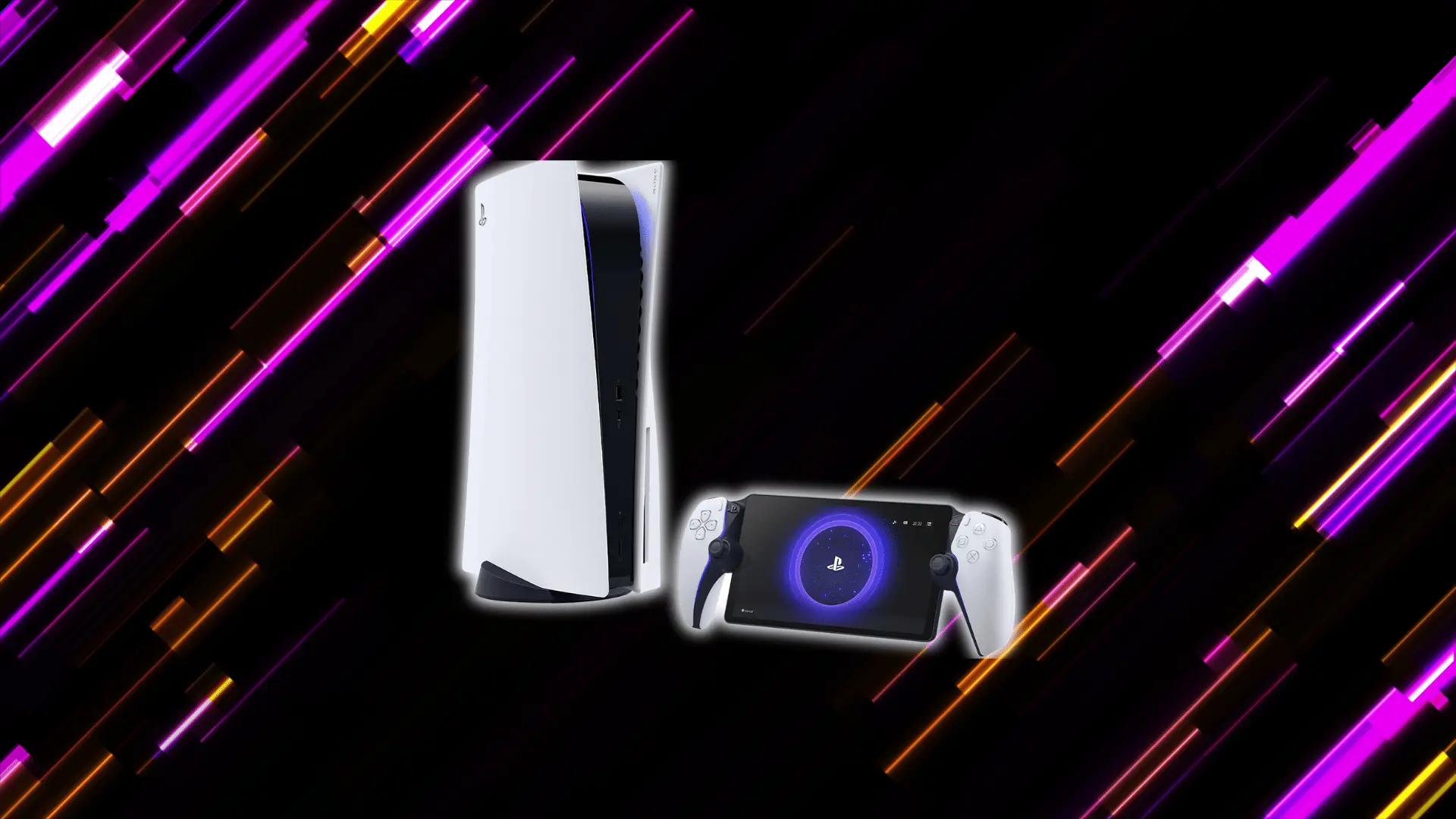

The PlayStation Portal is one of Sony’s most talked-about accessories, and also one of the most misunderstood devices in the PS5 lineup right now.
Understanding how the PlayStation Portal works starts with one key fact: it’s a remote play device, not a standalone handheld console by any definition.
It extends your PS5 experience beyond the living room, bringing DualSense haptics, 1080p streaming, and full controller functionality to your TV-free setup.
Here you’ll find everything you need on setup, technical requirements, key features, and best practices, so you can get the most out of every session.
Understanding How the PlayStation Portal Works
The PlayStation Portal is a remote play device. It streams PS5 games over Wi-Fi, but it doesn’t run anything on its own.
Think of it like a long cable between you and your PS5. The console does all the heavy lifting. The Portal just shows you what’s happening and sends your inputs back.
Here’s how the process actually works:
- Your PS5 stays home and runs the game as normal
- The Portal connects to it over Wi-Fi and mirrors the display
- Your button presses are sent back to the PS5 in real time
- The result shows up on the Portal’s 8-inch screen
This setup lets you play PS5 games from another room, or anywhere with a solid connection, without needing a TV.
That said, a few conditions need to be met for this to work smoothly.
- Your PS5 must be turned on or in Rest Mode with remote play enabled
- Your Wi-Fi needs to be stable; a weak signal means lag, blurry visuals, or dropped connections
- Both the Portal and PS5 should ideally be on the same network for the best experience
One thing worth clearing up: The Portal is not a handheld console. It has no internal storage, no processor, and can’t run a single game on its own. If your PS5 is off or your internet connection goes down, the Portal just shows a screen.
Unlike the Nintendo Switch or Steam Deck, the PlayStation Portal cannot run games natively. It works more like a wireless PS5 streaming screen with controls.
How to Set up the PlayStation Portal?
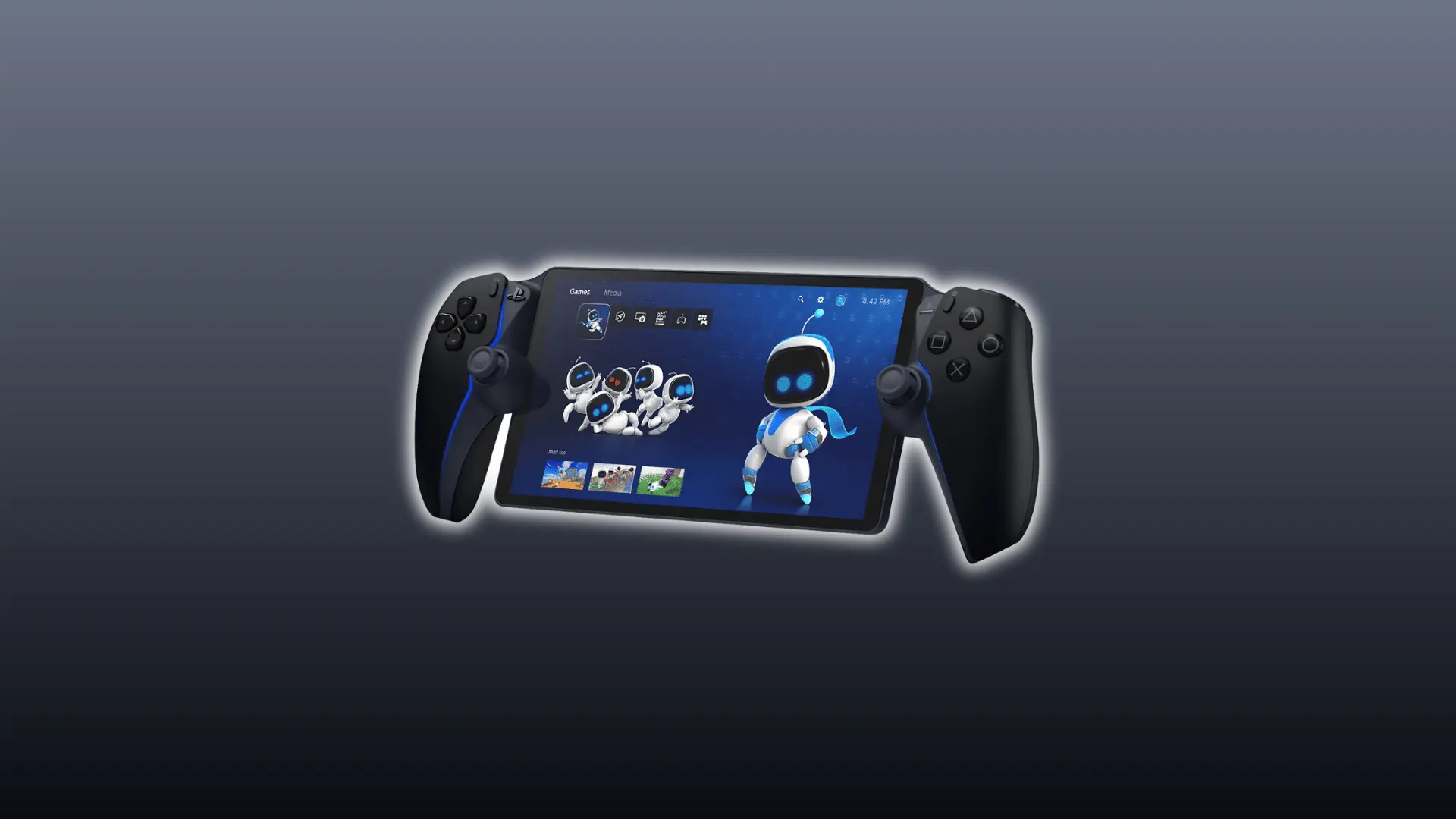
Setting up the Portal is straightforward, but skipping steps early on is the fastest way to run into connection problems. Follow this in order, and you’ll be up and running quickly.
- Charge the Portal first: Plug it in before setup, so a low battery doesn’t interrupt the process midway.
- Update your PS5: Make sure your console is running the latest system software; older versions can cause pairing issues.
- Enable Remote Play on PS5: Go to Settings > System > Remote Play and switch it on before doing anything else.
- Configure Power Saving settings: Under Settings > System > Power Saving, enable “Stay Connected to the Internet” and “Enable Turning On PS5 from Network.”
- Put the PS5 in Rest Mode: The Portal connects to the console in Rest Mode; leaving it fully on or off will break the connection.
- Power on the Portal: Press the power button, then follow the on-screen prompts to connect to your Wi-Fi network.
- Sign in to your PSN account: Use the same account linked to your PS5; mismatched accounts are a common setup blocker.
- Let the Portal locate your PS5: It will automatically search for and pair with your console once everything is configured correctly.
Once paired, the Portal remembers your PS5; future sessions start with just a power button press. Get the settings right once, and you won’t need to touch them again.
How Does the PlayStation Portal Work? Key Technical Requirements
The PlayStation Portal doesn’t need much to get started, but what it does need, it needs consistently. Getting the setup right from the beginning saves a lot of frustration later.
Here’s what you’ll need before you can use the Portal:
- A PlayStation 5 console with Remote Play enabled in the settings
- A PlayStation Network account linked to both devices
- A Wi-Fi connection on both ends, the Portal and the PS5
- The PlayStation Portal is fully charged or plugged in
Internet speed matters more than most people expect.
Sony recommends a minimum of 5 Mbps for a connection, but that’s the floor, not the goal. At 5Mbps, you may notice lag or dropped frames during fast-paced games.
For a smooth, consistent experience, aim for 15Mbps or higher.
If you’re playing shooters or fast-paced action games, a wired Ethernet connection on the PS5 side reduces input lag and stabilizes the stream; wireless PS5 connections introduce just enough variability to show up as micro-stutters during quick movements.
Your PS5 also needs to be set up correctly on its end:
- Go to Settings > System > Remote Play and toggle it on
- Under Settings > System > Power Saving, enable Stay Connected to the Internet
- Also, enable Turning On PS5 from the Network so the Portal can wake it remotely
Here’s a common mix-up to avoid: You don’t need your PS5 fully powered on. Rest Mode works, and is actually the recommended state. But if Remote Play isn’t enabled in the settings beforehand, the Portal won’t connect regardless of your internet speed.
A weak Wi-Fi signal is the most common reason the Portal underperforms. If you’re experiencing issues, moving closer to your router or switching to a 5GHz band often resolves it instantly.
Features and Limitations of the PlayStation Portal
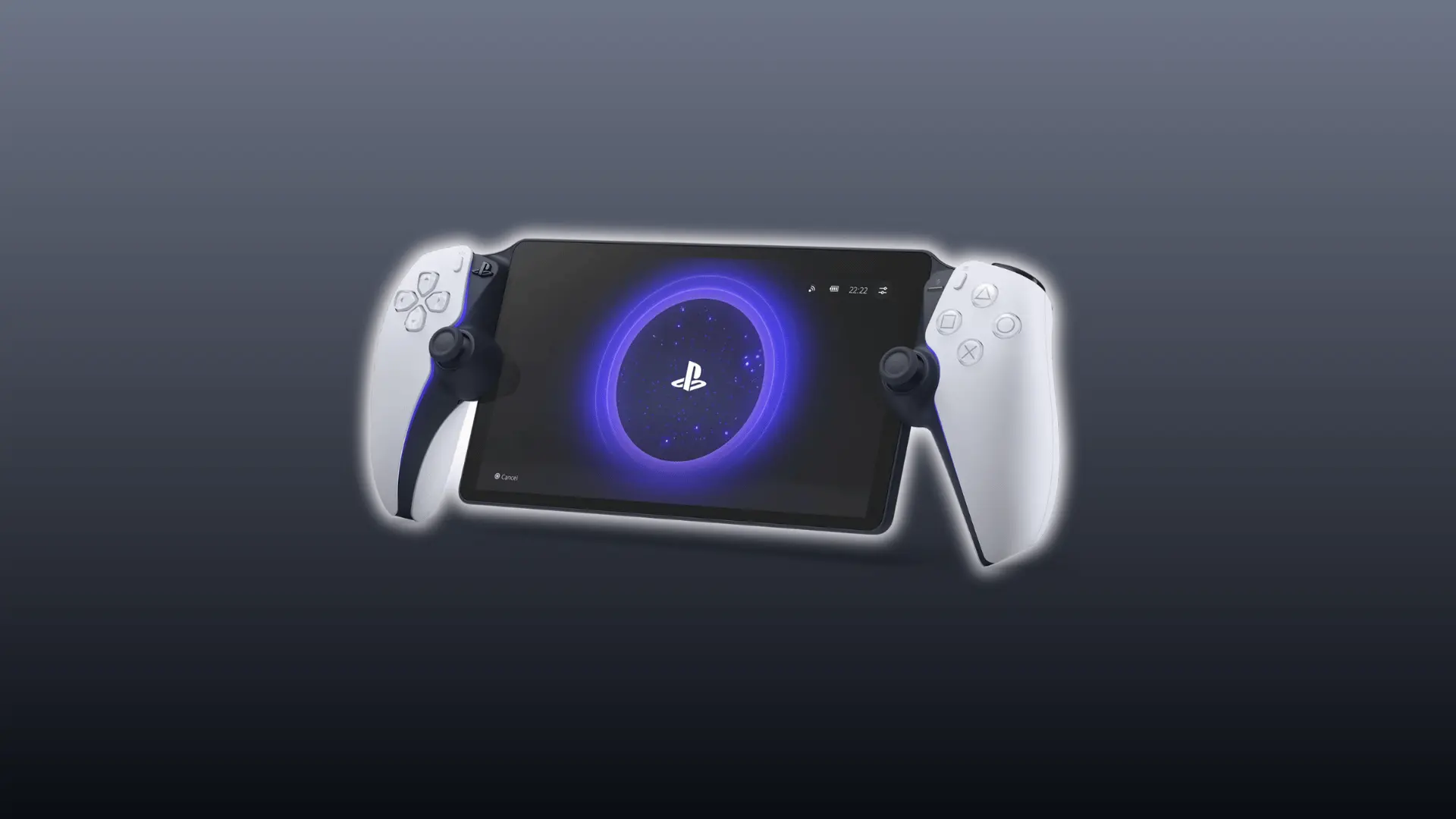
The PlayStation Portal gets a lot right for what it’s designed to do. But it’s built around a very specific use case, and knowing where it excels and where it falls short helps you decide if it’s the right fit.
Here’s what the Portal actually brings to the table:
- An 8-inch LCD screen with 1080p resolution at 60fps
- Full DualSense integration, including haptic feedback and adaptive triggers
- A built-in 3.5mm headphone jack and PS Link support for wireless audio
- Touchpad, speaker, and microphone, mirroring the DualSense controller layout almost exactly
The DualSense features are a bigger deal than they sound.
Haptic feedback and adaptive triggers aren’t just cosmetic. They’re baked into how many PS5 games communicate tension, resistance, and impact. The Portal preserves that, something most remote play setups strip out entirely.
The PlayStation Portal lacks Bluetooth, cloud gaming, mobile data support, and standalone games, since it only streams titles directly from your connected PS5 console.
One thing that catches many users off guard: The Portal won’t work on most hotel or public Wi-Fi out of the box. Login pages and firewalls typically block Remote Play. A personal hotspot is the easiest workaround.
If your home Wi-Fi is inconsistent, the experience will reflect that. Lag, resolution drops, and sudden disconnects are all symptoms of an unstable connection, not a broken device.
Who is the PlayStation Portal Actually For?
The PlayStation Portal works best in shared TV households where the main screen is often occupied. You can continue gaming elsewhere without moving your PS5 console.
It also suits players with a strong home network. A wired PS5 and stable 5GHz Wi-Fi connection help gameplay feel smooth and consistently responsive.
The Portal also maintains the full DualSense experience. Unlike phones or tablets, it supports haptic feedback and adaptive triggers during Remote Play sessions.
It’s a harder sell if you travel frequently, rely on hotel or public Wi-Fi, or want a device that works independently. In those cases, the Portal’s reliance on Wi-Fi becomes a real limitation rather than a minor footnote.
How Does the PlayStation Portal Work? Best Practices for Optimal Use
Getting the most out of the Portal comes down to a few simple habits. Nail these, and you’ll rarely run into performance issues during your sessions.
Set up your PS5 correctly
Your PS5 settings are essential for smooth PlayStation Portal performance. Before starting, make sure Remote Play is enabled inside your console settings menu.
You should also keep your PS5 in Rest Mode instead of turning it off completely. Remote connections cannot work with a fully powered-down console.
In Power Saving settings, enable “Stay Connected to the Internet,” so your PS5 maintains network access while properly remaining in Rest Mode.
Also, enable “Turn On PS5 from Network,” so the PlayStation Portal can wake your console remotely before starting gameplay streaming sessions.
Optimize your Wi-Fi
Your Wi-Fi setup directly affects PlayStation Portal performance. Using a 5GHz connection provides faster and more stable streaming than 2.4GHz in most situations.
For better stability, connect your PS5 via an Ethernet cable rather than relying solely on Wi-Fi during Remote Play sessions.
The Portal also performs best when you stay close to your router. Distance and network congestion can quickly reduce connection quality and responsiveness.
A stable internet connection is the biggest factor in keeping PlayStation Portal gameplay smooth, responsive, and free from constant lag or disconnects.
During your session
A few small habits can make PlayStation Portal sessions feel much smoother. Keeping the device charged during long sessions helps avoid interruptions in the middle of gameplay.
It also helps to limit background network activity while playing. Downloads, streaming, and other connected devices can affect Remote Play performance.
If you notice sudden lag or stuttering, restarting the connection often fixes the issue within seconds without needing a full restart.
Using PS Link-compatible headphones also gives you wireless audio support without relying on the 3.5mm headphone cable during gameplay.
Wrapping Up
The PlayStation Portal comes down to three things working together: your PS5, your Wi-Fi, and the right settings.
The PS5 handles all processing, the Portal manages the display, and your Wi-Fi ties everything together. Those three elements are all that stand between you and smooth gameplay.
Most issues users face come down to settings and signal strength, both straightforward fixes that take minutes to sort out once you know what to look for.
Start with the setup, lock in your network, and the Portal will handle the rest.
Frequently Asked Questions
Can I use the PlayStation Portal to play PS4 games?
Only if the PS4 game is available on PS5. The Portal streams whatever your PS5 is running, so any PS4 title playable on PS5 will work just fine.
Does the PlayStation Portal work internationally if I travel abroad?
Yes, as long as you have a stable Wi-Fi connection. Your PS5 stays home and streams to the Portal remotely, location doesn’t matter, but signal quality always does.
Can two people use two Portals on the same PS5 simultaneously?
No. The Portal only supports one Remote Play connection at a time. A second user would need their own PS5 and Portal setup to play simultaneously.
Does using the PlayStation Portal affect the PS5’s performance?
No. The PS5 runs the game as it normally would, then streams the output to the Portal. There’s no processing penalty or performance drop on the console side.