

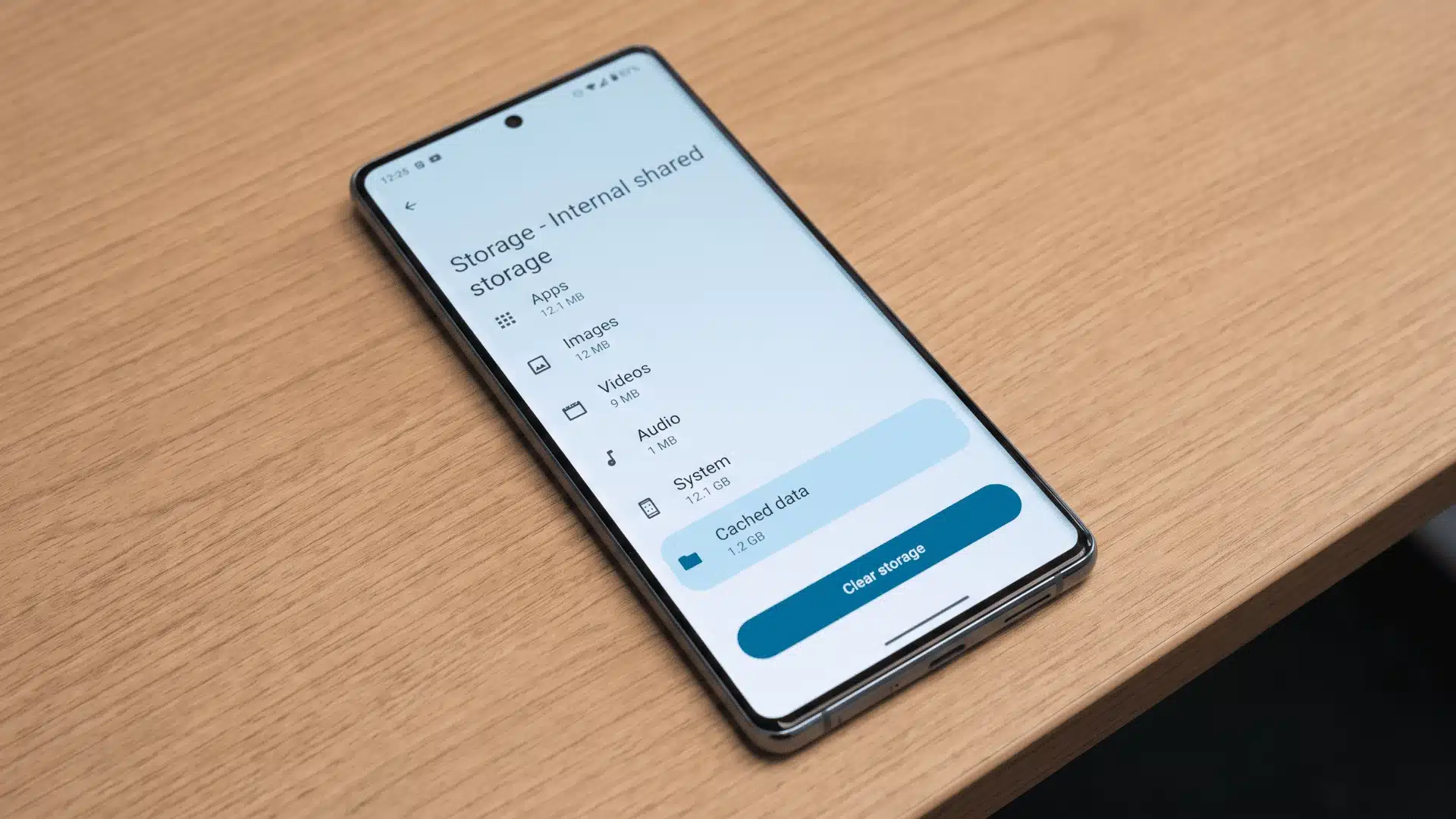






Your Android phone can slow down over time, apps may take longer to open, and storage space can disappear without an obvious reason. In many cases, temporary cache files are part of the problem.
I’ve run into situations where an app starts behaving strangely or a website refuses to load correctly, and clearing the cache often fixes the issue without requiring a full reset.
The important part is knowing what you are deleting. Clearing cache removes temporary files, while clearing app data resets the app and removes saved settings.
Below, you’ll learn how to clear cache on Android safely, when you should do it, and what to avoid before tapping the wrong option.
Cache vs. Data: What’s the Difference?
Cache and data store different types of information on your Android phone. Understanding the difference helps you avoid accidentally resetting apps.
Cache contains temporary files that help apps load faster. These files can include images, website elements, and other short-term information.
When you clear cache, the app rebuilds these files the next time you use it. Your account, saved settings, and personal information remain unchanged.
App data stores information that the app needs to remember, including login details, preferences, downloaded content, and saved progress.
Clearing app data resets the app back to its original state. You may need to sign in again or set up your preferences from scratch.
I’ve seen users choose “Clear data” when they only wanted to free up storage. The result is usually more inconvenience than improvement, especially with banking, messaging, and productivity apps.
Before clearing anything, check which option you are selecting. Cache is temporary; app data is a deeper reset.
How to Clear Cache on Android Step by Step
Cache builds up differently depending on whether the problem is in your browser or in a specific app, so the steps below are split accordingly. The exact menu names may vary slightly depending on your phone brand, but the process stays close to this on most Android devices.
Step 1: Open Chrome And Go To Browsing Data
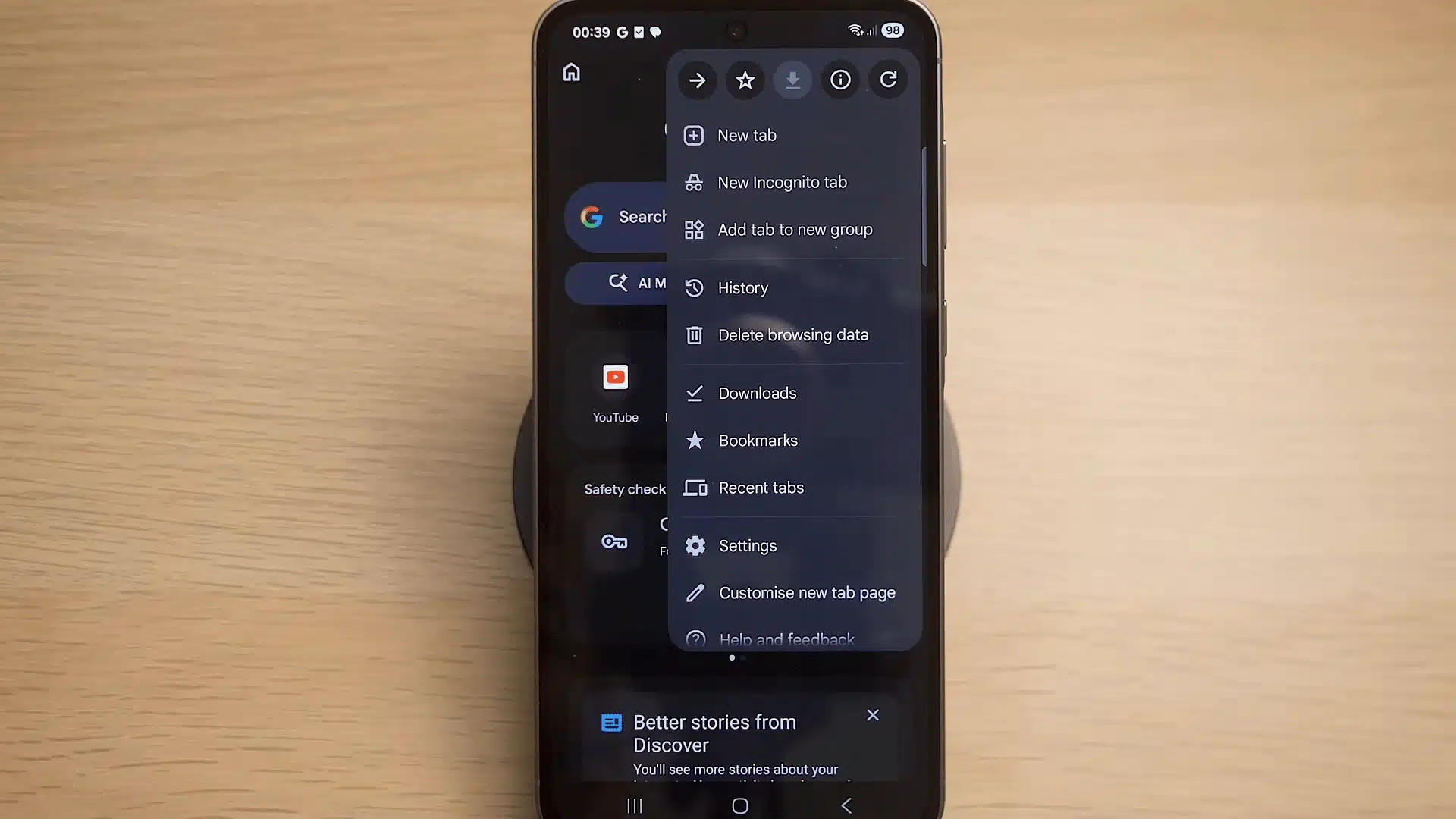
Start by opening the Chrome app on your Android phone. Tap the three dots in the top-right corner, then select History. From there, tap Delete browsing data.
This is where Chrome lets you remove stored website files, cookies, and cached images that may slow things down over time.
Step 2: Select The Cache And Cookie Options
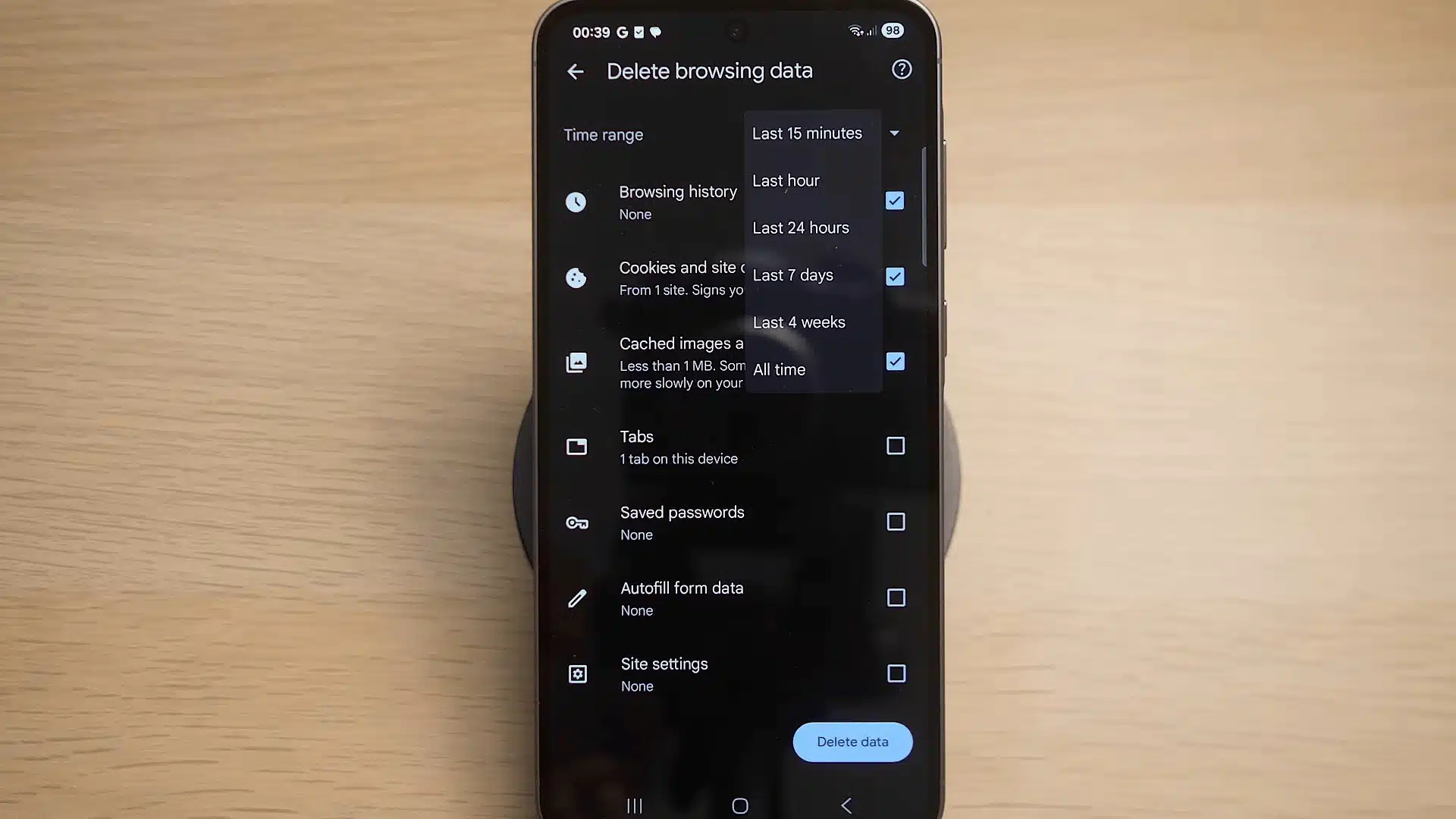
Choose how much browsing data you want to remove by selecting a time range. If you only want a quick cleanup, choose a shorter period. For a complete reset, select All time.
Make sure cookies, site data, cached images, and files are checked before moving ahead so Chrome removes the right files.
Step 3: Remove Chrome Cache And Stored Data
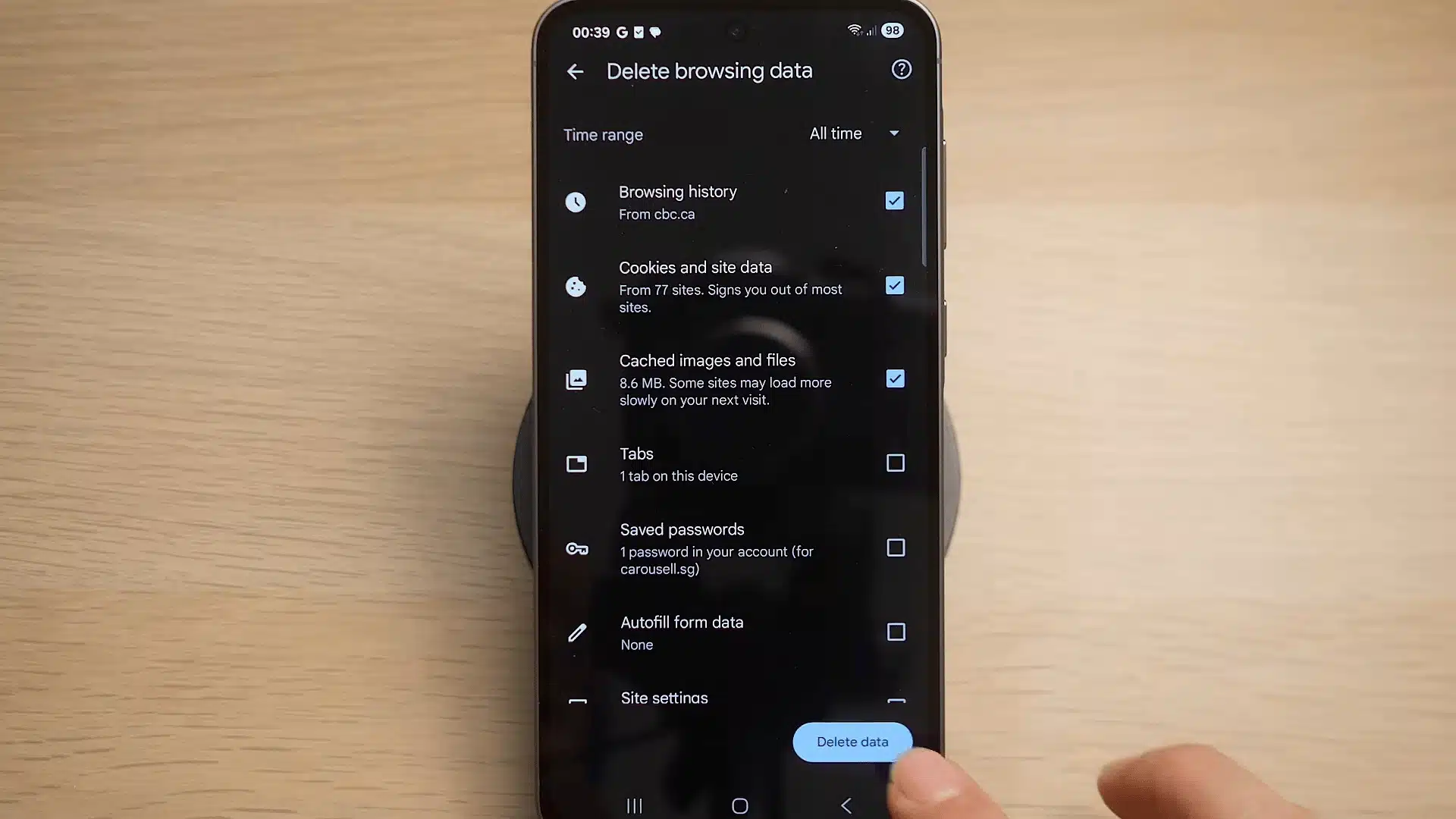
Tap Delete data at the bottom of the screen to clear the selected files. After this, Chrome will remove old cached images and website data stored on your phone.
I find this step useful when websites stop loading properly, or pages keep showing outdated information instead of the latest version.
Step 4: Open Settings And Find The App
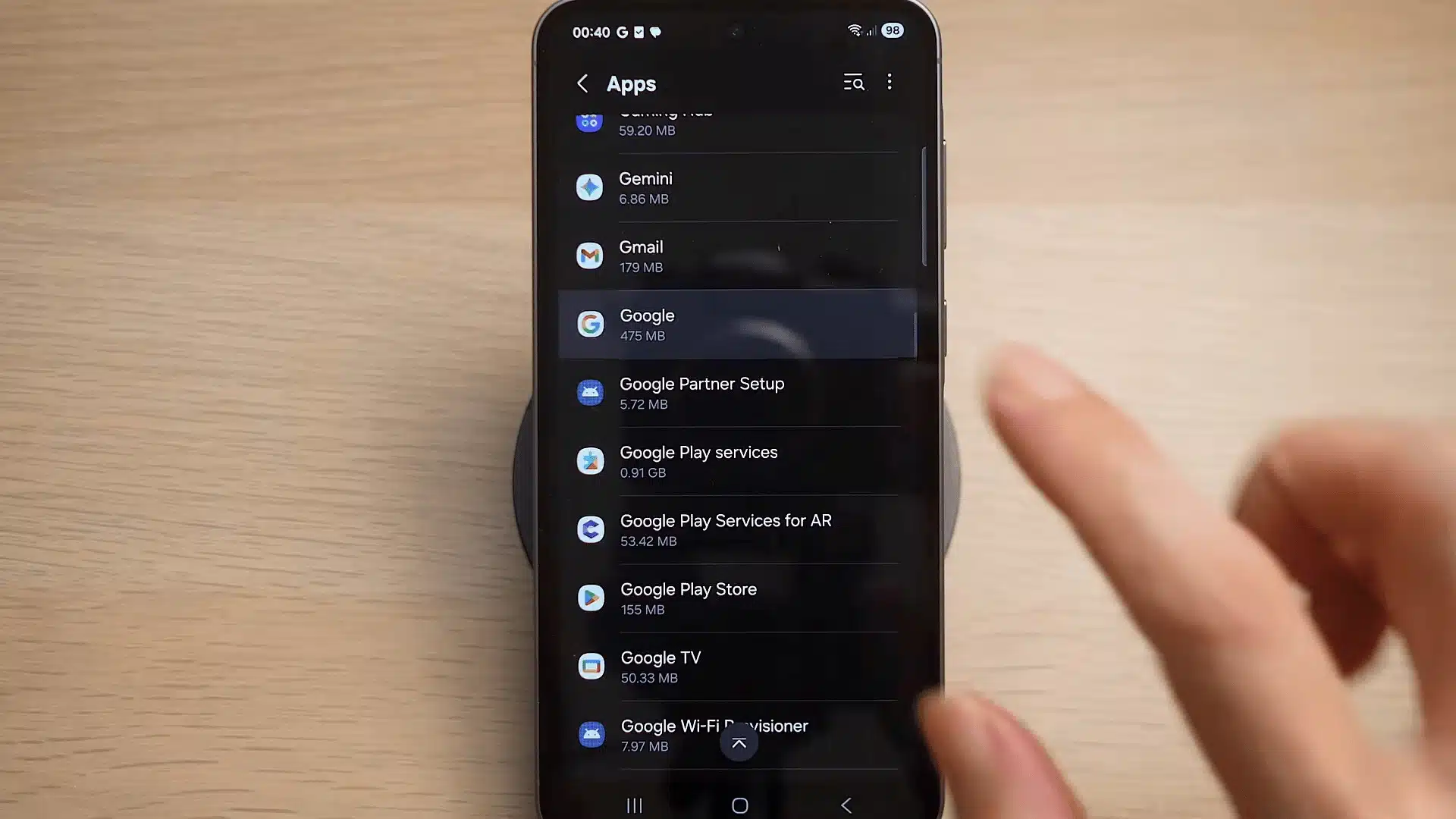
If a specific app is causing problems, go to your phone’s Settings and open Apps. Scroll through the list and select the app you want to clean.
Apps you use often, like Chrome, Instagram, or Facebook, can build up hundreds of megabytes of temporary files within just a few weeks, so checking them regularly can free up noticeable storage and improve performance.
Step 5: Clear The App Cache
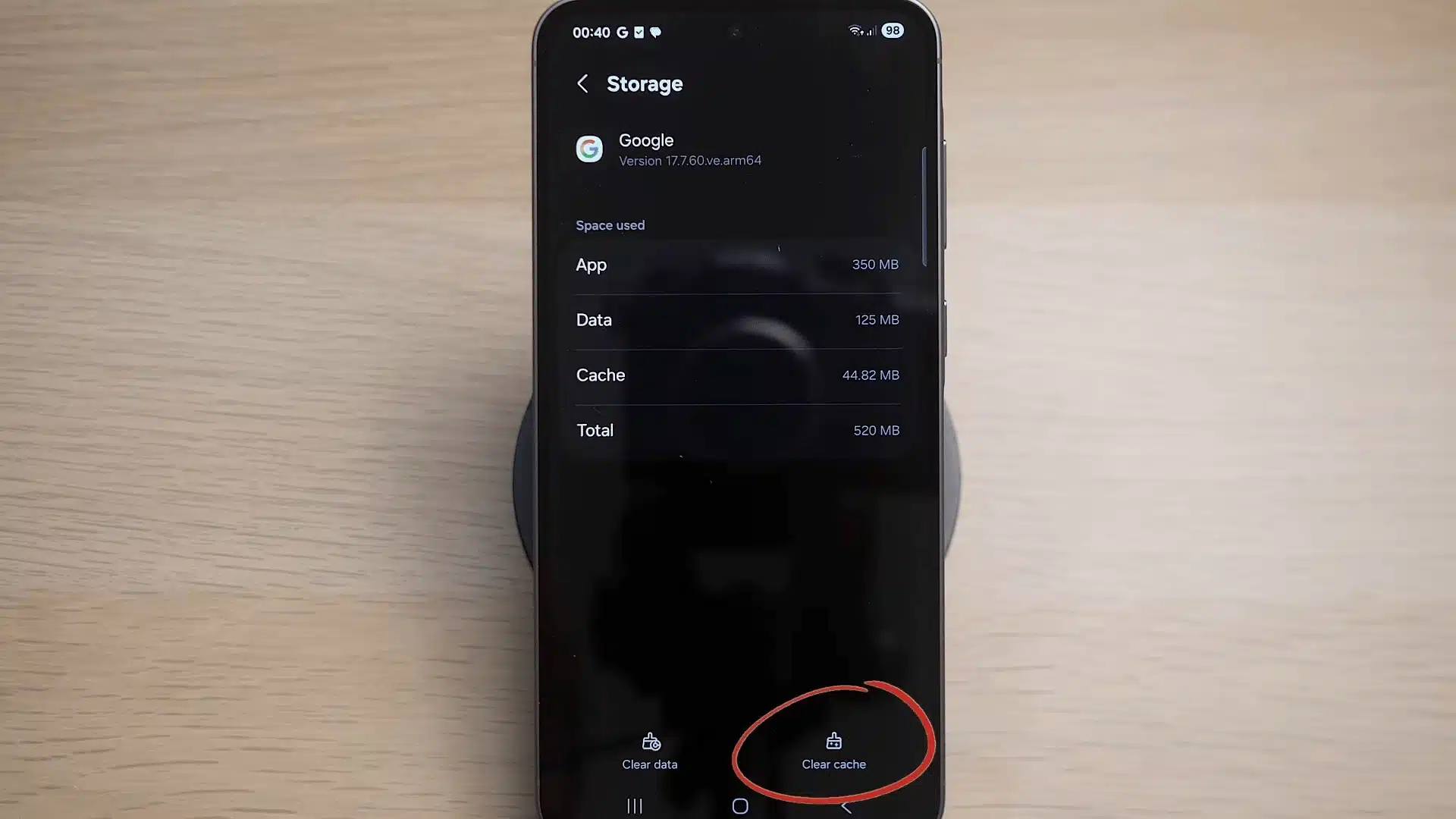
Open the app’s Storage section and tap Clear Cache to remove temporary files. This usually fixes small issues without affecting your account or saved settings.
If an app still does not work properly, you can try Clear data, but keep in mind this may reset the app and remove saved preferences.
For a complete walkthrough of the process, check out the video tutorial below:
When Should You Clear Cache On Android?
You don’t need to clear Cache every day. Android already manages temporary files in the background, so clearing Cache is mainly useful when you notice specific problems with apps or browsing.
I usually check the Cache first when an app starts acting strangely because it’s a quick fix that doesn’t remove important information.
Clear cache when:
- Apps freeze or crash: After an update, an app sometimes tries to load an old cached file that no longer matches the new version, causing it to freeze on launch or crash mid-use.
- Apps feel slower: Removing outdated cache files can help an app start fresh.
- Websites load incorrectly: Clearing browser cache can remove outdated page files.
- Storage space is low: Large cached files may take up unnecessary space.
I avoid clearing cache just as a routine habit because those files help apps load faster. Removing them without a reason means the phone has to rebuild them again.
Does Clearing Cache Make Android Faster?
Clearing cache can make Android feel faster in some situations, but it is not a guaranteed performance boost. Cache helps apps load quickly by storing temporary files.
The biggest improvement happens when cached files become outdated or corrupted. This is common with apps like Chrome or Instagram, where a broken image file or an old script gets stuck in the cache and forces the app to reload it incorrectly every time.
Clearing it out removes the broken file so the app can rebuild a clean version, which is why freezing, crashing, or incorrect loading often clears up right after.
I usually recommend clearing cache when a specific app starts behaving strangely. It works well for fixing browser issues, app errors, and loading problems without affecting important data.
Android already manages cache automatically, so clearing it will not transform an old phone. It is best used as a troubleshooting step rather than regular maintenance.
Conclusion
Clearing cache on Android is a simple way to troubleshoot common app issues without removing your important information. It helps when temporary files become outdated or cause apps to behave unexpectedly.
The key is knowing the difference between clearing cache and clearing data. Cache removal is usually safe, while clearing data resets the app and removes saved preferences.
Use cache clearing when you notice problems with specific apps, browsers, or storage usage. With the right approach, you can keep your Android experience smoother without making unnecessary changes.
Frequently Asked Questions
Does clearing the Cache delete anything important on Android?
No. Cache files are temporary, and they rebuild automatically once you use the app again. Clearing Cache never touches your logins, saved progress, or personal files. That only happens when you tap “Clear data” or “Clear storage” instead, which is a separate and more permanent action.
How do you clear Cache on a Samsung phone specifically?
Open Settings, tap Battery and device care, then tap Optimise now. Once it finishes, tap Done, then tap Storage. From there, tap Clear cache to let Samsung’s built-in tool clear cache across several apps at once. This differs from stock Android, where you’d need to clear each app’s Cache individually through Settings and Apps.
Does Android have a built-in Cache cleaner for all apps?
Not on stock Android. There’s no single button that clears every app’s Cache at the same time. Some manufacturers, like Samsung, build in a device-care tool that handles this more broadly. Otherwise, you’re clearing app by app, or turning to a trusted third-party cleaner.
Where is the Cache actually stored on an Android device?
Cache files sit inside each app’s private storage folder, invisible if you browse your files normally. You can only see or manage them through Settings, under each app’s Storage & Cache screen. That screen also shows the current Cache size before you clear it.