

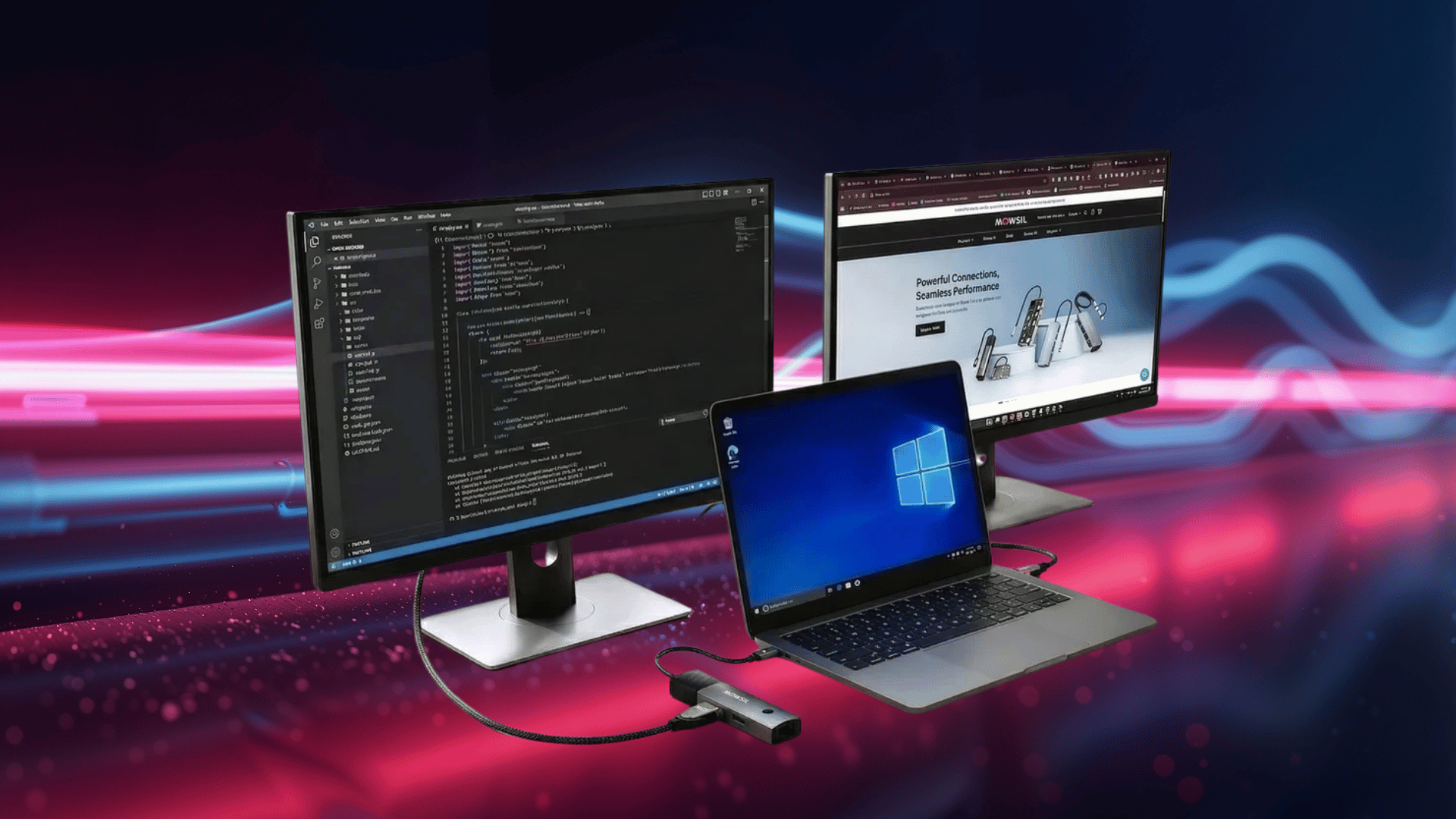
Working on a single laptop screen can feel limiting, especially when you’re juggling multiple tasks. That’s why more people are looking into a dual monitor setup with laptop to get extra space and stay organized.
Still, figuring out how to connect 2 monitors to a laptop can be confusing at first. Ports, cables, and settings don’t always make it obvious.
If you’ve been trying to understand setting up two monitors without wasting time, you’re in the right place. In this blog, I’ll walk you through the exact steps, what you need, and how to get everything running smoothly.
How Laptops Support Dual Monitor Setups
When you look into how to connect 2 monitors to a laptop, the first thing to understand is how your laptop actually supports multiple displays.
Most modern laptops come with built-in graphics that allow a dual monitor setup with laptop, but the number of screens you can connect depends on the ports and hardware.
Some laptops have multiple video outputs, such as HDMI, USB-C, or DisplayPort, while others may require a docking station or adapter to set up two monitors.
It also depends on your graphics card, since not all laptops can extend displays to two external monitors at the same time.
Dual Monitor vs. Single Monitor Setup
Choosing between one screen and two depends on your workflow. A dual setup adds space, but it also needs a bit more setup.
| Feature | Single Monitor | Dual Monitor |
|---|---|---|
| Screen Space | Limited | More workspace |
| Multitasking | Basic | Easier |
| Setup | Simple | Needs setup |
| Cost | Lower | Higher |
| Use Case | Casual | Work/Productivity |
Things You Need Before Setting Up Two Monitors
Before you start setting up two monitors, make sure your laptop and accessories support it. This helps avoid common setup issues.
- Laptop ports: Check for HDMI, USB-C, DisplayPort, or VGA
- Multiple display support: Confirm your laptop can handle two external monitors
- Cables: Use the right HDMI or DisplayPort cables
- Adapters: USB-C hubs or dongles may be needed
- Docking station: Useful if your laptop has limited ports
- Monitor inputs: Ensure monitors have compatible ports
How to Connect 2 Monitors to a Laptop (Step-by-Step)
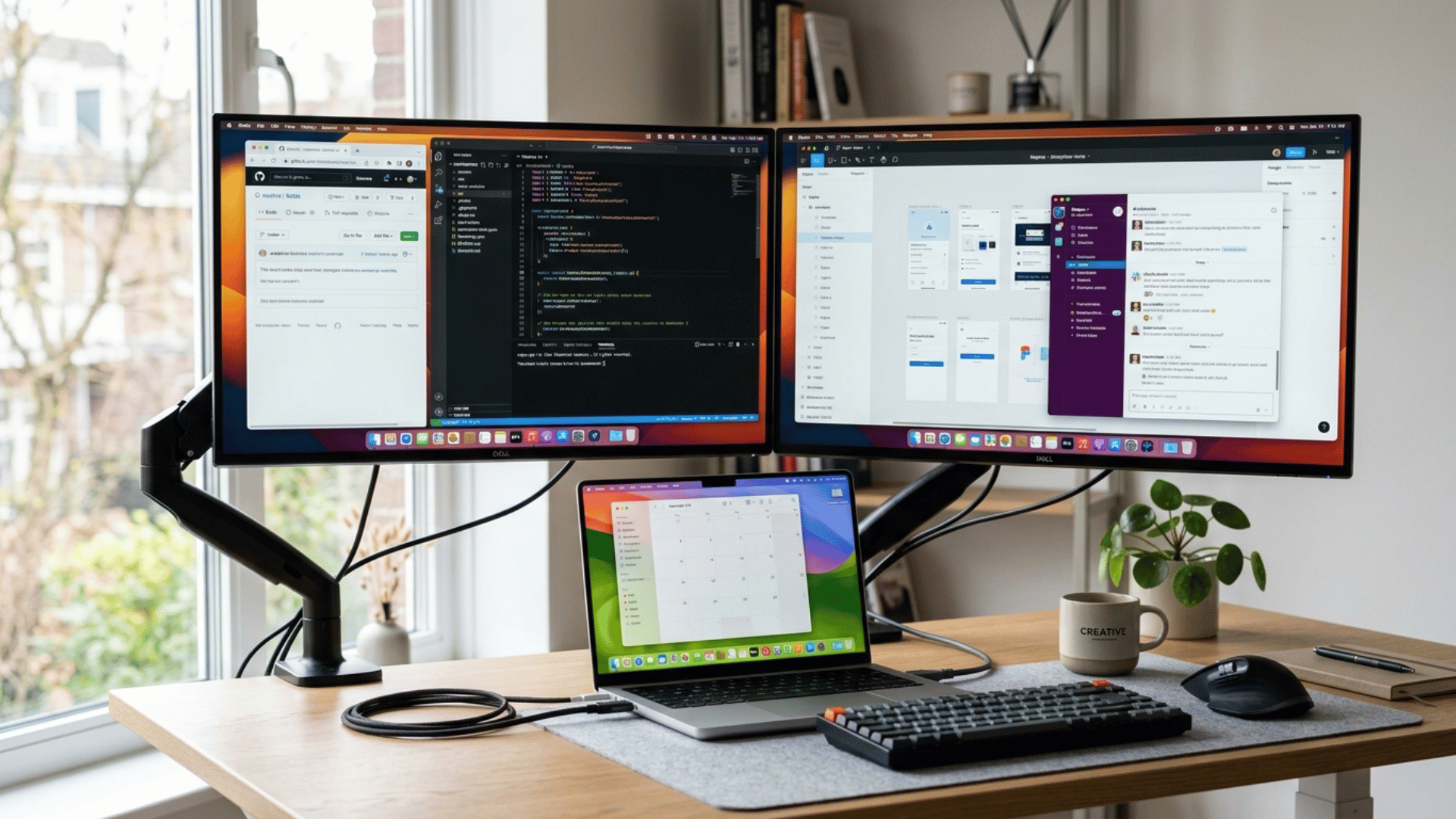
Connecting two monitors might sound complicated, but once you know your laptop’s ports and options, the process becomes much easier. The method you choose depends on your hardware and how you want your screens to work.
Method 1: Laptop with 2 Video Ports
If your laptop has two video output ports, such as HDMI and DisplayPort, or USB-C, this is the simplest setup. You can connect each monitor directly using the appropriate cables.
Once connected, your system should automatically detect both screens, and you can adjust display settings to extend your workspace across them.
Method 2: Using HDMI + USB-C
Many modern laptops come with one HDMI port and one USB-C port that supports video output.
In this case, you can connect one monitor via HDMI and the second via a USB-C-to-HDMI or DisplayPort adapter.
This method works well for a dual monitor setup with a laptop, as long as your USB-C port supports display output.
Method 3: Using a Docking Station
If your laptop has limited ports, a docking station is one of the most reliable options.
You connect the dock to your laptop, usually through USB-C, and then plug both monitors into the dock.
This makes setting up two monitors easier and also gives you extra ports for other devices.
Method 4: Using a Splitter
An HDMI splitter can connect two monitors, but it usually mirrors the same screen on both displays rather than extending it. This means you won’t get a true dual monitor workspace.
For extending screens, it’s better to use separate video outputs or a docking station rather than a splitter.
Dual Monitor Setup Settings on Windows vs. macOS
Once you connect your monitors, the next step is configuring them properly. Both Windows and macOS offer built-in settings, but the options and layout differ slightly.
| Setting | Windows | macOS |
|---|---|---|
| Access Settings | Right-click – Display settings | System Settings -Displays |
| Display Mode | Extend, Duplicate | Extend, Mirror |
| Rearrange Screens | Drag to align | Drag to align |
| Main Display | Select primary monitor | Move menu bar |
| Resolution | Adjustable per screen | Scaled options |
| Orientation | Landscape/Portrait | Rotate view |
| Detect Displays | Manual option | Auto/Detect button |
Common Dual Monitor Issues
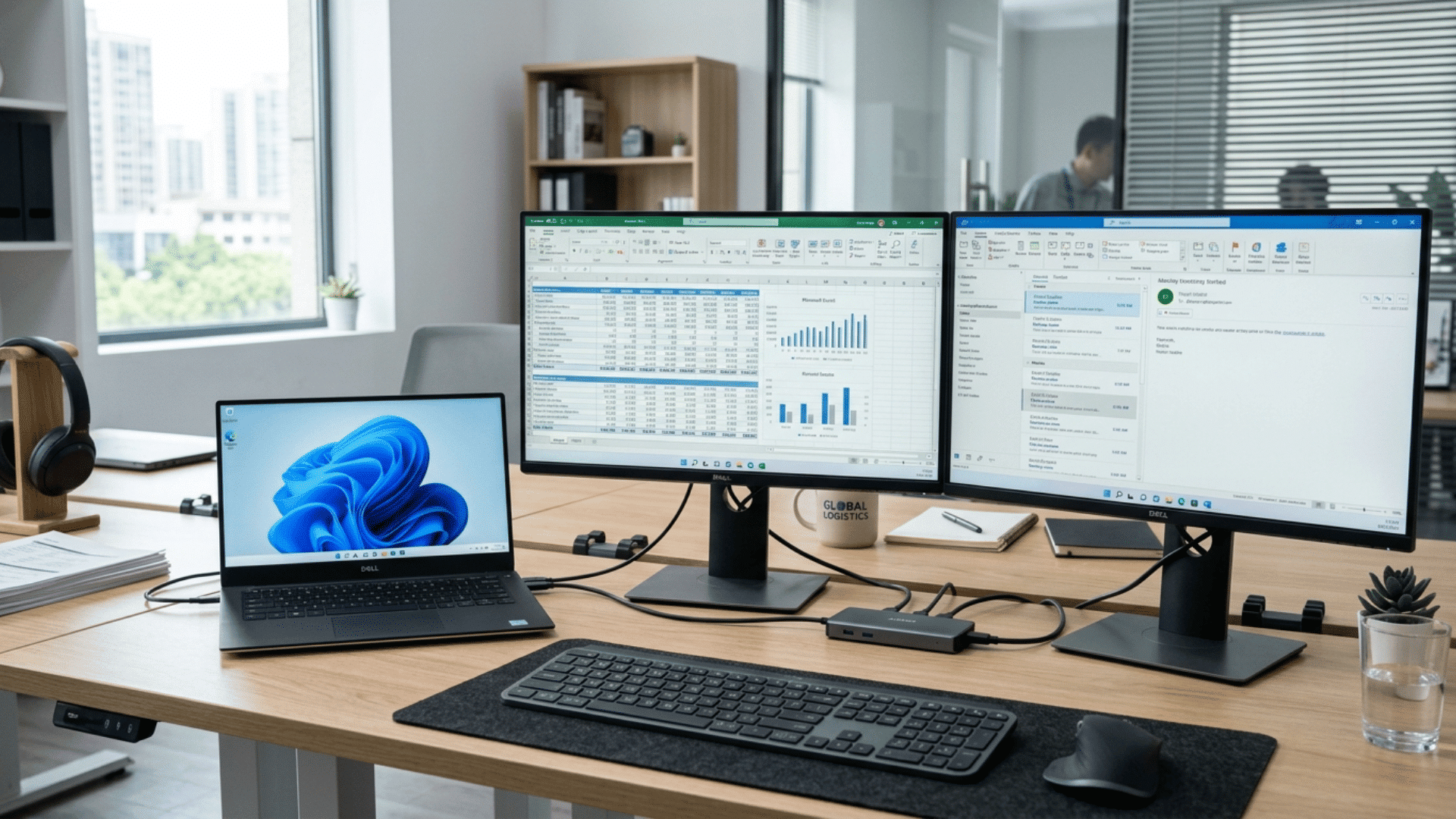
Even after you finish setting up two monitors, things don’t always work perfectly. Small issues can come up, but most of them are easy to fix once you know what to check.
- Monitor not detected: Check cable connections, restart your laptop, or use the “Detect Displays” option in settings
- Resolution issues: Adjust resolution settings to match your monitor’s supported display for better clarity
- Flickering screen: Update graphics drivers or try a different cable to fix unstable display
- Cable or adapter problems: Make sure you’re using compatible and working cables or adapters
- Display not extending: Ensure the display mode is set to “Extend” instead of “Duplicate.”
- Port limitations: Confirm your laptop supports multiple external displays, as some don’t by default
Final Verdict
Setting up a second screen doesn’t have to be complicated once you understand your laptop’s limits and the right method to use.
If you’ve been trying to figure out how to connect 2 monitors to a laptop, the key is choosing the setup that matches your ports and hardware.
A dual monitor setup with a laptop can make multitasking much easier, but only when everything is configured properly.
From picking the right cables to setting up two monitors in your system settings, each step matters. Take a few minutes to set it up correctly, and you’ll notice the difference in how smoothly you can work.
Frequently Asked Questions
How Do I Connect Two Monitors to My Laptop and Use Both Screens?
You can connect two monitors using HDMI, USB-C, DisplayPort, or a docking station, depending on your laptop’s ports. Once connected, go to display settings and select “Extend display” so both screens work as separate workspaces.
Can You Connect Two Monitors to a Laptop with One HDMI?
No, a single HDMI port can only support one display. To connect a second monitor, you’ll need another output port, such as USB-C or DisplayPort, or a docking station.
Do I Need a Docking Station for Dual Monitors?
You only need a docking station if your laptop doesn’t have enough ports or doesn’t support multiple displays directly.
How to Extend Displays on Two Monitors?
Open your system’s display settings and choose the“Extend display” option instead of duplicate mode. Then arrange the monitors to match their physical position, so you can move your cursor and windows smoothly across both screens.
Can You Extend 1 HDMI to 2 Monitors?
No, an HDMI splitter typically duplicates the same screen on both monitors instead of extending it. To get two separate displays, you need multiple video outputs or a docking solution that supports extended displays.