


Ever opened your Messages app and felt buried under hundreds of old chats you’ll never read again? You’re not alone. Between work threads, group chats, and random forwards from relatives, our MacBook inboxes fill up fast.
Cleaning up is easier than you’d think. If you want to delete a single message, wipe out an entire conversation, or clear multiple chats at once, your MacBook gives you simple built‑in tools to do it.
In this guide, you’ll find everything you need to know about how to delete messages on a MacBook, step by step, with tips for staying organized so your inbox stays fresh longer.
Does Deleting Messages on MacBook Free Up Storage?
Deleting messages on a MacBook can free up storage, but the amount depends on what you are removing. Simple text messages take very little space, so deleting them may not significantly affect storage.
However, media files like photos, videos, and voice notes in iMessage can add up quickly, and how much storage you actually need becomes clearer once you see how fast attachments pile up.
Removing these can help more than you expect. If iCloud sync is turned on, deletions also reflect across all Apple devices. So yes, it does help. But the real storage gain comes when you clear large attachments, not just chat text.
Important Steps Before You Hit Delete
Before you start learning how to delete messages on MacBook, it’s worth taking a couple of precautions so you don’t lose anything important or run into sync issues across your devices. Here are some of them:
- Save any important conversations first: Note any chats that contain photos, contracts, addresses, or information you might need later, since deleted messages can’t be recovered from the Messages app
- Back up anything critical before clearing: Take a screenshot, export a PDF, or copy the text of anything important, especially for business chats, receipts, bookings, or legal matters
- Check whether iMessage is active on multiple devices: Deleting a conversation on your MacBook may also remove it from being synced across your other Apple devices
- Review your sync settings under your Apple ID: Do this before clearing out chats so you know exactly which devices will be affected
- Confirm which devices are linked to your iMessage account: This helps you avoid accidentally deleting conversations you still need on another device
How to Delete Messages on Macbook?

Learning how to delete messages on MacBook is quick once you know where to look, since macOS offers a few different methods depending on whether you want to remove a single text, a handful of messages, or an entire conversation.
If you’re cleaning up clutter, freeing up storage, or just removing something you’d rather not have in your chat history, the process takes only a few clicks. Here’s how to do it step by step:
Step 1: Open the Messages App and Find the Conversation
Before you can delete anything, you’ll need to find the right conversation, and macOS gives you a couple of easy ways to do that. If you have dozens of chats or just a few, finding the correct thread is the first and most important part of the process.
- Click the Messages icon in your Dock, or open it quickly using Spotlight search.
- Use the sidebar on the left to scroll through your existing conversations.
- Type a contact’s name or a keyword into the search bar at the top to jump straight to a specific chat.
- Make sure you’re in the correct conversation before proceeding, especially if you have contacts or group chats with similar names.
Tip: If you can‘t find an older conversation, try searching for a specific word or phrase you remember from the chat instead of scrolling manually, since Messages indexes text content for faster searching.
Step 2: Delete a Single Message
Sometimes you only need to remove a specific message rather than clearing an entire conversation if it was sent by mistake or is no longer relevant. macOS makes this simple with a right-click-style action.
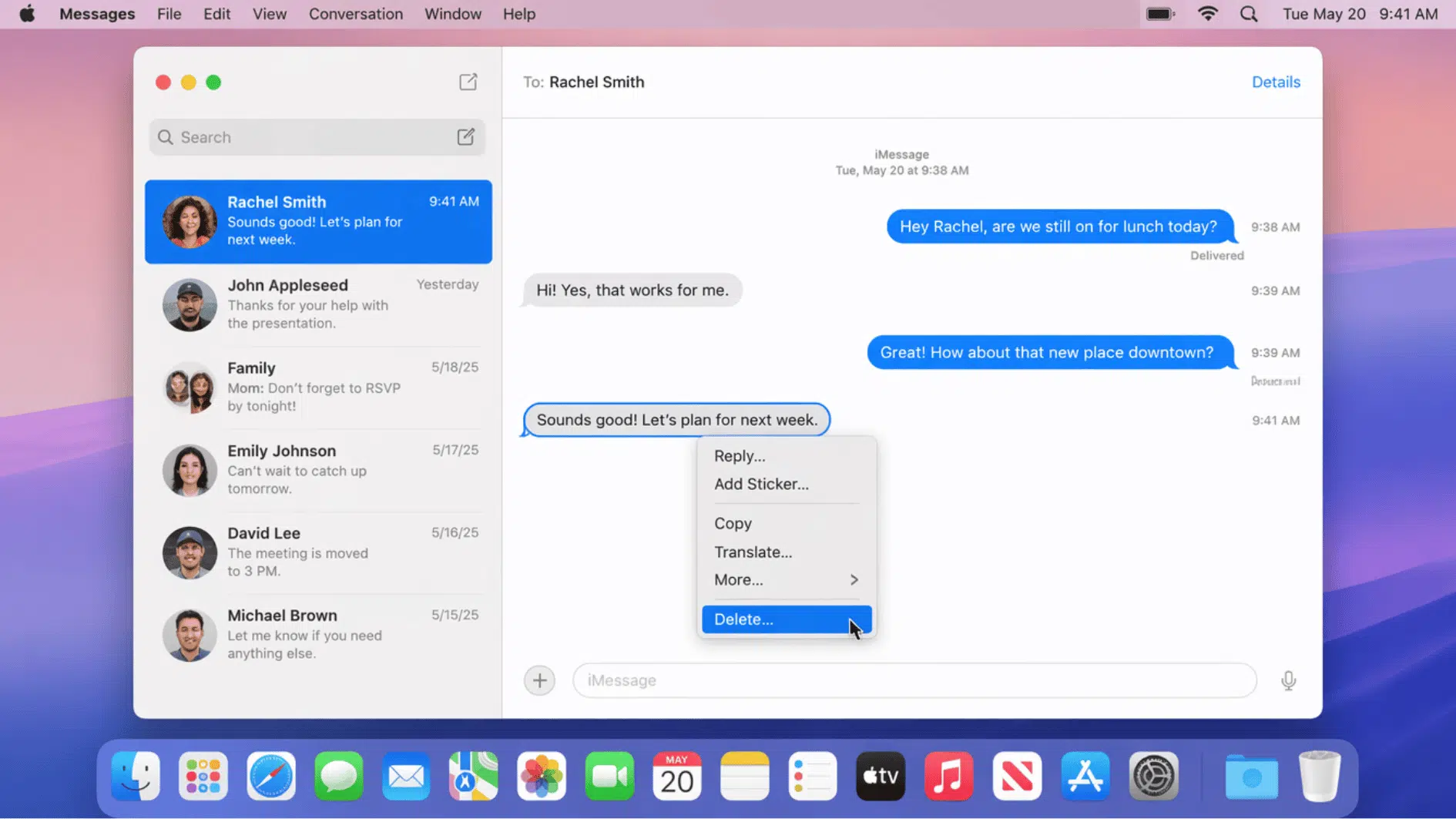
- Hold Control and click directly on the message you want to delete.
- Select Delete from the context menu that appears.
- Confirm the deletion if a prompt shows up asking you to verify the action.
- Check the conversation afterward to make sure the correct message was removed.
Tip: If Control-clicking doesn‘t bring up the Delete option, make sure you‘re clicking directly on the message bubble itself rather than the empty space around it.
Step 3: Select and Delete Multiple Messages
If you need to remove several messages within the same conversation, you don’t have to delete them one at a time. macOS lets you select multiple messages and delete them in a single action, saving time in longer chats.
- Hold the Command key and click each individual message you want to select.
- Continue holding Command as you click through the conversation to build your selection.
- Once everything is selected, hold Control and click on one of the highlighted messages.
- Choose Delete from the menu to remove all selected messages at once.
Tip: Take your time while selecting multiple messages, since accidentally including one you meant to keep will delete it permanently along with the rest.
Step 4: Delete an Entire Conversation Thread
If an entire conversation is no longer needed, rather than going through individual messages, you can delete the full thread in just a couple of clicks.
This is useful for old group chats, conversations with contacts you no longer talk to, or threads that have built up over time.
- Hold Control and click on the conversation you want to remove from the sidebar.
- Select Delete Conversation from the menu that appears.
- Confirm the action when prompted, as this will remove all messages in that thread.
- Double-check you’ve selected the correct conversation before confirming, as this step can’t be undone.
Tip: If you‘re unsure whether you‘ll need the conversation again, consider exporting or taking screenshots of key messages before deleting the entire thread.
Step 5: Clear Your Whole Message History
If you want a complete reset, macOS allows you to clear out all your conversations at once instead of deleting them individually. This is best suited for situations where you’re starting fresh or handing off your MacBook to someone else.
- Open Messages from the menu bar at the top of your screen.
- Select Settings, then look for the option to manage or clear conversations.
- Choose to remove all conversations, or go through and delete specific threads if you only want to clear certain chats.
- Restart the Messages app afterward to confirm the changes have been applied.
Tip: Clearing your entire message history is permanent and affects all synced devices, so make sure you‘ve backed up anything important and confirmed your sync settings beforehand.
Common Problems When Deleting Messages on MacBook
Even when you follow the right steps, things don’t always go as expected. If you’re running into problems while figuring out how to delete messages on a MacBook, here are the most common issues and what to do about them.
| Issue | What’s Happening | Quick Fix |
|---|---|---|
| Message won’t delete | App glitch or temporary freeze in Messages | Restart the Messages app or try again after a few seconds |
| Deleted messages reappear | iCloud syncing old data back to the device | Check iCloud sync settings and allow full sync to complete |
| Messages not updating after deletion | App hasn’t refreshed properly | Close and reopen Messages or restart MacBook |
| Sync conflict between devices | Multiple Apple devices out of sync | Sign out and sign back into Apple ID on all devices |
| Poor internet connection | iCloud unable to process changes | Switch to stable Wi-Fi and retry deletion |
| Outdated macOS or app bug | Software not functioning correctly | Update macOS to the latest version |
| Messages stuck in “deleting” state | Background process stuck or frozen | Force quit Messages and relaunch the app |
| iCloud Messages is not enabled properly | Sync feature disabled or misconfigured | Turn on Messages in iCloud settings |
| Storage or system lag issues | Low system performance is affecting the app | Free up storage and restart MacBook |
| Temporary system glitch | Minor OS-level interruption | Restart MacBook to clear background errors |
Key Takeaway
Knowing how to delete messages on a MacBook doesn’t have to feel complicated once you know the right clicks and shortcuts.
From removing a single text to clearing entire conversations, the Messages app gives you simple, built-in tools to keep your chats organized, your storage in check, and your privacy intact.
With a quick backup beforehand and an understanding of how sync works across your Apple devices, you can delete with confidence instead of second-guessing every click.
So if you’re tidying up old threads or starting fresh, you now have everything you need to manage your messages exactly the way you want. Go ahead and give your Messages app the clean slate it deserves.
Frequently Asked Questions
Can You Delete Messages on Mac Without Deleting Them on iPhone?
Yes, if you turn off Messages in iCloud beforehand. Otherwise, deletions sync automatically across all devices linked to your Apple ID.
Can You Delete Messages From Someone Else’s MacBook Remotely?
No, you can only delete messages from devices you personally control. There’s no remote deletion option for someone else’s device.
Is There a Way to Delete Old Messages Automatically?
Yes, in Messages settings, you can set message history to auto-delete after 30 days, 1 year, or keep it forever.