

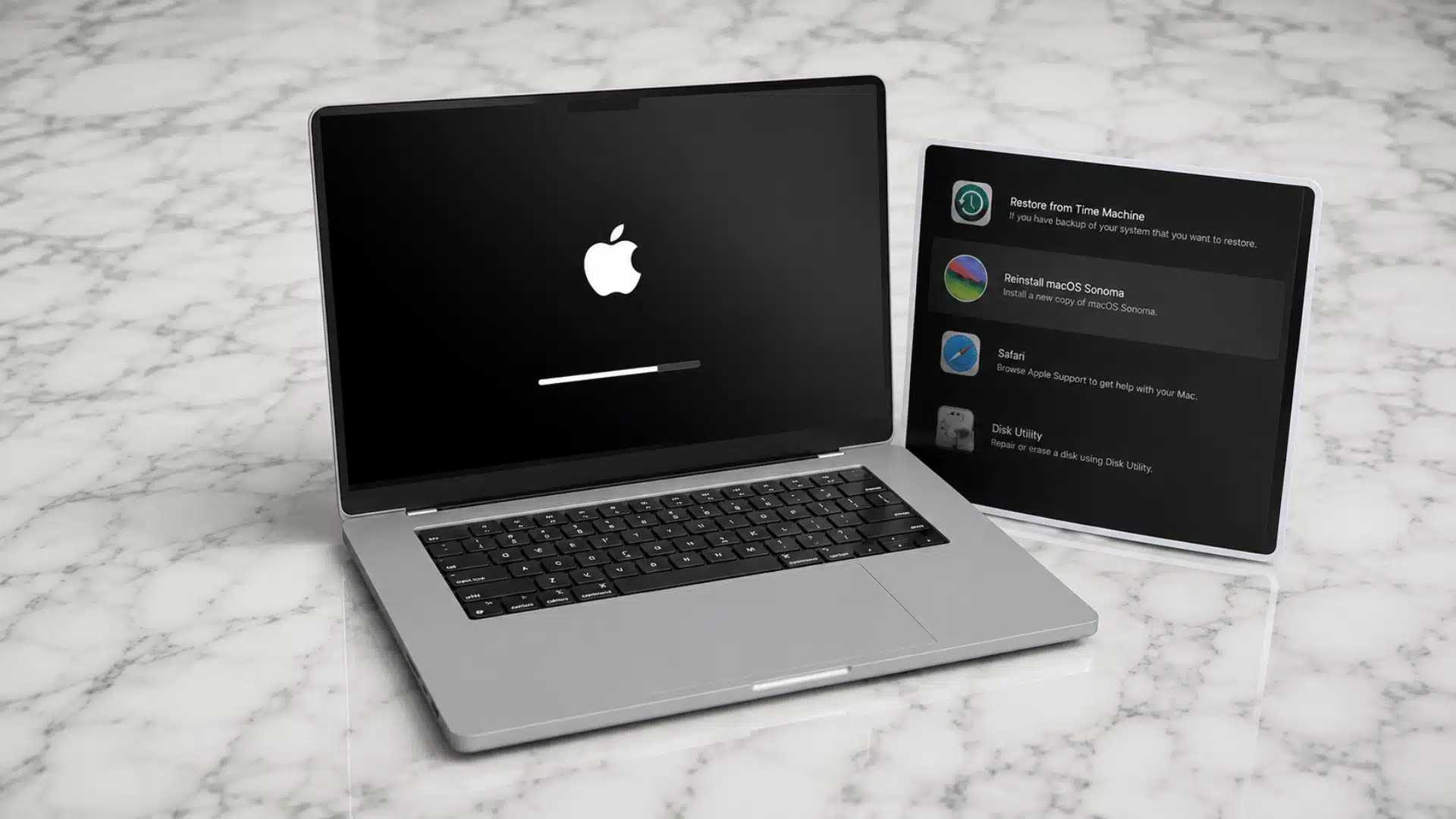






If you need to know how to factory reset a MacBook Air, a few missed steps can cause problems later during the process.
A reset can sound simple at first, but the right method depends on the newer MacBook Air models you are using.
You also need to prepare your files, account details, and internet connection before erasing anything, especially if someone else plans to use the Mac afterward.
The steps below explain what to check first, how to choose the correct reset method, and what to do once the process finishes.
Why You Might Need to Factory Reset Your MacBook Air
Selling or trading in your MacBook Air is one common reason to reset it, but there are several others.
A fresh reset can help when your Mac has become slow because of accumulated files, apps, or system clutter.
It may also make sense when persistent software problems remain after regular troubleshooting.
If you are giving the Mac to a family member, resetting it removes your files and account information so they can set it up themselves.
Whatever the reason, the important part is choosing the reset method that matches your Mac.
What to Do Before You Reset Your MacBook Air
A little preparation can prevent data loss and account problems once the erase begins.
- Back up your files: Save anything important with Time Machine, cloud storage, or another external location.
- Keep your passwords ready: You may need your administrator password and Apple Account password during the process.
- Deauthorize Music or Apple TV if needed: Older setups may still count the Mac toward your authorized device limit.
- Unpair Bluetooth devices: Disconnect accessories you do not plan to leave with the Mac.
- Check your internet connection: Activation and macOS installation may require a stable Wi-Fi or Ethernet connection.
- Connect the Mac to power: Keep the charger plugged in while erasing or reinstalling macOS.
Once these checks are done, you can move on to the reset itself.
How to Factory Reset Your MacBook Air Step by Step
The reset process depends mainly on whether your Mac supports Erase All Content and Settings or needs macOS Recovery.
Step 1: Check Which Reset Method Your Mac Uses
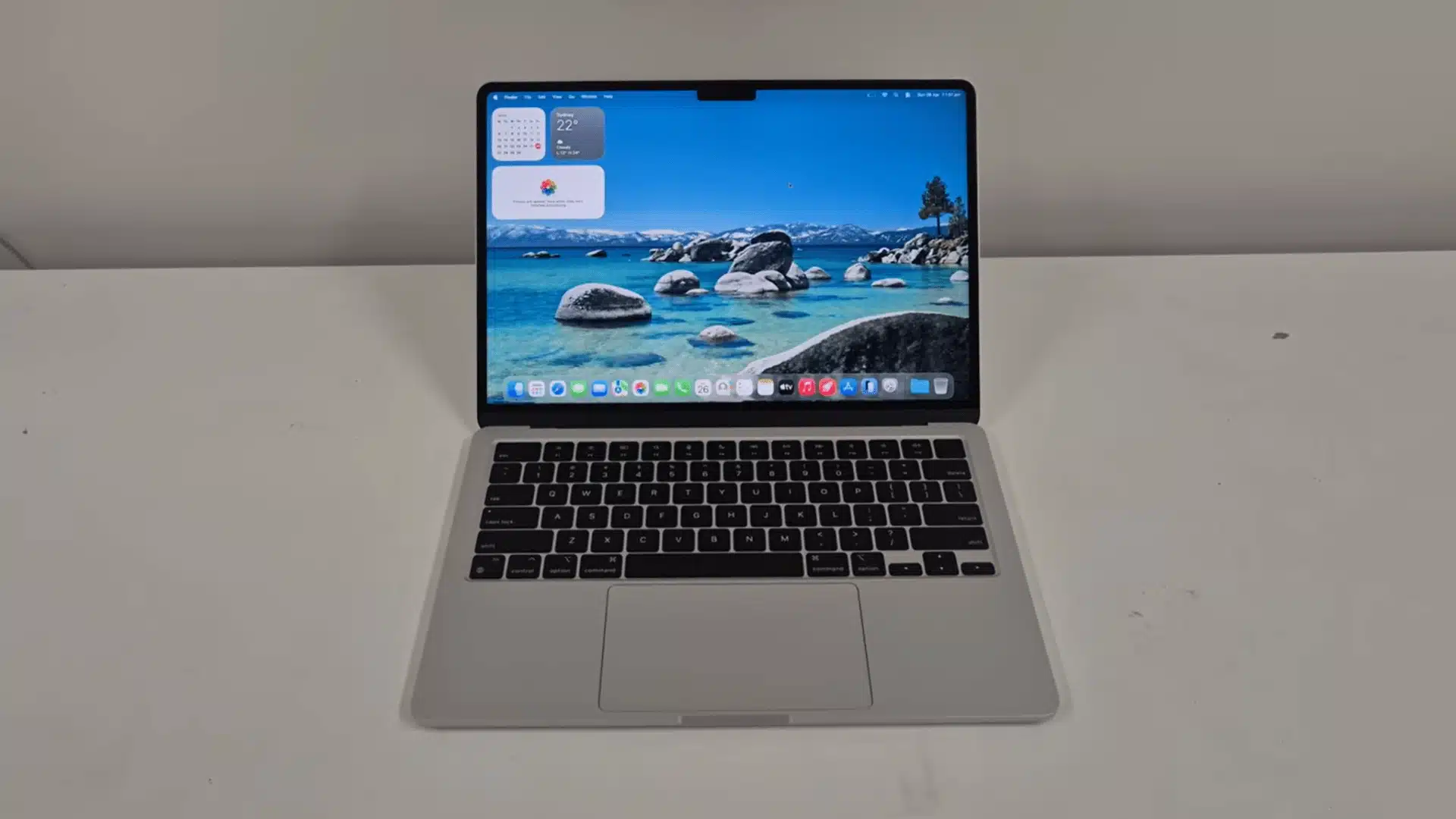
First, determine whether your Mac uses Apple Silicon, such as M1 or newer, or an Intel processor with Apple’s T2 security chip.
If you’re unsure how different chip generations compare, it can help to look at how various Apple chip models perform before deciding on your reset approach.
These models support Erase All Content and Settings, which removes personal data and prepares the Mac for a new owner more directly.
Older Intel Macs without a T2 chip usually require macOS Recovery, so confirm your model before choosing the reset method below.
Step 2: Open Erase All Content And Settings
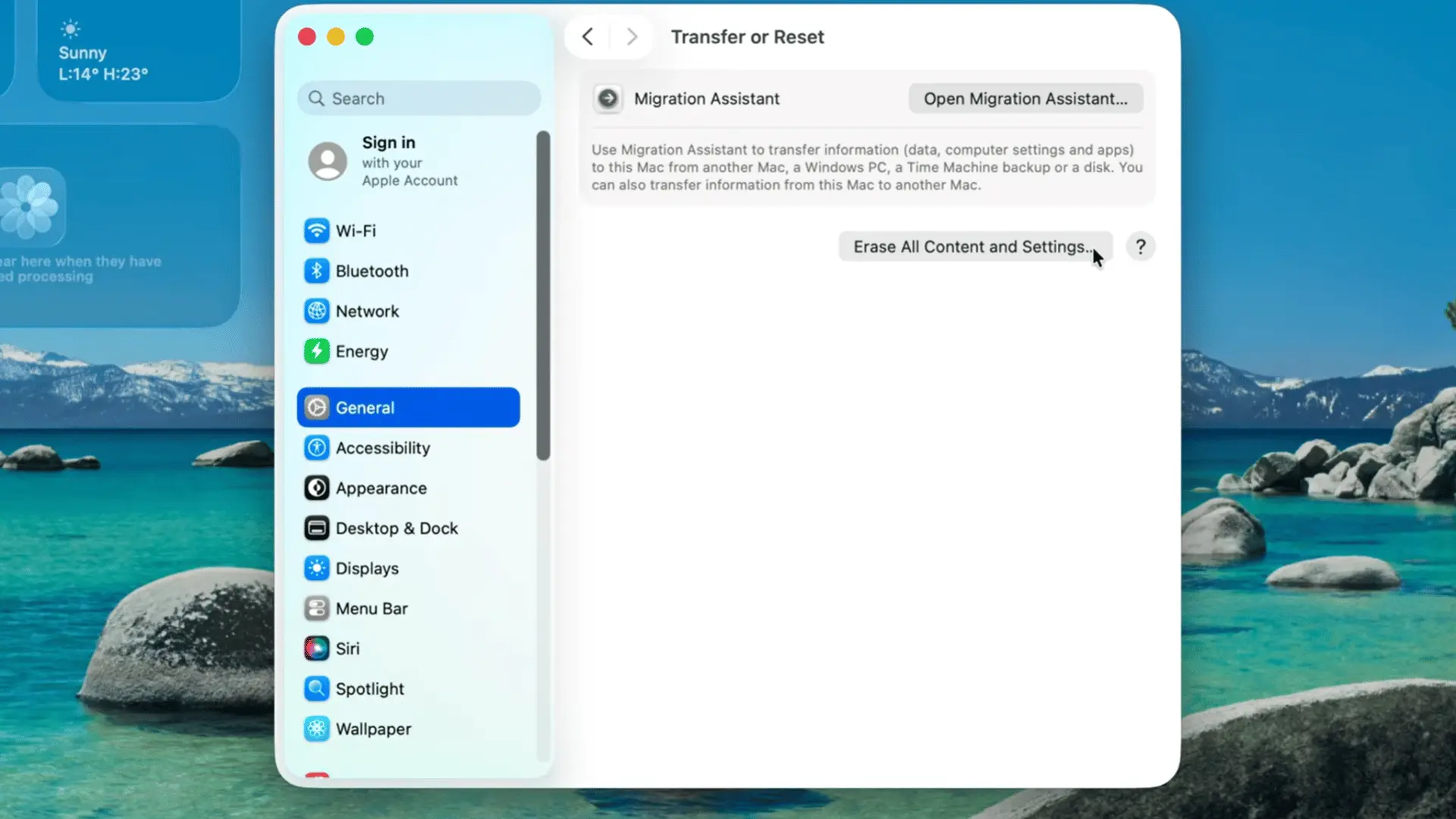
Open System Settings on Apple Silicon or T2-equipped Intel Macs, then scroll down and select Transfer or Reset from the available options.
Select Erase All Content and Settings, then enter your Mac password when prompted so the erase assistant can verify access and continue.
Review the information on screen before moving forward, especially if you still need to save files or account information from the Mac.
Step 3: Confirm The Erase And Reset Your Mac
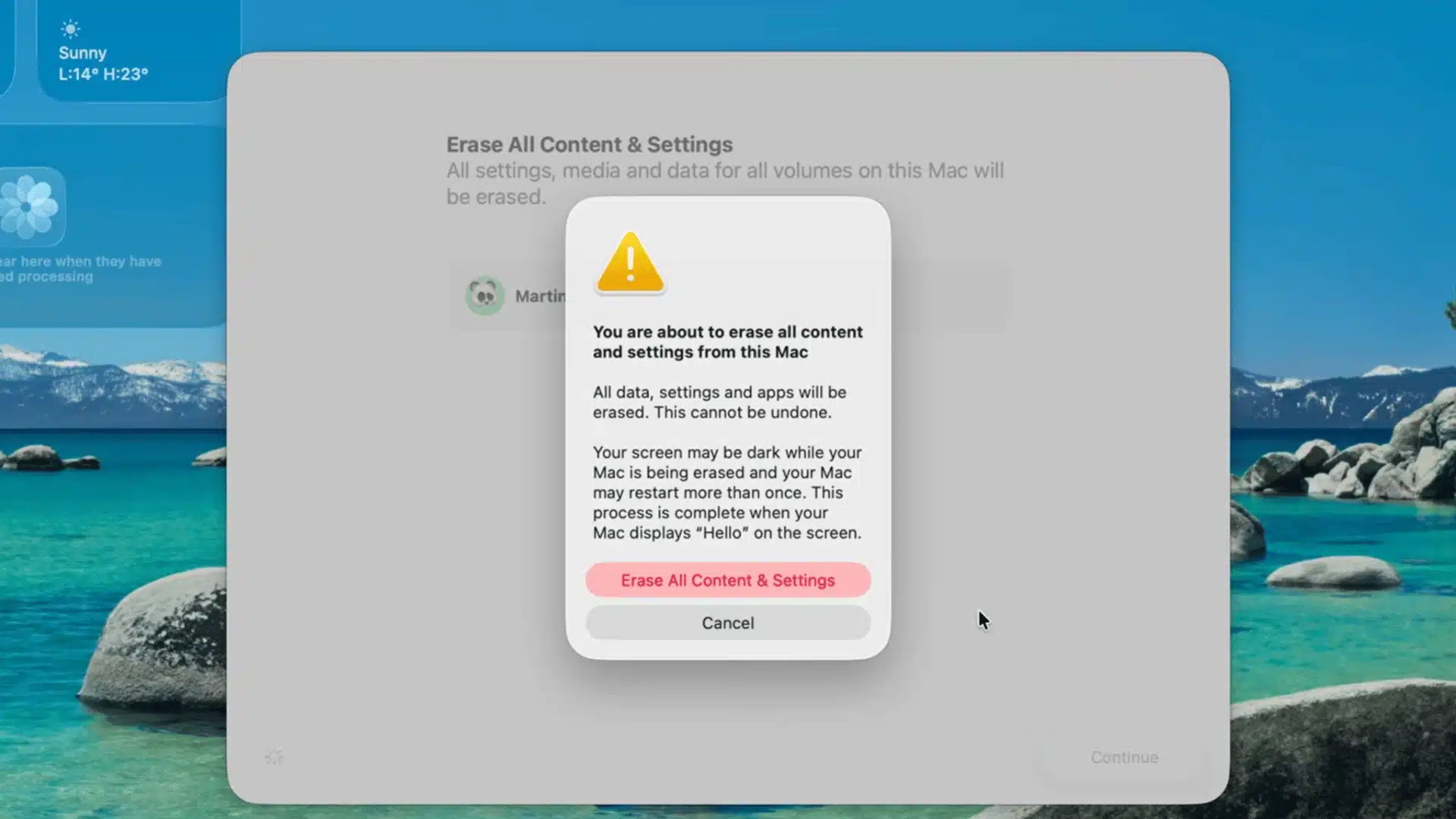
Before confirming the reset, make sure every file you want to keep is backed up somewhere separate from the Mac itself.
The erase process removes personal data, Apple Account information, Touch ID settings, and Find My settings, so review the warning carefully.
Confirm the final prompt to begin. The Mac will erase its contents, restart, and display an Apple logo with a progress bar.
Step 4: Activate The Reset Mac
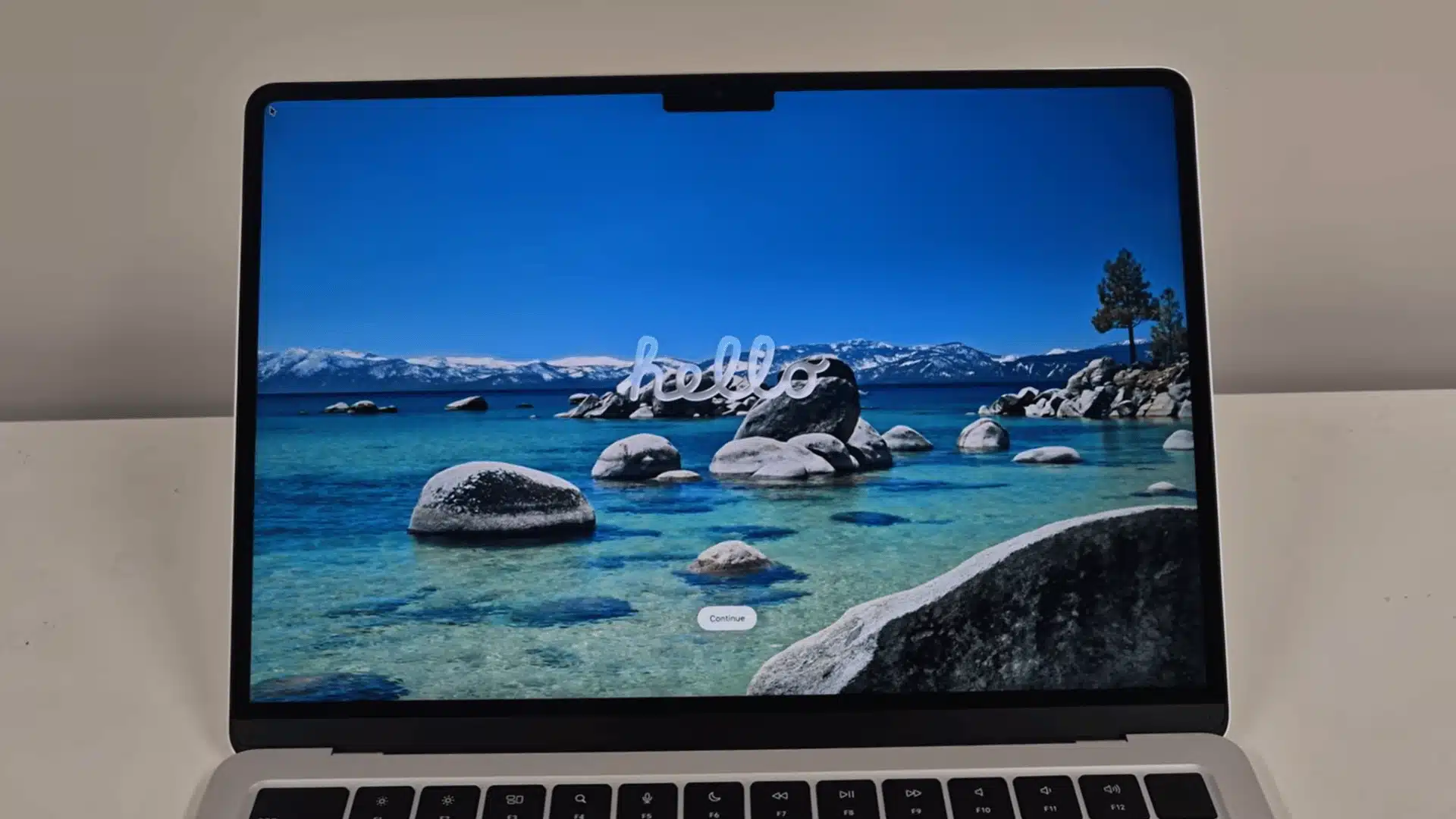
When the erase finishes, connect the Mac to a Wi-Fi network or Ethernet connection so it can complete the required activation process.
Wait for activation to finish successfully. The Mac should then restart automatically and load Setup Assistant instead of returning to your previous desktop.
If the welcome screen shows “Hello” in multiple languages, the factory reset is complete, and the Mac is ready for its next user.
Step 5: Erase The Drive On A Pre-T2 Intel Mac
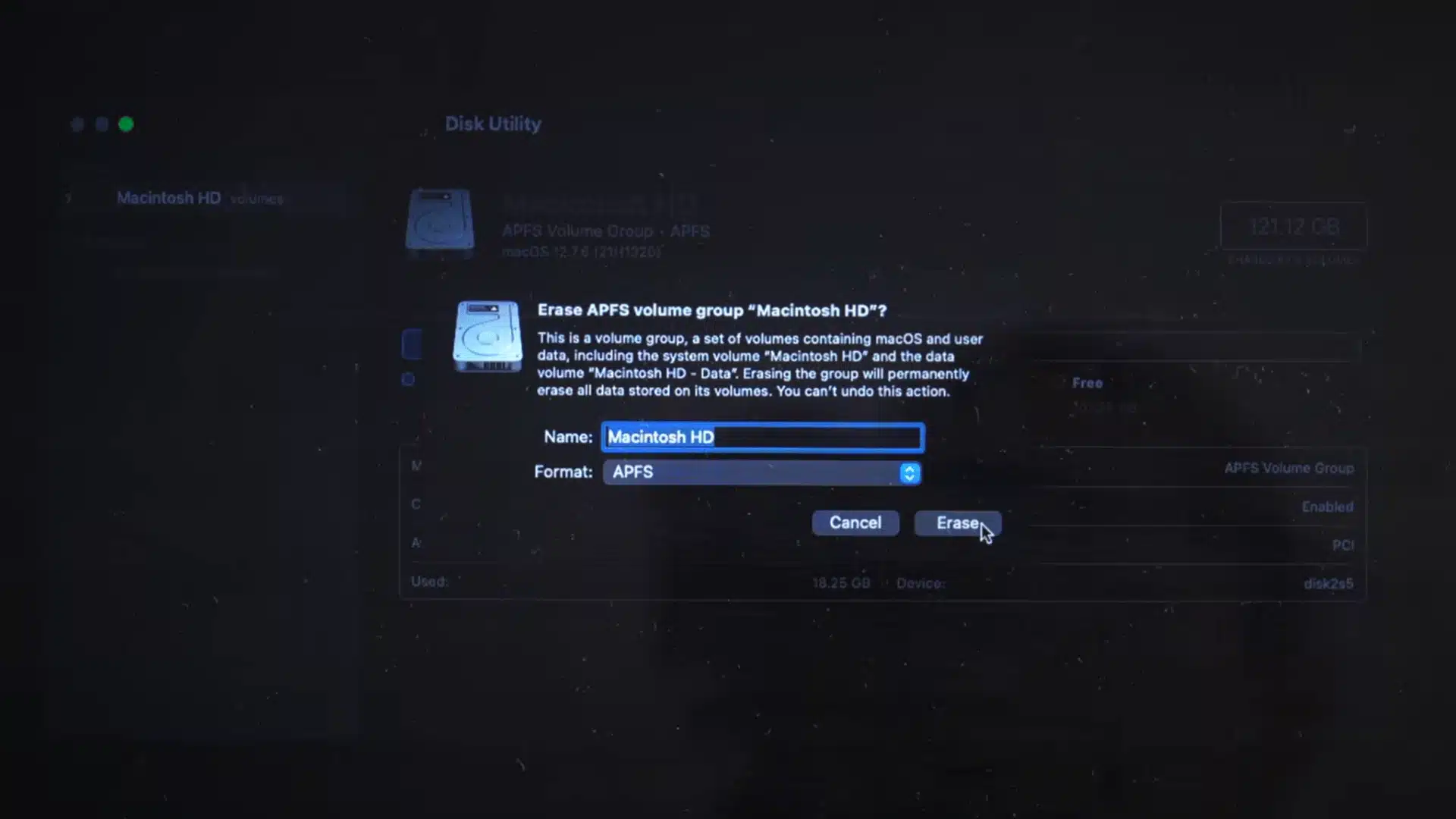
On a pre-T2 Intel Mac, restart the computer and hold the Command and R keys during startup until macOS Recovery appears.
If local recovery is unavailable, the Mac may load recovery over the internet, so keep a stable network connection available during startup.
Open Disk Utility, erase the internal drive, name it Macintosh HD, and select APFS as the format before closing Disk Utility.
Step 6: Reinstall macOS and Finish The Reset
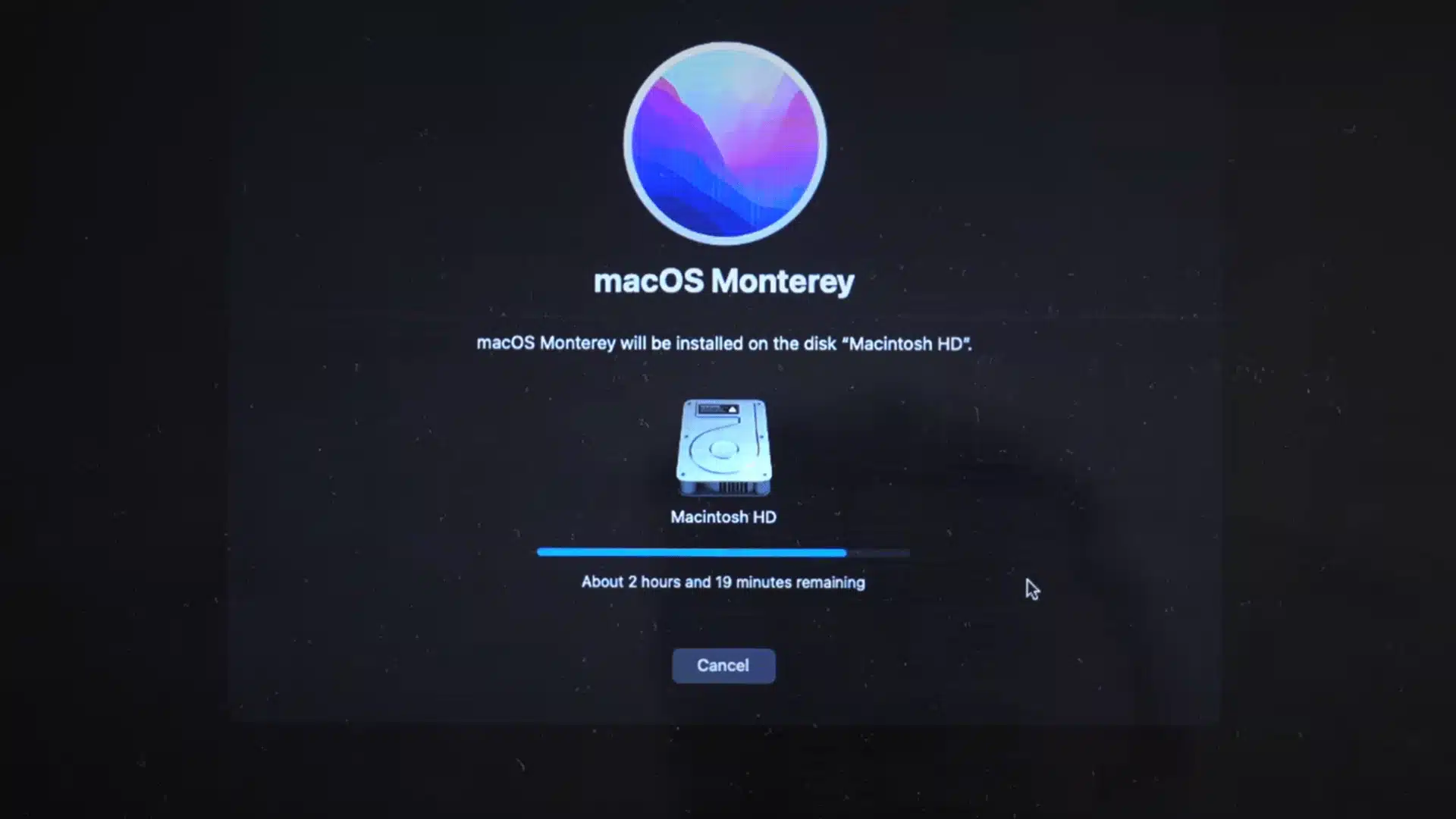
Return to the macOS Recovery menu after formatting the drive, connect to Wi-Fi if needed, and choose the Reinstall macOS option.
When prompted for an installation location, select Macintosh HD, the drive you just erased and formatted, then allow macOS to install completely.
Once Setup Assistant appears, stop there if you are selling the Mac. The new owner can complete the setup with their own details.
For more detailed information, walk through this video:
Step 6: Reinstall macOS
Return to the macOS Recovery window and select Reinstall macOS.
Choose Macintosh HD as the installation location when prompted.
Follow the installation instructions until Setup Assistant appears.
If another person will use the Mac, stop at the setup screen rather than entering your own account details again.
Watch the video below:
How to Factory Reset a MacBook Air Without a Password
What you can do depends on which password you do not have.
If you forgot the Mac administrator password, Erase All Content and Settings may not let you continue.
Some Macs can still be erased through macOS Recovery, depending on the model and security settings.
An Apple Account password is different. If Find My and Activation Lock are enabled, the Mac may still request the linked account after it has been erased.
In that situation, you need access to the associated Apple Account or valid ownership support from Apple.
Why the Reset Might Not Go Through
A reset can fail for several reasons, and the fix depends on where the process stops.
- Erase option is missing: Your Mac or macOS version may not support Erase All Content and Settings, so use Recovery Mode instead.
- Command + R does not work: Apple silicon Macs use the power button to enter startup options rather than the Intel keyboard shortcut.
- Weak internet connection: Activation or macOS installation may stop if the network connection drops.
- Macintosh HD is missing: Disk Utility may not be detecting the internal drive correctly.
- Activation Lock appears: The Mac is still associated with an Apple Account through Find My.
Check the specific error before repeating the whole reset process.
What to Do After the Reset
Once Setup Assistant appears, what happens next depends on what you plan to do with the Mac.
If you are keeping it, continue setup, sign in with your Apple Account, reinstall your apps, and restore any files you backed up earlier.
If you are selling or giving it away, leave it at the welcome screen and shut the Mac down.
That gives the next owner a clean setup screen where they can enter their own account and preferences.
Final Thoughts
Resetting a MacBook Air is easier when you know which method fits your model and what to check before you start.
I think the biggest difference comes from preparing your files, account access, power, and internet connection before erasing anything.
You also need to know when to use Erase All Content and Settings and when Recovery Mode is the better option. These steps matter because they help you avoid data loss, setup problems, and account locks later.
If you came here to learn how to factory reset a MacBook Air, you now have a clear path to follow. Try the steps carefully, and check out the related Mac guides for more help.
Frequently Asked Questions
Do I Need My Apple ID Password to Factory Reset a MacBook Air?
You may need your Apple Account password if Find My is enabled or Erase Assistant requests account verification. Keep the account details available before starting the reset.
Can I Factory Reset a MacBook Air Without a Password?
Recovery Mode may allow some Macs to be erased without the normal administrator password. However, Activation Lock can still require the Apple Account previously linked to the Mac.
How Long Does a MacBook Air Factory Reset Take?
The erase itself can be fairly quick, while reinstalling macOS may take longer. The total time depends on the Mac model, internet connection, and installation method.
Will Factory Resetting My MacBook Air Delete Everything?
Yes. A factory reset removes personal files, apps, accounts, and settings from the Mac. Save anything important somewhere else before beginning.
How Do I Factory Reset a MacBook Air 2015?
Restart the Mac while holding Command + R, open Disk Utility, erase Macintosh HD, then return to macOS Recovery and reinstall macOS.
How Do I Factory Reset a MacBook Air 2017?
Most 2017 MacBook Air models use the same Intel Recovery process: start with Command + R, erase the startup drive in Disk Utility, and reinstall macOS.