

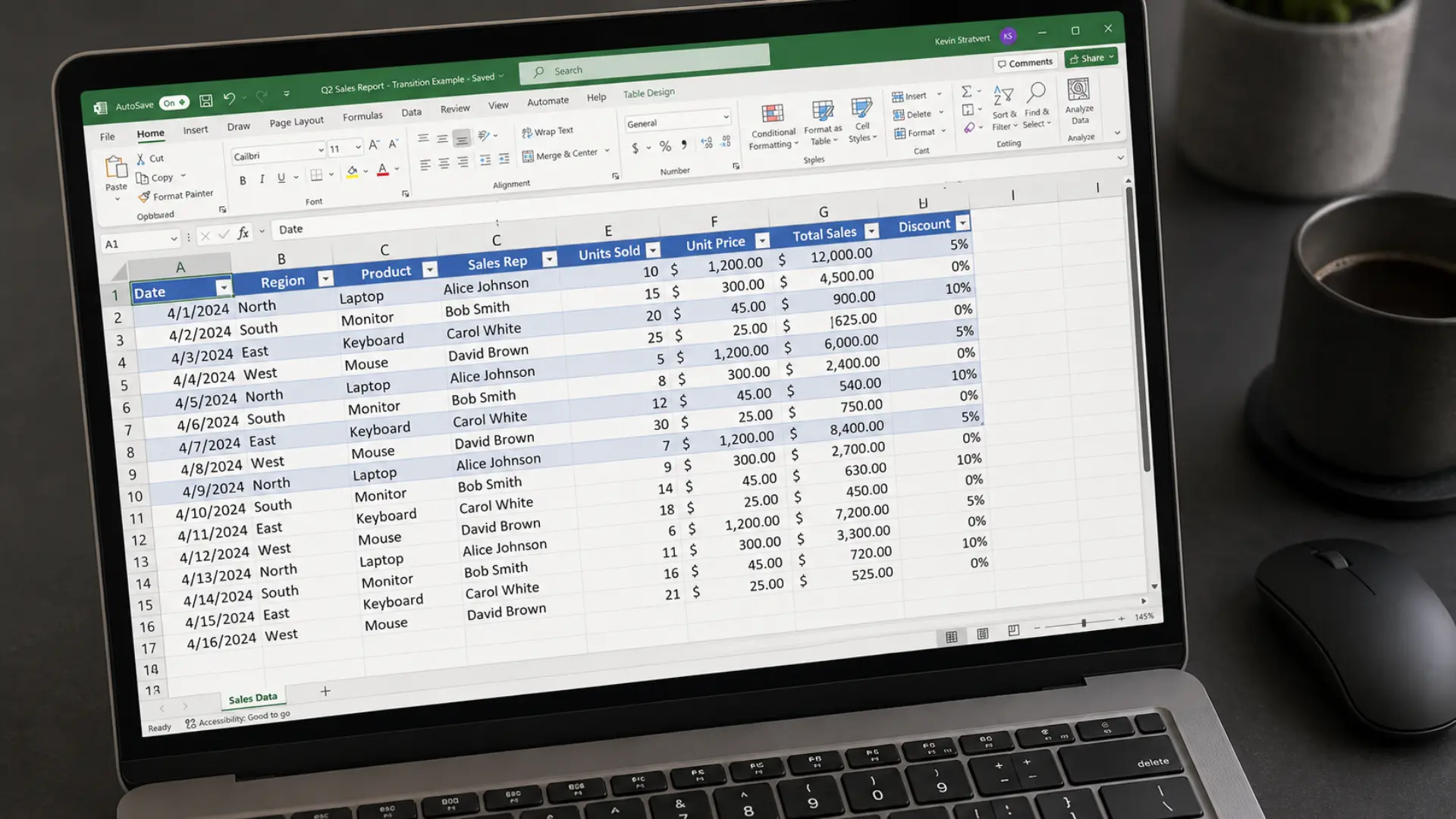






Excel tables are helpful until they start making your worksheet feel too busy. I like the filter buttons and automatic expansion, but the colors, banded rows, and preset styles can sometimes distract from the data itself.
That is where things get confusing, because removing the design does not mean removing the table features.
If you are looking for how to remove table formatting in Excel or how to unformat a table in Excel, the right option depends on what you want to keep.
You can remove the visual style while keeping filters and sorting, or convert the table back into a normal range. It also helps to know why applying the Normal cell style does not fully reset the table’s appearance.
Do You Want to Keep the Table, or Remove It Completely?
Before touching anything, it helps to know which problem you’re actually solving. Excel table formatting works in two separate layers, and this article covers removing either one or both without touching your data.
“Clear Style” removes only the visual formatting. The range still behaves like a table underneath: filter buttons stay, sorting still works, and structured references (the ones that use table and column names instead of cell addresses) keep functioning.
“Convert to Range” removes the table object entirely. The data and any formulas stay exactly as they were, but the filter dropdowns disappear, structured references stop working, and the range goes back to being a normal block of cells.
One more thing worth knowing upfront: setting cells to the “Normal” cell style does not remove table functionality.
It’s a common assumption, and it’s wrong. “Normal” only affects fonts and cell formatting, not whether Excel still treats the range as a table.
How to Clear Table Style Formatting (Keep Table Features)
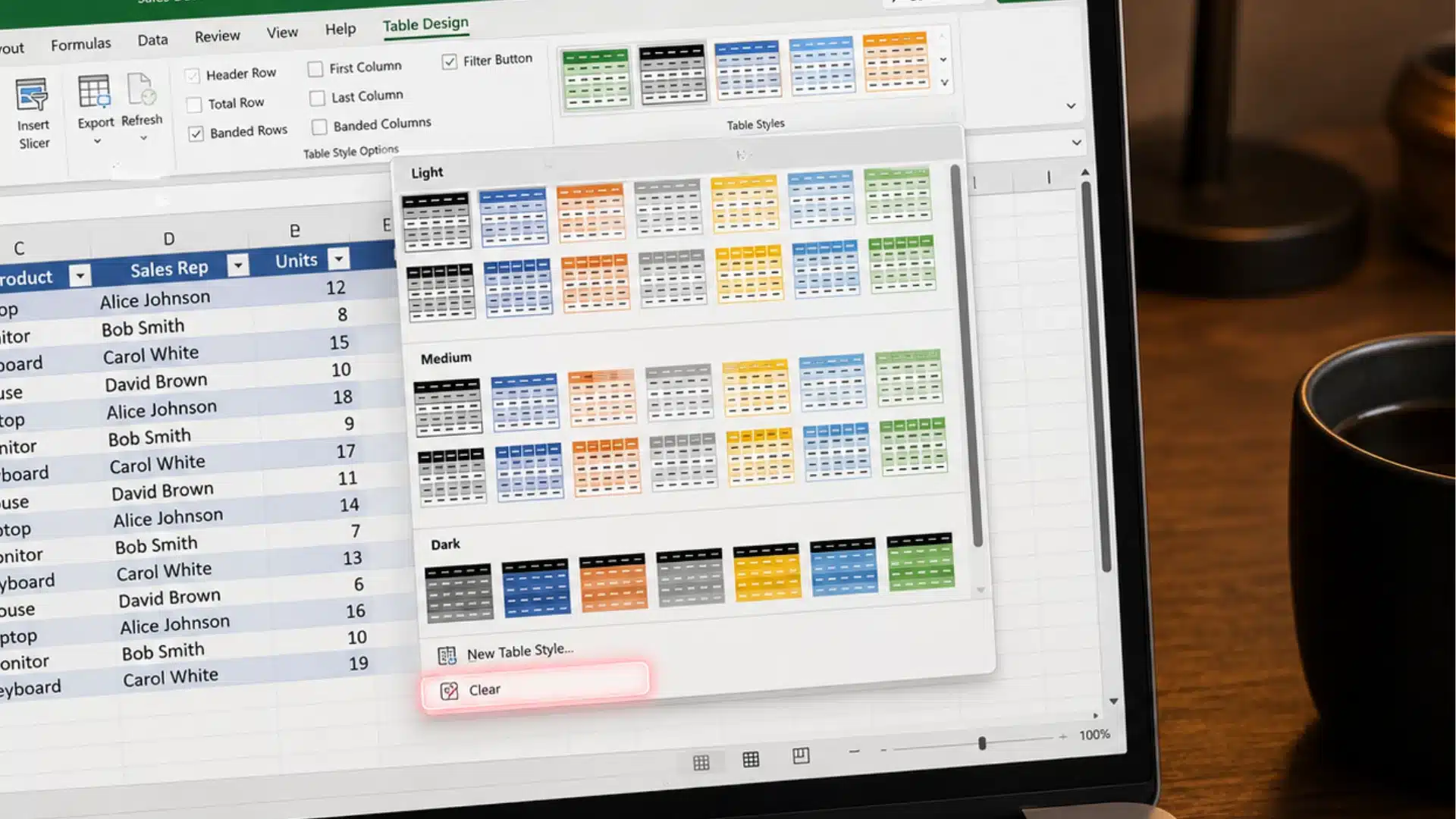
Use this method when you want to remove the table’s visual styling without losing its built-in features.
- Click any cell inside the table.
- On Windows, open the Table Design tab.
- On a Mac, open the Table tab.
- Find the Table Styles gallery in the ribbon.
- Click the More arrow in the corner of the gallery.
- Scroll to the bottom of the available styles.
- Select Clear to remove the current table formatting.
Excel will remove the fill colors, alternating row bands, and bold header shading. The filter buttons, sorting tools, structured references, and automatic row expansion will remain active.
How to Convert a Table Back to a Normal Range
Converting a table to a regular range removes the table behavior while keeping the existing values, formulas, and cell layout in place.
On Windows
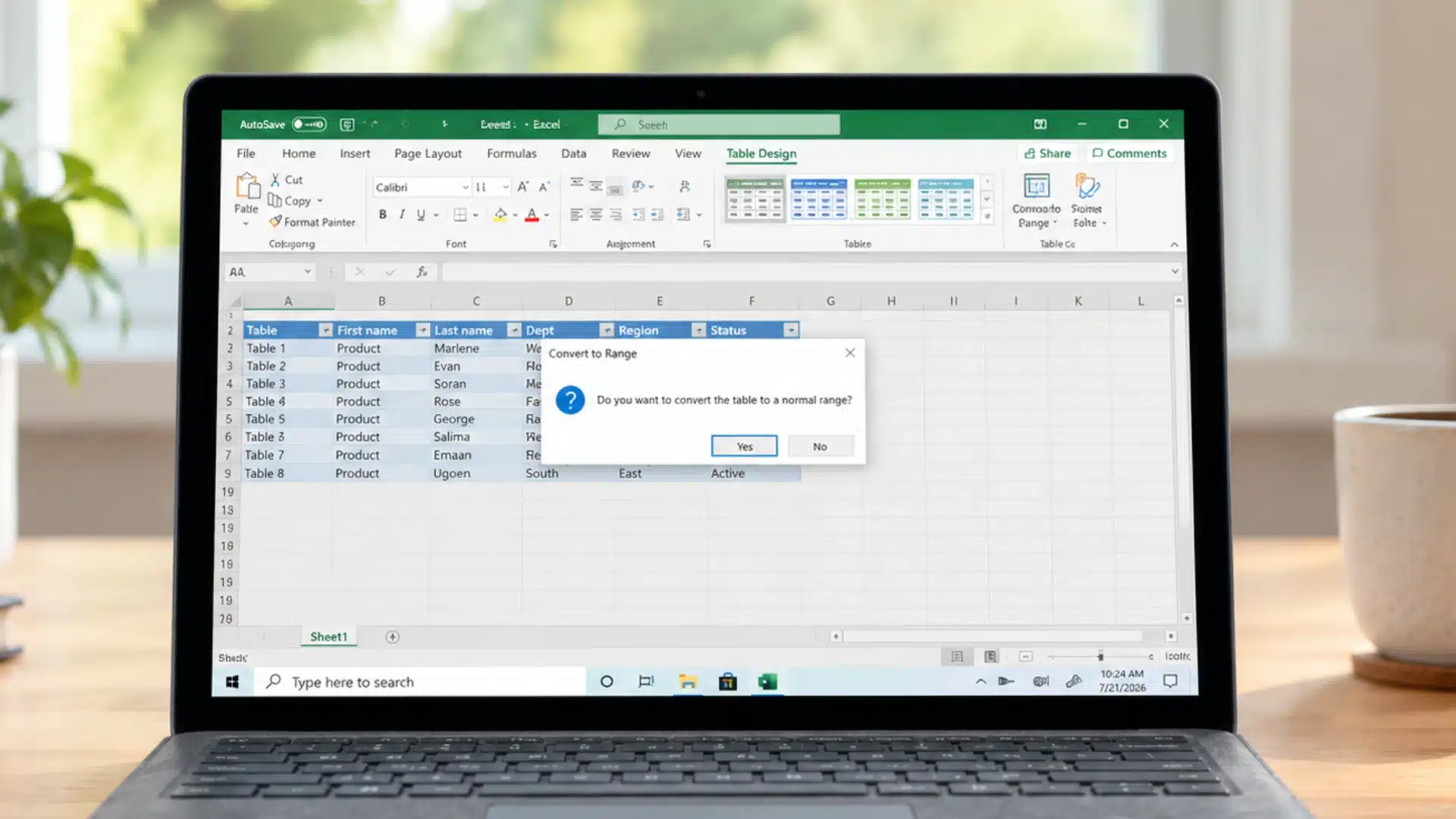
Click any cell inside the table to open the Table Design tab. In the Tools group, select Convert to Range, then confirm the prompt. Excel removes the table object, filter dropdowns, and structured references.
The values and formulas stay in the same cells, although any existing table colors may remain until you clear them separately.
On Mac
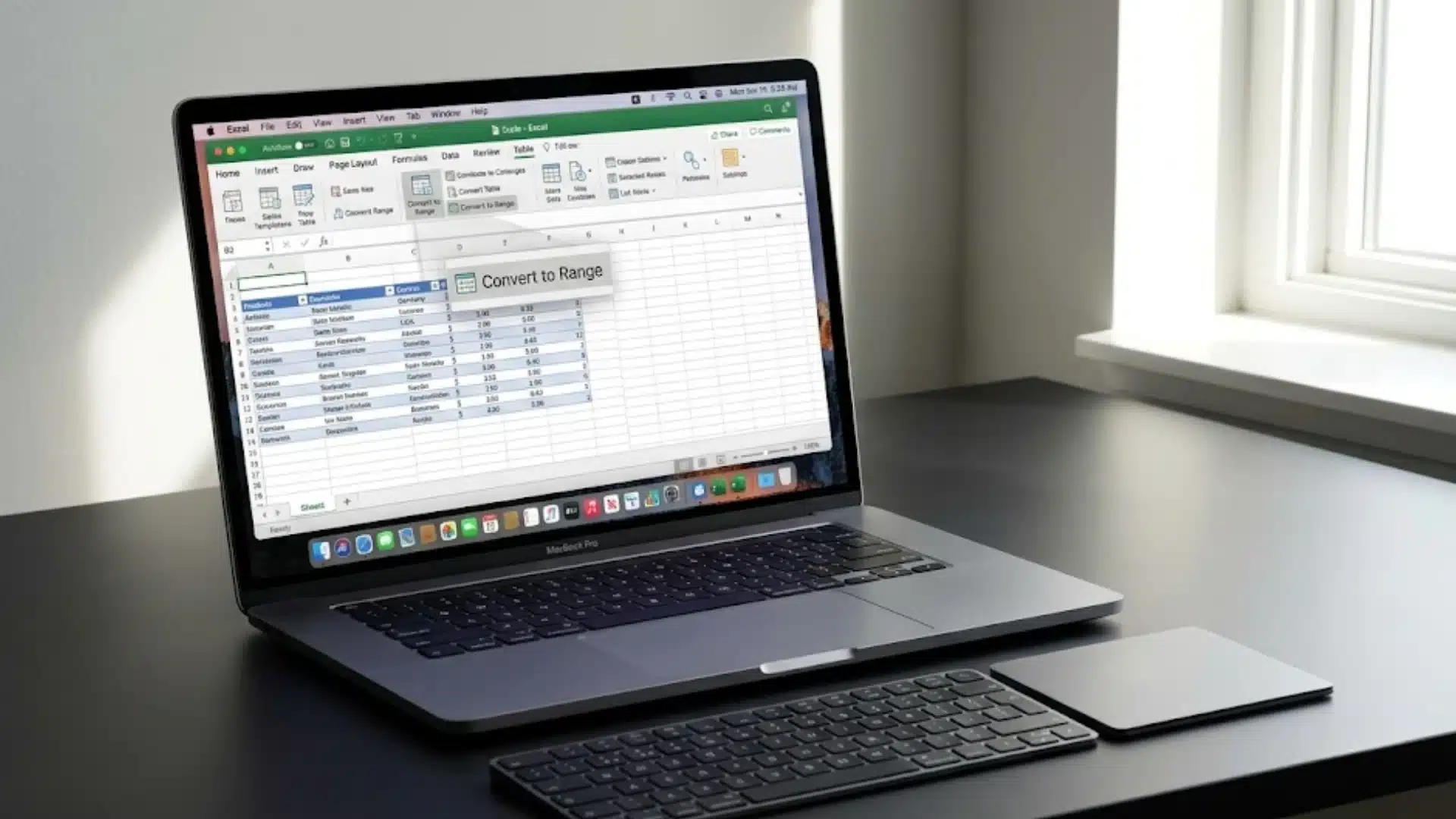
Select a cell inside the table, then open the Table tab in the ribbon. Find Convert to Range in the Tools section and confirm the action. Excel will turn the table into an ordinary cell range.
Filters and table references stop working, but the existing data, formulas, and formatting remain unchanged unless you remove the styling yourself.
Clearing the table style and converting it to a range are separate actions, so complete both when you want a fully unformatted worksheet range.
How to Delete a Table Entirely (If You Don’t Need the Data)
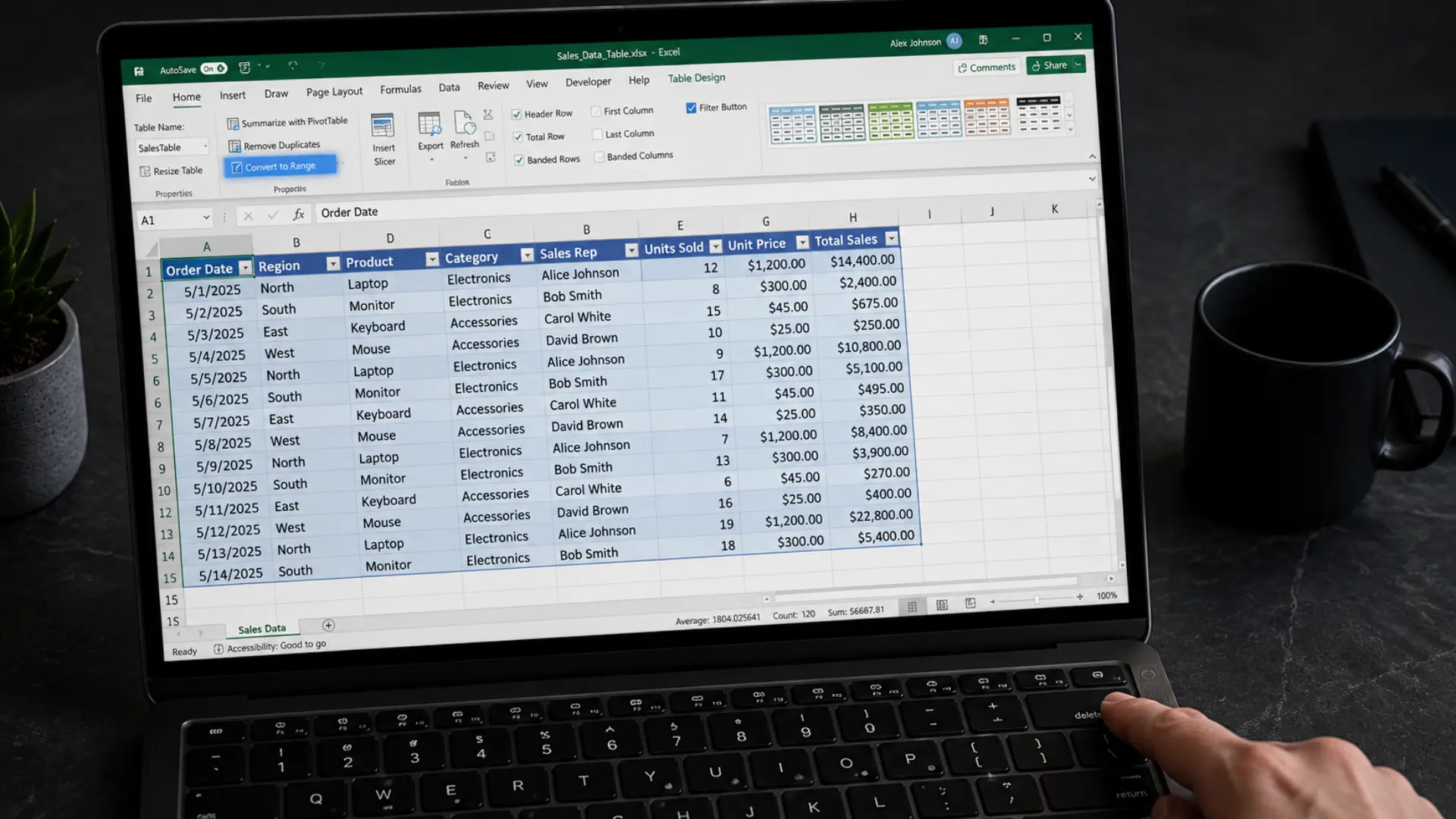
If you no longer need the table or the data inside it, deleting the entire table is the quickest option. Unlike converting a table to a range, this method removes the contents and table formatting together, leaving the worksheet empty in that area.
- Click any cell inside the table.
- Press Ctrl+A once to select the table data. Press Ctrl+A again if needed to include the header row, or right-click the table, choose Select, and then select Entire Table.
- Confirm that the entire table, including the headers, is highlighted.
- Press the Delete key on your keyboard.
- Excel removes the table data and clears the table formatting from the selected range.
- If you also want to remove any leftover cell formatting, use Home > Clear > Clear All after deleting the table.
Before using this method, make sure you no longer need the table’s data because the Delete command clears the selected contents and may require Undo or a backup to recover them.
How to Tell If Your Table Has Really Been Unformatted
It is easy to think the job is finished when the colors disappear, but that does not always mean the table has been removed. After clearing the style, click anywhere inside the range.
If you still see filter arrows in the header row and the Table Design or Table tab appears in the ribbon, Excel is still treating it as a table.
You can also test by typing a formula outside the table. If Excel inserts structured references such as Table (Sales), the table object is still active.
If those features are gone and the range behaves like ordinary cells, the conversion was successful. Taking a few seconds to check prevents confusion later, especially before sharing the workbook, and if you regularly handle large files, it is worth thinking about how much storage is enough for file-heavy work.
Conclusion
Excel tables are incredibly useful, but you do not have to keep their default appearance forever. I usually decide based on what I still need from the table.
If I only want a cleaner worksheet, I clear the style. If I no longer need filters, structured references, or automatic table features, I convert it back to a regular range.
Knowing the difference makes it much easier to choose the right option. Whether you were searching for how to remove table formatting in Excel or how to unformat a table in Excel, the process becomes straightforward once you understand what each command actually changes.
Have another Excel tip or a formatting issue that took you longer than expected to solve? Share it in the comments. We’d love to hear your experience.
Frequently Asked Questions
Does clearing table style delete my data?
No. Clearing a table style only removes the visual formatting, such as fill colors, banded rows, and header shading. Your data, formulas, filter buttons, sorting options, and structured references remain exactly as they were.
Why doesn’t setting cells to “Normal” remove the table?
The Normal cell style only changes standard cell formatting like fonts, borders, and number formats where applicable. It does not remove Excel’s table object or disable table features.
Can I undo converting a table to a range?
Yes. If you accidentally choose Convert to Range, press Ctrl+Z on Windows or Command+Z on Mac immediately after the conversion. Excel restores the table with its original functionality.
Is removing table formatting different on Mac vs. Windows?
The overall process is almost identical on both platforms. The main difference is the ribbon layout. On Windows, most table options are found under the Table Design tab, while on Mac, the tab is usually labeled Table.