

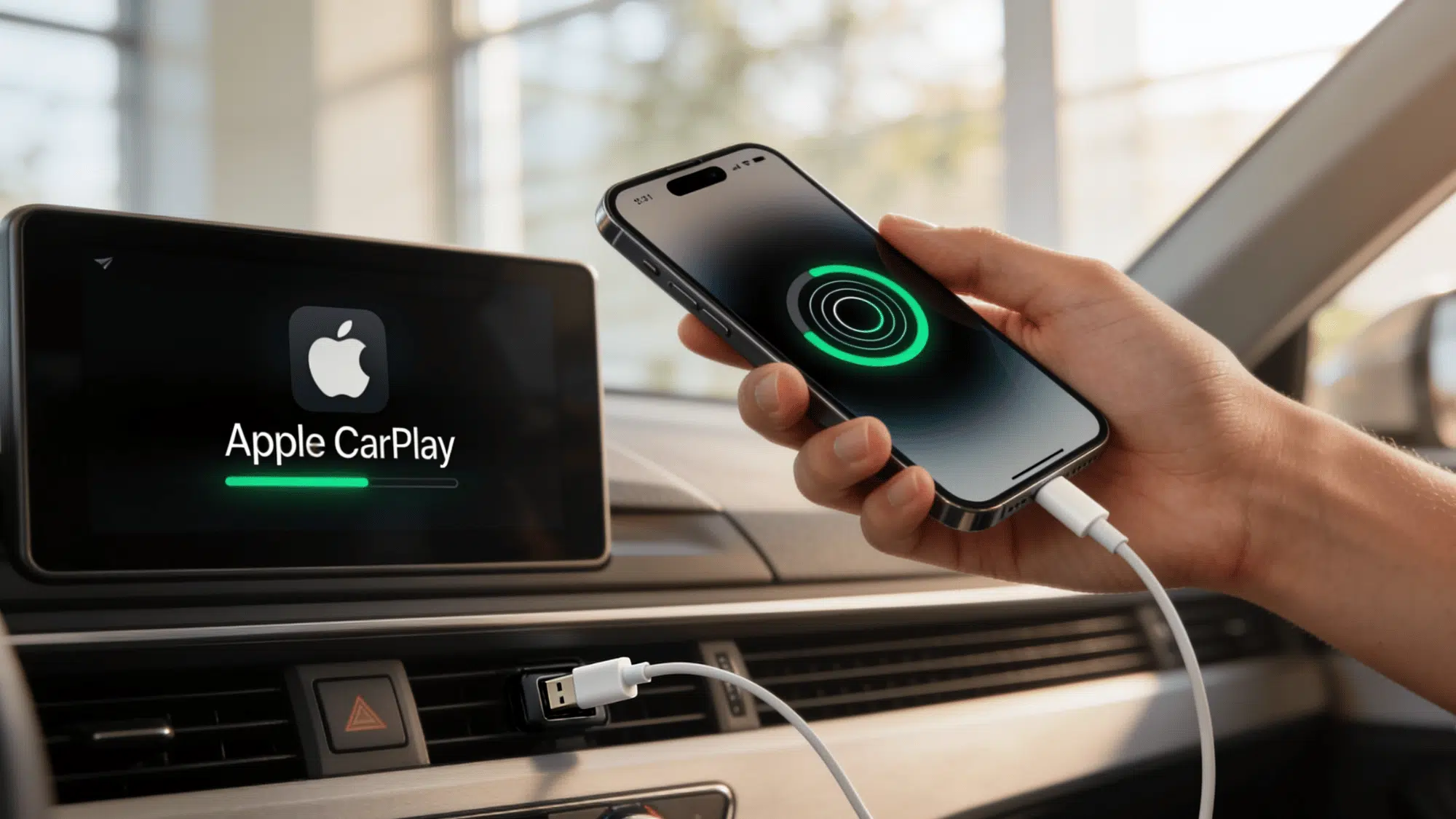






Your car’s screen has been staring at you this whole time, practically begging to be useful. And yet, here you are, still propping your phone up on the dashboard like it’s 2012. It’s time to fix that.
How to set up Apple CarPlay is honestly one of those things that sounds technical but really isn’t. Five minutes, a few taps, and you’re done. No IT degree required, no complicated settings to dig through.
The real question is, why haven’t you done it yet? Let’s change that right now.
What Makes Apple CarPlay Useful for Everyday Driving?
Apple CarPlay is designed for iPhone users who want a safer and easier way to stay connected while driving. It is popular with commuters, road trippers, busy parents, and anyone who spends time behind the wheel.
Instead of looking at your phone, you can use your car’s screen to get directions, make calls, send messages, and play music. Siri voice commands make many tasks hands-free, helping you stay focused on the road.
Whether you are driving to work or heading out on a long trip, Apple CarPlay makes everyday driving more convenient and less distracting.
Step-by-Step: How to Set up Apple CarPlay in Your Vehicle
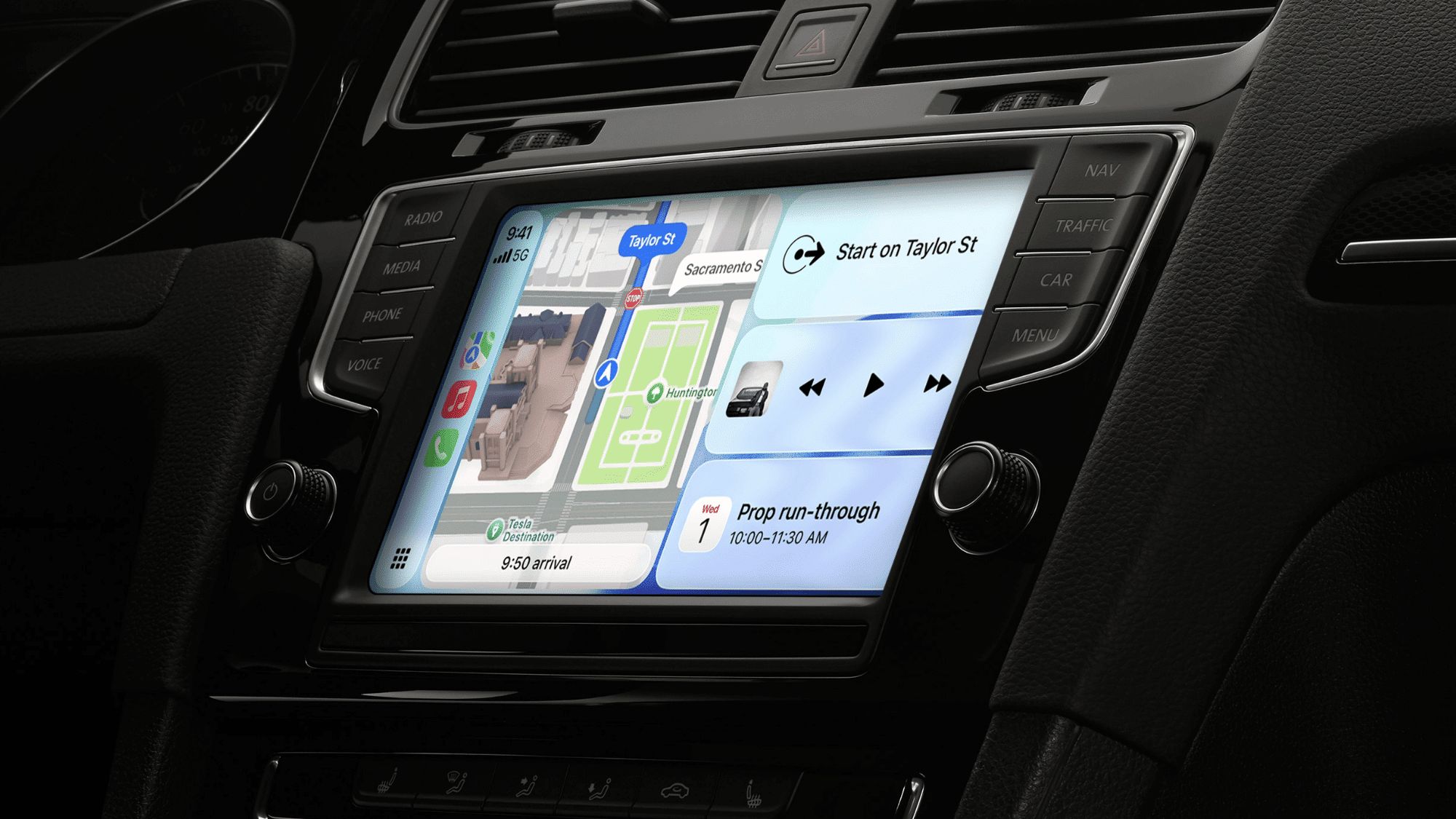
Image Source: Apple
Getting Apple CarPlay up and running is simpler than most drivers think. If you’re connecting via USB or going fully wireless, the setup takes just a few minutes.
Follow the steps below on how to connect Apple CarPlay wirelessly seamlessly in your car:
Step 1: Check Compatibility Before You Begin
Not every vehicle or iPhone supports CarPlay out of the box; confirming compatibility saves you time and frustration. Here’s what to verify before you start:
- Your iPhone must be an iPhone 5 or later
- Ensure your car supports Apple CarPlay (check manufacturer’s site)
- iPhone must run iOS 7.1 or later (iOS 12+ for wireless)
- Check if your head unit supports wired or wireless CarPlay
- Siri must be enabled under Settings > Siri & Search
- Your USB cable must be Apple-certified (for wired setup)
Step 2: Enable Siri and Allow CarPlay on Your iPhone
Before diving into how to set up CarPlay on iPhone, enabling Siri is a non-negotiable first step. CarPlay relies entirely on Siri for voice commands and hands-free control.
- Go to Settings > Siri & Search and toggle it on
- Enable “Listen for Hey Siri” for hands-free access
- Go to Settings > Screen Time > Content Restrictions
- Tap “Allowed Apps” and make sure CarPlay is enabled
- Update your iPhone to the latest available iOS version
- Turn on Bluetooth and Wi-Fi (especially for wireless setup)
- Keep your phone charged or plugged in during setup
Step 3: Connect Your iPhone, Wired or Wireless
This is the core of how to set up Apple CarPlay, actually pairing your phone with the head unit. The method depends on if your car supports wireless CarPlay.
- For wired ones, plug the iPhone into the car’s USB port using a Lightning or USB-C cable, and the type of cable you use can also affect how smoothly the connection works, especially when comparing USB and USB-C options.
- Your car’s display should automatically prompt CarPlay activation
- Select “Use CarPlay” on the iPhone screen when prompted
- For wireless ones, enable Wi-Fi and Bluetooth on your iPhone first
- Put your car’s infotainment system into CarPlay pairing mode
- Select your vehicle from the iPhone’s available CarPlay list
- Accept the connection prompt on both devices to complete pairing
Step 4: Setting Up Wireless CarPlay in Detail
If your car supports it, knowing how to connect Apple CarPlay wirelessly completely removes cable clutter from your drive. Wireless CarPlay delivers the same full experience, just without the cord. Here’s how to get it done:
- Confirm your head unit supports wireless CarPlay connectivity
- On iPhone, go to Settings > General > CarPlay
- Tap your car name if it appears under “My Cars”
- If not listed, select “Add a Car” to begin a new pairing
- On the infotainment screen, select “Wireless CarPlay” or “Wi-Fi Pairing”
- Your iPhone connects automatically on future drives once paired
- Forget and re-pair if the connection drops or behaves inconsistently
Step 5: Final Checks After Pairing
Once paired, run a few final checks to make sure everything works correctly. Knowing how to set up CarPlay on iPhone also means ensuring the experience stays smooth every drive. Here’s what to confirm:
- CarPlay screen should launch automatically on connection
- Test Siri by saying “Hey Siri” with the car connected
- Try to connect Apple CarPlay wirelessly again if it drops
- Check that audio routes correctly through car speakers
- Confirm Maps, Music, and Messages load on the display
- Restart both the iPhone and the head unit if CarPlay doesn’t appear
Here’s Every App You Can Use with Apple CarPlay
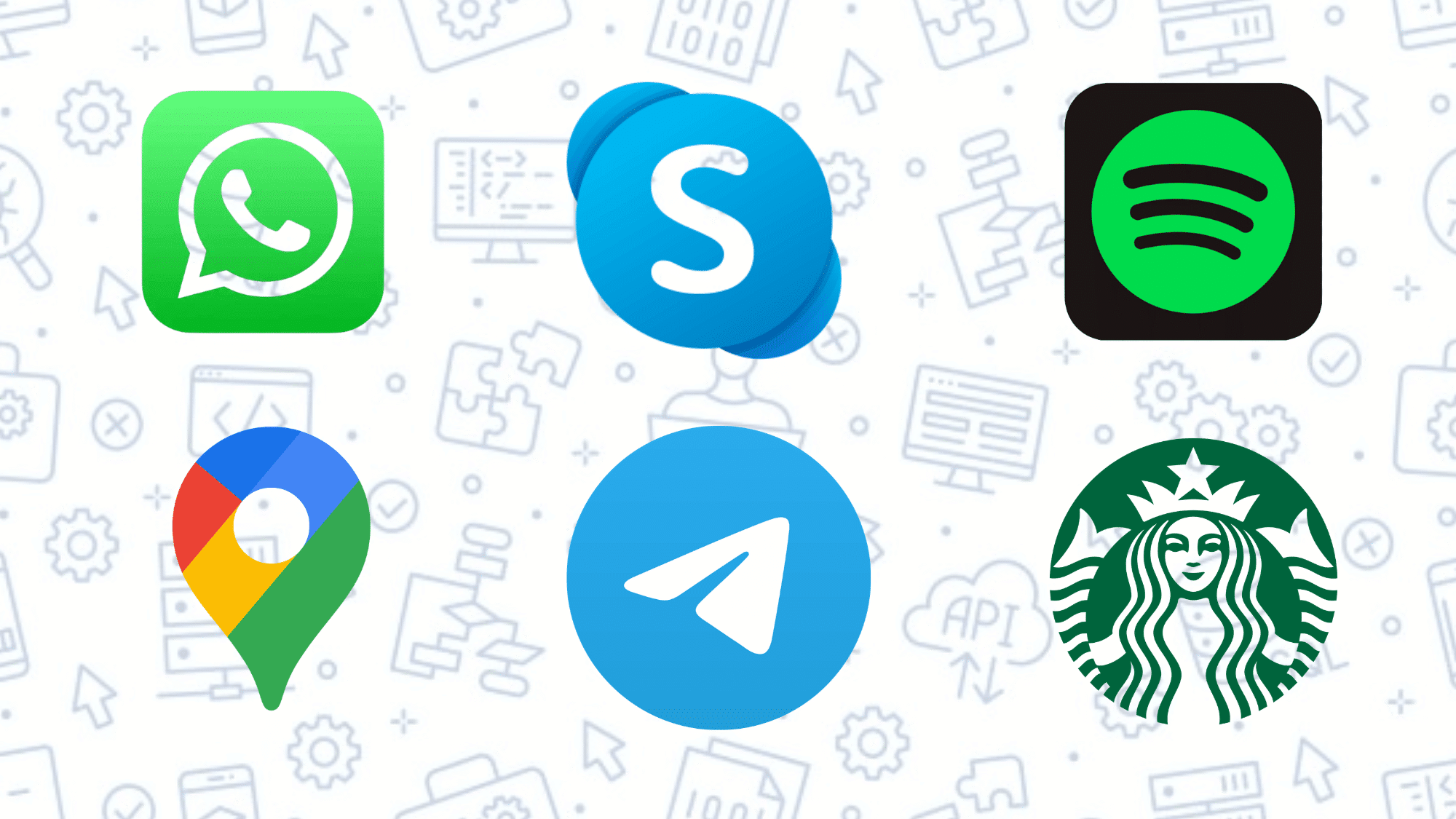
Apple CarPlay supports a solid lineup of apps across every category a driver could need. From turn-by-turn navigation to your favorite podcast, it’s all accessible right from your dashboard.
| Category | Supported Apps | What You Can Do |
|---|---|---|
| Navigation | Google Maps, Apple Maps, Waze, TomTom | Directions, live traffic, fuel stops |
| Music & Audio | Spotify, Apple Music, Amazon Music, Tidal | Stream music, skip tracks, browse albums |
| Podcasts | Pocket Casts, Overcast, Apple Podcasts, Audible | Play episodes, skip chapters, browse shows |
| Calls & Messaging | WhatsApp, iMessage, Telegram, Skype | Calls, texts, and voice replies via Siri |
| Radio | iHeartRadio, TuneIn Radio, Radio.com | Live radio, station browsing, genre filters |
| Parking | SpotHero, ParkWhiz, Parkopedia | Find, compare, and reserve nearby parking |
| Fuel & EV | GasBuddy, PlugShare, ChargePoint | Locate fuel stations or EV charging points |
| Food & Coffee | Starbucks, Dunkin’ | Find locations, manage and track orders |
| Productivity | OmniFocus, Things 3 | Hear reminders, manage tasks via Siri |
| Focus & Wellness | Calm, Headspace | Play guided sessions or ambient sounds |
Note: Only apps officially approved by Apple appear on CarPlay. Not every app version supports CarPlay even if the brand exists, always check the App Store listing for CarPlay compatibility.
Common Reasons Apple CarPlay Won’t Connect
Most CarPlay connection issues come down to a small setting or a simple oversight that’s easy to miss. If you are trying to figure out how to connect Apple CarPlay wirelessly for the first time or reconnecting after an update, here’s what’s likely going wrong:
- Non-Certified USB Cable: Not Apple-certified, wired CarPlay won’t work
- Siri is Turned Off: Disabled Siri, CarPlay won’t launch at all
- iOS Not Updated: Old software breaks head unit compatibility
- CarPlay Blocked by Screen Time: Check Content & Privacy Restrictions
- Bluetooth or Wi-Fi is off: Both are needed forconnecting to Apple CarPlay wirelessly
- Charge-Only USB Port: The port doesn’t support data, only charging
- iPhone Not Unlocked: Must unlock iPhone immediately after plugging in
- Head Unit Firmware Outdated: Update via your car manufacturer’s website
- Do Not Disturb Active: Driving mode can block CarPlay from launching
- Corrupted Wireless Pairing: Forget the car under Settings > General > CarPlay, re-pair
Final Thoughts
And that’s really all there is to it. How to set up Apple CarPlay sounds like a big deal until you actually do it, and then you wonder why you waited this long.
Once it’s running, driving just feels different. Less chaotic, more in control. Your music, navigation, and calls are all where they should be, no phone-juggling, no dashboard chaos.
The whole setup takes five minutes tops. And once it’s done, it’s done. Every drive after that is just smoother, simpler, and a whole lot less distracting. Go ahead, plug in, pair up, and let your car finally work for you.
Frequently Asked Questions
Does Apple CarPlay Work with Android Phones?
No, CarPlay is designed exclusively for iPhones.
Can CarPlay Work without An Internet Connection?
Yes, but features like live traffic and streaming apps won’t function.
Does Wireless CarPlay Drain the iPhone Battery Faster?
Yes, wireless connection uses more battery than a wired setup.