

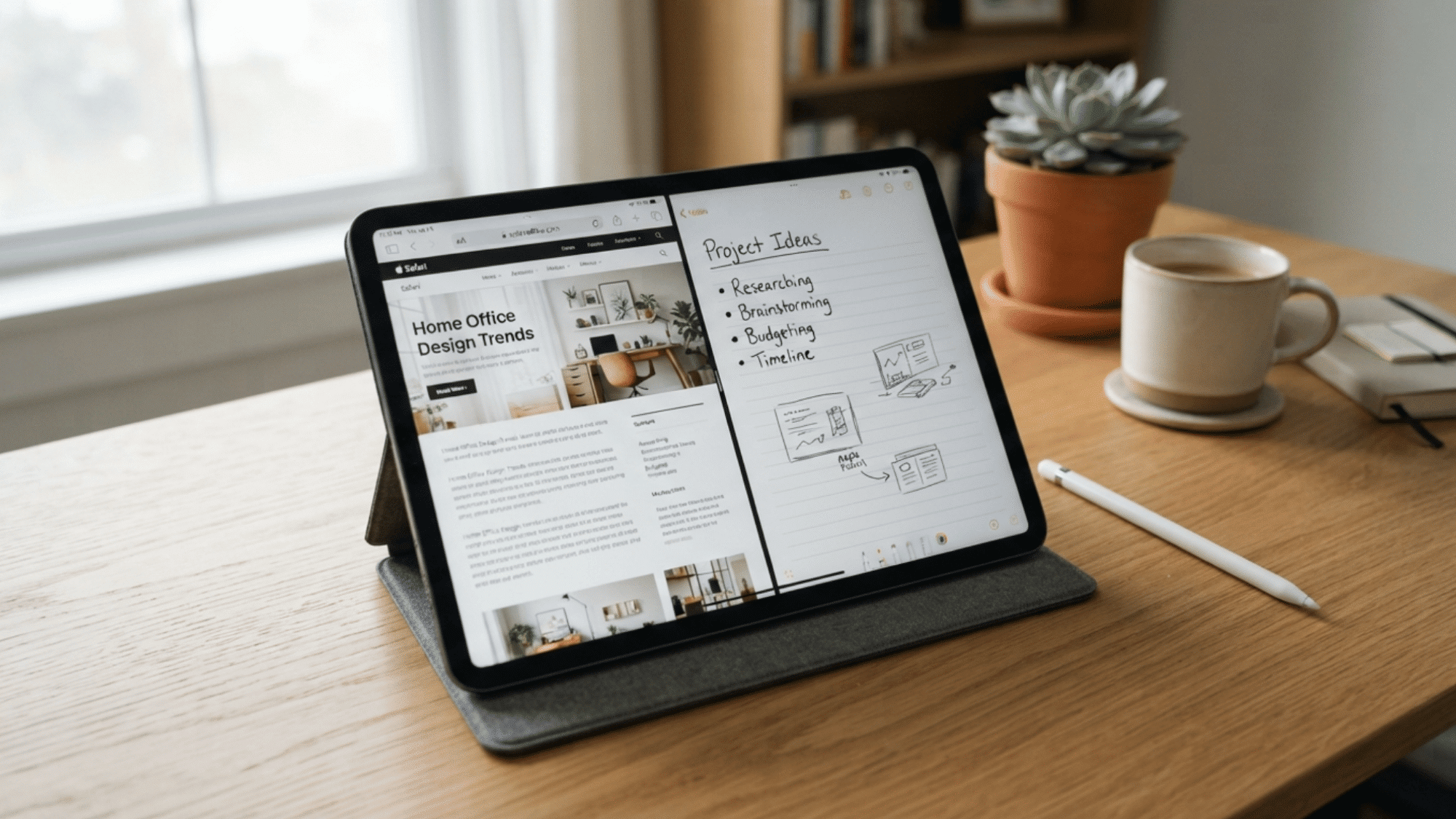






Ever tried juggling two apps at once, switching back and forth so much it starts to feel like a workout for your thumb?
It happens all the time. Maybe you need to take notes while a video plays, or messages keep popping up mid-task. I’ve walked plenty of people through this exact frustration over the years, and constantly hopping between screens gets old fast, honestly.
iPads were built to handle more than one thing at a time. There’s a smarter way to work, one that doesn’t involve closing and reopening apps every few minutes.
So let’s clear up the confusion together. Below, you’ll find exactly how to split screen on iPad, step by step.
What is the Role of Split View on iPad?
Split View is an iPad multitasking feature that lets you use two compatible apps side by side on the same screen. It helps you complete tasks without constantly opening and closing different apps.
For example, you can research information in Safari while writing notes, watch a tutorial while following instructions, or drag information between two apps.
The divider between the apps can be moved to give one app more screen space when needed. Split View is designed to make everyday tasks faster and easier.
Ways to Use More Than One App at a Time on iPad
The iPad gives you three ways to use more than one app at a time, and they all work a little differently, more like a computer. Here are the main ways you can use more than one app at the same time:
| Feature | What It Does | Example Use |
|---|---|---|
| Split View | Shows two apps side by side on one screen. | Write notes while reading a webpage. |
| Slide Over | Opens a second app in a small floating window. | Reply to messages while browsing. |
| Stage Manager | Lets you organize multiple app windows and switch between groups. | Work with several apps during projects. |
| Picture in Picture | Keeps a video or FaceTime call in a small floating window. | Watch a tutorial while taking notes. |
| App Switcher | Helps you quickly move between recently used apps. | Switch from Safari to Mail faster. |
| Drag and Drop | Moves text, images, and files between apps. | Add a photo from Files into a note. |
How to Split Screen on iPad?
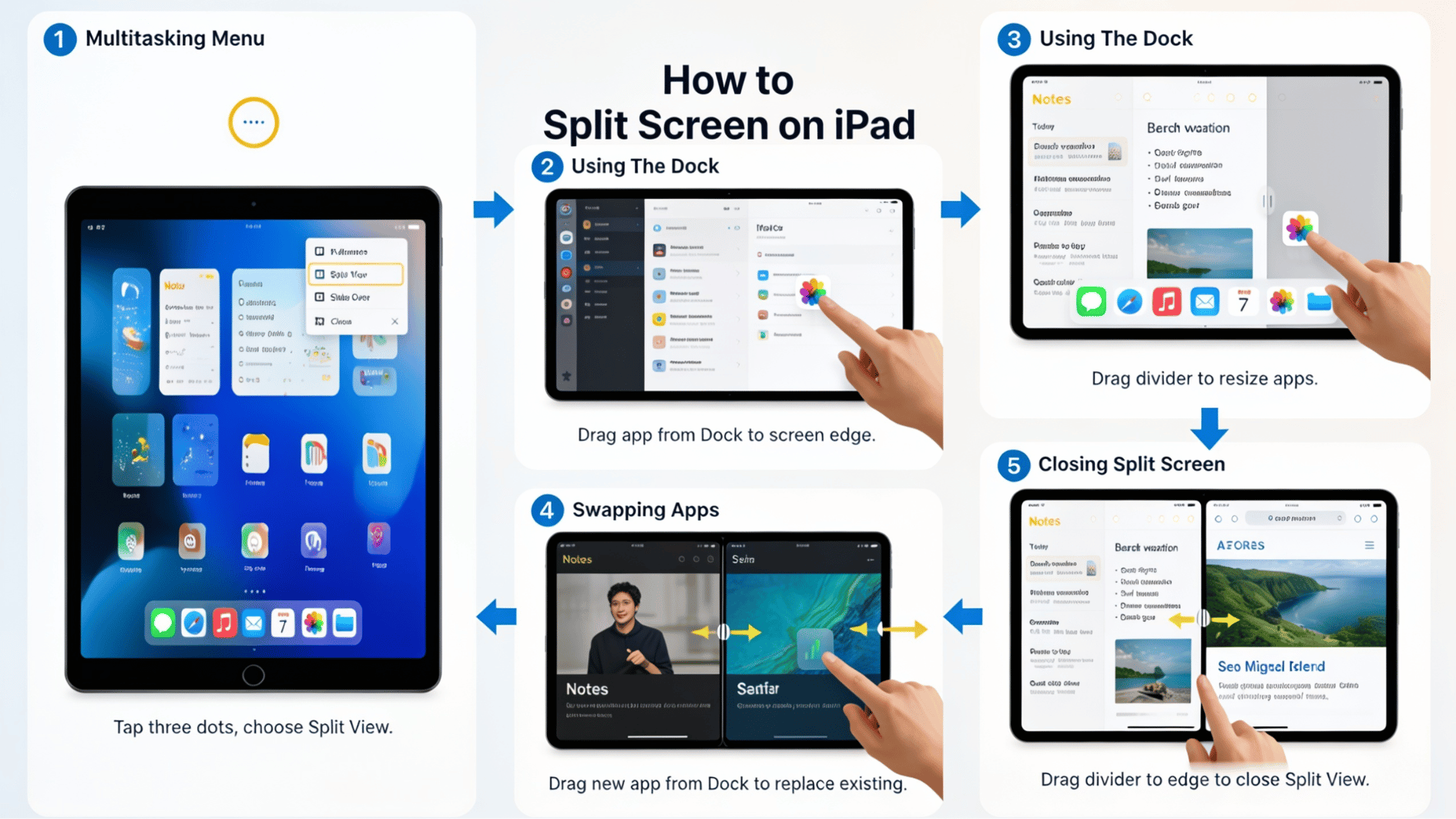
To learn how to use split screen on iPad, there’s more than one way to do it, and none of them are hard once you know where to look.
Below, you’ll find the main methods for turning on Split View. Follow the steps that match your iPad, and you’ll be running two apps side by side in no time:
Step 1: Using the Multitasking Menu (Three Dots)
The multitasking menu is the quickest way to start Split View. On most iPads, it shows up as three dots at the top of the app you have open.
On newer iPadOS versions, that button may look like three little circles (a “traffic-light” button) near the top-left corner instead. Either way, it does the same job.
- Open the first app you want to use.
- Tap the three-dot (or traffic-light) button at the top of the screen.
- Choose the Split View option.
- Your first app slides to one side, and your Home Screen shows up.
- Tap the second app you want, and it opens right beside the first.
Tip: If you don‘t see the three dots or circles, your app might not support Split View. Try one of Apple‘s built-in apps like Safari, Notes, or Mail to test it out.
Step 2: Using the Dock to Open Apps
Don‘t feel like tapping menus? You can start Split View straight from the Dock. This method uses a simple drag, and it‘s great once you get the hang of it.
The Dock is the row of apps that sits at the bottom of your screen.
- Open your first app so it fills the screen.
- Swipe up slowly from the very bottom to bring up the Dock.
- Press and hold the second app‘s icon in the Dock.
- Drag it to the left or right edge of the screen.
- Let go, and the app snaps into place next to the first one.
Tip: Drag the app to the far edge for Split View. If you drop it more toward the middle, it may open as a floating Slide Over window instead.
Step 3: Adjusting the Divider Between Apps
Once both apps are open, you get to decide how much space each one takes up. A thin bar, called the divider, sits between the two apps. Moving it is easy and takes just one finger.
- Find the divider (the small handle) in the middle of the screen.
- Press and hold it with one finger.
- Drag it left or right.
- Stop when both apps look the way you want.
Tip: Drag the divider all the way to the edge if you want one app to take over the full screen and close the other.
Step 4: Swapping or Replacing an App
Want to keep one app but switch the other? You don’t have to close everything and start over. You can swap out just one side whenever you like.
- Swipe up slightly from the bottom to show the Dock.
- Press and hold the new app you want to use.
- Drag it on top of the app you want to replace.
- Let go, and the new app takes its spot.
Tip: You can also pull down the little handle at the top of one app to swap sides, so your apps trade places on the screen.
Step 5: Close Split Screen View
When you’re finished multitasking, going back to one app takes only a second. Closing Split View doesn’t delete anything; it just puts one app away for now. Here’s how to do it.
- Find the divider between your two apps.
- Press and hold it.
- Drag it all the way across the screen, over the app you want to close.
- The app you keep will fill the whole screen again.
Tip: On newer iPadOS versions, you can also tap the traffic-light button and choose Full Screen to close split screen fast.
Why Split Screen May Not Be Available on Your iPad
Split View is a useful iPad multitasking feature, but it may not appear or work on every device. Issues can happen because of the iPad model, software version, app support, or certain settings that affect multitasking, something even I have faced.
1. Your iPad Model Does Not Support Split View
Not all iPad models support Split View. Older iPads may not have the hardware or software capabilities needed for advanced multitasking features.
Check your iPad model in Settings > General > About and compare it with Apple’s supported device list. Newer iPads generally offer better multitasking options.
2. Your iPadOS Version is Outdated
Split View depends on the iPadOS version installed on your device. If your iPad is running an older version of iPadOS, some multitasking features may be missing or work differently.
Updating your iPad through Settings > General > Software Update can add new features and fix compatibility issues.
3. The App Does Not Support Split View
Some apps do not allow Split View, even if your iPad supports the feature. Developers need to add multitasking support for their apps to work in this mode.
Try opening another app that supports multitasking to check if the issue is limited to one app.
4. Multitasking Settings Are Turned Off
Your iPad has settings that control how apps work together. If multitasking options are disabled, Split View may not appear when you try to open two apps.
Go to Settings > Multitasking & Gestures and make sure options like Allow Multiple Apps are enabled.
5. The Feature Changed in Newer iPadOS Versions
Apple has updated iPad multitasking over time, adding features like Stage Manager while changing how some options appear. Split View is still available on supported devices, but the way you access it may look different in newer iPadOS versions.
Note: If you recently updated your iPad, check the new multitasking controls to find the option you need.
Which iPads Support Split View?
Split View is available on many iPad models, but not every device can use this multitasking feature. Support depends on the iPad model, its processor, and the version of iPadOS installed.
The following iPad models support Split View and can run two compatible apps side by side:
- iPad Pro: Every iPad Pro model supports Split View.
- iPad Air: Works on the iPad Air models from the Air 2 and every model after it.
- iPad (standard): Works on the standard iPad models from the 5th generation and later.
- iPad mini: Works on the iPad mini 4 and later.
- iPadOS version: Your iPad needs to run iOS or iPadOS 9 or newer, which covers most iPads from around 2015 on.
Wrapping It Up
Learning how to split screen on an iPad opens up a whole new way to get things done.
Once you know how to split screen on ipad, drag the divider, swap apps, and close the view, using two apps at once feels simple and natural.
And if split screen ever stops working, you now know how to check your settings, your iPadOS version, and the apps you’re using.
No more flipping back and forth between apps one at a time. So go ahead and open two apps side by side, and let your iPad do more for you every day.
With a little practice, multitasking on your iPad will quickly become second nature.
Frequently Asked Questions
Can You Customize the Split Screen Layout on iPad?
Yes, you can adjust the app window sizes by moving the divider between apps to create a layout that suits your tasks.
Can You Drag and Drop Files Between Apps in Split Screen on iPad?
Yes, split screen lets you move supported files, images, and text between compatible apps with drag-and-drop.
Does Split Screen Affect iPad Battery Life?
Using two apps together may slightly increase battery usage, especially when running demanding tasks like video editing, gaming, or streaming.
Does Split Screen Work with an External Keyboard on iPad?
Yes, an external keyboard can help navigate between apps faster and improve multitasking efficiency while using supported iPad features.