


Typing on a Chromebook can feel confusing at times, especially when Caps Lock turns on without notice. Since I use a Chromebook for writing and daily browsing, I’ve faced this issue more than once.
When a shortcut is pressed accidentally, people start looking for how to turn off Caps Lock on Chromebook. This blog covers some simple shortcuts and settings that have worked for me.
These steps are based on real-world use and help quickly stop, control, and disable Caps Lock on Chromebook, so typing stays smooth without interruptions during work or study tasks.
Understanding the Caps Lock Working on a Chromebook
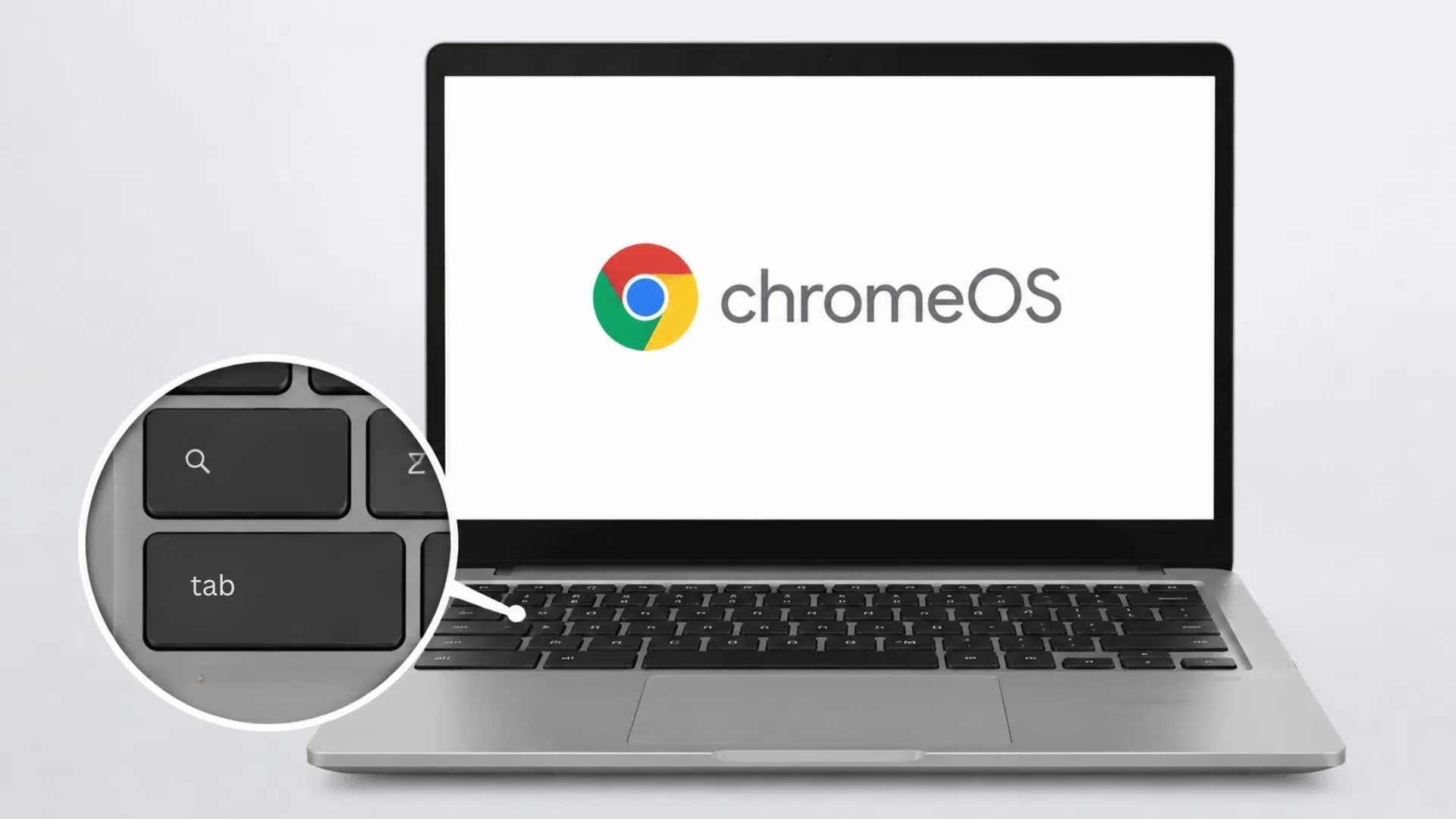
In my experience with a Chromebook, Caps Lock is not a separate physical key. This setup is part of ChromeOS keyboard design, where modifier keys can be reassigned through system settings.
Here is what matters in real use:
- The Search key often replaces Caps Lock behavior
- Activation happens through a shortcut, not a direct key press
- The same shortcut is used to switch it off when needed
Because of this, Caps Lock isn’t on a dedicated button but is activated by a key combo recognized by the OS. Once I adjusted, controlling typing became easier.
Caps Lock on Chromebooks vs. Regular Keyboards
On a regular keyboard, Caps Lock is a dedicated physical key – usually sitting to the left of the letter A. You press it once to turn on, and press again to turn off. Simple.
| Feature | Regular Keyboard | Chromebook |
|---|---|---|
Dedicated Caps Lock Key | Yes | No |
Activation Method | Single key press | Alt + Search shortcut |
Key in That Position | Caps Lock | Search (Launcher) Key |
Visual Indicator | LED light on keyboard | On-screen status indicator |
Remappable | Rarely | Yes, via ChromeOS settings |
The Search (Launcher) key sits exactly where Caps Lock normally would. Google intentionally replaced it – Chromebooks are built around search-first navigation, and Caps Lock was considered a low priority for most users.
This is also why the behavior feels unfamiliar when switching from Windows or Mac. On those systems, muscle memory handles it – your pinky hits the key without thinking.
On a Chromebook, that same instinct does nothing or triggers the Search menu instead. Once you know the Alt + Search shortcut, it clicks fast. But until then, the missing key genuinely throws people off.
How to Turn Off Caps Lock on Chromebook?
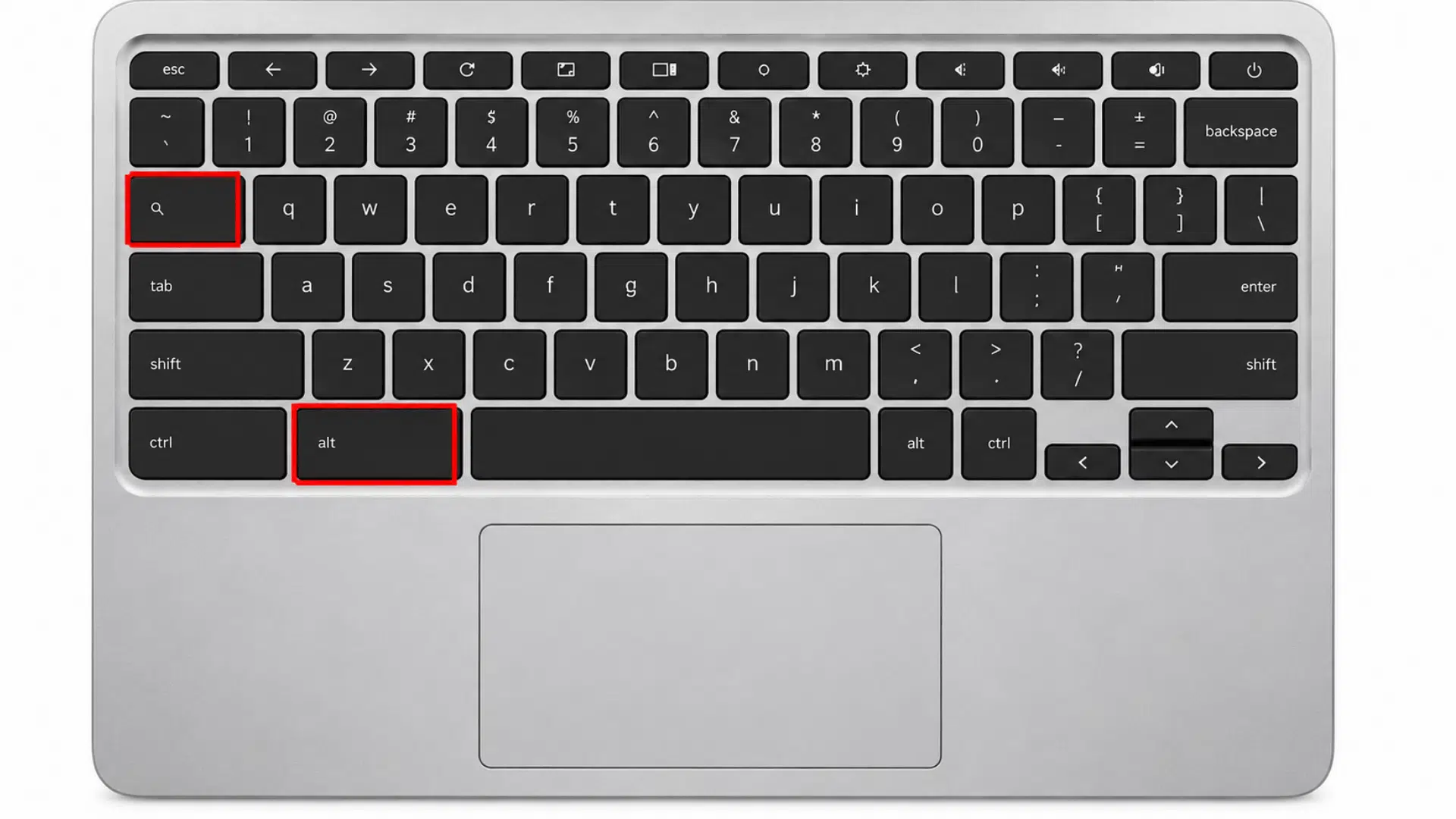
In ChromeOS, Caps Lock is managed via a shortcut rather than a dedicated key. When it gets activated, it changes typing behavior across the system.
The system shows a small indicator to confirm the status. The control is handled through keyboard shortcuts linked with the Search (Launcher) key, so fixing it does not require opening any settings.
Steps to Turn Off Caps Lock:
- Press Alt + Search (Launcher key) once
- Look for the on-screen Caps Lock indicator to disappear
- Try typing a sentence to confirm normal input
- If needed, press the same keys again once
- Continue typing once the lowercase input is restored
How to Disable Caps Lock on Chromebook?
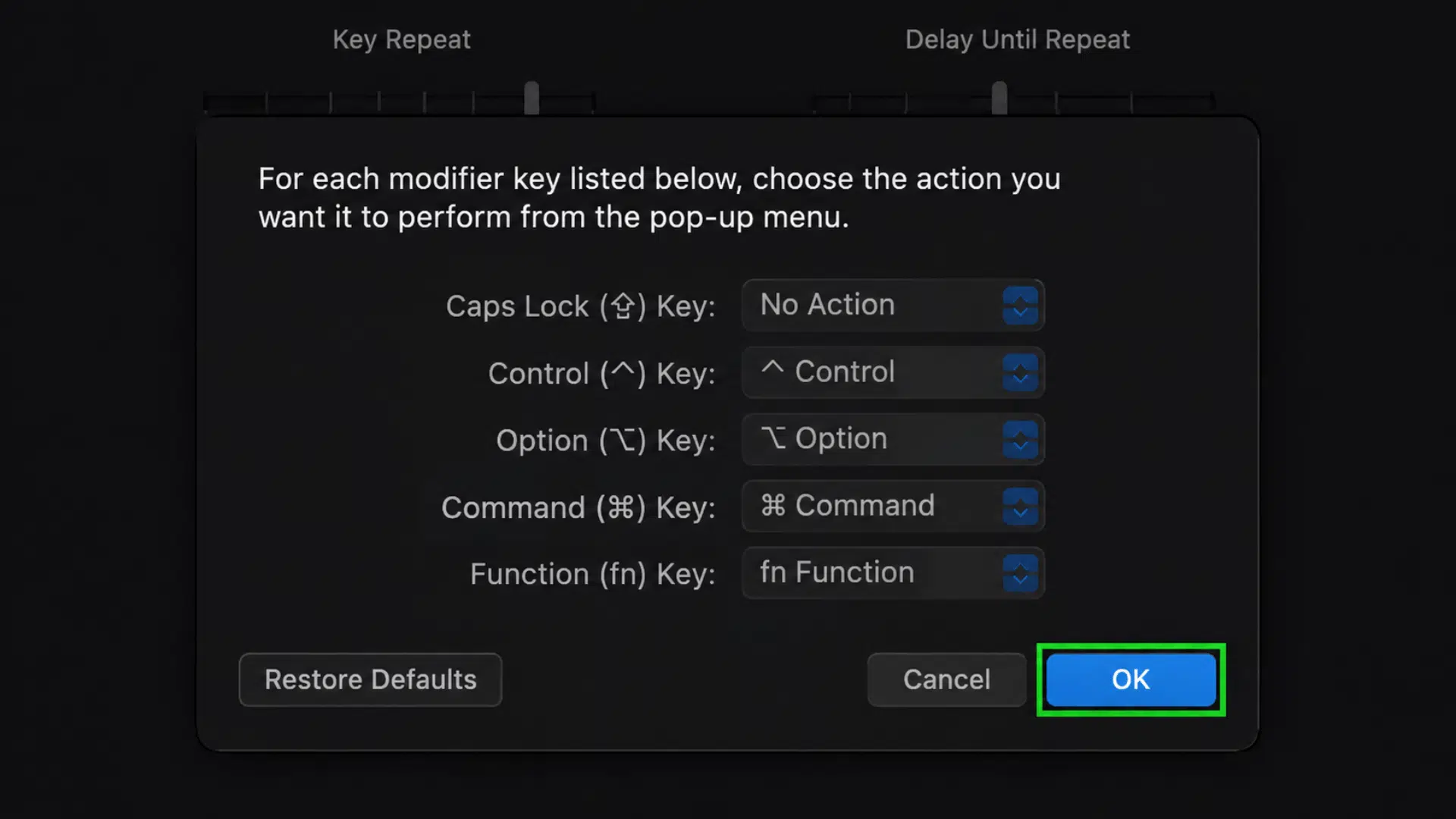
ChromeOS allows control over this through system-level keyboard settings, where modifier keys like Search, Ctrl, and Alt can be reassigned.
This is useful when Caps Lock keeps turning on during typing and needs to be stopped completely.
Steps to Disable Caps Lock:
- Open Settings from the system menu
- Go to the Device section
- Select Keyboard option
- Open Search, Ctrl, Alt settings
- Locate Caps Lock assignment
- Set it to Disabled or change its function
- Exit settings to apply changes automatically
How to Change Caps Lock Key Function on Chromebook?
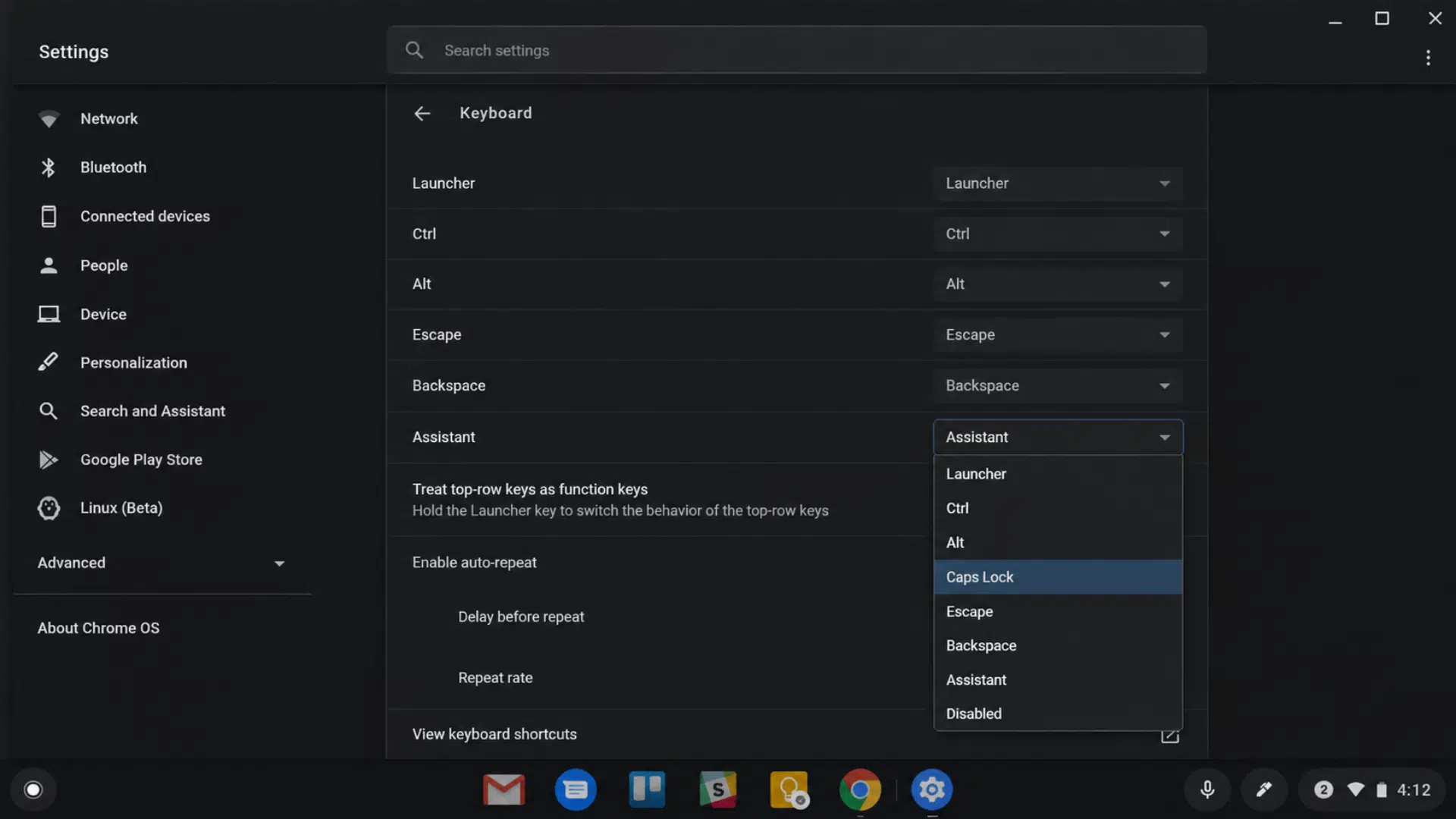
In my experience with ChromeOS, the Caps Lock key does not stay fixed in one position. The system allows keyboard keys to be reassigned, which helps when Caps Lock is not useful in daily typing.
This setting is managed in the keyboard configuration area, where modifier keys can be customized to preference.
Steps to Change Caps Lock Function:
- Open Settings
- Go to Device
- Select Keyboard
- Open Search, Ctrl, Alt settings
- Click on the Caps Lock option
- Choose a different function like Search, Ctrl, or Escape
- Close settings to apply changes automatically
Tips to Avoid Caps Lock Issues
Because keyboard control relies on key combinations, adopting a few simple habits can help minimize accidental activations during normal typing.
| Tip | Description |
|---|---|
| Avoid pressing modifier keys together without intention | Accidental combinations, like Alt or Search with other keys, often trigger Caps Lock without you noticing. |
| Get familiar with the Search (Launcher) key position | Knowing the exact location of the Search key reduces wrong key presses during fast typing. |
| Watch for the on-screen Caps Lock indicator while typing | The small indicator instantly confirms when uppercase mode is active. |
| Slow down when using keyboard shortcuts in apps | Rushing keyboard shortcuts in apps is a common cause of unwanted Caps Lock activation. |
| Test a few letters if typing suddenly switches to uppercase | Checking a quick sample of text helps confirm and fix the issue early. |
Conclusion
My experience says that in ChromeOS, Caps Lock issues are easy to manage once the shortcut-based system is clear.
It is not a serious problem, as it can be fixed quickly with a shortcut or controlled via settings when needed. It usually comes from small daily habits like fast typing or accidental shortcut presses during work or study.
Once I became more aware of key placement and shortcuts, these interruptions decreased, and little attention while typing is enough to keep everything running smoothly in day-to-day use.
Frequently Asked Questions
Can Caps Lock Settings Work Without Internet on a Chromebook?
Yes, Caps Lock works through built-in keyboard shortcuts, so it can be turned on or off even offline.
Can Caps Lock work on an External Keyboard With a Chromebook?
Caps Lock works on most external keyboards connected to a Chromebook.
Why is Caps Lock Stuck on the External Keyboard?
It may be a hardware key issue or a system shortcut conflict.