




You are about to travel internationally, and the last thing you need is to land abroad and come back to a phone bill that hurts more than the jet lag. That one tiny setting, Data Roaming, could cost you more than you think.
Before you leave, knowing how to turn off roaming on iPhone is the smartest two-minute travel hack you can do. No tech skills needed, just a few simple taps.
If you have ever searched: how to turn off international roaming on iPhone in a panic, you are in the right place. Let us get straight into it.
Is It Necessary to Turn Off Roaming on an iPhone?
Yes, because turning off roaming helps limit mobile network usage outside a carrier’s standard coverage area. Many users disable this setting to maintain greater control over their mobile services.
It can also help reduce the chances of unintended data usage when connected to external networks. This is particularly relevant when using a local SIM card or relying primarily on Wi-Fi.
Mobile carriers may apply different rates for services used on partner networks. Reviewing roaming settings beforehand can help users stay informed about potential charges.
Understanding how to turn off roaming on an iPhone is a simple way to manage mobile connectivity while traveling internationally.
Difference Between Data Roaming and Mobile Data You Should Know
Many iPhone users confuse data roaming with mobile data, but the two settings actually control very different things. Mixing them up can lead to either unexpected charges or frustrating connectivity problems while traveling.
Here is a clear breakdown of how the two settings differ:
| Feature | Mobile Data | Data Roaming |
|---|---|---|
| What it controls | All mobile data on your home network | Mobile data on foreign or partner networks |
| When it applies | Always, within carrier coverage | Only outside carrier’s home coverage |
| Where to find it | Settings → Cellular | Settings → Cellular → Cellular Data Options |
| Turning it off affects | All mobile internet everywhere | Only internet on roaming networks |
| Impact on Wi-Fi | No impact | No impact |
| Affects calls/texts | No | Sometimes, carrier-dependent |
| Risk if left on | Normal data usage charges | Unexpected international charges |
| Best turned off when | You want zero mobile data usage | Traveling abroad without a roaming plan |
| Best kept on when | Daily regular usage at home | You have an active international roaming plan |
| Battery impact | Moderate usage | Slightly higher when searching for signals |
| Affects hotspot | Yes, hotspot needs this on | Limited without roaming data active |
| Carrier restrictions | Rarely restricted | Often restricted by carrier plan |
Follow these Steps to Turn Off Roaming on iPhone
Apple allows users to manage roaming settings directly through the iPhone’s cellular settings. The process is simple and takes only a few moments to complete:
Step 1: Open the Settings App
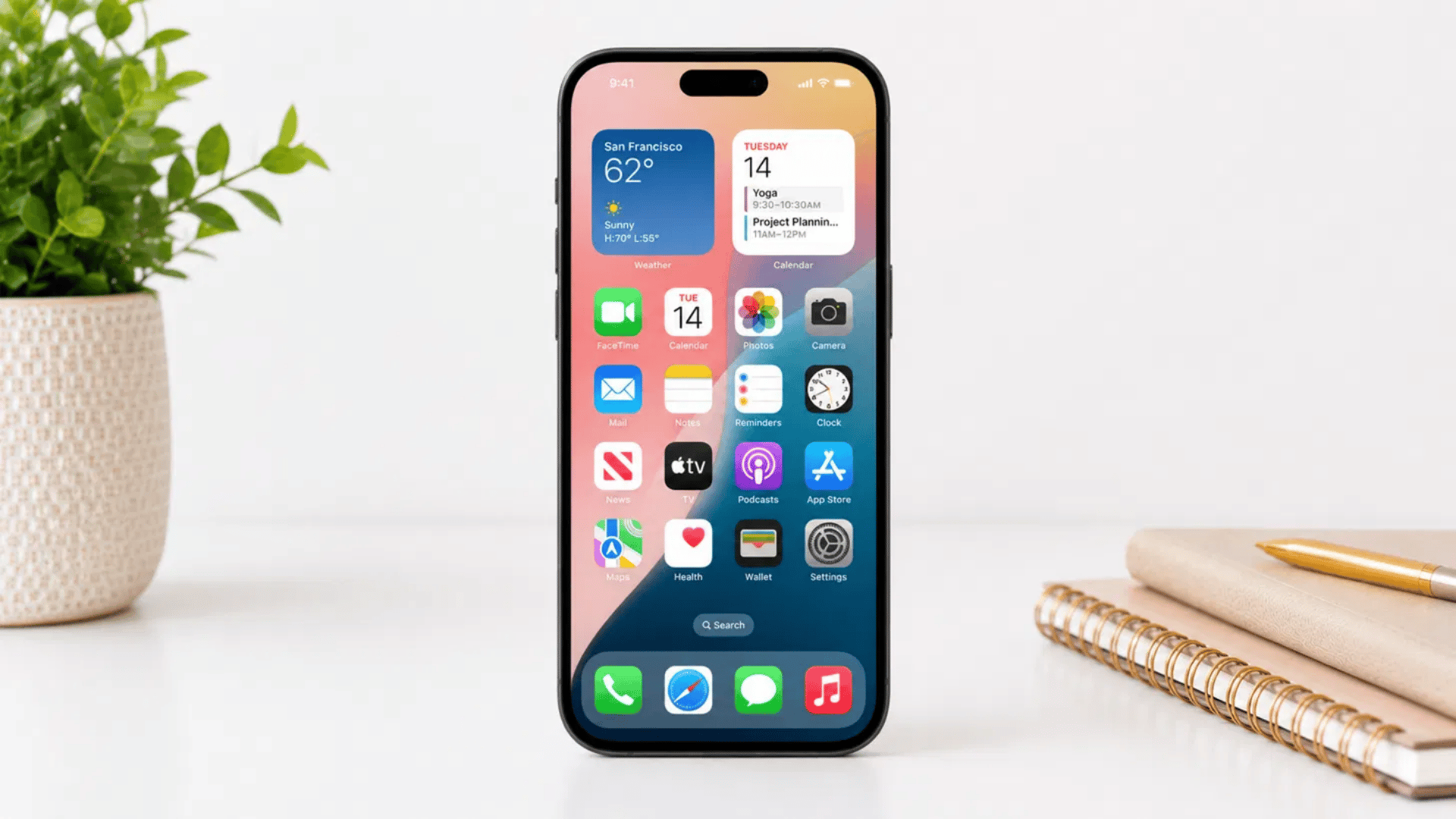
Locate and open the Settings app from the iPhone’s home screen. This menu contains all network and cellular configuration options. The Settings app looks like a grey icon with gears on it.
You can usually find it on the first page of your home screen.
Step 2: Tap Cellular or Mobile Data
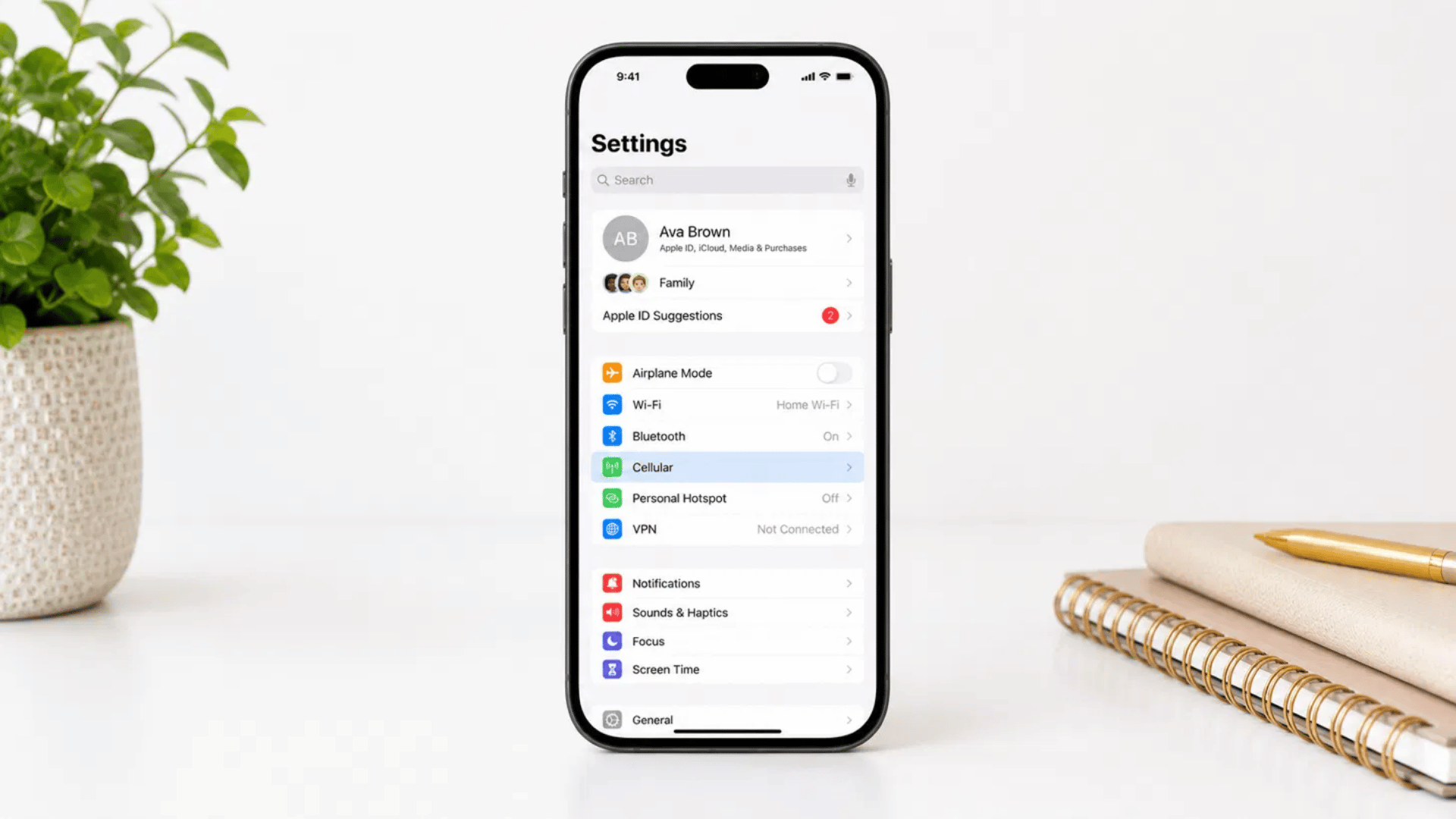
Scroll down and select Cellular or Mobile Data, depending on the device region and iOS version. This section contains mobile network settings.
The name of this option may look slightly different based on which country you are in. Either way, it controls how your iPhone connects to a mobile network.
Step 3: Select Cellular Data Options
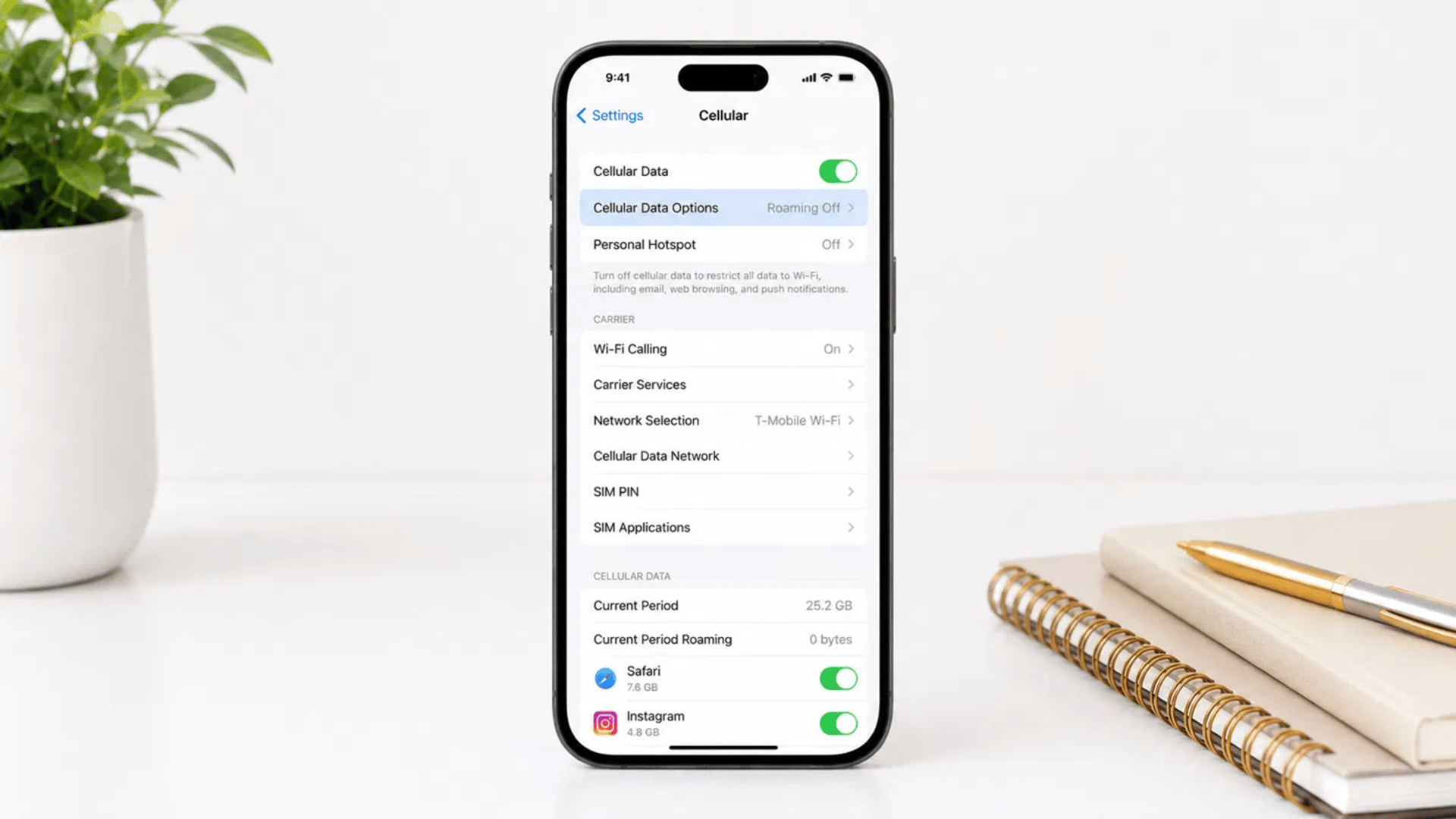
Within the Cellular menu, tap Cellular Data Options. This area provides access to roaming and other data-related settings. Think of this section as a control panel for how your phone uses mobile data.
It holds some important settings that affect your data usage and phone bill.
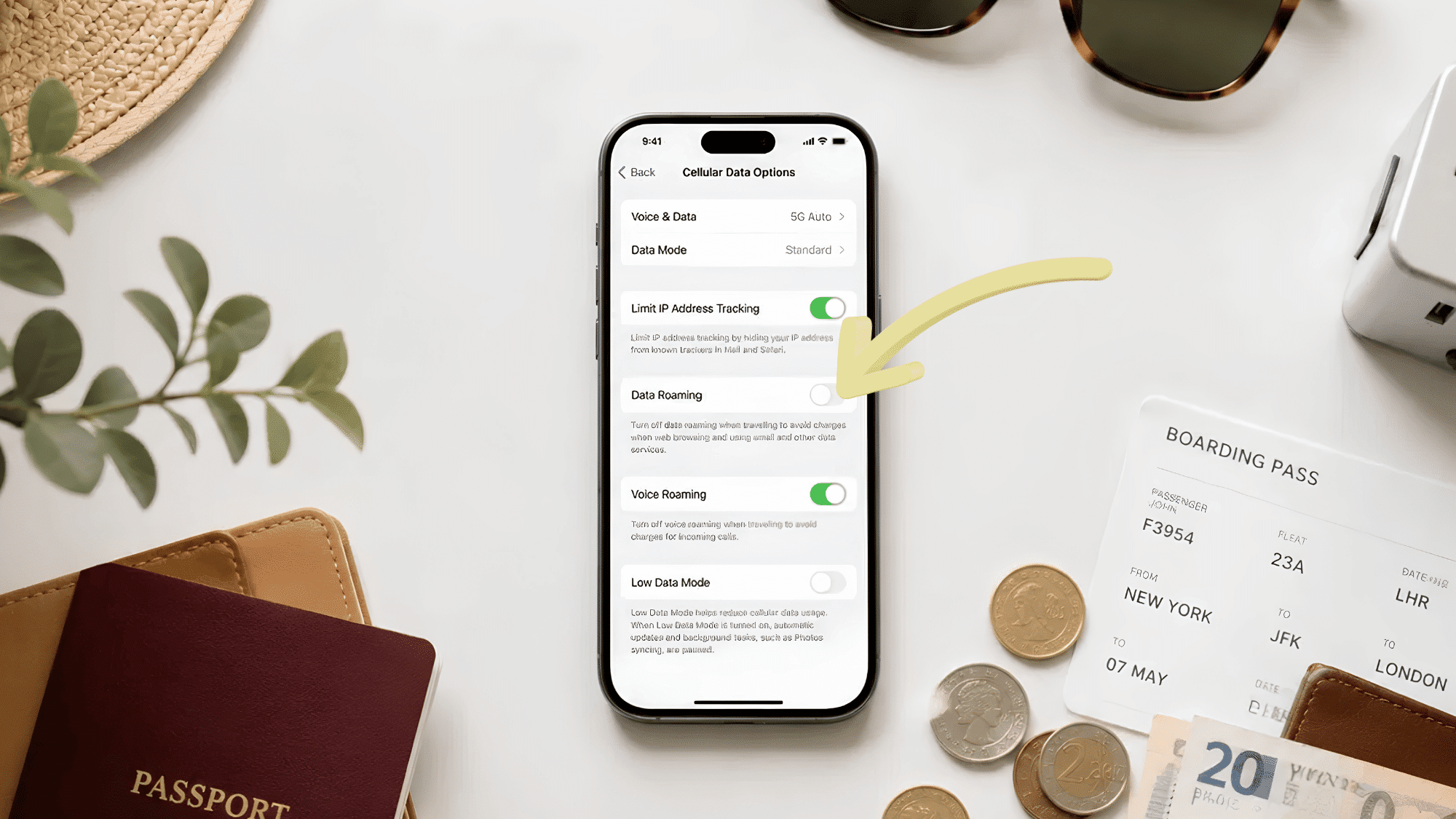
Step 4: Locate Data Roaming
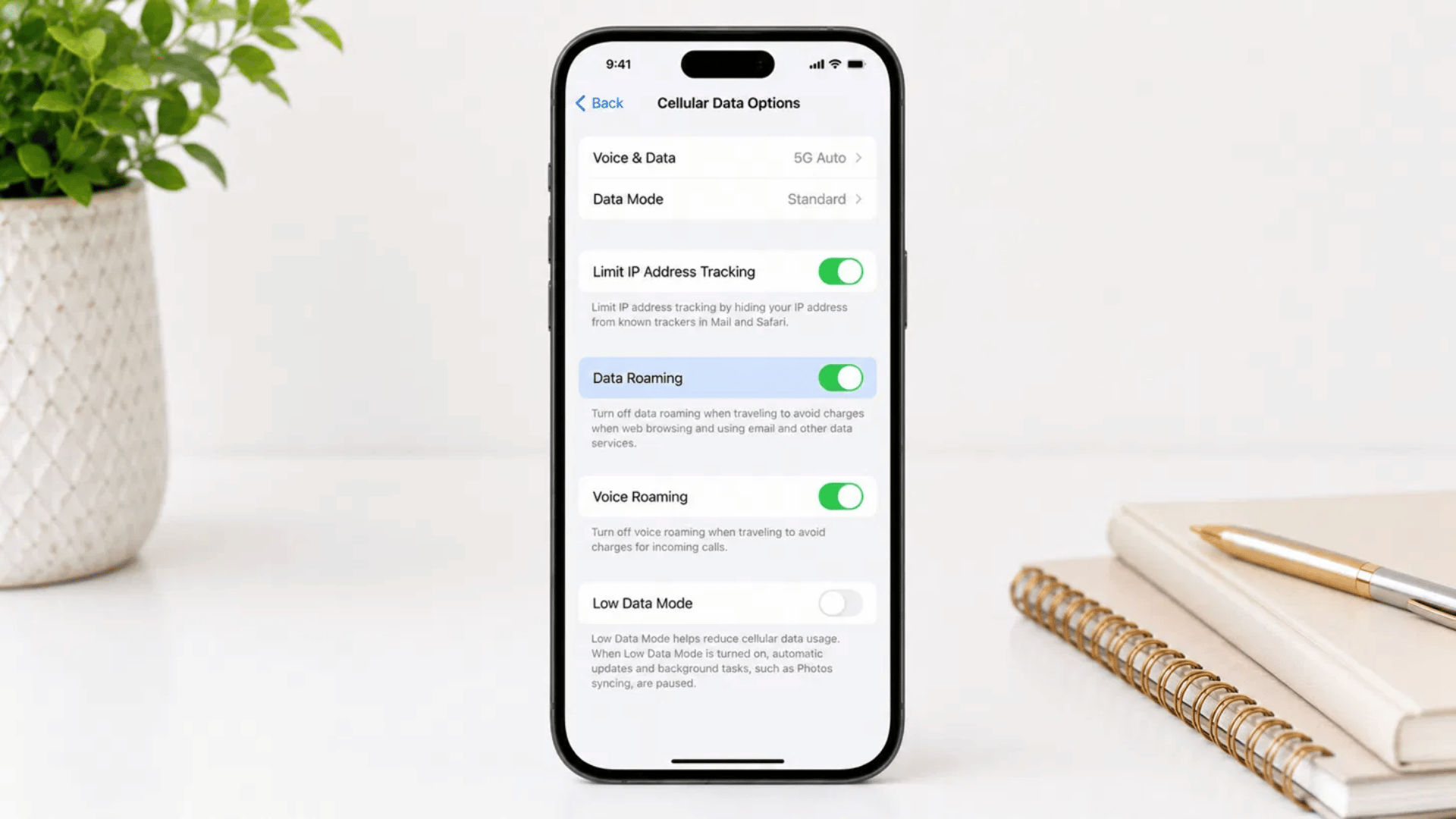
Find the Data Roaming option on the screen. This setting controls If the iPhone can use roaming networks for mobile data.
Roaming means your phone connects to a different carrier’s network when your own carrier is not available. This often happens when you travel to another city or country.
Step 5: Turn Off Data Roaming
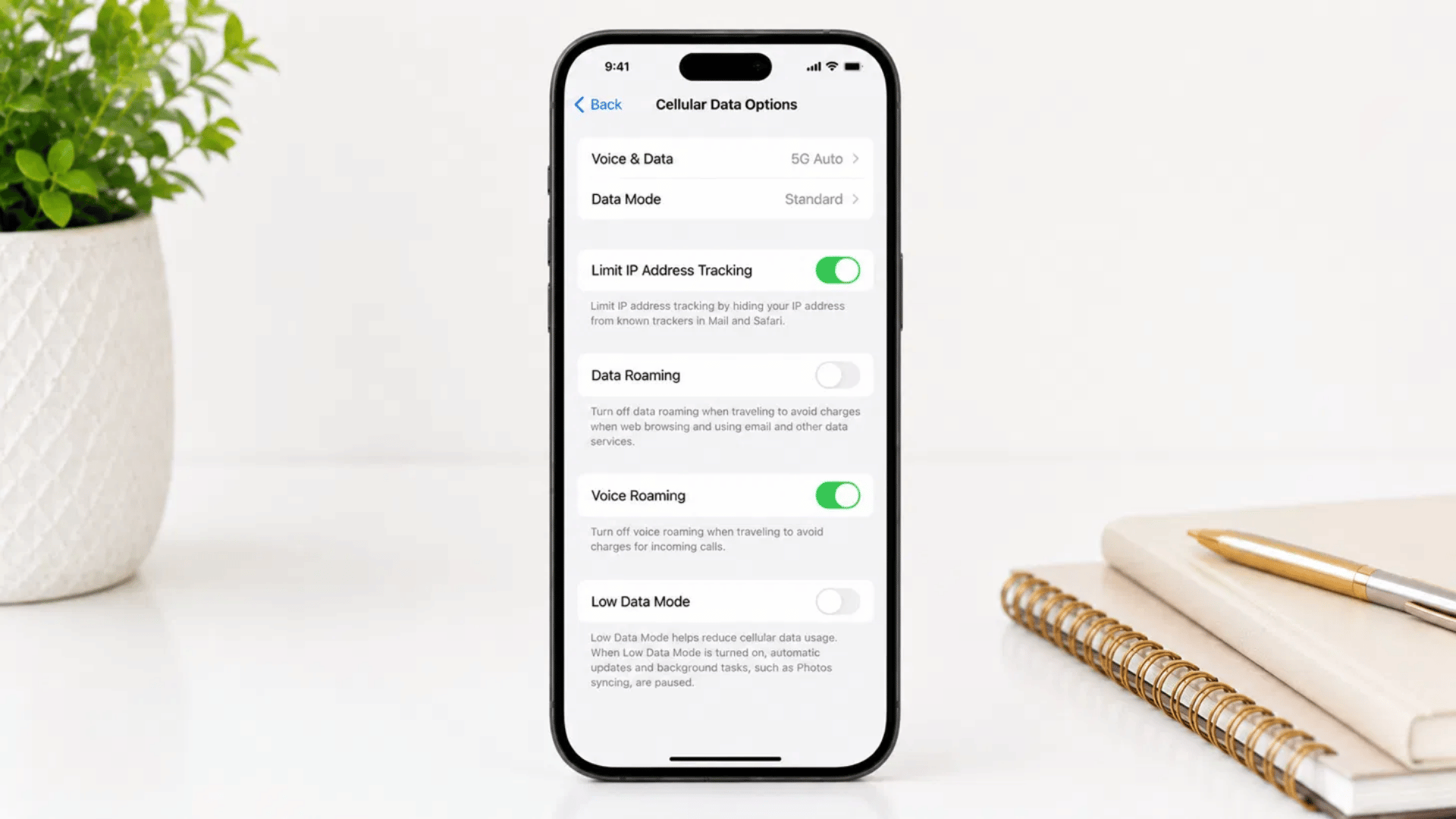
Toggle the Data Roaming switch to the off position. Once disabled, the iPhone will no longer use mobile data through roaming networks. The switch will turn grey when it is turned off.
This one small step can save you from getting a surprisingly high phone bill later.
Note: If you are searching for how to turn off international roaming on iPhone can use the same Data Roaming setting. Once disabled, the device will not use mobile data on roaming networks while traveling outside the carrier’s regular coverage area.
Effects of Turning Off Roaming on iPhone
Now that you know ‘how to turn off roaming on iphone’, turning off roaming changes how the iPhone connects to mobile networks outside the carrier’s standard coverage area. The table below summarizes the effects of disabling roaming:
- Mobile Data: Disabled on roaming networks, so no unexpected data charges.
- Wi-Fi Connectivity: Completely unaffected and works as usual.
- Phone Calls: May still be available depending on your carrier.
- Text Messages: May still work but varies by carrier and location.
- Domestic Network Access: No change at all when on your home network.
- International Data: Mobile internet is fully disabled when traveling abroad.
- Maps and Navigation: Limited without data, so download offline maps before traveling.
- Messaging Apps: Only work over Wi-Fi, not mobile data.
- Email Sync: Pauses on mobile data and resumes on Wi-Fi.
- App Updates: Held until Wi-Fi or home network is available.
- Cloud Backup: Only runs over Wi-Fi until a connection is found.
- Streaming Services: Require Wi-Fi to play any content.
- Personal Hotspot: Limited since there is no roaming data to share.
- Data Charges: Noticeably reduced, helping avoid extra fees.
- Battery Life: May improve slightly as the phone searches less for signals.
- Emergency Calls: Still available and work where supported.
- Setting Changes: Fully reversible, turn roaming back on anytime with one tap.
Understanding these changes can help users decide when to disable roaming based on their travel and connectivity needs.
Reviewing roaming settings before a trip can also help prevent unexpected mobile data usage.
Final Thoughts
Turning off roaming on iPhone is one of those small steps that can save you from a genuinely painful phone bill. You now know exactly how to turn off roaming on iPhone, what changes when you do it, and how to stay connected smartly while traveling abroad.
If you are hopping across borders for a weekend or heading out on a long international trip, these settings are always worth a double check before departure. A grey toggle today means zero roaming surprises tomorrow.
Go enjoy your trip without worrying about your phone bill. You have got this handled.
Frequently Asked Questions
Can Wi-Fi Be Used When Roaming ivs Turned Off?
Yes. Turning off roaming does not affect Wi-Fi connections. The iPhone can still connect to available Wi-Fi networks.
Does Airplane Mode Turn Off Roaming?
Airplane Mode disables cellular connections, including roaming services. However, Wi-Fi can be turned on manually while Airplane Mode is active.
Will Turning Off Roaming Affect Mobile Apps?
Apps that rely on mobile data may not update or sync when connected to roaming networks. They will continue to work when connected to Wi-Fi.
Can Roaming Be Turned Back On Later?
Yes. Roaming can be enabled at any time through the Cellular Data Options menu in the iPhone settings.