



You finally get a shiny new monitor, plug it in, and the image still looks weird. Sound familiar? That annoying problem usually comes down to one small thing: the cable used.
DisplayPort and HDMI are the two main cables, but they aren’t the same. Each one is built for slightly different jobs, and picking the wrong cable can make your setup run worse than it should.
If you’re gaming, watching movies, or connecting a laptop to a bigger screen, the best choice depends on what you own.
In this post, you’ll find the real differences in DisplayPort vs HDMI, covering compatibility, performance, and resolution, so you can choose wisely.
What are DisplayPort and HDMI Used For?
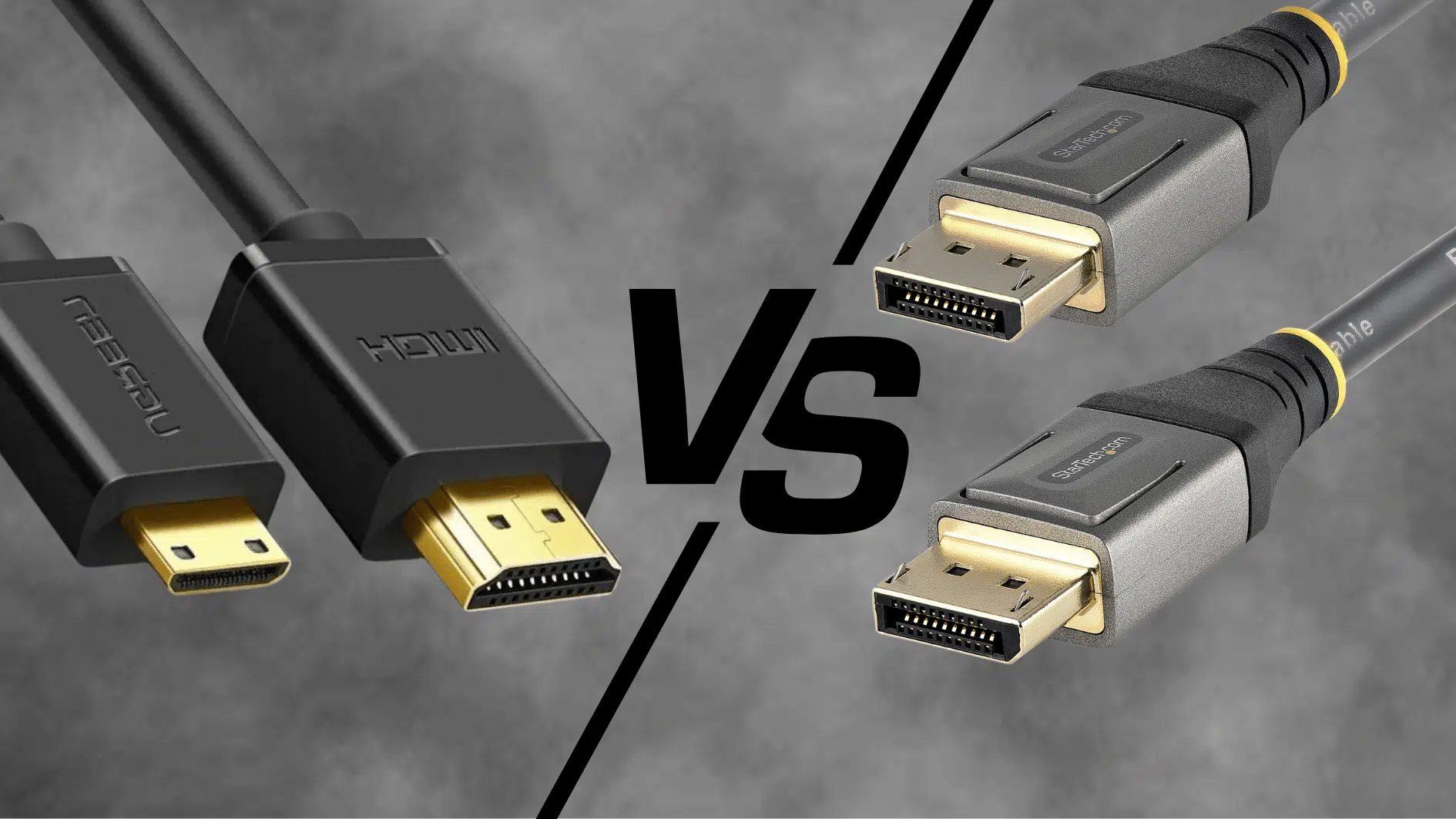
DisplayPort and HDMI are both video interface standards used to connect devices like laptops, gaming consoles, and graphics cards to monitors or TVs.
DisplayPort was developed primarily for computers, offering high refresh rates and strong support for multiple monitors through a single cable.
HDMI, on the other hand, was designed with home entertainment in mind, making it the standard choice for TVs, soundbars, and streaming devices, and it carries both audio and video signals over a single cable.
While they serve a similar purpose, transmitting high-quality video and audio, each connection type has unique strengths suited to different setups, which is why understanding DisplayPort vs HDMI matters before choosing one for your devices.
DisplayPort vs. HDMI: Where Do They Differ?
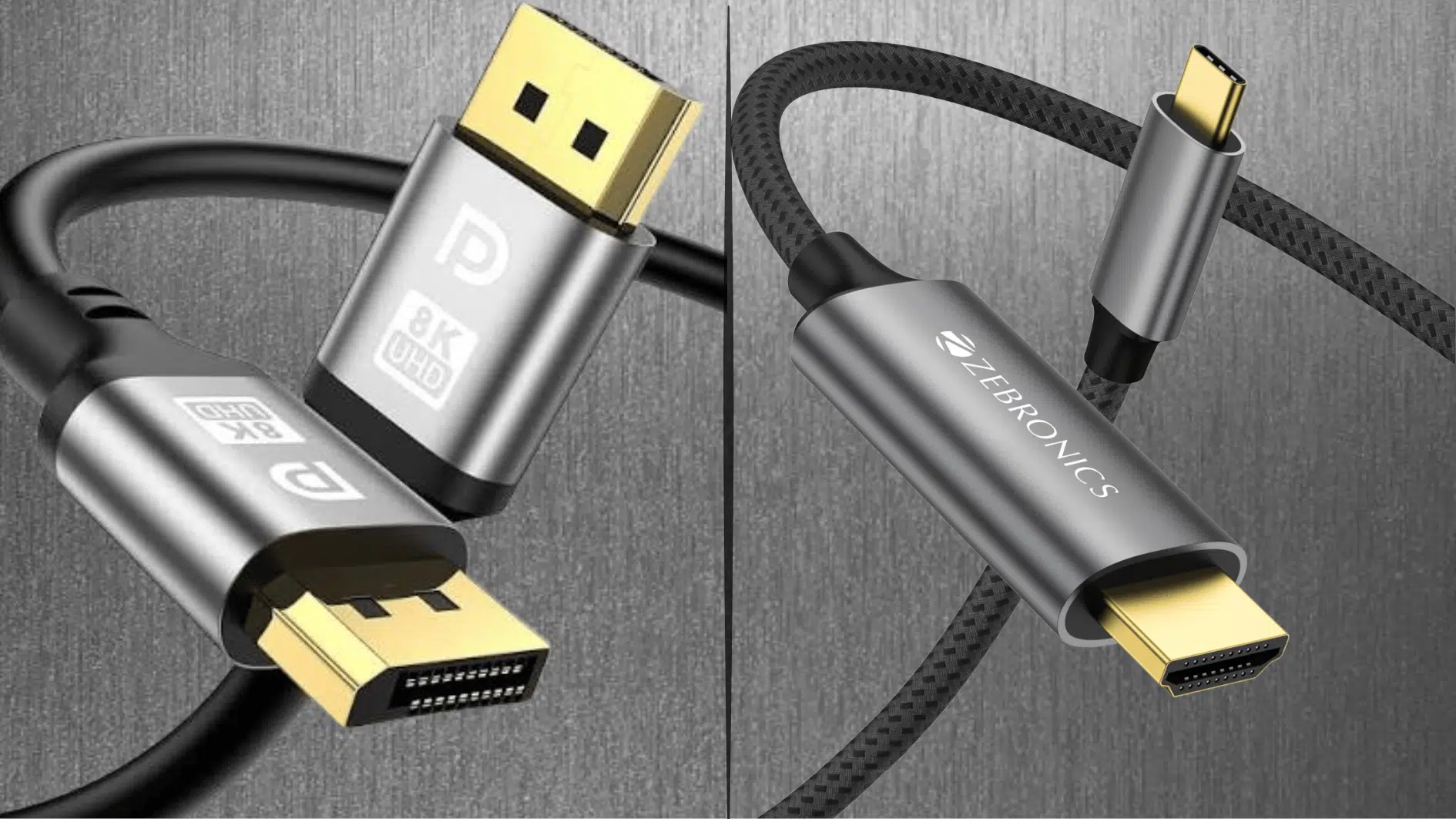
At first glance, both cables do the same job: they send video and audio from one device to a screen. But once you look more closely, the display port vs. HDMI debate gets interesting because each one shines in different situations.
1. Bandwidth and Speed
Bandwidth decides how much data a cable can carry at once. More bandwidth means higher resolutions, smoother refresh rates, and better overall performance.
| Feature | DisplayPort | HDMI |
|---|---|---|
| Latest version | DisplayPort 2.1 | HDMI 2.1 |
| Max bandwidth | Up to 80 Gbps | Up to 48 Gbps |
| Older version speed | DP 1.4 – 32.4 Gbps | HDMI 2.0 – 18 Gbps |
| Data efficiency | Higher (better compression support) | Slightly lower |
2. Resolution and Refresh Rate
Resolution decides how sharp the picture looks, while refresh rate controls how smooth the motion feels. Together, these two factors shape the overall viewing and gaming experience.
| Feature | DisplayPort | HDMI |
|---|---|---|
| Max resolution | Up to 16K (with DSC) | Up to 10K |
| 4K refresh rate | Up to 240Hz | Up to 120Hz |
| 8K support | Yes, at 60Hz+ | Yes, at 60Hz |
| 1080p gaming | Up to 500Hz+ | Up to 360Hz |
| Best for | High refresh gaming | 4K TVs and movies |
3. Audio Support
Both cables carry audio and video, so there’s no need for a separate audio cable. The difference lies in a few extra audio features each one offers.
| Feature | DisplayPort | HDMI |
|---|---|---|
| Max audio channels | 32 channels | 32 channels |
| Audio Return Channel (ARC/eARC) | Not supported | Supported |
| Surround sound formats | Supported | Supported (Dolby Atmos, DTS:X) |
| Best for | PC speakers/headsets | Home theater systems |
4. Device Compatibility
Every device favors a certain port, which often determines which cable is used. TVs, consoles, monitors, and PCs all have their own defaults.
| Feature | DisplayPort | HDMI |
|---|---|---|
| Gaming PCs/GPUs | Standard port | Available |
| TVs | Rarely found | Standard port |
| Gaming consoles (PS5, Xbox) | Not supported | Fully supported |
| Monitors | Very common | Common |
| Laptops | Via USB-C (DP Alt Mode) | Common |
5. Multi-Monitor and Extra Features
Beyond the basics, each connector comes with its own special tricks. This is where the display port vs hdmi comparison really splits, especially for multi-screen setups.
| Feature | DisplayPort | HDMI |
|---|---|---|
| Daisy-chaining monitors | Yes (MST support) | No |
| Adaptive sync | FreeSync + G-Sync | FreeSync, VRR (HDMI 2.1) |
| Cable locking clip | Yes | No |
| CEC (control devices with one remote) | No | Yes |
| Max cable length (reliable) | ~3 meters | ~15 meters |
DisplayPort vs. HDMI: Compatibility with Devices and Hardware
Buying the wrong cable is an easy mistake. Both ports look similar, and both send video and audio, but they don’t show up on the same devices. DisplayPort leans toward PCs and monitors. HDMI rules TVs and living room gear.
Devices that Use the DisplayPort Standard
DisplayPort is most common on devices built for computing and high-performance displays. It’s the go-to standard wherever high resolutions and fast refresh rates matter most.
- Gaming PCs: Most desktop graphics cards include one to three DisplayPort outputs, making multi-monitor setups easy.
- PC Monitors: The default for gaming and high-refresh-rate screens, since DisplayPort handles higher frame rates with ease.
- Laptops: Many business and gaming laptops offer full-size DisplayPort or USB-C with DP Alt Mode for high-res output.
- Graphics Cards: NVIDIA and AMD GPUs usually pack multiple DisplayPort outputs next to a single HDMI port.
- Docking Stations: A single dock can run two or three displays at once, which is common in office and workstation setups.
- Professional Workstation Monitors: Preferred for video editing and color grading, thanks to higher bandwidth and better color accuracy.
- Ultra-Wide Monitors: The top choice for ultra-wide screens, as it supports the extra resolution and refresh rates they demand.
Devices that Use the HDMI Standard
HDMI is the standard for home entertainment and everyday consumer electronics. From TVs to consoles, it’s built for plug-and-play convenience across the living room.
- TVs: The primary input on nearly all modern TVs, with most models offering three to four HDMI ports.
- Gaming Consoles: PlayStation, Xbox, and Switch all rely on HDMI, with PS5 and Xbox Series X using HDMI 2.1 for 4K at 120Hz.
- Streaming Devices: Roku, Fire TV Stick, and Apple TV all connect through HDMI by default.
- Soundbars and AV Receivers: HDMI supports eARC and audio passthrough, delivering surround sound over a single cable.
- Laptops: Most laptops include a standard HDMI port for quick connections to TVs or monitors at home.
- Blu-ray and DVD Players: The standard connection for physical media, built for high-quality video and audio output.
- Projectors: Nearly every home and office projector includes at least one HDMI input for easy plug-in.
- Digital Cameras and Camcorders: Many include a mini or micro HDMI port for viewing footage on a bigger screen.
Choosing the Right Port for Your Setup
There’s no single winner between DisplayPort and HDMI; the right pick really depends on what you’re using your screen for. A gamer, a movie lover, and an office worker each have different needs.
So let’s break it down by common setups:
- Gaming and Multi-Monitor Setups: DisplayPort is the stronger pick. It handles higher refresh rates, reduces screen tearing with adaptive sync, and supports daisy-chaining multiple monitors through a single cable.
- Home Theater and Streaming: HDMI is the more practical choice. It supports eARC for surround sound, works over longer cable lengths, and carries both video and audio over a single cable. Use HDMI 2.1 for 4K at 120Hz on newer TVs.
- Office and Daily Tasks: Either connection works fine for everyday use. DisplayPort is better for multi-monitor desk setups, while HDMI is the easier default since most laptops already include it.
- Future-Proofing: DisplayPort 2.1 leads in performance for gaming and high-resolution displays. HDMI 2.1 dominates home entertainment, and USB-C with DisplayPort support is becoming more common on newer laptops and slim devices.
Quick Tip: Check which ports your monitor and laptop already support before buying a cable; that’s usually the fastest way to make the right call
It’s a Wrap
Choosing between DisplayPort and HDMI doesn’t have to feel confusing once you know what each one does best.
DisplayPort and HDMI are both reliable, and the right pick really comes down to your devices and how you use your screen. So if you’ve ever wondered why your screen looked a little off, you might just know it’s the cable.
With this DisplayPort vs HDMI breakdown in hand, you can confidently choose the right connection, set up your screens the smart way, and enjoy a smoother, sharper viewing experience every single time.
Frequently Asked Questions
Can I Use a DisplayPort-to-HDMI Adapter?
Yes, adapters and cables are widely available. They let you connect a DisplayPort source to an HDMI display, though some adapters may not support the highest resolutions or refresh rates.
Does DisplayPort or HDMI Affect Image Quality?
Not directly. Image quality depends more on your device’s hardware and cable quality than the connection type itself, as long as both support your desired resolution.
Is USB-C the Same as DisplayPort?
No, but many USB-C ports support DisplayPort signals through “DP Alt Mode,” allowing video output without a separate DisplayPort connector on laptops and phones.
Can I Daisy-Chain Monitors with HDMI?
No, HDMI doesn’t support daisy-chaining. Only DisplayPort allows multiple monitors to be connected in a series through Multi-Stream Transport (MST) technology.