

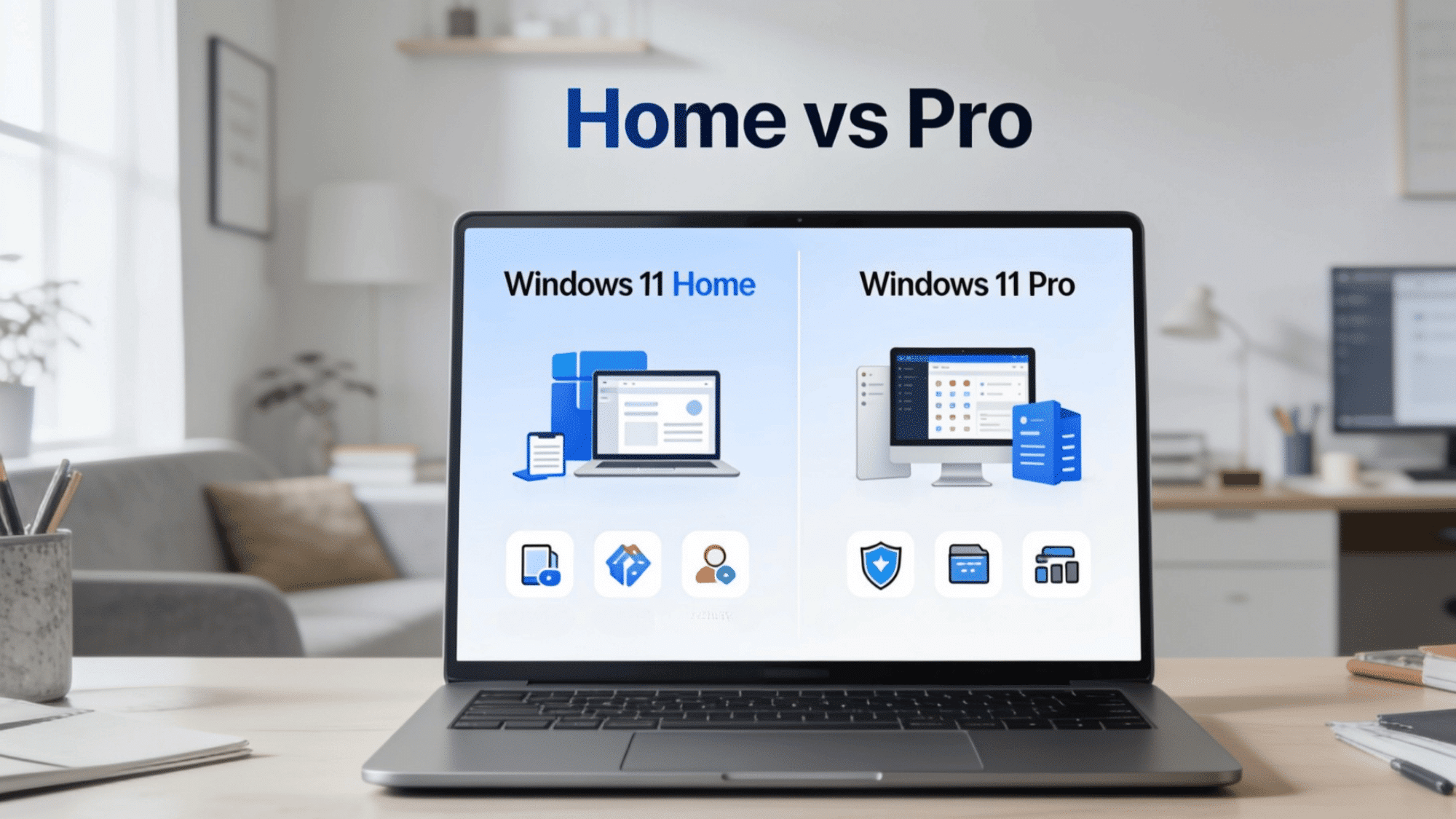



Buying a new PC and stuck choosing between Windows 11 Home and Pro? You’re not alone.
Most people assume Pro is automatically better, but that’s not the full picture. Both versions run on the same core operating system.
The interface, speed, and everyday tasks like browsing, streaming, and gaming work exactly the same on both.
The real difference comes down to a few specific features, ones that matter a lot to business users and IT professionals, but mean very little to everyday users.
This Windows 11 Home vs Pro Blog clears it all up. No jargon, no guesswork.
Why Does Windows 11 Come in Two Versions?
Microsoft built Windows 11 in two versions because not everyone uses a PC the same way.
A college student streaming lectures and a business owner managing a company network have completely different needs, and one operating system cannot serve both perfectly without compromise.
Home covers everyday personal use cleanly and affordably. Pro layers on advanced tools built specifically for professional environments, business networks, and technical workflows.
It is less about one being superior and more about each being purpose-built for a different type of user.
Think of it this way: same foundation, different toolset on top.
How to Upgrade from Windows 11 Home to Pro?
Already on Home and need Pro features? No reinstall, no data loss, no fresh setup, the whole upgrade happens inside Settings in about ten minutes. Just follow these steps.
- Open Settings: Press Windows key + I, or right-click the Start button and select Settings
- Go to System → Activation: Scroll down to find the “Upgrade your edition of Windows” section
- Pick your path: If you already have a Pro product key? Click “Change product key,” enter the 25-character key, and skip to step 5
- Purchase the upgrade: The Microsoft Store shows the Windows 11 Pro upgrade for $99. Complete the payment with your Microsoft account
- Let Windows do its thing: The upgrade installs automatically. Keep the PC plugged in and don’t shut it down
- Restart when prompted: After the reboot, confirm the switch under Settings → System → About, where “Edition” should now read Windows 11 Pro
What Really Separates Windows 11 Home vs. Pro
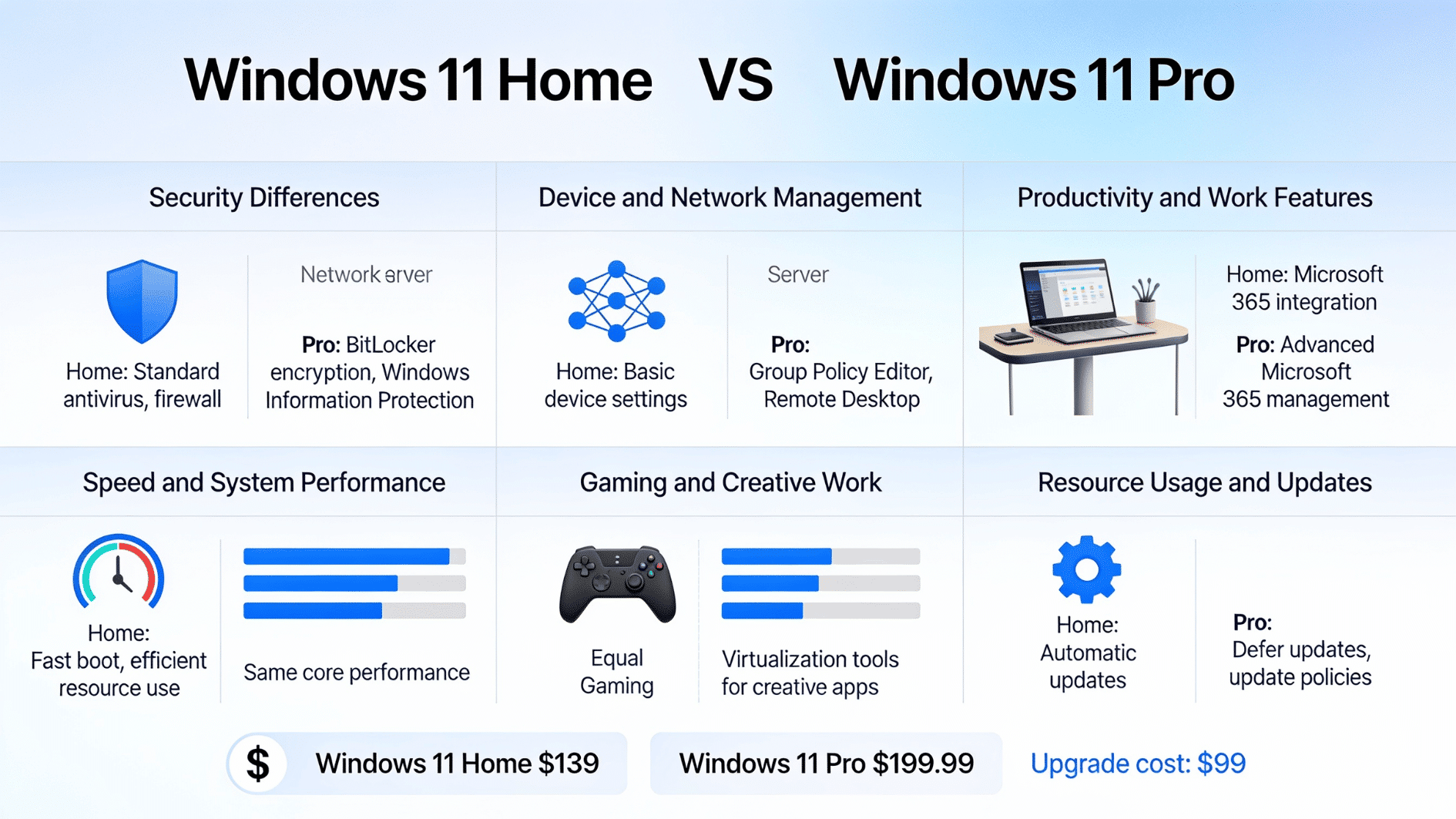
On the surface, both editions feel identical: the same Start menu, the same interface, the same Windows experience. But open the hood, and the gap becomes clear fast. Here’s exactly where Home stops and Pro takes over.
1. Cost
The feature gap only matters once you see the price gap. Pro costs $60 more than Home at retail, and whether that $60 earns its keep depends entirely on which features you’ll actually touch.
| Pricing Factor | Windows 11 Home | Windows 11 Pro |
|---|---|---|
| Retail license (Microsoft Store) | $120-140 | $150-250 |
| Preinstalled on a new PC (OEM) | Included in the PC price | Included, but adds roughly $50–$70 to the PC price |
| Free upgrade from Windows 10 | Yes, from Windows 10 Home on compatible hardware | Yes, from Windows 10 Pro on compatible hardware |
| License transfer to another PC | Retail: yes, OEM: no | Retail: yes, OEM: no |
| Reinstall on the same PC | Free, digital license reactivates automatically | Free, digital license reactivates automatically |
| Ongoing cost | None, one-time purchase | None, one-time purchase |
2. Security Differences
Home gives you solid baseline protection. Pro turns the security dial up significantly, especially if you’re handling sensitive data or managing a work device.
The table below shows exactly where Pro adds layers that Home leaves out:
| Feature | Windows 11 Home | Windows 11 Pro |
|---|---|---|
| BitLocker Encryption | Basic device encryption only | Full drive-level BitLocker control |
| Microsoft Defender Application Guard | Not available | Available |
| Windows Information Protection | Not included | Included |
| Secure Boot Control | Standard | Advanced configuration options |
| Remote Wipe of Business Data | Not supported | Supported |
3. Device and Network Management
For a personal PC, Home’s management tools are more than enough. For anyone running a team, a business, or multiple devices, Pro is a completely different league.
This is the category where the two editions drift furthest apart, feature by feature.
| Feature Windows | Windows 11 Home | Windows 11 Pro |
|---|---|---|
| Group Policy Editor | Not available | Fully available |
| Active Directory / Domain Join | Not supported | Fully supported |
| Microsoft Entra ID (Azure AD) | Not supported | Supported |
| Mobile Device Management (MDM) | Limited | Full MDM support |
| Remote Desktop (Host) | Cannot host sessions | Can host remote sessions |
4. Productivity and Work Features
Both handle everyday work tasks well, especially when paired with a productivity-focused monitor setup. Where Pro pulls ahead is in tools that power users and business environments actually rely on daily.
| Feature | Windows 11 Home | Windows 11 Pro |
|---|---|---|
| Hyper-V Virtual Machines | Not officially supported | Fully supported |
| Windows Sandbox | Not available | Available |
| Assigned Access (Kiosk Mode) | Not available | Available |
| Remote Desktop Hosting | Not available | Available |
| Business App Deployment Tools | Not included | Included via MDM/Group Policy |
5. Speed and System Performance
This one surprises most people: Pro is not faster. Both editions deliver the same daily performance for the average user. The only real differences show up at extreme hardware levels, broken down below:
| Feature | Windows 11 Home | Windows 11 Pro |
|---|---|---|
| Boot and Load Speed | Identical | Identical |
| Maximum RAM Support | Up to 128GB | Up to 2TB |
| Multi-CPU Support | Single CPU only | Up to 2 physical CPUs |
| Maximum CPU Cores | Up to 64 cores | Up to 128 cores |
| Everyday Task Performance | Same as Pro | Same as Home |
6. Gaming and Creative Work
Home handles everything, from high-refresh-rate gaming to creative apps, just as well as Pro. The only edge Pro has is in niche professional workflows.
| Feature | Windows 11 Home | Windows 11 Pro |
|---|---|---|
| Auto HDR and DirectStorage | Fully supported | Fully supported |
| Game Mode | Available | Available |
| DirectX 12 Support | Full support | Full support |
| Virtual Machine for Dev Testing | Not officially supported | Supported via Hyper-V |
| Large RAM Creative Workflows (128GB+) | Capped at 128GB RAM | Supports well beyond 128GB |
7. Resource Usage and Updates
No surprises here, Microsoft keeps both editions on the same update track. Neither one demands more from your hardware. The one practical difference is that Pro can delay feature updates for months, which businesses use to avoid mid-project surprises.
| Feature | Windows 11 Home | Windows 11 Pro |
|---|---|---|
| Windows Update Cycle | Standard release | Same + optional deferral |
| Update Deferral Control | Not available | Can delay updates (business use) |
| Minimum System Requirements | Same as Pro | Same as Home |
| Storage and RAM Footprint | Identical | Identical |
| Driver Update Handling | Automatic | Automatic + manual override |
Microsoft Official Position on Windows 11 Home and Pro
Microsoft designs Windows 11 Home and Pro on the same core operating system but clearly separates them by user type and usage needs.
Both editions deliver the same essential Windows experience, including performance, interface, and everyday apps. The distinction focuses on added capabilities in Pro, such as advanced security, business management tools, and remote access features.
Home is positioned for personal computing, while Pro is intended for professional and organizational environments.
Microsoft’s comparison highlights that the difference lies not in speed or basic performance, but in control, security, and business functionality.
Which Version of Windows 11 is Actually Right for You?
Specs and feature lists only tell half the story. The real question is, which edition fits your life among Windows 11 Home vs. Pro?
- Students, Home Users, and Remote Workers: Browsing, streaming, online classes, video calls, and work-from-home setups are all fully covered with Windows 11 Home
- Gamers and Creative Users: Gaming, Auto HDR, DirectStorage, and creative apps perform equally well on Home, no upgrade required
- Small Business Owners and Professionals: Client data encryption, Remote Desktop hosting, and sensitive data management make Windows 11 Pro the only practical choice
- IT Administrators: Group Policy, domain join, Active Directory, and full device management across multiple systems are exclusive to Windows 11 Pro
- Developers and Power Users: Hyper-V, Windows Sandbox, high-RAM workflows, and update deferral control are built specifically for Windows 11 Pro
Final Verdict
At the end of the day, the Windows 11 Home vs Pro decision comes down to how you use your computer. There’s no wrong answer here. One isn’t better than the other; they’re just made for different people.
Think about what you actually do on your PC every day. That alone will point you to the right choice. Don’t overthink it, and don’t pay for things you won’t use.
Whichever one you pick, you’ll get the same smooth Windows experience. And if your needs ever change down the road, switching is always an option.
Frequently Asked Questions
Can Windows 11 Home be used without a Microsoft account?
Yes, but setup options may be more limited than in Pro in some cases.
Is Windows 11 Pro required for working remotely?
Not always, but Pro is better for company network and remote access setups.
Can I transfer my Windows license to another PC?
Only retail licenses can be transferred, not OEM preinstalled versions.