







Why do your texts show up on your iPhone but never reach your Mac? If you have hit this wall, you already know how frustrating it is trying to sync messages from iPhone to Mac when nothing seems to line up.
This is one of the most common Apple complaints out there, and it usually comes down to a handful of overlooked settings rather than a deeper problem with either device itself.
This blog covers how to sync messages from iPhone to Mac with the most common mistakes people make while trying to sync messages from
Why Do Messages Stop Syncing Between iPhone and Mac?
Often, you find it difficult to sync messages because they move between your iPhone and Mac via iCloud rather than a direct connection between the two devices.
Syncing depends on both devices connecting to Apple’s servers with the same Apple Account and iCloud settings. When any one of those three things is off, even slightly, syncing breaks.
A signed-out iCloud session, full iCloud storage, or a setting toggled during a software update are the most common root causes.
The most frequent culprits include an iCloud account mismatch, Messages in iCloud being disabled on one device, or full iCloud storage blocking new uploads. Weak network connections and outdated software versions can also quietly block syncing.
How to Sync Messages from iPhone to Mac?
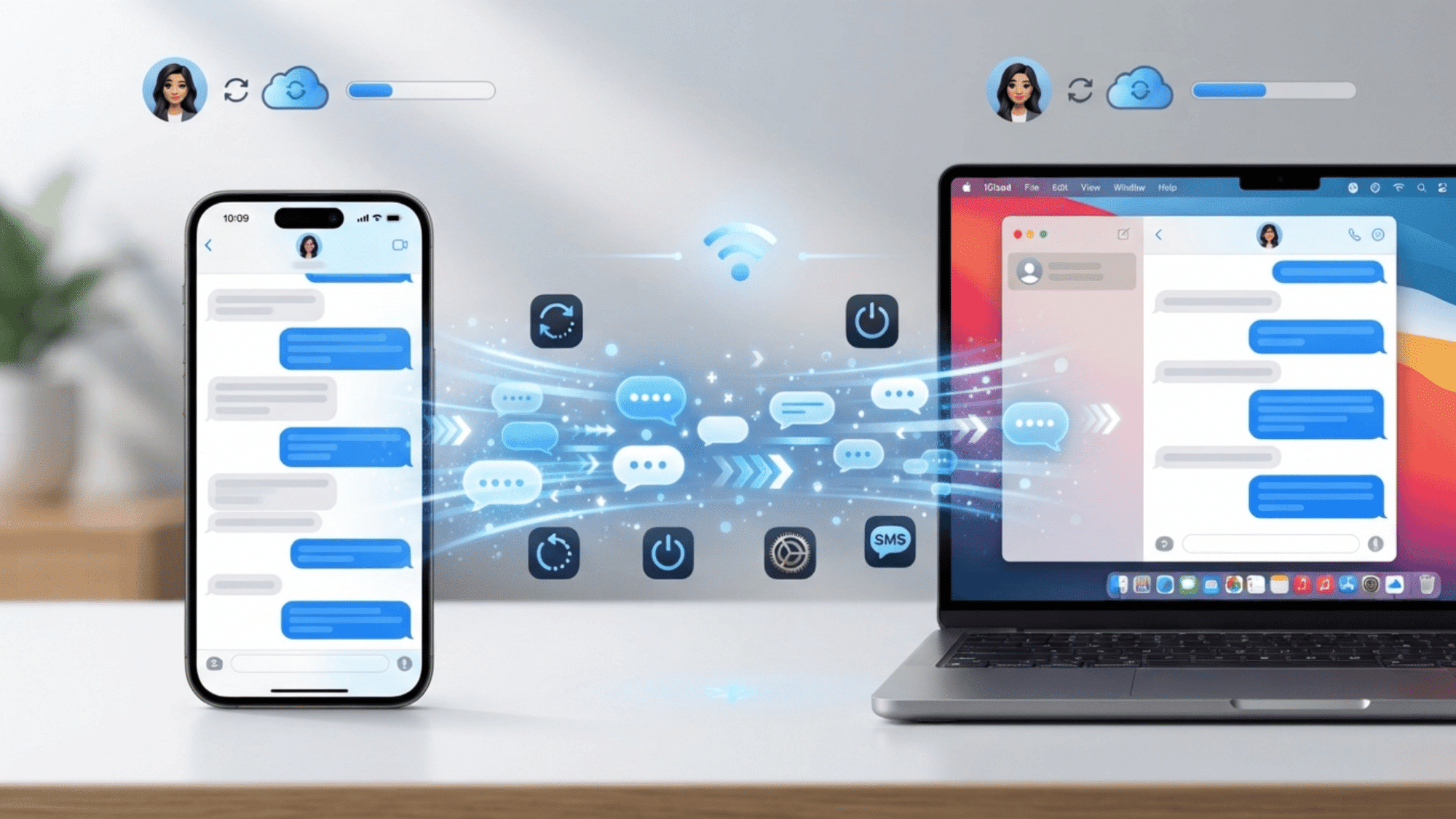
Syncing messages from an iPhone to a Mac helps keep conversations available across both devices without manually transferring chats. With the right settings enabled, messages can update automatically through your Apple account.
Step 1: Confirm Both Devices Use the Same Apple Account
Before changing sync settings, make sure both devices are connected to the same Apple Account. A mismatch here is one of the most common reasons messages fail to appear across devices.
Follow these steps to verify the account details on your iPhone and Mac:
- On iPhone: go to Settings > [your name] at the top > confirm the Apple Account email
- On Mac: go to System Settings > Apple Account > confirm the same email is shown
- If they do not match, sign out and back in with the correct account on whichever device is wrong
Step 2: Turn On Messages in iCloud on Both Devices
Messages in iCloud keeps conversations updated across Apple devices, but the feature must be enabled separately on both the iPhone and Mac.
Use these settings to turn on iCloud message syncing and refresh the connection if needed:
- On iPhone: Settings > [your name] > iCloud > Show All > Messages in iCloud > turn on
- On Mac: System Settings > Apple Account > iCloud > Show More Apps > Messages in iCloud > enable Use on this Mac
- If it was already on, turn it off, wait ten seconds, then turn it back on to refresh the connection
Step 3: Force a Manual Sync
A manual sync can push recent conversations between devices when automatic syncing is delayed or stuck. It helps refresh the connection instead of waiting for the system to update on its own.
Here is how to trigger a Sync Now request on both devices in the correct order:
- On iPhone: Settings > [your name] > iCloud > Show All > Messages in iCloud > Sync Now
- On Mac: System Settings > Apple Account > iCloud > Show More Apps > Messages in iCloud > Sync Now
Always run this on the iPhone first, then the Mac, to avoid messages being removed instead of added
Step 4: Check Your iCloud Storage
Available iCloud storage plays an important role in message syncing because new conversations need space to upload before they can appear on your Mac.
Check your storage status and follow these steps if your iCloud space is full or nearly full:
- On iPhone: Settings > [your name] > iCloud > check the storage bar at the top
- If it is full or close to full, delete old photos or files, or upgrade your iCloud plan
- After freeing up space, repeat the manual sync from Step 3
Step 5: Restart Both Devices
Restarting both devices can clear temporary software glitches that may interrupt message syncing, especially after system updates or changes to settings.
Restart your devices in this order and test the connection using these steps:
- Restart your iPhone first, then your Mac, and open Messages on both once they are back on
- Try sending a test message from your Mac to confirm it shows up on your iPhone, and vice versa
Step 6: Update Both Devices
Keeping your iPhone and Mac updated helps avoid syncing problems caused by outdated software or known system bugs.
Check for available updates and complete the process using the steps below:
- On iPhone: Settings > General > Software Update
- On Mac: System Settings > General > Software Update
Install any available updates and restart both devices once finished
Step 7: Enable Text Message Forwarding as a Backup
If Messages in iCloud does not sync properly, Text Message Forwarding provides another way to receive SMS and MMS messages on your Mac.
Turn on this backup option and connect your devices by following these steps:
- On iPhone: Settings > Apps > Messages > Text Message Forwarding
- Turn on the toggle next to your Mac’s name in the list
- A verification code will appear on your Mac – enter it on your iPhone to confirm the connection
Advanced Fixes for Persistent Sync Issues
A small number of cases need a more thorough reset rather than the standard fixes above. These steps take longer but resolve almost everything that remains.
- Sign out of iMessage on Mac, restart, then sign back in
- Check that Set time and date automatically is on
- Clear the Messages cache via Finder, with care
- Disable any VPN on your Mac and retry the sync
- Reset network settings on iPhone if Wi-Fi keeps dropping
- Check that the Send & Receive settings match on both devices
- Try Reset All Settings on iPhone as a last resort
Let’s Hear Discussions About Syncing Messages from iPhone to Mac
Many users share their experiences with keeping messages synced across Apple devices, especially when conversations fail to appear on a Mac. Understanding common issues and fixes can make the process easier.
Here are some discussions and insights about how to sync messages from iPhone to Mac and what users suggest when syncing problems occur.
In my case ExpressVPN on my Mac seems to be the issue. When express VPN is on, my Mac doesn’t get SMSs from my iPhone even after forcing a sync. Turn VPN off and force a sync and the missing messages are synced. Running Mac OS 15.0.1 and iOS 18.0.1 – Apple Discussions
iMessage not syncing between an iPhone and a MacBook is almost always caused by configuration mismatches, account/authentication issues, device settings, or network problems- quora
The weird thing is that I after I updated my macos from Ventura to Sonoma, some of the recent missing text messages appeared on my macbook, so i thought maybe the issue got resolved. – reddit
My iCloud is full, so nothing was syncing… after I deselected ‘Enable Messages in Cloud,’ everything (eventually) synced.
– Apple Discussions
The best remedy is a manual synch every time you suspect a no-sync situation… I will stop looking for solutions since there is none unless Apple fixes this issue. – Apple Discussions
Common Mistakes That Make Syncing Worse
A few habits make sync problems harder to fix, not easier, even when the intention is to troubleshoot correctly. These missteps are often why attempts to sync messages from iPhone to Mac end up going in circles instead of resolving anything.
- Running Sync Now on the Mac before the iPhone: this order can cause unsynced messages to be removed instead of added
- Signing out of iCloud on multiple devices at once: this risks losing track of which device holds the most current data
- Ignoring a full iCloud plan: syncing quietly fails once storage is maxed out, with no clear warning
- Assuming a restart fixes everything: a restart helps with glitches but does not fix account or storage issues
- Skipping software updates: known sync bugs are often patched in later iOS and macOS versions
- Turning Messages in iCloud off repeatedly: frequent changes can interrupt the syncing process and create more confusion
- Using different Apple Accounts on devices: messages cannot sync properly if the iPhone and Mac are linked to separate accounts
- Deleting messages during troubleshooting: removing conversations before fixing the issue can permanently remove data from synced devices
- Checking only iMessage settings: SMS and MMS messages may require Text Message Forwarding to appear on a Mac
- Keeping devices offline during setup: syncing needs a stable internet connection to upload and download message data
- Ignoring date and time settings: incorrect device settings can sometimes interfere with account-based syncing services
Final Thoughts
Most people who are searching for how to sync messages from iPhone to Mac can fix it by using the same Apple Account, enabling Messages in iCloud, and running a manual sync in the correct order.
If the basic steps do not work, iPhone-to-Mac message sync problems are almost always traced to full iCloud storage, an outdated software version, or, in some cases, a VPN running on the Mac.
Work through the steps in order, starting with the Apple Account check. If you are still stuck after that, the Apple Community thread linked above has dozens of real solutions from people who hit the same problem.
Frequently Asked Questions
Will Turning Messages in iCloud off and On Delete My Message History?
No, your messages are stored in iCloud, not on the device, so toggling the setting only refreshes the connection.
Why Do Only Some Messages Sync and Not Others?
This usually indicates a partial sync due to low iCloud storage, in which only some messages were successfully uploaded before space ran out.
Does Text Message Forwarding Use iCloud Storage?
No, it sends messages through a separate connection and does not count toward your iCloud storage plan.
Can a Vpn on My Mac Block Message Syncing?
Yes, several users have confirmed that certain VPN apps interfere with the connection Messages in iCloud needs.