

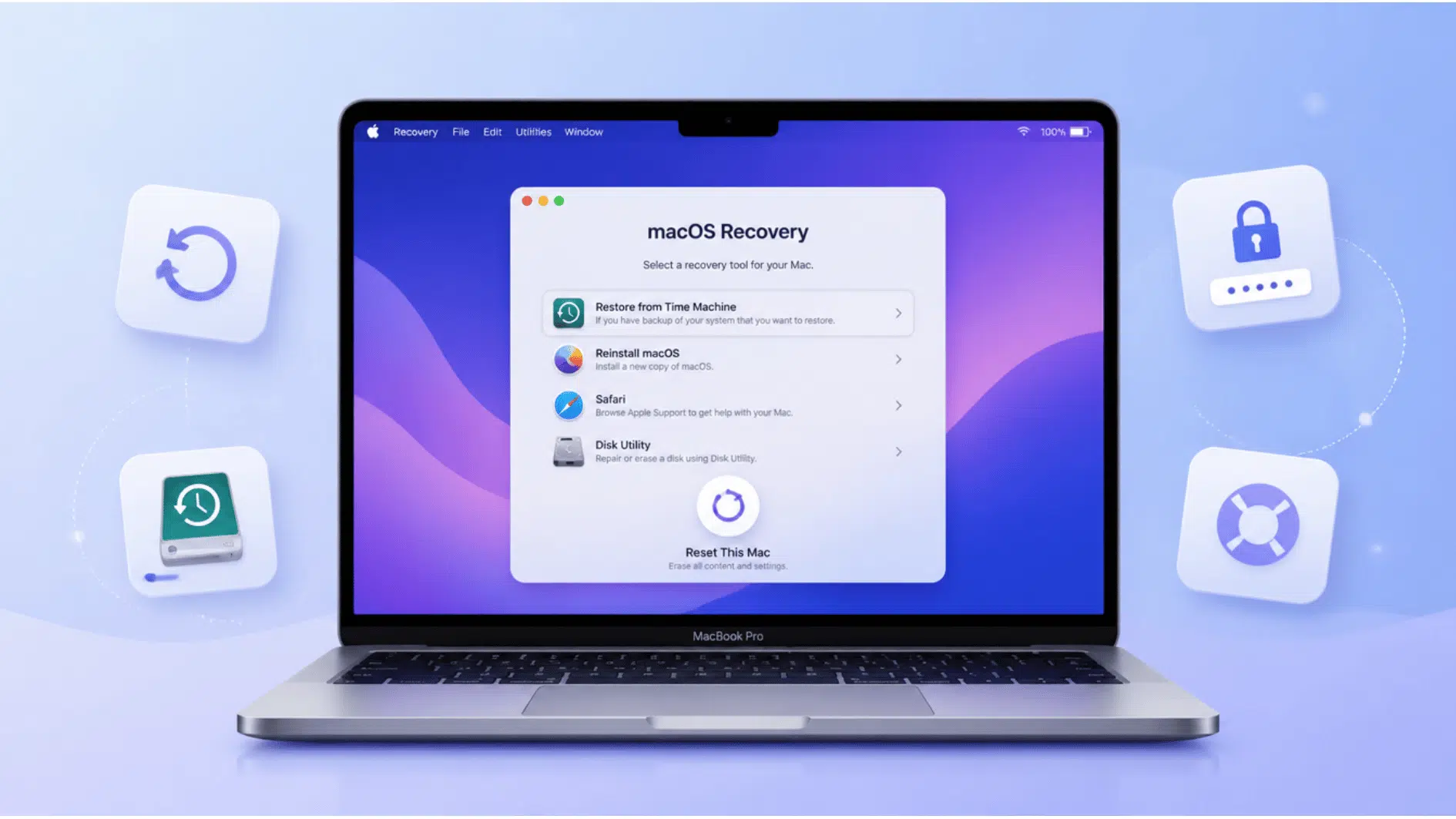






Selling your MacBook Pro, handing it down to someone else, or just trying to fix a laptop that’s acting up? Before you do anything else, there’s one step you can’t skip: wiping it clean.
A lot of people get stuck here, especially when they’ve forgotten their login and need to know how to factory reset a MacBook Pro without a password.
Apple has built-in options for exactly this situation, if you remember your credentials. But is that always the case?
This blog walks through how to reset a MacBook Pro the right way, how to factory reset a MacBook Pro without a password, plus what to do before you start.
What Happens When You Reset a MacBook Pro?
Resetting a MacBook Pro wipes your personal files, apps, and accounts, returning the machine to its original factory state.
On macOS Monterey or later, this is handled through Erase Assistant: open System Settings, go to General, select Transfer or Reset, then choose Erase All Content and Settings, confirming with your Apple ID password.
Older macOS versions require Recovery Mode instead: restart while holding Command + R, open Disk Utility to erase the main drive, then reinstall macOS.
Either way, the result is the same: a clean MacBook Pro, ready for setup as new or for handing off to its next owner.
Factory Reset vs. Recovery Mode: What is the Difference?
A factory reset and Recovery Mode may sound similar, but they solve different MacBook Pro problems. One removes everything and starts fresh, while the other helps repair, reinstall, or regain access to your device.
| Feature | Factory Reset | Recovery Mode |
|---|---|---|
| Main Purpose | Erases the Mac and returns it to a clean state | Provides tools to repair or reinstall macOS |
| Best For | Selling your Mac, handing it over, or removing personal data | Fixing startup issues, forgotten passwords, or system errors |
| Data Removal | Deletes files, apps, accounts, and settings | Does not delete data unless you choose erase options |
| Requires Password | May require Apple Account verification on newer Macs | Can be accessed without logging into the main account |
| How You Access It | Through Erase Assistant or Disk Utility | Restart the Mac and use Command + R or startup options |
| Main Tools Used | Erase All Content and Settings | Disk Utility, Terminal, macOS reinstall tools |
| Final Result | Mac returns to the setup screen like a new device | Mac gets troubleshooting options to fix issues |
| When To Choose | When you want a complete fresh start | When you want to repair problems without wiping everything |
How to Factory Reset MacBook Pro Without Password?
Forgetting a MacBook Pro password can make it seem impossible to access or reset the device, but there are built-in recovery options available. The right method depends on your macOS version, Apple Account access, and device settings.
If you have been searching for how to factory reset a MacBook Pro without a password, follow these steps and erase the device safely:
1. Using Recovery Mode
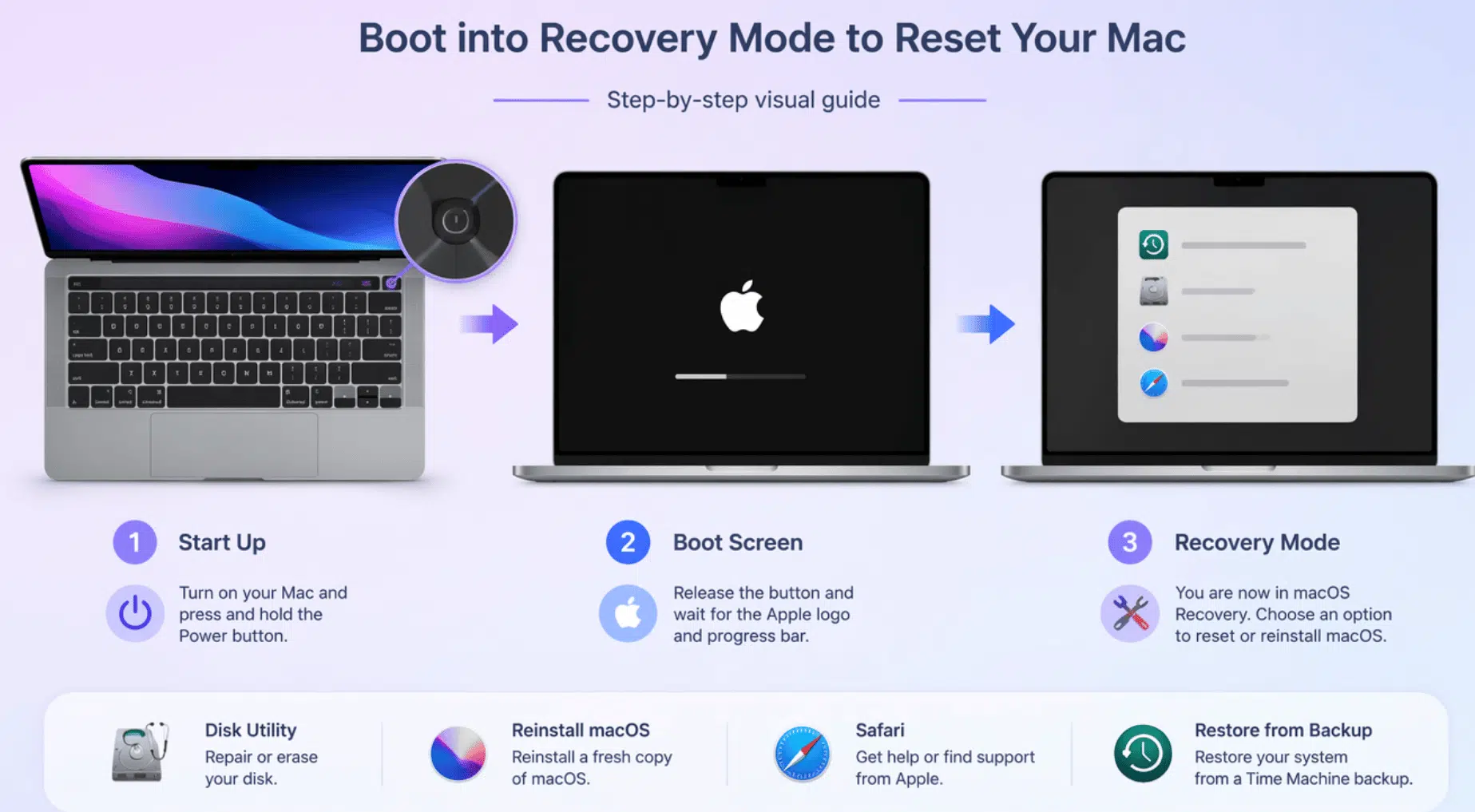
Recovery Mode doesn’t require you to log into the main operating system at all, which makes it the go-to method when you don’t have a password.
- Restart your MacBook Pro and immediately hold Command + R until the Apple logo or a spinning globe appears.
- On Apple Silicon Macs, press and hold the power button until “Loading startup options” appears, then click the gear icon for Options.
- Once in the Recovery environment, open Disk Utility from the menu.
- Select your main drive (usually labeled “Macintosh HD”), click Erase, and confirm.
- This wipes the data without requiring a user password, since you’re working entirely outside the normal login screen.
- After erasing, reinstall macOS from the same Recovery menu to leave the machine in a clean, factory-ready condition.
2. Resetting Your Password Through Recovery
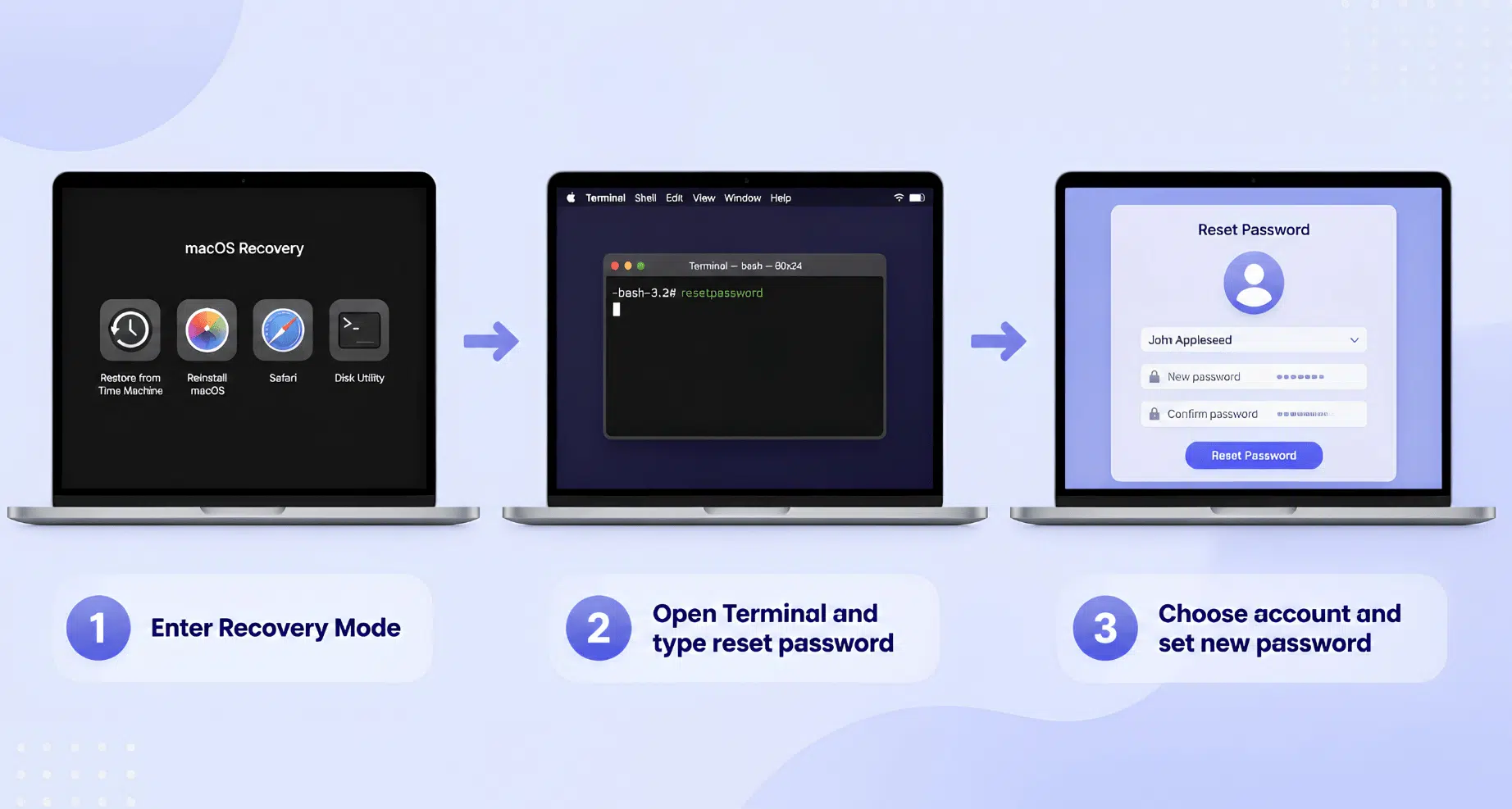
If you’d rather keep your existing setup and files but just need access back, Recovery Mode also lets you reset a password instead of wiping everything.
- Boot into Recovery the same way as above (Command + R, or Options on Apple Silicon).
- Instead of opening Disk Utility, click the Utilities menu at the top of the screen and select Terminal.
- Type reset password and hit enter.
- Choose the user account you want to update and assign it a new password.
- This method is best when full erasure isn’t necessary, such as when you’ve simply forgotten your login but still want access to your files and settings.
3. When the MacBook is linked to Someone Else’s Apple ID?
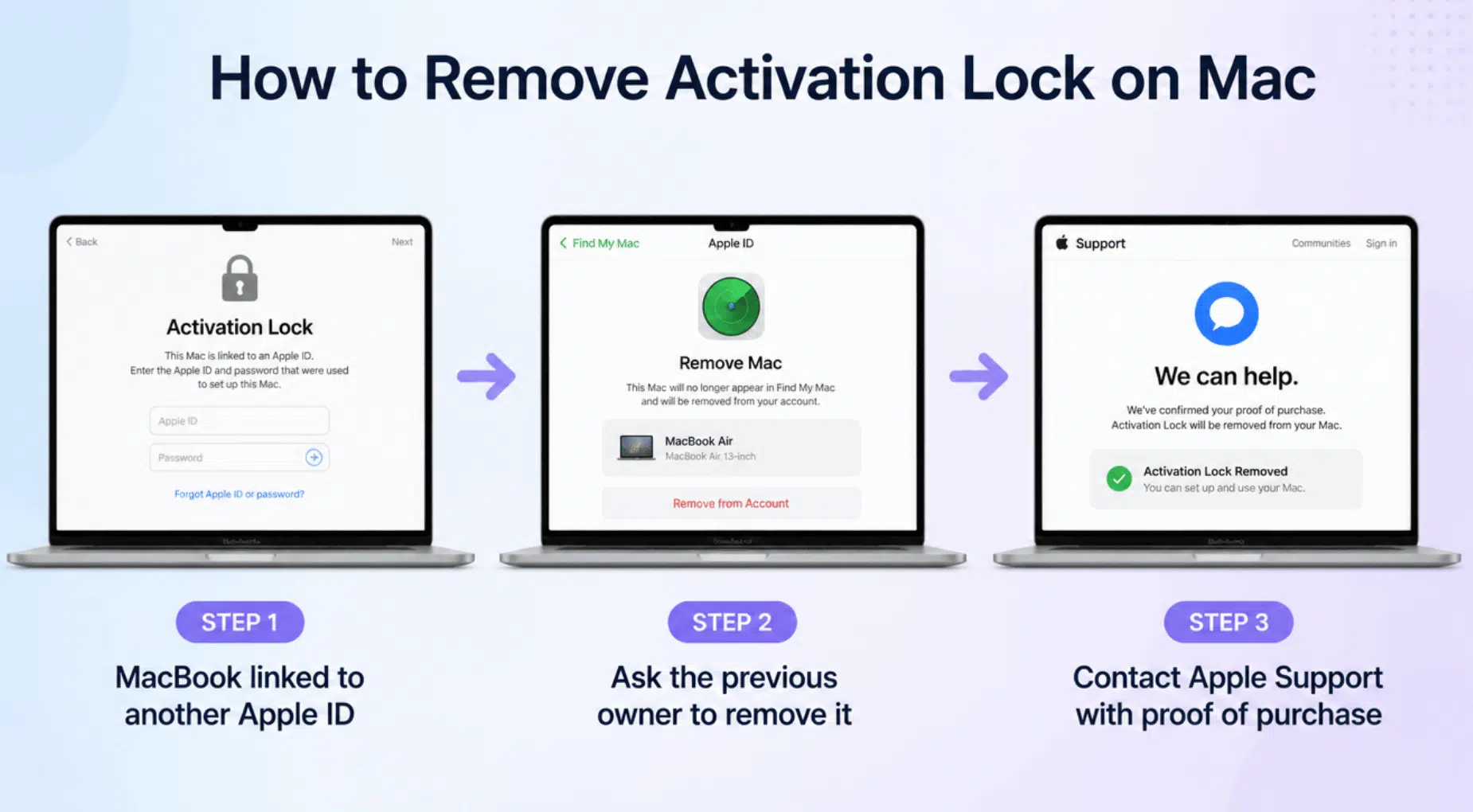
Sometimes a MacBook Pro won’t let you past setup because of Activation Lock, a security feature tied to the previous owner’s Apple ID.
- If you bought a used MacBook and it’s asking for someone else’s credentials, erasing the drive won’t bypass this protection.
- Activation Lock is designed specifically to prevent stolen or improperly transferred devices from being reset and reused.
- The right path is to contact the previous owner and ask them to remove the device from their Apple ID under Find My.
- Alternatively, reach out to Apple Support directly with proof of purchase.
- Avoid unofficial workarounds; they can leave the Mac still locked or altered in ways that cause more problems later.
Things to Do Before You Reset Your MacBook Pro
Before starting how to factory reset MacBook Pro without password, complete a few preparation steps to protect your data and avoid account or setup problems later. A quick checklist can help make the reset process smoother.
| Check Before Reset | Quick Action | Purpose |
|---|---|---|
| Back Up Files | Save files with Time Machine or cloud storage | Protect important data |
| Save Photos & Documents | Copy folders to an external drive | Avoid losing personal files |
| Sign Out Of Apple Account | Log out of iCloud, iMessage, and Find My | Remove account connection |
| Disable Find My Mac | Turn off Find My before the reset | Prevent Activation Lock |
| Deauthorize Apps | Sign out of Music, Adobe, and other apps | Free up device access |
| Save Passwords | Export browser passwords or use a password manager | Keep login details safe |
| Move Security Apps | Transfer authenticator apps and backup codes | Maintain account access |
| Disconnect Devices | Remove USB drives and accessories | Prevent data issues |
| Check Apple Account | Confirm email and recovery access | Help with device activation |
| Plug-In Charger | Keep MacBook connected to power | Avoid reset interruptions |
Wrapping It Up
Your MacBook Pro may be packed with years of files, apps, and memories, but sometimes it needs a fresh start.
If you are passing it on, fixing stubborn issues, or locked out of your account, knowing how to reset a MacBook Pro makes the process much easier.
Take a few minutes to back up your files, check your Apple Account, and follow the right reset method. With the proper steps, you can wipe the old setup, clear the clutter, and give your MacBook a clean slate without the usual tech headaches.
Frequently Asked Questions
How Long Does It Take to Reset a MacBook Pro?
Typically, 30 minutes to an hour, depending on your Mac model and internet speed, for the macOS reinstall.
Will Resetting a MacBook Pro Fix a Slow or Frozen Mac?
Yes, a factory reset often resolves persistent performance issues by clearing out corrupted files and software conflicts.
Do You Need an Internet Connection to Reset a MacBook Pro?
You need internet only if you choose to reinstall macOS during the reset; erasing the drive alone does not require it.
Will Resetting a MacBook Pro Delete the Operating System?
Erasing the drive removes macOS, but you can reinstall it immediately from the Recovery menu at no cost.