

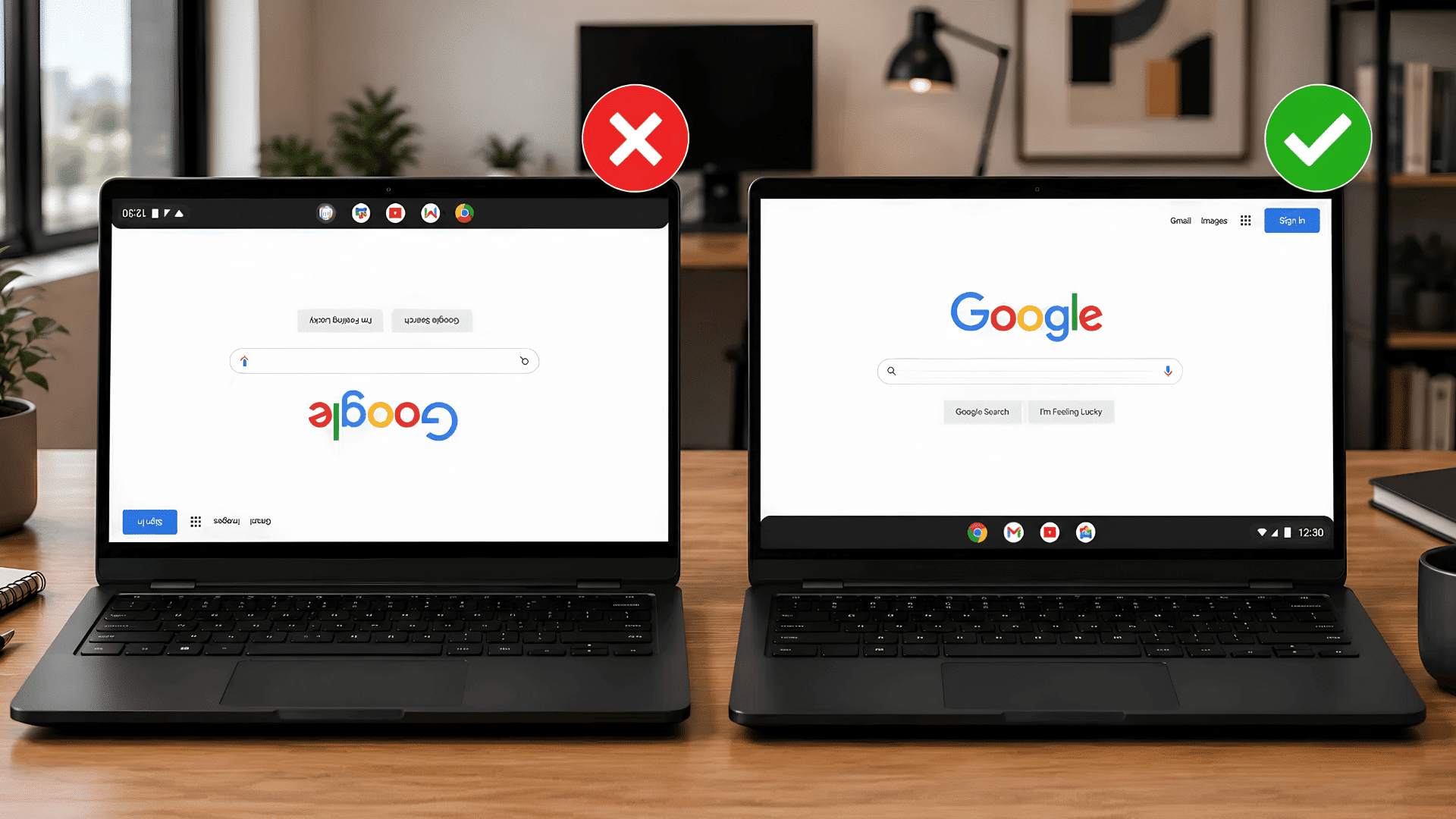






Every Chromebook user runs into small surprises now and then. A screen that suddenly turns sideways is one of the most common ones.
If you’re trying to figure out how to rotate the screen on a Chromebook, don’t worry. It usually takes only a few clicks or a simple key combination.
You don’t need any technical experience to fix it, and the process is easier than it looks. I have tried these methods, so I can assure you that you’ll be back to a normal screen in less than a minute.
This blog covers the quickest ways to rotate your Chromebook screen, change it back to normal, and fix common rotation problems.
Can You Rotate The Screen On a Chromebook?
Yes, you can rotate the screen on a Chromebook using built-in ChromeOS settings. This feature lets you change the display orientation without downloading any extra apps or tools.
It can be helpful when reading long documents, viewing content in tablet mode, or fixing a screen that rotated accidentally.
Most Chromebooks support screen rotation, but the available options may differ based on the device model, ChromeOS version, and hardware features.
How to Rotate Screen on Chromebook Using 3 Easy Methods?
You can rotate your Chromebook screen in a few different ways, depending on your device and the option you find easiest to use.
1. Rotate the Screen Using a Keyboard Shortcut
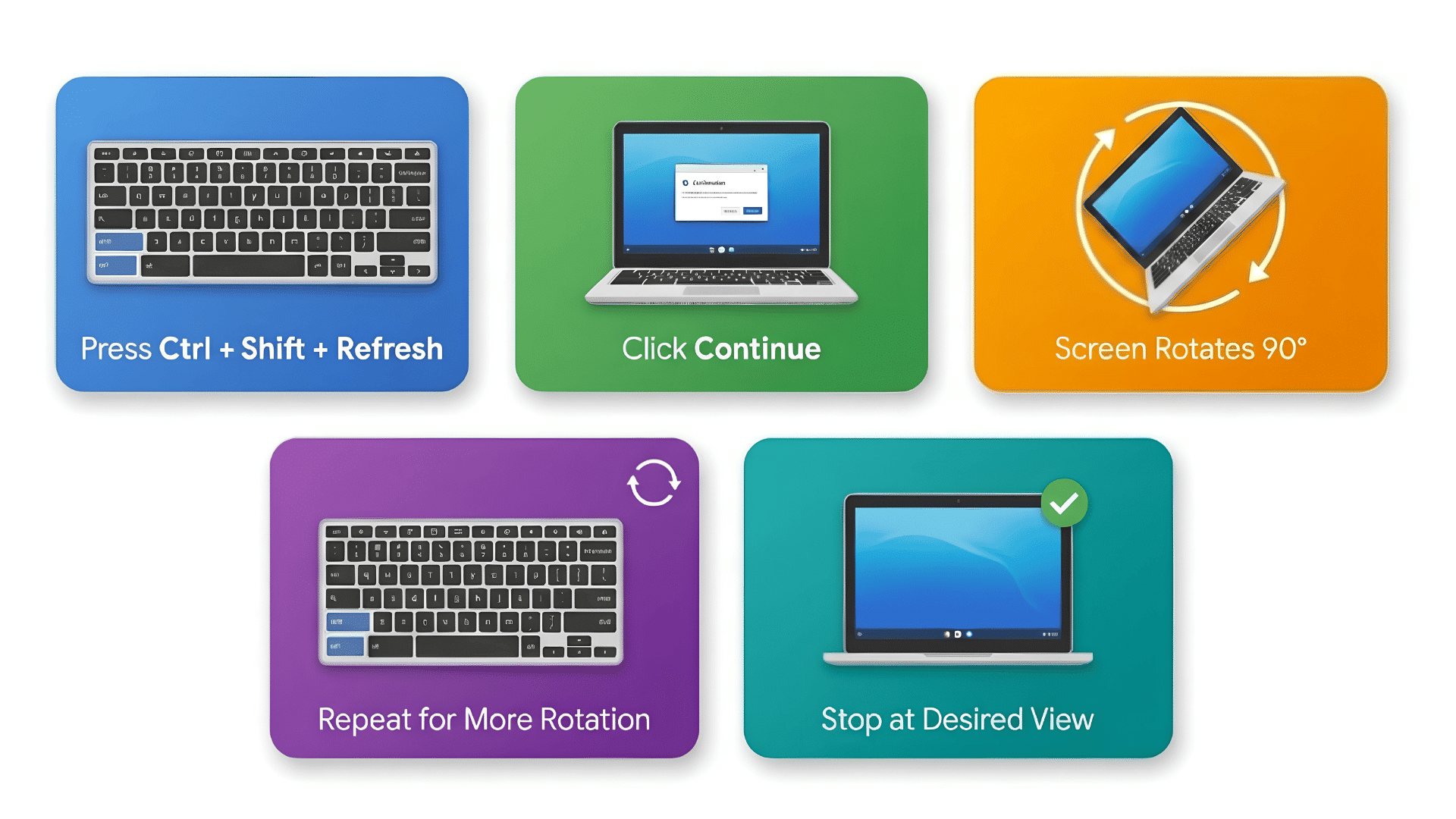
If you want the fastest way to rotate your screen, the keyboard shortcut is the best option. It only takes a few seconds and works on most Chromebooks.
Follow These Simple Steps:
- Press Ctrl + Shift + Refresh together on your Chromebook keyboard.
- Wait for a confirmation message to appear asking if you want to rotate the display.
- Click Continue to apply the selected display position.
- Press the same key combination again if you want to rotate the screen by another 90 degrees.
- Keep repeating the shortcut until your screen reaches the orientation you want, including the standard view.
Note: The Refresh key has a circular arrow icon on the top row of the keyboard. If the shortcut doesn’t work, your Chromebook may have restrictions set by your school or workplace.
2. Rotate the Screen Through Display Settings
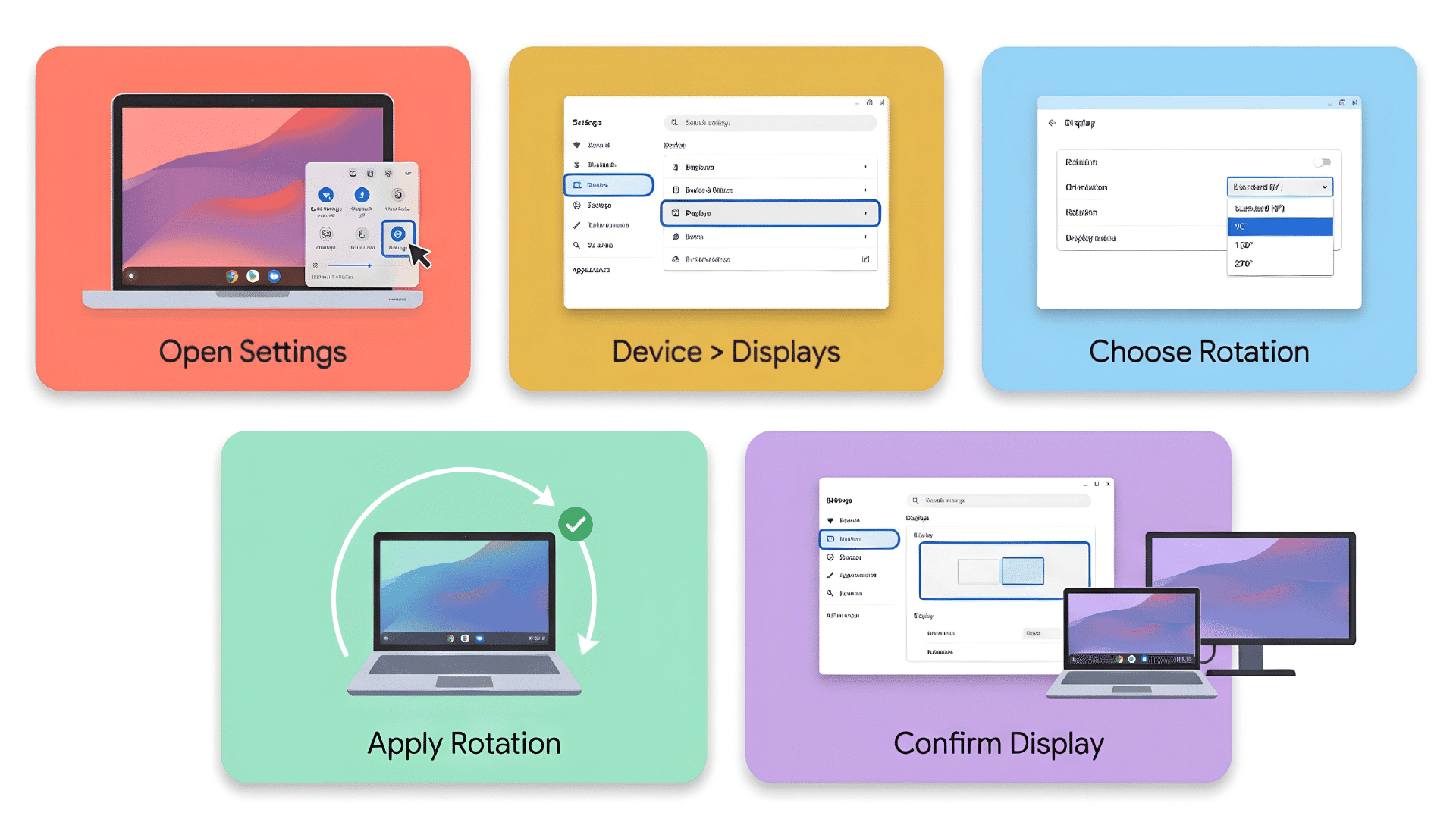
If you don’t want to use keyboard shortcuts, you can change the display direction from your Chromebook’s Display settings. This method is simple and works well if you prefer using on-screen options.
Change The Display By Following These Steps:
- Click the time in the bottom-right corner, then select the Settings icon.
- In the left sidebar, click Device, then choose Displays.
- Find the Orientation or Rotation setting and open the drop-down menu.
- Select Standard (0°), 90°, 180°, or 270° based on the view you want to use.
- Confirm the display looks correct, then close the Settings window.
Keep in Mind: If you’re using an connect external monitor setup, select the correct display before changing its orientation. This ensures you’re rotating the intended screen.
3. Rotate the Screen Using Auto Rotate (convertible Chromebooks)
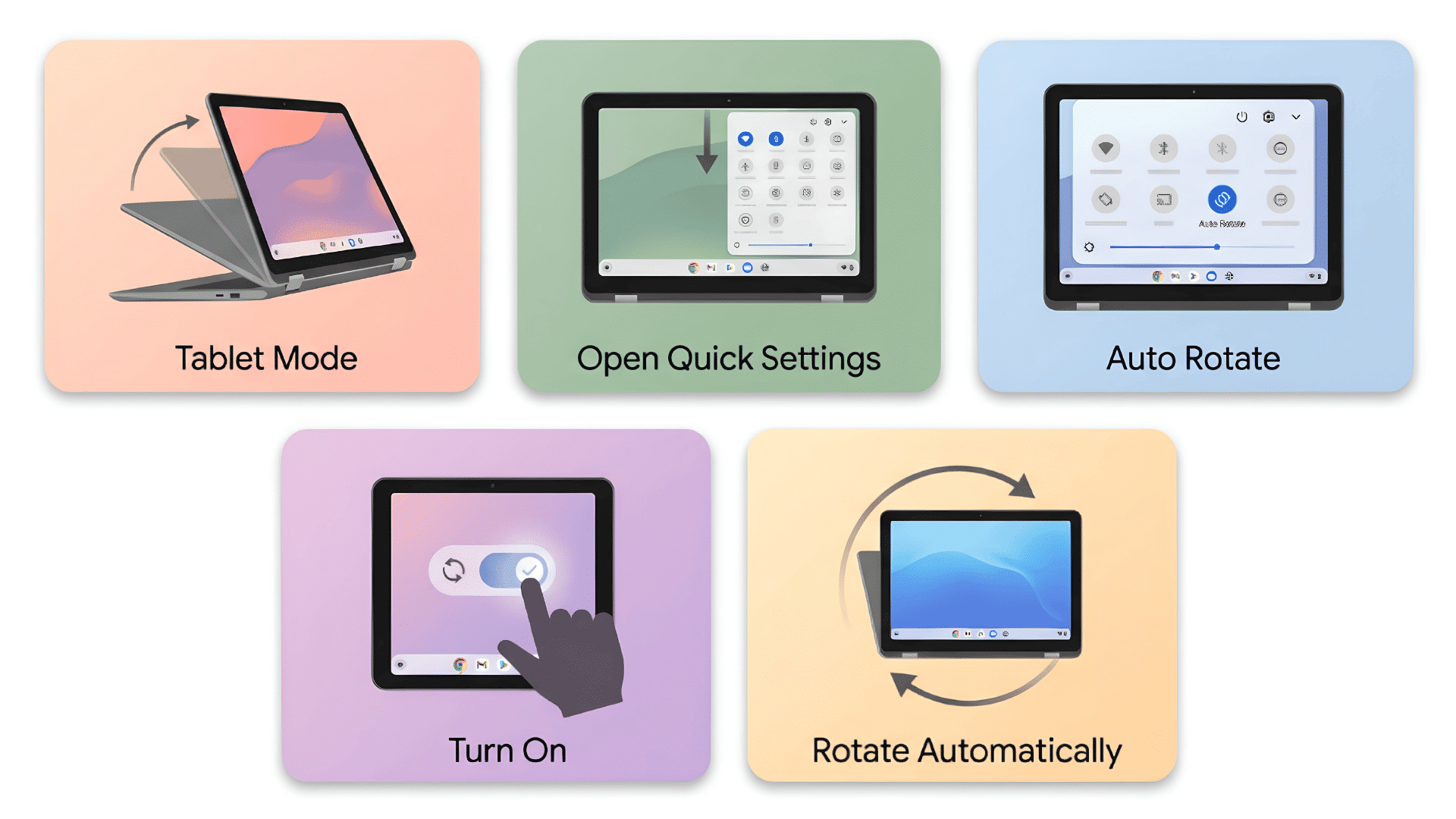
If you have a convertible Chromebook, the screen can rotate automatically when you switch to tablet mode. You can also turn this feature on or off whenever needed.
Turn On Auto Rotate Like This:
- Fold your Chromebook into tablet mode to access auto-rotation controls.
- Swipe down from the top of the screen to open the Quick Settings panel.
- Look for the Auto Rotate icon among the available quick controls.
- Tap the icon to turn Auto Rotate on or off based on your preference.
- Rotate your Chromebook to check if the screen adjusts to the new position automatically.
Keep This in Mind: Auto Rotate is only available on supported touchscreen and convertible Chromebooks. Standard models don’t support this feature.
When Should You Rotate Your Chromebook Screen?
You don’t always need to keep your Chromebook in the standard landscape view. Changing the display angle can make certain tasks more comfortable and easier to manage.
If you’re learning how to rotate the screen on a Chromebook, the table below shows when each display view works best:
| Situation | Recommended View | Why It Helps |
|---|---|---|
| Everyday browsing | Standard (0°) | Gives the most familiar viewing experience. |
| Reading PDFs | Portrait (90°) | Shows more text with less scrolling. |
| Reading ebooks | Portrait (90°) | Feels more like holding a book. |
| Reviewing long documents | Portrait (90°) | Makes lengthy pages easier to read. |
| Watching videos | Standard (0°) | Matches the widescreen format of most videos. |
| Giving presentations | Standard (0°) | Keeps slides properly aligned for viewers. |
| Using tablet mode | Auto Rotate | Adjusts the screen as you change its position. |
| Taking handwritten notes | Portrait (90°) | Provides more vertical writing space, similar to dedicated e-ink writing tablets. |
| Drawing or sketching | Portrait (90°) | Offers a natural layout for touch input. |
| Browsing social media | Portrait (90°) | Makes vertical posts easier to view. |
| Viewing websites | Standard (0°) | Displays pages as they are designed to appear. |
| Connecting an external monitor | Match the monitor | Keeps both displays aligned correctly. |
| Using tent mode | Auto Rotate | Changes the display to match the device position. |
| Fixing an accidentally rotated screen | Standard (0°) | Returns the display to its normal orientation. |
| Accessibility or personal preference | Any orientation | Lets you choose the most comfortable viewing angle. |
The best screen orientation depends on what you’re doing at the moment. You can switch between these views at any time to make your Chromebook more comfortable and convenient to use.
How to Rotate Your Chromebook Screen Back to Normal?
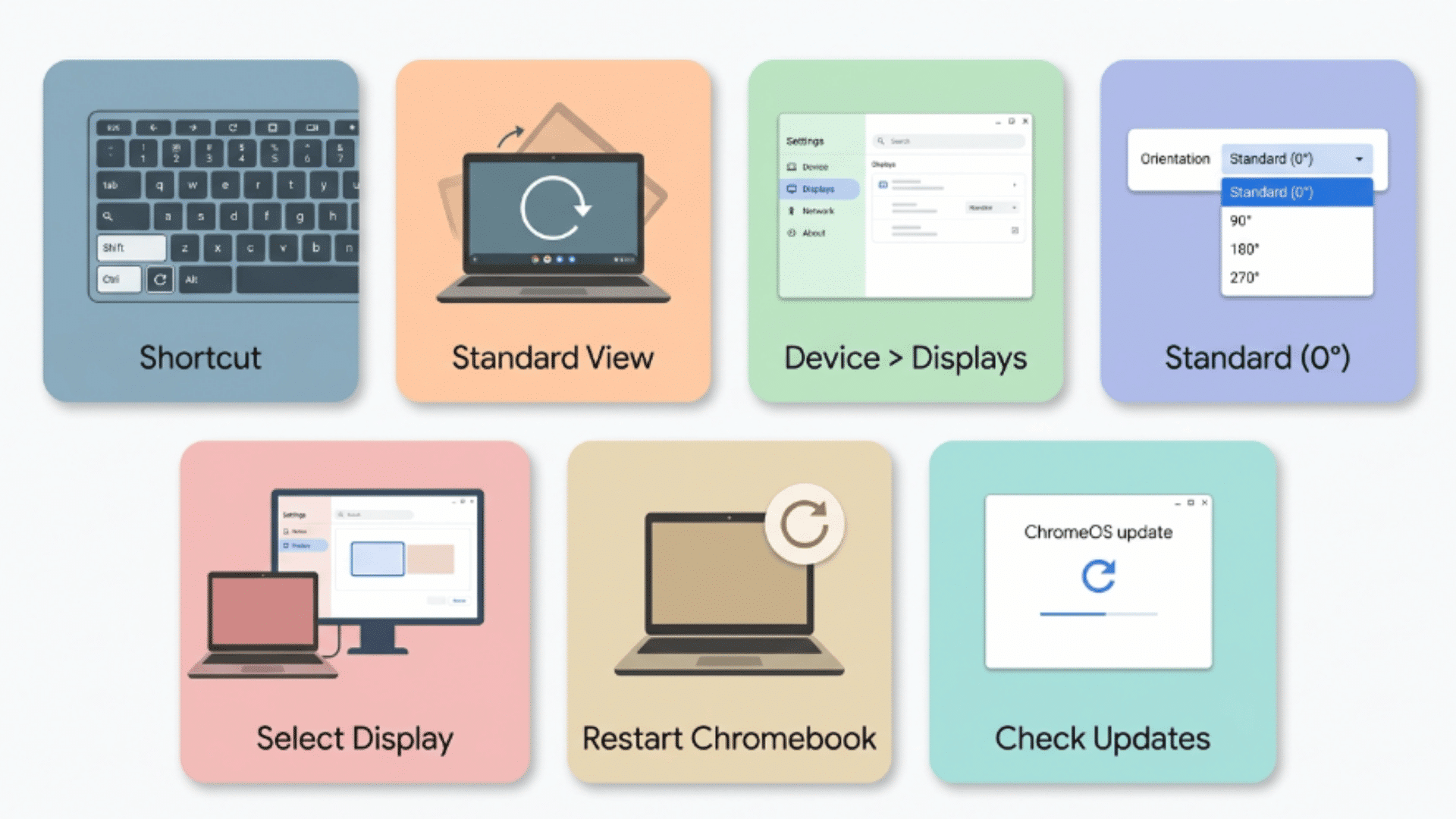
If your Chromebook screen is sideways, upside down, or facing the wrong direction, you can switch it back to the standard view in just a few moments.
Follow these simple steps below until your screen returns to its normal landscape orientation:
- Press Ctrl + Shift + Refresh on your Chromebook keyboard to rotate the screen.
- Repeat the shortcut until the display returns to the Standard (0°) orientation.
- If the shortcut doesn’t work, open Settings > Device > Displays.
- Find the Orientation or Rotation option and select Standard (0°).
- If you’re using an external monitor, make sure you’ve selected the correct display before changing its orientation.
- Restart your Chromebook if the screen remains rotated after trying both methods.
- Check for any available ChromeOS updates if the issue continues after restarting.
Quick Tip: The screen rotates in 90-degree increments, so you may need to use the shortcut more than once to return to the normal view.
Why Isn’t Your Chromebook Screen Rotating?
Even if you know how to rotate screen on Chromebook, the display may still not change as expected. The table below covers common issues and simple fixes:
| Problem | Possible Cause | What To Do |
|---|---|---|
| Keyboard shortcut doesn’t work | Shortcut is disabled or restricted | Use the Display settings instead |
| Auto Rotate option is missing | Chromebook doesn’t support tablet mode | Rotate the screen manually |
| Screen stays sideways | Incorrect display position is selected | Change it to Standard (0°) |
| External monitor won’t rotate | Wrong display is selected | Choose the correct monitor first |
| Rotation option is unavailable | ChromeOS needs an update | Install the latest ChromeOS version |
| Screen doesn’t respond | Temporary software issue | Restart your Chromebook |
| Auto Rotate isn’t working | Rotation lock is turned on | Turn Auto Rotate back on |
| Display still looks incorrect | System display glitch | Restart and check for updates |
Most screen rotation issues can be fixed with one of these solutions. If the problem continues, checking for system updates or contacting your device administrator may be the next step.
Wrapping It Up
No matter how your screen got flipped, fixing it is way easier than it seems. Usually just a few quick steps will do the trick.
Now that you know how to rotate screen on Chromebook, you can change the display view whenever it makes things easier for what you’re doing.
If one method doesn’t work, don’t stress! There’s more than one way to get your screen back to normal.
So next time your Chromebook screen rotates by accident, you’ll know exactly what to do and can jump right back in without any hassle.
Frequently Asked Questions
Can Rotating My Chromebook Screen Affect Battery Life?
No. Changing the screen orientation does not have a noticeable impact on your Chromebook’s battery life.
Does Screen Rotation Stay the Same After Restarting My Chromebook?
Yes, your Chromebook usually remembers the last screen orientation you selected until you change it again.
Can You Rotate the Login Screen on a Chromebook?
No, the login screen stays in its default orientation and can’t be rotated separately.
Does Screen Rotation Work the Same on Every Chromebook Model?
No, the available rotation features can vary depending on your Chromebook model, touchscreen support, and ChromeOS version.