







A black, blurry, or frozen front camera can come from an app problem, obstruction, setting, software issue, or hardware fault. First, check if the problem affects one app, every app, or only one of the iPhone’s cameras.
Then try the fixes below in order, starting with the quickest checks. Stop when the front camera works again.
Is the Problem Limited to the App or the Whole iPhone?
Open Camera, FaceTime, and one trusted third-party app with camera access. Note if the failure appears in one app or all of them, and if it looks black, frozen, or blurry.
What happens | Likely cause | Next action |
|---|---|---|
Front camera fails in one app only | App permission or app fault | Check that app’s camera permission |
One camera works, and the other doesn’t | Problem limited to one camera system | If the front camera is failing, follow the fixes below |
Both front and rear cameras fail | Broader iOS or hardware issue | Restart, update iOS, then continue below |
Camera works, but the image is blurry or hazy | Dirty lens, case, or obstruction | Remove accessories and clean the lens |
The problem started after a drop or liquid exposure | Possible physical damage | Skip to the service section |
The problem started after a camera or display repair | Replacement part or calibration issue | Review Parts and Service History |
How to Fix an iPhone Front Camera Not Working
These steps apply to recent models, including iPhone 15, iPhone 16, and iPhone 17. On iPhone 17 models and iPhone Air, Apple calls the newer front camera the Center Stage front camera.
1. Remove Anything Blocking the Camera and Clean the Lens
Remove any case, screen protector, lens cover, or magnetic accessory that overlaps the front camera area. If the image looks blurry or hazy rather than black, wipe the lens gently with a clean, dry microfiber cloth before trying anything else.
2. Close Camera, Reopen It, and Switch Between Cameras
On a Face ID model, swipe up from the bottom, pause, then swipe the Camera preview upward to close it. On a Home-button model, double-click Home and swipe up on Camera instead. Apple recommends quitting an app only when it stops responding. Reopen Camera, then tap the camera-switch icon once or twice to confirm both the front and rear cameras respond.
3. Restart the iPhone
On an iPhone with Face ID, hold either volume button and the Side button until the power-off slider appears. On iPhone 6, 7, 8, or SE (2nd or 3rd generation), hold the Side button. iPhone SE (1st generation), iPhone 5, and earlier, use the Top button. Drag the slider, wait 30 seconds, then hold the same button until the Apple logo appears.
If the iPhone is frozen or will not restart normally, force restart it instead: on iPhone 8 or later, press Volume Up, press Volume Down, then hold Side until the Apple logo appears. Neither method deletes personal data.
4. Review Camera Permission for the Affected App
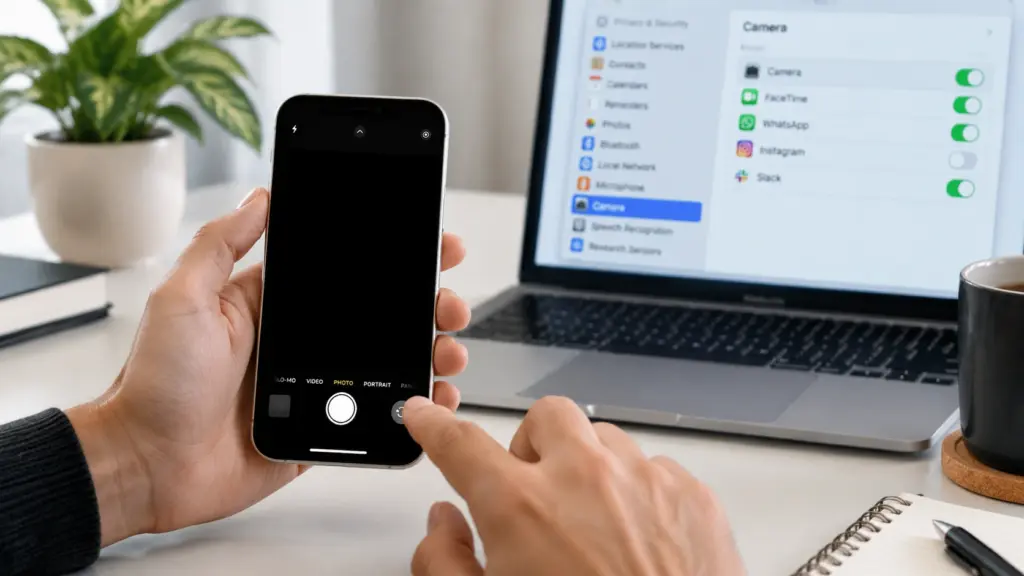
Open Settings > Privacy & Security > Camera and enable access for the affected app. Apple’s own Camera app does not use this individual toggle. If the app is not listed, open its camera feature so it can request permission, then update the app if permission is already on.
5. Review Screen Time Restrictions
Open Settings > Screen Time > Content & Privacy Restrictions > Other Features and make sure Camera is turned on. Menu names differ on older iOS versions. If a parent, school, or employer manages Screen Time on the device, you may not be able to change this restriction yourself.
6. Update iOS and the Affected App
Open Settings > General > Software Update and install the latest iOS release available for your model. Then open the App Store and update the affected third-party camera or calling app.
If the camera stopped working right after an iOS update, install any newer update Apple offers, then restart the phone and test again.
7. Reset All Settings
There is no separate reset for the iPhone’s front camera. If the earlier fixes fail, the broader option is Reset All Settings. Open Settings > General > Transfer or Reset iPhone > Reset > Reset All Settings. This does not erase your photos, apps, messages, or files, but you will need to reconnect Wi-Fi and Bluetooth devices, set up Face ID or Touch ID again, and re-add Apple Pay cards afterward.
Use this option only after trying the earlier fixes, and be careful not to choose Erase All Content and Settings by mistake.
When Does the Front Camera Need Service?
Request service if the front camera still does not work in any app after trying the fixes above, or if the problem started after a drop, liquid exposure, or repair.
On iPhone 12 or later, check Settings > General > About > Parts and Service History and review any repair messages or calibration status shown there.
Before booking service, note your iPhone model, iOS version, error message, and the steps you already tried. This helps the repair provider understand the issue faster.
Final Remarks
An iPhone front camera issue does not always mean the phone needs repair. A blocked lens, app problem, permission setting, or software issue can create similar symptoms.
Start with the simple checks first, then move to settings and service options if needed. Testing one possible cause at a time helps you find the right fix faster and avoids changing settings that do not affect the camera.
Frequently Asked Questions
Can Face ID work if the selfie camera is not working?
Sometimes. The TrueDepth system uses separate infrared and color camera components, so working Face ID does not mean every front camera function is working properly. Some front camera hardware problems or repair issues can affect both features.
Can a nearly full iPhone stop the front camera from working?
Low storage usually affects saving photos, recording videos, or overall app performance rather than the camera preview itself. If your iPhone is almost full, free up some space, then reopen Camera and test the front camera again.
Will a front camera repair erase my iPhone’s data?
Not every repair removes your data, but you should not assume everything will stay unchanged. Create a backup before service because testing, repairs, or device replacement can affect access to stored information.
Does Apple’s warranty cover a broken front camera?
Apple’s One-Year Limited Warranty covers defects in materials and workmanship under normal use for one year from the original purchase date. Damage from drops, liquid exposure, or other accidents is not covered under the standard warranty and may require a paid repair.
Is there a way to reset only the front camera?
No. iPhone does not have a separate reset option for the front camera. If the earlier fixes do not work, Reset All Settings is the broader option to try before seeking service. It keeps your photos, apps, messages, and files, but resets several system settings.