

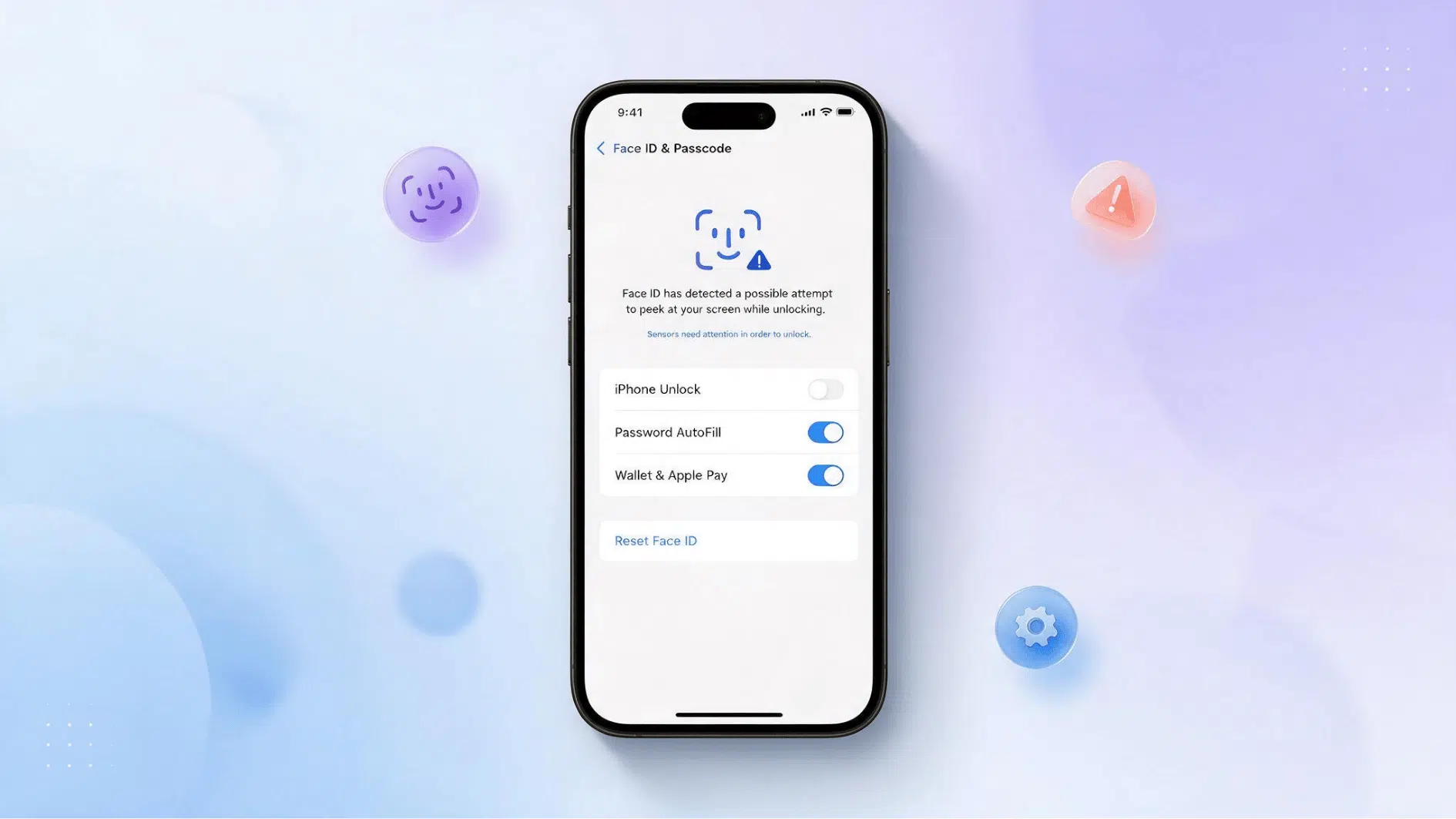





One second Face ID unlocks your phone like always, and the next, it just… doesn’t. No warning, no real explanation, just a passcode screen staring back at you.
I’ll admit, my first thought was that something broke inside the phone. But usually, the reason turns out to be way smaller than expected, nothing dramatic, nothing you’d think to blame right away.
So before you jump to repair shops or factory resets, it helps to figure out why your iPhone Face ID is not working in the first place. Here’s where to look.
Why Does Face ID Suddenly Stop Working?
Face ID rarely fails without a reason, even when it feels sudden.
In most cases, something small changed right before the problem started: a new screen protector shifted slightly, a case edge crept over the camera area, or a software update installed quietly overnight.
Other times, the phone itself is fine, but your face is partly covered by a mask, sunglasses, or an unusual angle the sensors haven’t been trained on.
I’ve also seen it happen after a drop or a moisture exposure that didn’t seem serious at the time.
The key is treating “sudden” as a clue rather than a mystery; Face ID almost always stopped for a specific reason, and finding that reason is faster than guessing at fixes.
What Causes Face ID to Stop Working
If you’re asking: why is my Face ID not working?, the cause may be something minor, like a smudged sensor, or a deeper software or hardware problem. The way Face ID fails can often point you in the right direction.
Cause | What Happens | What to Try |
|---|---|---|
Dirt or smudge | Sensors are blocked | Clean the sensor area |
Screen protector | Protector covers sensors | Remove or realign it |
Phone case | Case blocks the sensor | Remove the case |
Poor angle or lighting | Face is not detected clearly | Face the phone directly |
Face mask | Facial features are covered | Remove the mask or check mask settings |
Sunglasses | Infrared light may be blocked | Remove your sunglasses |
Settings issue | Face ID fails for some features | Check Face ID & Passcode |
Software issue | Face ID glitches or stops working | Restart and update iOS |
Hardware issue | Face ID stays unavailable | Consider professional service |
What to Do if iPhone Face ID is Not Working
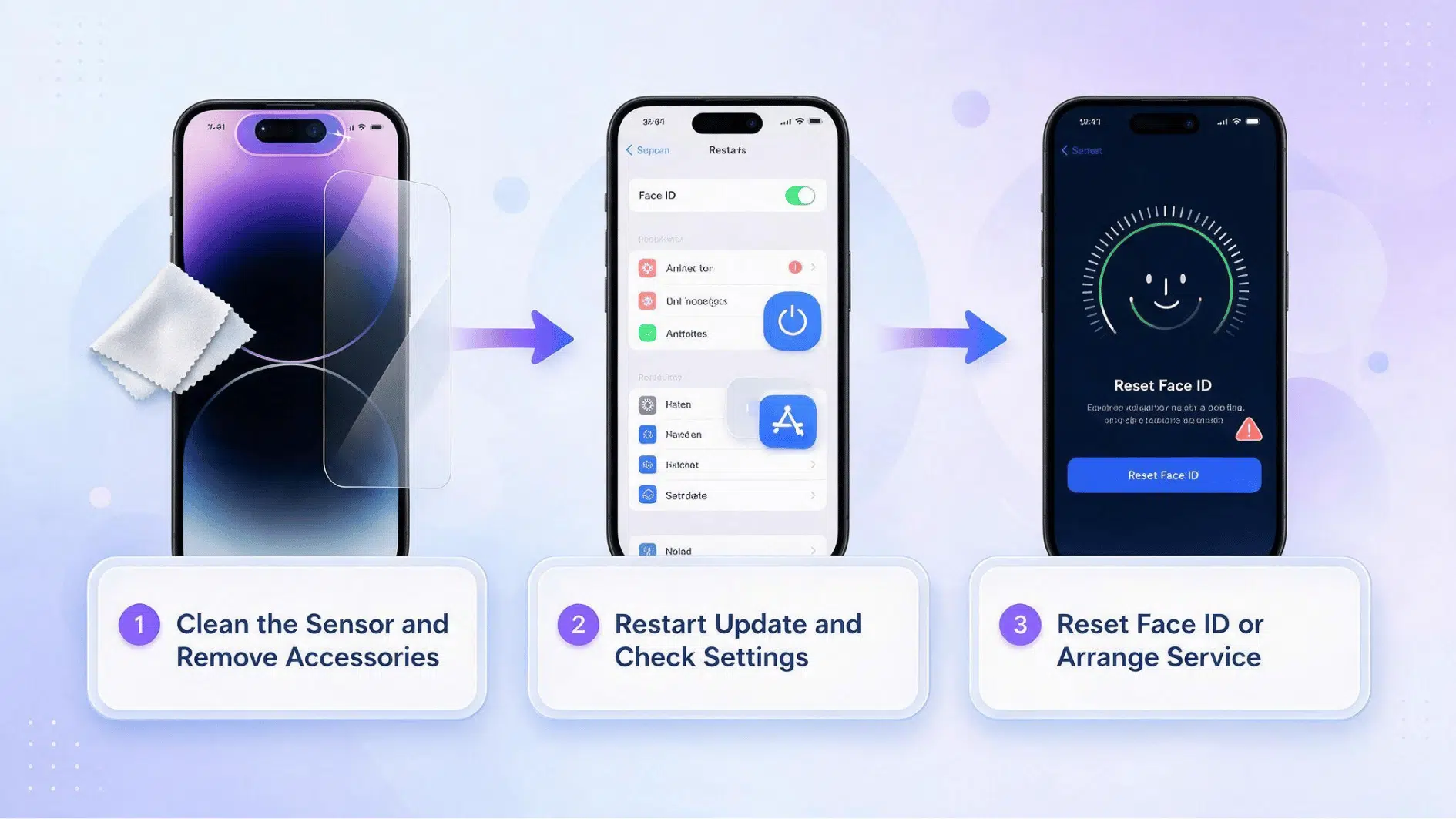
Face ID can stop working because of something small, such as a blocked sensor, or because of a software or hardware issue. I’d start with the quickest checks before resetting anything.
Work through these steps in order and test Face ID after each one.
Step 1: Clean the Sensor and Remove Accessories
The TrueDepth camera needs a clear view of your face. Even a smudge or poorly placed accessory can get in the way and affect how the camera works, so check the top of your iPhone first.
- Clean the sensor: Gently wipe the TrueDepth camera area with a clean, soft cloth.
- Check for smudges: Remove fingerprints, dust, or dirt around the front camera.
- Remove the case: Temporarily remove the case if it covers the camera area.
- Check the screen protector: Remove or realign it if it covers any part of the TrueDepth camera.
- Uncover your face: Make sure your eyes, nose, and mouth are clearly visible.
- Remove sunglasses: Try without them, especially if they block certain types of infrared light.
- Adjust the distance: Keep the iPhone about 10–20 inches from your face.
Step 2: Restart, Update, and Check Settings
Still no luck? Move on to the software side. A restart is quick, while checking your settings and iOS version can rule out common configuration or software problems.
- Restart your iPhone: Turn it off, turn it back on, enter your passcode, and test Face ID.
- Check Face ID settings: Open Settings > Face ID & Passcode.
- Confirm Face ID is set up: Make sure Face ID itself is enabled.
- Check individual features: Turn on Face ID for iPhone Unlock, payments, apps, or other features you use.
- Check for an iOS update: Install the latest compatible iOS version available for your iPhone.
- Test Face ID again: Try unlocking your phone before moving to the next step.
Step 3: Reset Face ID or Arrange Service
If the basic fixes fail, reset Face ID and create a fresh facial scan. If you cannot complete setup afterward, the problem may need professional attention.
- Open Face ID settings: Go to Settings > Face ID & Passcode.
- Tap Reset Face ID: This removes the Face ID data currently stored on the device.
- Set it up again: Tap Set Up Face ID and follow the on-screen instructions.
- Test the new scan: Lock your iPhone and check whether Face ID recognizes you.
- Watch for errors: If the camera doesn’t work or Face ID cannot be set up, you may need service.
- Use trained service: Apple recommends having Face ID and TrueDepth camera problems handled by a trained technician.
Note: Entering your passcode right after a restart is completely normal. It doesn’t mean Face ID is broken , the phone always asks for a passcode after a reboot as a security step.
What iPhone Users Say Worked for Them
For an iPhone Face ID not working problem, community posts can show which fixes helped people with similar symptoms. Take these as advice that might help you as well:
“Go to settings>general>about>part&service history. If you see face ID issue then you have to go for service. If you still not sure with what you see there then contact apple support and ask to do diagnostic.” Reddit.
“FYI for anyone reading this comment in the future. Try tapping on the front camera, not hitting it, but lightly tapping it. After trying every suggestion under the sun I was told to give this a try and sure enough it worked like a charm on the first try.” Reddit.
“My colleague removed my screen protector and then it worked. A wee bubble had got under the protector and caused distortion for the true depth camera.” Reddit
“If Face ID fails you should be prompted to enter your passcode. You can try to reset FaceID in Settings > FaceID and Passwords.” Reddit.
“try hard reset-volume up, then down, fhen power off, if still not working then wipe the front and back camera and then the tapping method.” Reddit
“Turns out, the problem was with content restrictions. I had content and privacy restrictions enabled, which were blocking Face ID from working properly.” Apple Support Community
How to Use Your iPhone Safely Until Face ID Is Fixed?
An iPhone Face ID not working issue doesn’t make the phone unusable, but you may need to rely more on your passcode and manual sign-ins. A few precautions can help keep your phone and accounts secure in the meantime.
- Use a strong passcode: Keep it secure and private.
- Check Face ID apps: Review banking, password, Notes, and payment apps.
- Know your passwords: Be ready to sign in manually.
- Expect passcode prompts: Use your passcode when Face ID fails.
- Limit lock-screen access: Turn off features you do not need.
- Shorten Auto-Lock: Reduce how long your unlocked iPhone stays open.
- Stop repeated scans: Too many failed attempts will trigger a passcode request.
- Back up your iPhone: Save your data to iCloud or a computer before service.
- Confirm the backup: Make sure important data saved successfully.
- Protect your credentials: Never share passwords or security details with technicians.
- Check Find My: You may need to turn it off before Apple service.
- Skip repeated resets: Persistent setup failures may point to a deeper problem.
- Use your passcode for now: It can replace Face ID for many everyday actions.
Does My iPhone Face ID Need a Repair?
Face ID may need repair when the usual fixes no longer help. Start with the basics. Clean the TrueDepth camera, restart your iPhone, update iOS, and try setting up Face ID again.
If Face ID remains unavailable or setup repeatedly fails, the problem could involve the TrueDepth camera or related hardware. Apple says service may be needed when the camera is not working and Face ID cannot be set up.
Physical damage matters, too. If the issue began after a hard drop, liquid exposure, or a screen repair, consider having a trained technician inspect the iPhone instead of repeating the same resets.
Frequently Asked Questions
Can Identical Twins Unlock the Same iPhone with Face ID?
The chance is higher for identical twins and very similar siblings, so a passcode is safer in that situation.
Is Face ID Data Uploaded to iCloud?
No, Face ID data stays encrypted on the device and is not backed up to iCloud.
Can Face ID Unlock an iPhone when My Eyes are Closed?
By default, Face ID checks that your eyes are open and directed toward the phone.
Does Face ID Work when the iPhone is Held Sideways?
It works sideways on iPhone 13 and later with iOS 16 or newer, while earlier models require an upright position.