







You connect your Apple Pencil, wait for the battery icon to appear, and nothing happens. That can stop your work fast, especially when you use it for notes, drawing, or editing.
An Apple Pencil not charging usually points to a loose connection, a pairing problem, or a battery that has stayed empty for too long.
I prefer checking the simple causes first because they solve the issue more often than expected. You will also see how to charge Apple Pencil correctly for your model, how to tell whether power is reaching it, and which reset or update steps are worth trying.
By working through the fixes in order, you can avoid guesswork and know when the Pencil needs professional service or replacement.
How to Check and Charge Each Apple Pencil Model
Before troubleshooting an Apple Pencil not charging, confirm that you are using the correct charging method for your model.
A loose connector, blocked magnetic strip, or incorrect adapter can make a working Pencil appear faulty.
1. Apple Pencil (1st Generation)
Remove the cap and plug the Lightning connector directly into a compatible iPad. You can also use the supplied charging adapter with a Lightning cable.
For an iPad with a USB-C port, use the USB-C to Apple Pencil Adapter. Make sure every connector is fully inserted, then wait a few minutes before checking the battery level.
2. Apple Pencil (2nd Generation) and Apple Pencil Pro
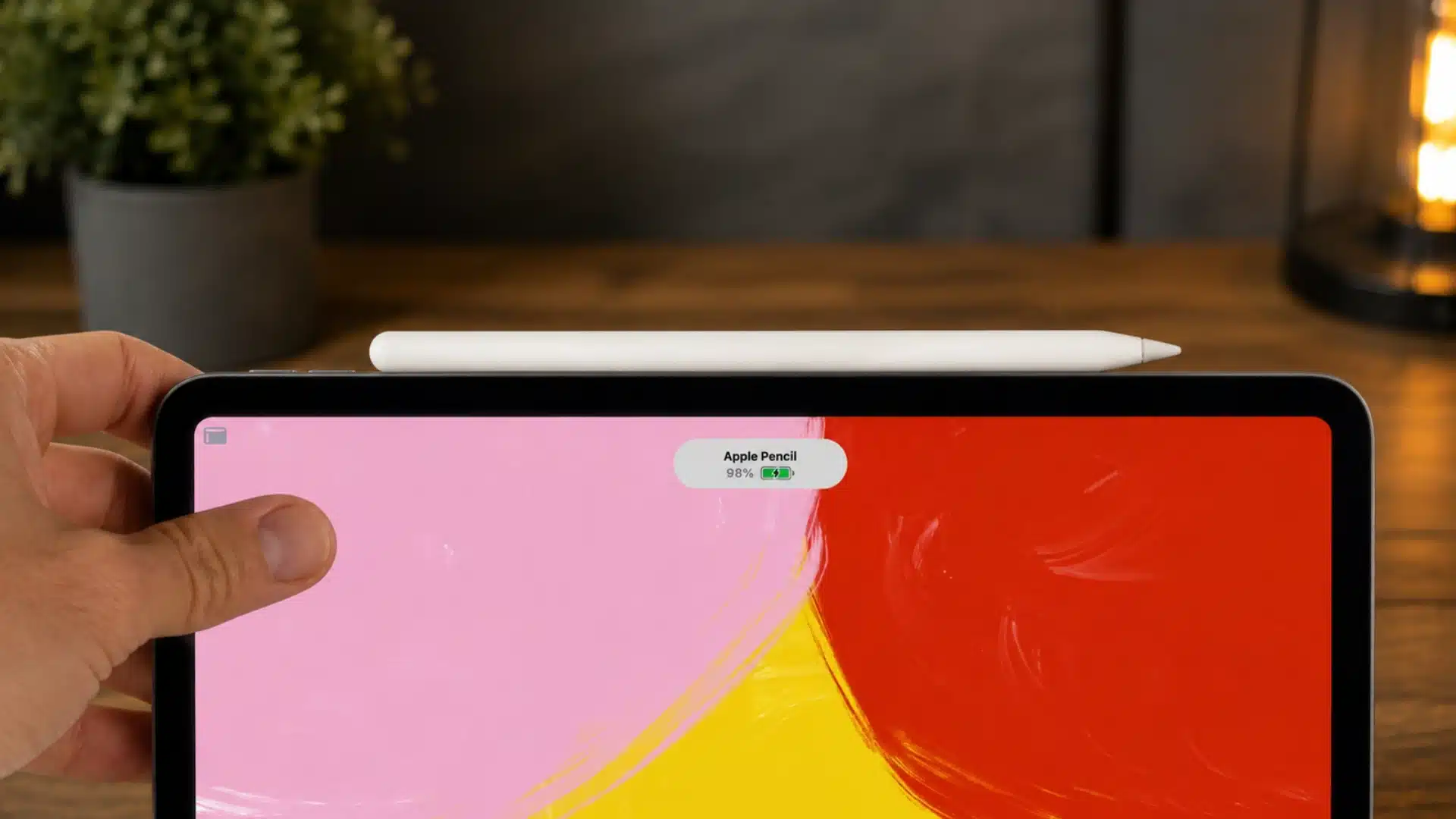
Turn on Bluetooth and place the Pencil flat against the magnetic charging area on the side of a compatible iPad. Remove any thick case that may block contact, and adjust the Pencil until the charging notification appears.
These models charge only through the magnetic connector and do not support charging through a cable.
3. Apple Pencil (USB-C)
Slide open the end of the Pencil and connect a USB-C cable directly to its charging port. Plug the other end into the iPad or a compatible power adapter.
The magnetic edge is used only for storage, so attaching the Pencil to the side of the iPad will not charge it.
Once connected, there are two ways to confirm the battery percentage is rising. Open the Batteries widget on your Home Screen, or go to Settings > Apple Pencil.
When the Pencil is charging, you will see a battery icon with a lightning bolt next to the percentage. The 2nd Generation, Apple Pencil Pro, and USB-C models also display a charging notification at the top of the iPad screen when a connection is first established.
Why Your Apple Pencil Isn’t Charging
Here are the most likely reasons your Apple Pencil still will not charge after confirming that you are using the correct charging method:
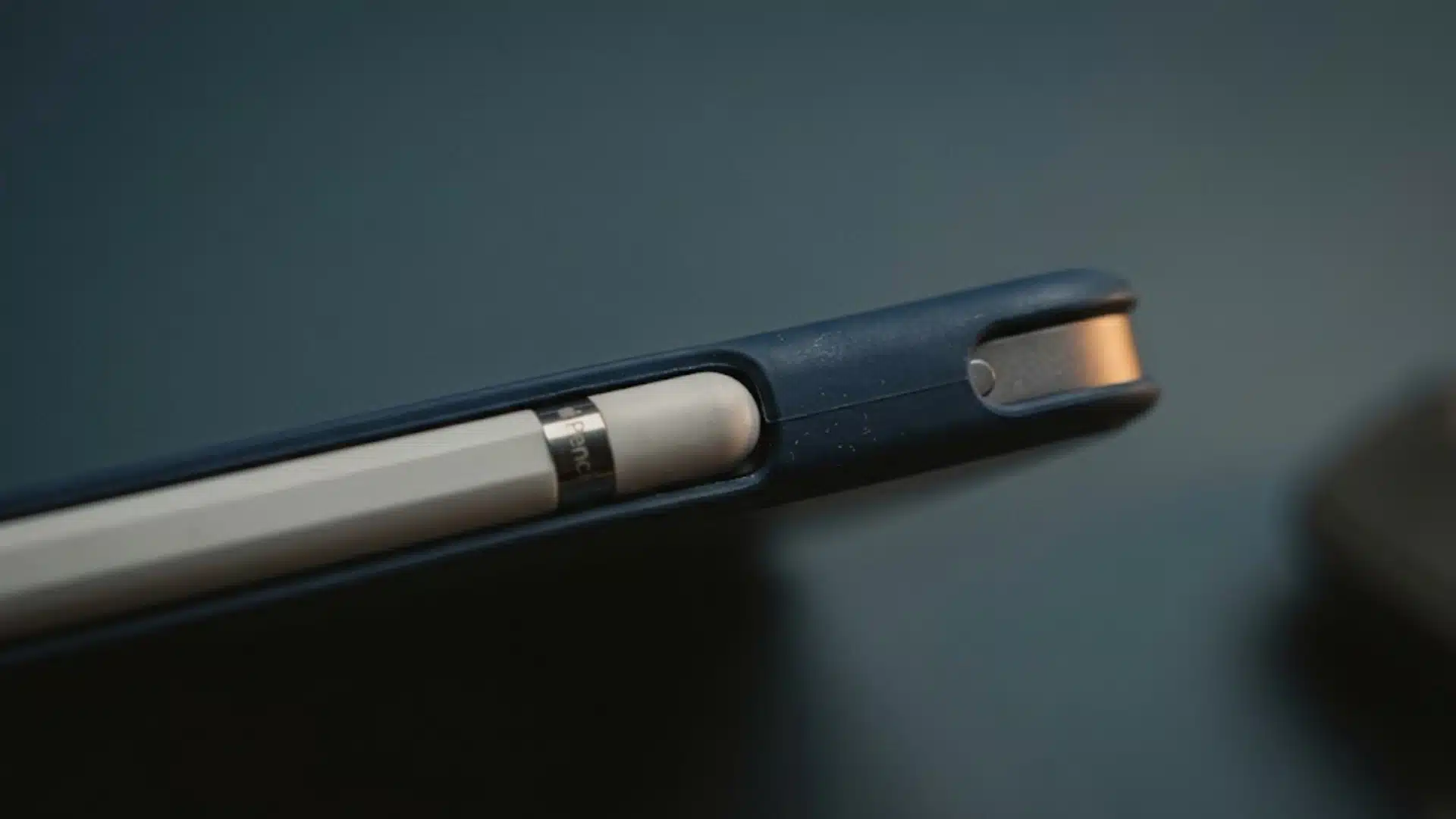
- Poor physical connection: A case, dust, debris, or slight misalignment can stop electrical contact. The Pencil may remain attached magnetically while receiving no power.
- Bluetooth or pairing issue: If Bluetooth is turned off or the Pencil has become unpaired, the iPad may fail to recognize it or start charging properly.
- Deeply discharged battery: A Pencil left at zero percent for too long may not respond immediately when connected, making it appear permanently dead.
- Outdated iPad software: An older version of iPadOS can occasionally interfere with Apple Pencil pairing and charging. Installing the latest software update may restore normal charging behavior.
- Hardware or battery failure: If the Apple Pencil still shows no charging activity after all troubleshooting steps and extended charging, the battery or internal components may have failed.
Check these causes in order. If the Pencil shows no response after the connection and pairing fixes, move to the deep-discharge recovery steps before considering replacement.
Apple Pencil Not Charging? Try These Fixes First
Start with the easiest troubleshooting steps before changing settings or assuming the Apple Pencil has a hardware problem.
Working through them in order helps rule out the most common causes and often restores charging within a few minutes.
1. Check the Charging Connection
Remove your iPad case and reconnect the Apple Pencil, making sure it sits correctly on the magnetic strip or plugs fully into the Lightning port.
Wipe away any dust or debris that could block the contact points. Even a slight misalignment can prevent charging while making the Pencil appear properly attached.
2. Restart Your iPad
Turn Bluetooth off, wait a few seconds, and switch it back on. If the Pencil still does not respond, force-restart your iPad.
This clears temporary software glitches that a standard restart may leave behind and often restores charging and pairing functions.
3. Forget and Pair the Apple Pencil Again
Open Settings > Bluetooth, tap the information icon next to your Apple Pencil, and select Forget This Device. Then reconnect the Pencil to begin the pairing process again.
Re-pairing replaces the existing connection data, which can resolve charging issues caused by understanding how Bluetooth pairing works on Apple accessories and what happens when that data becomes corrupted.
If the Apple Pencil still shows no charging response after these steps, the battery may be deeply discharged, or another hardware issue may require further troubleshooting.
How to Tell If Your Apple Pencil Is Charging
Before working through additional fixes, confirm whether power is actually reaching the Pencil.
Go to Settings > Apple Pencil on your iPad. If the Pencil is charging, you will see a battery icon with a lightning bolt symbol next to the percentage. You can also check the Batteries widget on your Home Screen for a live readout.
For the 2nd Generation, Apple Pencil Pro, and USB-C models, a small notification appears at the top of the iPad screen the moment the Pencil makes a valid charging connection.
If that notification never appears when you attach the Pencil, the iPad is not recognizing the connection, which points to a physical or pairing issue rather than a slow charge
Reviving a Fully Dead Apple Pencil
If none of the fixes above got any response at all, and you suspect the battery drained to zero, don’t assume that means it’s broken.
A Pencil that’s been sitting dead for a while can lose the ability to draw charge fast enough for the iPad to register it right away.
It needs several uninterrupted hours attached before it shows any sign of life, and there’s often nothing to see in the first ten or twenty minutes. The mistake most people make here is checking on it too soon.
Detaching the Pencil to see if anything’s changed, then reattaching it, can interrupt the recovery process and reset the clock. Attach it and leave it alone for a few hours, ideally overnight.
A good minimum is three to four hours of uninterrupted contact.
If you are using a 1st Generation Pencil, plug it directly into the iPad rather than using the adapter and a wall charger; drawing power from the iPad tends to be more reliable for recovery. For magnetic models, keep the iPad itself plugged into power during the recovery period so it has a full charge available to pass through.
If you’ve given it several hours of genuinely uninterrupted charging and there’s still zero response, that’s the point where a hardware failure becomes the more likely explanation than a depleted battery.
When to Contact Apple Support for Your Apple Pencil
Once you have ruled out connection issues, pairing problems, and a deeply discharged battery, a charging problem that persists almost always points to hardware, and that is when Apple Support becomes the right next step.
Before replacing it, check for these signs that indicate it’s time to contact Apple Support or visit an Apple Store.
- No charging response after several hours: The Pencil shows no battery icon, pairing prompt, or charging notification even after uninterrupted charging.
- Physical damage is visible: Cracks, bent connectors, damaged tips, or signs of liquid exposure can prevent the Pencil from charging correctly.
- It won’t pair with any compatible iPad: The Pencil is not detected on multiple supported iPads, even after restarting and re-pairing.
- The battery percentage never increases: The iPad recognizes the Pencil, but the battery remains at 0% or does not change after extended charging.
- The Pencil is still covered by warranty or AppleCare+: if eligible, Apple can inspect the device and help you understand what Apple repair and replacement typically costs before deciding how to proceed.
If one or more of these signs match your situation, stop troubleshooting and let Apple inspect the Pencil. A professional diagnosis can confirm whether the issue requires a repair or a replacement.
Conclusion
A charging problem can make an otherwise useful Apple Pencil feel dead, but the cause is often simpler than it looks.
I always recommend starting with the connection, then checking Bluetooth, pairing, and battery recovery before assuming the worst.
When an Apple Pencil not charging issue comes up, working through the fixes in order saves time and helps you avoid replacing a device that may still work.
It also helps to confirm how to charge an Apple Pencil correctly for your model, since each version uses a different method.
If none of the steps restore a battery reading or charging icon, hardware failure is likely. Have you found a fix that worked for your Pencil? Share your experience in the comments.
Frequently Asked Questions
How long does it take to charge a fully dead Apple Pencil?
A fully drained Apple Pencil can take several hours of uninterrupted charging before it responds at all. Leave it attached to the iPad or plugged in without checking on it repeatedly, since interrupting the process early can reset the recovery and extend the wait further.
Why does my Apple Pencil show as connected but not charging?
A Pencil can appear paired or attached while drawing no actual power. This usually means a case is blocking the magnetic connection, the Pencil isn’t seated correctly, or Bluetooth needs to be toggled off and back on to re-establish the charging link.
Does leaving an Apple Pencil uncharged damage the battery?
Yes. Lithium batteries left at 0% for extended periods can degrade permanently, sometimes losing the ability to hold a charge at all. This is why a Pencil that’s been dead for weeks may need much longer to revive than one just recently drained.
How do I know if my Apple Pencil needs to be replaced?
If the Pencil shows no response after several hours of uninterrupted charging, with a confirmed working connection and no Bluetooth or case interference, that points to a hardware failure rather than a depleted battery, and replacement is the likely next step.