







Your computer worked perfectly yesterday, but today it freezes, drops the Wi-Fi, or refuses to start. Few things disrupt your day faster.
Computer issues can seem random, especially when one symptom points to several possible causes. I know how tempting it is to click through settings or try every fix you find online. That approach can hide the real fault or make it worse.
Here, you can learn how to check common symptoms, test safe fixes, separate software faults from hardware trouble, and spot warning signs that need a technician.
You can then troubleshoot with a clear order, protect your files, and avoid wasting time on fixes that do not fit the problem.
Understand the Computer Issues
Computer Problems are faults that prevent a desktop or laptop from working as expected. They may affect its speed, display, internet connection, applications, sound, storage, or ability to start.
The five main types are:
- Hardware faults
- Software errors
- Network problems
- Security threats
- User or settings errors
One symptom may have several causes. A blank screen, for example, could result from a loose cable, incorrect display input, faulty graphics driver, or damaged monitor.
If you’re still getting familiar with what sits inside a typical desktop or laptop, having a grasp of the parts that make up a PC makes it easier to figure out which component is actually misbehaving. Start with the easiest and safest checks before opening the computer or replacing parts.
Quick Computer Troubleshooting Steps to Try First
Basic checks can resolve temporary errors and provide useful clues about the source of a fault.
- Restart the Computer: A restart clears temporary errors, closes stalled processes, and reloads system services.
- Check All Connections: Inspect power, display, USB, Ethernet, charger, and peripheral cables for loose or damaged connections.
- Read Error Messages: Write down the full message and error code before closing the notification or restarting.
- Install Pending Updates: Apply approved operating system, application, and device-driver updates from trusted sources.
- Check Recent Changes: Review any software, hardware, driver, or system update installed before the problem began.
- Back Up Files: Copy important files before running major repairs, resetting the system, or replacing hardware.
Try one change at a time and test the computer after each step. That makes it easier to identify the actual cause.
Common Computer Issues and Their Solutions

Each problem needs a different set of checks. Begin with the suggested basic fix, then move to more advanced testing if the problem continues.
1. Computer Is Running Slowly
A slow computer may have too many programs running, limited storage, insufficient memory, or unwanted software. Open Task Manager on Windows or Activity Monitor on macOS to see which programs are using the processor, memory, and disk.
Close programs that are not needed. Remove unnecessary startup apps and clear old downloads or temporary files. Run a trusted security scan if resource use remains unusually high.
Older computers may struggle with current applications. Adding RAM or replacing a hard drive with an SSD can improve performance, though it helps to work out how much drive space you’ll actually need before buying one, since compatibility should be checked first.
2. Computer Freezes or Stops Responding
An application may freeze because of low memory, damaged files, a software conflict, or heavy processor use. Give the program a minute to respond before forcing it to close.
On Windows, open Task Manager with Ctrl + Shift + Esc. On macOS, use the Force Quit window with Command + Option + Esc. Select the stalled program and close it.
Restart the computer if the entire system remains unresponsive. If freezing affects one application repeatedly, update or reinstall that program. Freezing across several programs may point to memory, storage, driver, or heat problems.
3. Computer Keeps Crashing
Repeated crashes can come from unstable drivers, damaged system files, overheating, faulty RAM, or a failing storage drive. Record when each crash occurs and note any error messages.
Install pending system updates and get drivers directly from the computer or device maker. Remove recently installed software if the crashes began soon after installation.
Windows users can run System File Checker from an administrator Command Prompt with: sfc /scannow
Continued crashes need deeper testing. Memory diagnostics, storage health checks, and temperature monitoring can help narrow down the faulty component.
4. Blue Screen of Death
A Blue Screen of Death appears when Windows encounters a serious error and cannot continue safely. The screen usually shows a stop code that can help identify the cause.
Record the code before restarting. Disconnect recently added hardware and undo recent driver changes if the problem began afterward. Windows Update, Device Manager, and Windows Memory Diagnostic can help identify software or memory faults.
A single blue screen may be a temporary error. Repeated blue screens often point to a driver, RAM, storage, heat, or motherboard problem. Back up important files before continuing with advanced tests.
5. Computer Does Not Turn On
Start by checking the wall outlet, power strip, charger, and power cable. Test the outlet with another device. For a laptop, inspect the charging indicator and leave the charger connected for at least 20 minutes.
If the light behaves oddly even while plugged in, it helps to understand how optimized charging works, since some laptops deliberately delay a full charge and can look unresponsive when they’re not.
Disconnect USB devices, docks, printers, and external drives before trying again. A faulty accessory can sometimes block startup.
A desktop that remains completely silent may have a failed power supply, motherboard, or power button. A laptop with no charging light may have a damaged charger, battery, or charging port. Electrical repairs should be handled by a trained technician.
6. Computer Turns On but the Screen Is Blank
Check that the monitor is powered on and set to the correct input. Reconnect the HDMI, DisplayPort, or USB-C cable, then test another cable or screen if possible.
For a laptop, raise the brightness and disconnect any docking station. A connected external display may have been selected as the main screen.
If the computer produces startup sounds but shows no image, the fault may involve the monitor, graphics card, display cable, RAM, or graphics driver. Internal part testing should be left to a technician if the device is under warranty or difficult to open safely.
7. Windows Does Not Start
Windows may fail to start after an interrupted update, damaged system file, storage error, or driver conflict. Remove external devices and restart once before using recovery options.
If Windows Recovery Environment appears, try Startup Repair first. Safe Mode can help remove a faulty driver, uninstall a recent application, or scan for malware with fewer background services running.
System Restore may return system settings to an earlier restore point without removing personal files. Resetting or reinstalling Windows is a later option because it may remove applications, settings, and data.
8. Internet Keeps Disconnecting
Check another phone or computer on the same network. If every device is offline, restart the modem and router. Unplug both devices, wait about 30 seconds, reconnect the modem, and then reconnect the router.
Move closer to the router to test signal strength. Thick walls, metal objects, and nearby electronic devices can weaken Wi-Fi.
If only one computer disconnects, forget the network and reconnect. Update its network driver or test an Ethernet cable. Continued problems across all devices may require help from the internet provider.
9. Computer Is Overheating
Overheating may cause slow performance, loud fans, sudden shutdowns, or crashes. Move the device to a hard, flat surface and make sure its vents are not blocked.
Turn the computer off before cleaning exterior vents. Use short bursts of compressed air while following the manufacturer’s cleaning instructions. Do not push objects inside the vents.
High temperatures may also come from a failed fan, dried thermal paste, heavy background activity, or poor case airflow. If the computer shuts down from heat, stop using it until the cooling system has been checked.
10. Programs Keep Crashing or Will Not Open
An application may stop working because it is outdated, incompatible, damaged, or short of memory. Restart the computer and confirm that the operating system supports the installed application version.
Install updates from the official app store or developer. If only one program fails, repair or reinstall it after backing up its settings and files.
Check that the computer has enough free storage and memory. Security software can also block certain applications, but protection should not be disabled without understanding the risk. Contact the software provider if the error continues after a clean installation.
11. Computer Has No Sound
Check the volume level and make sure the system is not muted. Select the correct output device, especially when using headphones, Bluetooth speakers, monitors, or docking stations.
Reconnect wired audio devices and check their cables. For Bluetooth audio, disconnect the device and pair it again. Restarting both devices can clear a temporary connection error.
Windows users can review sound devices in Settings and Device Manager. macOS users can check Sound settings. If the correct output is selected but no audio plays, update the audio driver or test another speaker or headset.
12. Keyboard, Mouse, or USB Device Is Not Working
Disconnect the device and connect it to another USB port. Wireless devices may need fresh batteries, charging, or a new Bluetooth connection.
Restart the computer with unnecessary USB accessories removed. If the device works on another computer, the original system may have a damaged port, driver problem, or power-management setting.
Open Device Manager on Windows to look for warning symbols beside USB or input devices. Updating or reinstalling the affected driver may help. A USB port that looks bent, loose, or burned should not be used.
13. Hard Drive or SSD Problems
Storage faults can cause missing files, slow startup, freezing, read errors, and failed updates. Hard drives may also make clicking or grinding sounds. SSDs usually fail without mechanical noise.
Back up important data as soon as warning signs appear. Avoid repeated restarts, repair scans, and large file transfers if the drive is making unusual sounds. Extra activity may make data recovery harder.
Built-in disk checks can identify file-system errors, but they cannot repair physical damage. Replace a failing drive promptly and contact a data recovery specialist if important files are no longer accessible.
14. Pop-Ups, Malware, or Suspicious Computer Behavior
Unexpected pop-ups, browser redirects, unknown applications, disabled security tools, and high background activity may indicate malware. Disconnect from the internet if sensitive accounts or files may be at risk.
Run a full scan with a trusted, updated security program. Remove suspicious browser extensions and applications. Change important passwords from a separate, trusted device if account details may have been exposed.
Do not call phone numbers shown in unexpected security pop-ups. Legitimate system alerts do not demand payment through gift cards, cryptocurrency, or remote-access software.
15. Printer Is Not Responding
Confirm that the printer is powered on and has paper and ink or toner. Check for paper jams, warning lights, and messages on its display.
Make sure the correct printer is selected. Clear paused or failed jobs from the print queue, then restart the printer and computer. For a wireless printer, confirm that it is connected to the same network as the computer.
Reconnect USB cables or add the printer again through system settings. Install the latest supported driver from the printer manufacturer if the operating system cannot detect it.
Computer Issue Diagnostic Table
The table below connects common symptoms with likely causes and sensible first actions.
| Symptom | Possible Cause | First Fix to Try | Repair Urgency |
|---|---|---|---|
| Slow performance | Startup apps or low storage | Close apps and clear storage | Low |
| Random shutdown | Overheating or power fault | Shut down and check airflow | High |
| Blank screen | Cable or graphics issue | Test another cable and display | Medium |
| Clicking drive | Mechanical drive failure | Stop use and protect available data | Urgent |
| Wi-Fi drops | Weak signal or driver error | Restart the router and update the driver | Low |
| Frequent blue screens | Driver, RAM, or storage fault | Record the stop code | High |
| Burning smell | Electrical fault | Turn off and unplug the device | Urgent |
Repeated or worsening symptoms often point to a deeper hardware or system fault. Early testing may prevent data loss or added damage.
How to Check If Your Computer Has a Hardware or Software Problem
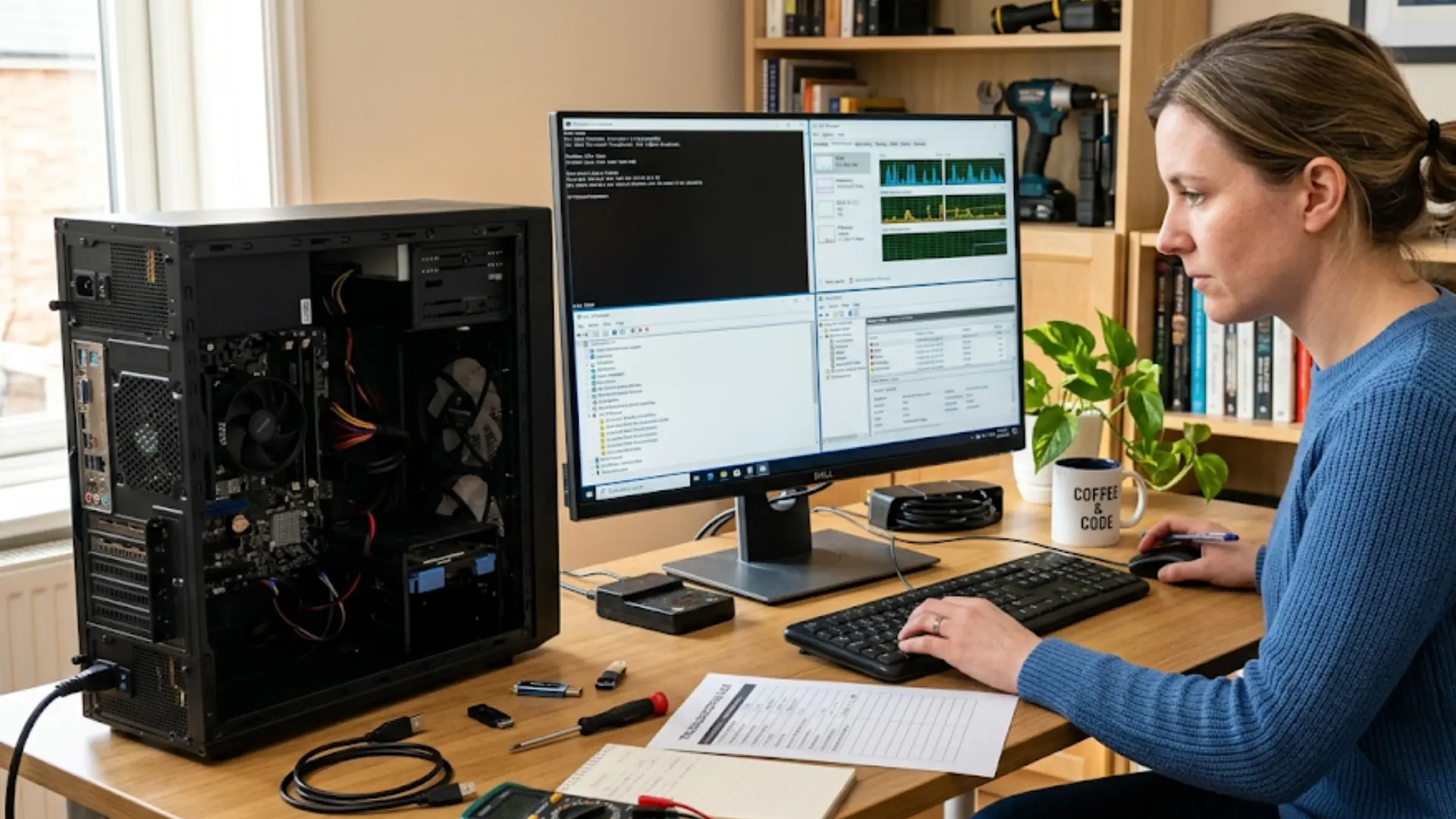
A problem that disappears in Safe Mode is often linked to software, a driver, or a startup service. It does not prove that every hardware component is healthy. A fault that continues before the operating system loads may involve hardware, firmware, or a boot device.
- Start in Safe Mode: Load essential drivers and services to check for software conflicts.
- Remove Extra Devices: Disconnect printers, drives, docks, and USB accessories before restarting.
- Test Another Component: Use a known working cable, monitor, charger, keyboard, or mouse.
- Review Resource Use: Check Task Manager or Activity Monitor for unusual processor, memory, or disk activity.
- Check Device Status: Look for warnings in Device Manager or the system hardware report.
- Run Built-In Tests: Use memory, storage, battery, and startup diagnostic tools supplied by the system maker.
- Review Error Records: Check Reliability Monitor, Event Viewer, or system logs for repeated failures.
I prefer to test one item at a time and record the result. I can then rule out causes without changing several settings at once.
Computer Maintenance That Can Prevent Future Problems
Routine care reduces avoidable errors and makes serious faults easier to spot.
- Keep the operating system and trusted applications updated.
- Maintain free storage space for updates and temporary files.
- Remove programs and browser extensions that are no longer used.
- Keep air vents clear and use laptops on firm surfaces.
- Run regular scans with trusted security software.
- Download applications only from known sources.
- Use surge protection for desktop equipment.
- Back up important files to another device or secure cloud storage.
- Check battery and storage health for early warning signs.
- Restart the computer regularly instead of leaving it running for long periods.
A backup is especially important because no storage device lasts forever. Keep at least one copy separate from the computer.
When Should You Contact a Computer Technician?
Basic troubleshooting should stop when continued use could damage your computer or make important files harder to recover.
Contact a technician if you notice burning smells, smoke, sparks, unusual heat, or a loose charging port. Clicking or grinding sounds from a storage drive also need quick attention, especially when files become missing or inaccessible.
Professional help is also sensible after liquid damage, repeated blue screens, failed system recovery, overheating shutdowns, a swollen battery, or visible internal damage.
Power supply, motherboard, and battery repairs require proper tools and training. Turn off and unplug the device if you notice an electrical fault.
Never puncture, press, or charge a swollen battery. Acting early protects your safety, reduces further damage, and improves recovery chances.
Final Thoughts
A reliable fix starts with reading the symptom instead of testing random solutions. You now know how to check cables, background apps, storage, drivers, network settings, heat, and connected devices.
You also know when a crash, blank screen, unusual noise, or burning smell needs professional attention. These steps make computer issues easier to assess and help protect your files before damage gets worse.
I suggest starting with one safe check, recording the result, and moving forward only when the symptom remains. Keep regular backups and stop if a repair feels unsafe.
Try these tips on your current problem, then share what worked or read another troubleshooting post for more practical help.
Frequently Asked Questions
Why does restarting fix so many computer problems?
A restart clears temporary files, ends running processes, and reloads drivers from a clean state. It removes accumulated software errors. It won’t fix hardware faults or persistent driver corruption.
How do I know if my computer problem is hardware or software?
Boot into Safe Mode. If the problem disappears, the cause is software. If it persists through Safe Mode and built-in diagnostics, it’s almost certainly hardware.
Why does my computer slow down after a few months?
Background services add themselves to the startup over time. Together, they consume RAM and CPU before you’ve opened anything. A startup audit in Task Manager usually fixes it.
Frequently Asked Questions
These answers address extra concerns about diagnostics, storage, repair costs, and the risk of losing personal files.
What are the most common computer issues?
Common faults include slow speed, freezing, crashes, failed startup, blank screens, Wi-Fi drops, overheating, application errors, storage failure, malware, and unresponsive accessories.
Why is my computer suddenly acting strangely?
Recent software updates, new applications, driver conflicts, malware, overheating, low storage, or failing hardware can cause sudden changes. Review anything installed or changed before the behavior began.
How can I run a diagnostic test on my computer?
Windows includes memory, storage, reliability, and hardware checks. Many manufacturers also supply built-in diagnostics. macOS users can start Apple Diagnostics to test supported internal components.
How much free storage should a computer have?
Try to keep at least 10% to 20% of the main drive free. Updates, temporary files, and applications need spare space to operate properly.
Is it worth repairing an old computer?
Compare the repair price with the cost, age, condition, and performance of the computer. Replacement may make more sense when several major parts are failing.
Can computer problems cause permanent data loss?
Yes. Drive failure, malware, electrical damage, liquid exposure, and failed repairs can destroy files. Regular backups provide the strongest protection against permanent data loss.