


Is your child spending too much time on their iPhone, or stumbling across content they shouldn’t see? You’re not alone. Most parents find themselves wondering: where are parental controls on iPhone?
Apple’s built-in tools make it surprisingly easy to create a safer, more balanced digital environment for your kids.
If you’re setting things up for the first time or need to adjust existing restrictions, this guide has you covered.
You will find exactly how to set up parental controls on iPhone, every important setting worth knowing, no tech expertise required, we promise.
How Can Parental Controls on iPhone Protect Your Child?
iPhones give children access to educational tools, games, social media, and the internet, including your home’s network security key, but they can also expose them to inappropriate content and excessive screen time.
Learning how to set up parental controls on iPhone helps parents create a safer digital environment by limiting app access, filtering websites, and managing purchases.
These settings can also support healthier screen habits and reduce online risks, and pairing them with tools designed for everyday tracking can add another layer of peace of mind.
As children grow and their needs change, it’s important to know how to change parental controls on iPhone to provide the right balance of freedom and protection.
Regular updates ensure the controls remain effective and age-appropriate.
Where are Parental Controls on iPhone?
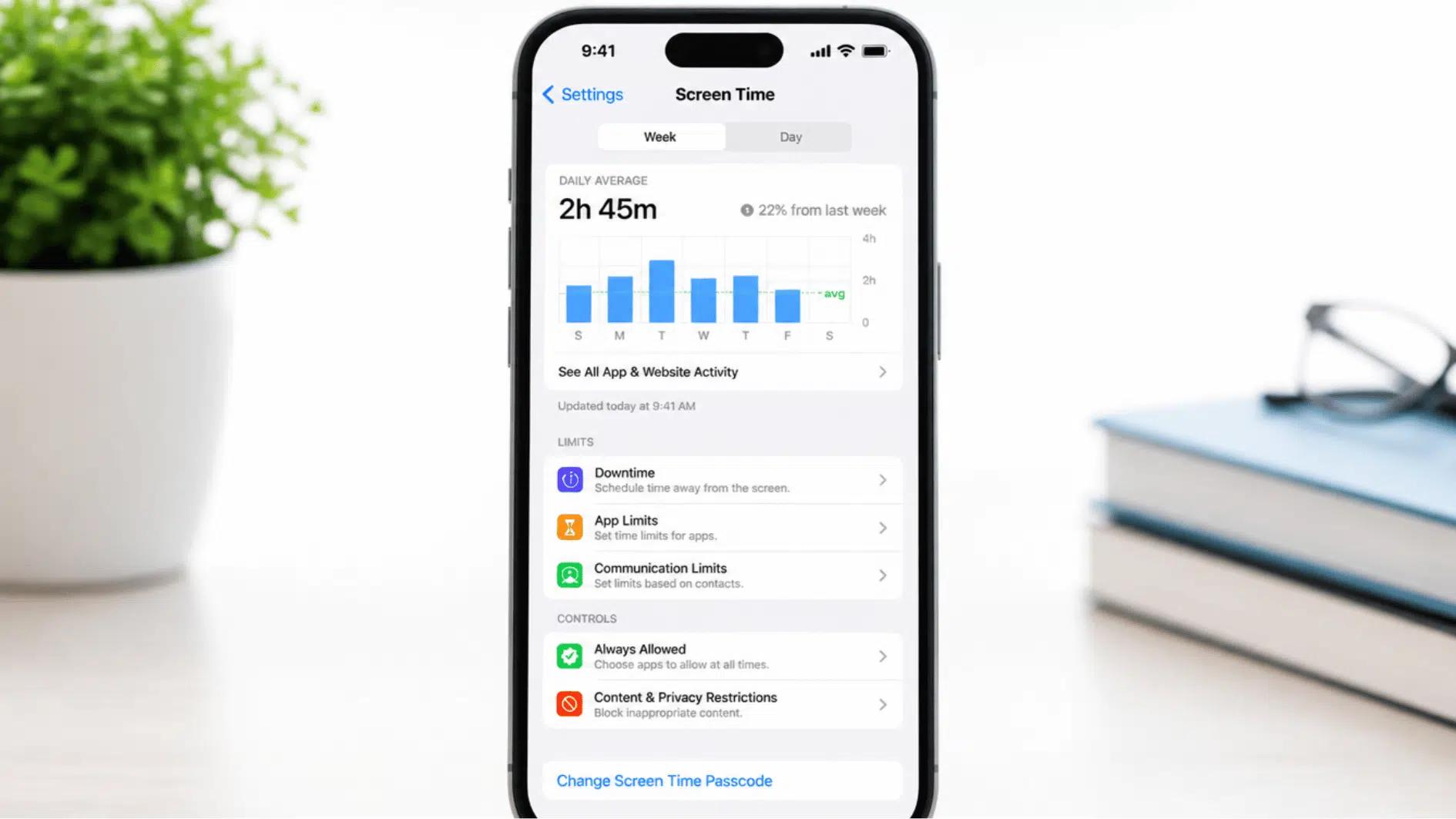
Apple includes parental controls within the Screen Time settings on every iPhone. This feature allows parents to manage app usage, restrict content, control purchases, and set communication limits from one central location.
To find parental controls on an iPhone:
- Open the Settings app.
- Tap Screen Time.
- Select Content & Privacy Restrictions.
- Turn on Content & Privacy Restrictions to access parental control options.
From this menu, you can block inappropriate content, limit app downloads, prevent unauthorized purchases, and manage privacy settings.
How to Set Up Parental Controls on iPhone
Setting up parental controls on your child’s iPhone is simpler than most parents expect. Apple has built everything into one place, so once you know where to look, the whole process takes just a few minutes.
Below is a step-by-step walkthrough to help you get started confidently.
Step 1: Open Settings and Find Screen Time
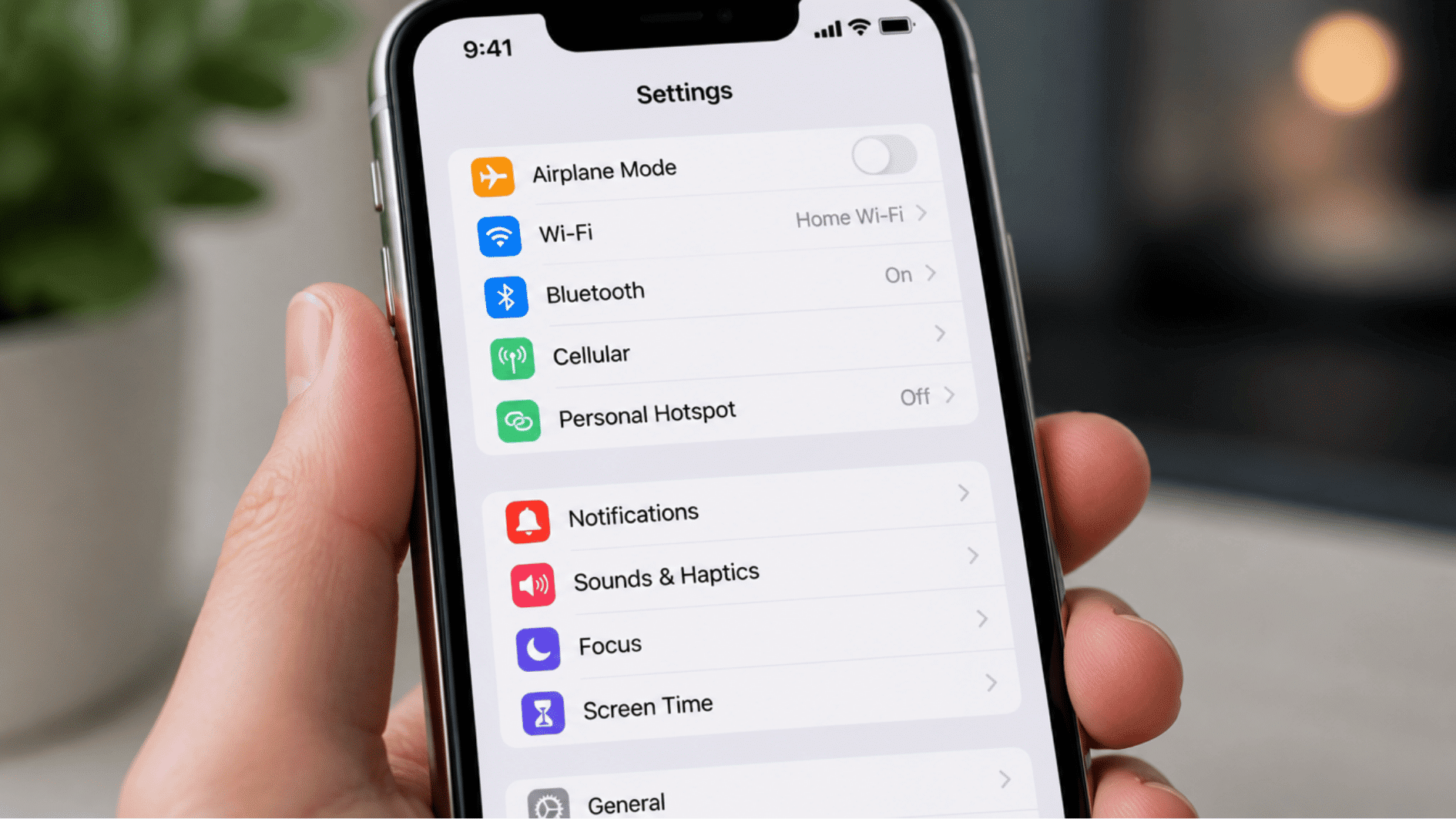
The first thing you need to do is locate where parental controls on iPhone actually live. Many parents are surprised to find that Apple doesn’t label them as “parental controls” at all.
Instead, everything is tucked inside a feature called Screen Time, which you can find directly in your iPhone’s main Settings menu.
- Open the Settings app on the iPhone.
- Scroll down until you see Screen Time, then tap it.
- You will land on the Screen Time dashboard, which shows app usage and available controls.
- If Screen Time has never been used before, you will see an option to enable it.
Tip: Screen Time is available on any iPhone running iOS 12 or later. Make sure the device software is up to date before you begin.
Step 2: Enable Screen Time for Your Child
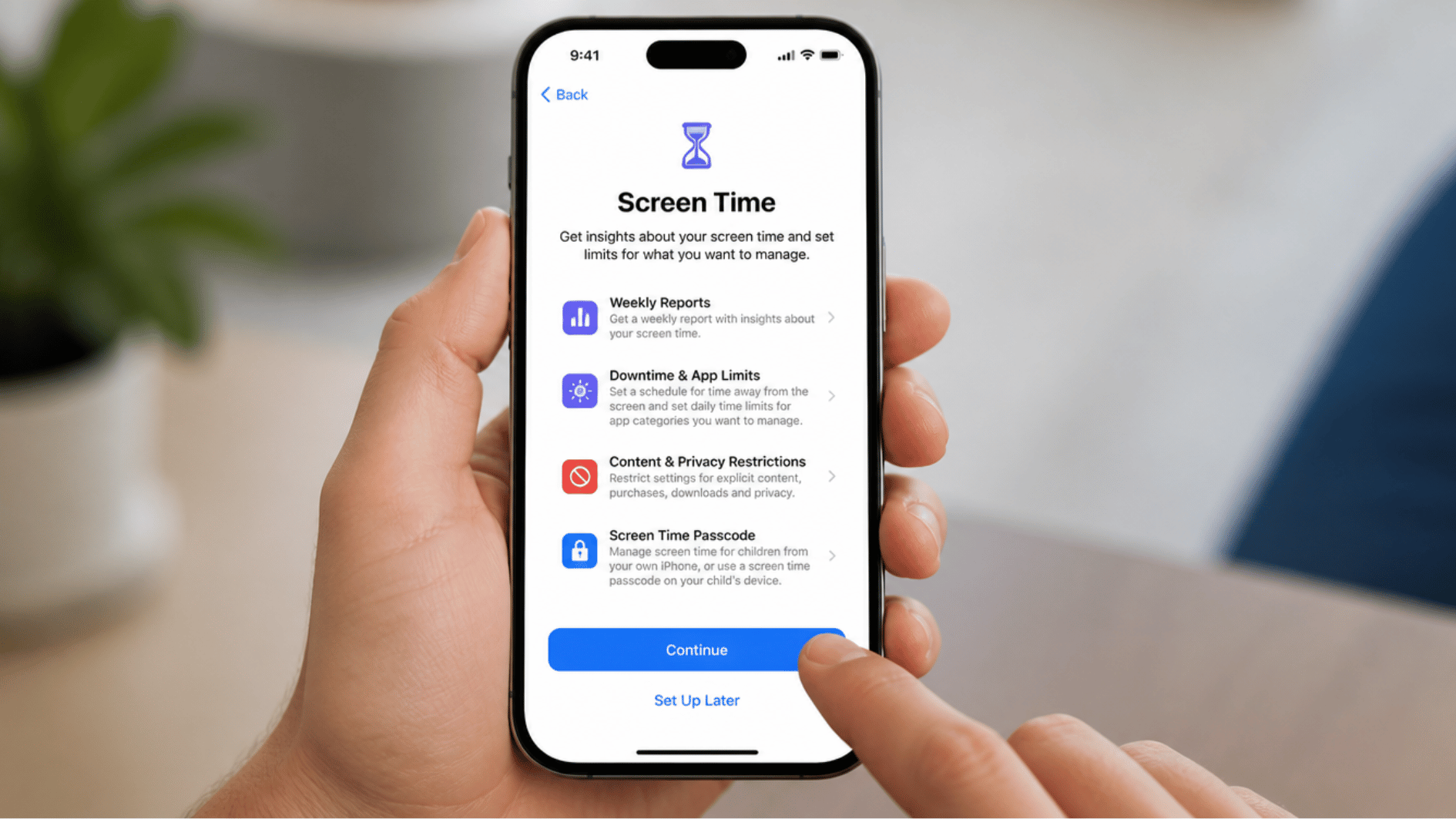
Once you are inside Screen Time, the next step is to activate it specifically for your child’s use. Apple gives you the option to set it up as a parent or as a child, and choosing the right one matters.
Selecting “This is My Child‘s iPhone” ensures the settings are locked behind a passcode that only you control.
- Tap Turn On Screen Time to begin.
- Read the overview screen and tap Continue.
- Select “This is My Child‘s iPhone” when prompted.
- Follow the on-screen steps to complete the initial setup.
Tip: If you are setting this up on your own iPhone to manage your child‘s device remotely, select “This is My iPhone” and use Family Sharing instead.
Step 3: Set a Screen Time Passcode
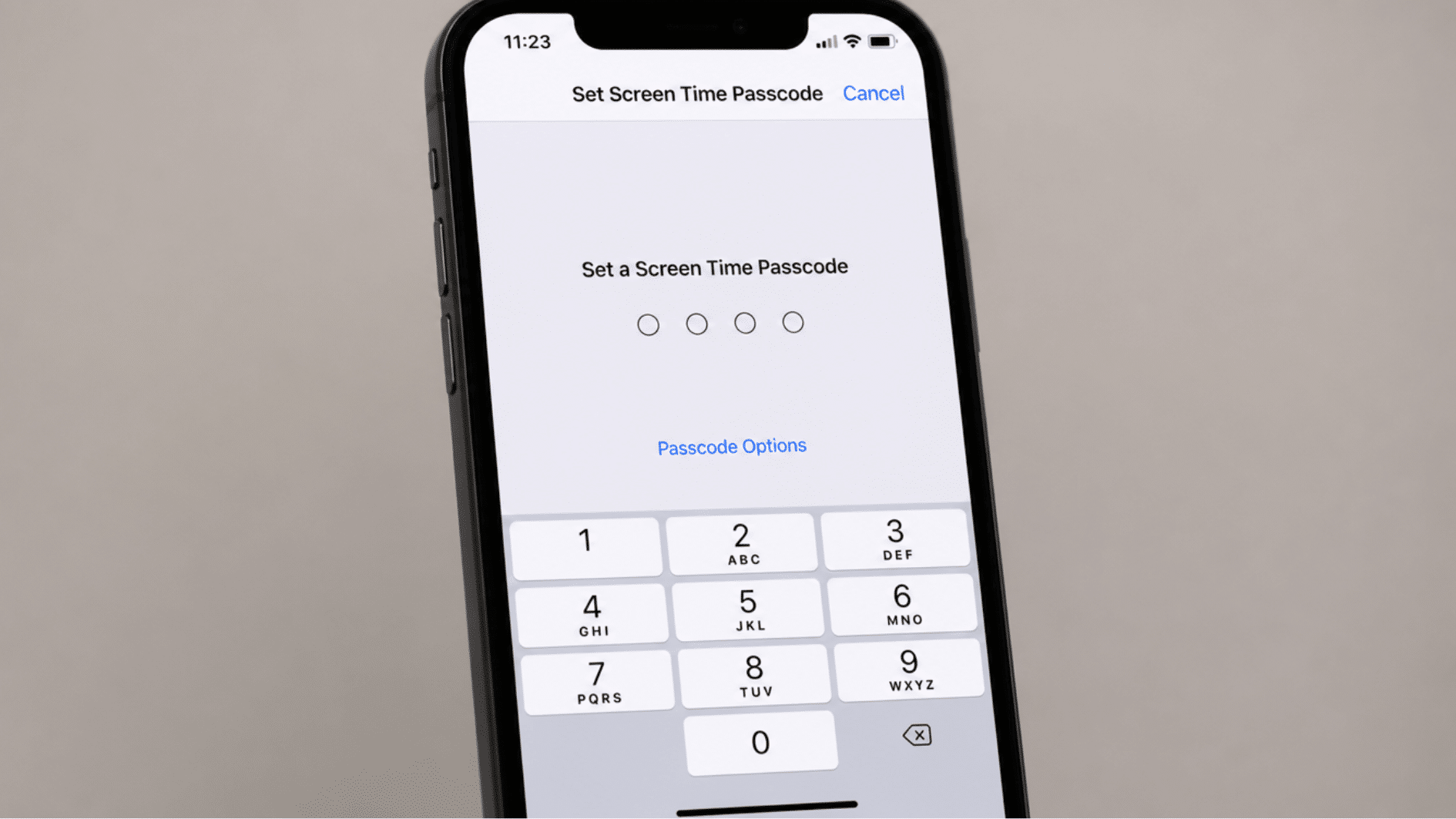
This is one of the most important steps when learning how to set up parental controls on an iPhone. Without a passcode, your child can simply go into Settings and turn off every restriction you have put in place.
A Screen Time passcode keeps your controls locked and secure.
- Inside Screen Time, tap Use Screen Time Passcode.
- Enter a four-digit passcode that your child does not know.
- Re-enter the passcode to confirm it.
- Apple will prompt you to enter your Apple ID so you can recover the passcode if you forget it.
Tip: Avoid using the same passcode as your iPhone‘s lock screen. Choose something unique that your child cannot easily guess.
Step 4: Set Up Content and Privacy Restrictions
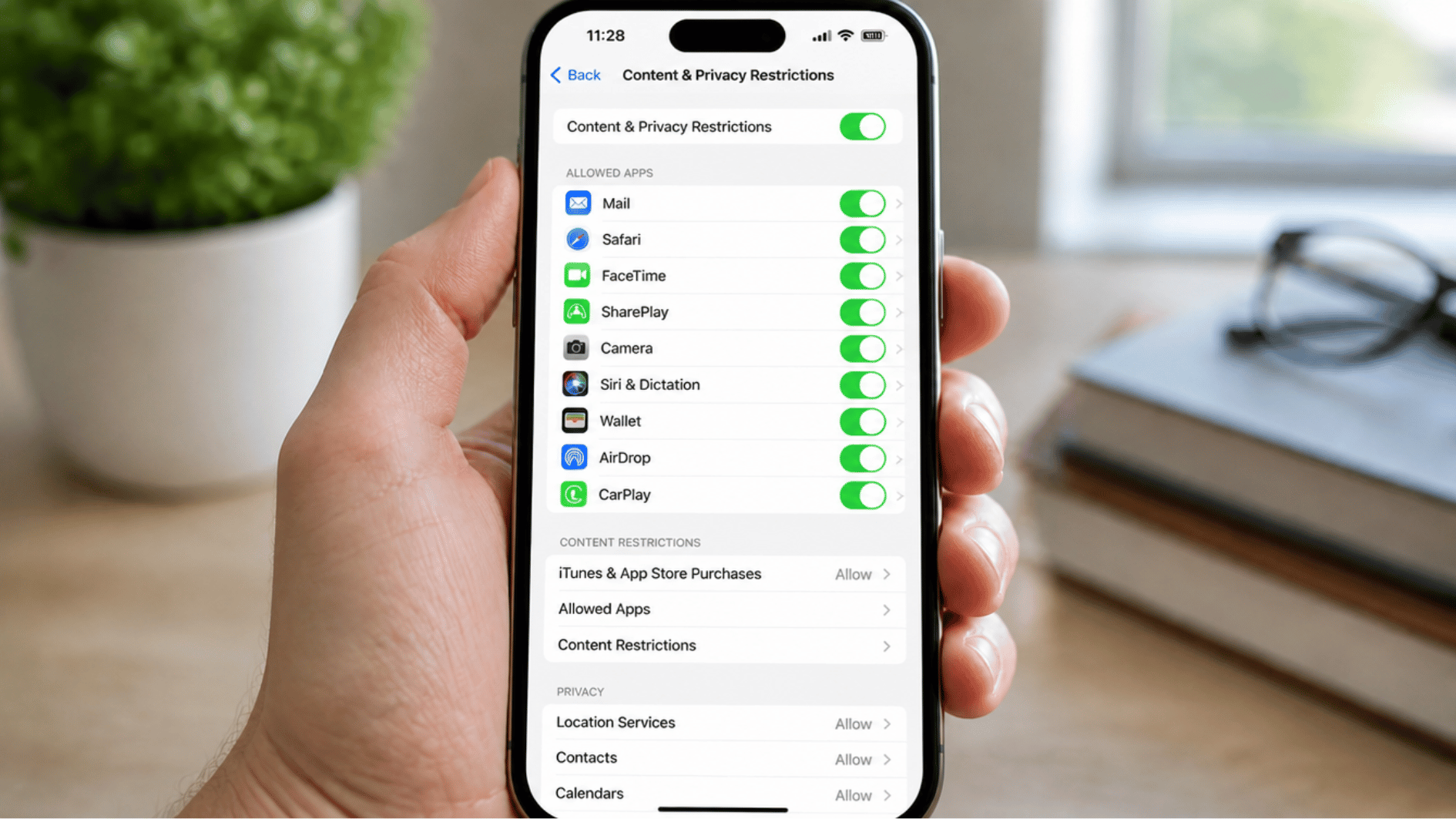
This step is where you get granular control over what your child can see and do on their iPhone. Content and Privacy Restrictions allow you to block explicit content, restrict certain apps, control privacy settings, and limit purchases.
- Tap Content and Privacy Restrictions inside Screen Time.
- Toggle the switch at the top to turn restrictions on.
- Tap Content Restrictions to set age-appropriate limits for movies, music, apps, and websites.
- Tap Privacy Restrictions to control access to location, contacts, and photos.
- Under iTunes and App Store Purchases, set all options to Do Not Allow.
Tip: Under the Web Content setting, choose “Limit Adult Websites” for automatic filtering, or select “Allowed Websites Only” for the strictest level of control.
Step 5: Set App Limits and Downtime
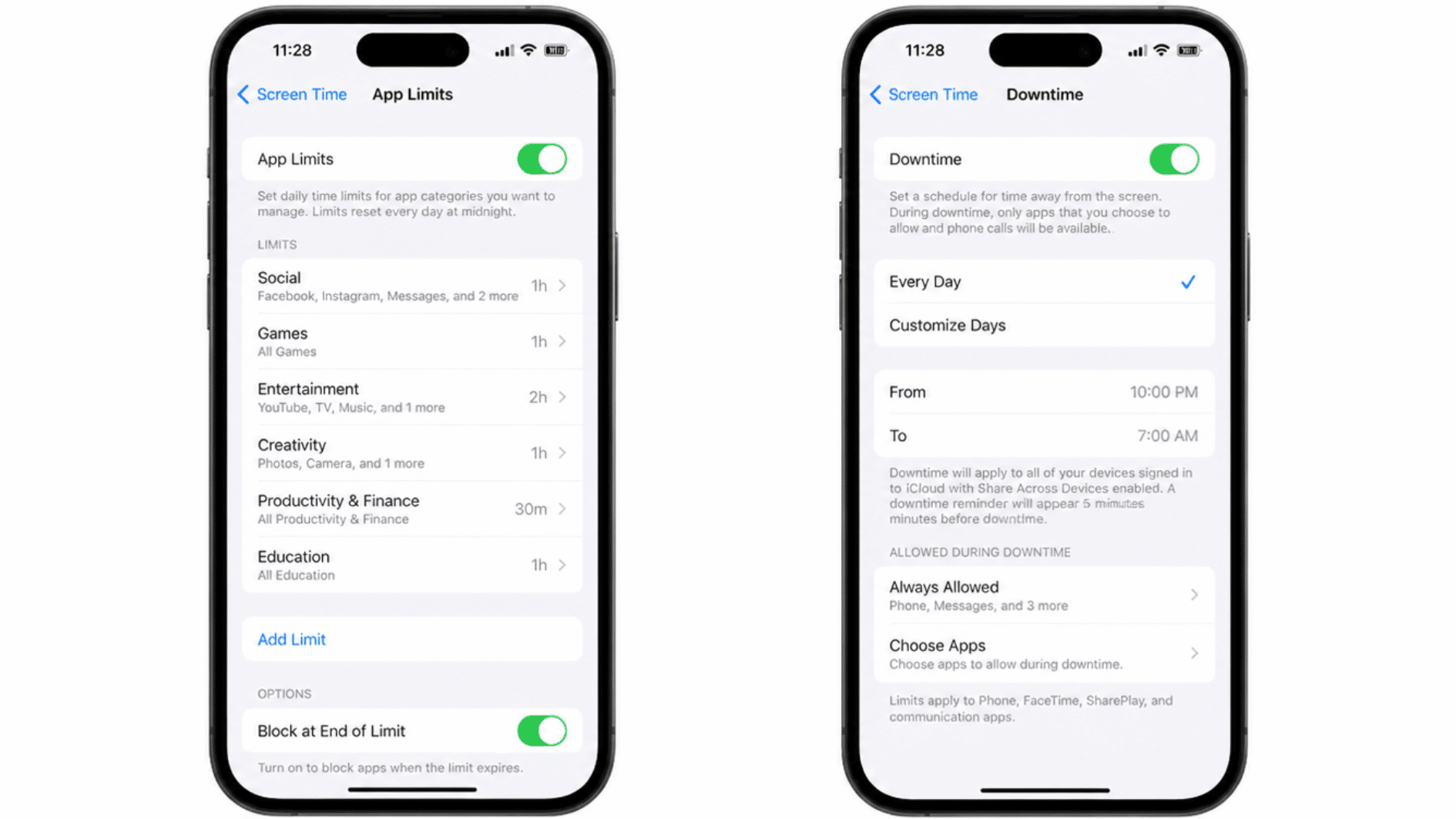
Once your restrictions are in place, you can go a step further by controlling how long your child spends on specific apps and when the iPhone can be used.
This is especially helpful for managing screen time around homework, meals, and bedtime. Knowing how to change parental controls on iPhone later is easy, since these settings can be updated at any time.
- Tap App Limits in Screen Time, then tap Add Limit.
- Choose a category such as Social Networking, Games, or Entertainment.
- Set a daily time limit and tap Add to save it.
- To set Downtime, go back to the Screen Time menu and tap Downtime.
- Toggle Downtime on, then set start and end times for when the phone should be restricted.
Tip: You can schedule Downtime to repeat every day or customize it for specific days of the week, which is perfect for balancing school days and weekends differently.
How to Change Parental Controls on iPhone
As your child gets older, their needs change, and so should their iPhone settings. Knowing how to change parental controls on iPhone means you’re never locked into the same rules forever.
App limits that worked for a ten-year-old may need to be loosened for a teenager, and downtime schedules often shift around new school routines or extracurricular activities.
It’s all adjustable in just a few taps; head back to Settings, open Screen Time, and update whatever needs changing.
The same place where you learned how to set up parental controls on iPhone is where you’ll manage every update in the future. Understanding: where are parental controls on iphone, makes the whole process quicker every time you revisit it.
Think of it less as a one-time setup and more as an ongoing conversation between you, your child, and their device, one that evolves as they do.
Wrapping It Up
Setting up parental controls on your child’s iPhone doesn’t have to feel overwhelming or complicated.
Now that you know how to set up parental controls on iPhone, you have everything it takes to create a safer digital space for your child.
It’s a small step that makes a genuinely big difference in how your child experiences the online world. And what makes it the best is that you can always go back and adjust as they grow.
So go ahead and open the Settings app and give your child the safer, healthier iPhone experience they deserve today.
Frequently Asked Questions
Can My Child Turn Off Screen Time Without My Permission?
No. As long as you have set a Screen Time passcode that your child doesn’t know, they cannot disable or change any restrictions on their own.
Does Screen Time Work if My Child Uses a Different Apple ID?
Screen Time is tied to the device, not the Apple ID. Restrictions remain active regardless of which account is signed in on the iPhone.
Can I Set Parental Controls on My Child’s iPhone From My Own Phone?
Yes. Through Family Sharing, you can monitor and adjust your child’s Screen Time settings remotely, directly from your iPhone, without touching their device.
Do Parental Controls on iPhone Work Over Wi-Fi and Cellular?
Yes. Content restrictions and app limits apply across both Wi-Fi and cellular connections, so your child’s browsing stays filtered wherever they go.