







A network security key is something most people use every day without giving it much thought. It comes into play whenever you connect a laptop, phone, tablet, or smart device to a wireless network.
If the correct key isn’t entered, the connection simply won’t work. While it may seem like just another Wi-Fi password, it serves a much bigger purpose.
A network security key helps protect your network from unauthorized users and reduces the risk of strangers accessing your internet connection or personal data.
Understanding a Network Security Key
A network security key is the password used to protect a Wi-Fi network. It verifies that a device has permission to connect and helps keep unauthorized users off the network.
When you connect a laptop, phone, or other device to Wi-Fi, you usually need to enter the network security key. Once the key is verified, the router allows access and establishes a secure connection.
Besides controlling access, a network security key helps encrypt data traveling between your device and the router. This makes it harder for others to intercept sensitive information.
Network Security Key vs. SSID
Before comparing the two, it helps to know what each term means. SSID (Service Set Identifier) is the name of a Wi-Fi network, while a network security key is the password needed to access that network.
- SSID: The name of the wireless network that appears in your list of available Wi-Fi connections.
- Network Security Key: The password required to connect to that Wi-Fi network.
For example, if your network appears as HomeWiFi, that is the SSID. The password you enter to join HomeWiFi is the network security key.
How Does a Network Security Key Work?
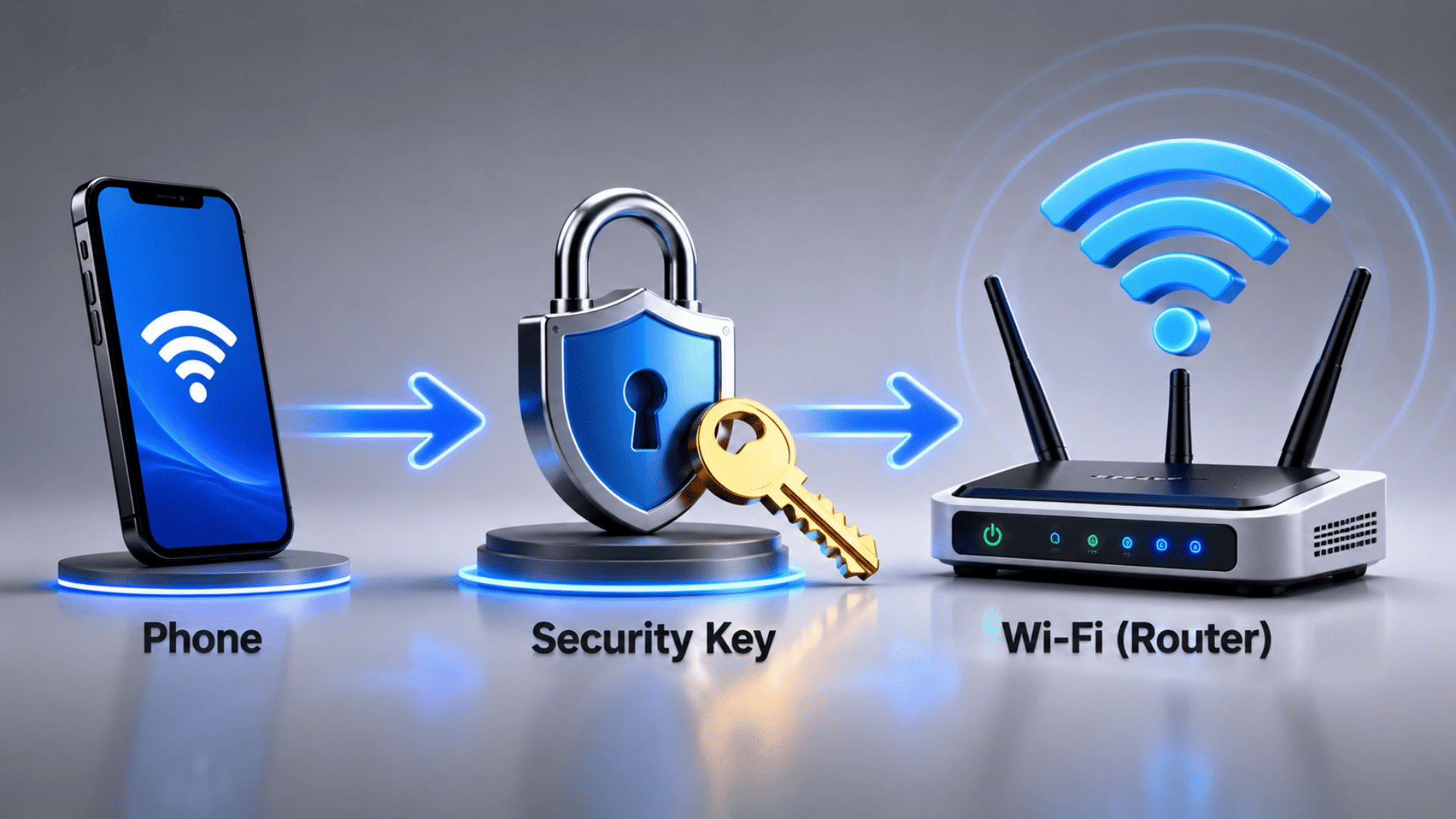
A network security key is used during the Wi-Fi authentication process. When a device requests access, the router verifies the key against its stored credentials.
If authentication succeeds, an encrypted connection is established. If the key is invalid, the connection is denied.
This process happens automatically within seconds whenever a device joins a protected network. Once connected, the network security key helps secure communication between the device and the router.
Types of Network Security Key
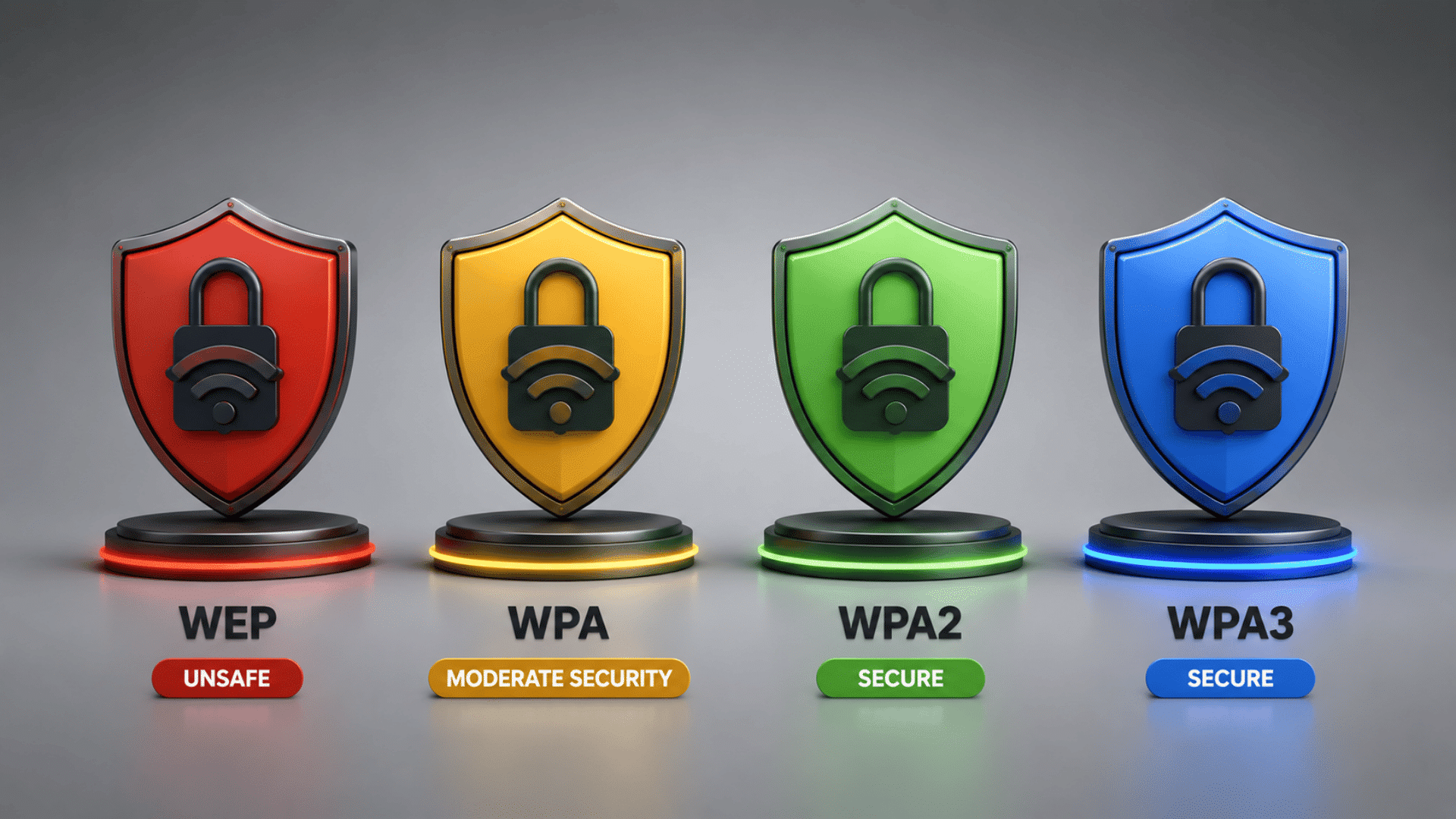
Network security keys are tied to the Wi-Fi security protocol used by a router. Over time, these protocols have improved to provide stronger encryption and better protection against unauthorized access.
The table below compares the most common network security key types and their security levels.
| Security Type | Security Level | Recommendation |
|---|---|---|
WEP (Wired Equivalent Privacy) | Low | Not Recommended. Avoid using unless required for very old hardware. |
WPA (Wi-Fi Protected Access) | Moderate | Upgrade to WPA2 or WPA3 whenever possible. |
WPA2 (Wi-Fi Protected Access 2) | High | Recommended for most home and business networks. |
WPA3 (Wi-Fi Protected Access 3) | Very High | Strongly recommended. Best choice for maximum Wi-Fi security and protection. |
WPA3 offers the strongest protection available today. If your router or devices do not support WPA3, WPA2 remains a secure and reliable option for most users.
Avoid using WEP or WPA, as these older standards no longer provide enough protection for most networks.
How to Find Your Network Security Key
There are several ways to locate a network security key based on the device you have access to. If a device is already connected to the Wi-Fi network, you can usually view the saved password through system settings.
There are different methods depending on your OS.
1. On Windows
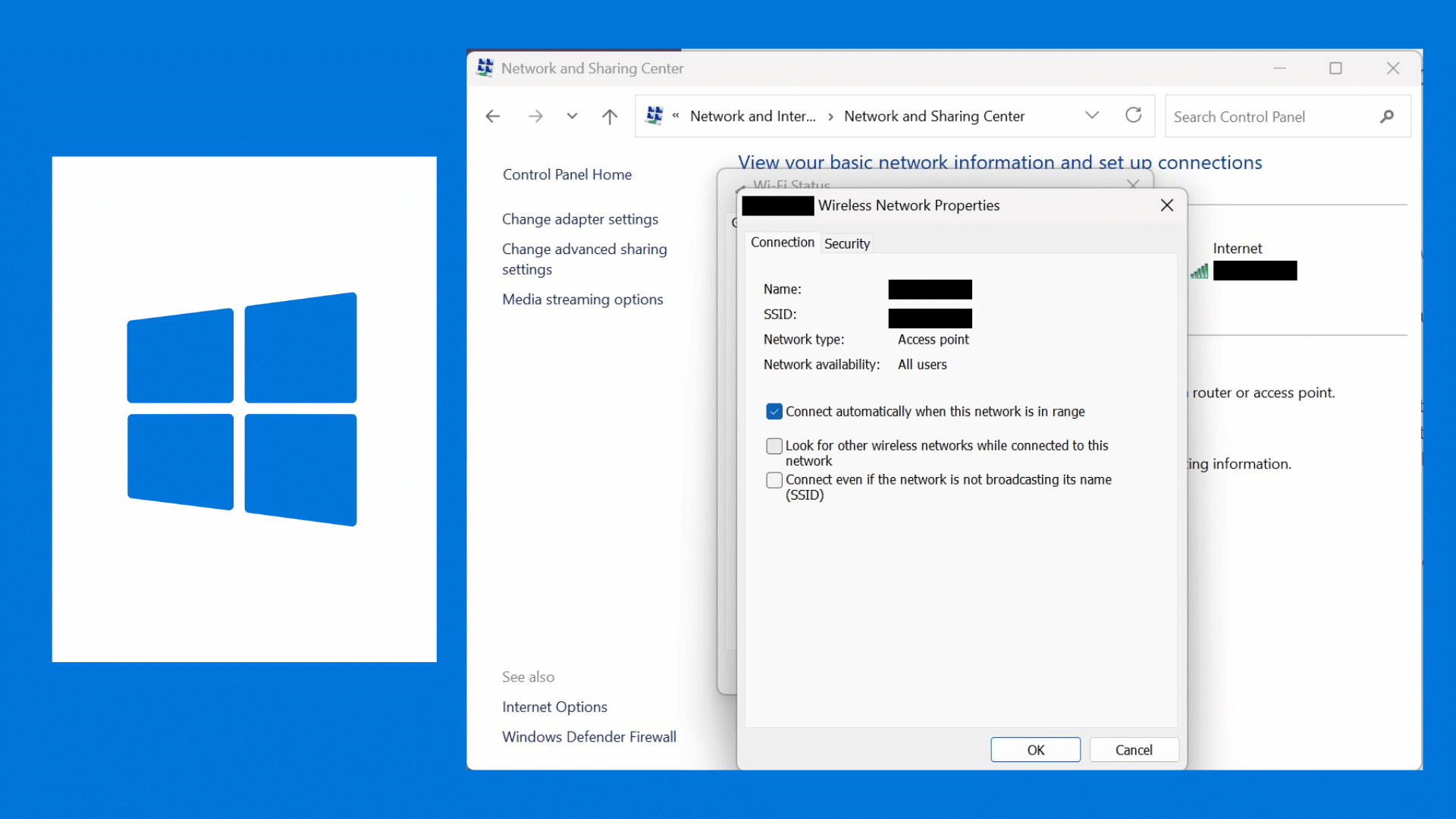
Windows stores passwords for previously connected Wi-Fi networks Making it easily accessible for the users but it requires admin to unlock the system first.
Steps :
- Open Control Panel.
- Select Network and Sharing Center.
- Click the active Wi-Fi connection.
- Choose Wireless Properties.
- Open the Security tab.
- Check Show Characters.
The displayed password is your network security key.
2. On Mac
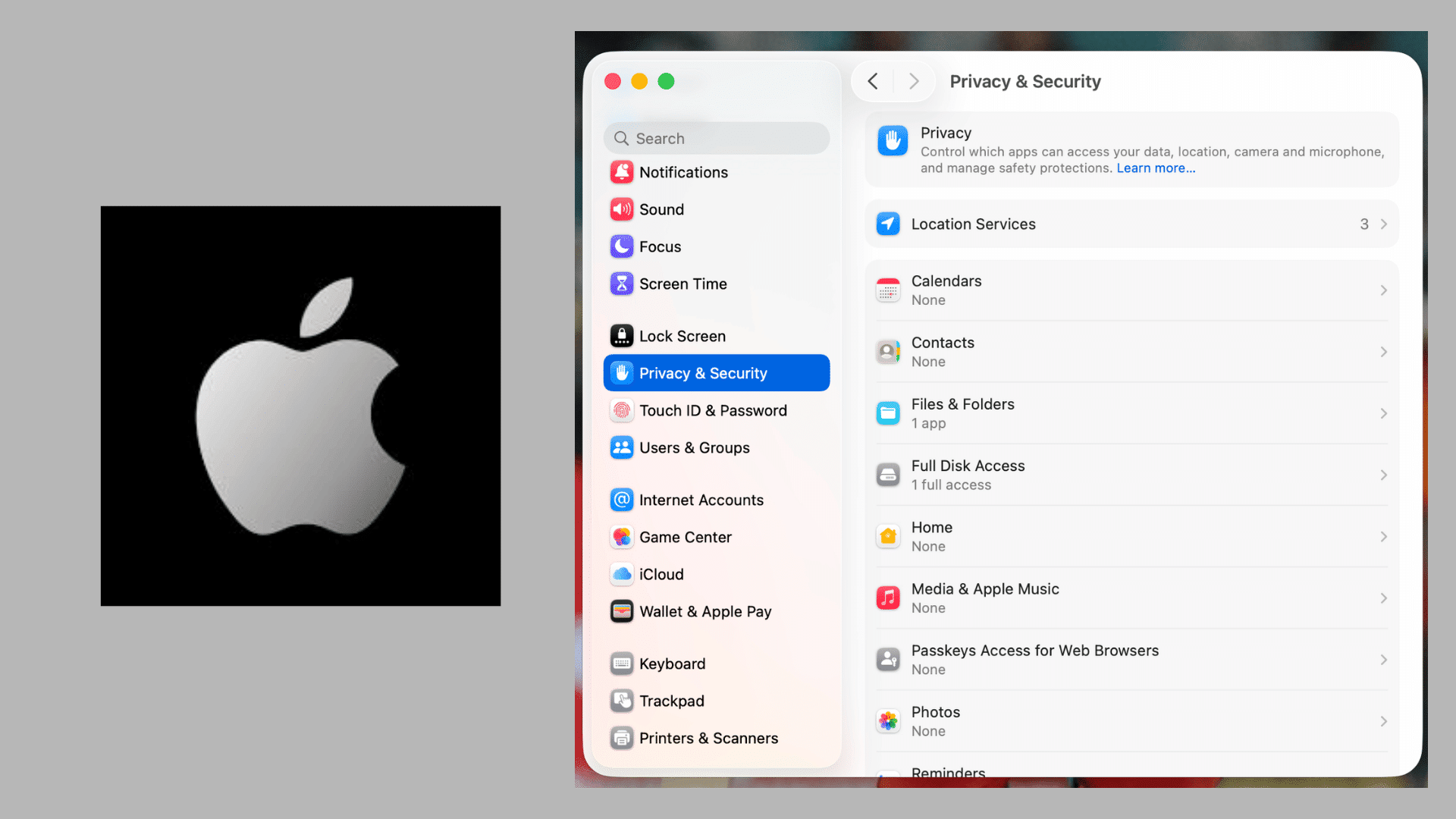
Mac computers store Wi-Fi credentials in Keychain Access, as mac computers are known for their distinct security protocols as compared to other OS.
Steps :
- Open Keychain Access.
- Select System and then Passwords.
- Find your Wi-Fi network.
- Open the network entry.
- Check Show Password.
- Enter your Mac password when prompted.
The revealed password is shows network security key.
3. On Linux
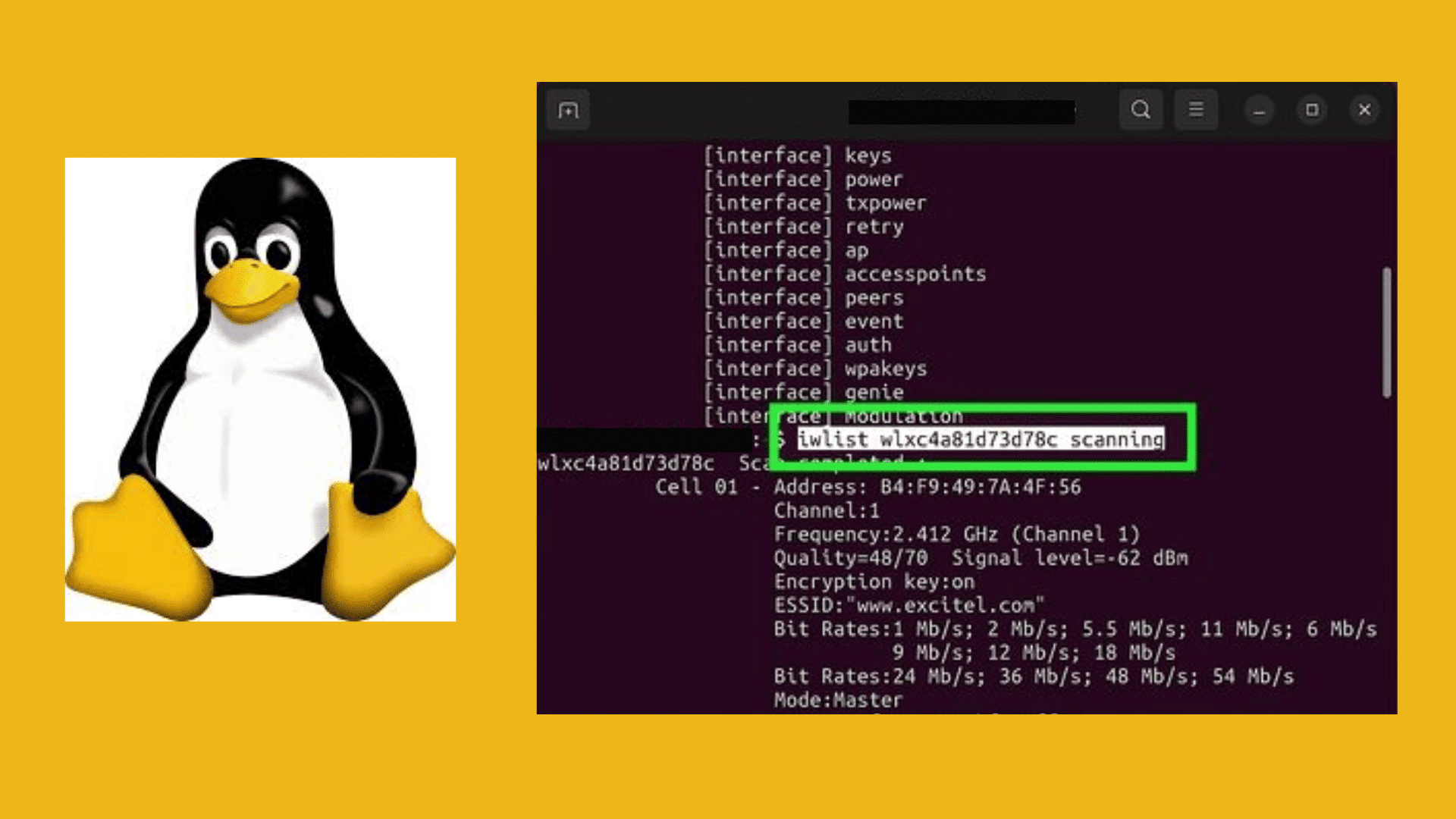
Most Linux distributions save Wi-Fi credentials through Network Manager as they have strict root to user separation requiring master password for permissions.
Steps :
- Open Settings in terminal.
- Go to Network or Wi-Fi.
- Select the connected network.
- Open its security settings.
- View the saved password if permissions allow.
The password there is the network security key.
4. On a Phone
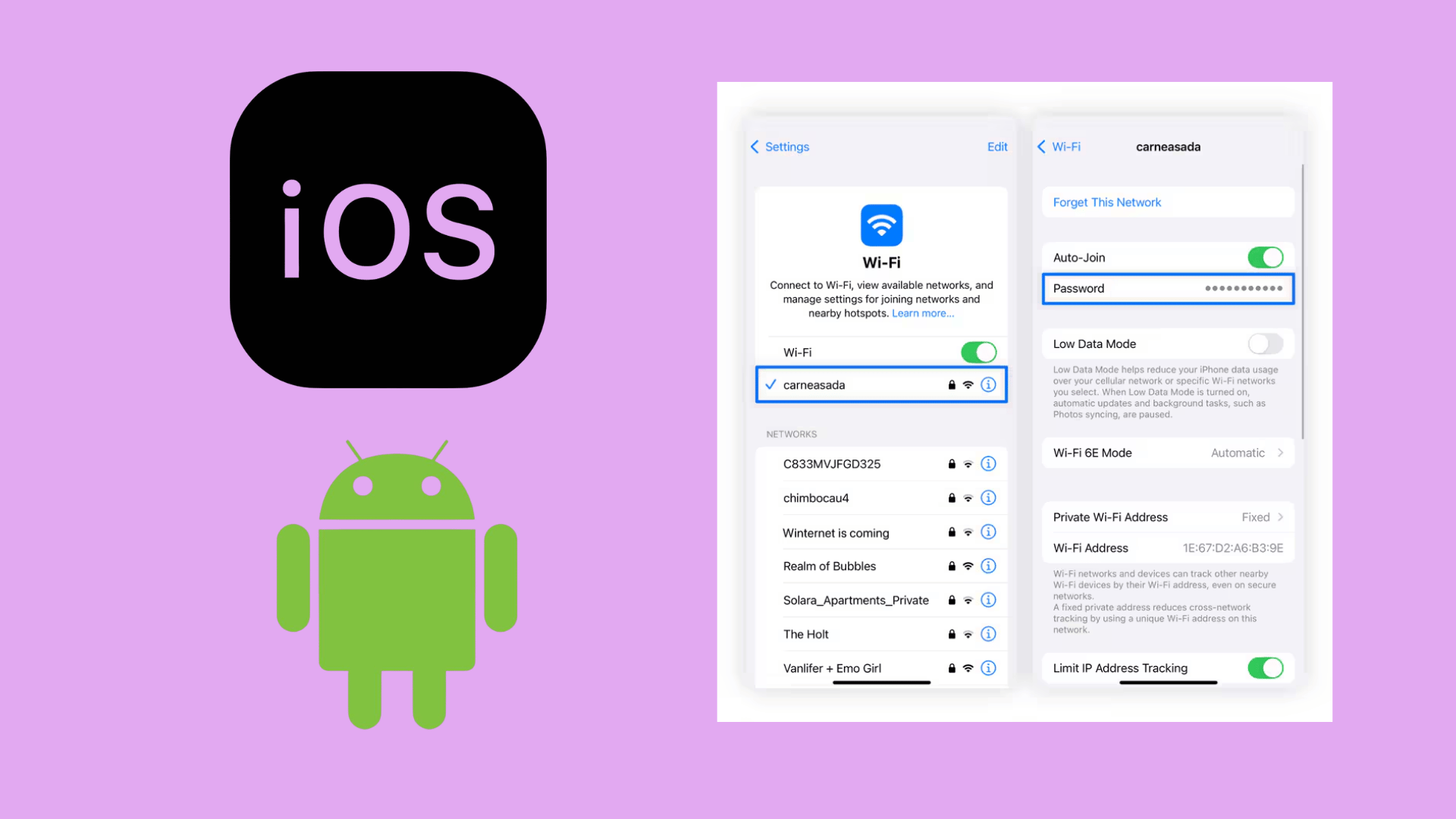
Both Android and iPhone allow users to view saved Wi-Fi passwords for connected networks.
Steps :
- Open Wi-Fi Settings.
- Select the connected network.
- Choose the option to view or share the password.
- Verify your identity using a passcode, fingerprint, or Face ID.
The displayed password is your network security key.
What to Do if Your Network Security Key is Lost?
Losing your network security key does not mean you will lose access to your Wi-Fi permanently. In many cases, the password is still stored on a connected device or can be viewed through your router’s settings.
There are several ways to recover or reset the key and regain control of your network. Below are the most common methods to find or restore a lost network security key.
1. Check the Router Label
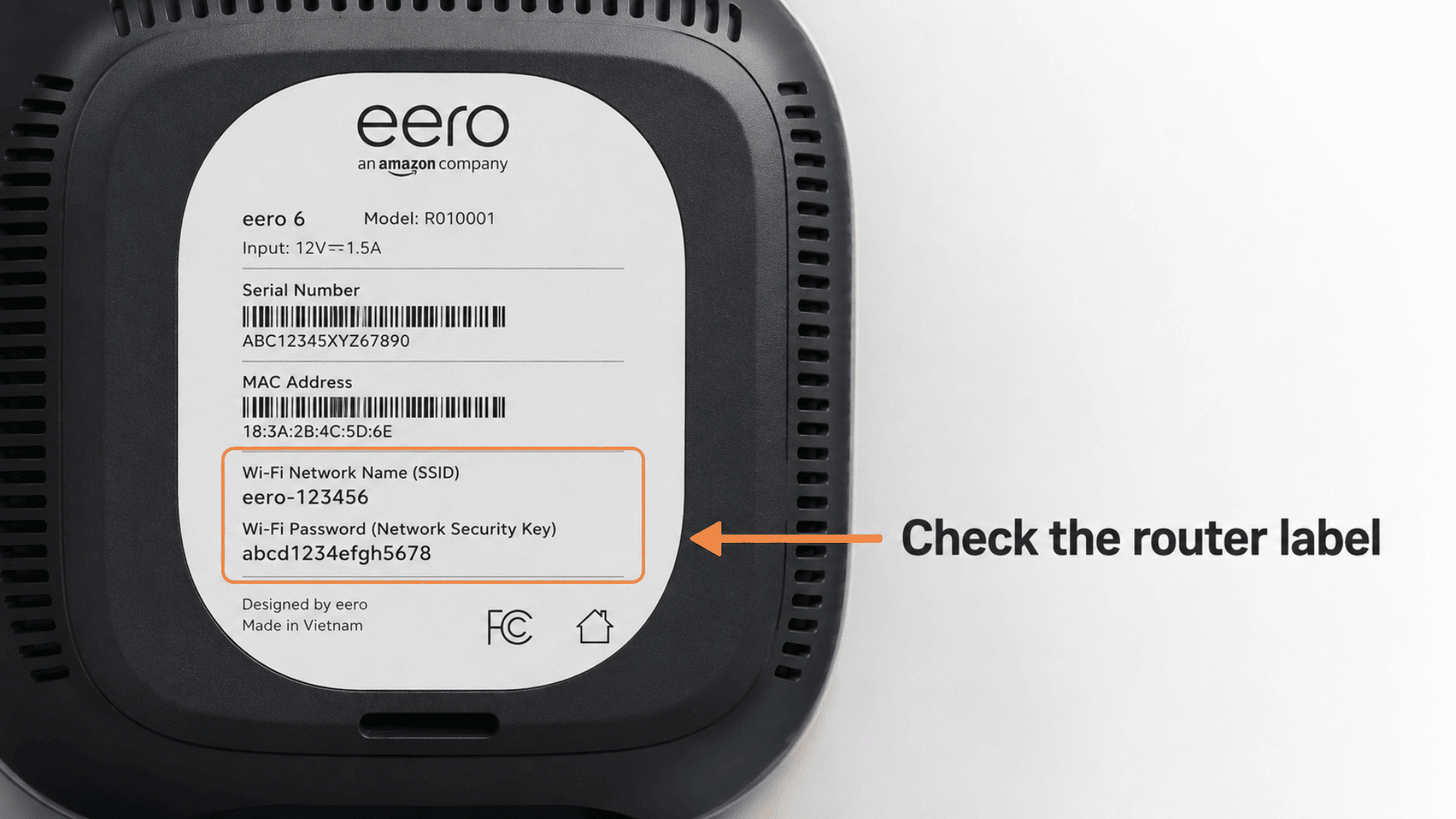
Many routers have a sticker on the back or bottom that displays the default Wi-Fi password.
Look for labels such as:
- Network Security Key
- Wi-Fi Password
- Wireless Key
- WPA Key
This method works if the default password has not been changed.
2. Use a Connected Device
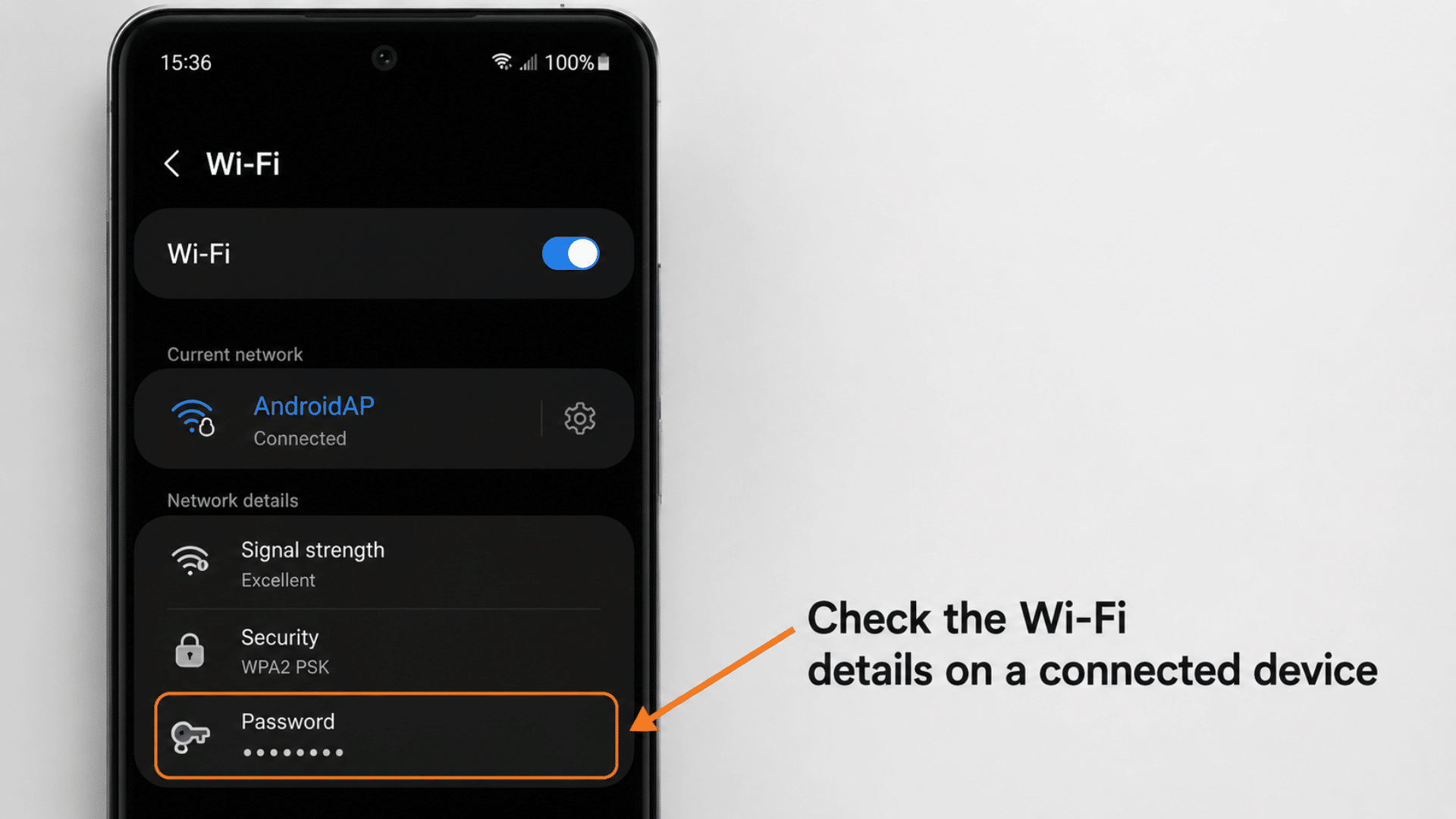
If a laptop, phone, or tablet is already connected to the Wi-Fi network, there’s a good chance the network security key is stored on that device.
Most operating systems allow users to view saved Wi-Fi passwords through their network settings.
- Open the Wi-Fi or network settings on the connected device.
- Locate the connected network and choose the option to view or share the saved password.
- Verify your identity if prompted and note down the displayed network security key.
This method is usually quicker than accessing router settings and can help you recover the password without resetting the network or contacting your internet provider.
3. Access the Router Dashboard
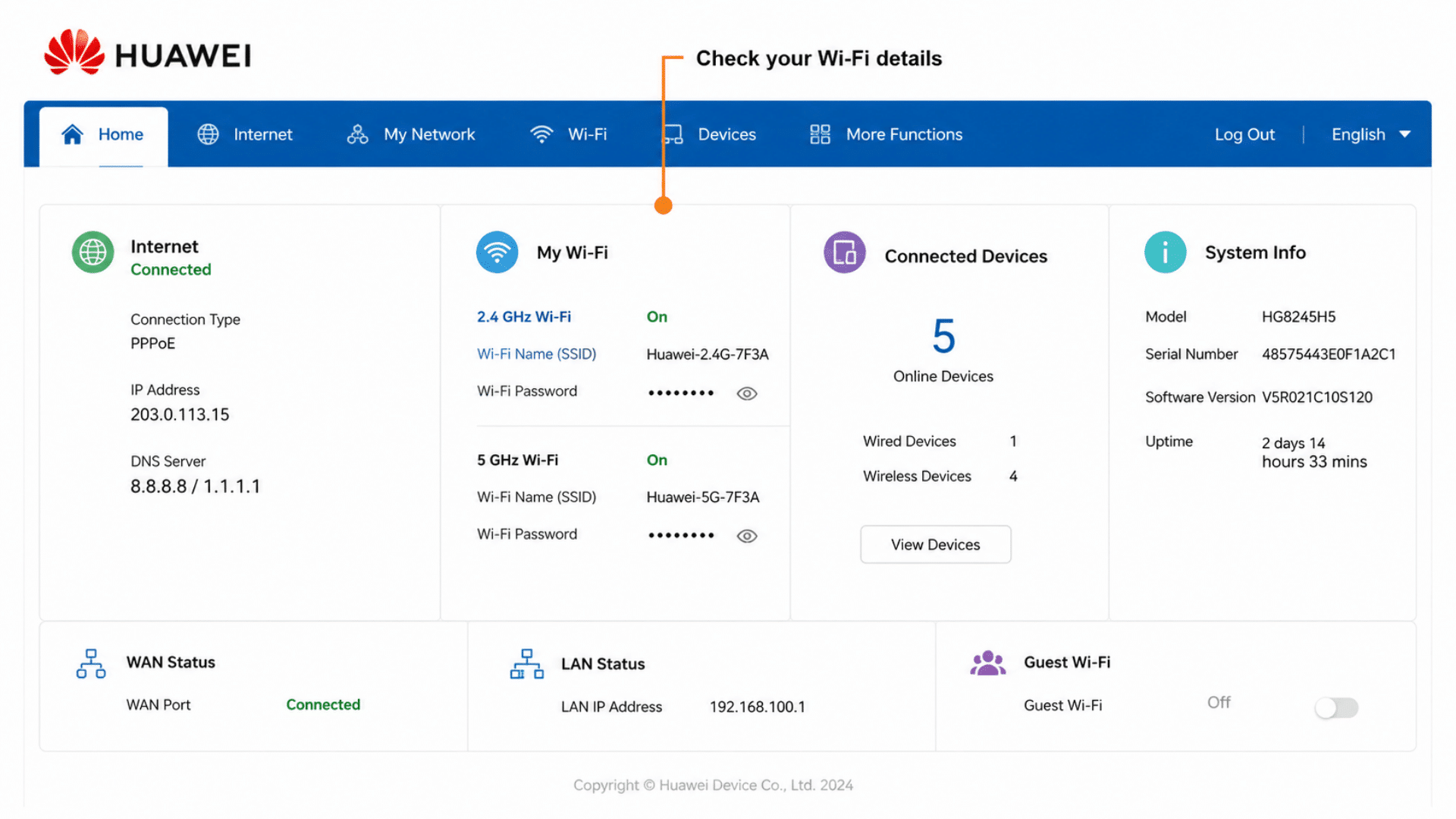
You can view the current network security key through your router’s admin panel.
- Enter the router’s IP address in a web browser.
- Sign in with the administrator credentials.
- Open Wireless or Wi-Fi Settings.
- Locate the password field.
The displayed password is your network security key.
4. Reset the Router
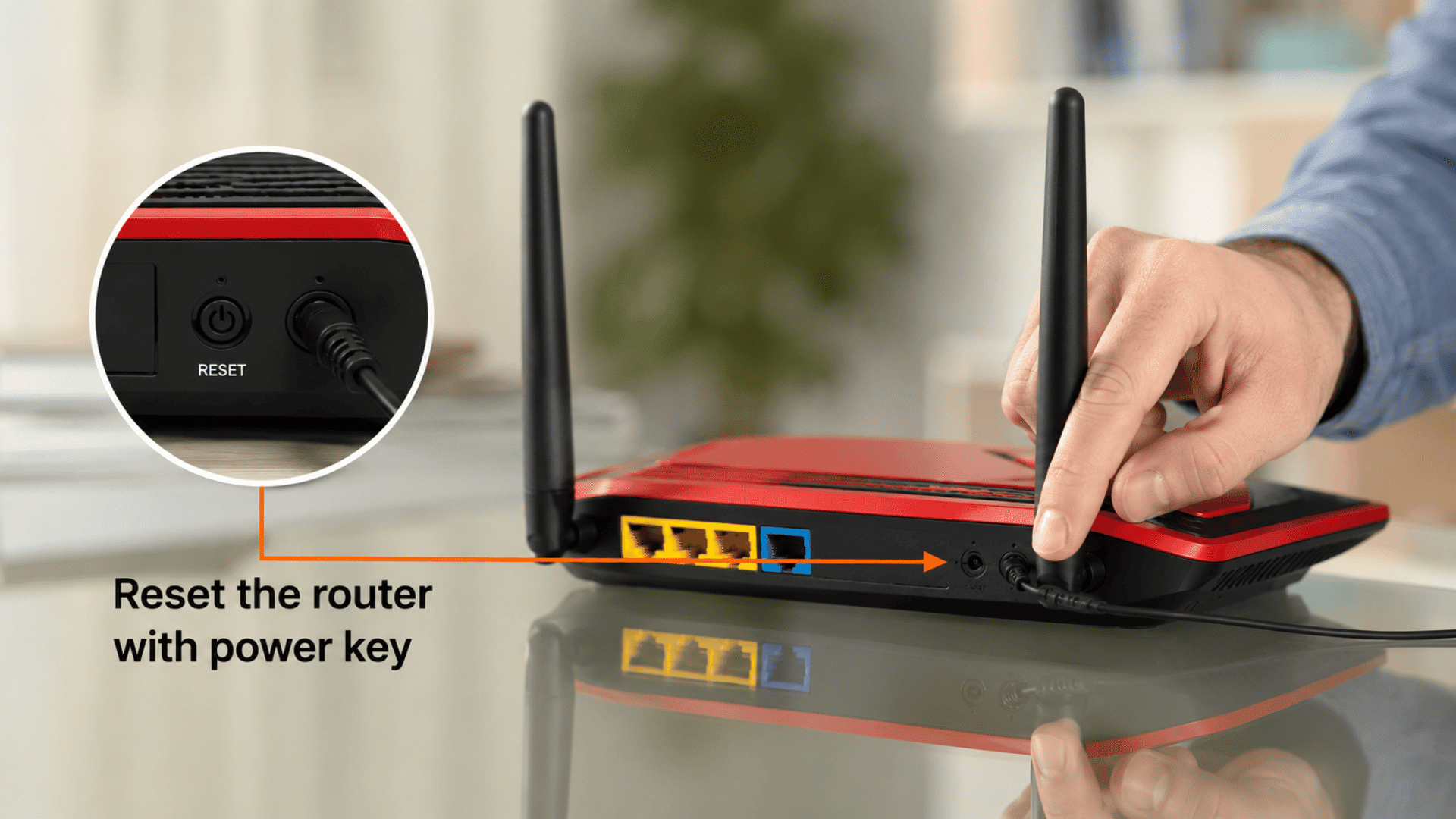
If you cannot access the router settings or remember the administrator password, a factory reset may be needed.
- Press and hold the router’s Reset button
- Keep it pressed for about 10–15 seconds.
- This resets the router
This method brings router to default settings including the original network security key.
4. Contact Your Internet Provider
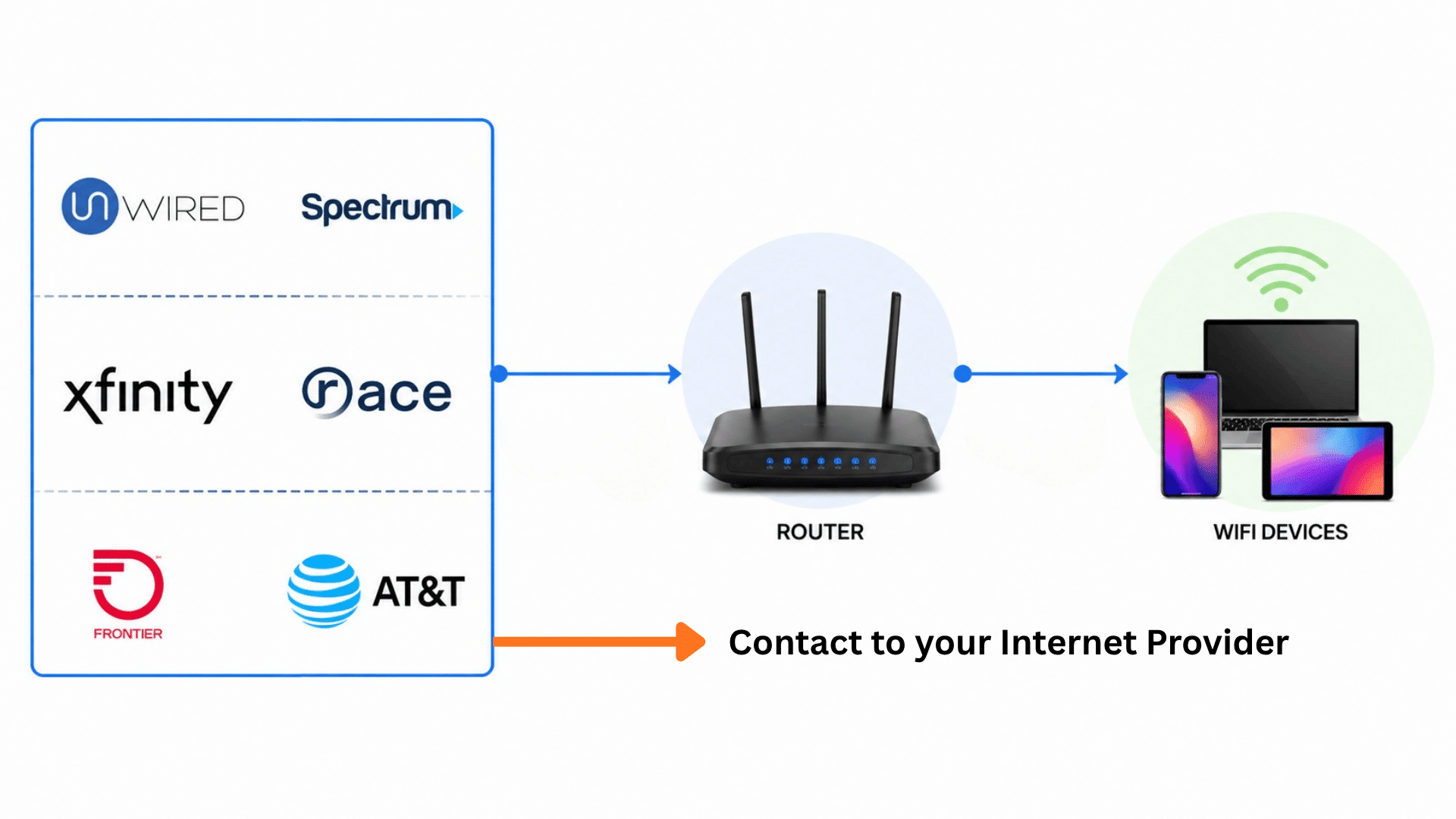
If your internet provider supplies and manages the router, their support team may be able to help you recover or reset the network security key.
Most providers can guide you through router settings, default passwords, or Wi-Fi credential changes. Before contacting support, keep your account information and router model ready.
This option is especially useful if you cannot access the router dashboard or no longer have the administrator login details.
How to Set Up a Secure Wi-Fi Network and Hotspot
A network security key is created when setting up a Wi-Fi router or mobile hotspot. During setup, you’ll choose a security protocol and create a password that authorized devices will use to connect.
Setting Up a Secure Wi-Fi Network
To secure a home or office Wi-Fi network:
- Log in to your router’s admin panel.
- Open the Wireless or Wi-Fi Settings section.
- Select WPA3 or WPA2 as the security mode.
- Create a strong network security key.
- Save the changes and restart the router if prompted.
Once completed, devices will need the new security key to access the network.
Setting Up a Secure Mobile Hotspot
Most smartphones allow you to create a personal hotspot secured by a network security key.
- Open your phone’s hotspot settings.
- Enable Personal Hotspot or Mobile Hotspot.
- Set a hotspot name.
- Create a strong password.
- Save the settings and activate the hotspot.
Any device connecting to the hotspot must enter the password you created.
Confirm the Security Settings
After setup, connect a device to verify that the network is working correctly.
You should also confirm that the selected security protocol and network security key are active before sharing access with others.
This feels more natural because users searching “network security key” are usually dealing with either a Wi-Fi router or a phone hotspot, not learning generic networking steps.
Common Practices That Put Network Security at Risk
Weak password habits remain one of the most common causes of unauthorized network access.
Recent U.S. password security data shows that on whitehouse.gov and finance.yahoo, many users continue to rely on predictable password patterns.
- Simple Number or Letter Patterns: Passwords such as “123456,” “qwerty,” or “abcdef” are among the easiest for attackers to predict.
- Birth Dates and Birth Years: Personal dates are often used in passwords and can sometimes be found through public records or social media profiles.
- Pet Names: Using a pet’s name may feel personal, but it remains a common password choice and can be easier to guess than expected.
- Family Members’ Names: Names of spouses, children, or relatives are frequently used in passwords and offer limited protection.
- Common Words or Phrases: Single words and familiar expressions are vulnerable to dictionary-based password attacks.
- Places and Locations: Passwords based on hometowns, cities, schools, or favorite destinations can often be guessed through personal information.
- Favorite Sports Teams or Players: Team names and popular athletes are widely used and appear in many password lists used by attackers.
- The Current Year: Adding a year such as 2026 or 2025 may seem secure, but it is a common pattern attackers check first.
- The Word “Password”: Using the word “password” alone or as part of a password remains one of the weakest security practices.
Conclusion
A network security key is a core part of Wi-Fi security. It controls who can access your network and helps protect data transmitted between connected devices.
While most users know it as a Wi-Fi password, it also plays an important role in authentication and encryption.
Knowing how to find, recover, and secure your network security key can help prevent connection issues and reduce security risks.
By using modern security protocols, creating a strong password, and avoiding common password mistakes, you can keep your Wi-Fi network safer from unauthorized access.
Frequently Asked Questions
What is the Latest Network Security Key Type?
WPA3 (Wi-Fi Protected Access 3), introduced in 2018, is the latest Wi-Fi security standard and offers stronger protection than WPA2.
What is the Most Common Network Security Attack?
Password attacks, including brute-force and credential-stuffing attacks, are common threats to Wi-Fi networks. These attacks try to gain access by guessing or reusing weak network security keys.
Does the Law Require Me to Password-Protect My Home Wi-Fi?
No federal law mandates a password for home routers. However, leaving a network open increases your vulnerability to identity theft, malware, and data breaches