

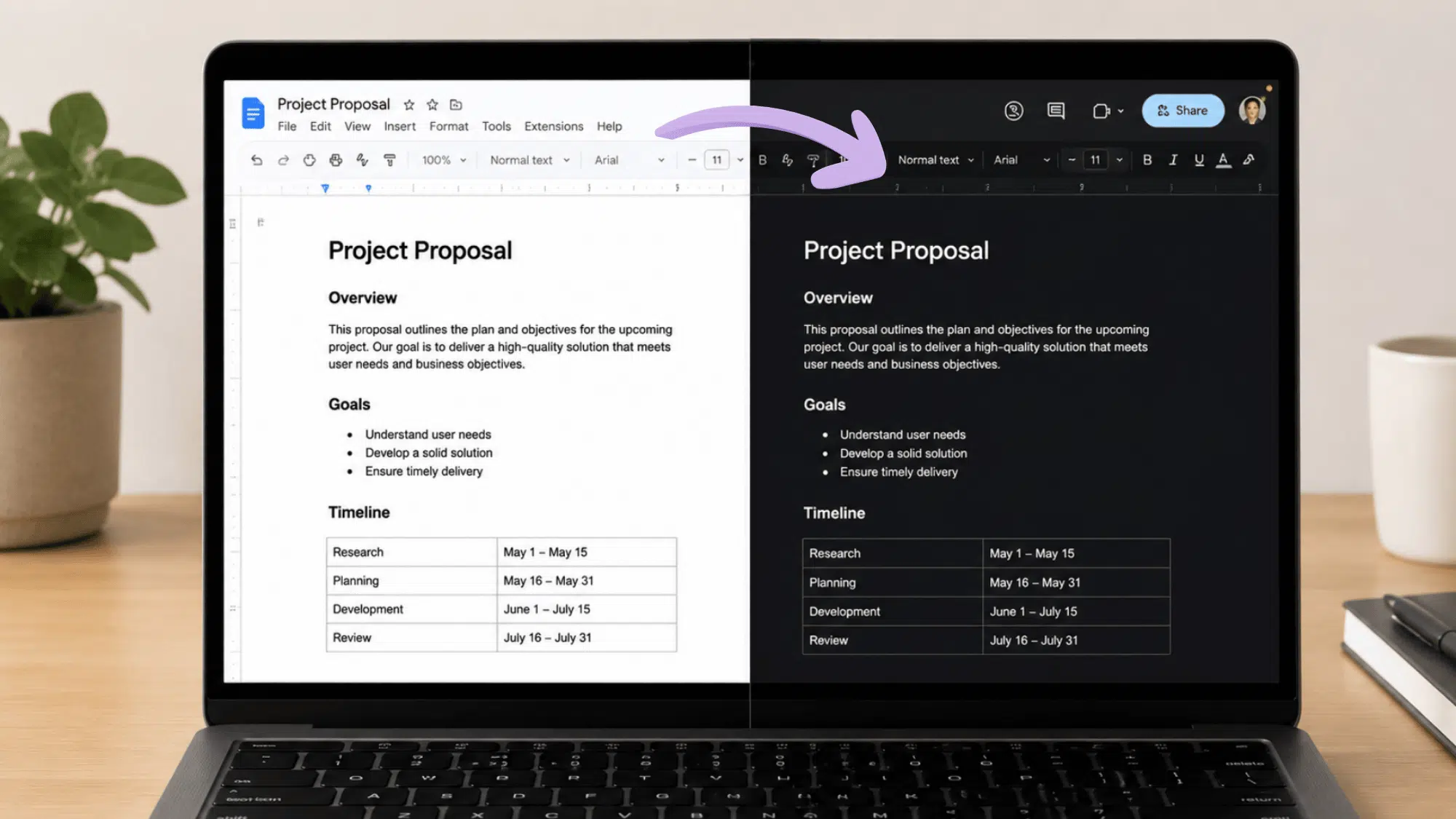

Staring at a bright white screen late at night isn’t fun. And if you spend hours working in Google Docs, that glare adds up fast.
You should know that switching to dark mode is pretty simple, but the steps depend on what device you’re using. Because they all work a little differently.
So if you’re trying to cut down on eye strain or just want a cleaner look, there’s a way to make it happen. Let’s break down exactly how to do it on every platform.
Does Google Docs Have a Dark Mode?
Yes, Google Docs offers a dark mode feature on both Android and iPhone devices. Users can enable it through the app or their device settings for a darker viewing experience.
On desktop browsers, Google Docs does not currently offer a dedicated built-in dark mode setting. Many users rely on browser settings or third-party extensions instead.
Keep in mind that dark mode may only change the app interface on some devices, while the document page itself can remain white. The experience varies depending on the platform you’re using.
Here are Quick Steps to turn Google Docs into Dark Mode on Your Devices
Google Docs supports dark mode across multiple devices, although the setup process varies by platform. Use the instructions below to enable a darker interface on your device.
How to Turn Google Docs Into Dark Mode on Android?
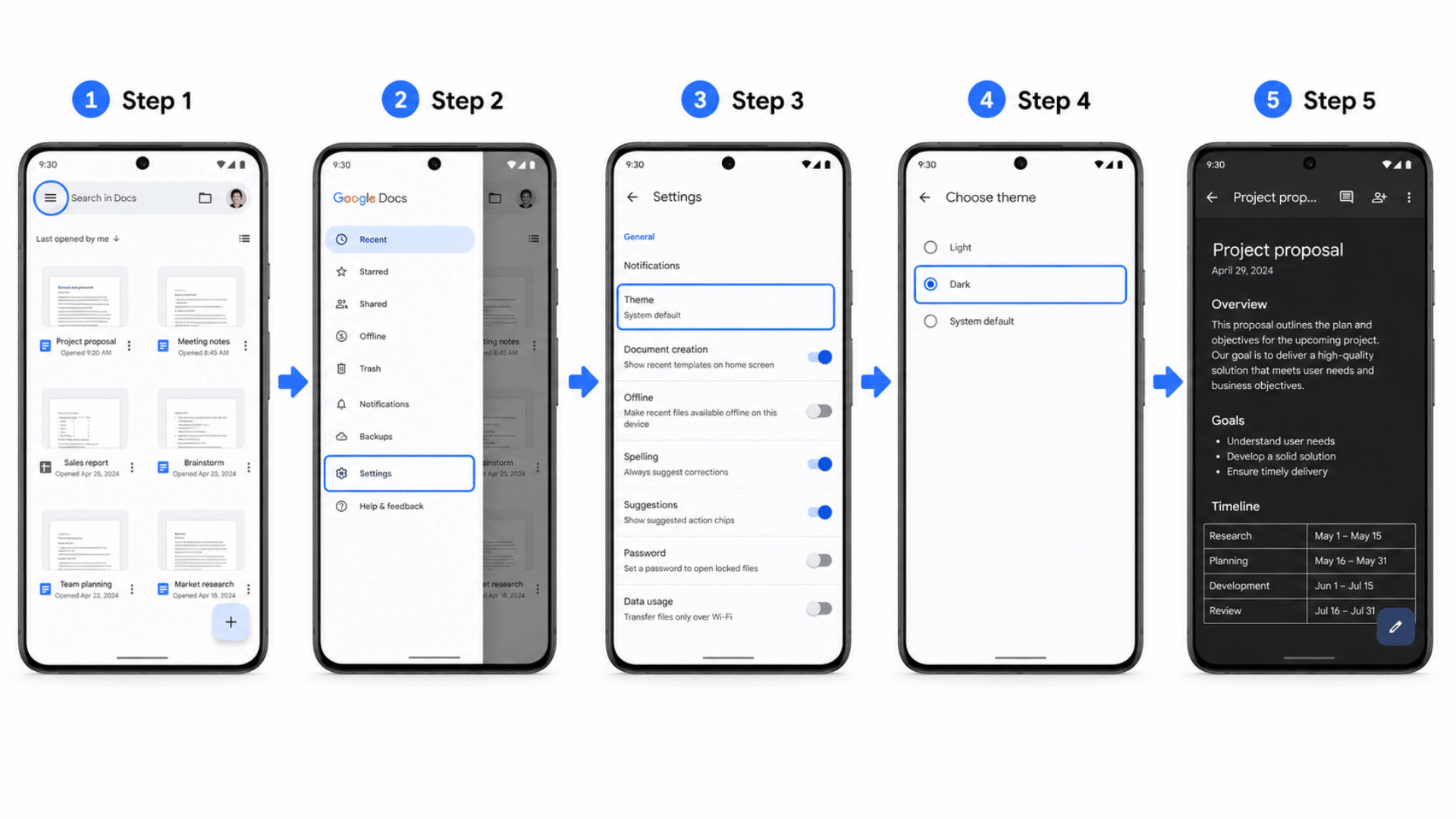
Android users can enable dark mode directly within the Google Docs app. The process can be completed in just a few taps and requires no additional tools.
- Step 1: Open the Google Docs app on your Android device and sign in if needed.
- Step 2: Tap the menu icon in the upper-left corner to access additional options.
- Step 3: Scroll through the menu and select Settings.
- Step 4: Tap Theme to view the available appearance settings.
- Step 5: Select Dark from the list to enable dark mode in Google Docs.
After enabling dark mode, the app interface will automatically switch to a darker appearance. If you prefer the original view later, you can return to the same settings menu and select the light theme.
How to Turn Google Docs Into Dark Mode on iPhone?
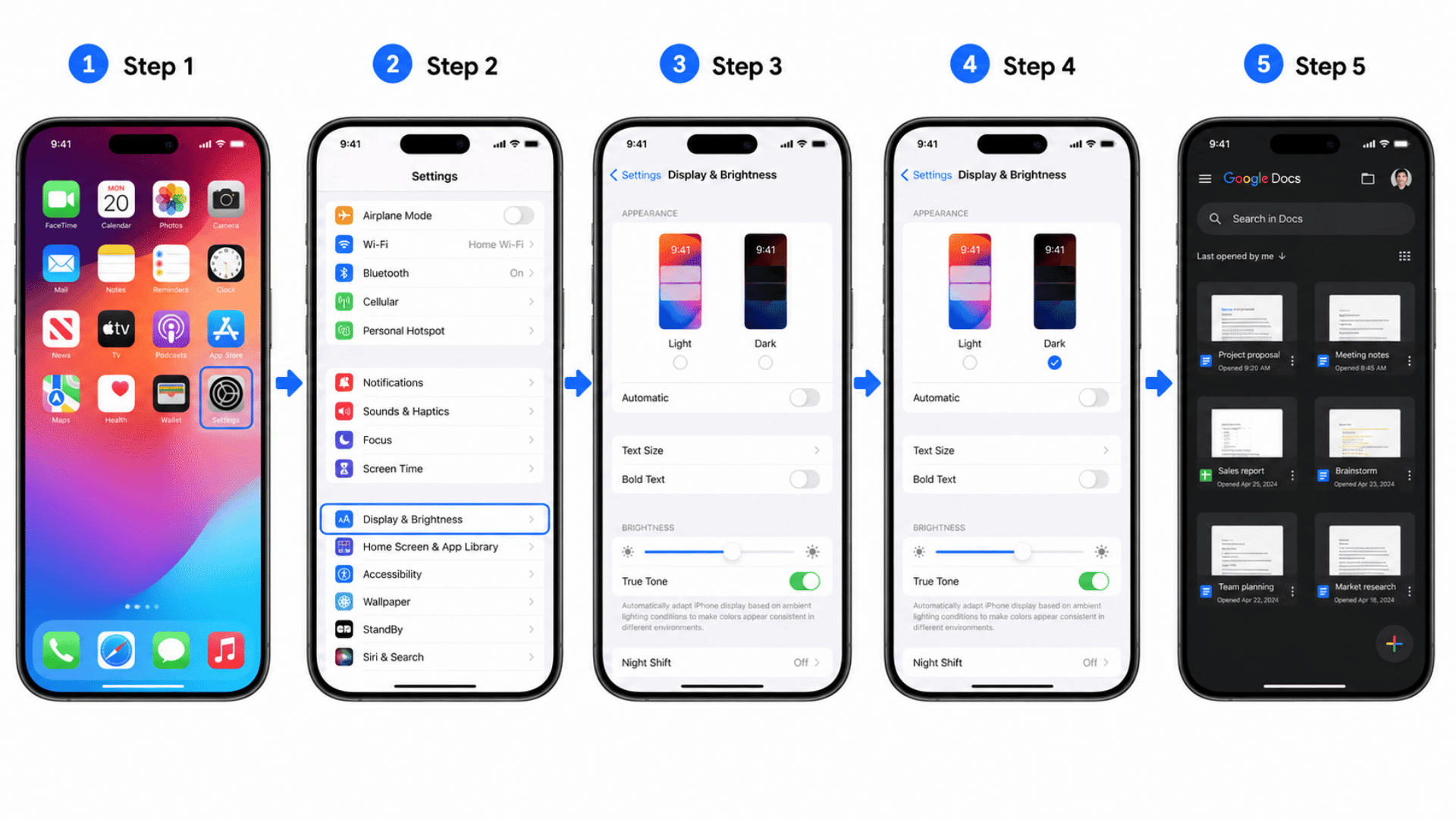
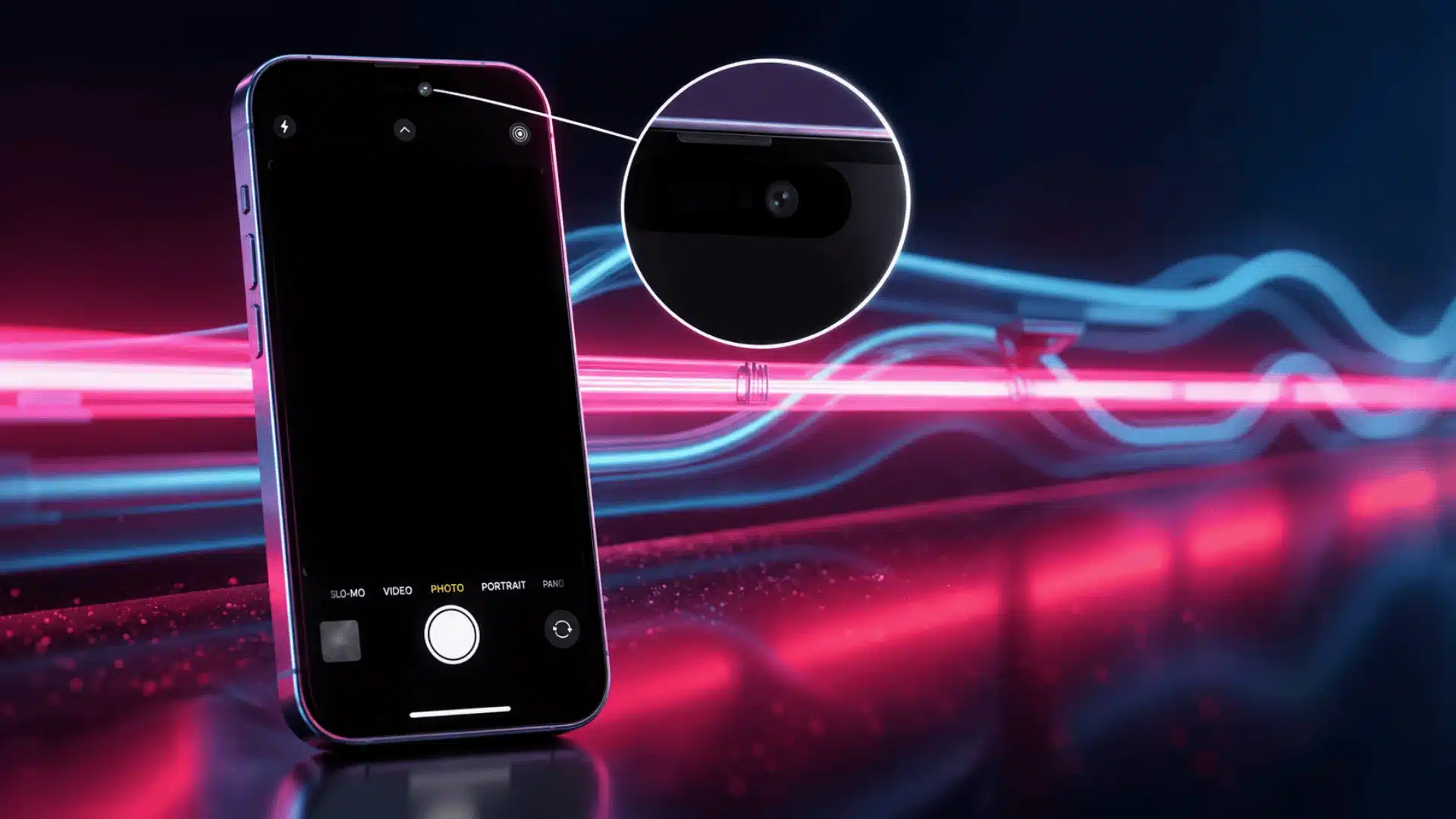
If you use Google Docs on an iPhone, you can enable dark mode through your device settings.
Once activated, compatible apps, including Google Docs, will automatically adopt the darker appearance.
- Step 1: Open the Settings app on your iPhone.
- Step 2: Scroll down and tap Display & Brightness.
- Step 3: Under the Appearance section, select Dark.
- Step 4: Open the Google Docs app to apply the updated display settings.
- Step 5: Start viewing or editing documents in dark mode.
After enabling dark mode, Google Docs will follow your device’s appearance settings. You can switch back to light mode at any time through the same menu.
Note: iPad users can follow the same steps to enable dark mode.
How to Turn Google Docs Into Dark Mode on Windows
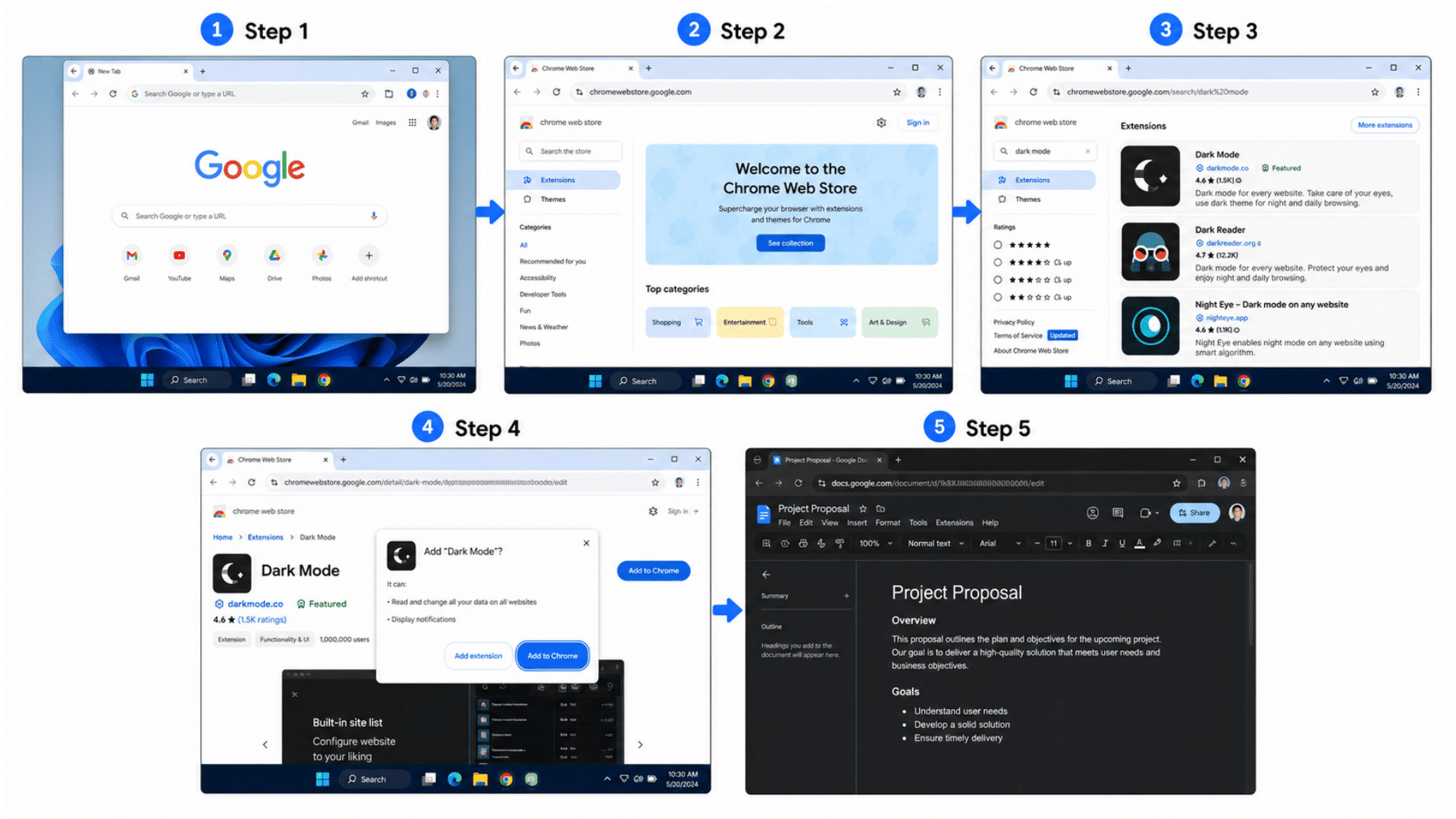
Google Docs does not currently offer an official dark mode setting for its desktop web version, so adjusting Windows display settings is one of the first things worth checking.
Windows users typically rely on browser features or extensions to create a similar experience, and tools like the clipboard on Windows can further streamline document workflows.
- Step 1: Open Google Chrome or Microsoft Edge on your Windows computer.
- Step 2: Visit the Chrome Web Store or the Edge Add-ons store.
- Step 3: Search for a trusted dark mode extension.
- Step 4: Install and enable the extension in your browser.
- Step 5: Open Google Docs to view the interface in a darker theme.
Once the extension is active, Google Docs should display with darker colors. You can disable or remove the extension whenever needed.
Steps to Turn Google Docs Into Dark Mode on Mac
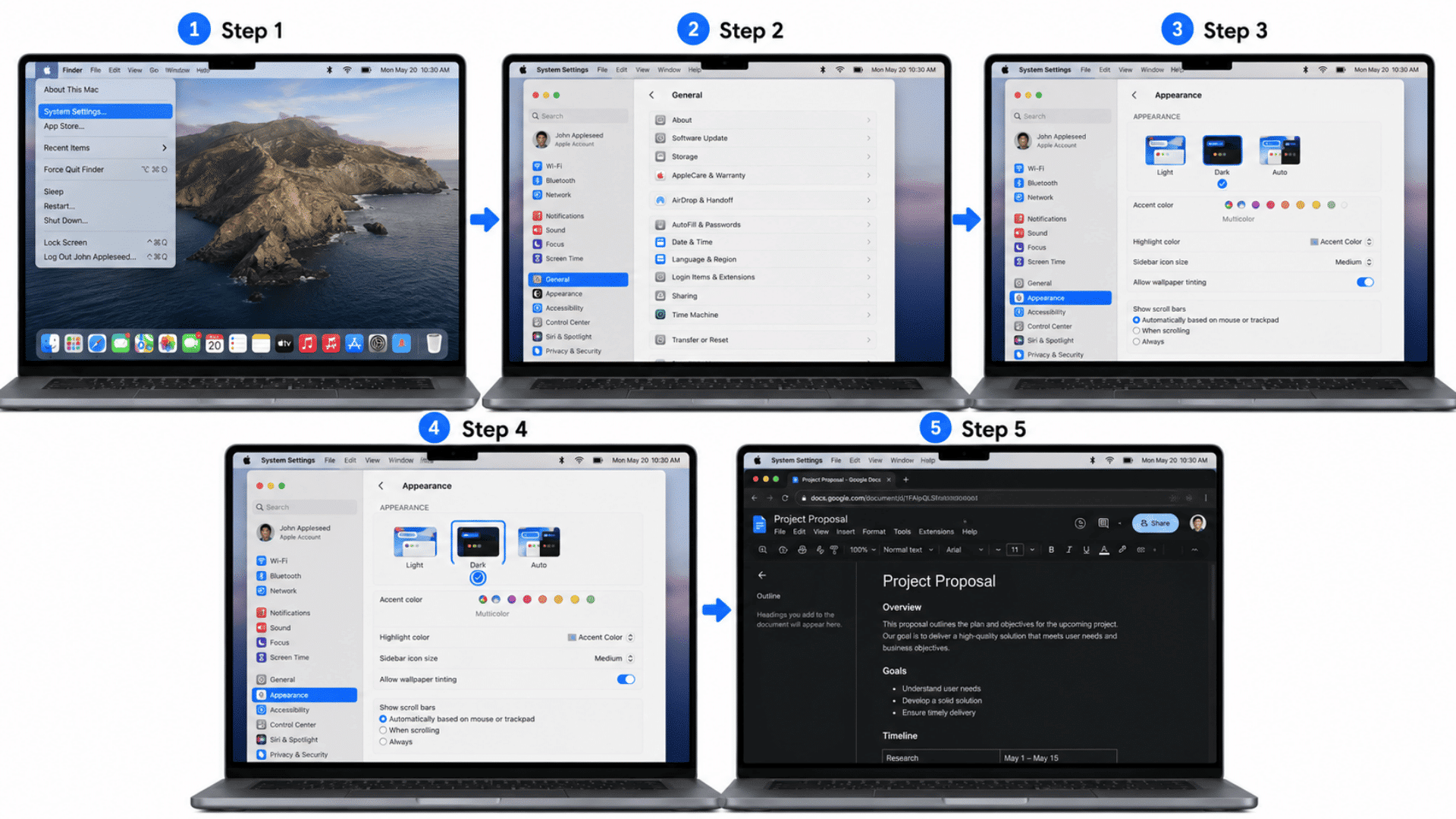
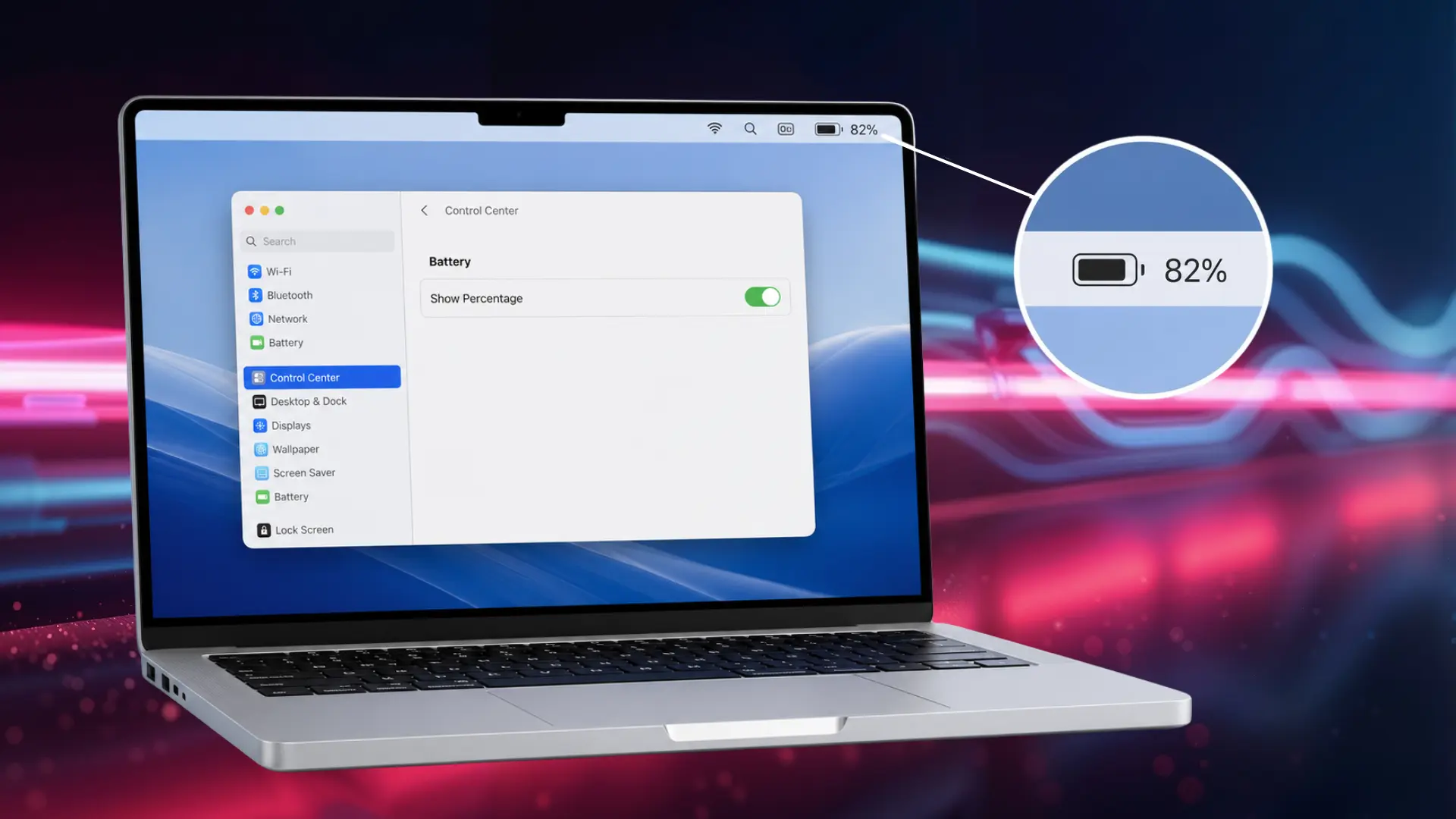
Mac users can enable dark mode through macOS settings and use it alongside Google Docs. This creates a more consistent viewing experience across supported applications.
- Step 1: Click the Apple menu in the top-left corner of the screen.
- Step 2: Select System Settings or System Preferences.
- Step 3: ClickAppearance from the available options.
- Step 4: Select Dark to switch your Mac to dark mode.
- Step 5: Open Google Docs in your preferred browser to view the updated appearance.
After enabling dark mode on your Mac, many supported apps and browser elements will automatically adopt the darker theme.
How to Enable Dark Mode in Google Docs on Chrome?
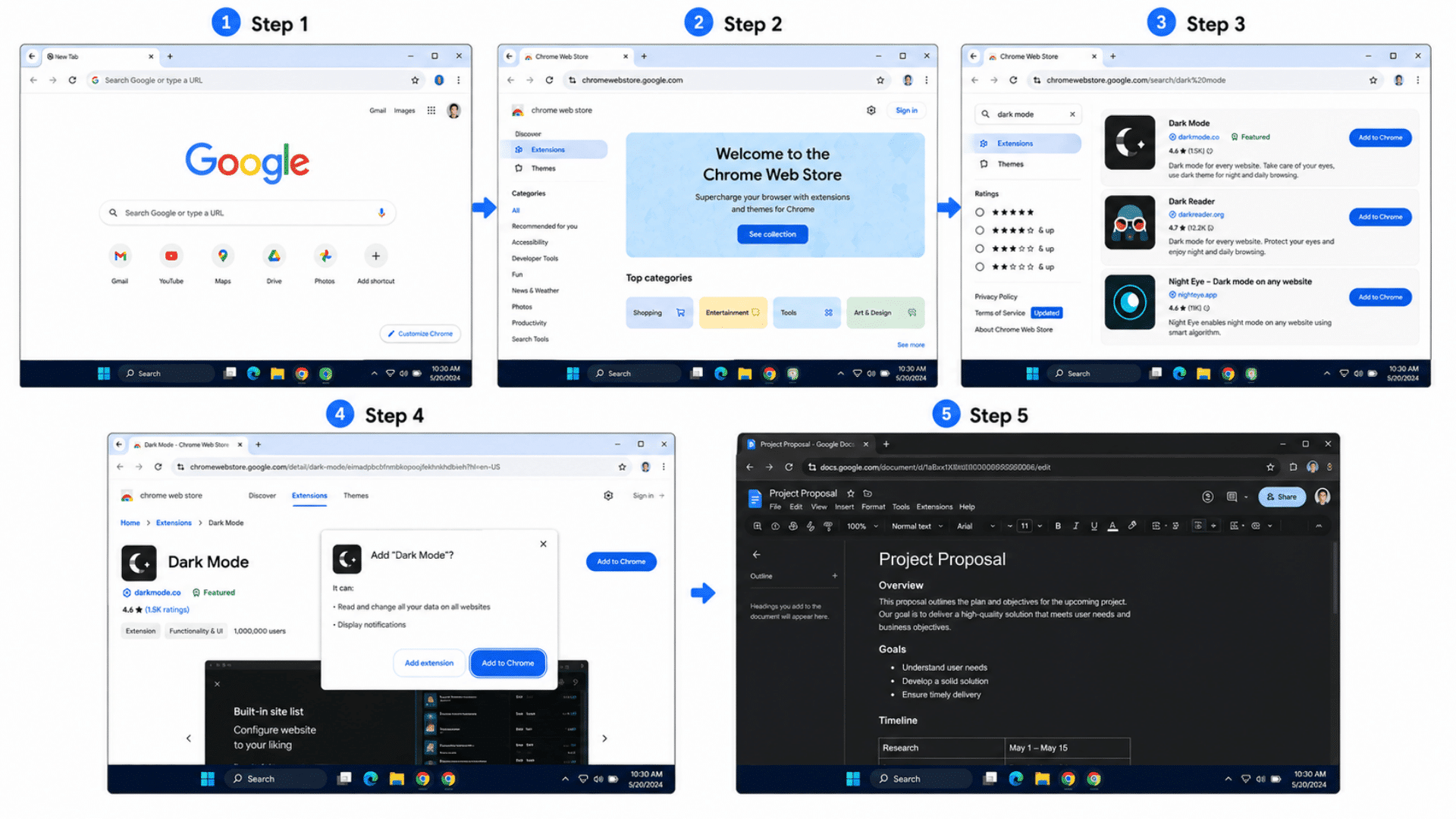
Chrome users can install extensions to enable dark mode in Google Docs. This is a useful option if you frequently access Google Docs through a web browser.
- Step 1: Open Google Chrome on your computer.
- Step 2: Visit the Chrome Web Store.
- Step 3: Search for a reliable dark mode extension.
- Step 4: Click Add to Chrome, then complete the installation.
- Step 5: Open Google Docs and enable the extension if required.
Once installed, the extension can make Google Docs easier to view in low-light conditions. Most extensions also allow you to customize the appearance settings.
Common Google Docs Dark Mode Issues and Quick Fixes
Most dark mode issues can usually be resolved by adjusting your settings, updating your browser, or checking your device’s display preferences.
Some users may experience minor issues when using dark mode in Google Docs. The table below outlines common problems and simple ways to resolve them:
| Issue | Possible Cause | Quick Fix |
|---|---|---|
| Dark Mode Not Showing | Dark theme is not enabled | Enable Dark Mode |
| White Document Background | The interface and the document page use different themes | Change view settings |
| Dark Mode Not Working on Chrome | The desktop version lacks built-in dark mode | Use an extension |
| Colors Look Different | Dark mode changes the color appearance | Check in light mode |
| Extension Not Applying Correctly | Extension conflict or outdated version | Update extension |
| Text Difficult to Read | Poor contrast between text and background | Adjust brightness |
| Dark Mode Turns Off Automatically | Device theme settings changed | Re-enable Dark Mode |
| Images Appear Too Dark | Dark mode affects image visibility | Switch to light mode |
| Formatting Looks Inconsistent | Some elements do not adapt to dark mode | Refresh the page |
| Google Docs Keeps Crashing | Browser cache or software issue | Clear browser cache |
| Dark Mode Missing on Mobile | The app version is outdated | Update the app |
| Screen Flickering in Dark Mode | Browser or graphics issue | Restart browser |
| Hyperlinks Are Hard to See | Link colors blend into the background | Increase contrast |
| Comments Are Difficult to Read | Dark theme affects visibility | Use light mode |
| Print Preview Looks Different | Dark mode only affects the display | Check print preview |
| Battery Draining Faster | Brightness settings are too high | Lower brightness |
| Dark Mode Works on One Device Only | Settings are not synced | Enable on each device |
| Toolbar Icons Are Missing | Browser extension conflict | Disable extensions |
| Custom Themes Not Applying | Theme settings failed to load | Sign in again |
| Slow Performance in Dark Mode | Too many active extensions | Remove extensions |
Benefits of Using Dark Mode in Google Docs
While dark mode isn’t necessary for everyone, it remains a popular option for users who regularly work in Google Docs. It can make Google Docs more comfortable to use, especially when reading or editing documents for long periods.
Some of the key benefits include:
- Reduced screen glare in low-light environments.
- More comfortable reading and editing during long work sessions.
- Potential battery savings on devices with OLED displays.
- A consistent look and feel across apps that also use dark mode.
- Less visual distraction helps users focus on document content, especially when paired with a thoughtful monitor productivity setup.
- Easier viewing at night or in the evening.
- Reduced eye strain for some users when working in dim settings.
- Improved visibility of menus and interface elements in dark environments.
- Better compatibility with system-wide dark mode settings.
- A cleaner and more modern workspace appearance.
- More comfortable switching between other dark-themed apps.
- Helpful for users who spend several hours working on documents daily.
- Can make prolonged editing sessions feel less visually tiring.
- Creates a more immersive writing and reviewing experience.
- Supports a personalized viewing experience based on user preference.
Wrapping It Up
Dark mode is a small change, but it makes a real difference. Late-night editing sessions feel a lot less harsh on the eyes, and the whole interface just looks cleaner and easier to work with.
And honestly, once you get used to it, going back to the bright white screen feels almost uncomfortable. The setup is quick, nothing complicated about it, and the results are immediate.
So if you’ve been putting it off, now’s a good time to just do it. Give it a shot, you might end up wondering why you waited this long.
Frequently Asked Questions
Why Is My Google Docs Background Still White in Dark Mode?
On some devices, dark mode changes only the app interface while the document page remains white.
Will Other People See My Google Docs in Dark Mode?
No, dark mode settings apply only to your device and do not affect other users.
Can Dark Mode Change the Actual Google Docs File?
No, dark mode only changes the on-screen appearance of the document.