

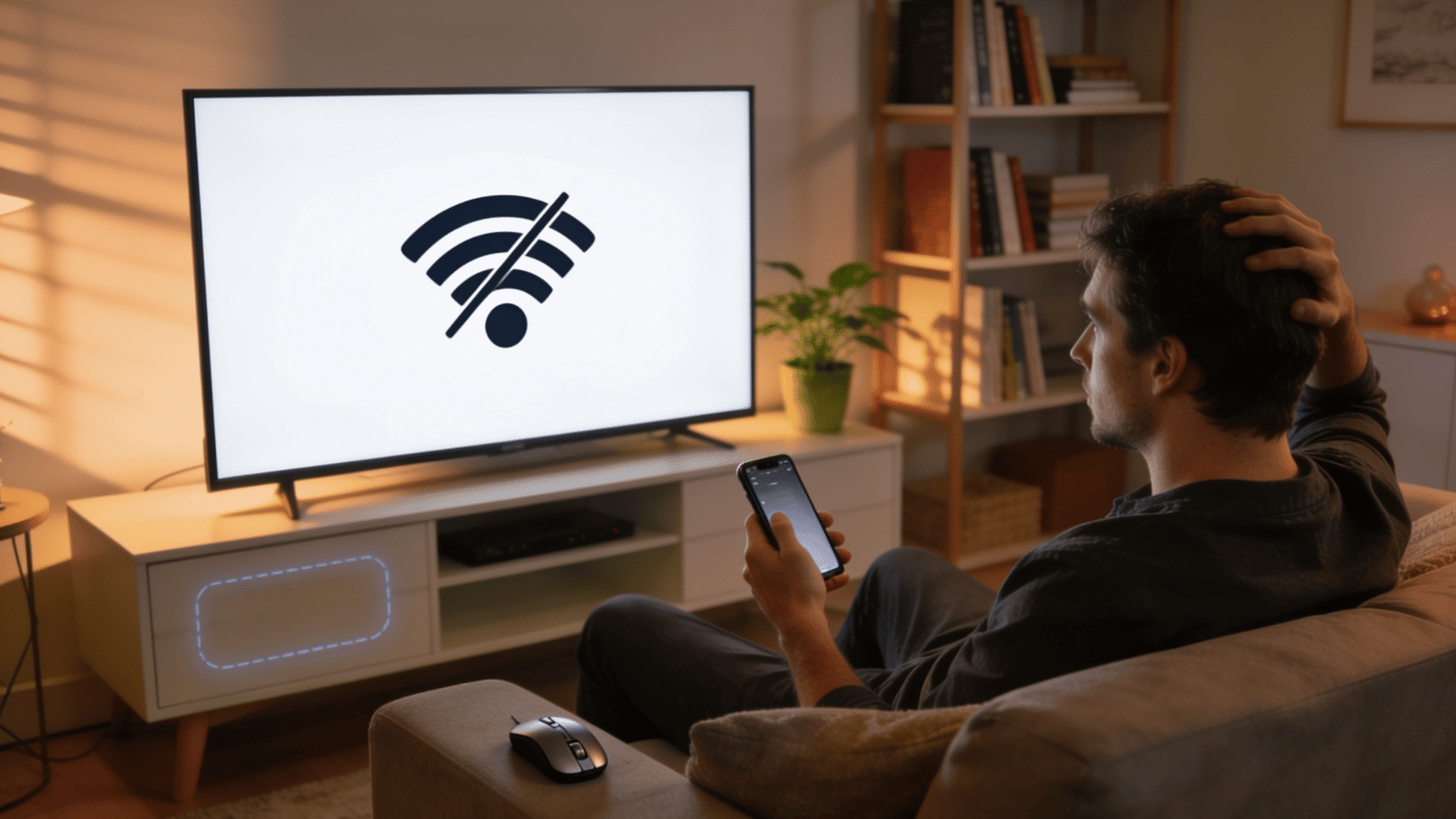

Lost the remote right when the WiFi changed? Annoying, but not the end of the world. Smartphones have basically become universal remotes these days, and most TV brands have built an app just for this.
No fumbling with buttons or digging through drawers for batteries. All it takes is a few taps and the same network your phone’s already on.
Sounds too easy? It kind of is. Here’s exactly how to connect a TV to Wi-Fi without a remote, using only the app on your phone.
Does a TV Always Need a Remote to Connect to Wi Fi?
No, a TV doesn’t strictly need a remote to connect to WiFi. Most smart TVs come with built-in settings that can be accessed via physical buttons on the TV itself, a mobile app, or external devices such as a keyboard or mouse.
Some TVs even reconnect automatically if they’ve been linked to a network before. This is because WiFi settings are stored within the TV’s internal system, not solely in the remote.
Understanding this makes troubleshooting much easier when a remote is lost or broken, since alternative controls can access the same network options and get your TV back online.
In some cases, TVs may also connect automatically if they were previously linked to a network. The main idea is that WiFi settings are not limited to the remote control alone.
How to Connect TV to Wifi without a Remote?
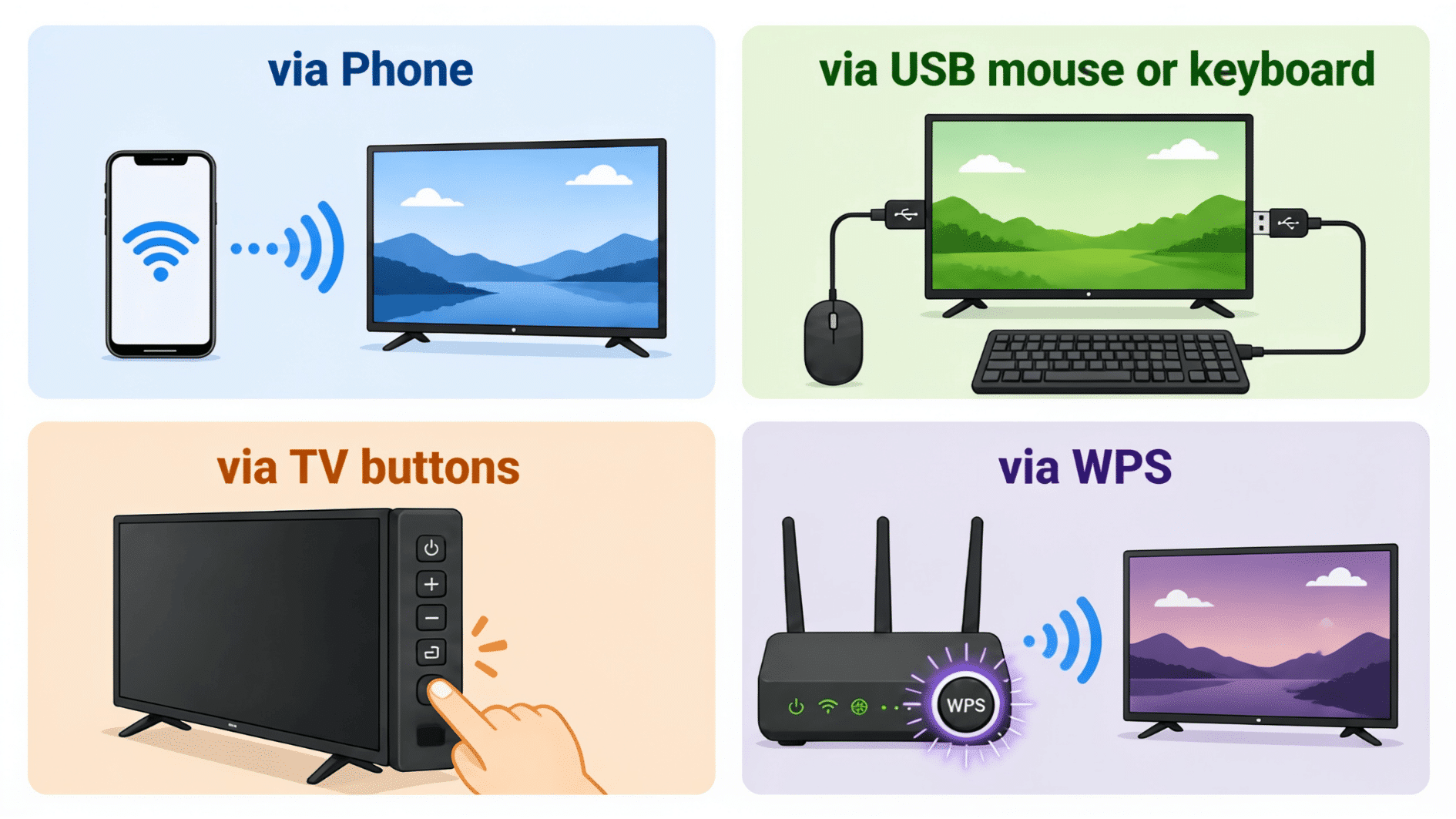
Depending on what you have at hand- a smartphone, a USB mouse, or even just your router: one of these four methods will get your TV back online without needing the original remote:
1. Use Your Smartphone as a Remote
If you have a smartphone, there is a good chance you can use it to fully control your TV because most major TV brands have official apps that turn your phone into a remote control.
Most of these apps connect over your local network using your phone’s WiFi, so you do not need Bluetooth or an internet connection to get started – just the same network. Here is a quick list:
| Brand | Official TV App | Key Feature |
|---|---|---|
| Samsung | SmartThings | Remote control, screen mirroring, and smart home integration |
| LG | LG ThinQ | TV controls, voice commands, and device management |
| Sony | Video & TV SideView | TV remote, channel guide, and media browsing |
| TCL | TCL Home | Basic TV controls and smart device connectivity |
| Vizio | SmartCast | TV remote, app casting, and content streaming |
How to use it:
- Download the app for your TV brand from the App Store or Google Play Store.
- Make sure your phone is connected to the same WiFi network your TV was previously connected to, or to a hotspot if your TV has never been connected.
- Open the app and follow the on-screen instructions to pair with your TV.
- Once paired, open the remote function inside the app.
- On your TV, navigate to Settings > Network > WiFi, then select your network.
Note: If you have an Android TV from any brand, the Android TV Remote Control app works across most models.
2. Use a Universal Remote App
If your TV brand does not offer a dedicated app, a universal remote app becomes the next practical option for controlling your TV and accessing WiFi settings.
Once paired, you can navigate the TV menu, open settings, and reach the network setup section to connect to WiFi.
How to use Universal Remote App:
- Choose an app suited to your phone and TV.
- Check your connection method. These apps work in one of two ways: IR Blaster and Wifi/Network Control.
- Download and install the app from the Google Play Store or Apple App Store.
- Pair the app with your TV by following the in-app setup – this usually means selecting your TV brand/model or letting the app auto-detect it over WiFi or Bluetooth.
- Use the app like a remote to navigate your TV’s on-screen menu.
- Open Settings, then Network or WiFi, and select your home network from the list.
- Enter your WiFi password using the app’s on-screen keyboard, then tap Confirm to connect.
3. Use Google Home or Amazon Alexa App
If your TV supports Google Assistant or Amazon Alexa, you may be able to use the Google Home app or pair Alexa to control basic functions.
How to Control
- Open Google Home and look for your TV under Devices.
- Tap the TV, select Remote, and navigate to Settings.
- For Alexa, say: “Alexa, open WiFi settings on my TV.”
Note: This method works best if your TV was already partially set up with these services. It is a great backup if the app-based pairing is not working.
4. Use a USB Mouse to Navigate TV Settings
If the app method does not work, using a USB mouse or keyboard is a simple and reliable alternative.
Most smart TVs, including Android TV and Amazon Fire TV models, support plug-and-play USB devices through built-in ports, similar to the various monitor connection types found on other screens.
Once connected, you can easily navigate menus, open settings, and access WiFi options without a remote control. This makes navigating TV settings much faster and more convenient.
How to Plug In a USB Mouse:
- Locate the USB port on your TV. It is usually on the side or back panel.
- Plug in a standard wired or wireless USB mouse (the kind you use with a computer).
- Wait a few seconds. A cursor should appear on your TV screen.
- Use the mouse to navigate to Settings> Network> WiFi.
- Select your network and enter your password.
Note: This method is surprisingly smooth once the cursor appears. Most people who have tried it say it works exactly like using a mouse on a computer, just on a bigger screen.
5. Use a Wireless USB Keyboard
A USB keyboard is especially helpful when you need to type your WiFi password. Long or complex passwords with special characters are painful to enter using a remote’s on-screen keyboard.
- Plug your USB keyboard’s receiver into the TV’s USB port.
- Use the arrow keys to navigate and Enter to select.
- Type your WiFi password directly when prompted.
Note: This works well on Android TV, Fire TV, and Samsung’s Tizen OS. It may not be recognized on all TV models, so if it does not respond after a minute, try a different USB port.
6. Use the Physical Buttons on Your TV
Every TV has at least a few physical buttons built directly into the unit. They are the last resort for most people, but they work reliably and do not require any extra device.
Common buttons you will find: Power, Volume Up/Down, Channel Up/Down, Menu, and sometimes a multi-function joystick that handles all navigation.
Here is a general step-by-step guide that works for most smart TVs:
- Press the Menu button (sometimes labeled Settings or shown as a gear icon).
- Use the Volume or Channel buttons to navigate up and down through the menu.
- Look for a Network or Connection option and select it.
- Find WiFi or Wireless Network Setup and select it.
- Choose your network name from the list.
- Use the on-screen keyboard to enter your WiFi password – this is the slow part, but take your time.
- Confirm and connect.
Note: If your password is something like, “MyWiFi@Home#2024”, entering it character by character with TV buttons would be tedious. A simpler password is much faster in the process.
7. Connect via the WPS Button on Your Router
WPS stands for WiFi Protected Setup. It is a feature built into most modern routers that allows devices to connect automatically when you press a button – no password entry required.
Many smart TVs support WPS connection through their network settings menu.
Follow these steps:
- On your TV, navigate to Settings > Network > WiFi Setup using the physical buttons or a USB mouse.
- Look for an option labeled “WPS Push Button” or “WPS Connection”.
- Select it. Your TV will start searching for a WPS signal.
- Within 2 minutes, press the WPS button on your router (usually on the back or side, labeled WPS).
- Your TV and router will handshake automatically – and your TV will connect to WiFi without a password.
Real User Experiences About Connecting to Wifi without Remote
You are not the first person to lose a remote and scramble to connect a TV to WiFi. Many community forums and boards are full of people who have been in exactly your situation, and they have shared what worked for them.
“My remote is broken and we just got new WiFi installed. How am I supposed to connect the TV to WiFi without a remote other than buying a new one?” – Jeremy Cook, Quora
Users shared several ways to connect a TV to WiFi without a remote, including mobile apps, built-in TV buttons, and WPS setup. The right option depends on the TV brand and model.
“The simplest is to set the new router with the same network ID and password.” – William Mussatto Quora LG Thread
One user suggested renaming the new router with the same WiFi name and password as the old network. This can help the LG TV reconnect automatically without requiring manual changes to settings.
“I just fixed mine with the same problem! I could not get the remote to operate the firestick and unfortunately the Wifi was not connected yet so I could not yet use my phone App.” – Carina lea, iFixit
Fire TV Stick users recommended changing the new WiFi SSID and password to match the old saved network. This works because the device may connect on its own once it recognizes the network.
“Lost remote and changed WiFi networks, how do I set up Apple to new WiFi network.” – Apple Community
An Apple TV user fixed the issue by connecting the device through Ethernet first. After that, they enabled Bluetooth and used an Apple keyboard to reach the WiFi settings.
“Anyone got any ideas how to get the TV onto the new wifi network using only the 3 buttons on the back??” – Reddit
Users discussed several practical options, such as using TV brand apps, Ethernet, USB keyboards, router renaming, WPS, and physical TV buttons. The best fix depends on the TV setup.
Which Method Should You Go With?
How to connect TV to wifi without a remote depends on the method you choose, what you have available at home, and how your TV responds. Here’s how you can decide what would work for you:
| Option | Best For | Quick Note |
|---|---|---|
| Universal remote app | Simplest first try | Quick to use and requires no extra devices. |
| USB mouse or keyboard | Android TVs and Fire TVs | Makes menu navigation easier when the remote is missing. |
| WPS button | No-password setup | Works only if both your TV and router support WPS. |
| TV physical buttons | Last backup option | May help you open settings when other methods fail. |
Note: The best approach is to try the easiest method first, then move to the next option if needed. This way, you can connect your TV to WiFi without wasting time or getting stuck.
Final Thoughts
And that’s really all there is to it. Once the app finds your TV, everything else feels just like using the real remote, maybe even easier. No app worked on the first try for everyone, so don’t stress if it takes a restart or two.
Worst case, the router’s just too far or the phone hopped onto mobile data by mistake. Fix that, and pairing usually goes smoothly. So next time a remote goes missing, skip the panic.
Now you know the answer to “how to connect TV to wifi without remote”-it’s often the fastest fix around.
Frequently Asked Questions
Can I Connect My TV to Wi-Fi Without a Remote if It Has Never Been Set Up Before?
Yes, but you will need to use a USB keyboard or the physical buttons on your TV to complete the first-time setup since phone apps require the TV to already be on a network.
Will My TV Automatically Reconnect to Wi-Fi after a Power Outage without a Remote?
Yes, most smart TVs remember the last connected network and reconnect automatically when powered back on, so no remote is needed.
Can I use a PS4 or Xbox Controller Instead of A Remote to navigate TV settings?
Yes, plugging a PS4 or Xbox controller into your TV’s USB port can allow navigation on some smart TV models, particularly Samsung and Android TVs.
Does a VPN on My Phone Affect the TV brand app’s ability to detect my TV?
Yes, an active VPN on your phone can prevent the app from detecting your TV since both devices must appear on the same local network.