


You opened your Galaxy settings and spotted something called AR Zone, then wondered what you’d actually stumbled onto.
I did the same thing the first time I saw it, and honestly, the name alone doesn’t explain much.
You might’ve noticed a strange avatar that looked oddly familiar, or some odd measuring tool that popped up out of nowhere. Suddenly you’re asking questions: what is the AR Zone app? Is it even useful? Should it stay on your phone at all?
Before you uninstall anything or start second-guessing your settings, here’s everything worth knowing about the AR Zone app, laid out clearly below.
What is the AR Zone App?
AR Zone is a Samsung feature that brings augmented reality experiences to supported Galaxy phones and tablets. AR stands for augmented reality, a technology that places digital content over the real-world view shown through your device’s camera.
AR Zone is part of Samsung’s Galaxy software experience, not an unknown third-party service.
Depending on your Galaxy model and One UI version, it may appear as a built-in feature, while Samsung may organize some AR functions differently on newer devices.
Tools Inside the AR Zone Samsung
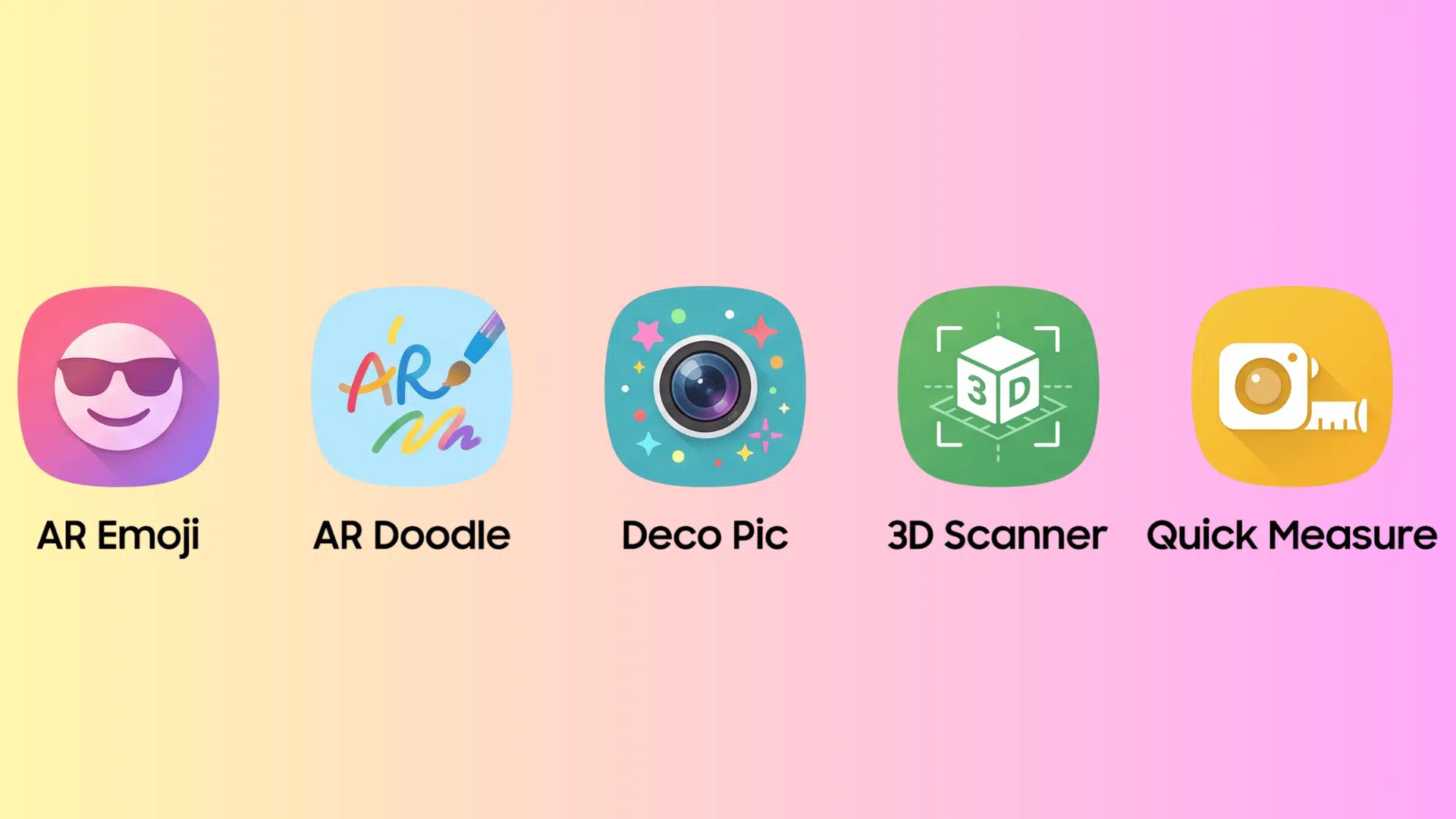
AR Zone brings several Samsung augmented reality features together, though the exact lineup can vary by Galaxy model and software version. Each feature serves a different creative or practical purpose.
The tools below show what you may find and what each one can do.
1. AR Emoji / Galaxy Avatar
AR Emoji lets you build a virtual character based on your appearance and then personalize how it looks. On newer Samsung software, you may see it called Galaxy Avatar.
I find its purpose easiest to understand through what you can create with it.
- Personalized character: Generates a digital version based on facial characteristics.
- Custom styling: Offers choices for clothing, hair, and appearance details.
- Photos and videos: Produces media featuring your finished character.
- Sticker creation: Turns expressions into graphics for conversations and posts.
- Software changes: Appears under the Galaxy Avatar name on newer supported versions.
2. AR Doodle
AR Doodle lets you sketch over scenes shown through your camera while capturing a moment. Your artwork can stay connected to a person or place as the camera moves. Its main uses include:
- Live drawing: Add handwriting or artwork while recording footage.
- Face tracking: Keeps supported drawings connected to a moving face.
- Space tracking: Anchors supported artwork to a position in your surroundings.
- Creative clips: Makes recordings more playful without separate editing software.
- Newer availability: May require a separate Galaxy Store download on recent software.
3. Deco Pic
Deco Pic adds playful visual elements while you use the camera, making it suited to quick, casual content. You can preview the additions before taking the shot. The available options may include:
- Live stickers: Place decorative graphics over the camera view.
- Animated effects: Apply moving visual elements while shooting.
- Decorative frames: Surround your shot with themed designs.
- Instant capture: Save the finished result without editing afterward.
- Device availability: Offered on selected Galaxy models and software versions.
4. Quick Measure
Quick Measure uses augmented reality to help estimate the dimensions of real-world items with a compatible Galaxy device. I see it as one of the more practical uses of Samsung’s AR technology.
- Object sizing: Estimates dimensions of supported physical items.
- Distance estimates: Calculates certain real-world spaces using compatible hardware.
- Everyday checks: Helps with quick sizing tasks involving furniture or other objects.
- Hardware requirements: Depends on compatible sensors and is unavailable on many models.
- Approximate results: Suits convenient estimates rather than precision measurements.
5. 3D Scanner
3D Scanner was designed to turn a physical item captured from different angles into a virtual model. It belongs mainly to an earlier generation of Samsung’s AR experience. Its notable characteristics include:
- Digital models: Converts supported physical items into three-dimensional files.
- Camera capture: Records an item’s form from multiple viewing angles.
- Depth sensing: Relies on compatible Galaxy hardware for spatial information.
- Limited support: Works only with certain older Galaxy devices.
- Legacy status: Is not part of the standard feature set on current models.
Note: Not every Galaxy device shows all five tools inside the AR Zone app. Samsung has adjusted the lineup across different models and software updates, so your version may look slightly different.
Managing AR Zone On Your Device
Your options for managing AR Zone depend on your Galaxy model and software version. Some devices offer more control than others. The options below explain what each available setting does:
1. Uninstall AR Zone
Uninstalling removes the app from your phone when Samsung provides that option. Go to Settings > Apps, select AR Zone or the related AR app, and tap Uninstall if available. This makes sense if you no longer use the feature and want to remove an optional app.
2. Disable AR Zone
Disabling stops a supported built-in app without fully removing its system files. Open Settings > Apps > AR Zone and tap Disable if your device shows the option. Use this when you do not use AR Zone but cannot uninstall it.
3. Hide AR Zone
Hiding removes the app icon from view without deleting or disabling the app. On supported Galaxy phones, open Home screen settings > Hide apps on Home and Apps screens, then select the app you want to hide. It is useful if you simply want a cleaner Apps screen.
4. Manage AR Zone Permissions
Permissions control which phone features an app can access. Go to Settings > Apps, choose the relevant AR app, and tap Permissions to review or change available access. This is worth checking if you want more control over camera, microphone, or other permissions.
5. Clear AR Zone Cache and Data
Clearing the cache removes temporary files, while clearing data resets stored app information and settings. Go to Settings > Apps > AR Zone > Storage, then choose the option that applies. Try clearing the cache first if the app is slow or acting strangely, since clearing data is a bigger reset.
Methods for Finding AR Zone On Your Device
Where you find AR Zone depends on your Galaxy model and One UI version. Samsung has changed how some AR features are organized on newer devices.
Method 1: Open It Through the Camera App
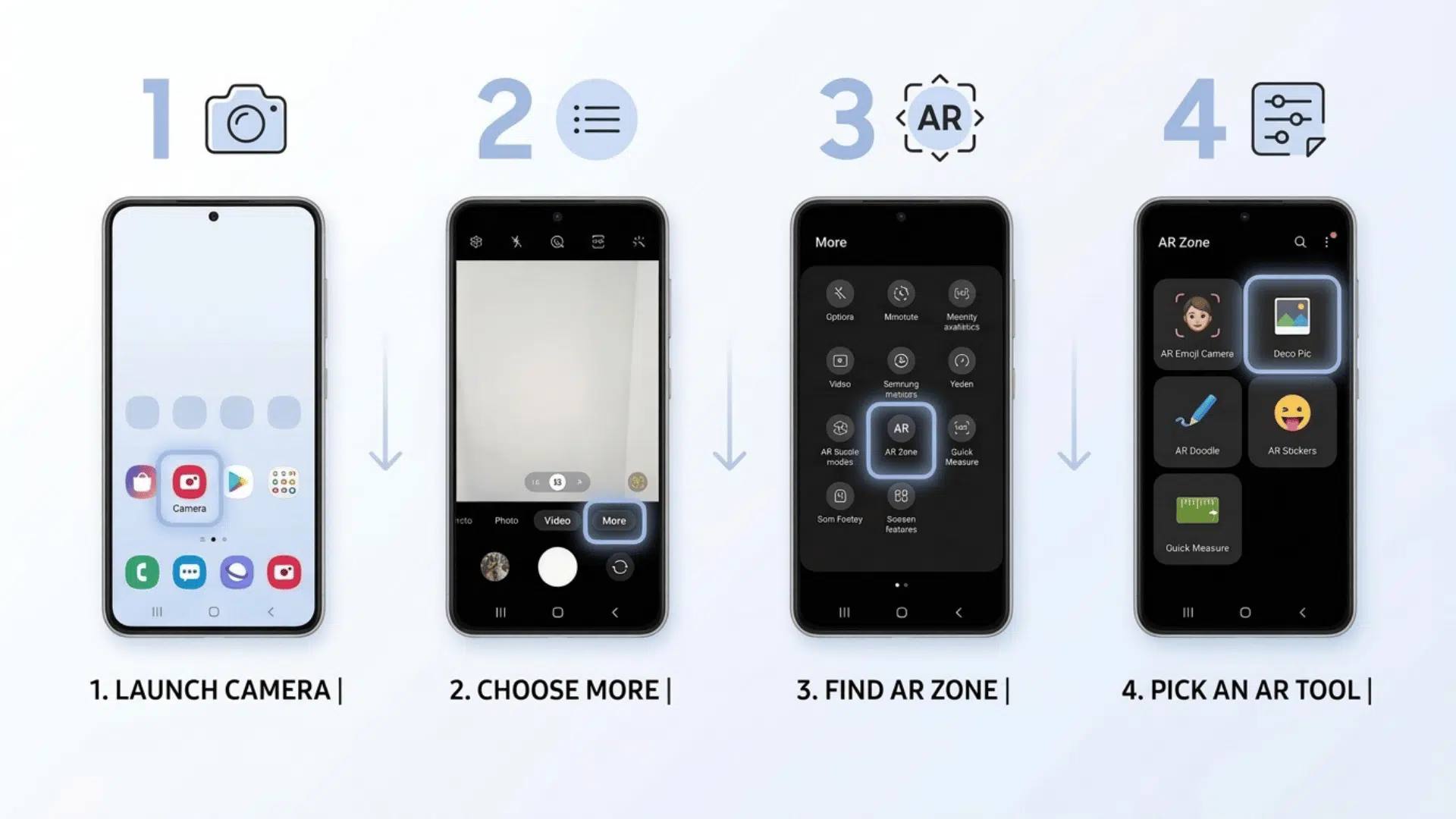
If your phone came with AR Zone preloaded, this is usually the fastest way to get to it. Samsung placed it directly inside the Camera app during this period.
This means you do not need to hunt through settings or download anything separately. If your device is on the older side and AR Zone came with it out of the box, this is where you should start.
- Open the Camera app.
- Tap More at the bottom of the screen.
- Look for AR Zone in the options.
- Select the AR feature you want to use.
Method 2: Find Galaxy Avatar or Separate AR Apps
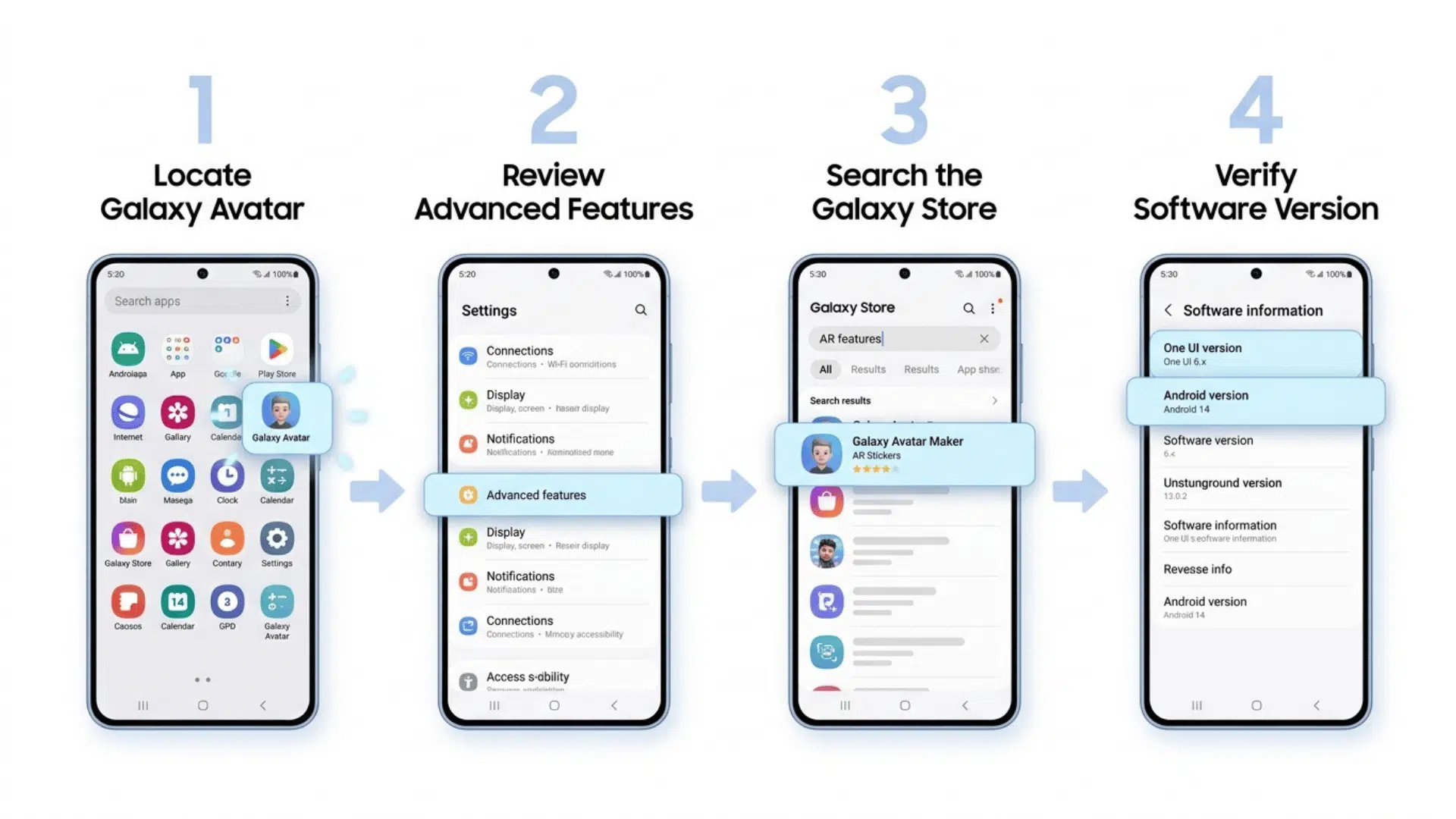
On newer Galaxy devices running One UI 7 or later, Samsung split things up. AR Zone
Samsung may no longer appear as a single hub. Instead, its tools are spread out and go by different names. Rather than one app holding everything, you’ll now look for individual tools scattered across your drawer and settings.
- Search your app drawer for Galaxy Avatar.
- Go to Settings, tap Advanced features, and check for any AR tools listed there.
- Open the Galaxy Store and search for the specific AR tool you are looking for.
- To confirm your setup, go to Settings, tap About phone, then Software information to check your Android and One UI versions.
How AR Zone Has Changed In the Newer Galaxy Models
Samsung has gradually moved away from treating AR Zone as one all-in-one destination. On newer Galaxy software, the bigger change is how these tools are organized and accessed, rather than what augmented reality itself does.
This means instructions written for an older Galaxy phone may not match what appears on a newer one. A missing AR Zone icon also does not always mean its features are gone.
Some may now appear under a different name, in a different location, or in a separate app. In short, your Galaxy model and One UI version determine the AR Zone experience you get.
Do You Need AR Zone on Your Phone?
No, you do not need AR Zone for everyday phone use. Its value mainly depends on whether you use Samsung’s AR and creative features.
|
Situation |
Keep It If |
You May Not Need It If |
|---|---|---|
|
Avatars |
You create Galaxy Avatars |
You never use avatars |
|
Stickers |
You share custom stickers |
You use regular emojis |
|
AR Doodle |
You draw on videos |
You record standard videos |
|
Deco Pic |
You use camera effects |
You prefer normal photos |
|
Quick Measure |
You measure objects with AR |
You use another measuring app |
|
Social content |
You create playful posts |
You rarely use camera effects |
|
AR tools |
You enjoy AR features |
You have no use for AR |
|
App usage |
You open these tools often |
You rarely or never use them |
|
Everyday use |
You want extra creative tools |
You only need basic phone features |
Is the AR Zone App Safe?
Yes, the official AR Zone app on a Samsung Galaxy device is generally safe to use. It is a Samsung feature built for supported Galaxy phones and tablets, not an unknown third-party app.
Because AR Zone uses camera-based features, it may need access to certain phone functions. Samsung lets you review and change app permissions at any time through Settings > Apps > AR Zone > Permissions.
You can also control camera and microphone access through Galaxy privacy settings. For safety, avoid unofficial AR Zone APK files from third-party websites.
Final Thoughts
By now, I think you’ve got a real answer to what the AR Zone app is, and hopefully it feels a lot less confusing than when you first went looking. Nothing sneaky about it, nothing to overthink either.
From here, it’s really just about what works for you. Some people will find plenty of use in it, others won’t touch it at all, and both are perfectly fine. You’ve already got everything you need to make that call.
Your phone, your choice, and now you’re making it with the full picture instead of guesswork.
Frequently Asked Questions
Can AR Zone Work Without an Internet Connection?
Most core tools work offline. Updates, additional effects, downloads, and Galaxy Store content will still require an active internet connection.
Is AR Zone Available On Non-Samsung Android Phones?
AR Zone Samsung is built only for Galaxy devices. Other Android brands have their own AR tools. Third-party APK downloads do not guarantee compatibility or safety.
Where are AR Zone Photos and Videos Saved?
Media saved inside the AR Zone app generally appears in your Gallery. The exact album may vary depending on the feature and your One UI version.