



Ever glanced at your iPhone and wondered how it already knows your food is almost here or your favorite team just scored?
It almost feels like your phone is staying one step ahead of you. That’s exactly what makes Live Activities on iPhone so useful.
Whether it’s a timer counting down, a ride getting closer, or a delivery on its way, the information stays where you can quickly check it. Sounded impossible at first to me too, but it is actually possible.
If you’re wondering what Live Activities on iPhone are, this guide will show you how it work, which apps support it, and how you can start using it every day.
What Is Live Activities on iPhone?
Live Activities on iPhone are interactive notifications that show real-time updates from supported apps without requiring you to open them.
Instead of sending multiple separate notifications, they display live information in one place and refresh automatically as things change.
You can keep track of sports scores, workouts, and more with just a quick glance. Available on the Lock Screen and, on compatible models, the Dynamic Island, Live Activities on iPhone help you stay informed.
At the same time, you continue using your device, making everyday tasks more convenient and reducing the need to switch between apps repeatedly.
What Can Live Activities Display?
Live Activities on iPhone keep real-time information visible, so you can check important updates with a glance.
Live Activity | What You Can See | How It Helps |
|---|---|---|
Sports Scores | Current score, game time, and match progress | Follow games without opening the sports app |
Food Delivery | Order status and delivery progress | Know when your food is almost there |
Ride Sharing | Driver location and arrival time | See when your ride will arrive |
Directions | Next turn and estimated arrival time | Stay on route with fewer app checks |
Timers | Remaining countdown time | Keep track of cooking, studying, or workouts |
Flights | Gate, boarding, delay, and arrival updates | Stay informed while traveling |
Workouts | Time, distance, and calories burned | Check your workout progress instantly |
Package Tracking | Shipping status and delivery progress | See where your package is at any time |
Step-by-Step Procedure to Use Live Activities

Once you know what Live Activities on iPhone are, getting started only takes a few minutes.
After turning the feature on, supported apps can automatically display live updates on your Lock Screen or Dynamic Island.
Follow these steps to start using Live Activities on iPhone and make the most of real-time notifications:
Step 1: Turn On Live Activities
Before any app can show live updates, you need to make sure Live Activities are enabled on your iPhone. This setting is turned on by default for many users, but it’s worth checking if you don’t see live updates.
- Open the Settings app.
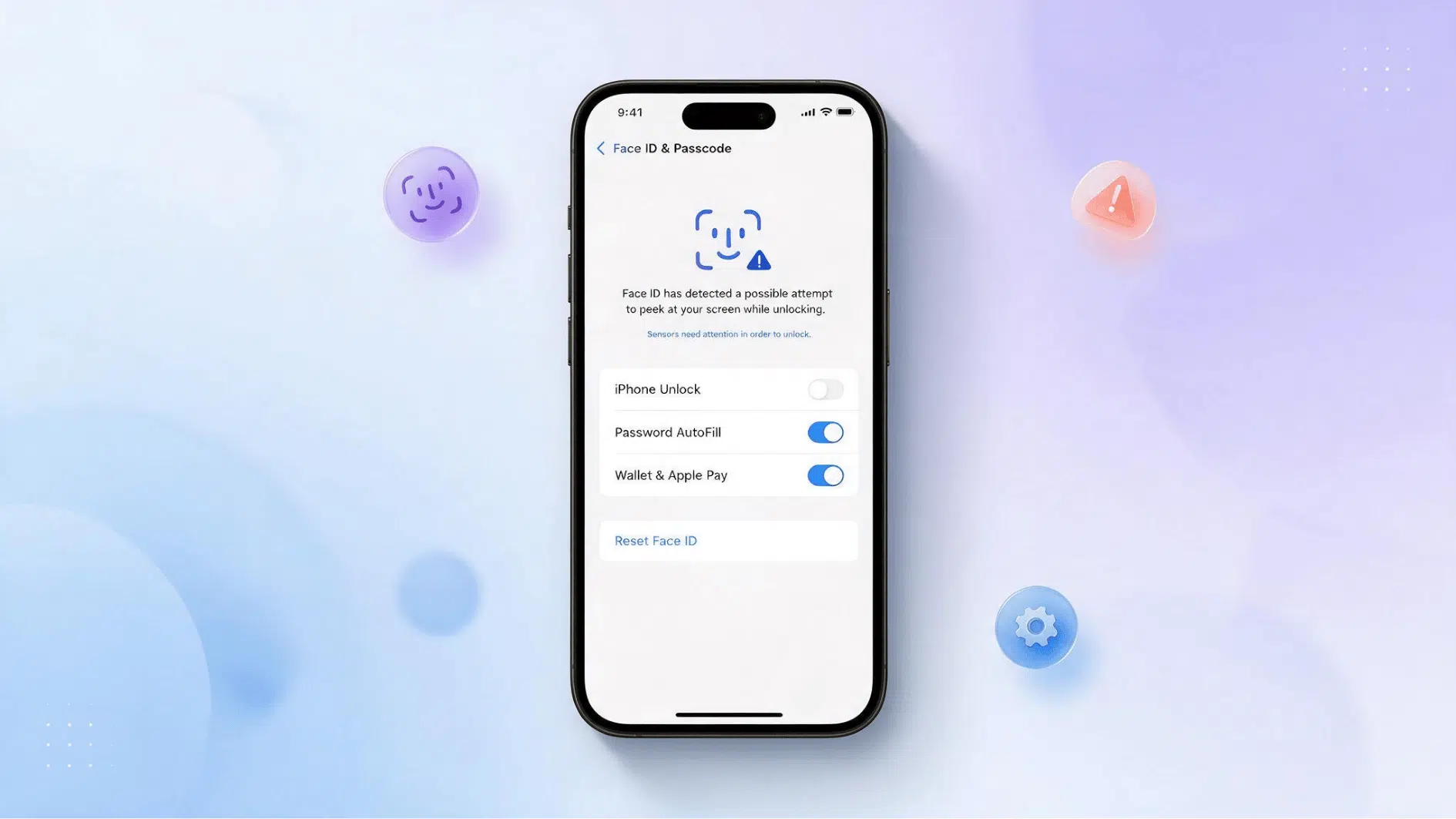
- Tap Face ID & Passcode or Touch ID & Passcode.
- Enter your passcode if prompted.
- Scroll down and turn on Live Activities.
- Make sure notifications are allowed for supported apps.
Tip: If you can’t find the setting, check that your iPhone is running iOS 16.1 or later, as earlier versions don’t support Live Activities.
Step 2: Start a Live Activity
A Live Activity begins automatically when you start a supported task inside an app. This could be placing a food order, starting a workout, requesting a ride, or setting a timer.
- Open a supported app.
- Start an activity, such as a delivery, ride, or timer.
- Allow Live Activities if the app requests permission.
- Lock your iPhone to view the live update.
Tip: Not every app supports Live Activities. If nothing appears, check if the app offers this feature and is updated to the latest version.
Step 3: View and Interact With Live Activities
Once a Live Activity starts, you can check updates without opening the app. Depending on your iPhone model, you’ll see it on the Lock Screen, the Dynamic Island, or both.
- Tap the Live Activity to open the related app.
- Press and hold the Dynamic Island to expand the information.
- Use available controls, if the app supports them.
- Continue using your iPhone while updates stay visible.
Tip: The Dynamic Island is available only on iPhone Pro models 14 and newer that include this feature.
Step 4: Manage Live Activity Settings
If you want fewer live updates or need more privacy, you can manage how each app uses Live Activities iPhone through the Settings app.
- Open Settings and select the app.
- Check the app’s notification options.
- Turn Live Activities on or off for that app.
- Adjust notification settings if needed.
Tip: Disabling Live Activities for one app won’t affect other supported apps on your iPhone.
Step 5: End or Dismiss Live Activities
Most Live Activities disappear automatically when the event finishes. You can also remove them manually if you no longer want them on your screen.
- Swipe away the Live Activity from the Lock Screen.
- End the activity inside the app if needed.
- Wait for completed activities to close automatically.
- Check the app if a Live Activity remains active longer than expected.
Tip: Swiping away a Live Activity hides it from your screen, but it doesn’t always stop the task running in the app.
Apps that Support Live Activities
Many built-in and third-party apps support Live Activities on iPhone, giving you real-time updates directly on your Lock Screen or Dynamic Island.
I have brought you the list of apps that support and make Live Activities iPhone useful for travel, fitness, sports, food delivery, navigation, and everyday tasks:
App | Shows | Useful For |
|---|---|---|
Directions, route progress, arrival time | Checking navigation updates | |
Clock | Timer countdown | Tracking cooking, workouts, or tasks |
Apple Sports | Scores, game time, match updates | Following live games |
Fitness | Workout time, calories, progress | Monitoring activity goals |
Driver location, pickup time, trip status | Tracking rides | |
Driver details and arrival updates | Checking ride progress | |
Order status and delivery tracking | Following food orders | |
Preparation and delivery updates | Tracking meal delivery | |
Flight time, gates, delays, boarding | Managing air travel | |
Shipping and delivery status | Tracking packages | |
Route updates and travel progress | Following trips | |
Time, pace, distance, workout data | Tracking runs |
How Live Activities Improve Everyday iPhone Use
Live Activities make it easier to stay updated on ongoing tasks without constantly opening apps or checking notifications. They bring important information to the places you already look, helping you save time and stay focused.
- Quick access to important updates: See changing information instantly from the Lock Screen or Dynamic Island without searching through apps.
- Less screen switching: Keep track of ongoing activities while staying in your current app or completing other tasks.
- Better multitasking: Follow updates while working, exercising, cooking, commuting, or handling daily routines.
- Faster decision-making: Get timely information that helps you decide when to leave, respond, or take action.
- More useful notifications: Receive updates that change as the activity progresses instead of getting separate alerts.
- A smoother travel experience: Keep important trip details easy to access when you are moving between places.
- Improved focus: Stay informed without repeatedly checking apps, reducing unnecessary interruptions throughout the day.
Final Thoughts
From sports scores and food deliveries to ride tracking and timers, you no longer need to keep opening the same app for the latest information.
Now that you know what Live Activities are on iPhone, turning it on and using supported apps becomes much easier. The feature works quietly in the background, helping you stay informed while you focus on other things.
The next time you notice a live update on your Lock Screen or Dynamic Island, you’ll know exactly how it works and why it’s there.
So go ahead and start using Live Activities on iPhone to make everyday updates quicker and easier to follow.
Frequently Asked Questions
Can You Customize Which Apps Show Live Activities?
Yes. You can manage Live Activities for supported apps throughSettings, allowing you to control which apps can display live updates on your iPhone.
Do Live Activities Work Without an Internet Connection?
It depends on the app. Timers can continue offline, but deliveries, sports scores, and ride tracking usually need an internet connection to stay updated.
How Many Live Activities Can Be Active at Once?
Your iPhone can display more than one Live Activity, but how they appear depends on your device model and the apps currently running.
Do Live Activities Appear On Your Apple Watch?
No. Live Activities are designed for the iPhone Lock Screen and Dynamic Island. Your Apple Watch shows updates through its own notifications and app features instead.