





Finding your exact iPhone model helps when buying accessories, checking compatibility, or looking up device-specific information. The problem is that many iPhone generations share similar designs, making it difficult to identify the model by appearance alone.
The best method depends on your situation. A working iPhone can show the model information directly in Settings, while a locked, damaged, or dead device requires a different approach.
If you are askingwhat iPhone do I have, you can find the answer using three methods: checking Settings, asking Siri, or using the physical model number printed on the device.
What You Need to Know Before You Check
There are three ways to check your iPhone model, and the right one depends on the phone’s condition.
- If the device turns on and you can access it, Settings is the fastest option.
- If you want a hands-free shortcut, Siri can confirm the model name.
- For broken or dead iPhones, physical markings such as the A-number can help identify the device without opening the screen.
Older iPhones and newer SIM-tray-free models use different locations for these markings, so the method depends on your exact hardware.
How to Find Your iPhone Model: Step by Step
The fastest way to identify your iPhone model is through the Settings app. This method works when your phone turns on and you can access the screen normally.
Step 1: Check Whether the iPhone Turns On
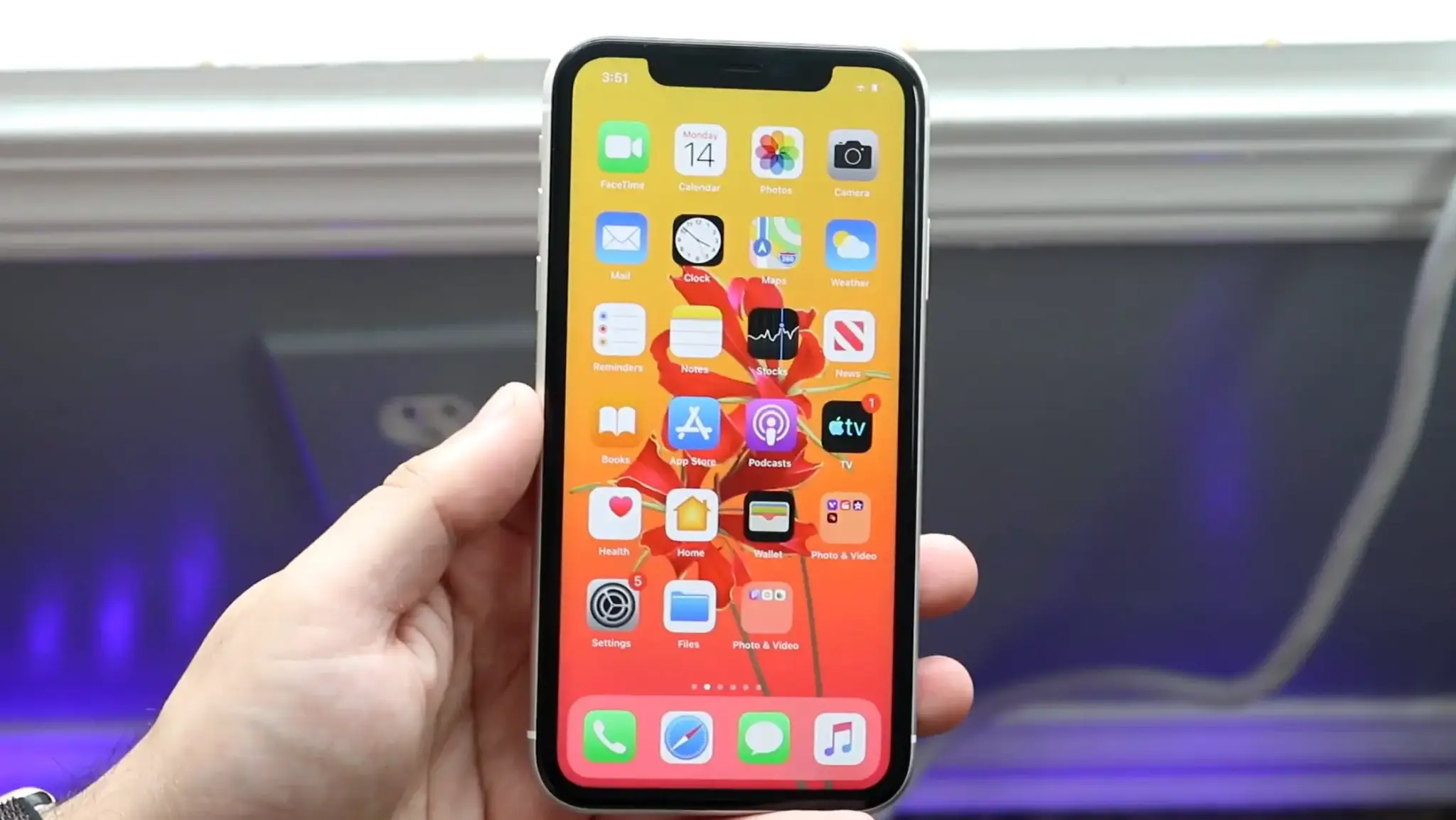
Start by checking whether your iPhone powers on and reaches the Lock Screen or Home Screen. If the device works normally, the Settings app provides the most reliable way to find the exact model information.
If your iPhone does not turn on, do not continue with these steps. A dead or damaged device requires a different method using physical markings found on the phone itself.
Step 2: Open the Settings App
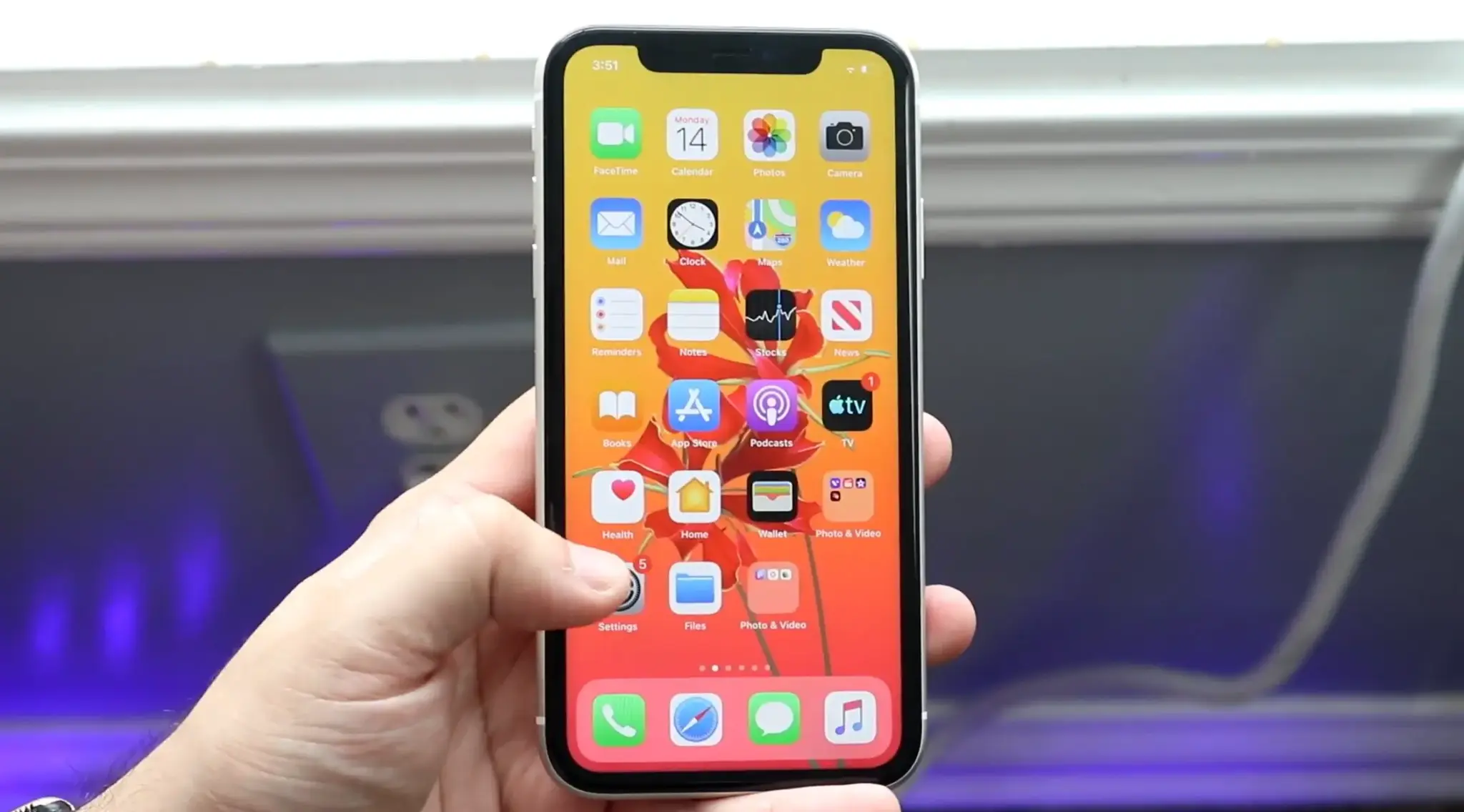
Open the Settings app from your Home Screen. This app contains system information, device controls, and the details Apple stores about your iPhone hardware.
If you cannot find the icon, swipe down from the middle of the Home Screen and search for “Settings.” Tap the gray gear icon to open the app.
Step 3: Select General
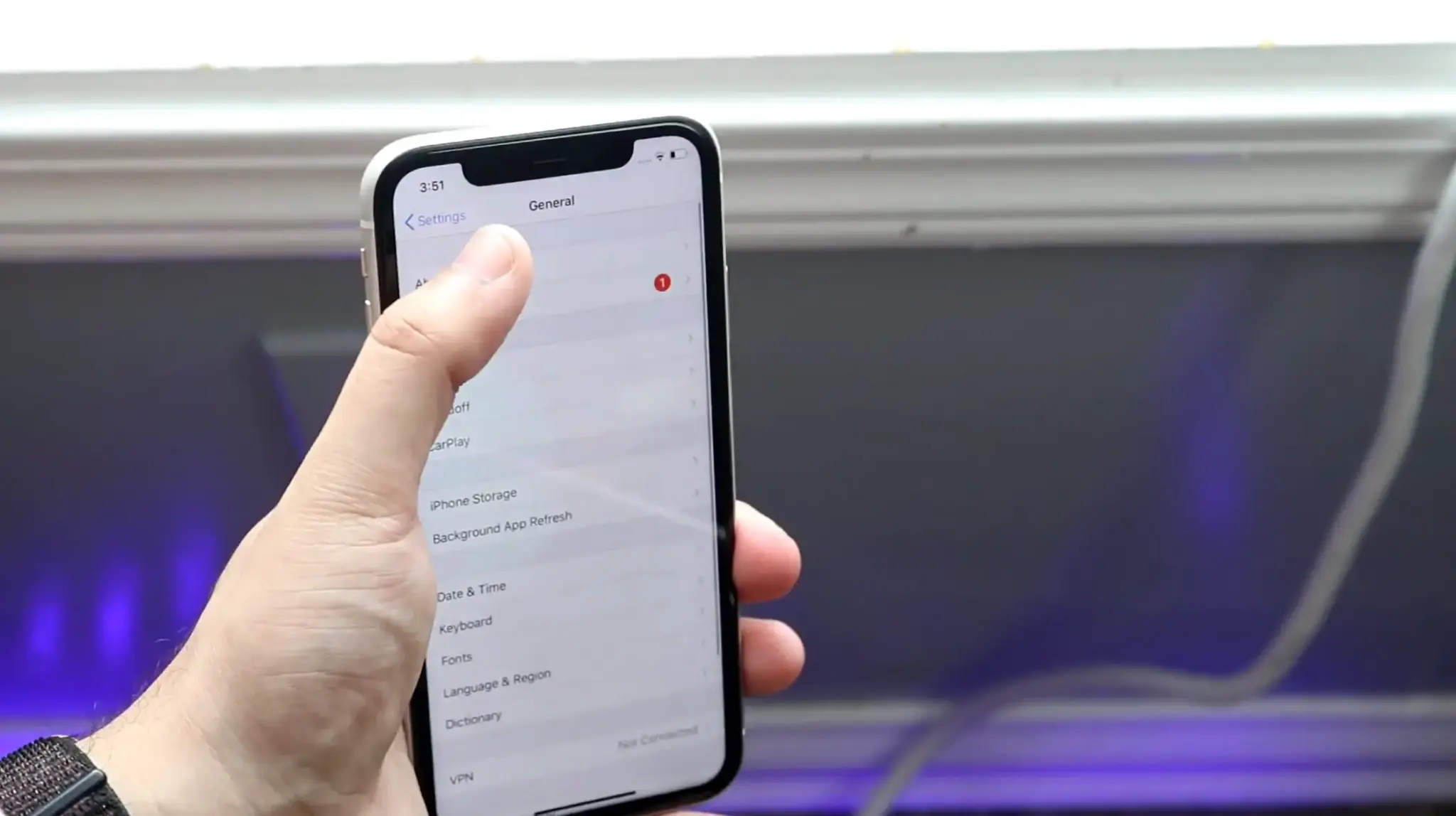
Scroll through the Settings menu and tap General. This section contains important system information, including software details, storage options, and device information.
The General menu is also where Apple places the About page, which contains the details needed to identify your iPhone model accurately.
Step 4: Open the About Screen
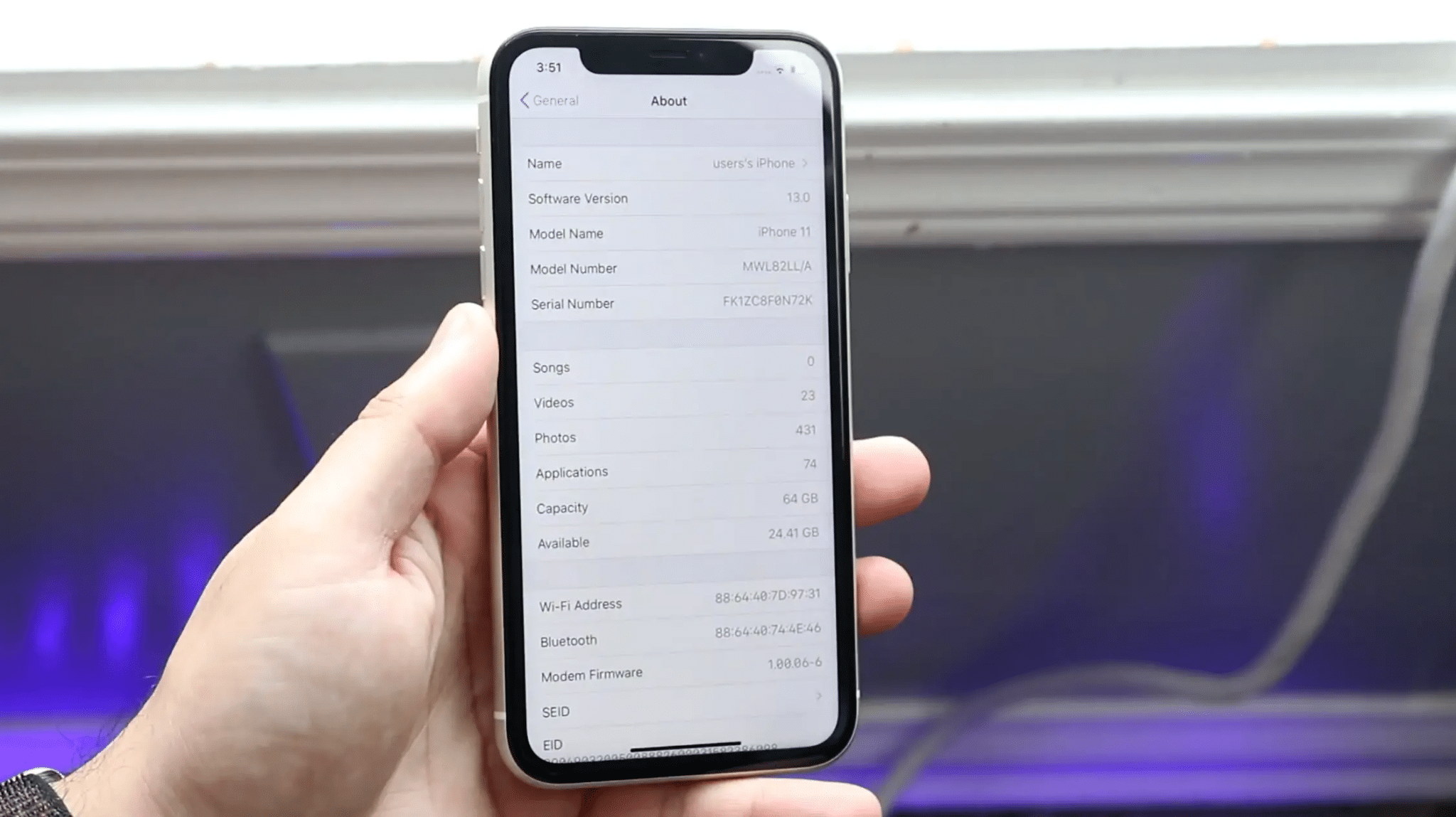
Tap About near the top of the General menu. This page displays your iPhone’s key information, including the Model Name, Model Number, serial number, software version, and storage capacity.
For identifying your device, focus on the Model Name and Model Number. These two fields provide the information needed to confirm which iPhone you own.
Step 5: Read the Model Name
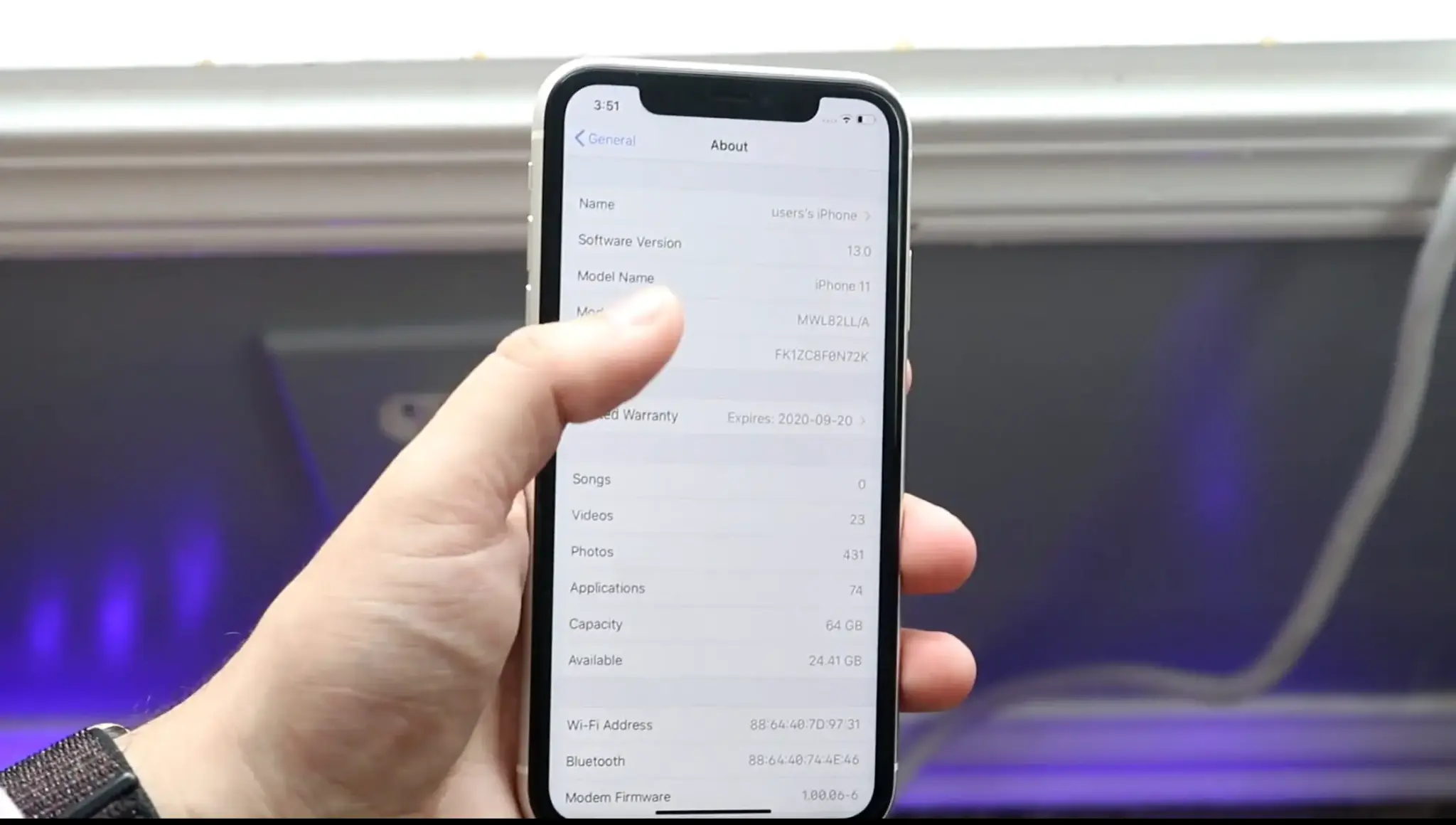
Find the Model Name field on the About screen. This shows the common name of your iPhone, such as iPhone 15 Pro, iPhone 14 Plus, or iPhone SE.
The Model Name is usually enough when you only need to confirm your device generation, buy a basic accessory, or check general compatibility.
However, the Model Name is not the most precise identifier because Apple can release different hardware versions under the same name.
Step 6: Copy the Serial Number
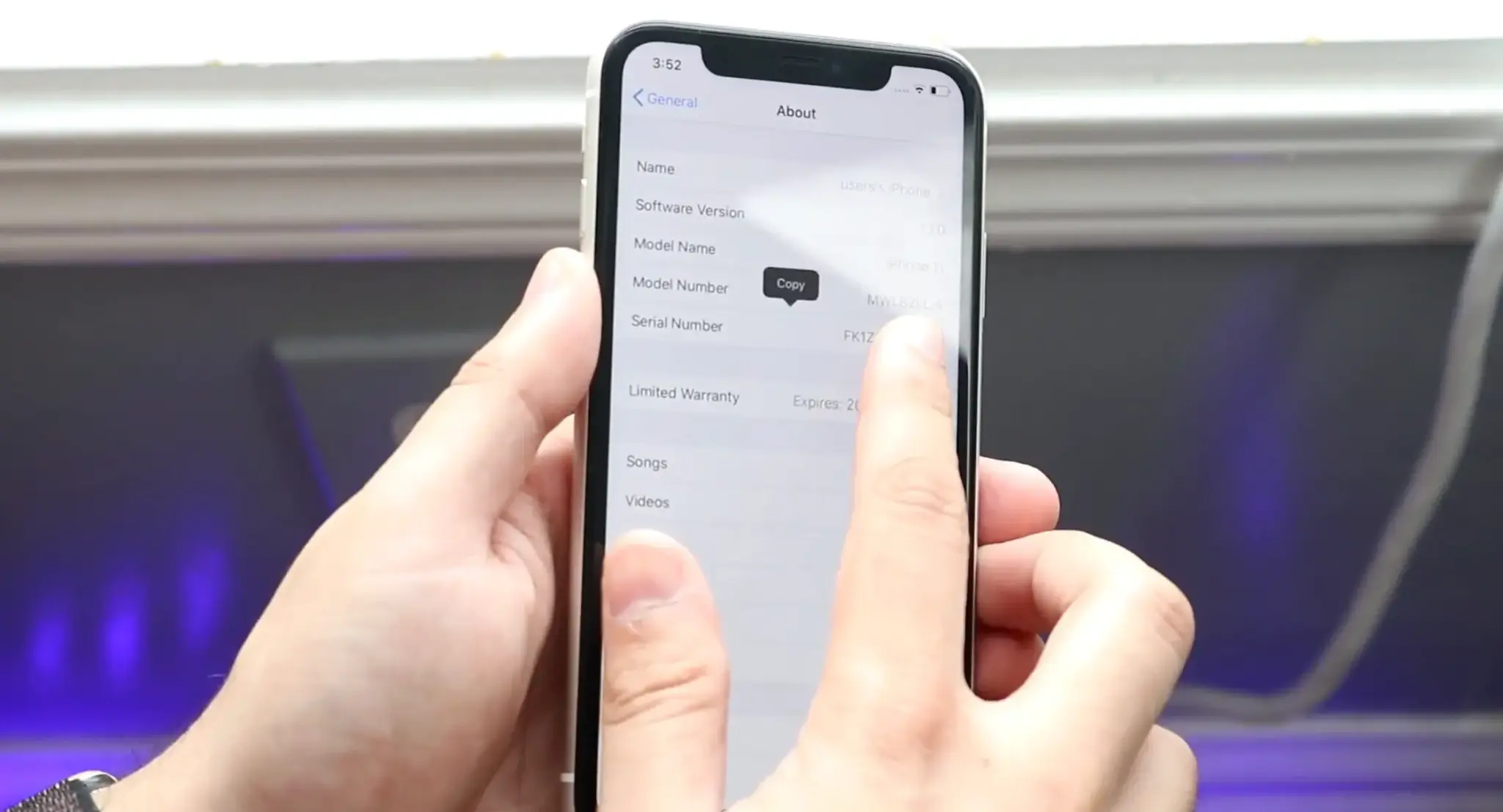
If you need additional device information or Apple support asks for verification, you can copy the Serial Number from the About screen.
Press and hold the Serial Number field, then select Copy. Keep this number private because it identifies your specific iPhone and should only be shared with Apple, your carrier, or a trusted repair provider.
The Serial Number is different from the Model Number. It identifies your individual device, while the Model Number helps identify the hardware version.
Step 7: Check the Serial Number with Apple
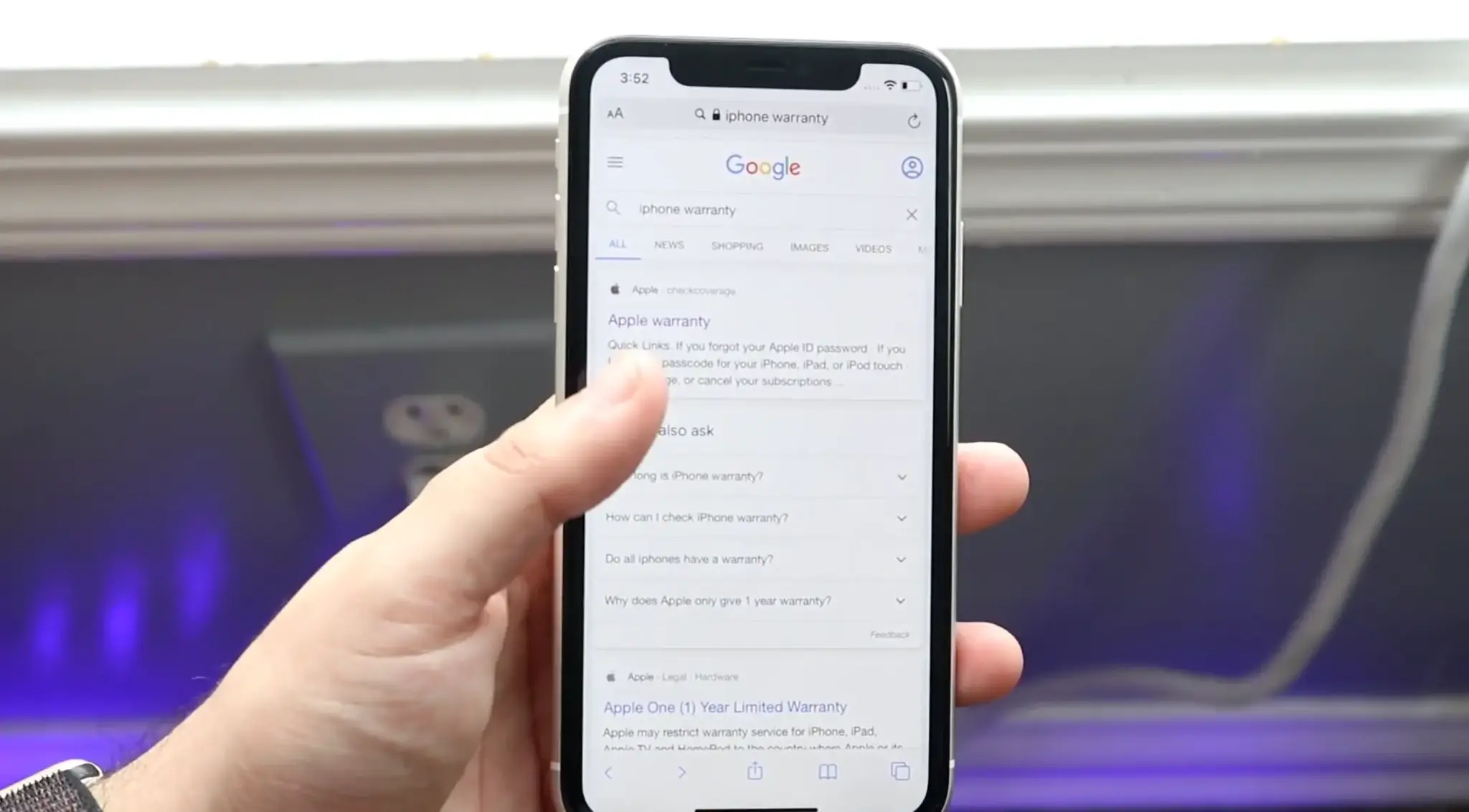
If you need confirmation for support, repairs, or warranty information, use Apple’s official support tools with your device details.
Enter the required information through Apple’s trusted website and review the results shown for your device.
This step is useful when you need official device records, but for simply answering “what iPhone do I have,” the Model Name and A-code from the About screen are usually enough.
For a complete walkthrough of the process, check out the video tutorial below:
Asking Siri to Identify Your iPhone
Siri can provide a quick way to confirm your iPhone model without opening Settings. Activate Siri and ask, “What iPhone do I have?”
Siri will respond with your device’s Model Name, such as an iPhone 15 Pro or iPhone 14. This makes it useful when you need a fast confirmation and do not want to search through menus.
However, Siri only provides the common device name. It does not show the Model Number or A-code, which is the more precise identifier for exact hardware identification.
For a complete check, use Siri as a shortcut and then open Settings > General > About if you need the additional model details.
Checking Your iPhone Model Through a Computer
If your iPhone is nearby but you’d rather not dig through menus, connecting it to a computer works just as well.
On a Mac, open Finder and select your iPhone from the sidebar. The device summary page shows the Model Name along with storage and software details.
On a PC, open iTunes with your iPhone connected and click the device icon near the top left. The same summary information appears, including the model name and current iOS version.
This method is most useful when you’re already backing up or syncing your phone and want the model details without switching over to the Settings app.
How to Check Your Model If the Phone Won’t Turn On
A dead or broken iPhone can still be identified without powering it on. The physical A-number is etched onto certain parts of the device and can help confirm the model.
On iPhone 8 and newer models with a SIM tray, remove the SIM tray and look inside the empty slot. The A-number is printed in the tray area and may require a bright light or another phone’s flashlight to read clearly.
If you have access to another Apple device or a computer, you can also check your Apple ID account page.
Sign in at account.apple.com, scroll to the Devices section, and look for your iPhone listed by model name. This works even if the phone itself is dead, as long as it was previously signed in and connected to that Apple Account
On SIM-tray-free iPhones, check inside the charging port. The same model marking is etched there, and a light source may be needed because the text is very small.
For iPhone 7 and older models, the model number is printed near the bottom of the back cover.
Once you find the A-number, you can compare it with Apple’s official model information to confirm the exact iPhone version.
What the Model Number Actually Tells You
The Model Name and Model Number are not the same thing. The Model Name is the marketing name people recognize, while the A-number is the more precise hardware identifier.
Two iPhones can have the same Model Name but different A-numbers. This happens because Apple releases different hardware versions for different regions, carriers, or markets.
The A-number matters when you need exact compatibility information for repairs, replacement parts, or certain accessories.
For example, two devices sold as the same iPhone model may have differences that affect which components or configurations apply. The Model Name tells you what phone you have, but the A-number tells you which exact hardware version it is.
Conclusion
You do not need to rely on the phone’s appearance to identify your iPhone. The device already stores the information needed to confirm the exact model.
For a quick check, the Model Name is usually enough. When you need a more precise match, the Model Number provides the extra detail needed to avoid confusion between similar iPhone versions.
Whether your iPhone is working normally or the screen is unavailable, there is a reliable way to find its identity without guessing.
Frequently Asked Questions
How Can I Tell Which iPhone Model I Have?
Open Settings, tap General, and select About. Read the Model Name shown there. Tap Model Number if you also need the A-number for the phone’s exact hardware version and region.
Can I Identify an iPhone that will not Turn On?
Yes. Check the original box, Apple Account device list, SIM tray area, charging port, or back cover. These places may show a model name, serial number, IMEI, or A-number code.
Is the Serial Number the Same as the Model Number?
No. The model number identifies a hardware version shared by many phones. The serial number belongs only to your device and should not be posted publicly or shared casually online.
Can I Identify My iPhone from its Cameras?
Physical details can narrow the choices, but they may not prove the exact model. Check Settings or match the A-number with Apple’s model list before buying cases, parts, or accessories.